Add Eazybe wallet credits with a secure one-time payment.
Use Add credits when you want to make one wallet purchase without changing auto-payment settings. You can select a quick amount or enter a custom amount before continuing to checkout.
1
Choose the credit amount
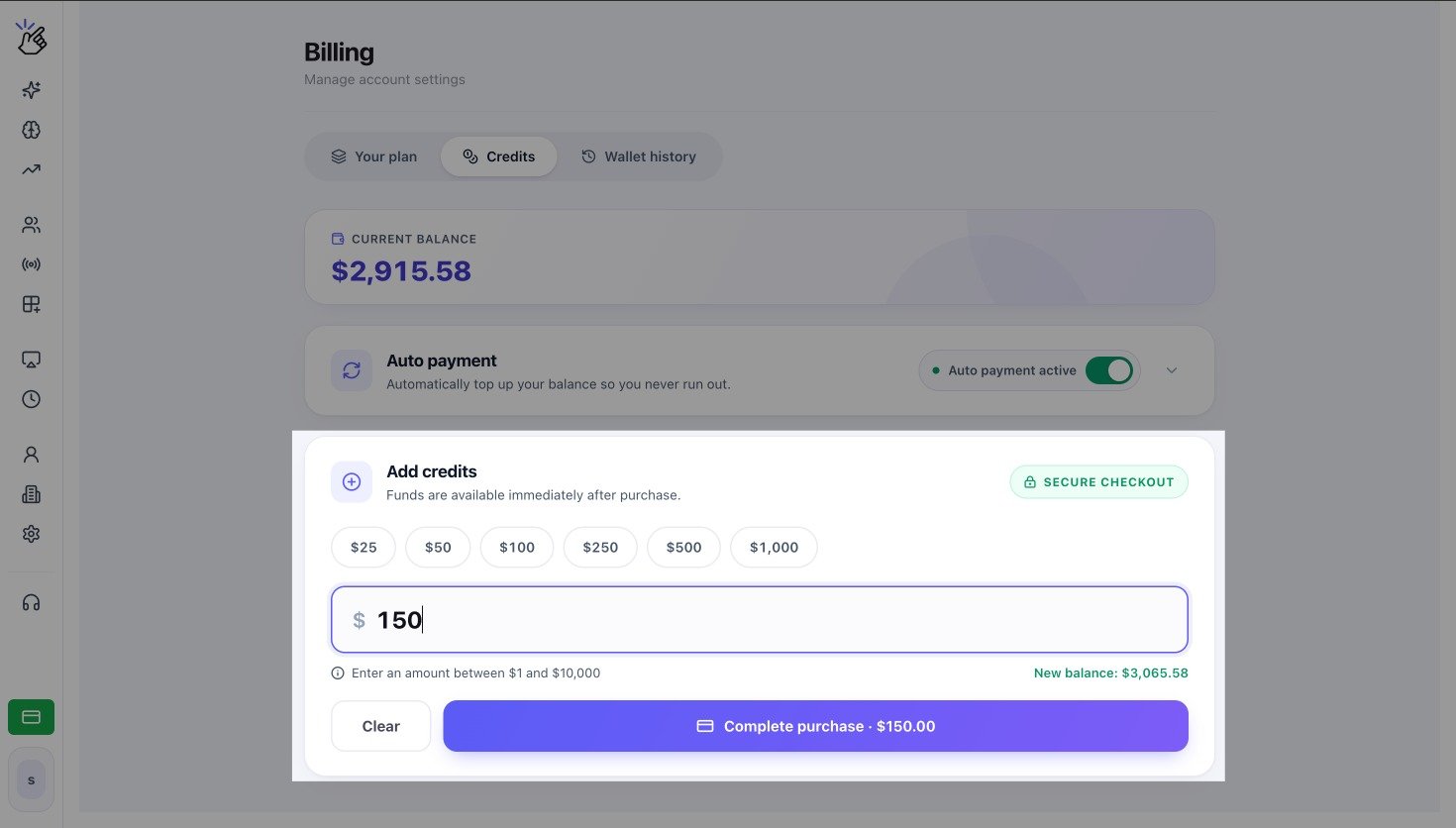
Open Settings → Billing → Credits and find Add credits. Select a quick amount or enter a custom amount. Check the New balance calculation, then select Complete purchase.
The screenshot shows example USD values. Confirm the currency and amount shown in your workspace before continuing. Selecting Complete purchase starts a payment flow.
Review the amount and tax shown by the secure checkout, choose the available payment method, and complete the payment. Return to Credits and confirm that Current balance has increased.
INR wallet
USD wallet
Other currency
Enter an amount from INR 50 to INR 50,000. Add or confirm GST details when requested, review the GST breakdown, and complete payment through Razorpay.
Add credits to an INR wallet
Enter an amount from USD 1 to USD 10,000, then complete payment through Stripe.
Add credits to a USD wallet
Follow the amount range and checkout provider shown on your screen.
Manually adding credit does not enable auto payment or change the saved card, threshold, or recharge amount.
Check whether checkout shows the payment as successful, pending, or failed.
Return to Credits and refresh the page once.
Open Wallet history and find the matching transaction.
If a successful payment is still missing, contact Eazybe Support with the workspace name, amount, currency, payment reference, and payment time.
Do not repeat a payment while the original transaction is pending. A second checkout can create a duplicate charge.
Was this page helpful?
{"docsConfig":{"theme":"mint","$schema":"https://mintlify.com/docs.json","name":"Eazybe","colors":{"primary":"#25D366","light":"#25D366","dark":"#128C7E"},"logo":{"light":"https://mintcdn.com/eazybe/TtjqbPeh2FMWJGex/logo/light.svg?fit=max\u0026auto=format\u0026n=TtjqbPeh2FMWJGex\u0026q=85\u0026s=a91766fca92028f00082929d6e241356","dark":"https://mintcdn.com/eazybe/TtjqbPeh2FMWJGex/logo/dark.svg?fit=max\u0026auto=format\u0026n=TtjqbPeh2FMWJGex\u0026q=85\u0026s=da7117b4a04f56dc6eb7f00e1d608b3f"},"favicon":"https://mintcdn.com/eazybe/TyMNKRVg-iXkJM5t/favicon3.png?fit=max\u0026auto=format\u0026n=TyMNKRVg-iXkJM5t\u0026q=85\u0026s=9b239a885e1067e5a90ddb398e9b242a","api":{"playground":{"display":"simple"},"examples":{"languages":["curl"]}},"search":{"prompt":"Search documentation..."},"seo":{},"styling":{"latex":true},"navigation":{"languages":[{"language":"en","href":"introduction"},{"language":"es","href":"es/introduction"},{"language":"pt","href":"pt/introduction"},{"language":"tr","href":"tr/introduction"}]}},"deployment":{"deploymentMetadataValue":{"subdomain":"eazybe","hasAudioNarration":false,"actualSubdomain":"eazybe","customDomains":["help.eazybe.com"],"gitSource":{"type":"github","owner":"eazybecode","repo":"docs","deployBranch":"main","contentDirectory":"","isPrivate":false,"mountPath":"","label":""},"chroma":{"liveDeploymentHistoryId":"6ada01e68b3d16364f982ee7","collectionId":"c90258c5-91f2-42c8-9e3c-660823f13000","schemaVersion":"v3","latestBuiltDeploymentHistoryId":"6ada01e68b3d16364f982ee7"},"feedback":{"thumbs":true,"edits":false},"entitlements":{},"buildId":"6ada01e68b3d16364f982ee7","clientVersion":"0.0.3939","searchFilterCounts":[{"language":"pt","tag":"Integrações CRM","count":220},{"language":"tr","tag":"CRM Entegrasyonları","count":218},{"language":"es","tag":"Integraciones CRM","count":217},{"language":"en","tag":"CRM Integrations","count":213},{"language":"en","tag":"Guides","count":114},{"language":"pt","tag":"Guias","count":101},{"language":"tr","tag":"Kılavuzlar","count":95},{"language":"es","tag":"Guías","count":90},{"language":"en","tag":"FAQ","count":59},{"language":"es","tag":"HubSpot","count":52},{"language":"pt","tag":"HubSpot","count":52},{"language":"tr","tag":"HubSpot","count":52},{"language":"en","tag":"HubSpot","count":49},{"language":"es","tag":"API Reference","count":46},{"language":"pt","tag":"API Reference","count":46},{"language":"tr","tag":"API Reference","count":46},{"language":"es","tag":"FAQ","count":45},{"language":"pt","tag":"FAQ","count":45},{"language":"tr","tag":"FAQ","count":45},{"language":"en","tag":"Zoho CRM","count":44},{"language":"es","tag":"Zoho CRM","count":44},{"language":"pt","tag":"Zoho CRM","count":44},{"language":"tr","tag":"Zoho CRM","count":44},{"language":"es","tag":"Documentación de la API de WABA","count":43},{"language":"pt","tag":"Documentação da API WABA","count":43},{"language":"tr","tag":"WABA API Dokümantasyonu","count":43},{"language":"es","tag":"Vista Mini-CRM","count":40},{"language":"pt","tag":"Vista Mini-CRM","count":40},{"language":"tr","tag":"Mini-CRM Görünümü","count":40},{"language":"en","tag":"Salesforce","count":37},{"language":"en","tag":"Mini-CRM View","count":35},{"language":"es","tag":"LeadSquared","count":33},{"language":"pt","tag":"LeadSquared","count":33},{"language":"tr","tag":"LeadSquared","count":33},{"language":"es","tag":"Salesforce","count":32},{"language":"pt","tag":"Salesforce","count":32},{"language":"tr","tag":"Salesforce","count":32},{"language":"en","tag":"LeadSquared","count":28},{"language":"en","tag":"API Reference","count":25},{"language":"en","tag":"Bitrix24","count":25}]},"assistantConfig":{"enableAskAiButton":false,"enableStarterQuestions":false,"enableAskAiSearchBar":true},"hasChatPermissions":false,"hasWebMcpPermissions":false,"toggles":[{"name":"kill-isr","enabled":true,"variant":{"name":"disabled","enabled":false,"feature_enabled":true},"impressionData":false},{"name":"agent-mintlify-slack","enabled":true,"variant":{"name":"disabled","enabled":false,"feature_enabled":true},"impressionData":false},{"name":"editor-v7-file-tree","enabled":true,"variant":{"name":"disabled","enabled":false,"feature_enabled":true},"impressionData":false},{"name":"agent-integrations-settings","enabled":true,"variant":{"name":"disabled","enabled":false,"feature_enabled":true},"impressionData":false},{"name":"automations-pr-grouping","enabled":true,"variant":{"name":"disabled","enabled":false,"feature_enabled":true},"impressionData":false},{"name":"custom-prefix","enabled":true,"variant":{"name":"disabled","enabled":false,"feature_enabled":true},"impressionData":false},{"name":"analytics-v7","enabled":true,"variant":{"name":"disabled","enabled":false,"feature_enabled":true},"impressionData":false},{"name":"user-flows-analytics","enabled":true,"variant":{"name":"disabled","enabled":false,"feature_enabled":true},"impressionData":false},{"name":"no-publish-flow","enabled":true,"variant":{"name":"disabled","enabled":false,"feature_enabled":true},"impressionData":false},{"name":"workos-onboarding","enabled":true,"variant":{"name":"disabled","enabled":false,"feature_enabled":true},"impressionData":false},{"name":"llms-txt-v2","enabled":true,"variant":{"name":"disabled","enabled":false,"feature_enabled":true},"impressionData":false},{"name":"pause-universal-search-reconcile","enabled":true,"variant":{"name":"disabled","enabled":false,"feature_enabled":true},"impressionData":false},{"name":"snapshot-serving-live","enabled":true,"variant":{"name":"disabled","enabled":false,"feature_enabled":true},"impressionData":false},{"name":"stripTemperatureMiddleware","enabled":true,"variant":{"name":"disabled","enabled":false,"feature_enabled":true},"impressionData":false},{"name":"per-site-search-delta","enabled":true,"variant":{"name":"disabled","enabled":false,"feature_enabled":true},"impressionData":false},{"name":"support-platform-pylon-zendesk","enabled":true,"variant":{"name":"disabled","enabled":false,"feature_enabled":true},"impressionData":false},{"name":"snapshot-serving","enabled":true,"variant":{"name":"disabled","enabled":false,"feature_enabled":true},"impressionData":false},{"name":"instant-rollback","enabled":true,"variant":{"name":"disabled","enabled":false,"feature_enabled":true},"impressionData":false},{"name":"granular-notifications-server","enabled":true,"variant":{"name":"disabled","enabled":false,"feature_enabled":true},"impressionData":false},{"name":"granular-notifications","enabled":true,"variant":{"name":"disabled","enabled":false,"feature_enabled":true},"impressionData":false},{"name":"editor-private-page-search","enabled":true,"variant":{"name":"disabled","enabled":false,"feature_enabled":true},"impressionData":false},{"name":"automations-fable","enabled":true,"variant":{"name":"disabled","enabled":false,"feature_enabled":true},"impressionData":false},{"name":"fixed-ai-action-pricing","enabled":true,"variant":{"name":"disabled","enabled":false,"feature_enabled":true},"impressionData":false},{"name":"automation-resolve-merge-conflict","enabled":true,"variant":{"name":"disabled","enabled":false,"feature_enabled":true},"impressionData":false},{"name":"scoped-publishing","enabled":true,"variant":{"name":"disabled","enabled":false,"feature_enabled":true},"impressionData":false},{"name":"mintql","enabled":true,"variant":{"name":"disabled","enabled":false,"feature_enabled":true},"impressionData":false},{"name":"page-level-analytics","enabled":true,"variant":{"name":"disabled","enabled":false,"feature_enabled":true},"impressionData":false},{"name":"editor-version-history-v2","enabled":true,"variant":{"name":"disabled","enabled":false,"feature_enabled":true},"impressionData":false},{"name":"editor-nav-generations","enabled":true,"variant":{"name":"disabled","enabled":false,"feature_enabled":true},"impressionData":false},{"name":"billing-page-v2","enabled":true,"variant":{"name":"disabled","enabled":false,"feature_enabled":true},"impressionData":false},{"name":"workspace-projects","enabled":true,"variant":{"name":"disabled","enabled":false,"feature_enabled":true},"impressionData":false},{"name":"assistant-v5","enabled":true,"variant":{"name":"disabled","enabled":false,"feature_enabled":true},"impressionData":false},{"name":"byok-sep-25","enabled":true,"variant":{"name":"disabled","enabled":false,"feature_enabled":true},"impressionData":false},{"name":"fork-pr-previews","enabled":true,"variant":{"name":"disabled","enabled":false,"feature_enabled":true},"impressionData":false},{"name":"revalidation-jwt","enabled":true,"variant":{"name":"disabled","enabled":false,"feature_enabled":true},"impressionData":false},{"name":"vite-origin","enabled":true,"variant":{"name":"disabled","enabled":false,"feature_enabled":true},"impressionData":false},{"name":"editor-agent-model-picker","enabled":true,"variant":{"name":"disabled","enabled":false,"feature_enabled":true},"impressionData":false},{"name":"billing-updated-9-15","enabled":true,"variant":{"name":"disabled","enabled":false,"feature_enabled":true},"impressionData":false},{"name":"hobby-abuse-scan","enabled":true,"variant":{"name":"disabled","enabled":false,"feature_enabled":true},"impressionData":false},{"name":"dashboard-inbox","enabled":true,"variant":{"name":"disabled","enabled":false,"feature_enabled":true},"impressionData":false}],"isAtlas":false,"googleFontsInlined":false},"customCss":[{"filePath":"style.css","content":"html[data-current-path*=\"/api-reference/meta/operations/\"] .api-section-heading-title+.flex.items-center{display:none}html[data-current-path*=\"/api-reference/meta/operations/\"] .api-section>.object-param-field>div>div:has(>div pre)>div:not(:has(pre)){display:none}"}],"page":{"pagePath":"en/billing/wallet-recharge","slug":"/en/billing/wallet-recharge","pageMetadata":{"title":"Add Credits to Your Wallet","description":"Add Eazybe wallet credits with a secure one-time payment.","href":"/en/billing/wallet-recharge"},"description":{"compiledSource":"\"use strict\";\nconst {jsx: _jsx} = arguments[0];\nconst {useMDXComponents: _provideComponents} = arguments[0];\nfunction _createMdxContent(props) {\n const _components = {\n p: \"p\",\n ..._provideComponents(),\n ...props.components\n };\n return _jsx(_components.p, {\n children: \"Add Eazybe wallet credits with a secure one-time payment.\"\n });\n}\nfunction MDXContent(props = {}) {\n const {wrapper: MDXLayout} = {\n ..._provideComponents(),\n ...props.components\n };\n return MDXLayout ? _jsx(MDXLayout, {\n ...props,\n children: _jsx(_createMdxContent, {\n ...props\n })\n }) : _createMdxContent(props);\n}\nreturn {\n default: MDXContent\n};\n","frontmatter":{},"scope":{}},"pageType":"default","mdx":{"mdxSource":{"compiledSource":"\"use strict\";const{Fragment:_Fragment,jsx:_jsx,jsxs:_jsxs}=arguments[0];const{useMDXComponents:_provideComponents}=arguments[0];function _createMdxContent(props){const _components={li:`li`,ol:`ol`,p:`p`,strong:`strong`,..._provideComponents(),...props.components},{Frame,Heading,Note,OptimizedImage,Step,Steps,Tab,Tabs,Warning}=_components;if(!Frame)_missingMdxReference(`Frame`,true);if(!Heading)_missingMdxReference(`Heading`,true);if(!Note)_missingMdxReference(`Note`,true);if(!OptimizedImage)_missingMdxReference(`OptimizedImage`,true);if(!Step)_missingMdxReference(`Step`,true);if(!Steps)_missingMdxReference(`Steps`,true);if(!Tab)_missingMdxReference(`Tab`,true);if(!Tabs)_missingMdxReference(`Tabs`,true);if(!Warning)_missingMdxReference(`Warning`,true);return _jsxs(_Fragment,{children:[_jsxs(_components.p,{children:[`Use `,_jsx(_components.strong,{children:`Add credits`}),` when you want to make one wallet purchase without changing auto-payment settings. You can select a quick amount or enter a custom amount before continuing to checkout.`]}),`\n`,_jsx(Steps,{children:_jsxs(Step,{title:`Choose the credit amount`,children:[_jsxs(_components.p,{children:[`Open `,_jsx(_components.strong,{children:`Settings → Billing → Credits`}),` and find `,_jsx(_components.strong,{children:`Add credits`}),`. Select a quick amount or enter a custom amount. Check the `,_jsx(_components.strong,{children:`New balance`}),` calculation, then select `,_jsx(_components.strong,{children:`Complete purchase`}),`.`]}),_jsx(OptimizedImage,{src:`https://mintcdn.com/eazybe/4wWkvFsdEgURCh_5/images/billing/add-credits.jpeg?fit=max\u0026auto=format\u0026n=4wWkvFsdEgURCh_5\u0026q=85\u0026s=d846b4ca72a39df2c53fd7d77d3dff56`,alt:`Credits tab with quick amounts, custom amount, New balance, Clear, and Complete purchase`,\"data-og-width\":`1470`,width:`1470`,\"data-og-height\":`836`,height:`836`,\"data-path\":`images/billing/add-credits.jpeg`,\"data-optimize\":`true`,\"data-opv\":`3`,srcset:`https://mintcdn.com/eazybe/4wWkvFsdEgURCh_5/images/billing/add-credits.jpeg?w=280\u0026fit=max\u0026auto=format\u0026n=4wWkvFsdEgURCh_5\u0026q=85\u0026s=1eded72711227f3b6048205790c7e4e7 280w, https://mintcdn.com/eazybe/4wWkvFsdEgURCh_5/images/billing/add-credits.jpeg?w=560\u0026fit=max\u0026auto=format\u0026n=4wWkvFsdEgURCh_5\u0026q=85\u0026s=34291dd1c0f0d8d2020bfa28194e6421 560w, https://mintcdn.com/eazybe/4wWkvFsdEgURCh_5/images/billing/add-credits.jpeg?w=840\u0026fit=max\u0026auto=format\u0026n=4wWkvFsdEgURCh_5\u0026q=85\u0026s=de232723e46bbb2bcc8897fe3dd7ad04 840w, https://mintcdn.com/eazybe/4wWkvFsdEgURCh_5/images/billing/add-credits.jpeg?w=1100\u0026fit=max\u0026auto=format\u0026n=4wWkvFsdEgURCh_5\u0026q=85\u0026s=73707072231c3291930a01a64eba7fcd 1100w, https://mintcdn.com/eazybe/4wWkvFsdEgURCh_5/images/billing/add-credits.jpeg?w=1650\u0026fit=max\u0026auto=format\u0026n=4wWkvFsdEgURCh_5\u0026q=85\u0026s=c1e7b2040e25133b379fc00eed0b3ee4 1650w, https://mintcdn.com/eazybe/4wWkvFsdEgURCh_5/images/billing/add-credits.jpeg?w=2500\u0026fit=max\u0026auto=format\u0026n=4wWkvFsdEgURCh_5\u0026q=85\u0026s=08bbdcff03b2d0a421f6e213c746c39b 2500w`}),_jsx(Warning,{children:_jsxs(_components.p,{children:[`The screenshot shows example USD values. Confirm the currency and amount shown in your workspace before continuing. Selecting `,_jsx(_components.strong,{children:`Complete purchase`}),` starts a payment flow.`]})})]})}),`\n`,_jsx(Heading,{level:`2`,id:`complete-checkout`,children:`Complete Checkout`}),`\n`,_jsxs(_components.p,{children:[`Review the amount and tax shown by the secure checkout, choose the available payment method, and complete the payment. Return to `,_jsx(_components.strong,{children:`Credits`}),` and confirm that `,_jsx(_components.strong,{children:`Current balance`}),` has increased.`]}),`\n`,_jsxs(Tabs,{children:[_jsxs(Tab,{title:`INR wallet`,id:`inr-wallet`,children:[_jsx(_components.p,{children:`Enter an amount from INR 50 to INR 50,000. Add or confirm GST details when requested, review the GST breakdown, and complete payment through Razorpay.`}),_jsx(Frame,{caption:`Add credits to an INR wallet`,children:_jsx(OptimizedImage,{src:`https://mintcdn.com/eazybe/Zmdl3MMKf0X4dbOi/images/billing/add-credits-inr.jpeg?fit=max\u0026auto=format\u0026n=Zmdl3MMKf0X4dbOi\u0026q=85\u0026s=14e27d83e83a65c88e3f4610aba93373`,alt:`Eazybe Credits tab for an INR wallet showing quick amounts, a custom INR amount, new balance, and Complete purchase`,\"data-og-width\":`1468`,width:`1468`,\"data-og-height\":`839`,height:`839`,\"data-path\":`images/billing/add-credits-inr.jpeg`,\"data-optimize\":`true`,\"data-opv\":`3`,srcset:`https://mintcdn.com/eazybe/Zmdl3MMKf0X4dbOi/images/billing/add-credits-inr.jpeg?w=280\u0026fit=max\u0026auto=format\u0026n=Zmdl3MMKf0X4dbOi\u0026q=85\u0026s=8c8b3a70c87ff3825f3b9f0a4d2c898a 280w, https://mintcdn.com/eazybe/Zmdl3MMKf0X4dbOi/images/billing/add-credits-inr.jpeg?w=560\u0026fit=max\u0026auto=format\u0026n=Zmdl3MMKf0X4dbOi\u0026q=85\u0026s=6814699ea2068cfe3157011c2ada90e6 560w, https://mintcdn.com/eazybe/Zmdl3MMKf0X4dbOi/images/billing/add-credits-inr.jpeg?w=840\u0026fit=max\u0026auto=format\u0026n=Zmdl3MMKf0X4dbOi\u0026q=85\u0026s=fb285e6b11949a414dc2c3fc1247d5a9 840w, https://mintcdn.com/eazybe/Zmdl3MMKf0X4dbOi/images/billing/add-credits-inr.jpeg?w=1100\u0026fit=max\u0026auto=format\u0026n=Zmdl3MMKf0X4dbOi\u0026q=85\u0026s=4751cd5f7939fbd0fd49cc596d939c58 1100w, https://mintcdn.com/eazybe/Zmdl3MMKf0X4dbOi/images/billing/add-credits-inr.jpeg?w=1650\u0026fit=max\u0026auto=format\u0026n=Zmdl3MMKf0X4dbOi\u0026q=85\u0026s=2b4df89b4d4fc7a7dae33fc365eb593e 1650w, https://mintcdn.com/eazybe/Zmdl3MMKf0X4dbOi/images/billing/add-credits-inr.jpeg?w=2500\u0026fit=max\u0026auto=format\u0026n=Zmdl3MMKf0X4dbOi\u0026q=85\u0026s=254d969edd5ebdb6d812a680990d55c0 2500w`})})]}),_jsxs(Tab,{title:`USD wallet`,id:`usd-wallet`,children:[_jsx(_components.p,{children:`Enter an amount from USD 1 to USD 10,000, then complete payment through Stripe.`}),_jsx(Frame,{caption:`Add credits to a USD wallet`,children:_jsx(OptimizedImage,{src:`https://mintcdn.com/eazybe/Zmdl3MMKf0X4dbOi/images/billing/add-credits-usd.png?fit=max\u0026auto=format\u0026n=Zmdl3MMKf0X4dbOi\u0026q=85\u0026s=eac42ddeae9fe1ceb85735fec220c950`,alt:`Eazybe Credits tab for a USD wallet showing quick amounts, a custom USD amount, new balance, and Complete purchase`,\"data-og-width\":`2940`,width:`2940`,\"data-og-height\":`1670`,height:`1670`,\"data-path\":`images/billing/add-credits-usd.png`,\"data-optimize\":`true`,\"data-opv\":`3`,srcset:`https://mintcdn.com/eazybe/Zmdl3MMKf0X4dbOi/images/billing/add-credits-usd.png?w=280\u0026fit=max\u0026auto=format\u0026n=Zmdl3MMKf0X4dbOi\u0026q=85\u0026s=9d9dcca7e4613a5eb55c3f90e3458fa2 280w, https://mintcdn.com/eazybe/Zmdl3MMKf0X4dbOi/images/billing/add-credits-usd.png?w=560\u0026fit=max\u0026auto=format\u0026n=Zmdl3MMKf0X4dbOi\u0026q=85\u0026s=6de8d02e3a54bec0ad26617d31a136d8 560w, https://mintcdn.com/eazybe/Zmdl3MMKf0X4dbOi/images/billing/add-credits-usd.png?w=840\u0026fit=max\u0026auto=format\u0026n=Zmdl3MMKf0X4dbOi\u0026q=85\u0026s=60974f3098486533305173da99893430 840w, https://mintcdn.com/eazybe/Zmdl3MMKf0X4dbOi/images/billing/add-credits-usd.png?w=1100\u0026fit=max\u0026auto=format\u0026n=Zmdl3MMKf0X4dbOi\u0026q=85\u0026s=3f882d3237f33e52f1b9537a021bf86f 1100w, https://mintcdn.com/eazybe/Zmdl3MMKf0X4dbOi/images/billing/add-credits-usd.png?w=1650\u0026fit=max\u0026auto=format\u0026n=Zmdl3MMKf0X4dbOi\u0026q=85\u0026s=5a1e27bed1f3ce5929293015386a099f 1650w, https://mintcdn.com/eazybe/Zmdl3MMKf0X4dbOi/images/billing/add-credits-usd.png?w=2500\u0026fit=max\u0026auto=format\u0026n=Zmdl3MMKf0X4dbOi\u0026q=85\u0026s=0fbcbc42f991f04c972c9caafb3e53e2 2500w`})})]}),_jsx(Tab,{title:`Other currency`,id:`other-currency`,children:_jsx(_components.p,{children:`Follow the amount range and checkout provider shown on your screen.`})})]}),`\n`,_jsx(Note,{children:_jsx(_components.p,{children:`Manually adding credit does not enable auto payment or change the saved card, threshold, or recharge amount.`})}),`\n`,_jsx(Heading,{level:`2`,id:`if-the-balance-does-not-update`,children:`If the Balance Does Not Update`}),`\n`,_jsxs(_components.ol,{children:[`\n`,_jsx(_components.li,{children:`Check whether checkout shows the payment as successful, pending, or failed.`}),`\n`,_jsxs(_components.li,{children:[`Return to `,_jsx(_components.strong,{children:`Credits`}),` and refresh the page once.`]}),`\n`,_jsxs(_components.li,{children:[`Open `,_jsx(_components.strong,{children:`Wallet history`}),` and find the matching transaction.`]}),`\n`,_jsx(_components.li,{children:`If a successful payment is still missing, contact Eazybe Support with the workspace name, amount, currency, payment reference, and payment time.`}),`\n`]}),`\n`,_jsx(Warning,{children:_jsx(_components.p,{children:`Do not repeat a payment while the original transaction is pending. A second checkout can create a duplicate charge.`})})]})}function MDXContent(props={}){const{wrapper:MDXLayout}={..._provideComponents(),...props.components};return MDXLayout?_jsx(MDXLayout,{...props,children:_jsx(_createMdxContent,{...props})}):_createMdxContent(props)}return{default:MDXContent};function _missingMdxReference(id,component){throw new Error(`Expected `+(component?`component`:`object`)+\" `\"+id+\"` to be defined: you likely forgot to import, pass, or provide it.\")}","frontmatter":{},"scope":{"config":{},"pageMetadata":{"title":"Add Credits to Your Wallet","description":"Add Eazybe wallet credits with a secure one-time payment.","href":"/en/billing/wallet-recharge"}}},"mdxSourceWithNoJs":null},"mdxExtracts":{"tableOfContents":[{"title":"Complete Checkout","slug":"complete-checkout","depth":2,"children":[]},{"title":"If the Balance Does Not Update","slug":"if-the-balance-does-not-update","depth":2,"children":[]}],"codeExamples":{}},"jsLinks":[],"subdomain":"eazybe","siteName":"Eazybe","title":"Add Credits to Your Wallet - Eazybe","navMaps":{"firstHrefInVersion":{},"firstHrefInLanguage":{"en":{"href":"/en/billing/wallet-recharge","matchLevel":0},"es":{"href":"/es/billing/wallet-recharge","matchLevel":1},"pt":{"href":"/pt/billing/wallet-recharge","matchLevel":1},"tr":{"href":"/tr/billing/wallet-recharge","matchLevel":1}}},"lastModified":"2026-08-21T03:50:47.698Z","originalFileLocation":"en/billing/wallet-recharge.mdx","locale":"en"},"headHtml":"\u003cscript data-mint-head>(function(){var d=document.documentElement,p=null;if(!p){try{p=localStorage.getItem(\"isDarkMode\")}catch(e){}if(p==='true')p='dark';else if(p==='false')p='light';if(p!=='light'\u0026\u0026p!=='dark'\u0026\u0026p!=='system')p=\"system\"}var r=p==='system'?(matchMedia(\"(prefers-color-scheme: dark)\").matches?'dark':'light'):p;d.classList.remove(r==='dark'?'light':'dark');d.classList.add(r);d.setAttribute(\"data-theme-preference\",p)})();\u003c/script>\u003cmeta data-mint-head name=\"description\" content=\"Add Eazybe wallet credits with a secure one-time payment.\">\u003cmeta data-mint-head name=\"application-name\" content=\"Eazybe\">\u003cmeta data-mint-head name=\"generator\" content=\"Mintlify\">\u003clink data-mint-head rel=\"icon\" type=\"image/png\" sizes=\"192x192\" href=\"/mintlify-assets/_mintlify/favicons/eazybe/8d_rplKX7vJFV0iB/_generated/favicon/android-chrome-192x192.png\" media=\"(prefers-color-scheme: light)\">\u003clink data-mint-head rel=\"apple-touch-icon\" type=\"image/png\" sizes=\"180x180\" href=\"/mintlify-assets/_mintlify/favicons/eazybe/8d_rplKX7vJFV0iB/_generated/favicon/apple-touch-icon.png\">\u003clink data-mint-head rel=\"icon\" type=\"image/png\" sizes=\"16x16\" href=\"/mintlify-assets/_mintlify/favicons/eazybe/8d_rplKX7vJFV0iB/_generated/favicon/favicon-16x16.png\" media=\"(prefers-color-scheme: light)\">\u003clink data-mint-head rel=\"icon\" type=\"image/png\" sizes=\"32x32\" href=\"/mintlify-assets/_mintlify/favicons/eazybe/8d_rplKX7vJFV0iB/_generated/favicon/favicon-32x32.png\" media=\"(prefers-color-scheme: light)\">\u003clink data-mint-head rel=\"shortcut icon\" type=\"image/x-icon\" href=\"/mintlify-assets/_mintlify/favicons/eazybe/8d_rplKX7vJFV0iB/_generated/favicon/favicon.ico\" media=\"(prefers-color-scheme: light)\">\u003clink data-mint-head rel=\"icon\" type=\"image/png\" sizes=\"192x192\" href=\"/mintlify-assets/_mintlify/favicons/eazybe/8d_rplKX7vJFV0iB/_generated/favicon-dark/android-chrome-192x192.png\" media=\"(prefers-color-scheme: dark)\">\u003clink data-mint-head rel=\"icon\" type=\"image/png\" sizes=\"16x16\" href=\"/mintlify-assets/_mintlify/favicons/eazybe/8d_rplKX7vJFV0iB/_generated/favicon-dark/favicon-16x16.png\" media=\"(prefers-color-scheme: dark)\">\u003clink data-mint-head rel=\"icon\" type=\"image/png\" sizes=\"32x32\" href=\"/mintlify-assets/_mintlify/favicons/eazybe/8d_rplKX7vJFV0iB/_generated/favicon-dark/favicon-32x32.png\" media=\"(prefers-color-scheme: dark)\">\u003clink data-mint-head rel=\"shortcut icon\" type=\"image/x-icon\" href=\"/mintlify-assets/_mintlify/favicons/eazybe/8d_rplKX7vJFV0iB/_generated/favicon-dark/favicon.ico\" media=\"(prefers-color-scheme: dark)\">\u003cmeta data-mint-head property=\"og:title\" content=\"Add Credits to Your Wallet - Eazybe\">\u003cmeta data-mint-head property=\"og:description\" content=\"Add Eazybe wallet credits with a secure one-time payment.\">\u003cmeta data-mint-head property=\"og:site_name\" content=\"Eazybe\">\u003cmeta data-mint-head property=\"og:url\" content=\"https://help.eazybe.com/en/billing/wallet-recharge\">\u003cmeta data-mint-head property=\"og:type\" content=\"website\">\u003cmeta data-mint-head property=\"og:image\" content=\"https://eazybe.mintlify.app/_mintlify/api/og/v2?division=Credits\u0026amp;title=Add+Credits+to+Your+Wallet\u0026amp;description=Add+Eazybe+wallet+credits+with+a+secure+one-time+payment.\u0026amp;theme=5608b398addef50962897bbb\u0026amp;signature=1ae620871c6291bbd9e1dca1c76d2dff9d9f38d9a9fef0f838af955b6f5ff6cc\">\u003cmeta data-mint-head property=\"og:image:width\" content=\"1200\">\u003cmeta data-mint-head property=\"og:image:height\" content=\"630\">\u003cmeta data-mint-head name=\"twitter:card\" content=\"summary_large_image\">\u003cmeta data-mint-head name=\"twitter:title\" content=\"Add Credits to Your Wallet - Eazybe\">\u003cmeta data-mint-head name=\"twitter:description\" content=\"Add Eazybe wallet credits with a secure one-time payment.\">\u003cmeta data-mint-head name=\"twitter:image\" content=\"https://eazybe.mintlify.app/_mintlify/api/og/v2?division=Credits\u0026amp;title=Add+Credits+to+Your+Wallet\u0026amp;description=Add+Eazybe+wallet+credits+with+a+secure+one-time+payment.\u0026amp;theme=5608b398addef50962897bbb\u0026amp;signature=1ae620871c6291bbd9e1dca1c76d2dff9d9f38d9a9fef0f838af955b6f5ff6cc\">\u003cmeta data-mint-head name=\"twitter:image:width\" content=\"1200\">\u003cmeta data-mint-head name=\"twitter:image:height\" content=\"630\">\u003cmeta data-mint-head name=\"msapplication-config\" content=\"/mintlify-assets/_mintlify/favicons/eazybe/8d_rplKX7vJFV0iB/_generated/favicon/browserconfig.xml\">\u003cmeta data-mint-head name=\"apple-mobile-web-app-title\" content=\"Eazybe\">\u003cmeta data-mint-head name=\"msapplication-TileColor\" content=\"#25D366\">\u003clink data-mint-head rel=\"canonical\" href=\"https://help.eazybe.com/en/billing/wallet-recharge\">\u003clink data-mint-head rel=\"alternate\" type=\"application/xml\" href=\"/sitemap.xml\">\u003clink data-mint-head rel=\"alternate\" type=\"text/markdown\" href=\"/en/billing/wallet-recharge.md\">\u003clink data-mint-head rel=\"alternate\" hreflang=\"en\" href=\"https://help.eazybe.com/en/billing/wallet-recharge\">\u003clink data-mint-head rel=\"alternate\" hreflang=\"es\" href=\"https://help.eazybe.com/es/billing/wallet-recharge\">\u003clink data-mint-head rel=\"alternate\" hreflang=\"pt\" href=\"https://help.eazybe.com/pt/billing/wallet-recharge\">\u003clink data-mint-head rel=\"alternate\" hreflang=\"tr\" href=\"https://help.eazybe.com/tr/billing/wallet-recharge\">\u003clink data-mint-head rel=\"alternate\" hreflang=\"x-default\" href=\"https://help.eazybe.com/en/billing/wallet-recharge\">\u003cscript data-mint-head type=\"application/ld+json\">{\"@context\":\"https://schema.org\",\"@graph\":[{\"@type\":\"Organization\",\"@id\":\"https://help.eazybe.com/#organization\",\"name\":\"Eazybe\",\"url\":\"https://help.eazybe.com\",\"logo\":{\"@type\":\"ImageObject\",\"url\":\"https://mintcdn.com/eazybe/TtjqbPeh2FMWJGex/logo/light.svg?fit=max\u0026auto=format\u0026n=TtjqbPeh2FMWJGex\u0026q=85\u0026s=a91766fca92028f00082929d6e241356\"}},{\"@type\":\"WebSite\",\"@id\":\"https://help.eazybe.com#website\",\"name\":\"Eazybe\",\"url\":\"https://help.eazybe.com\",\"publisher\":{\"@id\":\"https://help.eazybe.com/#organization\"}},{\"@type\":\"WebPage\",\"@id\":\"https://help.eazybe.com/en/billing/wallet-recharge#webpage\",\"url\":\"https://help.eazybe.com/en/billing/wallet-recharge\",\"name\":\"Add Credits to Your Wallet\",\"description\":\"Add Eazybe wallet credits with a secure one-time payment.\",\"dateModified\":\"2026-08-21T03:50:47.698Z\",\"isPartOf\":{\"@id\":\"https://help.eazybe.com#website\"},\"breadcrumb\":{\"@id\":\"https://help.eazybe.com/en/billing/wallet-recharge#breadcrumb\"}},{\"@type\":\"BreadcrumbList\",\"@id\":\"https://help.eazybe.com/en/billing/wallet-recharge#breadcrumb\",\"itemListElement\":[{\"@type\":\"ListItem\",\"position\":1,\"name\":\"Billing \u0026 Payment\",\"item\":\"https://help.eazybe.com/en/billing/overview\"},{\"@type\":\"ListItem\",\"position\":2,\"name\":\"Credits\",\"item\":\"https://help.eazybe.com/en/billing/credits-overview\"},{\"@type\":\"ListItem\",\"position\":3,\"name\":\"Add Credits to Your Wallet\",\"item\":\"https://help.eazybe.com/en/billing/wallet-recharge\"}]},{\"@type\":[\"Article\",\"TechArticle\"],\"@id\":\"https://help.eazybe.com/en/billing/wallet-recharge#article\",\"headline\":\"Add Credits to Your Wallet\",\"name\":\"Add Credits to Your Wallet\",\"description\":\"Add Eazybe wallet credits with a secure one-time payment.\",\"url\":\"https://help.eazybe.com/en/billing/wallet-recharge\",\"mainEntityOfPage\":{\"@id\":\"https://help.eazybe.com/en/billing/wallet-recharge#webpage\"},\"dateModified\":\"2026-08-21T03:50:47.698Z\",\"publisher\":{\"@id\":\"https://help.eazybe.com/#organization\"},\"isPartOf\":{\"@id\":\"https://help.eazybe.com#website\"}}]}\u003c/script>\u003cscript data-mint-head type=\"application/ld+json\">{\"@context\":\"https://schema.org\",\"@type\":\"WebSite\",\"name\":\"Eazybe\",\"creator\":{\"@type\":\"Organization\",\"name\":\"Mintlify\",\"url\":\"https://mintlify.com\"}}\u003c/script>","siteName":"Eazybe","nav":{"global":null,"languages":[{"language":"en","tabs":[{"tab":"Guides","groups":[{"group":"Getting Started","icon":"rocket","pages":[{"title":"Introduction","href":"/introduction"},{"title":"Quick Start","href":"/quickstart"},{"group":"Setup","pages":[{"title":"Eazybe Onboarding: Your First Steps to AI-Powered WhatsApp","href":"/en/getting-started/eazybe-onboarding-en"},{"title":"Onboarding to Coexistence via Eazybe","href":"/en/getting-started/onboarding-to-coexistence"}]},{"group":"Cloud WhatsApp","pages":[{"title":"About Cloud WhatsApp","href":"/en/getting-started/cloud-whatsapp/about"},{"title":"How to Connect","href":"/en/getting-started/cloud-whatsapp/how-to-connect"},{"title":"Disconnect Cloud","href":"/en/getting-started/cloud-whatsapp/disconnect"},{"title":"Compliance and Privacy","href":"/en/getting-started/cloud-whatsapp/compliance-and-privacy"},{"group":"FAQ","pages":[{"title":"Connection Check","href":"/en/getting-started/cloud-whatsapp/connection-check"},{"title":"Disconnection Check","href":"/en/getting-started/cloud-whatsapp/disconnection-check"},{"title":"Backup and Scheduling","href":"/en/getting-started/cloud-whatsapp/backup-and-scheduling"},{"title":"CRM Integration","href":"/en/getting-started/cloud-whatsapp/crm-integration"},{"title":"Prerequisites","href":"/en/getting-started/cloud-whatsapp/prerequisites"},{"title":"Connection Issues","href":"/en/getting-started/cloud-whatsapp/connection-issue"},{"title":"Free Trial","href":"/en/getting-started/cloud-whatsapp/free-trial"}]}]}]},{"group":"Team Inbox","icon":"users","pages":[{"title":"Overview","href":"/en/team-inbox-hd/team-inbox-hd-en"},{"title":"Setup \u0026 Access","href":"/en/team-inbox-hd/setup-and-access-en"},{"title":"Find Conversations by Filters","href":"/en/team-inbox-hd/filters-in-team-inbox-en"},{"title":"Manage Conversations","href":"/en/team-inbox-hd/manage-conversations-en"},{"title":"Messages, Templates \u0026 Quick Replies","href":"/en/team-inbox-hd/messages-templates-quick-replies-en"},{"title":"New Chats \u0026 Acquisition","href":"/en/team-inbox-hd/new-chats-and-acquisition-en"},{"title":"AI Features","href":"/en/team-inbox-hd/ai-features-en"},{"title":"Customer Details \u0026 HubSpot","href":"/en/team-inbox-hd/customer-details-and-hubspot-en"},{"title":"Troubleshooting","href":"/en/team-inbox-hd/troubleshooting-en"}]},{"group":"Voice Number","icon":"phone","pages":[{"title":"Overview","href":"/en/voice-number/overview"},{"title":"Dialer","href":"/en/voice-number/dialer"},{"title":"Auto Dialer","href":"/en/voice-number/auto-dialer"},{"title":"Buy and Manage Phone Numbers","href":"/en/voice-number/phone-numbers"},{"title":"Call History","href":"/en/voice-number/call-history"},{"title":"Call Analytics","href":"/en/voice-number/call-analytics"},{"title":"SMS","href":"/en/voice-number/sms"},{"title":"Voice Number Billing","href":"/en/voice-number/billing-subscription"}]},{"group":"Message Templates","icon":"message","pages":[{"title":"Create Template","href":"/en/waba/templates/create-template"},{"title":"Create Template with Extension","href":"/en/waba/templates/create-template-with-extension"},{"title":"How to Create a Template with HubSpot Variables","href":"/en/waba/templates/how-to-create-template-with-hubspot-variables"},{"title":"Utility Templates","href":"/en/waba/templates/utility-templates"},{"title":"Guideline","href":"/en/waba/templates/guideline"}]},{"group":"Broadcasts","icon":"bullhorn","pages":[{"title":"Broadcasts Overview","href":"/en/broadcasts/overview"},{"title":"How Broadcasts Work","href":"/en/broadcasts/how-broadcasts-work"},{"group":"Analytics","pages":[{"title":"Analytics Overview","href":"/en/broadcasts/broadcast-home"},{"title":"Filter Broadcasts and Templates","href":"/en/broadcasts/filter-broadcasts-and-templates"},{"title":"Compare Numbers by Date","href":"/en/broadcasts/compare-numbers-by-date"},{"title":"Customize and Export Reports","href":"/en/broadcasts/customize-and-export-reports"},{"title":"View Broadcast Analytics","href":"/en/broadcasts/view-analytics"}]},{"group":"Create a broadcast","pages":[{"group":"Create Broadcast from Workspace","pages":[{"title":"Create a New Broadcast","href":"/en/broadcasts/create-broadcast"},{"title":"Upload Contacts for a Broadcast","href":"/en/broadcasts/upload-contacts"},{"title":"Broadcast to a HubSpot Contact or Deal Segment","href":"/en/broadcasts/hubspot-contact-list"},{"title":"Template Variables and Personalization","href":"/en/broadcasts/template-variables"},{"title":"Review Estimated Cost and Send","href":"/en/broadcasts/estimated-cost-and-sending"}]},{"title":"Create Broadcast with Extension","href":"/en/waba/broadcasting/create-broadcast-with-extension"},{"title":"Send Ready-to-Use Template through HubSpot Workflow","href":"/en/waba/broadcasting/hubspot-workflow/send-ready-to-use-template"},{"title":"Send Wait and Reply Template through HubSpot Workflow","href":"/en/waba/broadcasting/hubspot-workflow/send-wait-and-reply-template"},{"title":"Send WhatsApp Messages through a Zoho Workflow","href":"/en/waba/broadcasting/zoho-workflow/send-whatsapp-message"}]},{"title":"Troubleshoot Broadcasts","href":"/en/broadcasts/troubleshooting"}]},{"group":"Revenue Inbox","icon":"inbox","pages":[{"title":"Overview","href":"/revenue-inbox/overview"},{"title":"Dashboard","href":"/revenue-inbox/dashboard"},{"group":"Conversation Management","pages":[{"title":"Viewing Conversations","href":"/revenue-inbox/viewing-conversations"},{"title":"Conversation States","href":"/revenue-inbox/conversation-states"},{"title":"Assigning Conversations","href":"/revenue-inbox/assigning-conversations"},{"title":"Internal Notes","href":"/revenue-inbox/internal-notes"},{"title":"Saved Replies","href":"/revenue-inbox/saved-replies"},{"title":"Managing WABA Conversations in Your Team Inbox","href":"/en/revenue-inbox/team-inbox"}]},{"group":"Labels \u0026 Funnels","pages":[{"title":"Labels","href":"/revenue-inbox/labels"},{"title":"Dynamic Labels","href":"/revenue-inbox/dynamic-labels"},{"title":"Funnels","href":"/revenue-inbox/funnels"}]},{"group":"Team Productivity","pages":[{"title":"Response Times","href":"/revenue-inbox/response-times"},{"title":"Unreplied Chats","href":"/revenue-inbox/unreplied-chats"},{"title":"Performance Metrics","href":"/revenue-inbox/performance-metrics"}]}]},{"group":"WhatsApp Business API","icon":"whatsapp","pages":[{"title":"Getting Started","href":"/en/waba/getting-started"},{"title":"Connect with WABA","href":"/en/waba/connect-waba"},{"title":"Back Up 6 Months of WhatsApp Chats","sidebarTitle":"6-Month Chat Backup","href":"/en/waba/6-month-chat-backup"},{"title":"Set Up WABA Disconnect Alerts","href":"/en/waba/waba-disconnect-alerts"},{"title":"Facebook Business Verification","href":"/en/waba/facebook-business-verification"},{"group":"Meta Pricing","pages":[{"title":"Broadcast Rate List (1 October 2026)","href":"/en/waba/broadcast-rate-list-1st-jan-2026"},{"title":"Service Message Charges","href":"/en/waba/service-message-charges"}]},{"group":"Broadcasting","hidden":true,"pages":[{"title":"Template-Based Chatbot","href":"/en/waba/broadcasting/template-based-chatbot"}]},{"group":"Embedded Signup Troubleshooting","pages":[{"title":"Signup Troubleshooting","href":"/en/waba/signup-troubleshooting"},{"title":"Business Partner Already Connected","href":"/en/waba/business-partner-already-connected"}]},{"title":"Connect with Existing WhatsApp","href":"/en/waba/connect-with-existing-whatsapp"},{"title":"Onboarding to Coex/API","href":"/en/waba/onboarding-to-coex-api"},{"title":"FAQ","href":"/en/waba/faq"}]},{"group":"Productivity Tools","icon":"bolt","pages":[{"title":"Message Templates","href":"/productivity/message-templates"},{"title":"Privacy Blur","href":"/productivity/privacy-blur"},{"title":"Start Chat","href":"/en/productivity/start-chat"},{"title":"Quick Reply","href":"/en/productivity/quick-reply"},{"title":"Setting Button","href":"/en/productivity/setting-button"},{"title":"Broadcast Messages","href":"/en/productivity/broadcast-messages"},{"title":"Scheduler Message","href":"/en/productivity/scheduler-message"},{"title":"Managing Unreplied Chats","href":"/en/productivity/managing-unreplied-chats"}]},{"group":"Analytics \u0026 Reports","icon":"chart-line","pages":[{"title":"Analytics Dashboard","href":"/analytics/dashboard"},{"title":"Team Performance","href":"/analytics/team-performance"},{"title":"Conversation Analytics","href":"/analytics/conversation-analytics"},{"title":"Broadcast Reports","href":"/analytics/broadcast-reports"},{"title":"Export Data","href":"/analytics/export-data"}]},{"group":"Billing \u0026 Payment","icon":"credit-card","pages":[{"title":"Billing Overview","href":"/en/billing/overview"},{"title":"Purchase or Manage a Plan","href":"/en/billing/plan-purchase"},{"group":"Credits","pages":[{"title":"Overview","description":"Understand how Eazybe wallet credits work and how to keep paid WhatsApp activity funded.","href":"/en/billing/credits-overview"},{"title":"Add Credits to Your Wallet","href":"/en/billing/wallet-recharge"},{"title":"Set Up Auto Payment","description":"Automatically add credits when an eligible Eazybe wallet reaches a low-balance threshold.","href":"/en/billing/auto-payment"}]},{"title":"Add Billing and Tax Details","href":"/en/billing/billing-taxation"},{"title":"Review Wallet History","href":"/en/billing/wallet-history"}]},{"group":"Account \u0026 Settings","icon":"gear","pages":[{"title":"Team Management","href":"/settings/team-management"},{"title":"Roles \u0026 Permissions","href":"/settings/roles-permissions"},{"title":"SLAs (Response-Time Alerts)","href":"/settings/sla"}]},{"group":"Troubleshooting","icon":"screwdriver-wrench","pages":[{"title":"Common Issues","href":"/troubleshooting/common-issues"},{"title":"Sync Issues","href":"/troubleshooting/sync-issues"},{"title":"Connection Issues","href":"/troubleshooting/connection-issues"},{"title":"Extension Issues","href":"/troubleshooting/extension-issues"},{"title":"FAQ","href":"/troubleshooting/faq"}]},{"group":"FAQ","icon":"circle-question","pages":[{"title":"Account Setup","href":"/en/faq/account-setup"},{"title":"Join Organization","href":"/en/faq/join-organization"},{"title":"Manage Subscription","href":"/en/faq/manage-subscription"},{"title":"Manage Accounts","href":"/en/faq/manage-accounts"},{"title":"Privacy and Compliance","href":"/en/faq/privacy-and-compliance"},{"title":"IT Security Compliance","href":"/en/faq/it-security-compliance"}]}]},{"tab":"CRM Integrations","pages":[{"title":"CRM Integrations","href":"/en/integrations/hubspot/prerequisites"}]},{"tab":"AI Agents","pages":[{"title":"AI Agents","href":"/en/ai-agents/knowledge-base-agent/agent-info"}]},{"tab":"API Reference","pages":[{"title":"API Reference","href":"/api-reference/introduction"}]},{"tab":"Changelog","pages":[{"title":"Changelog","href":"/changelog/overview"}]}]},{"language":"es","pages":[{"title":"es","href":"/es/billing/wallet-recharge"}]},{"language":"pt","pages":[{"title":"pt","href":"/pt/billing/wallet-recharge"}]},{"language":"tr","pages":[{"title":"tr","href":"/tr/billing/wallet-recharge"}]}]},"title":"Add Credits to Your Wallet - Eazybe","buildId":"dpl_5UDDZ9hnigTkoV7QtvQ39eUp84nu","deploymentId":"dpl_5UDDZ9hnigTkoV7QtvQ39eUp84nu","dynamics":["a74be98ba7","07c022d89b"],"chunks":["zoom-image-lightbox-ChyC7Hte.js","PlusIcon-DXkY3IBj.js","lightbox-handle-r17bVUz3.js","Frame-CUTvSGqu.js","DynamicMarkdown-BGu84FgU.js"]}