

Introduction
WhatsApp Coexistence allows businesses to connect their active WhatsApp Business App phone number to the WhatsApp Cloud API — without losing chats, contacts, or requiring re-registration. This guide covers:- What Coexistence is
- Prerequisites before onboarding
- Step-by-step setup process
- Common issues and troubleshooting
- FAQs for beginners
- Best practices after onboarding
What is WhatsApp Coexistence?
Coexistence (Coex) allows businesses to:- Connect the WhatsApp Business App to the Cloud API
- Continue using the Business App normally
- Sync messages and contacts into a Cloud API platform
- Avoid re-registering the number
- Preserve the Verified badge (if applicable)
- Use the same phone number across both Business App and API
- Real-time message and contact synchronization
- Combine human interaction with automation
- Preserve chat history and contacts
- Maintain access to the familiar WhatsApp Business App interface
This is the safest method to migrate to Cloud API without losing data.
Prerequisites
Before starting the onboarding process, ensure you meet these requirements:1
WhatsApp Business Account Required
Your number must be registered on the WhatsApp Business App. Personal WhatsApp numbers are not supported.
2
WhatsApp Business App Version 2.24.17 or Newer
Older versions will fail during QR-linking. Update your app before proceeding.
3
Phone Number Health Requirements
Your number must have:
- Regular WhatsApp activity
- No Meta restrictions
- No policy violations
- Active and genuine usage both before and after the Coexistence connection (real 1:1 conversations and consistent activity for at least 3–7 days)
4
Facebook Business Page with Admin Access
You need admin access to a Facebook Business Page to complete the setup.
5
Meta Business Account Required
A Meta Business Account is required for the integration.
6
Number Eligibility
Your number cannot be currently linked to another WhatsApp API provider.
Step-by-Step Onboarding Process
Initial Setup
1
Email Login
Enter your email address to begin the onboarding process.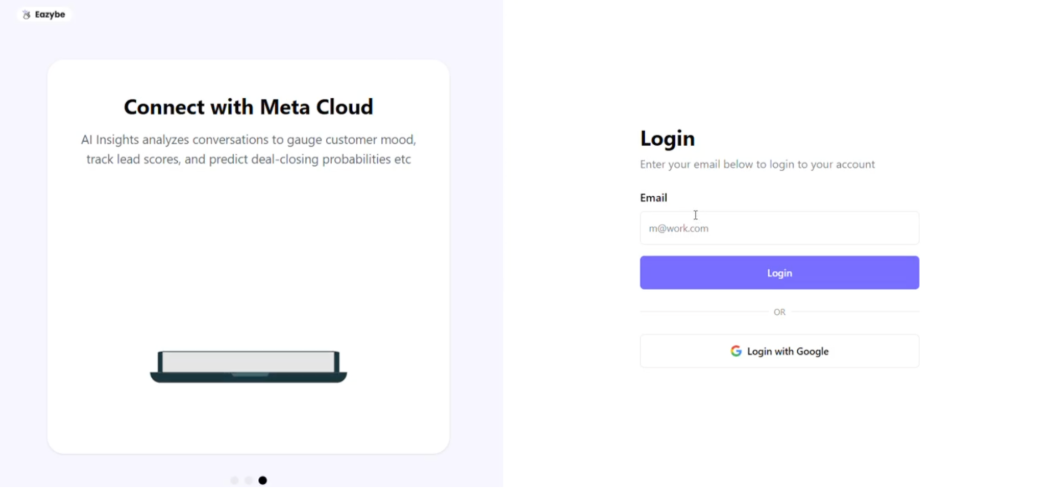
2
Enter OTP
Enter the OTP code sent to your email address.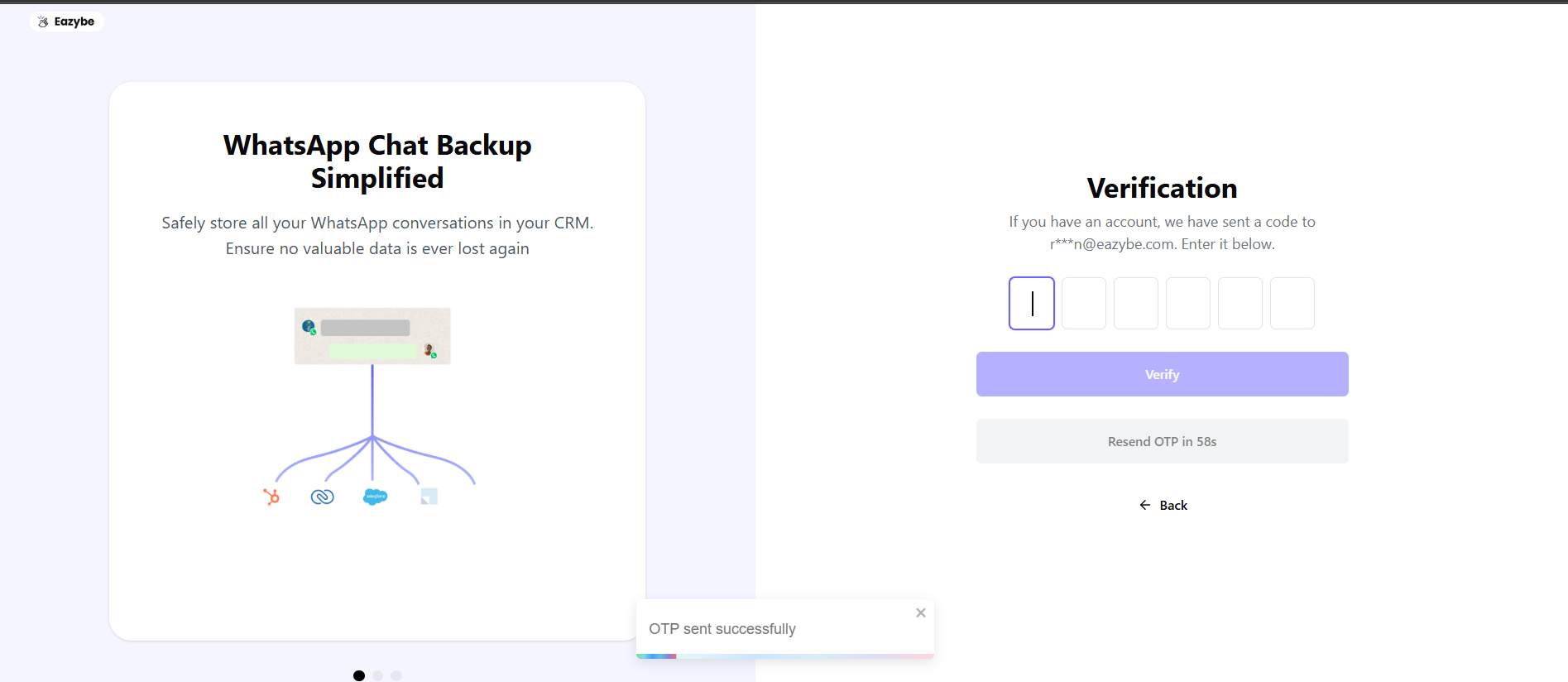
3
Click Add Number
Click the Add Number button to proceed with connecting your WhatsApp number.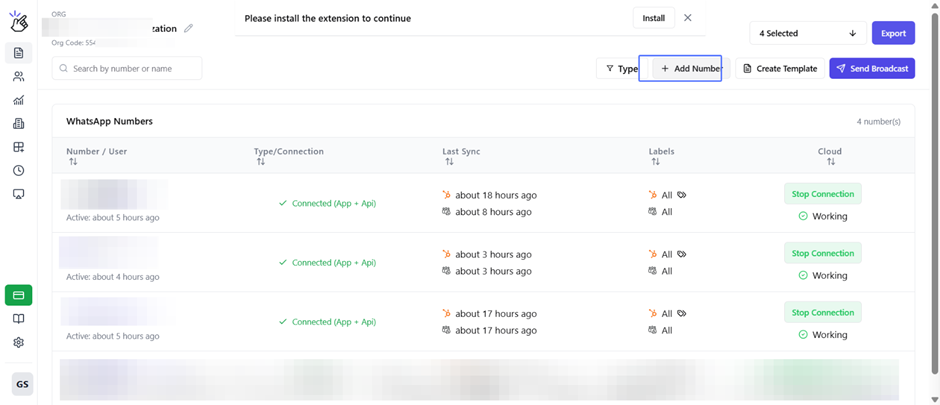
4
Facebook Login
Log in with your Facebook account. You can click Continue as if your Facebook login is already saved.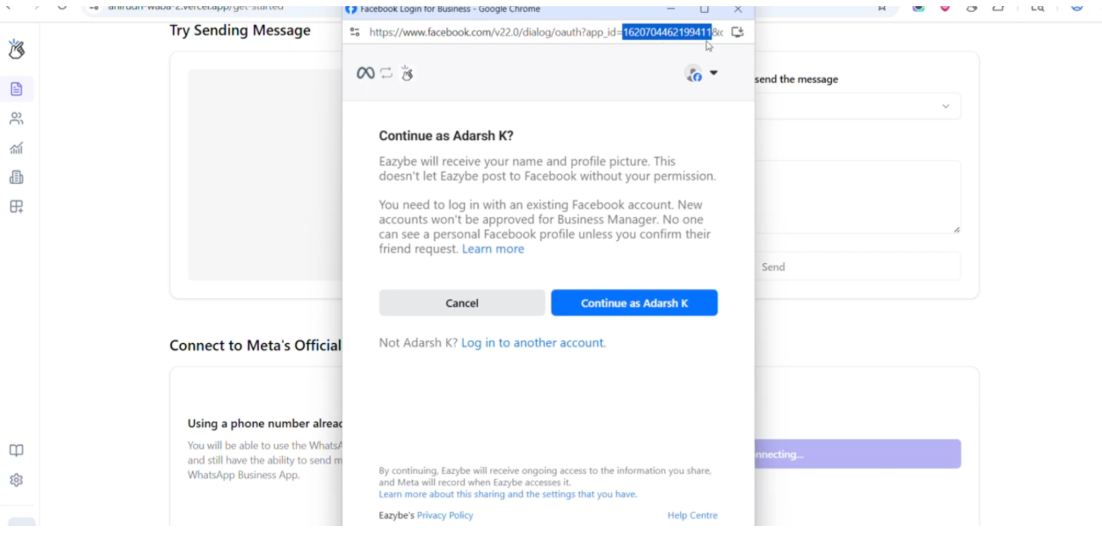
5
Grant Permissions
Review the permissions page and click Continue to proceed.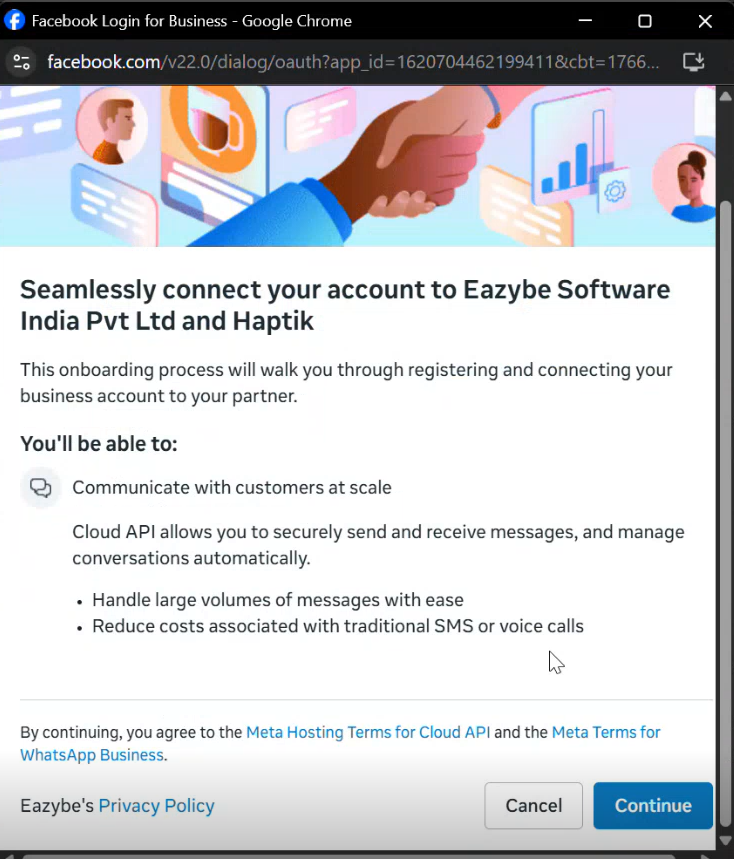
6
Fill Business Details
Enter your business information in the required fields.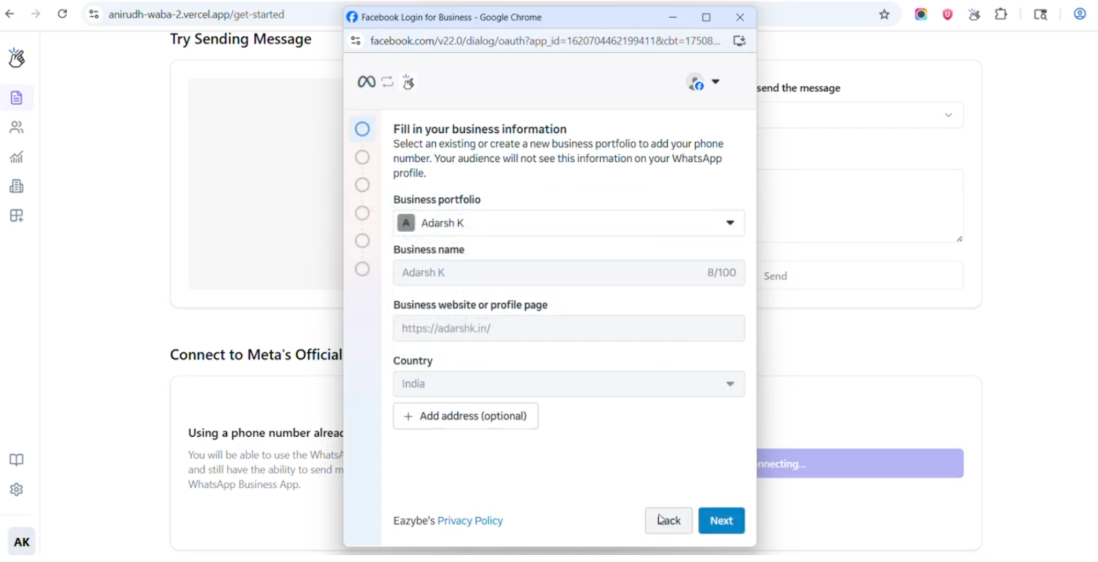
7
Choose or Create Business Portfolio
Select an existing business portfolio or create a new one.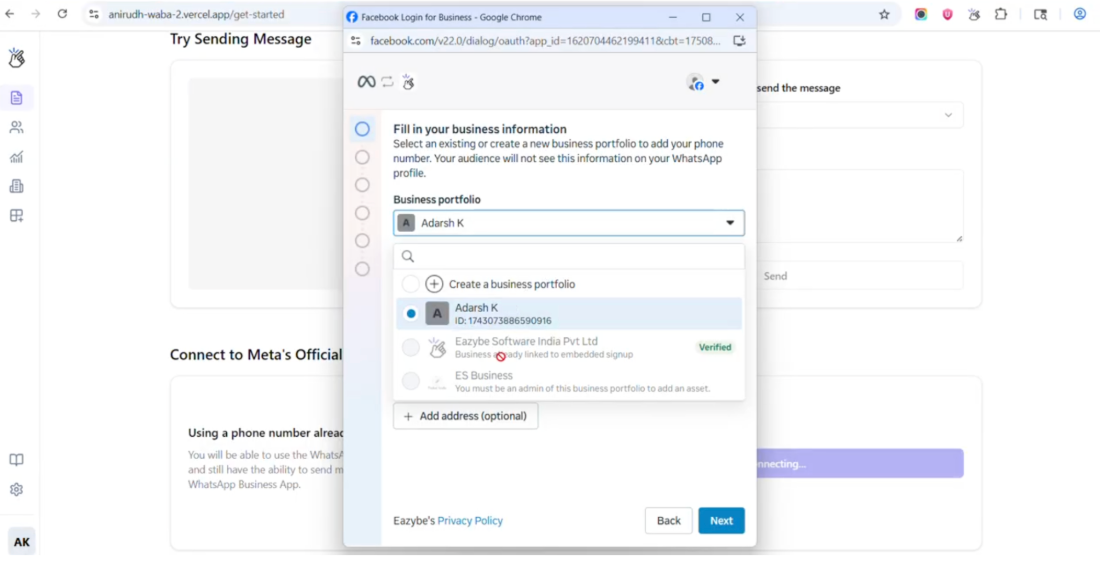
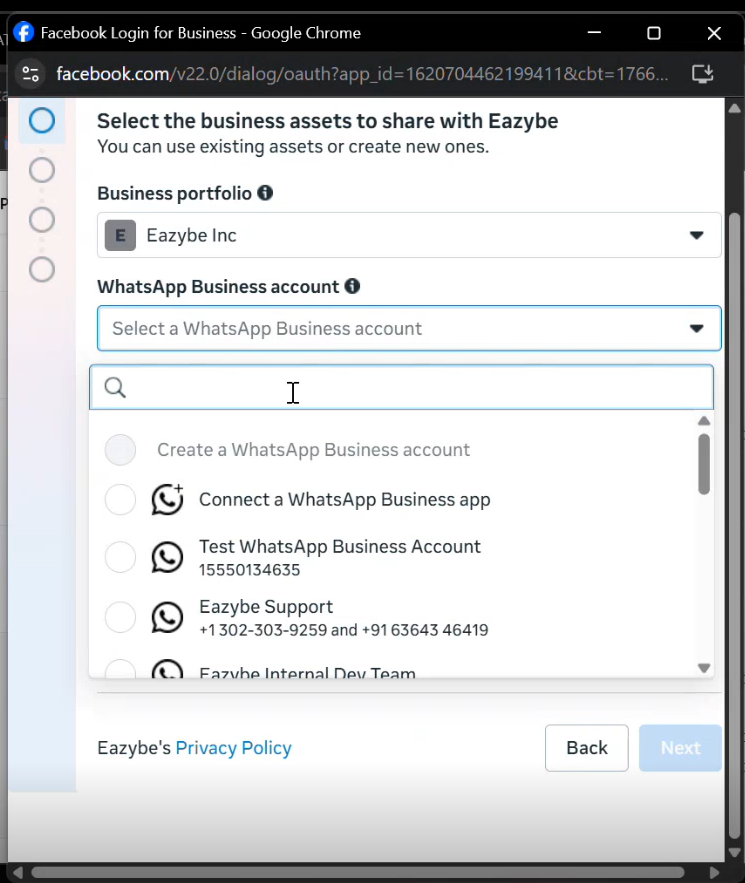
Choose Your Onboarding Method
You have two options:- Connect existing WhatsApp Business number — Recommended for most users
- Start with a new WhatsApp contact number
Connect Existing WhatsApp Business Number
1
Enter Phone Number
Select your country code and enter your phone number, then click Next.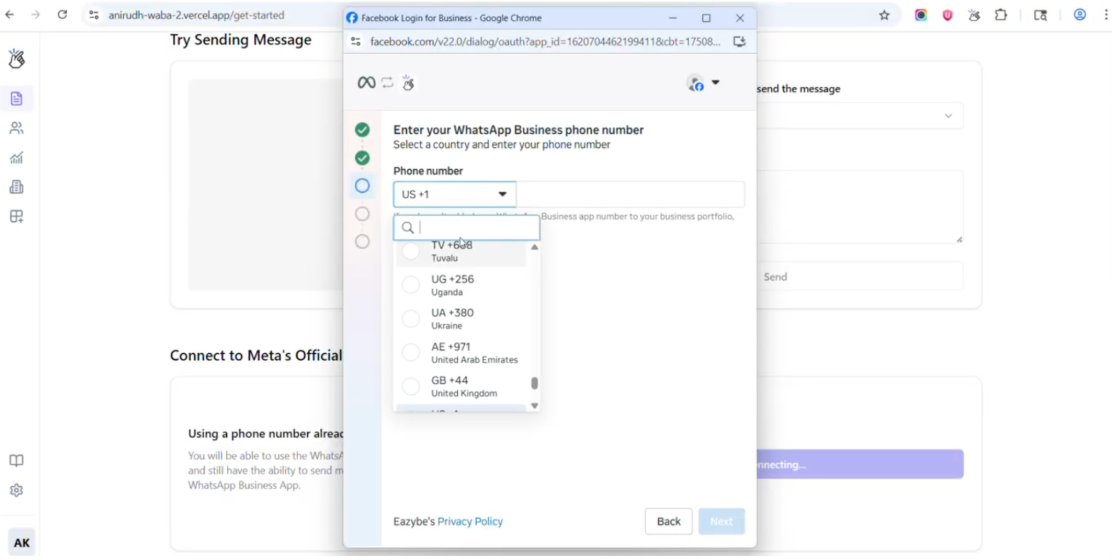
2
Scan QR Code
A WhatsApp message will be sent to your number. Click Scan QR Code and scan the displayed code with your WhatsApp Business App.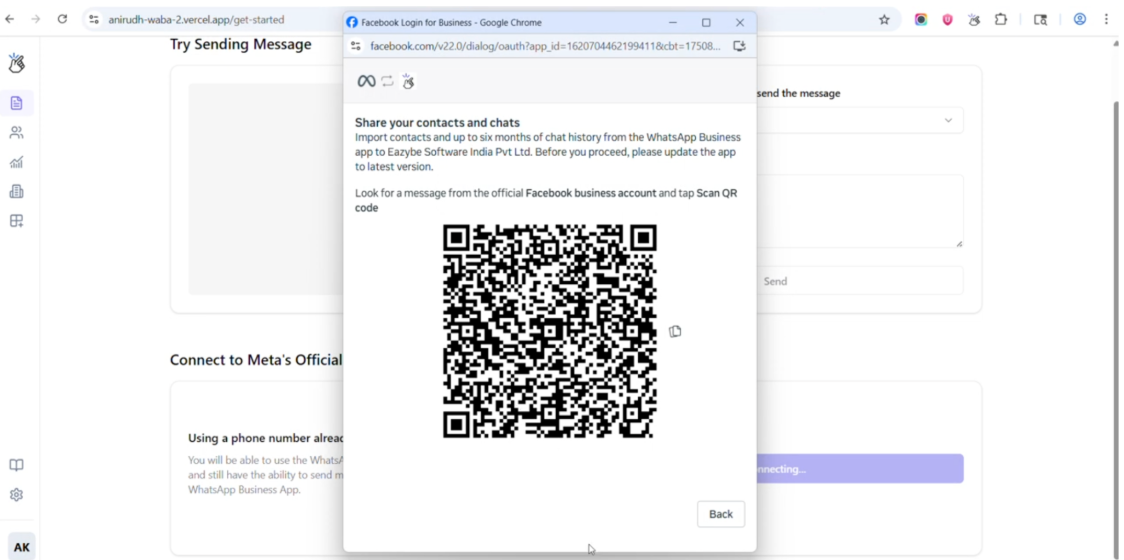
3
Choose Chat History Import
After scanning the QR code, configure your import preferences: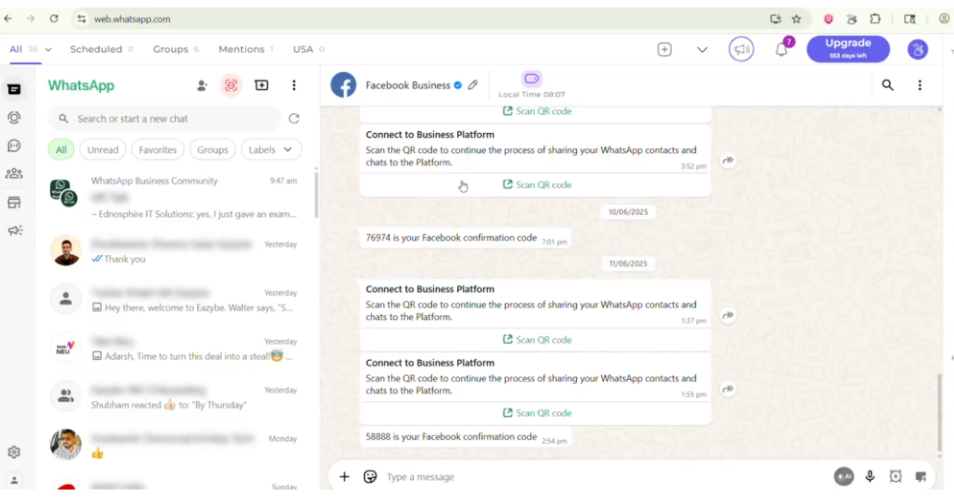
- Contacts: All contacts are imported automatically
- 1:1 Chats: Optional — Import up to 6 months of chat history
- Media: Optional — Import up to 2 weeks of media files
- Group Chats: Not imported
4
Wait for Account Verification
Your account will be verified. This process may take some time.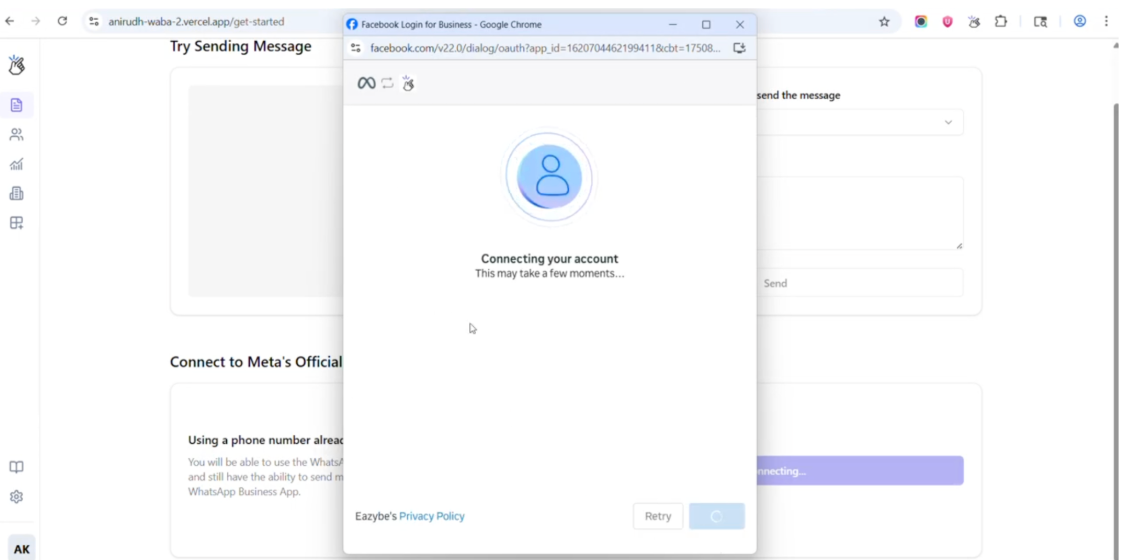
5
Click Finish
Once verification is complete, click Finish to complete the setup.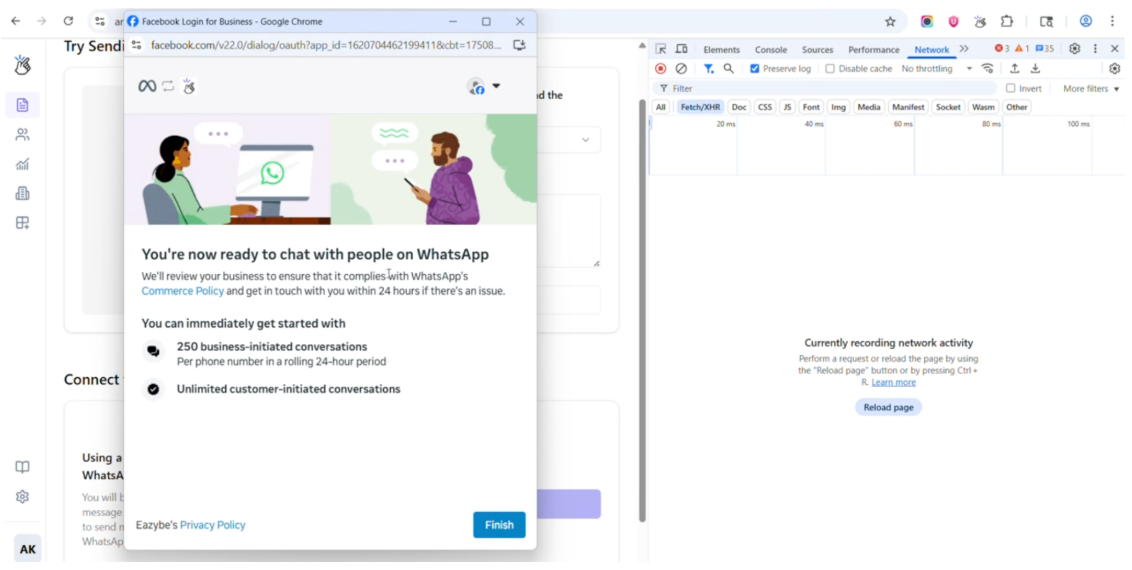
Troubleshooting
Issue 1: Integration Failed
Common reasons:- Old WhatsApp version
- Number inactivity
- Meta restrictions
- No Facebook Page admin access
Issue 2: Chat History Did Not Import
If the import fails, follow these steps:1
Open WhatsApp Business App
Launch the WhatsApp Business App on your phone.
2
Navigate to Settings
Go to Settings → Business Tools → WhatsApp Business Platform.
3
Disconnect
Tap Disconnect to remove the current connection.
4
Restart Onboarding
Start the Coexistence onboarding process again from the beginning.
Issue 3: Number Has Meta Restrictions
Symptoms:- Coexistence onboarding fails instantly
- QR code doesn’t complete
- No “Connect to Business Platform” message appears
Frequently Asked Questions
Can I use a personal WhatsApp number?
Can I use a personal WhatsApp number?
No. Only WhatsApp Business App numbers are allowed for Coexistence.
Will my chats stay in my phone app?
Will my chats stay in my phone app?
Yes. Nothing is deleted from the WhatsApp Business App. Your existing chats remain intact.
Can I still use the WhatsApp Business App after Coex?
Can I still use the WhatsApp Business App after Coex?
Yes. You can continue using the WhatsApp Business App normally while also benefiting from the Cloud API integration.