Introduction
This guide will walk you through the entire Eazybe setup process, from creating your account and verifying your email to establishing your organization. This guide covers:- Creating and verifying your account
- Setting up your workspace
- Chrome Extension installation (optional)
- WhatsApp API connection (optional)
- CRM connection (optional)
- Understanding your free trial
- Platform navigation overview
Getting Started
Start your journey at: app.eazybe.com/signin
Account Creation
1
Access the Sign-in Page
Navigate to app.eazybe.com/signin to begin your onboarding journey.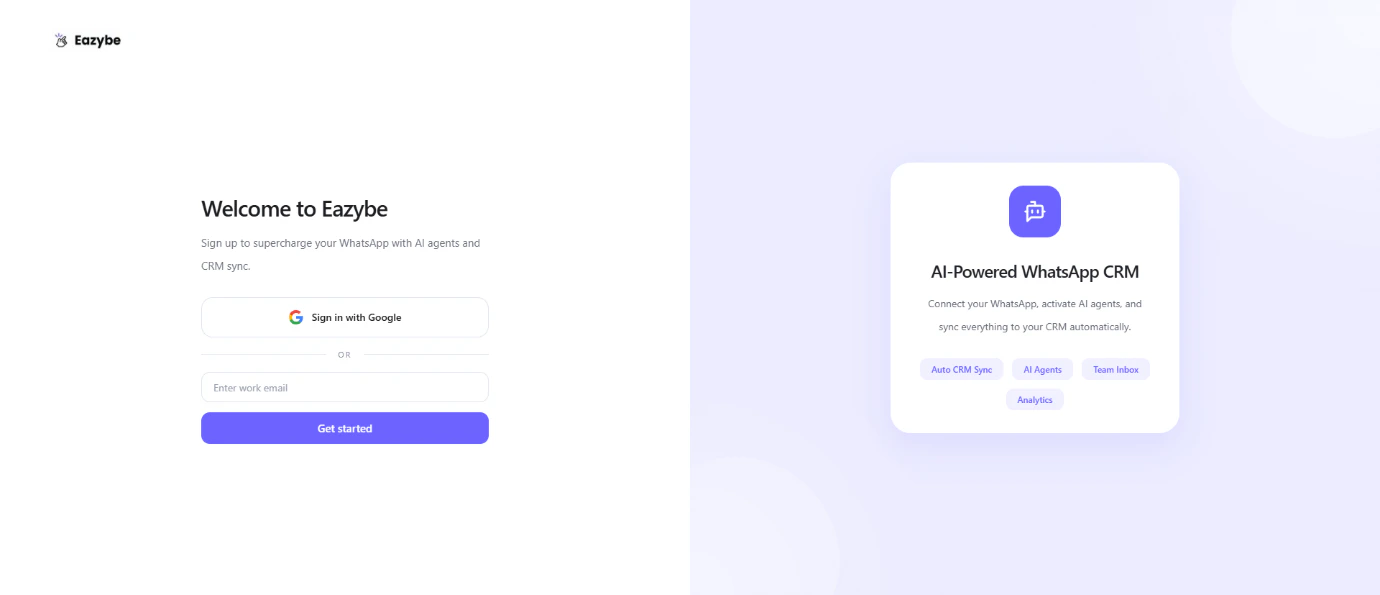
2
Enter Your Email
Enter your email address or sign in with Google. Then click on Get Started.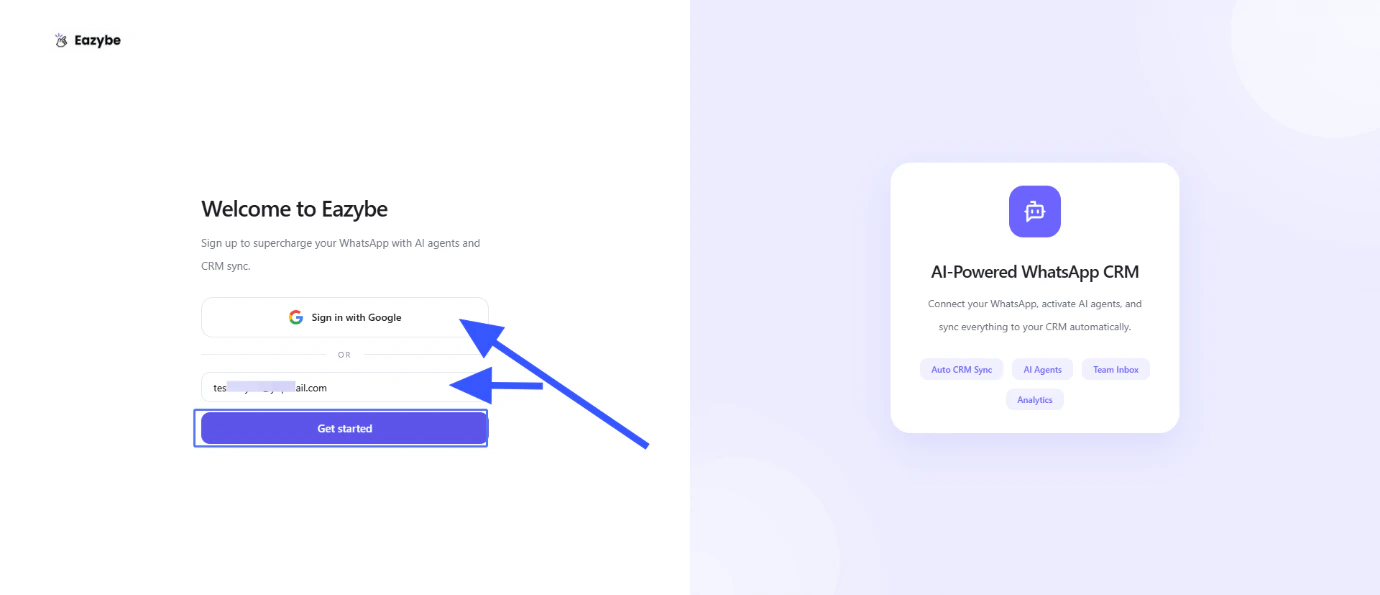
3
Verify Your Email
Enter the verification code you received on your email, then click on Verify.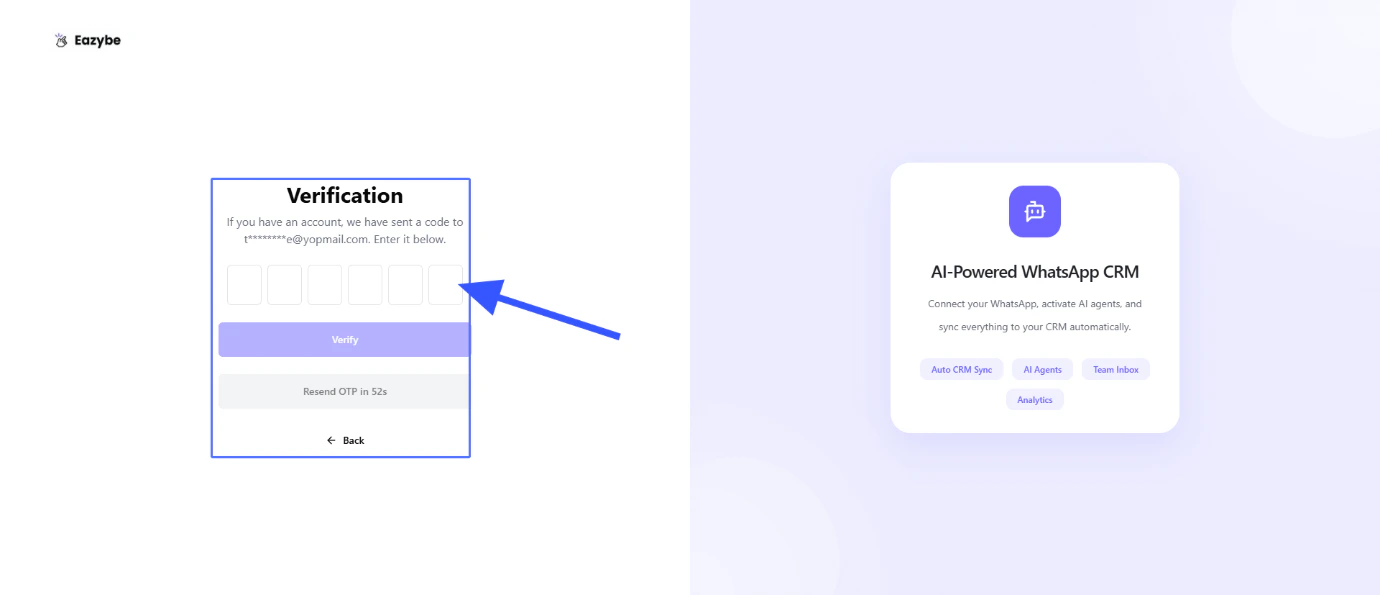
Set Up Your Workspace
1
Join or Create an Organization
You can join your existing organization using the organization code or create a new organization. Then click on Continue.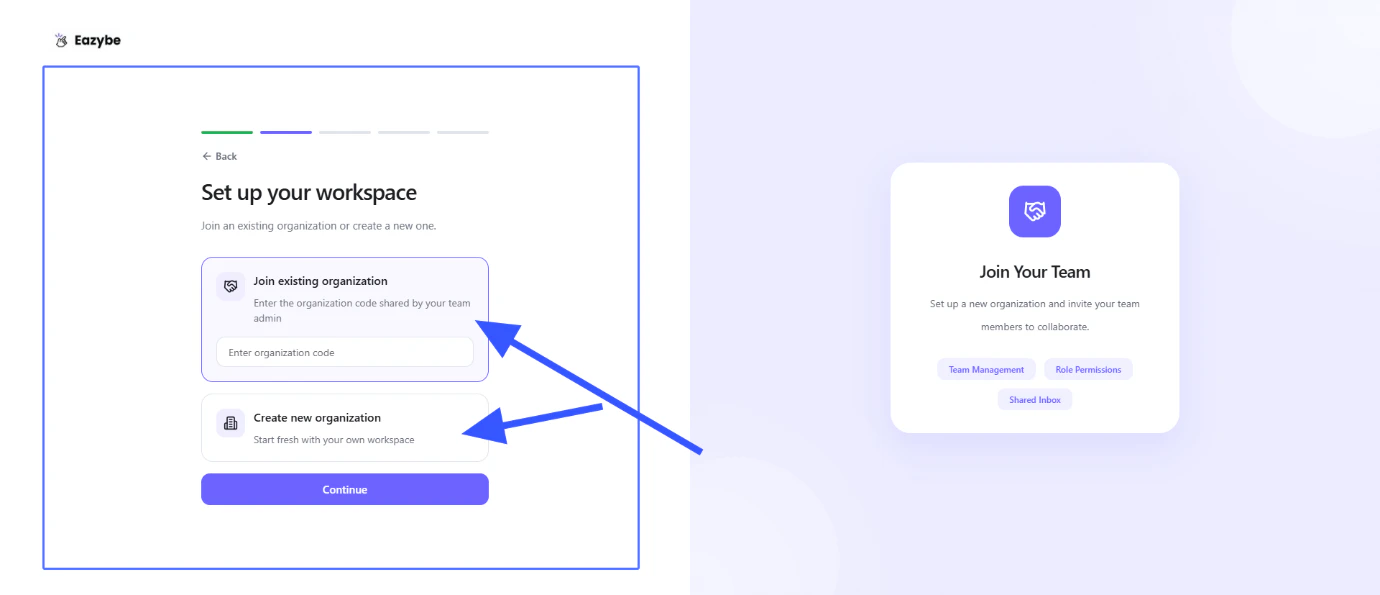
2
Create New Organization
To create a new organization, enter your organization name, upload an organization logo (optional), and then click on Create Organization.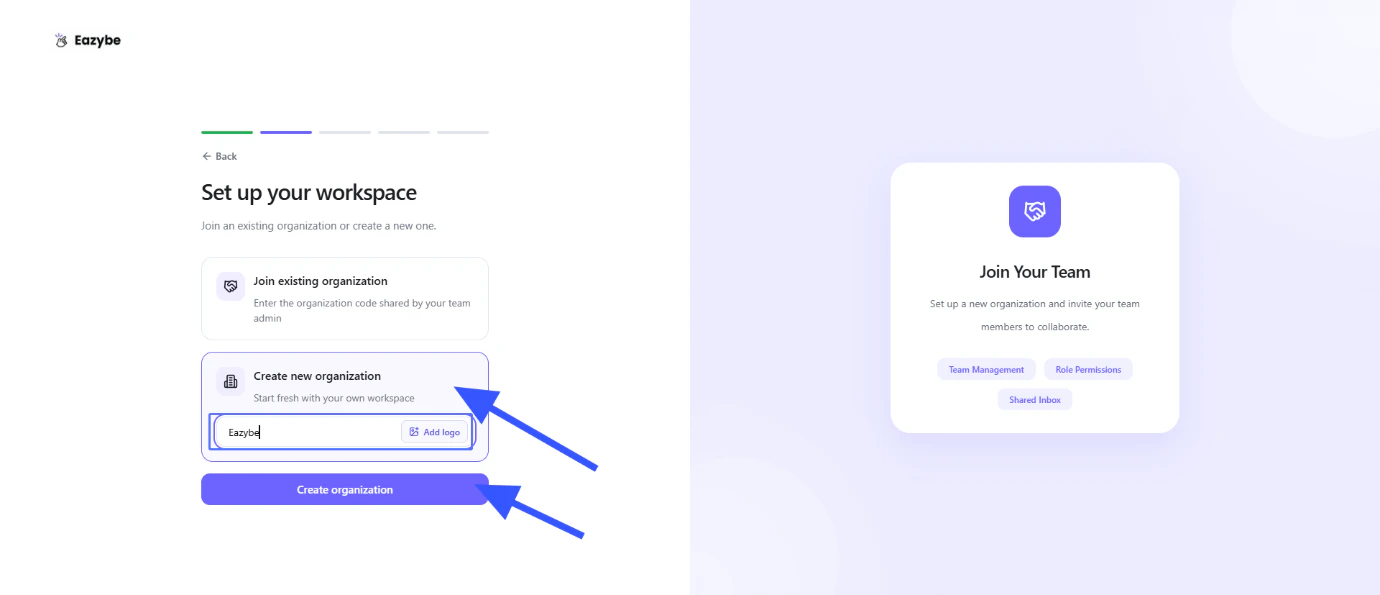
Optional Setup Steps
1
Chrome Extension Installation (Optional)
You can install the Chrome Extension for enhanced functionality or click on Skip for now.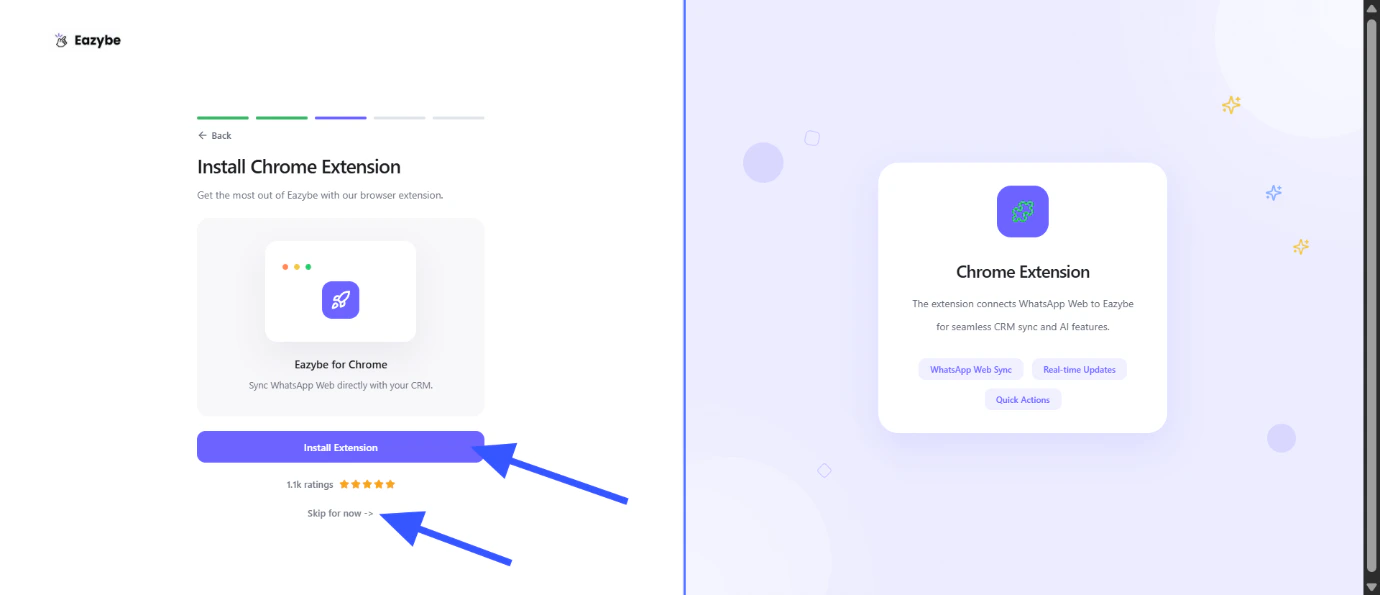
2
WhatsApp API Connection (Optional)
You can connect your WhatsApp API now or click on Skip for now.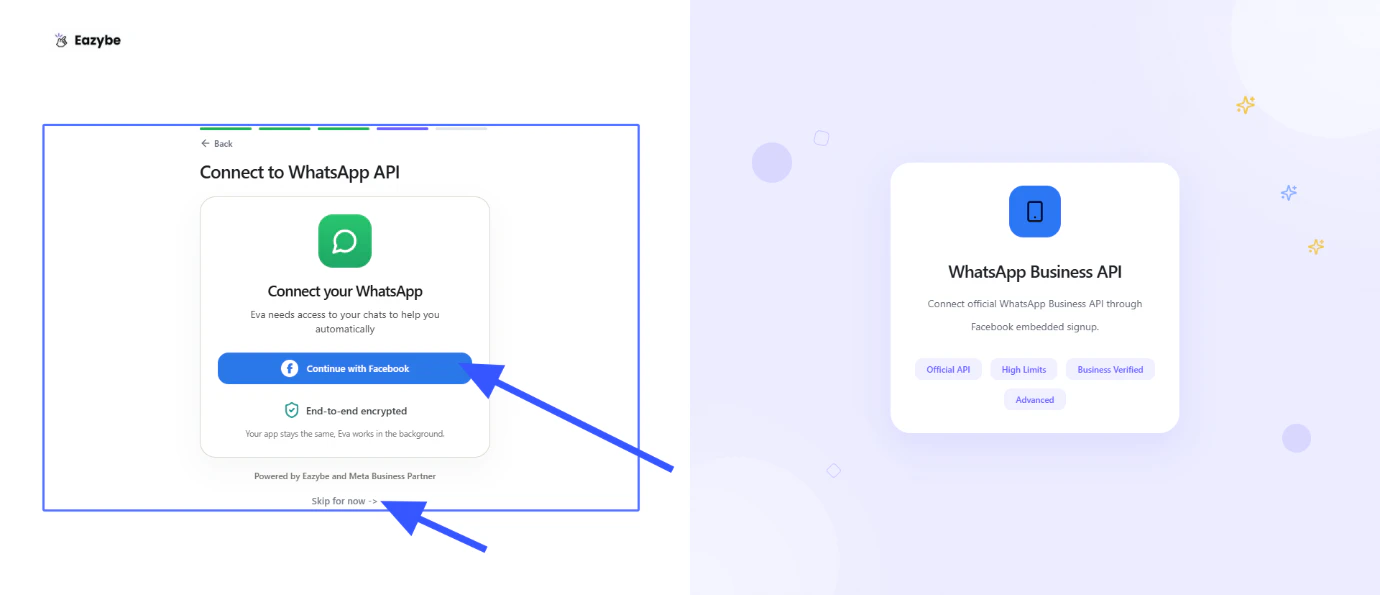
3
CRM Connection (Optional)
You can connect your CRM now or click on Skip for now.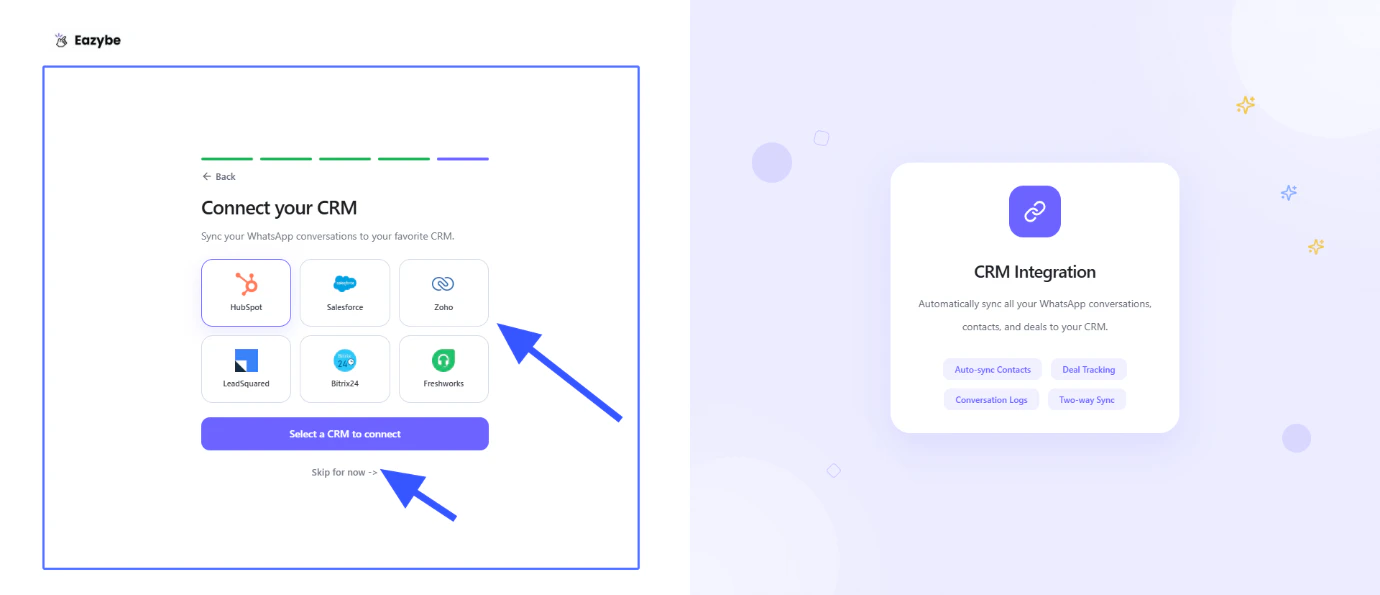
Your Free Trial
After the successful setup, you get a Free 4-Day trial with full access to all features.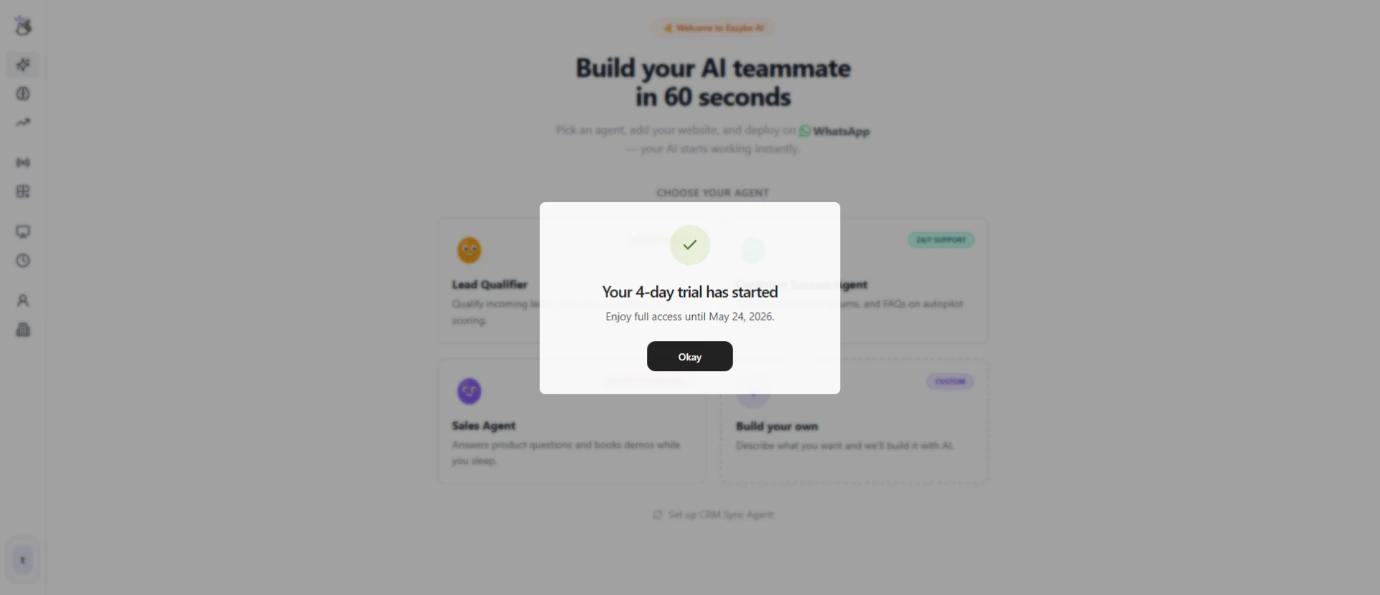
Platform Navigation
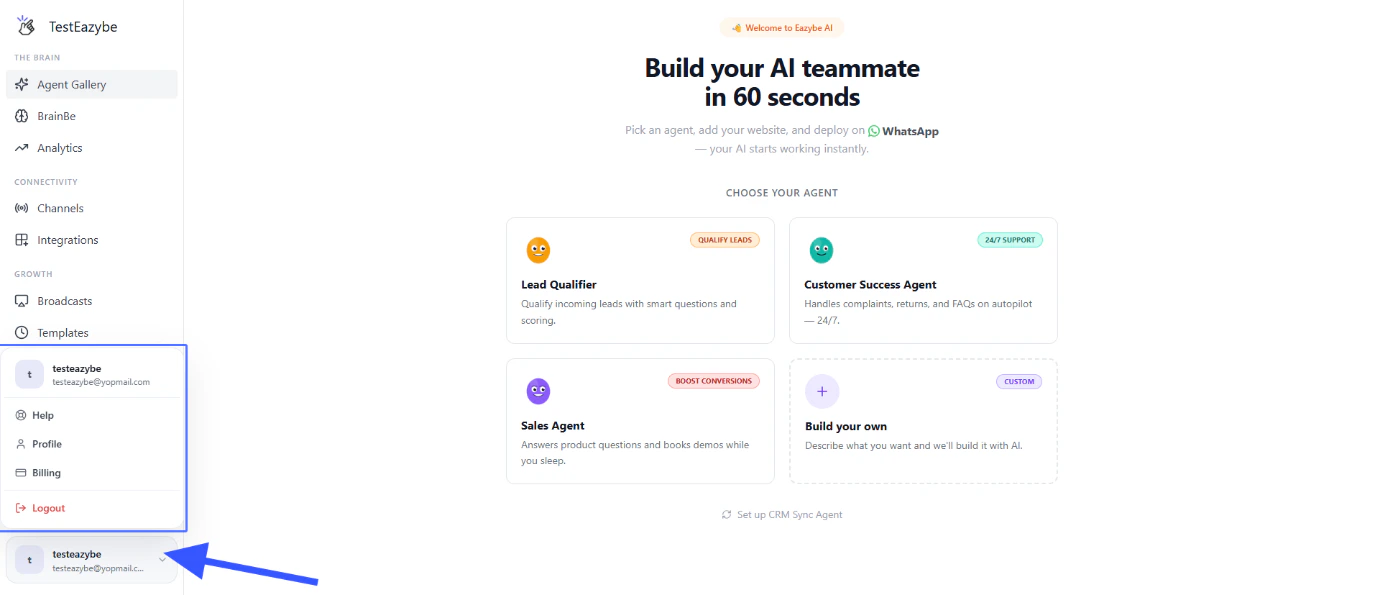
You have all the functionalities available on the Sidebar Navigation.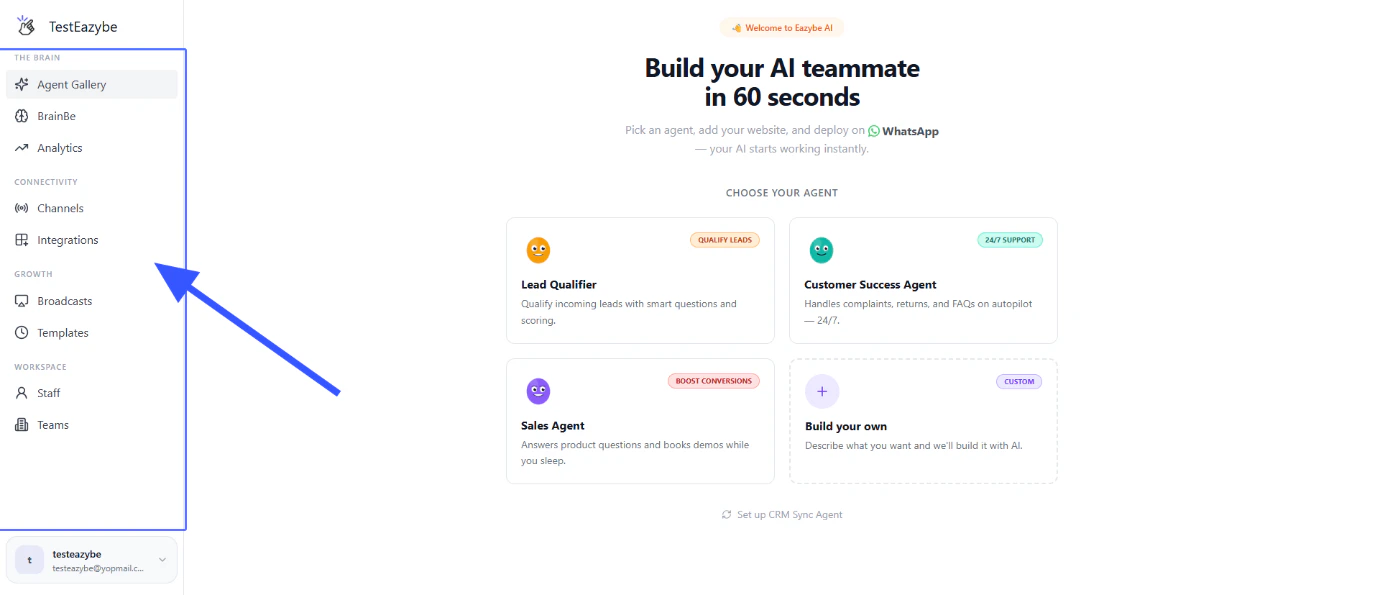
User Account Management
Manage your account settings, preferences, and profile from the user menu.