

Introduction
The Team Inbox is your central hub for managing all WhatsApp conversations. This guide explains how to handle messages depending on your setup and helps you understand the key concepts of WABA messaging. This guide covers:- Understanding different user types
- The 24-hour customer service window
- Sending messages and templates
- Message statuses and tracking
- Managing conversations across multiple setups
Understanding Your Messaging Setup
Depending on your configuration, you may fall into one of three user types:Extension-Only User
Uses the Chrome extension to sync WhatsApp conversations without a connected WABA account.
WABA-Only User
Uses the Team Inbox as the primary interface for the official WhatsApp Business API.
Extension + WABA User
Operates both channels simultaneously for maximum flexibility.
Extension-Only Users
If you’re using only the Eazybe Chrome extension (without WABA), your experience is straightforward:- Conversations sync directly from WhatsApp Web to the Team Inbox
- You can send and receive any type of message (text, media, etc.) at any time without restrictions
- No template requirements or messaging windows apply
Key Concepts for WABA-Powered Messaging
The 24-Hour Customer Service Window
When using WABA, a special messaging window applies to all conversations:1
Window Opens
When a customer sends you a message, a 24-hour service window opens automatically.
2
Free-Form Replies
Within this window, you can send any type of message (text, images, documents) without needing pre-approved templates.
3
Time Remaining Display
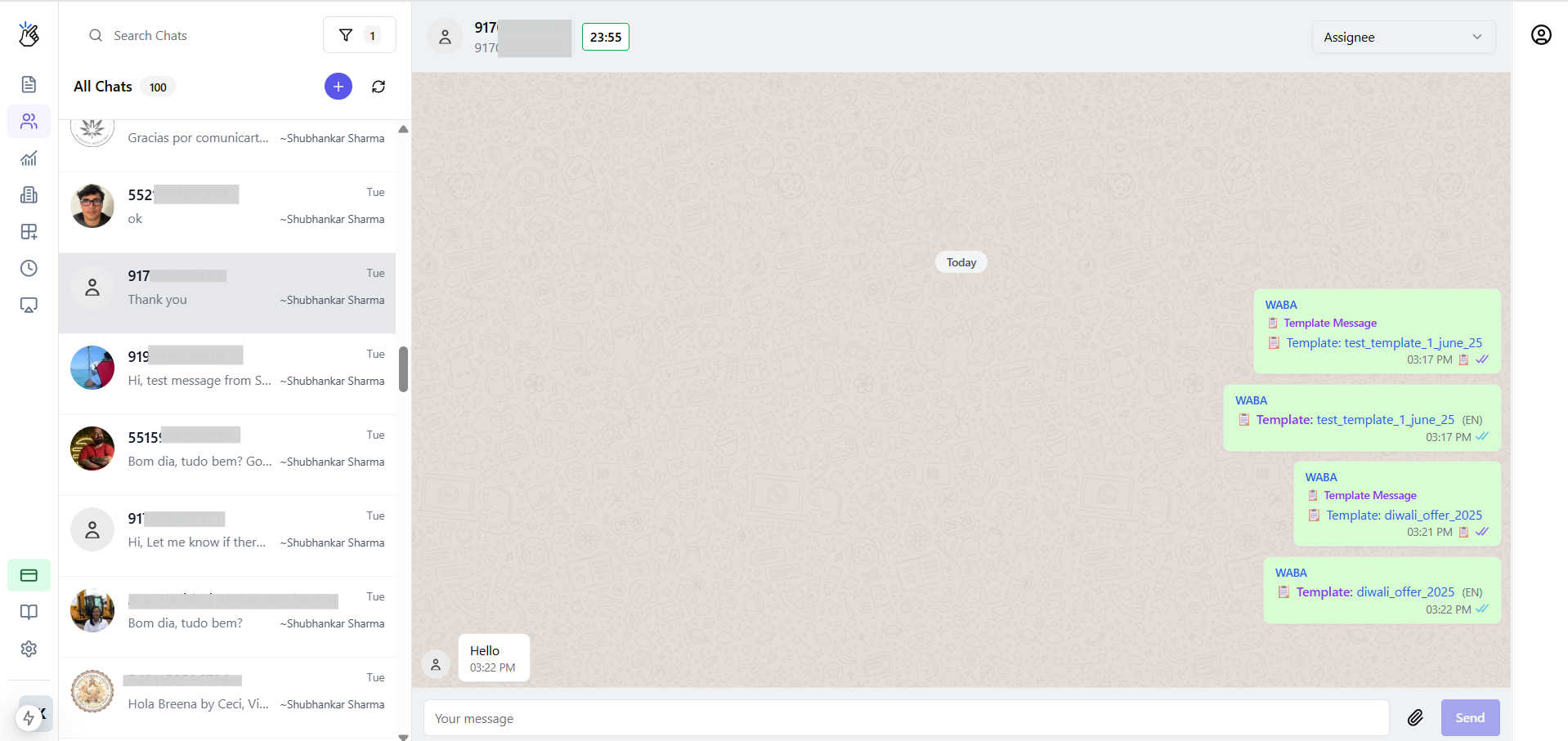
The inbox shows the time remaining in the window (e.g., “15h 30m”).
4
Window Closes
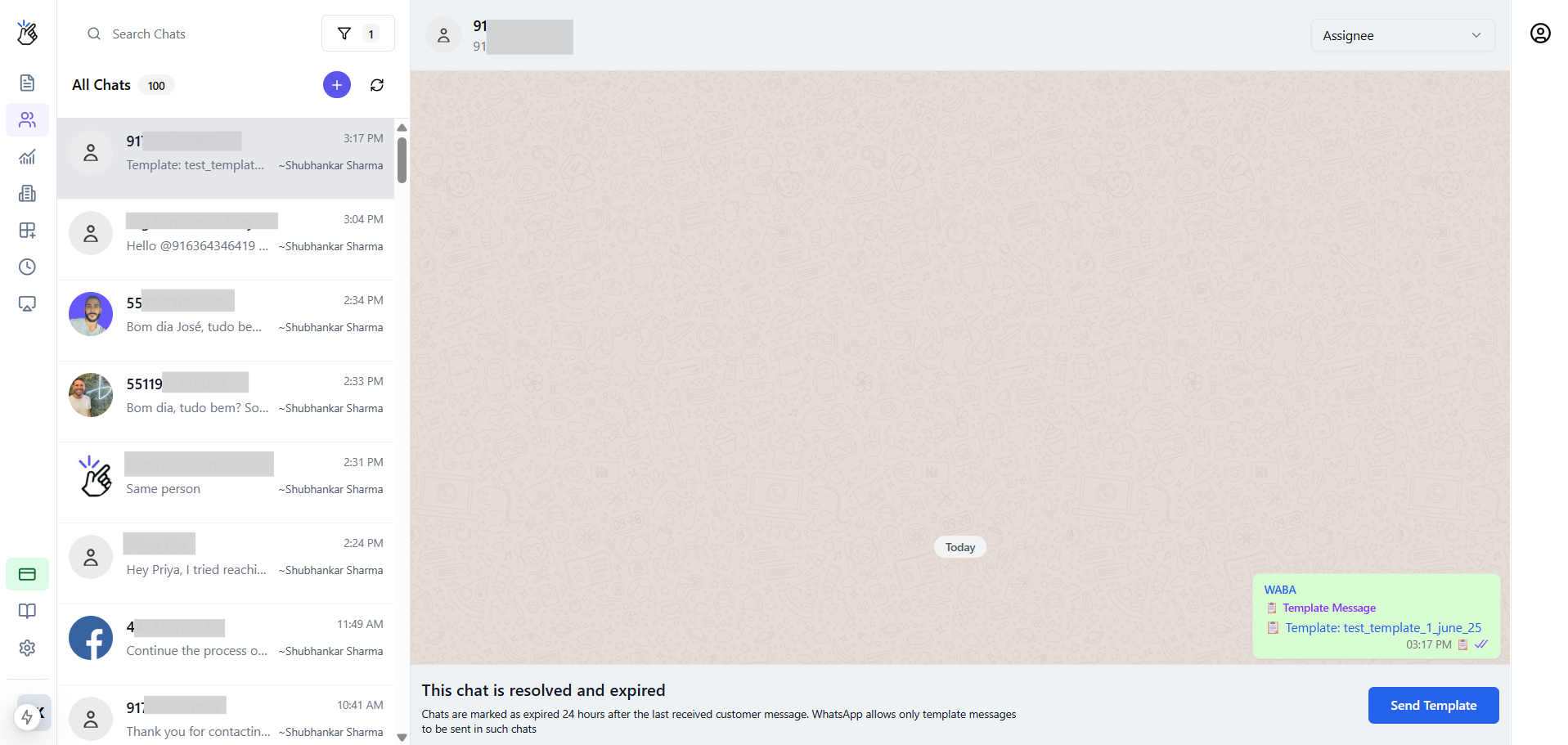
After 24 hours of customer inactivity, the window closes. You’ll see: “This chat is resolved and expired.”
5
Templates Required
Once the window closes, you must use an approved Message Template to re-initiate the conversation.
Dynamic Message Composer
The message composer adapts based on your conversation window status:- Window Open
- Window Closed
When the 24-hour window is active, you see the standard text composer allowing free-form messaging.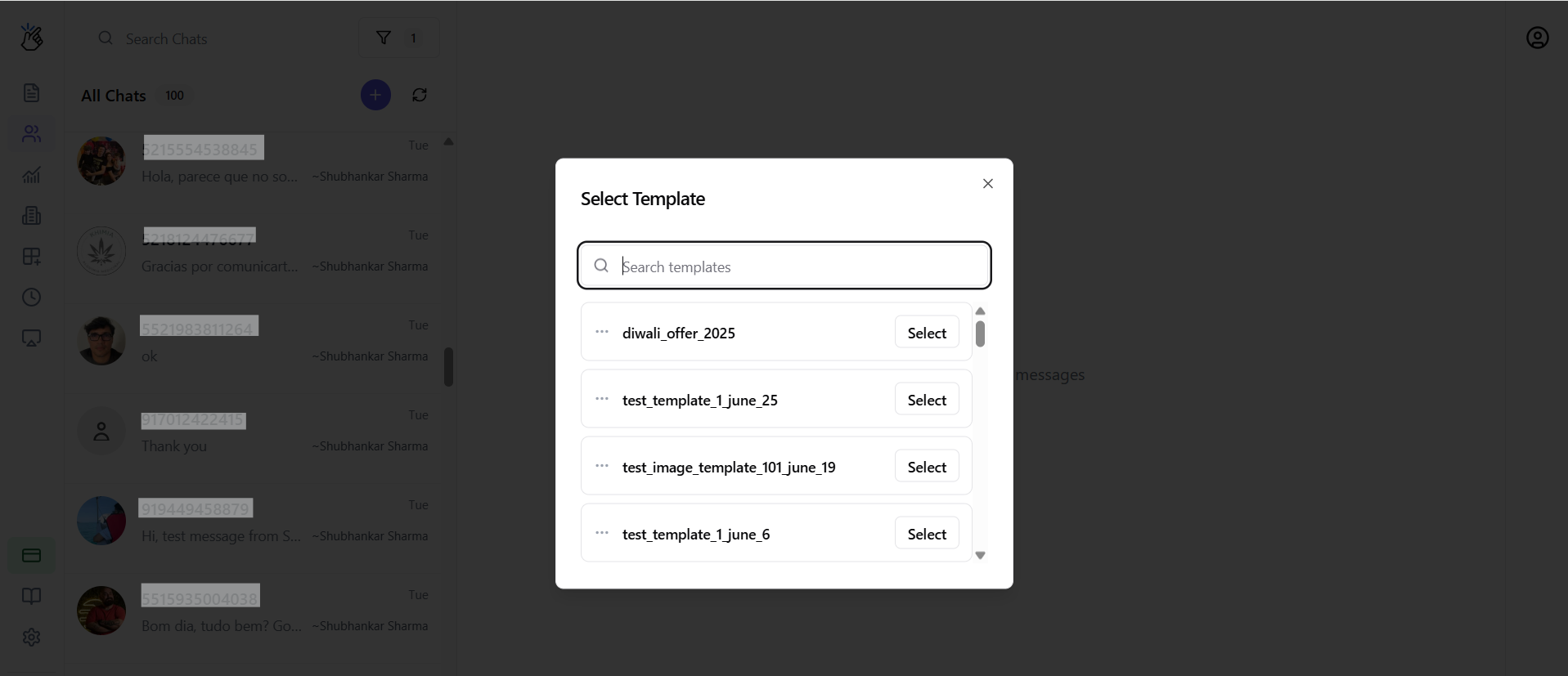
Sending Message Templates
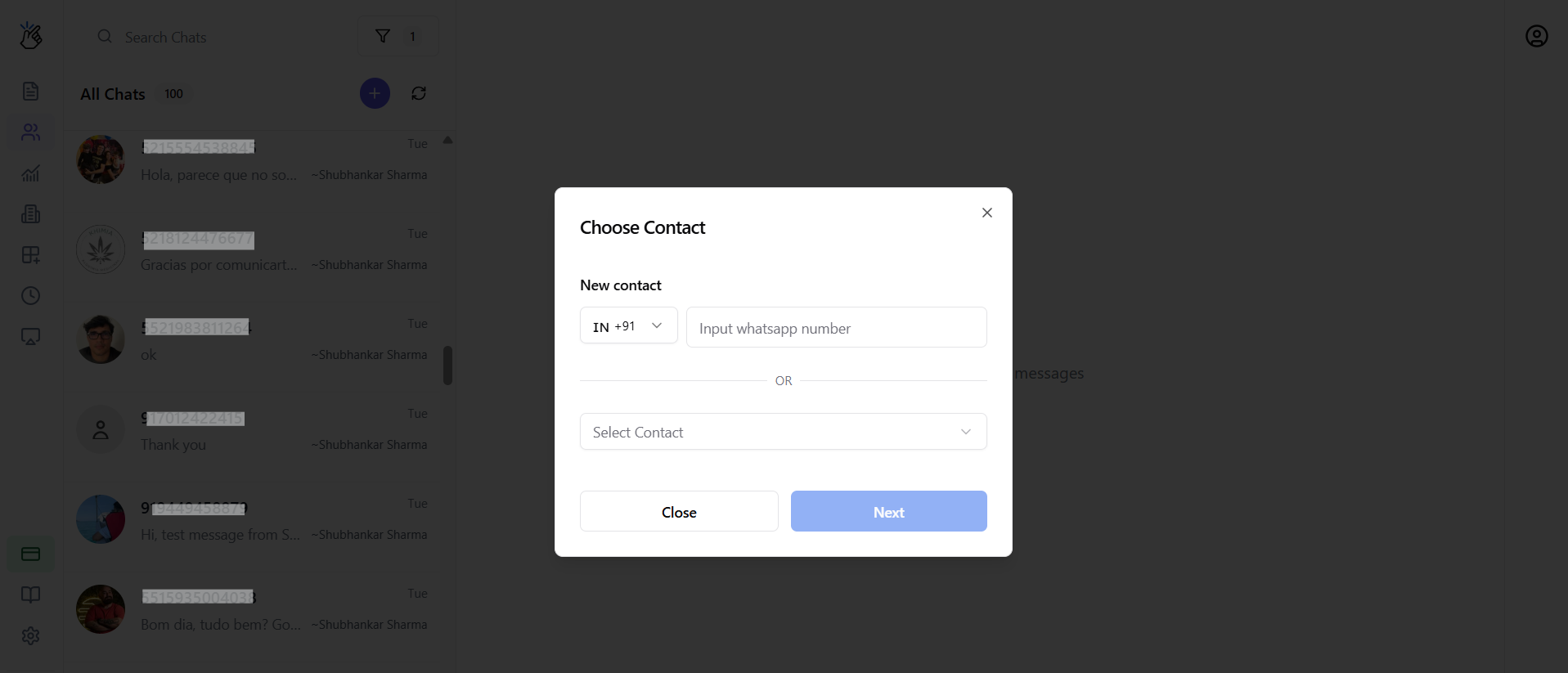
When the service window is closed, follow these steps to send a template:1
Click Send Template
Click the Send Template button that appears in place of the message composer.
2
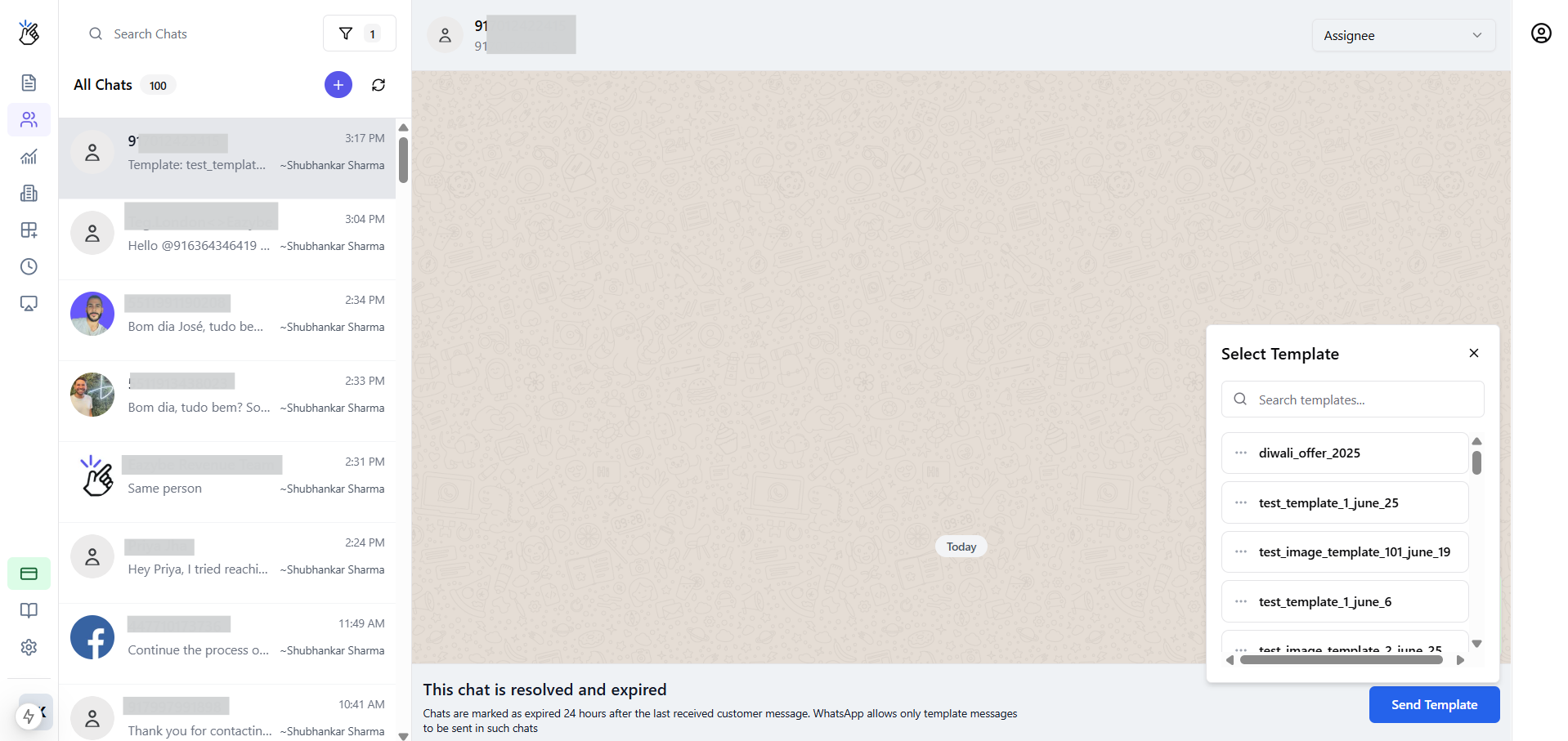
Select Template
Choose from your list of approved templates. You can review the template name, category, and language before selecting.
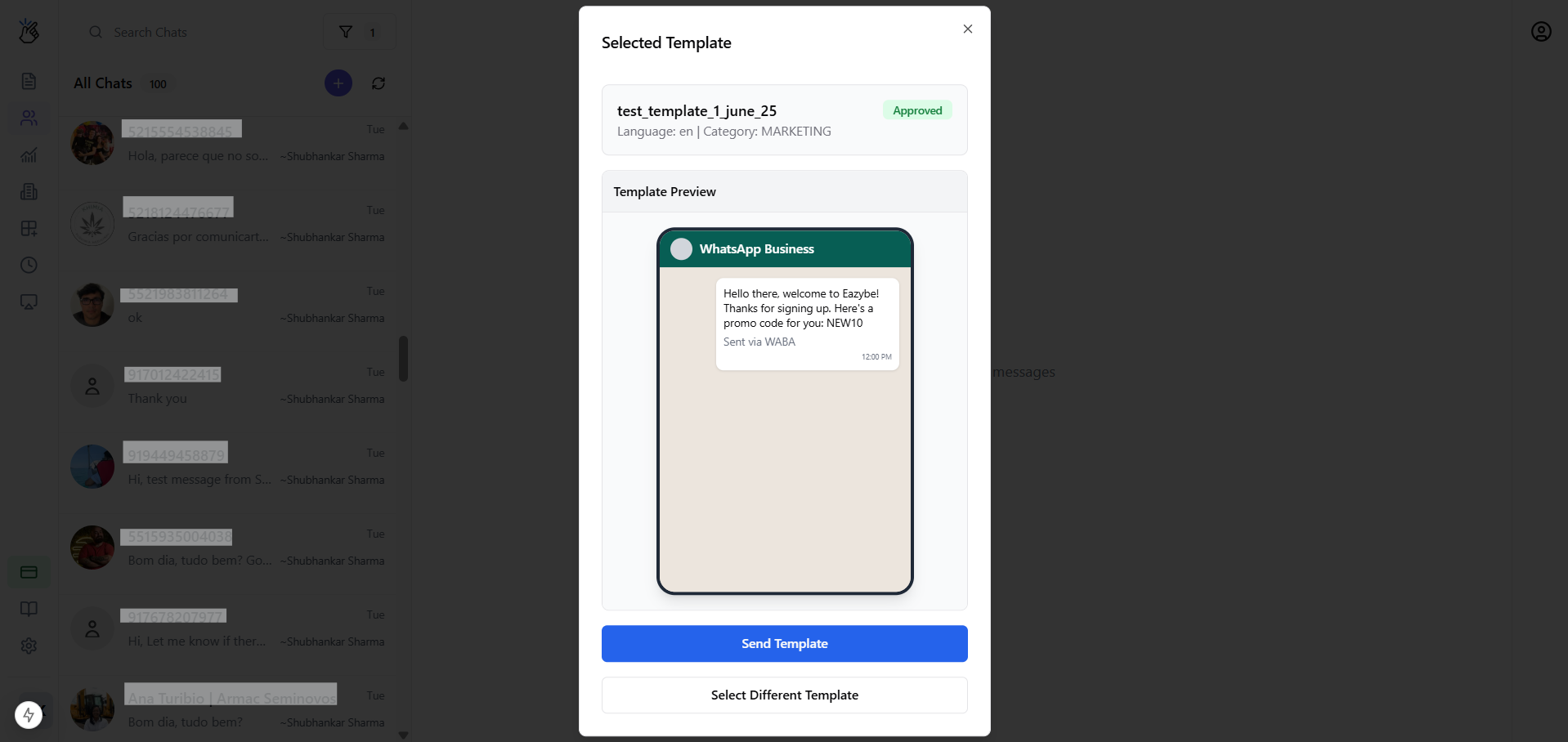
3
Send Template
Click to send the selected template. This will re-open the 24-hour window once the customer responds.
Messaging Setup Scenarios
Scenario A: WABA-Only User
If you only use WABA (no extension):- You must initiate all conversations using a Message Template
- Once the customer responds, the 24-hour window opens
- Free-form messaging is available within the window
- Templates are required again after the window expires
Scenario B: Dual User (Extension + WABA)
Different Phone Numbers
If your extension and WABA use different phone numbers:- Conversations are separated by number filter in the inbox
- Extension number: Unrestricted messaging at any time
- WABA number: Template and window rules apply
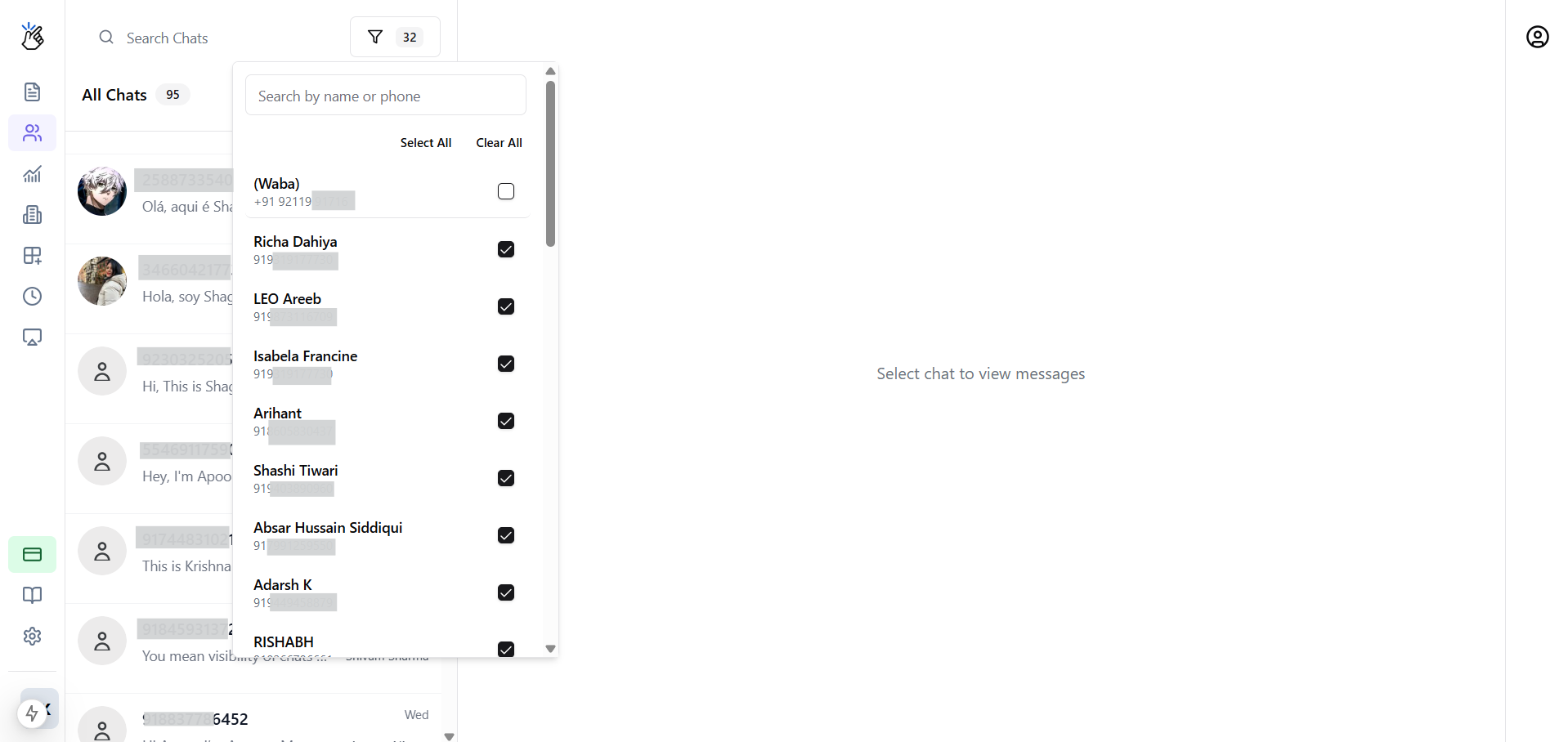
- When initiating new chats, you’ll see a selection prompt to choose which number to use
Same Phone Number
If both extension and WABA are connected to the same number:- Conversation threads are unified
- WABA (Cloud API) becomes the default sending channel
- WABA messaging rules apply to all outbound messages
When using the same number for both extension and WABA, the system prioritizes WABA for sending messages to ensure compliance with WhatsApp Business API policies.