

Labels
Labels help you categorize and organize WhatsApp conversations for better tracking and filtering.Creating Labels
1
Click Add Label
Click the Add Label button in the sidebar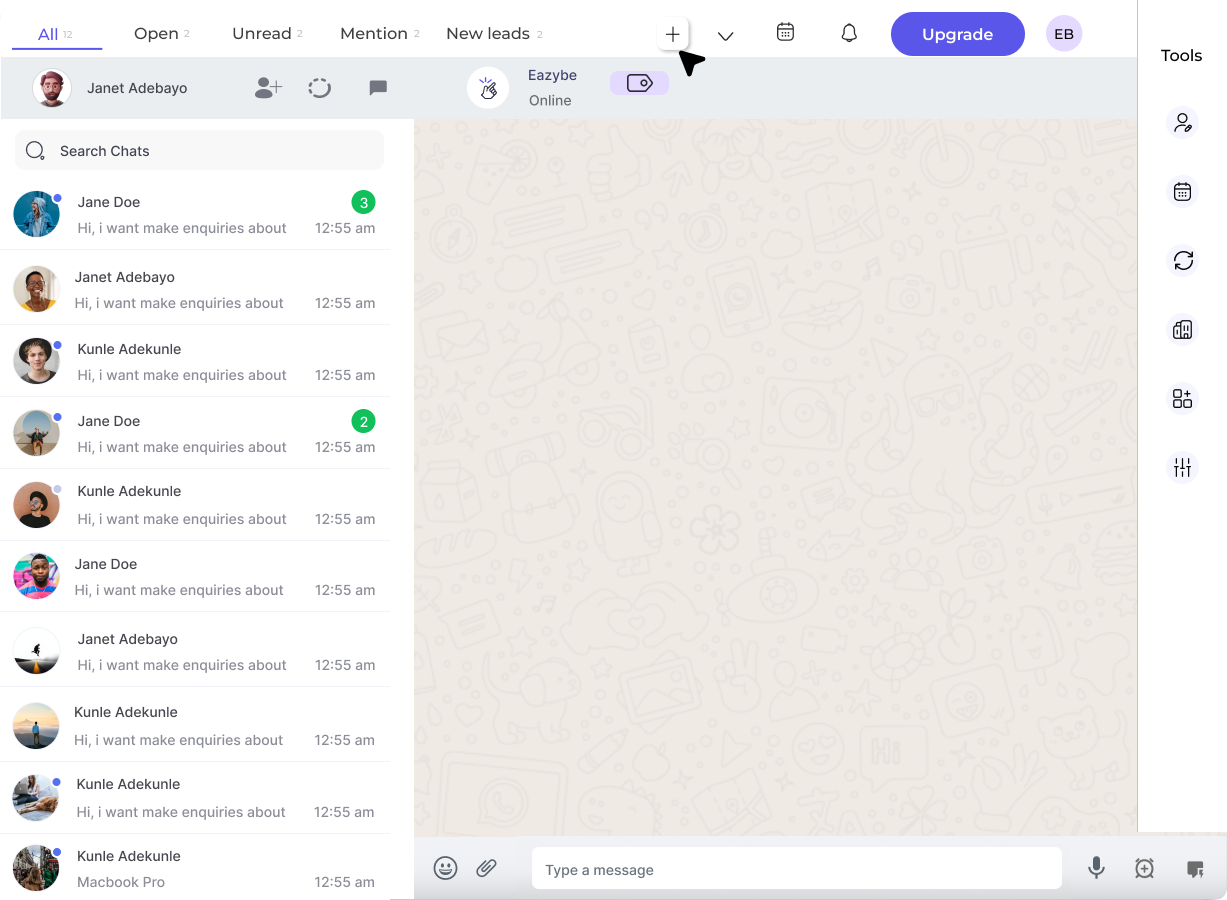
2
Choose Label Type
Select Label (for categorization) or Funnel (for stages)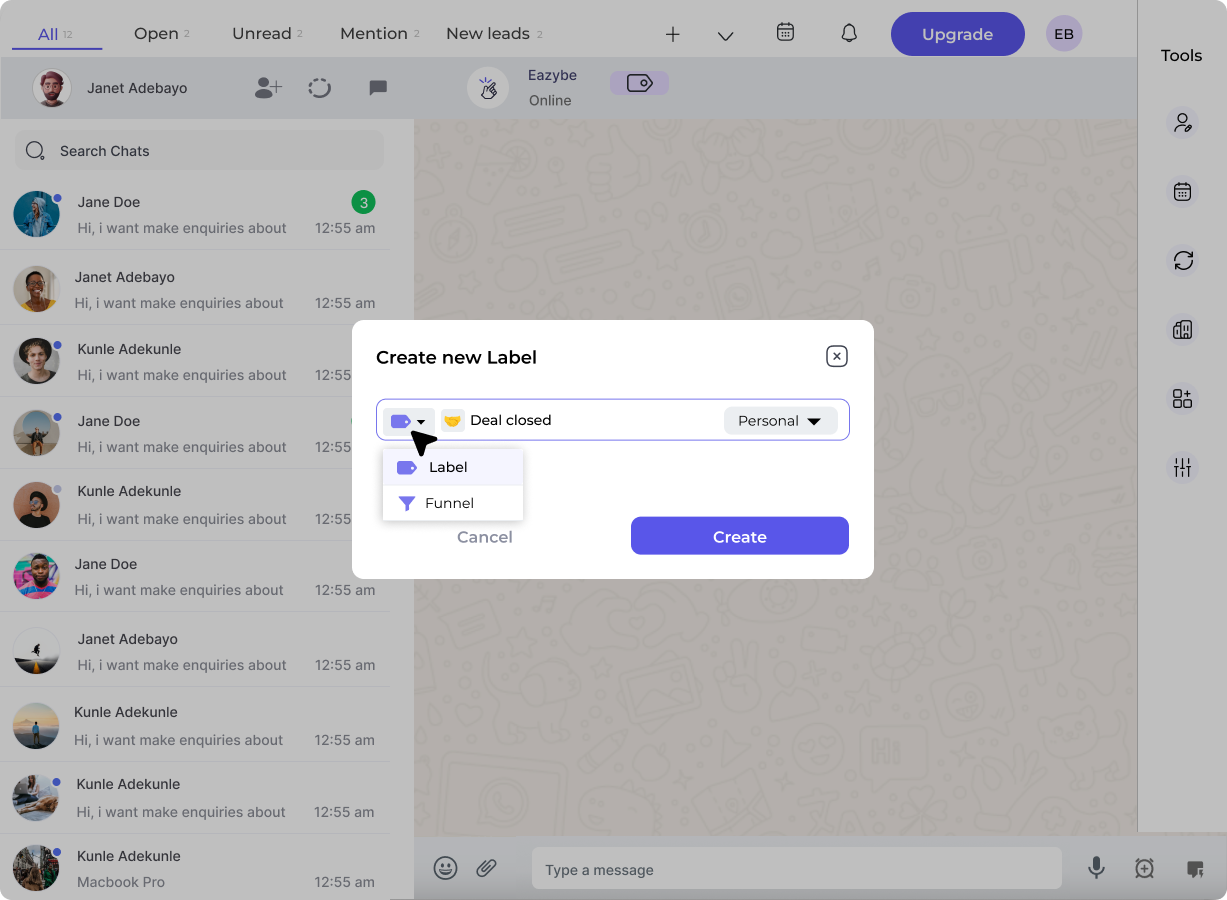
3
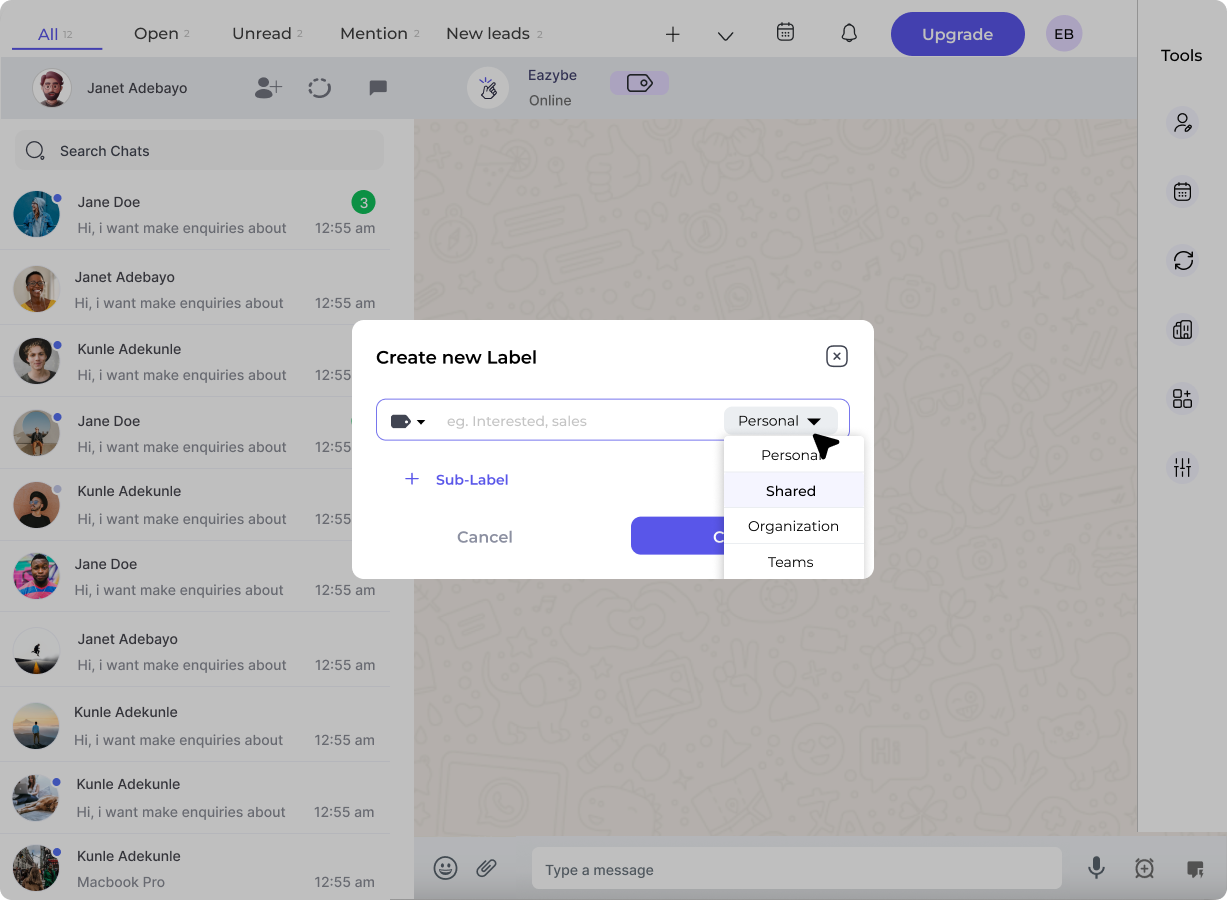
Set Visibility
Choose visibility:
- Personal - Only visible to you
-
Shared - Visible to your team/organization
4
Add Sub-Labels
Create sub-labels for more granular organization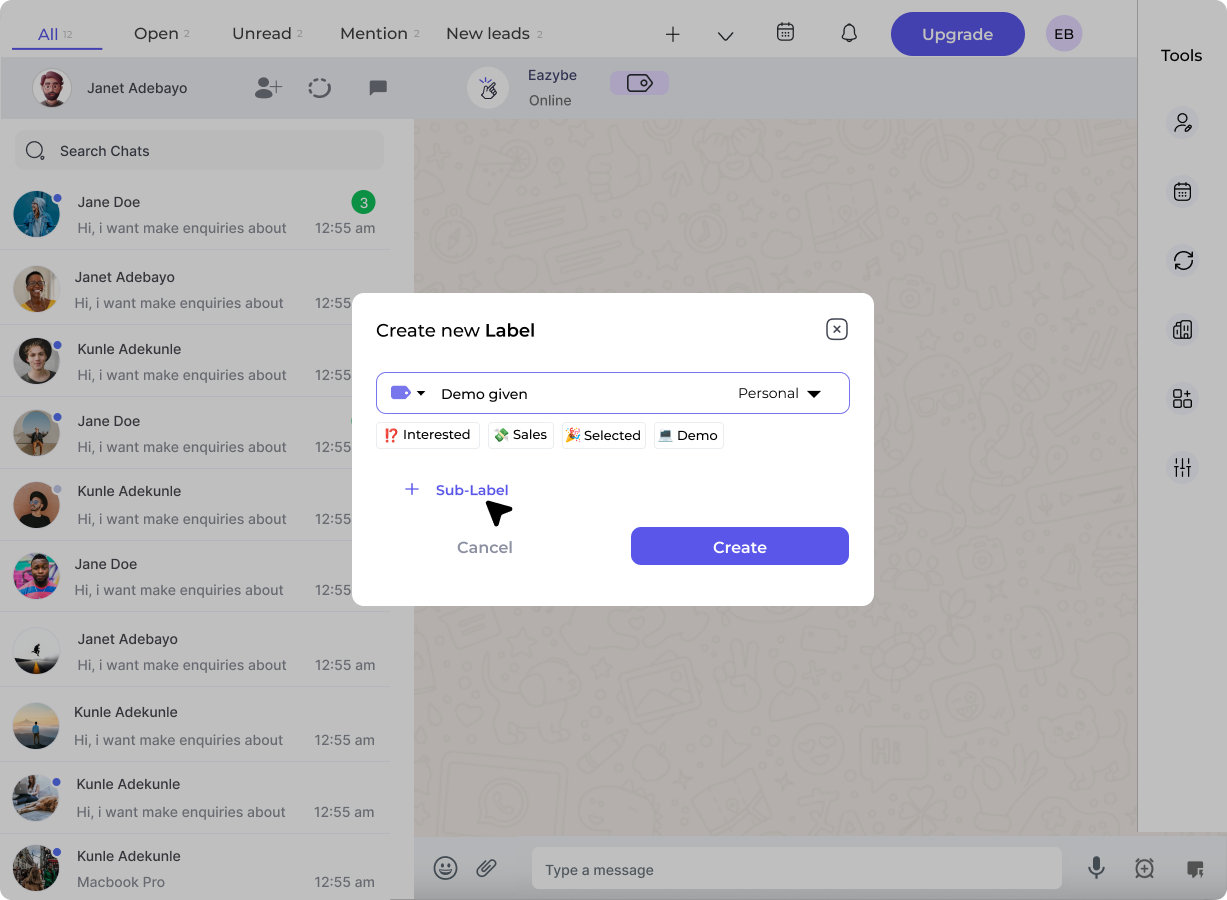
5
Assign Contacts
Select contacts to add to this label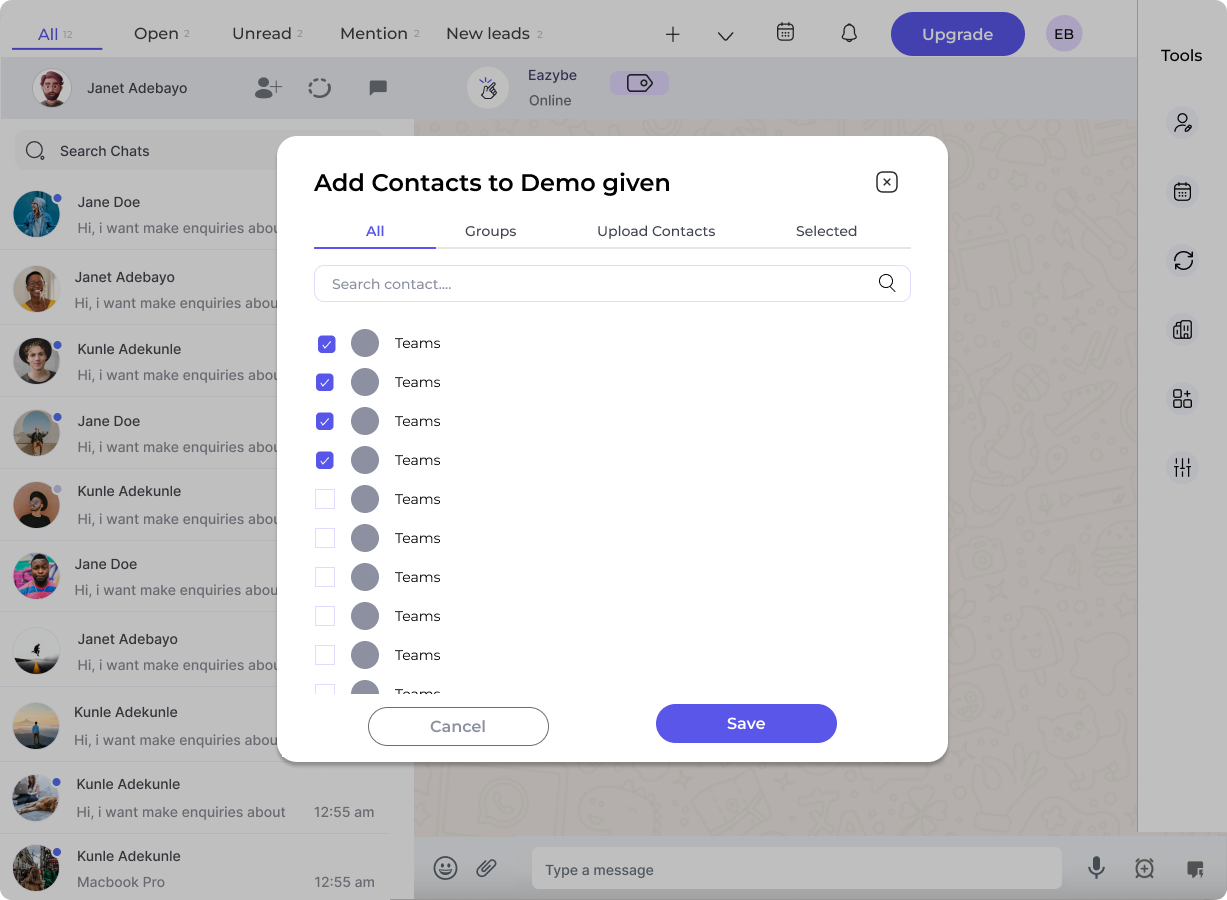
Labels vs Funnels
Example Label Structure
Applying Labels to Chats
- Open a conversation in WhatsApp Web
- Click the Label icon in the Eazybe sidebar
- Select the label to apply
- The chat will now appear under that label in Team Inbox
Labels sync with your CRM when Dynamic Labels is enabled.