

Quick Pre-Flight Checklist
Before troubleshooting, verify these requirements:App Version
Solution Provider
Active Usage
Cooldown Period
Common Issues and Solutions
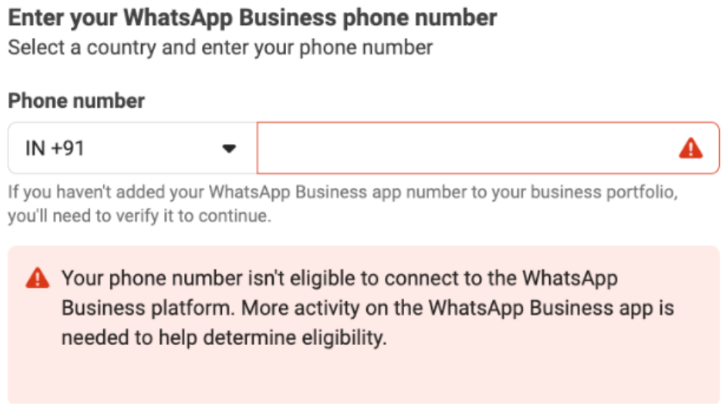
1. Phone Number Not Eligible
Root Causes:- Insufficient usage history (requires 7 days minimum on Business App)
- Newly registered numbers or low chat activity
- Previous WABA linkage blocking eligibility
Solutions
Solutions
- Exchange real conversations for minimum 7 days; 30-60 days recommended
- Avoid repeatedly deleting and re-registering the number
- Remove old WABA setup and maintain 1-2 month cooldown period
2. Forcing Re-Onboarding for Stuck Numbers
Objective: Force a re-onboarding of a phone number that is currently stuck or improperly linked to the WhatsApp Business App, bypassing Meta’s standard cooling-off period.Phase 1: Meta Business Suite (The Cloud Side)
Navigate: Open Meta Business Suite → WhatsApp Manager
Locate Number: Go to the Phone Numbers tab
Settings: Click the Settings/Gear icon on the right side of the specific phone number
Disable 2FA: Select the option to Turn off Two-Step Verification
Verification: Meta will send a reset/disable link to the registered admin email. Open the email, click the link, and confirm via the OTP provided.
Phase 2: Client Device (The Local Side)
Disconnect: In the WhatsApp Business App on the client’s phone, use the “Tap to Disconnect” feature (if accessible)
Hard Uninstall: Completely Uninstall the WhatsApp Business App from the mobile device. This clears local cache and registration tokens that often cause onboarding loops.
Phase 3: Re-Onboarding
Reinstall: Download a fresh version of the WhatsApp Business App
Re-register: Follow the standard onboarding flow to reconnect your number
3. Country or Region Not Supported
Root Causes:- Meta compliance and regulatory restrictions in specific regions
- Nigeria and South Africa are commonly unsupported
Solutions
Solutions
- India, Brazil, Mexico, Indonesia
- USA, Hong Kong, Singapore
- Monitor Meta documentation for expanding regional support
- Consider alternate messaging channels pending availability
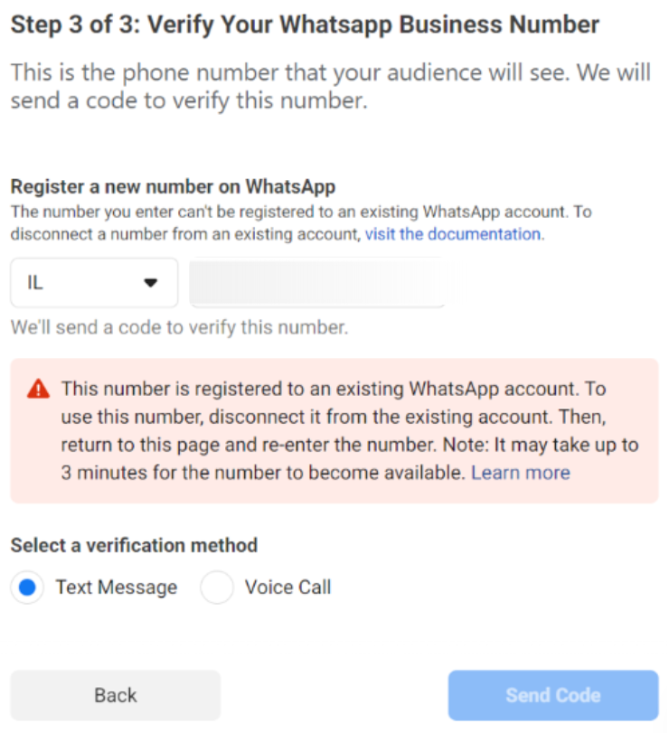
3. Number Previously Used With WhatsApp Business API
Root Cause: Meta enforces mandatory cooldown periods between provider transitions.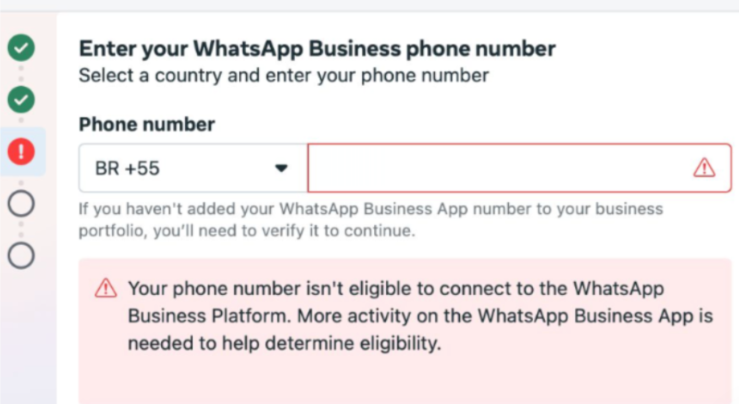
Solutions
Solutions
- Delete old WABA configuration completely
- Re-register in Business App and maintain active status for 1-2 months
- Avoid rushing API reconnection during cooldown period
4. Chat Sync Delays or Failures
Root Causes:- Large chat histories and contact lists extend sync time
- Unstable connectivity or closed app during synchronization
Solutions
Solutions
- Keep phone unlocked with app open during sync
- Maintain reliable Wi-Fi or strong mobile data
- Allow 4-6+ hours for large histories
- Rescan QR code if stuck; verify app version 2.24.17+
5. QR Code Not Appearing or Not Scanning
Root Causes:- Outdated WhatsApp Business App version
- Incorrect signup flow navigation
- Camera or temporary Meta service issues
Solutions
Solutions
- Update to version 2.24.17 or newer
- Follow correct path: Settings > WhatsApp > Sign Up with Facebook
- Clean camera lens and optimize lighting
- Close and retry after waiting; reinstall if persistent
6. Facebook Page Linking Issues
Root Causes:- Missing Facebook Page or Meta Business Account
- Insufficient admin permissions
- Account-level Meta restrictions
Solutions
Solutions
- Create or connect Facebook Page via Business Tools settings
- Verify admin access on both Page and Business Account
- Complete Meta Business Account setup with all required details
7. Cannot Disable Coexistence
Solutions
Solutions
- Use app disconnect: Settings > Account > Business Platform
- Avoid uninstalling the app
- Contact your provider or Meta support if status doesn’t update
8. Unsupported Companion Devices
Root Causes:- Only WhatsApp Web and official desktop apps are supported
- Messages from unsupported devices won’t sync to API
Solutions
Solutions
- Link via WhatsApp Web or official Mac/Windows desktop app
- Monitor provider updates for expanding device support
- Watch for placeholder warnings on unsupported messages
9. Business Name Locked After Onboarding
Root Cause: Meta enforces consistent business identity across platforms after onboarding completion.Solutions
Solutions
- Finalize your business name before starting signup
- Request post-onboarding changes via Meta support (approval not guaranteed)