

Why the Template-Based Chatbot Matters
In an era of instant gratification, customers expect immediate answers. This feature bridges the gap between manual chatting and complex custom coding. It allows scaling businesses to automate repetitive conversations while keeping all data synchronized inside HubSpot, ensuring that your human agents only step in when high-value interactions occur.Key Benefits
Automates Lead Qualification
Stop wasting time on cold leads. Set up a workflow that asks qualifying questions via button clicks (e.g., “Budget?”, “Timeline?”). Based on the reply, automatically update the HubSpot contact property or route them to the right sales rep.
Delivers Instant 24/7 Engagement
Your business never sleeps. Create workflows that greet customers, provide product details, or schedule demos instantly, regardless of the time of day, ensuring zero drop-offs due to delayed responses.
Standardizes Customer Journeys
Ensure every prospect receives the exact same high-quality onboarding or support experience. By pre-planning flows, you eliminate human error and maintain consistent brand messaging across every interaction.
Seamless HubSpot Data Sync
Unlike external bot builders, this lives inside HubSpot. Every button click and response is captured natively, allowing you to trigger further marketing emails, tasks, or deal stage updates based on the chat outcome.
Scope of Capability
The template-based chatbot can handle various automation scenarios:How It Works: Step-by-Step Configuration
To deploy your chatbot, follow this structured setup within your HubSpot account.Step 1: Blueprint & Template Creation
First, map out your desired conversation flow. Create your WhatsApp Templates in Eazybe with Quick Reply buttons (e.g., “Yes,” “No,” “More Info”) corresponding to the choices you want to offer.Step 2: Initialize the Workflow
1
Navigate to Automation
Go to Automation in your HubSpot account.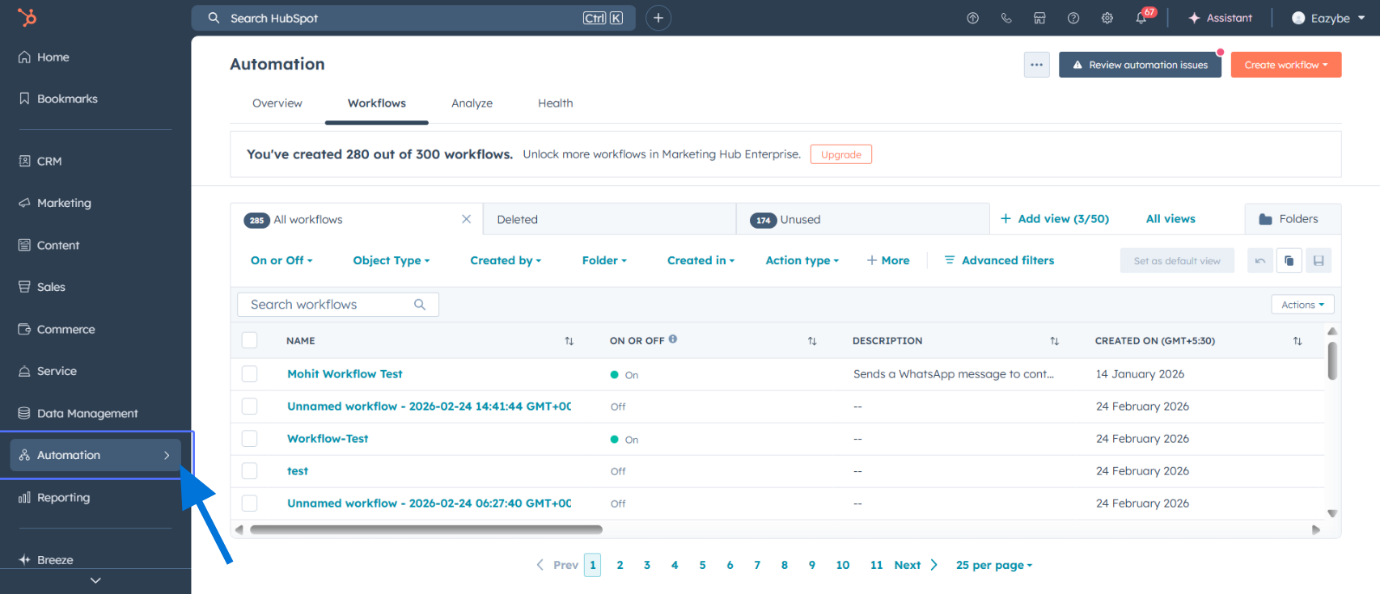
2
Select Workflows
Click on Workflows from the automation menu.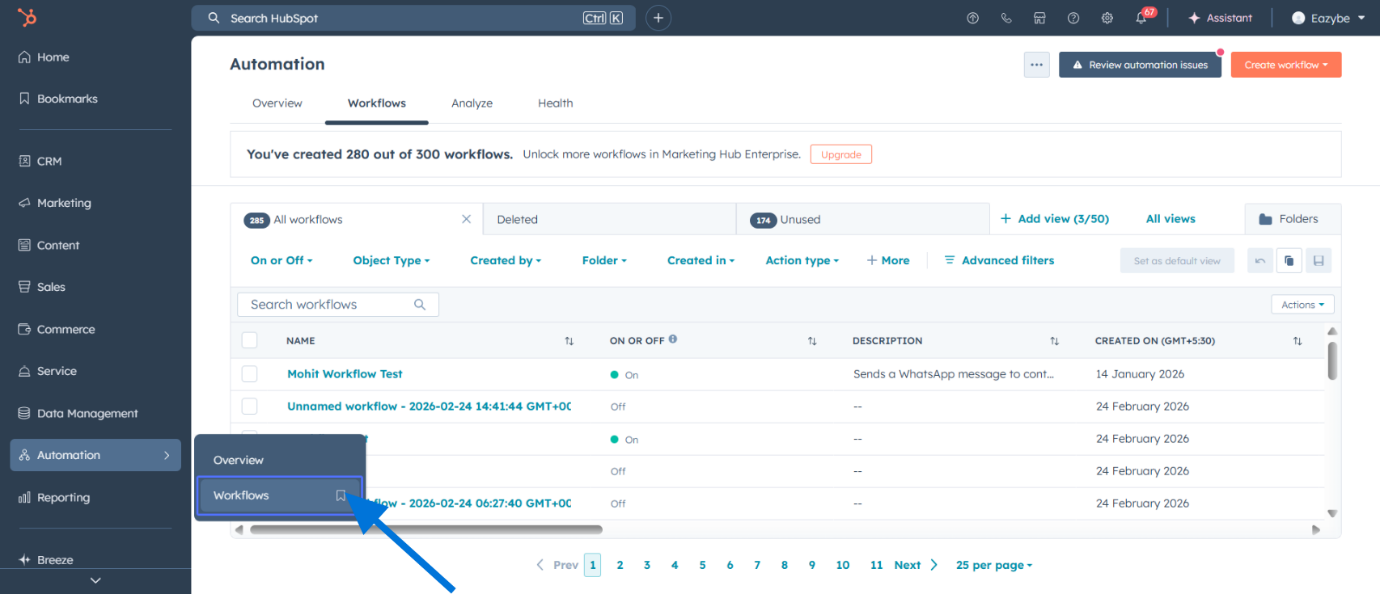
3
Create a New Workflow
Click Create workflow to start building your automation.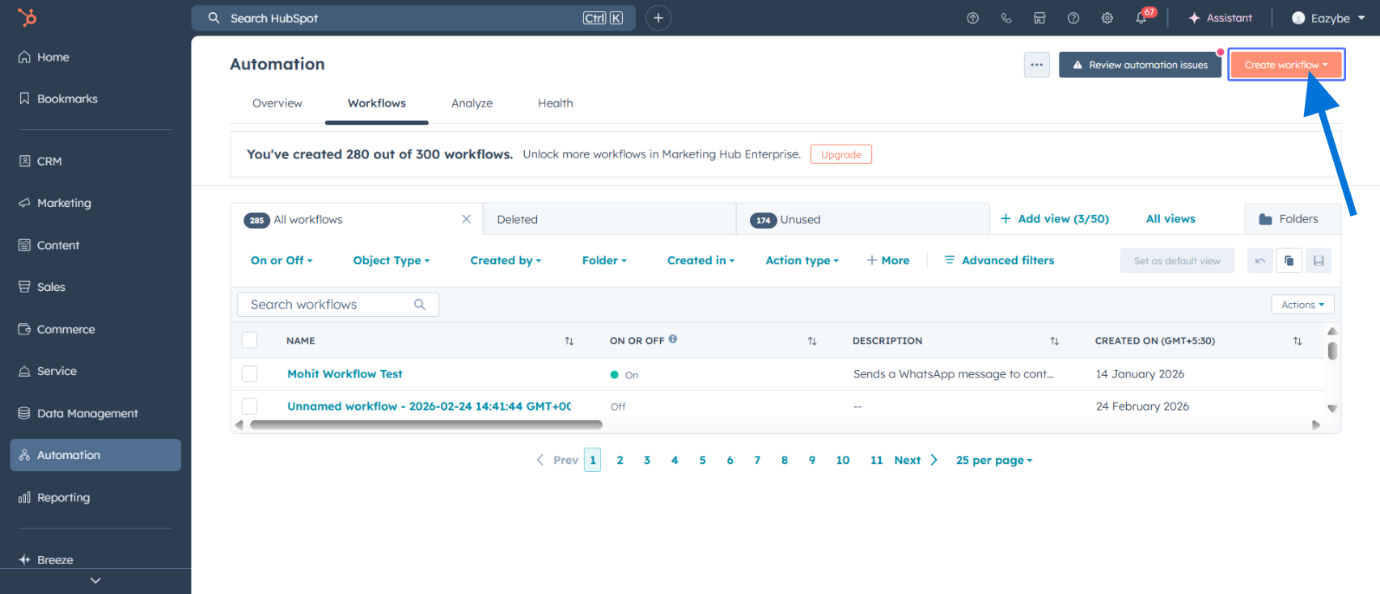
4
Choose From Scratch
Select From scratch to create a custom workflow.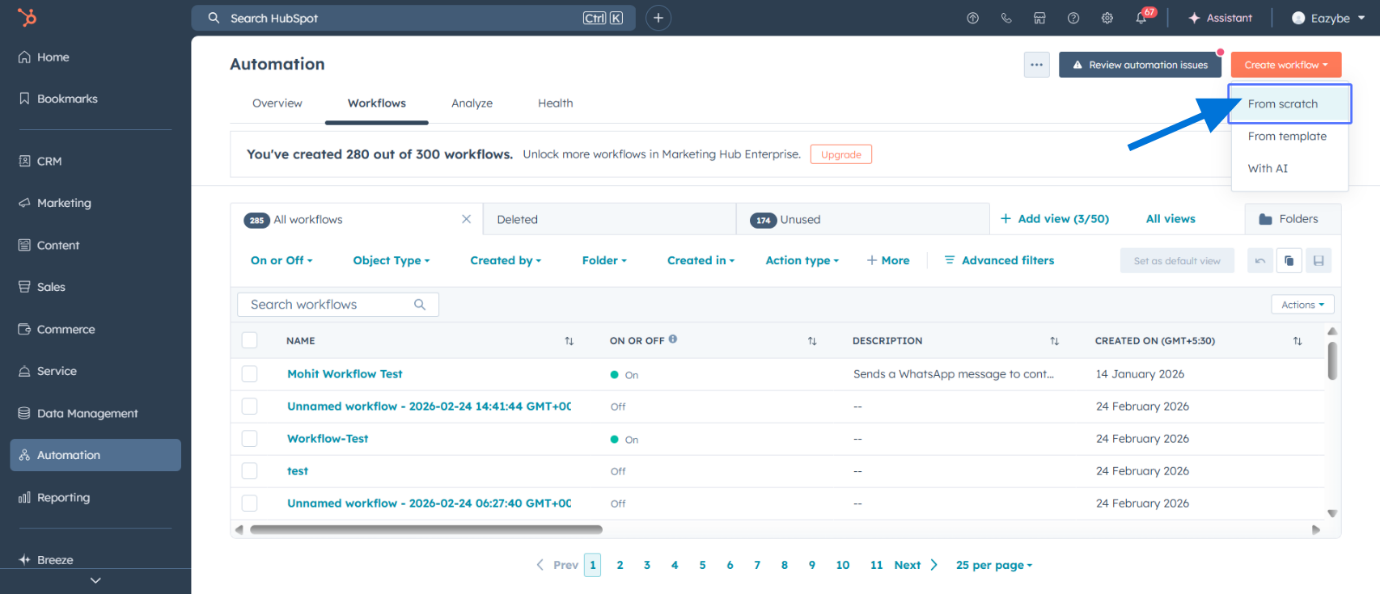
5
Set Enrollment Trigger
Set the enrollment trigger to Met filter criteria. You can choose any filter criteria of your choice.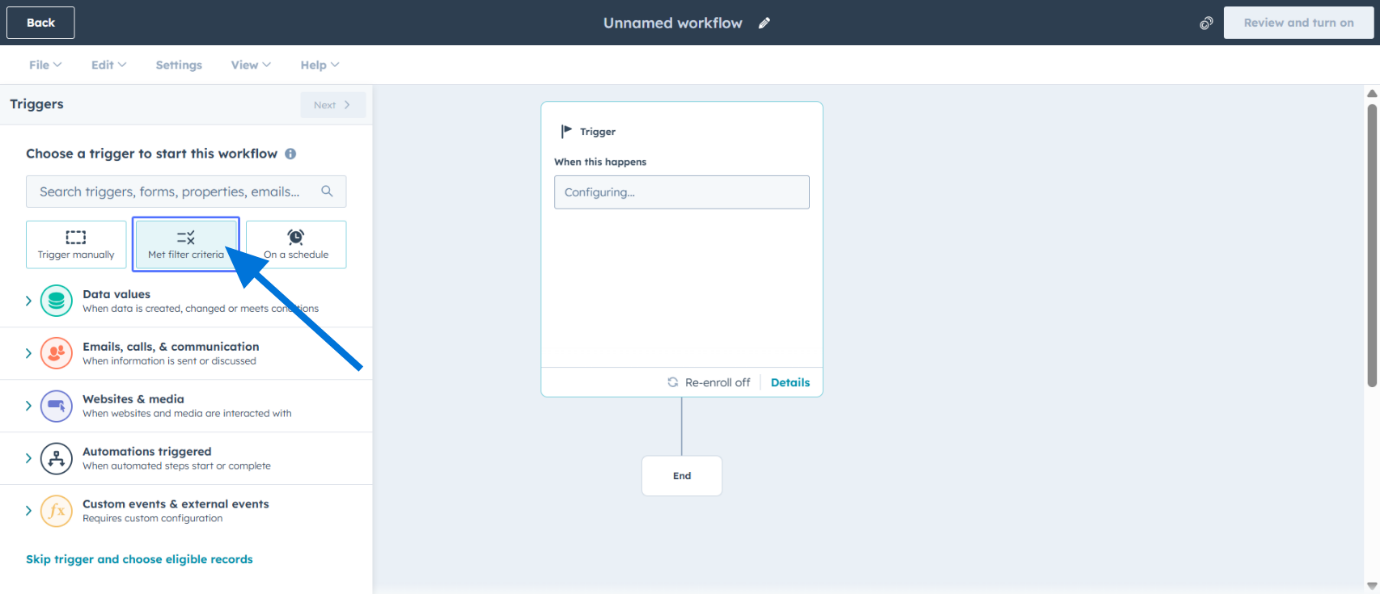
6
Select Contact as Workflow Type
Choose Contact as the workflow type.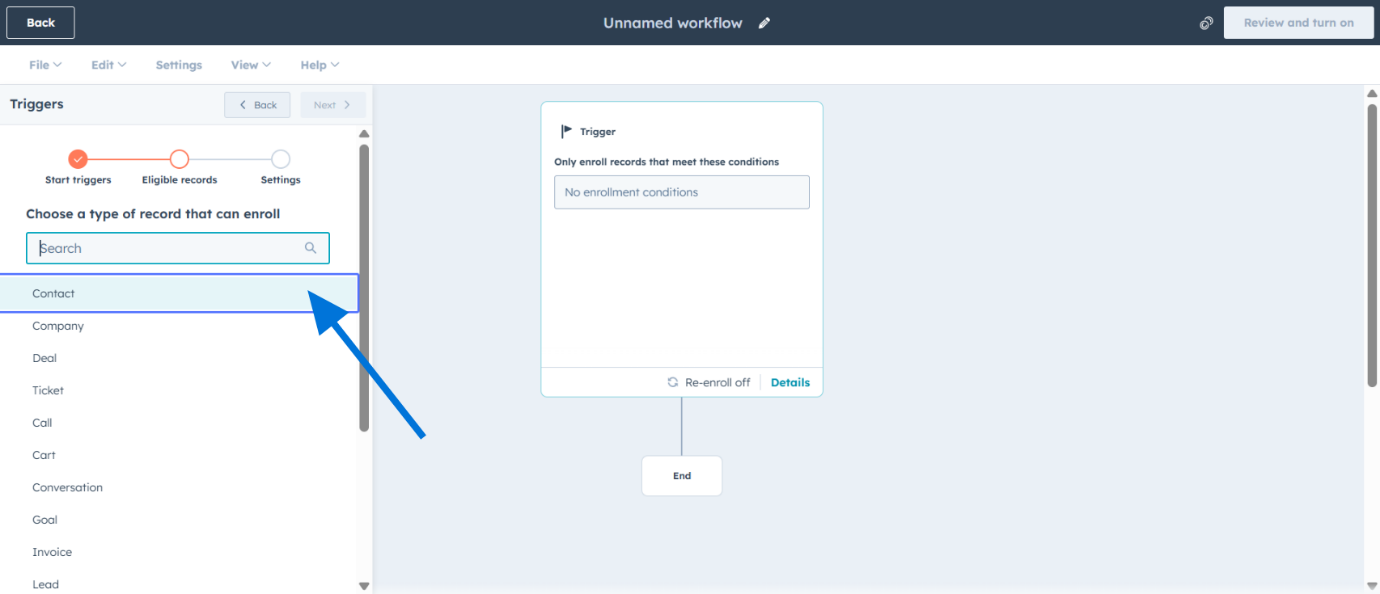
7
Define Enrollment Filters
Define enrollment filters by contact properties to determine who enters the workflow.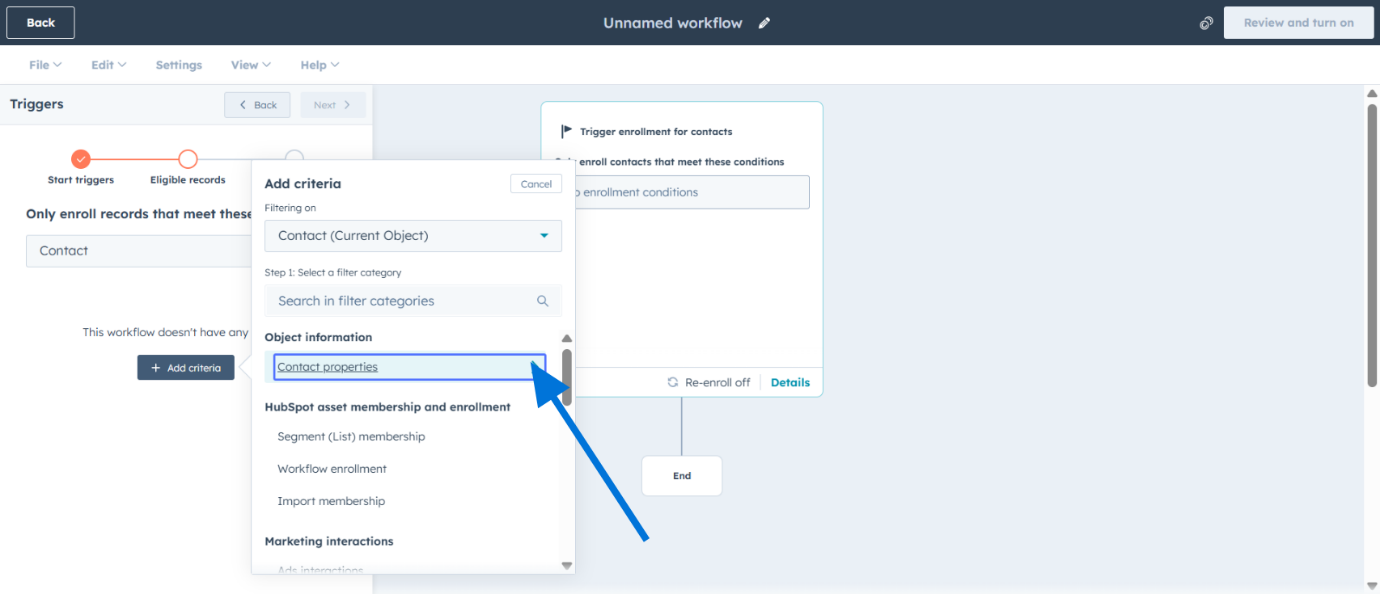
8
Add Filter Values
Add the specific values for your filter criteria.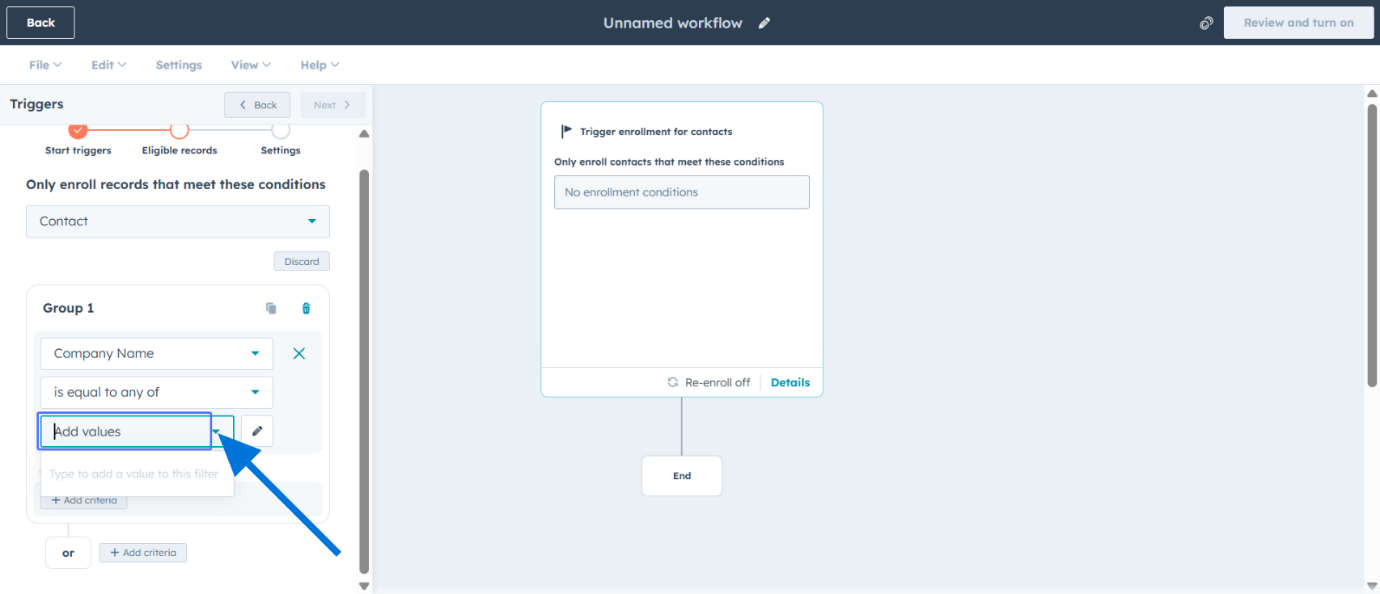
9
Proceed to Actions
Click to proceed to the workflow actions section.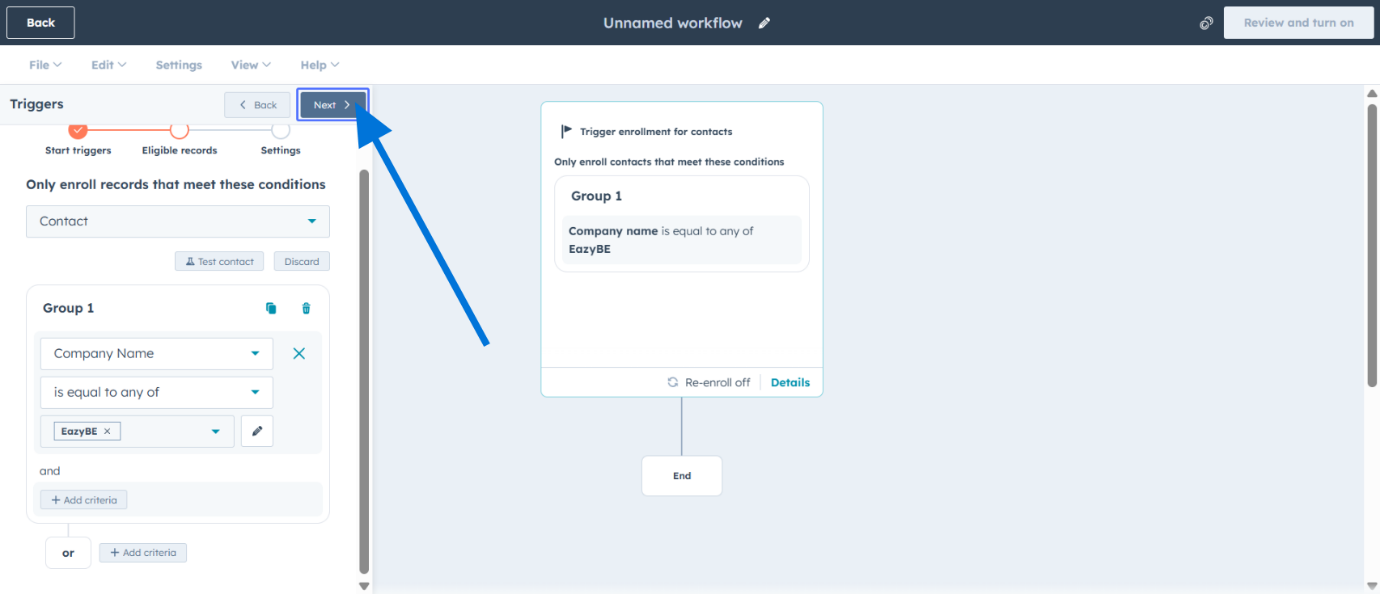
10
Save Initial Setup
Save the initial workflow setup configuration.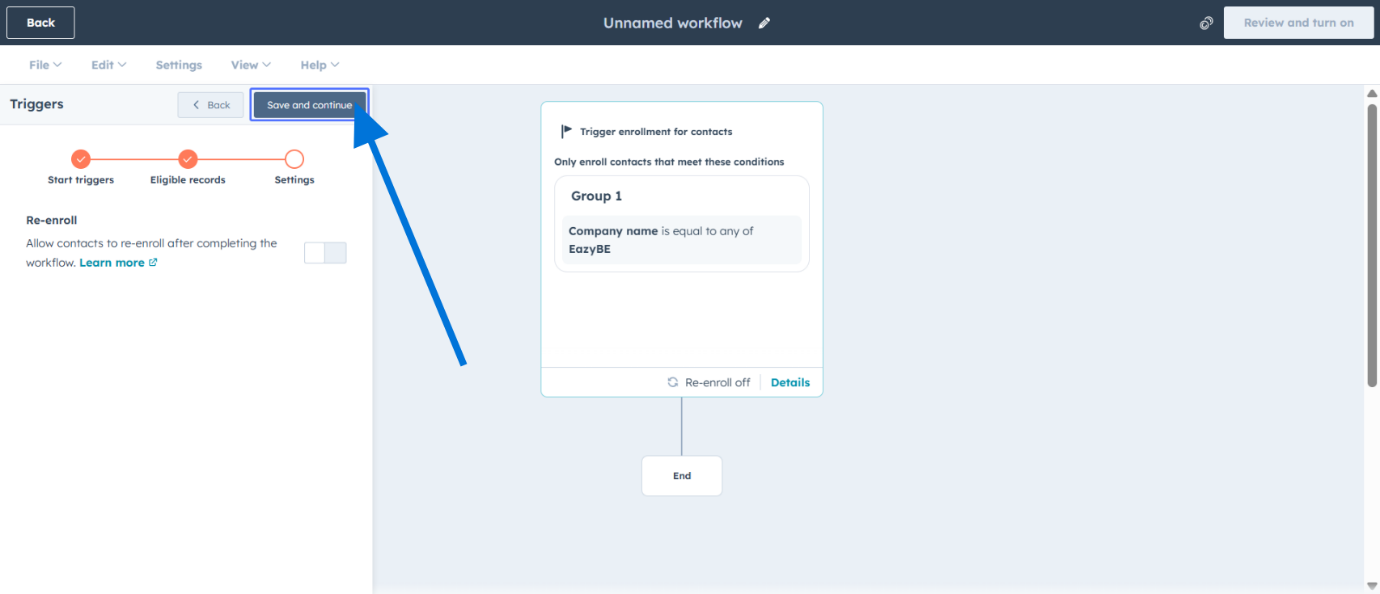
Step 3: Deploy the “Listen” Action
1
Add WhatsApp Integration
Click to add a new WhatsApp integration action to your workflow.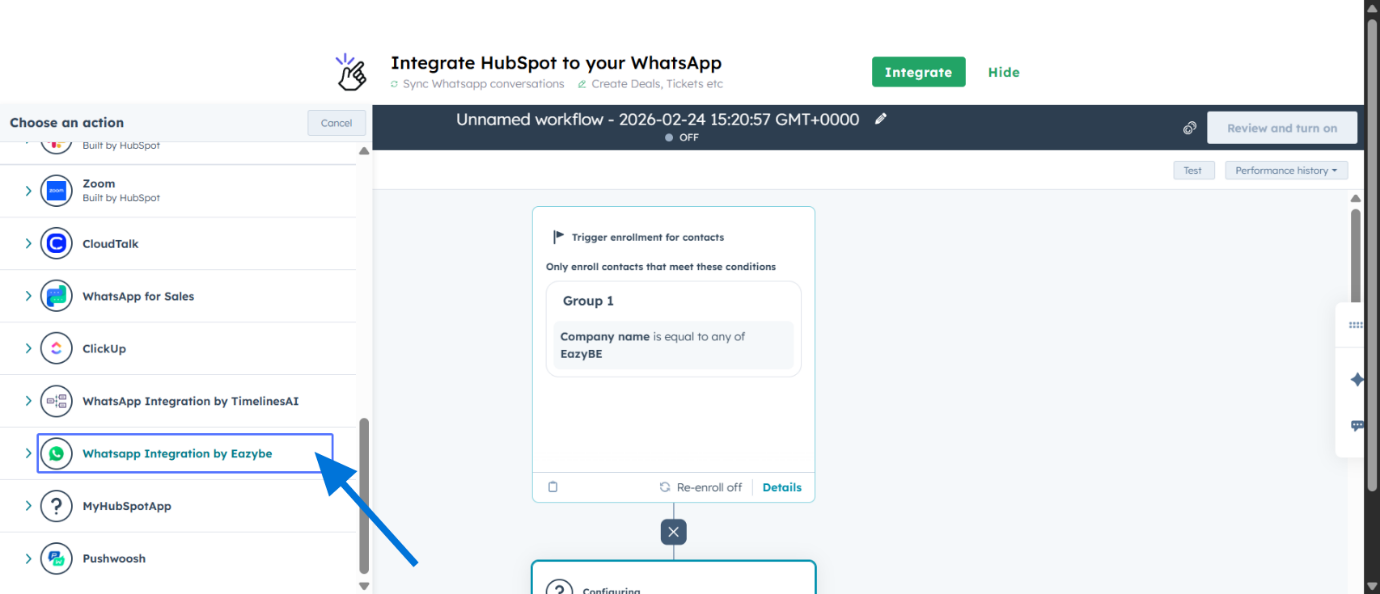
2
Select Wait for Reply Action
Choose Send WhatsApp & Wait for Reply from the available actions.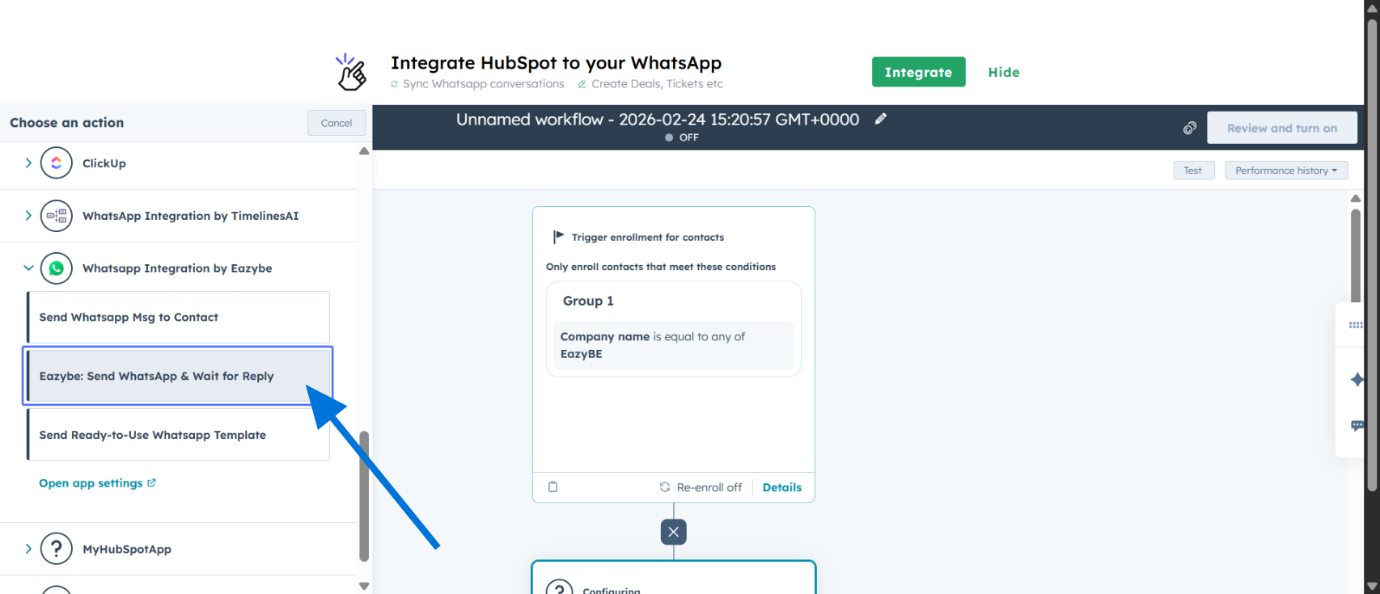
3
Choose Sender Number
Select the sender phone number for this workflow.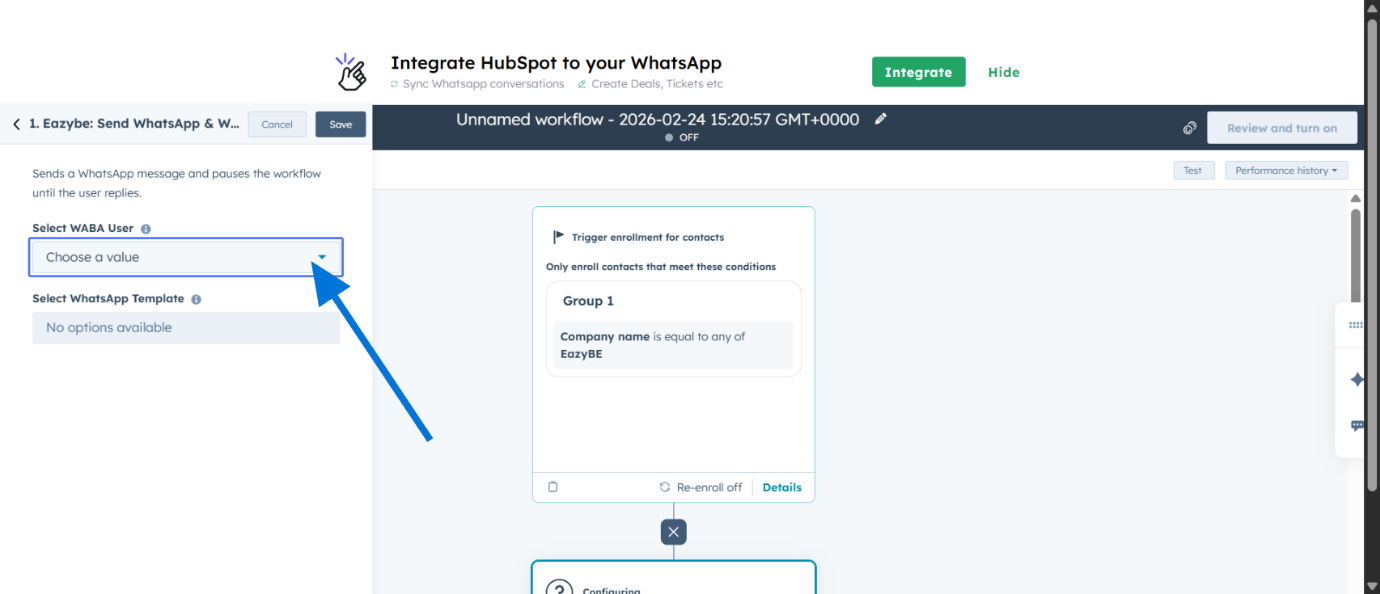
4
Select Template
Select the template you created in Step 1 with Quick Reply buttons.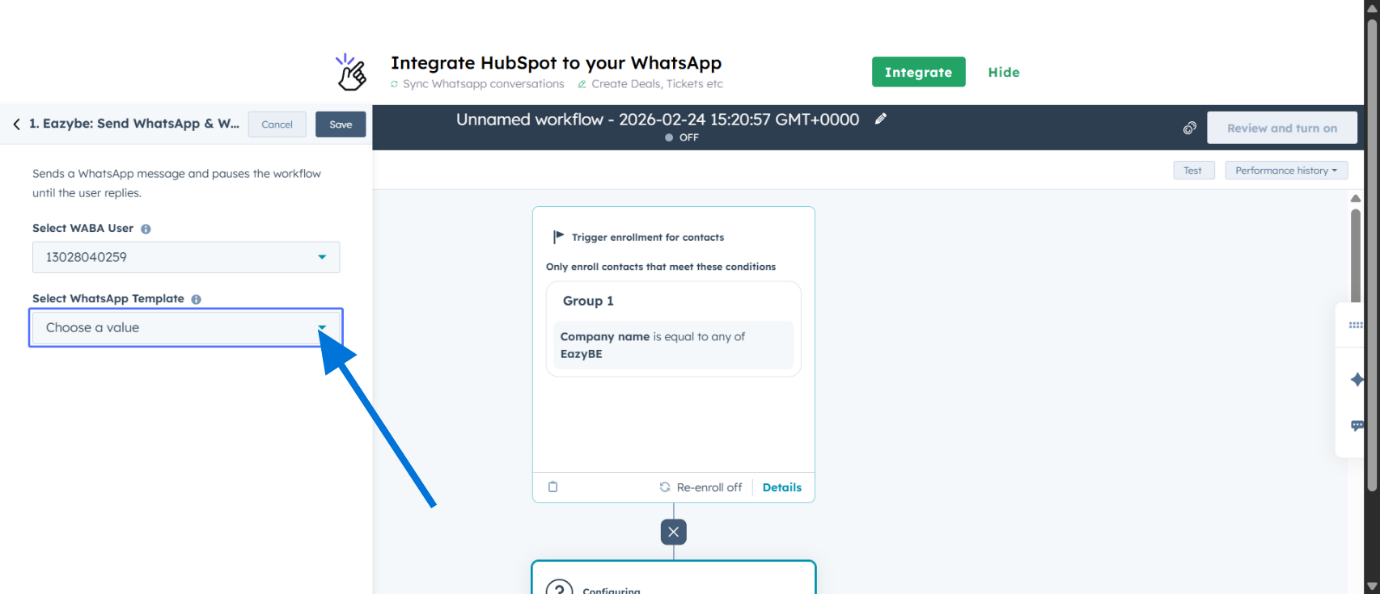
This action pauses the workflow until the user clicks a button.
5
Save Action
Click Save to save the WhatsApp send action.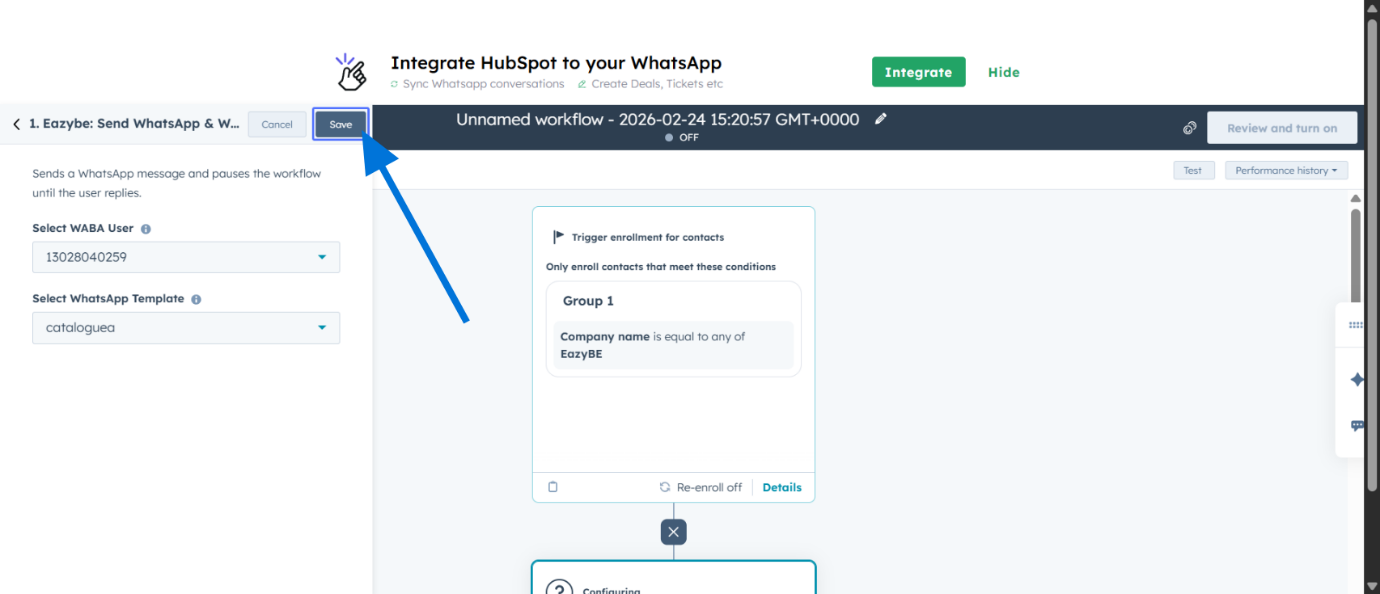
Step 4: Configure Smart Branching
1
Add Another Action
Add another workflow action to create branching logic.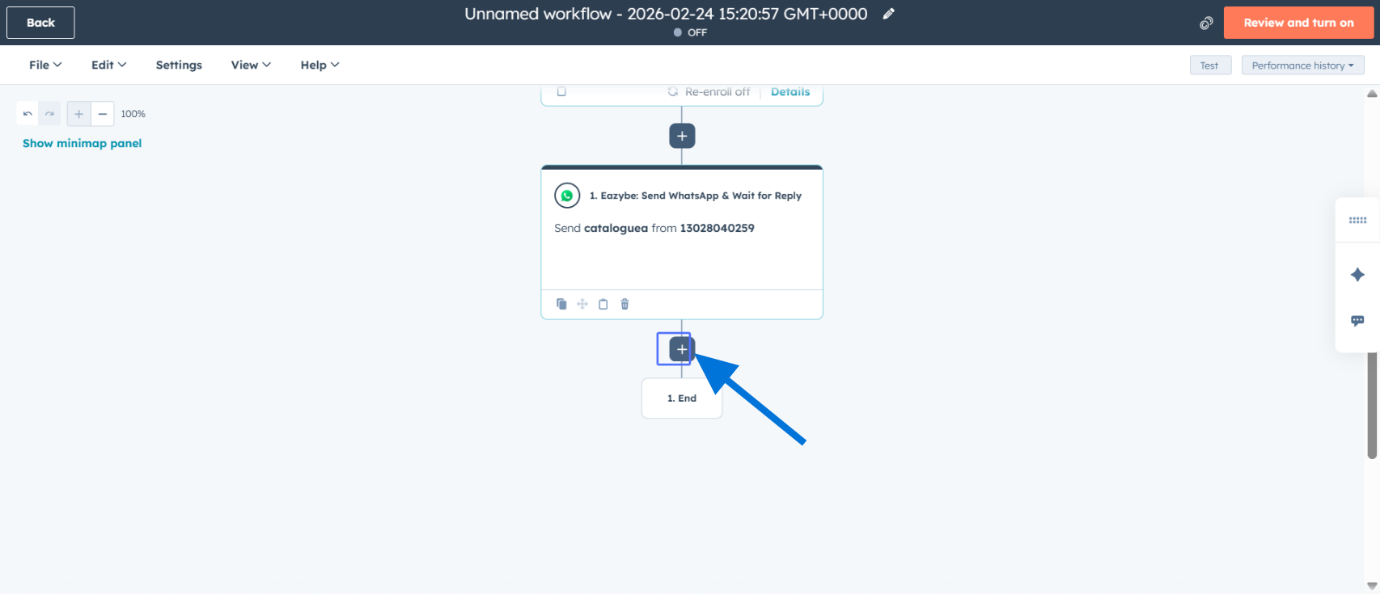
2
Select Branch Action
Select the Branch action from the available options.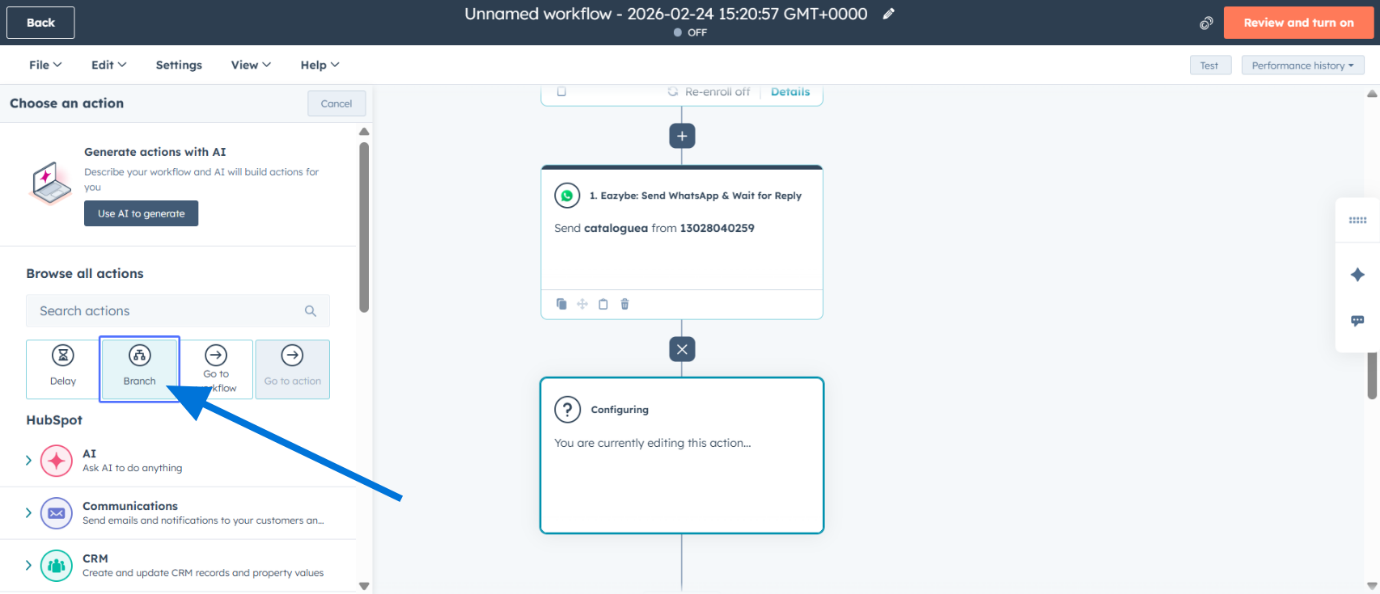
3
Choose Branching Type
Choose One property or action output for your branching logic.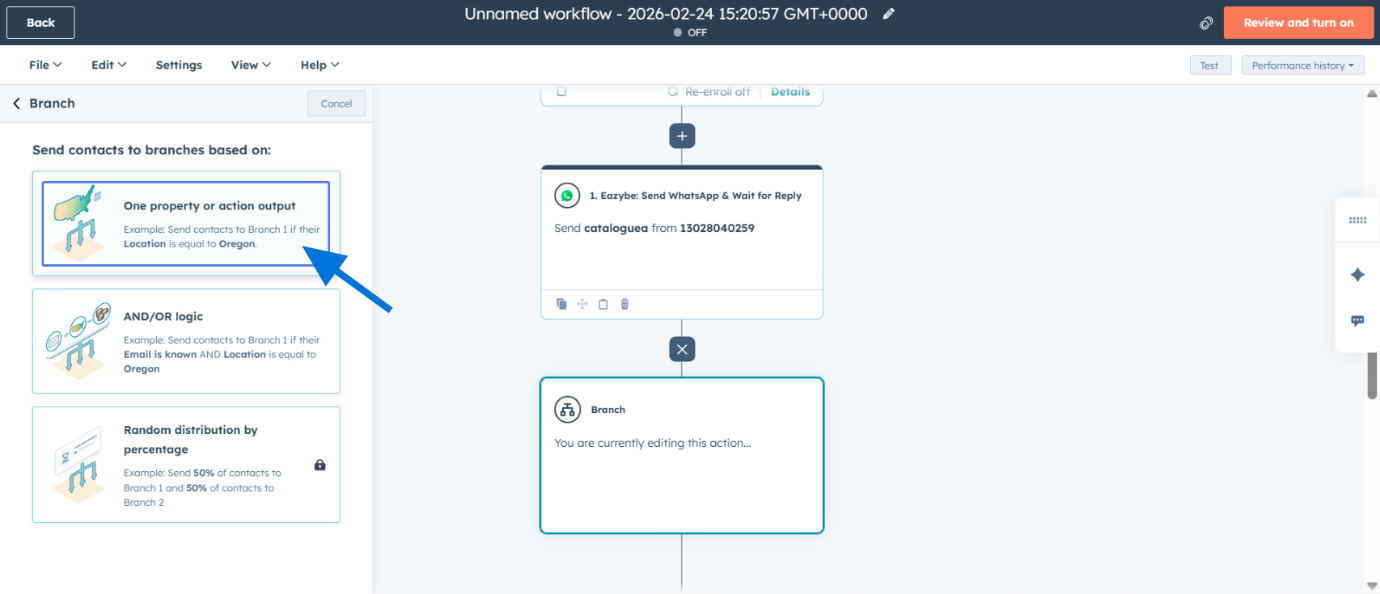
4
Select Branching Property
Select the property that will determine the branch path.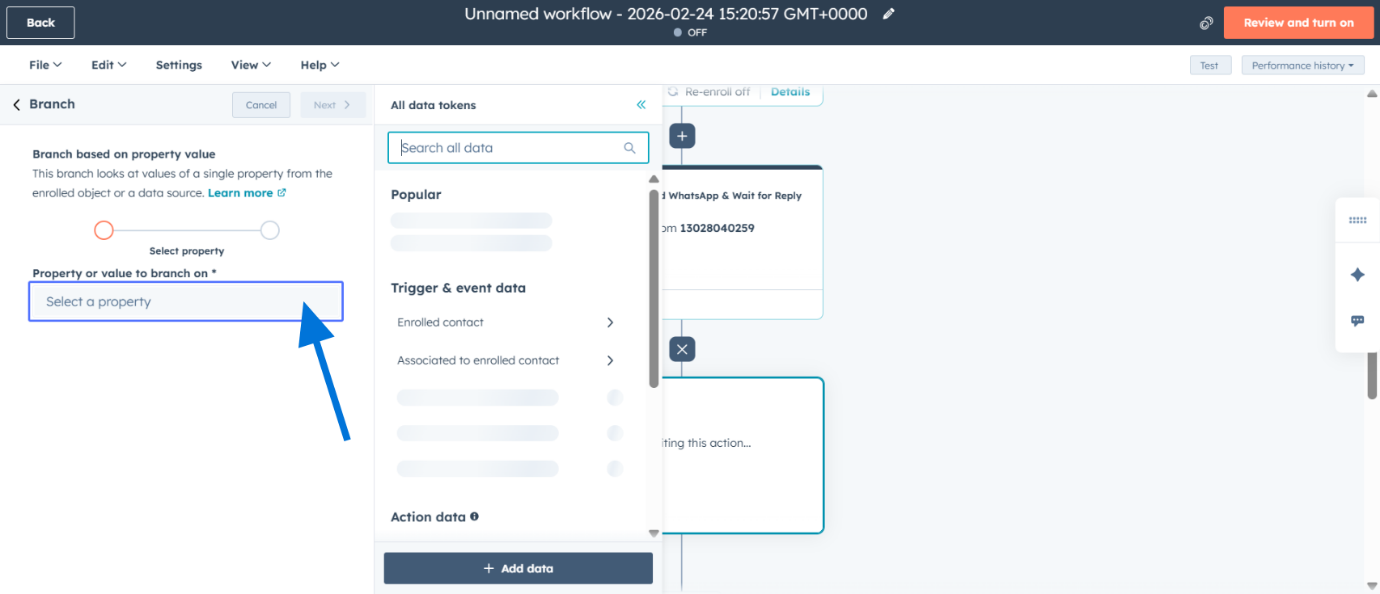
5
Use User WhatsApp Reply
Use User WhatsApp Reply as the branching property.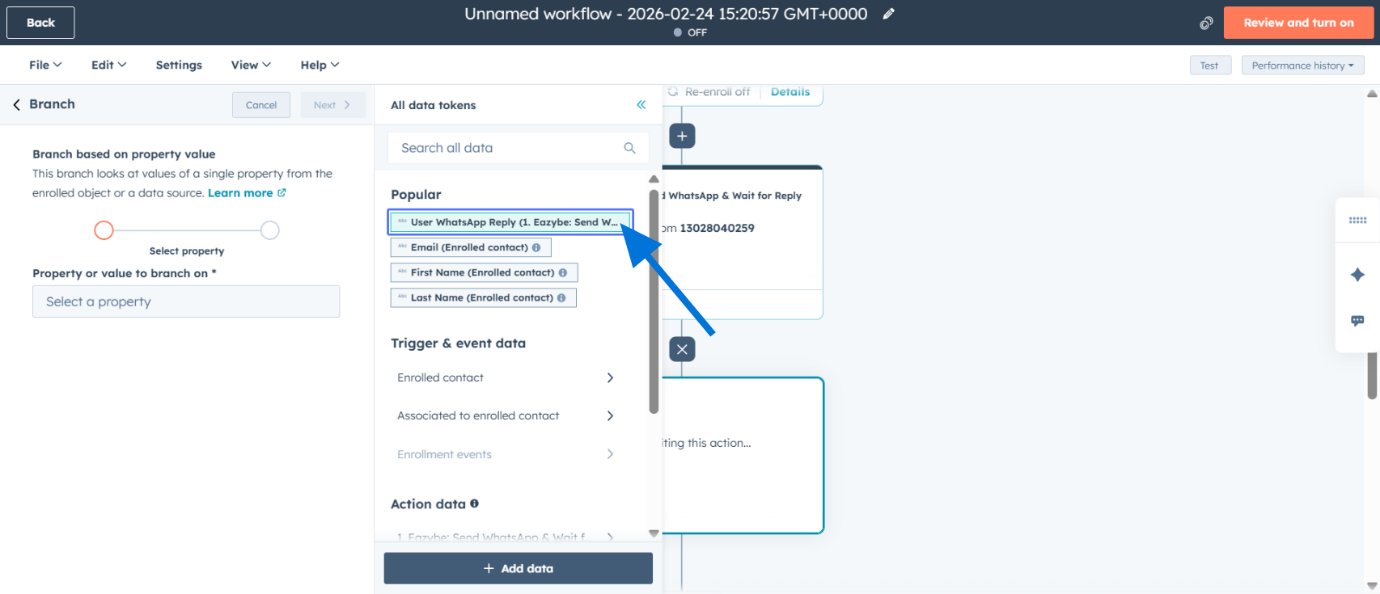
6
Configure Branch Conditions
Configure the conditions for each branch based on button replies.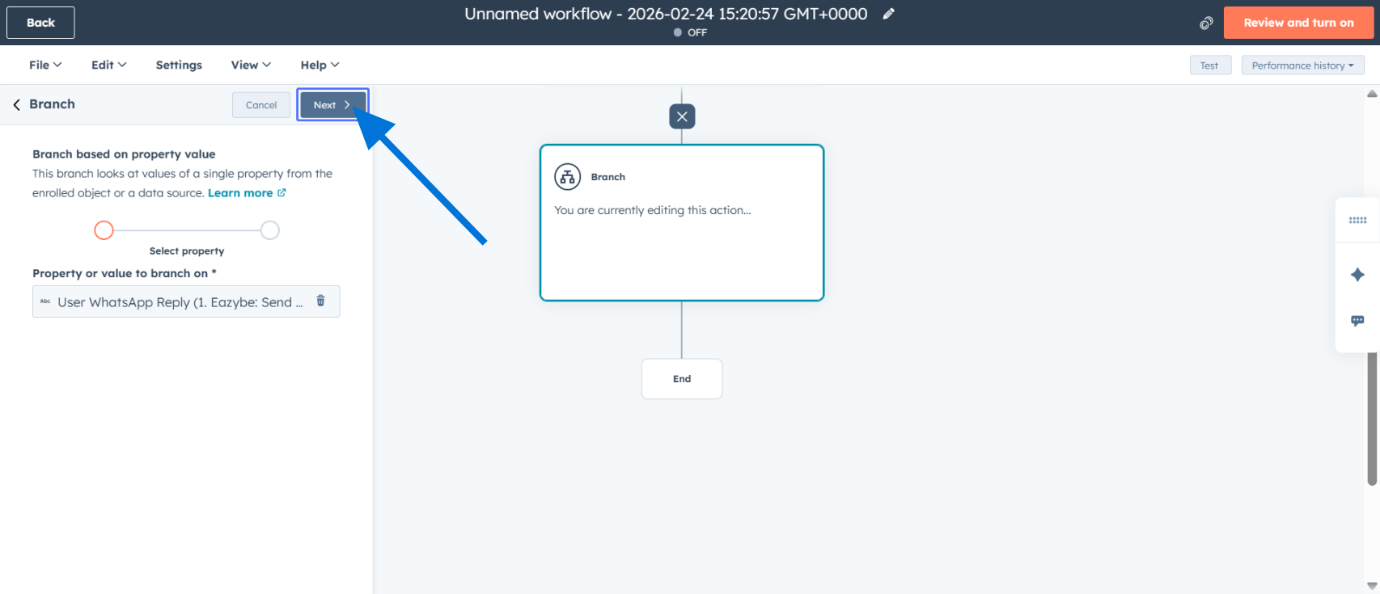
7
Enter Branch 1 Value
Enter the value for Branch 1 condition (must match the button text exactly).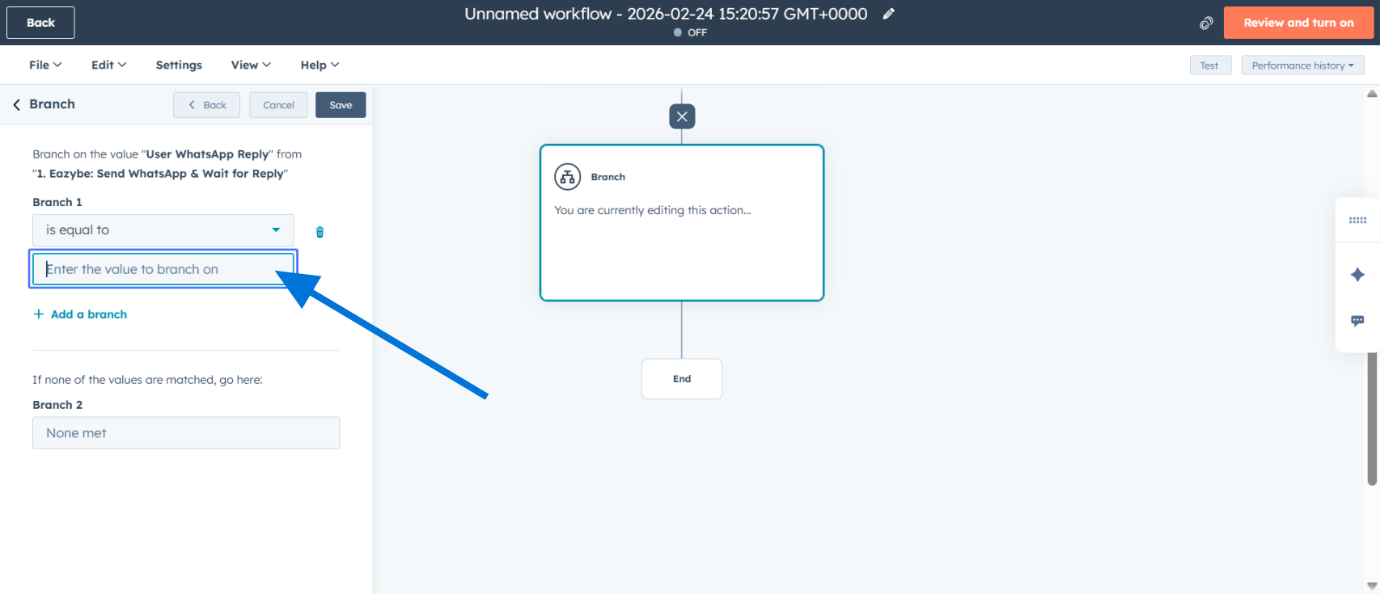
8
Add Additional Branch
Click to add an additional branch for another button option.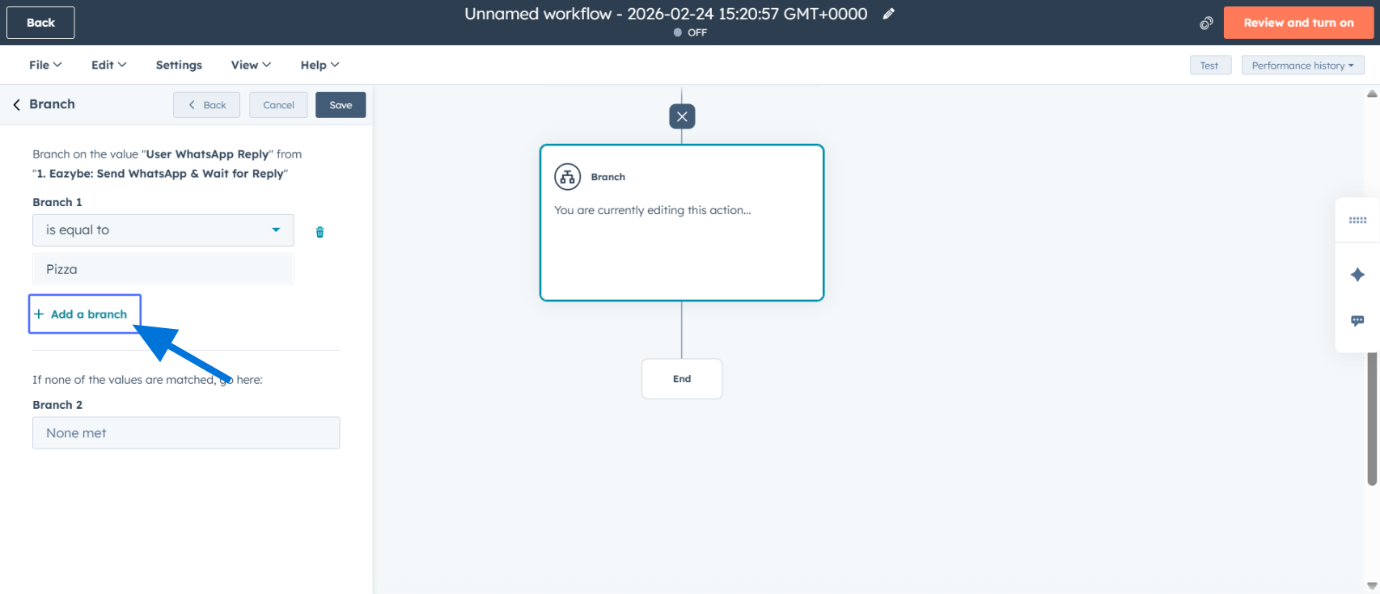
9
Enter Branch 2 Value
Enter the value for Branch 2 condition.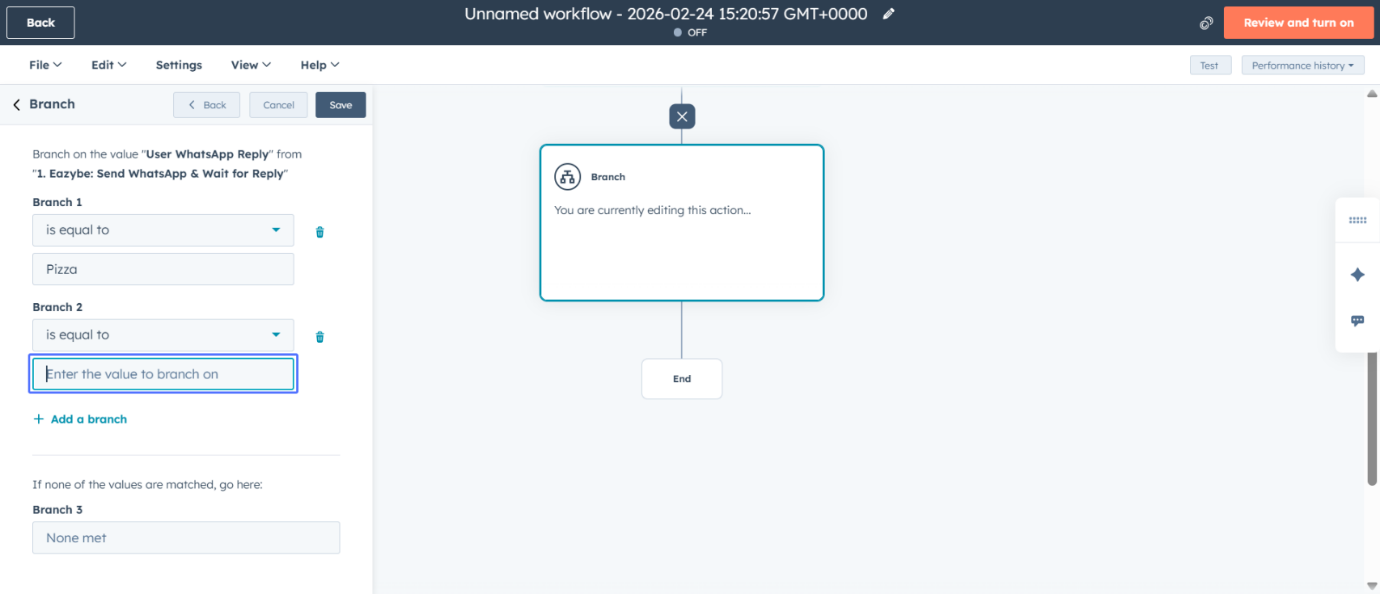
10
Save Conditional Branch
Save the conditional branch configuration.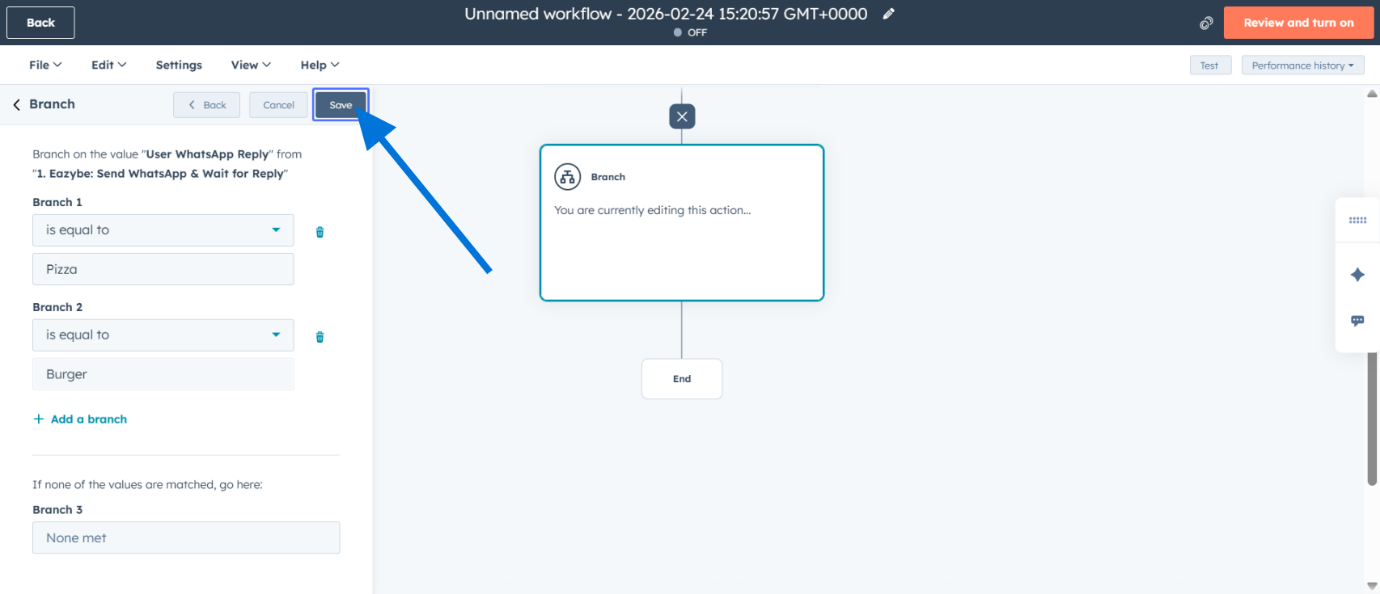
Step 5: Build the Journey
1
Add Action within Branch
Add an action within a branch to define what happens for that path.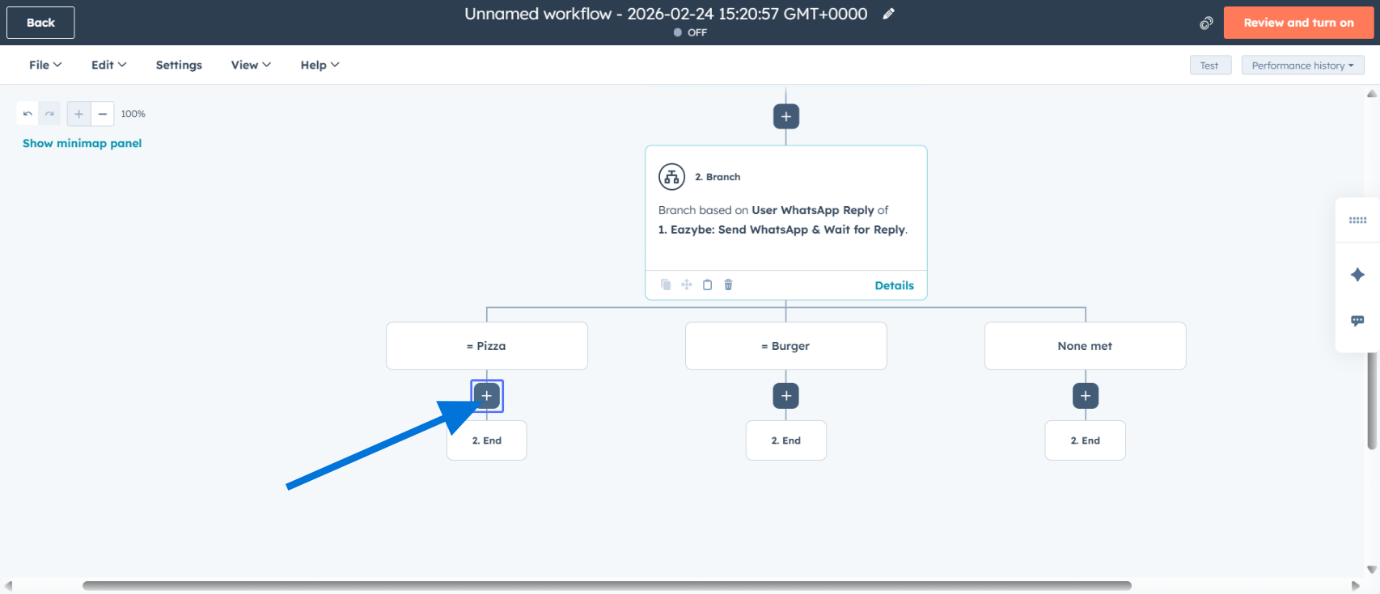
2
Add Another WhatsApp Action
Add another WhatsApp integration action within the branch.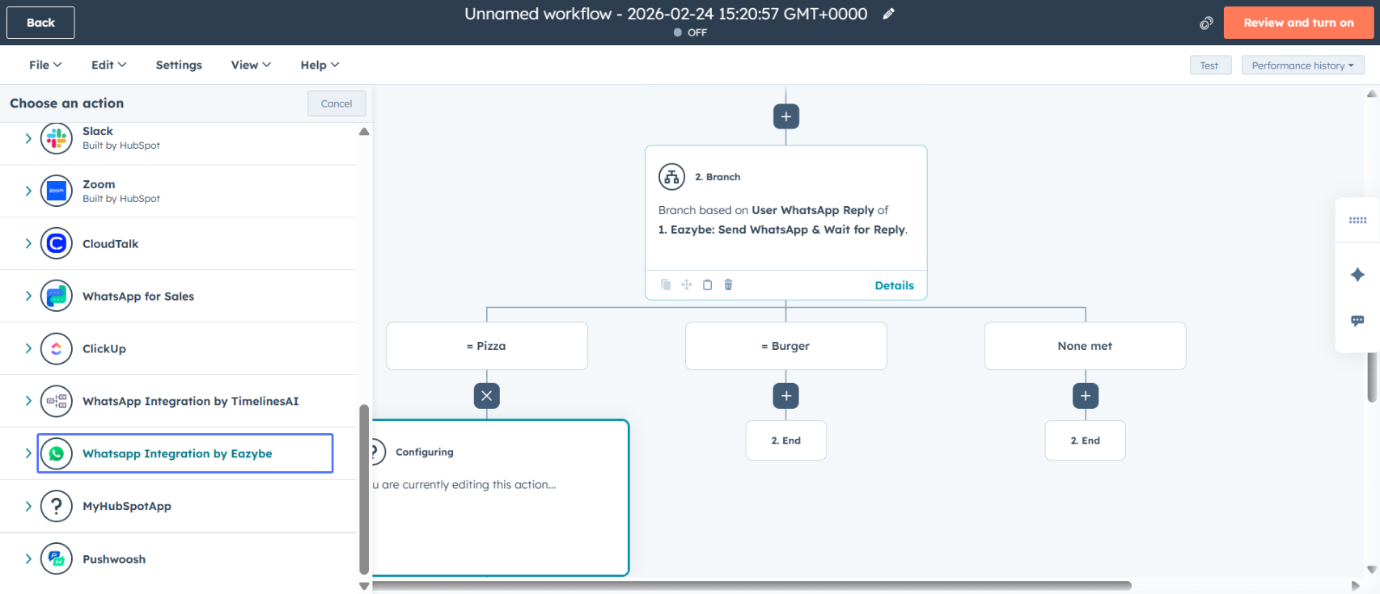
3
Select Wait for Reply
Choose Send WhatsApp & Wait for Reply within the branch.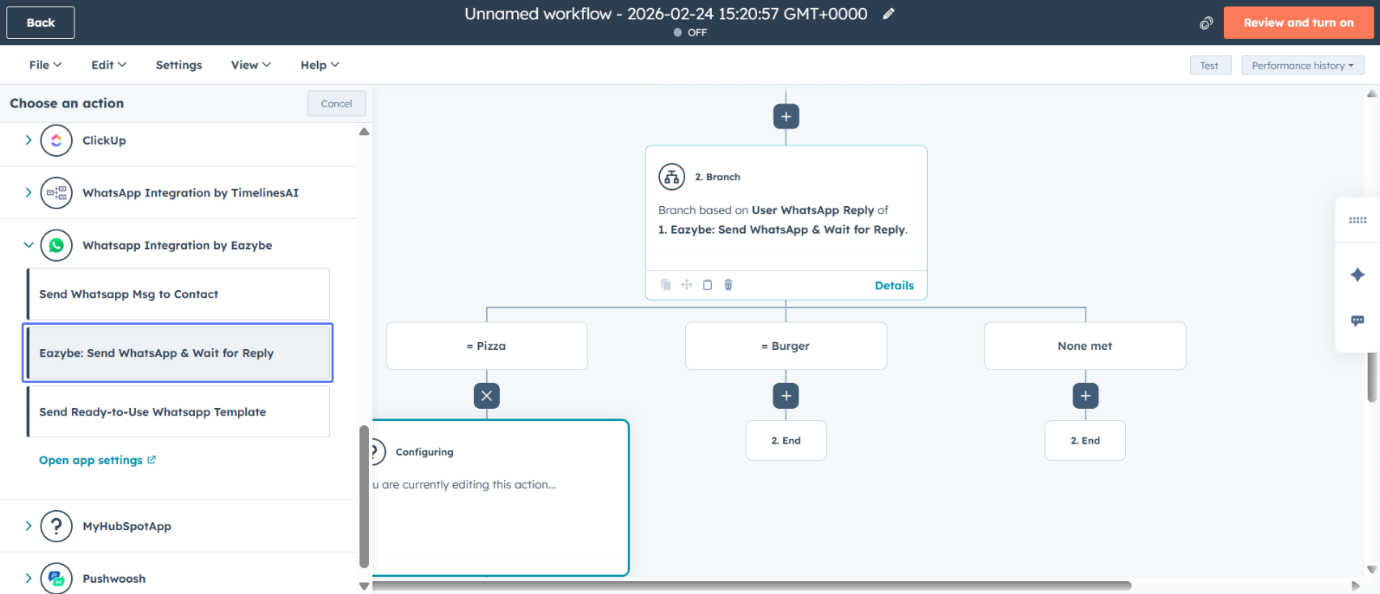
4
Select Template Value
Select a value for the branch-specific WhatsApp message template.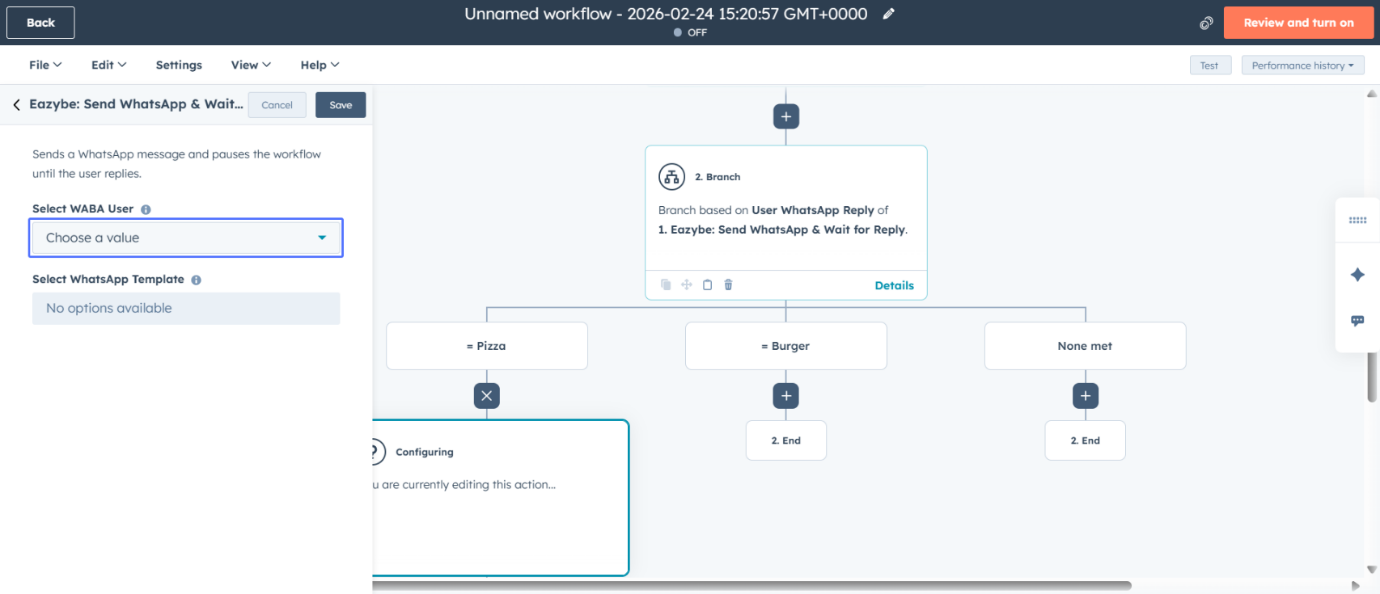
5
Choose Sender Number
Choose the WhatsApp sender number for this branch.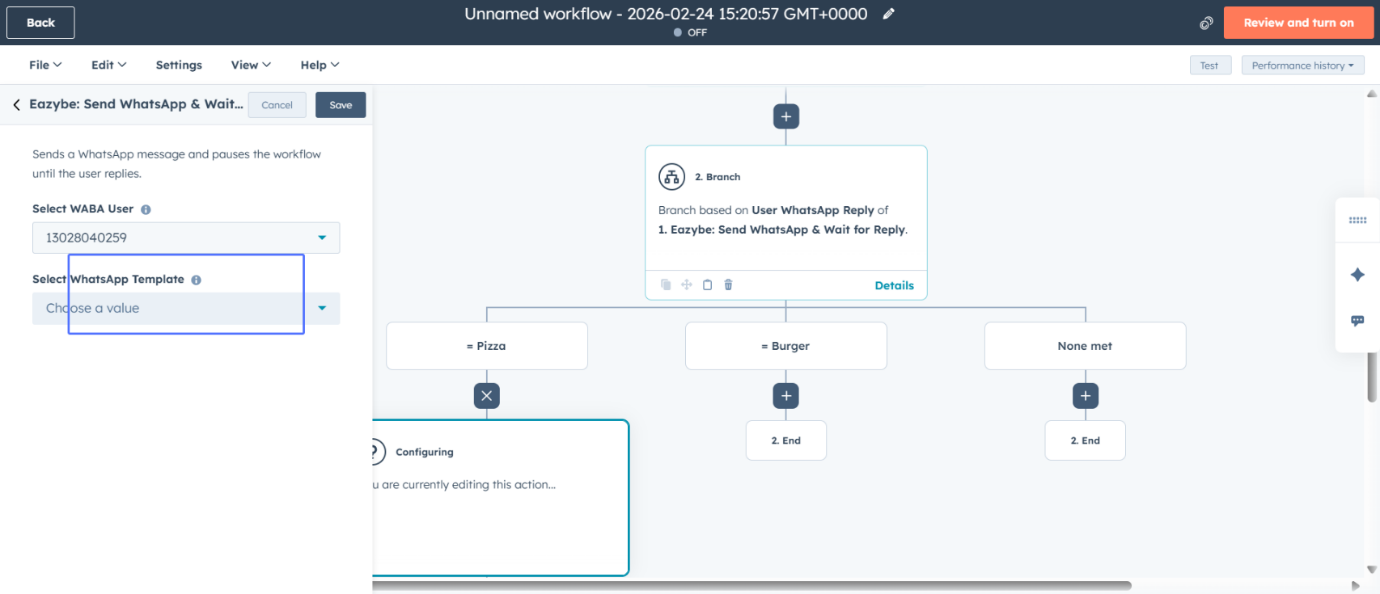
6
Select Template for Branch
Select the WhatsApp template for this specific branch.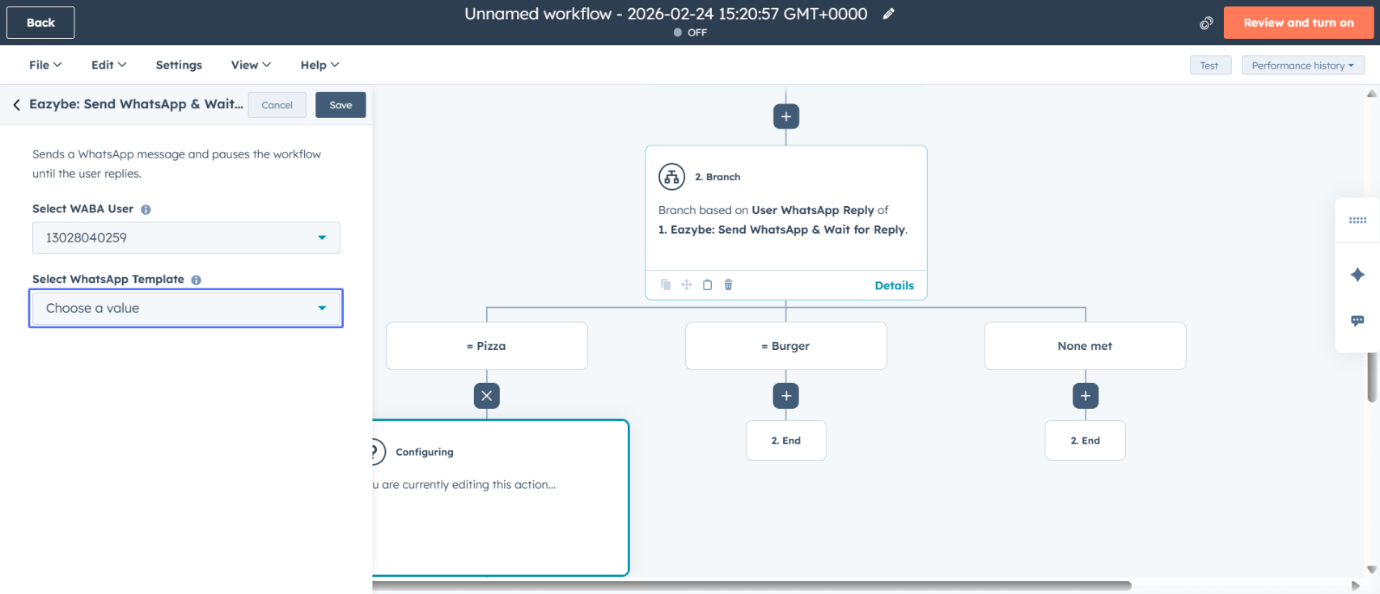
7
Confirm Template
Confirm your template selection (e.g., “catalogue2”).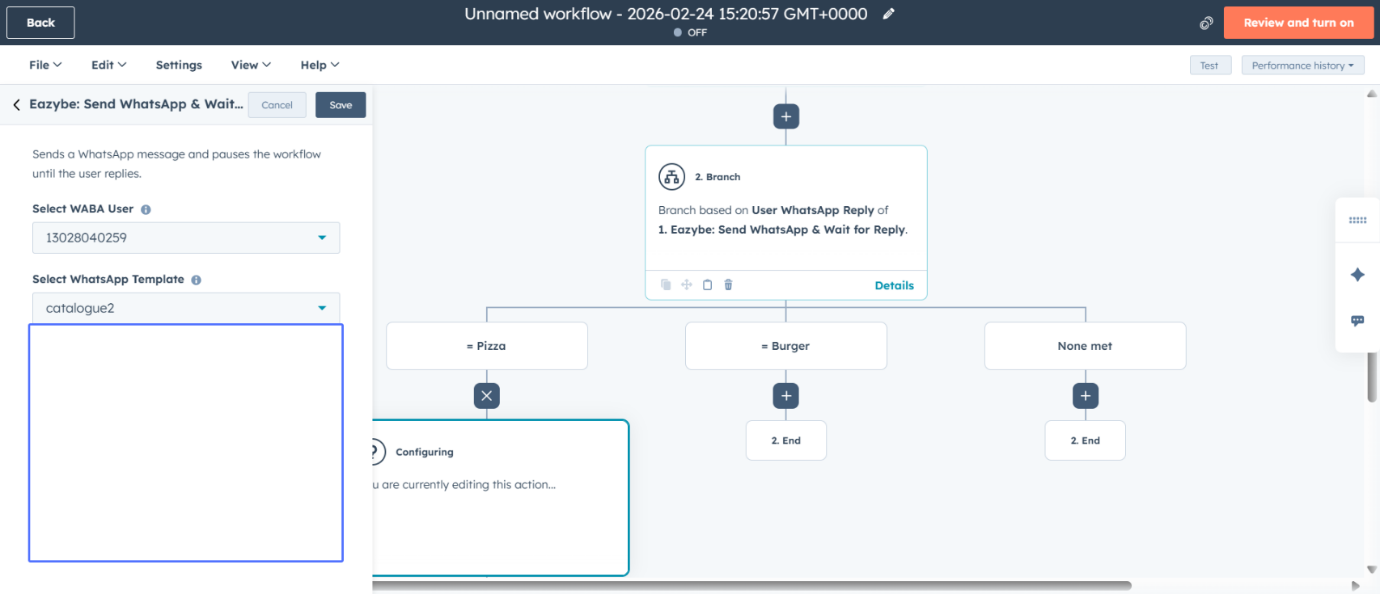
8
Save Branch Action
Save the branch-specific WhatsApp action.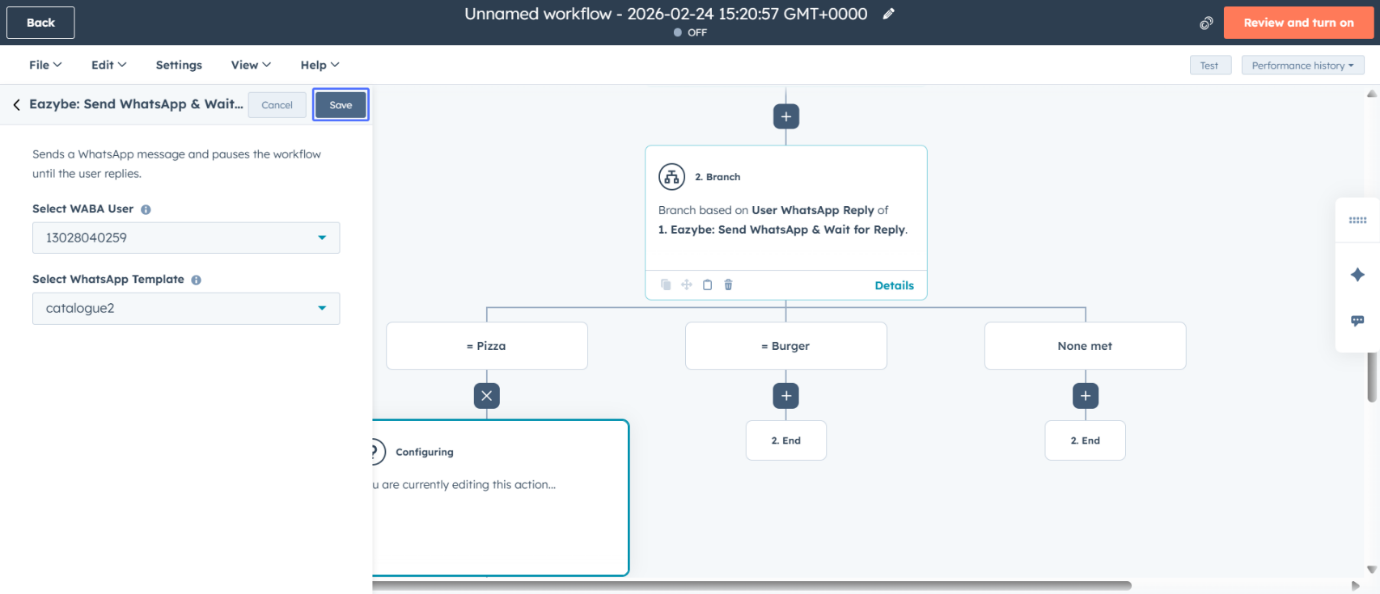
9
Review and Activate
Review the complete workflow and activate it.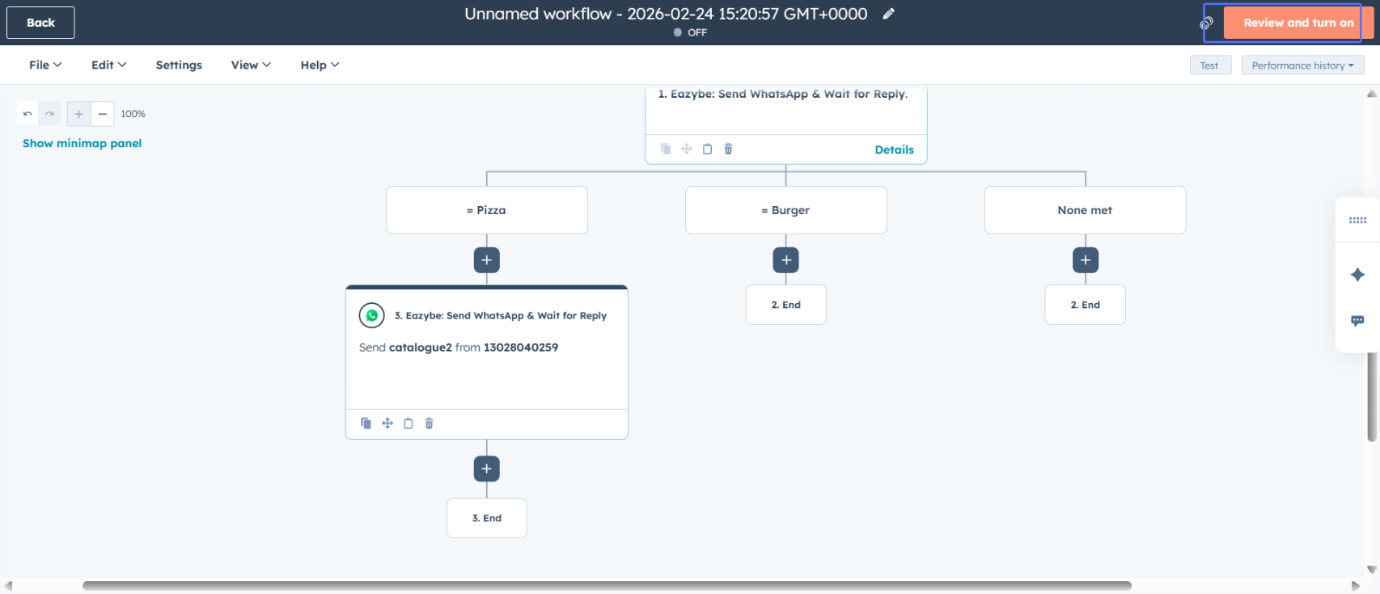
Your Chatbot is Ready
Related Resources
Create WhatsApp Templates
Learn how to create WhatsApp message templates with Quick Reply buttons
HubSpot Workflow Guide
Complete guide to setting up HubSpot workflows
Workflow Troubleshooting
Common issues and solutions for workflow problems
Broadcast Campaigns
Send bulk WhatsApp messages to multiple recipients