

Where to Find It
Go to your agent’s Settings tab (gear icon in the left sidebar). The Lead Response Limit section sits between the WhatsApp Profile name-source selector and the Blocked Numbers section.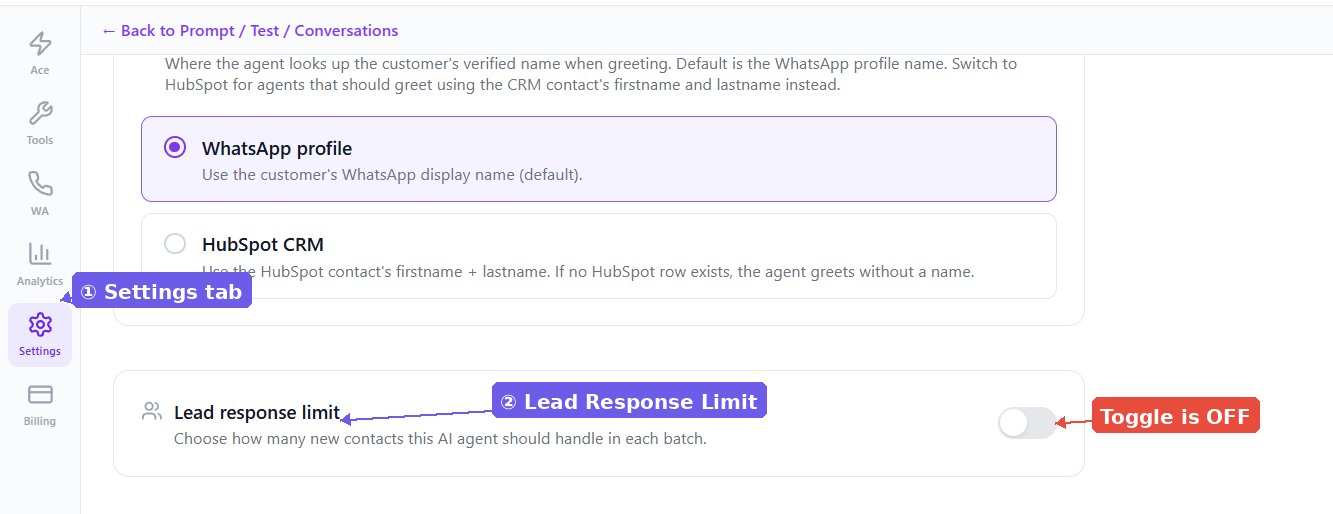
How to Set It Up
1
Enable the Toggle
In the Settings tab, find the Lead Response Limit section and turn the toggle on. When it’s off (the default), the AI handles every new contact as usual.
2
Set Your Ratio
Two number fields appear: AI handles [X] out of every [Y] new contacts. Enter your desired ratio. For example, setting X = 1 and Y = 5 means the AI picks up 1 out of every 5 new contacts, and the remaining 4 are left for your team.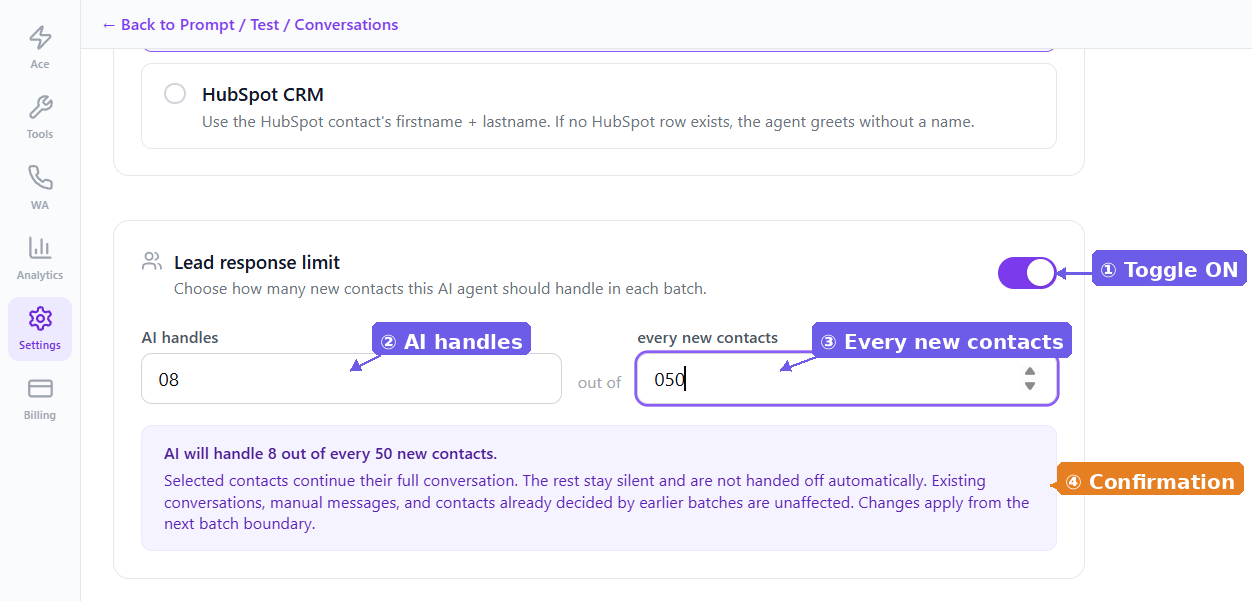
3
Confirm the Setting
A yellow info banner below the fields confirms your ratio in plain language — for example, “AI will handle 1 out of every 5 new contacts.” Review it to make sure it matches your intent.
4
Save Settings
Scroll down and click Save settings to apply your changes. Your ratio won’t take effect until you save.
What Happens to Each Contact
- Contacts picked up by the AI go through the full conversation flow — qualification, follow-ups, and handoff — exactly as they would without this setting.
- Contacts not picked up by the AI receive no automated reply. They appear in your inbox like any normal WhatsApp lead, ready for your sales team to handle manually.
This setting only applies to new, inbound contacts. Existing conversations that are already active with the AI continue uninterrupted regardless of the ratio.
Changing the Ratio
You can update the ratio at any time. Changes take effect from the next batch of new contacts — they don’t retroactively reassign contacts that were already allocated. A lead already in conversation with the AI won’t suddenly go silent, and a lead already assigned to your team won’t get an unexpected AI message. If you turn the toggle off, the AI resumes handling all new contacts from that point forward. Contacts that were in the “human” bucket during the active period remain unaffected.Example Scenarios
- Starting conservative: Set 1 out of 10 for the first week, review AI performance in the Analytics tab, then increase to 3 out of 10 once you’re confident.
- High-volume filtering: Set 9 out of 10 to let the AI handle the bulk of initial qualification while your closer focuses on the hottest leads.
- A/B testing: Set 1 out of 2 for an even 50-50 split, then compare booking rates, response times, and qualification accuracy between AI and human cohorts over a fixed period.