

Requirements: at least one AI property must have a value on your chats. A property added a moment ago has no values yet and returns an empty list until conversations are analysed against it.
Where to Find It
The AI filters control sits above the chat list in the Team Inbox, next to the standard filters.Filtering Your Inbox
1
Open AI Filters
Click on “AI filters” to filter your chat list by an AI property.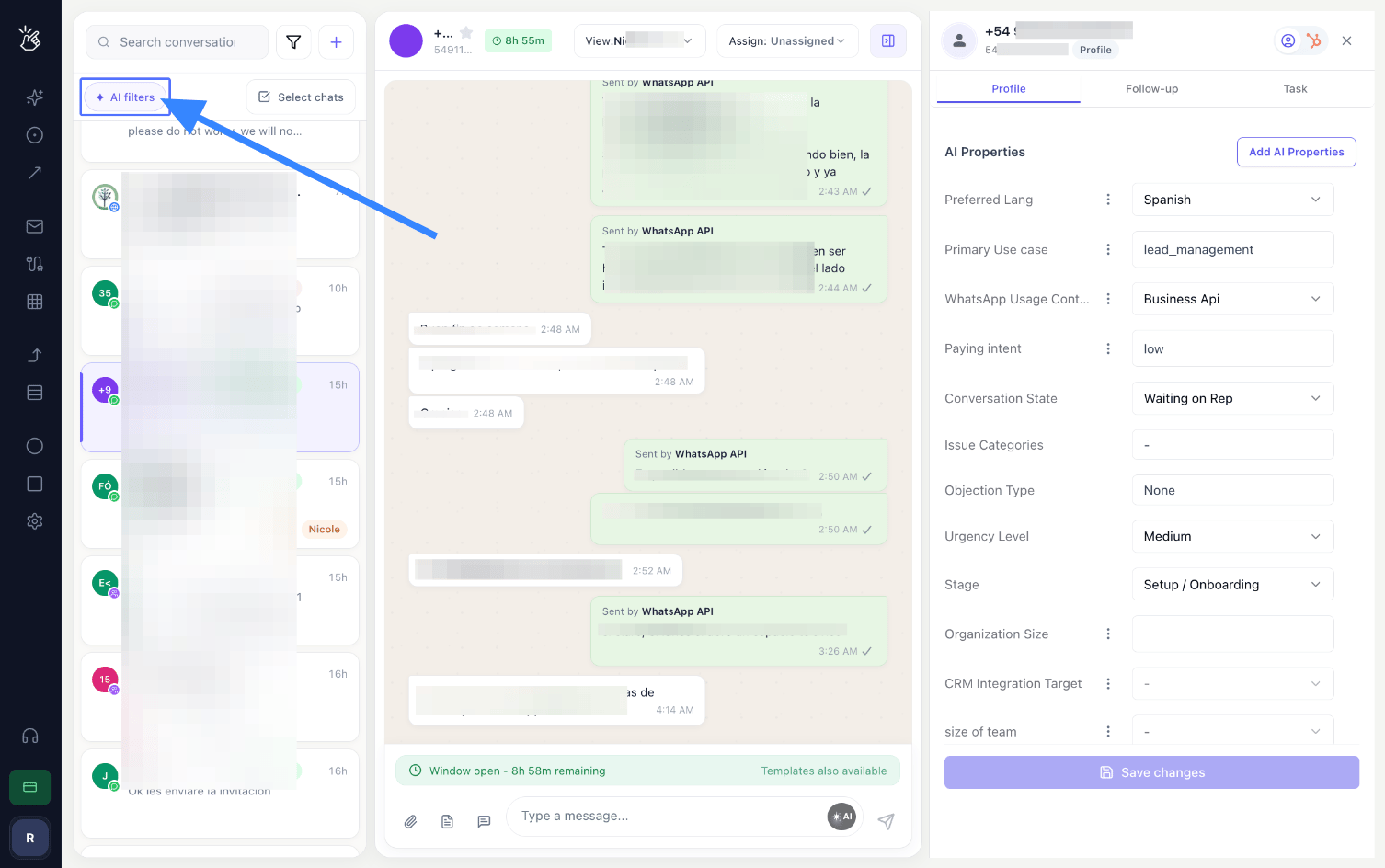
2
Select an AI Property
Select the AI property you want to filter by, for example “Conversation State”.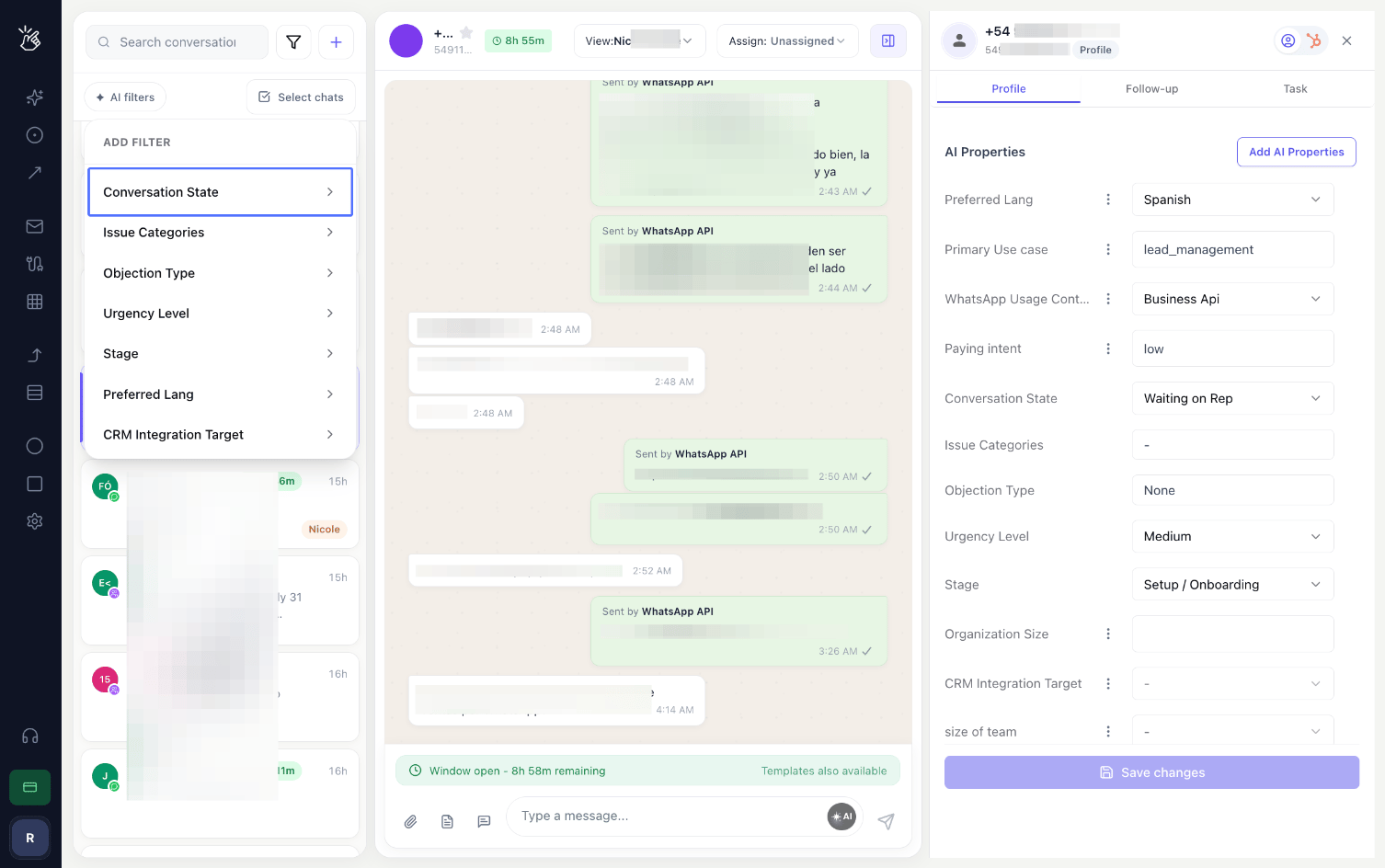
3
Select a Property Value
Select the property value, for example “Waiting on Rep”.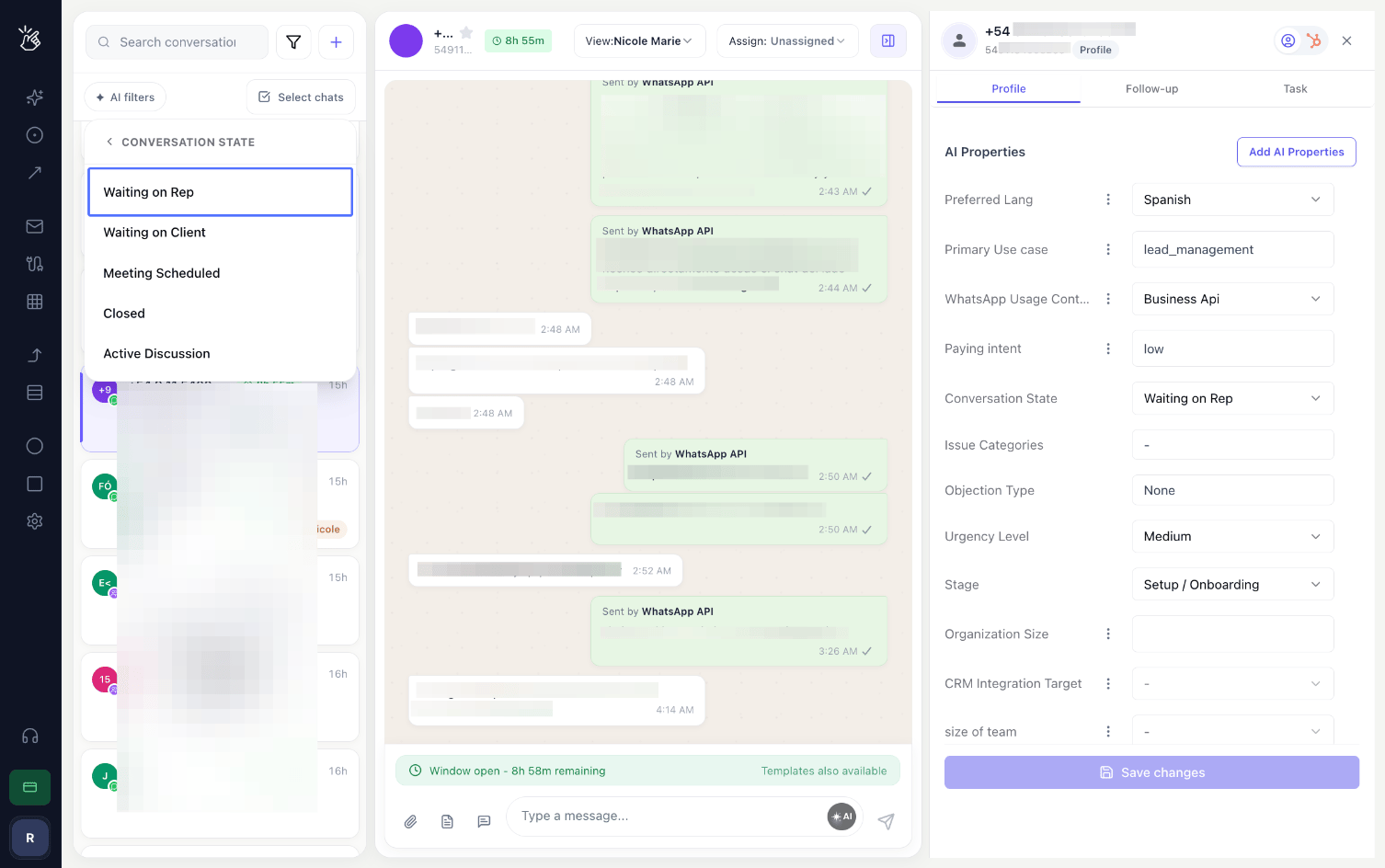
4
Add More Filters
Add further filters the same way to narrow the list.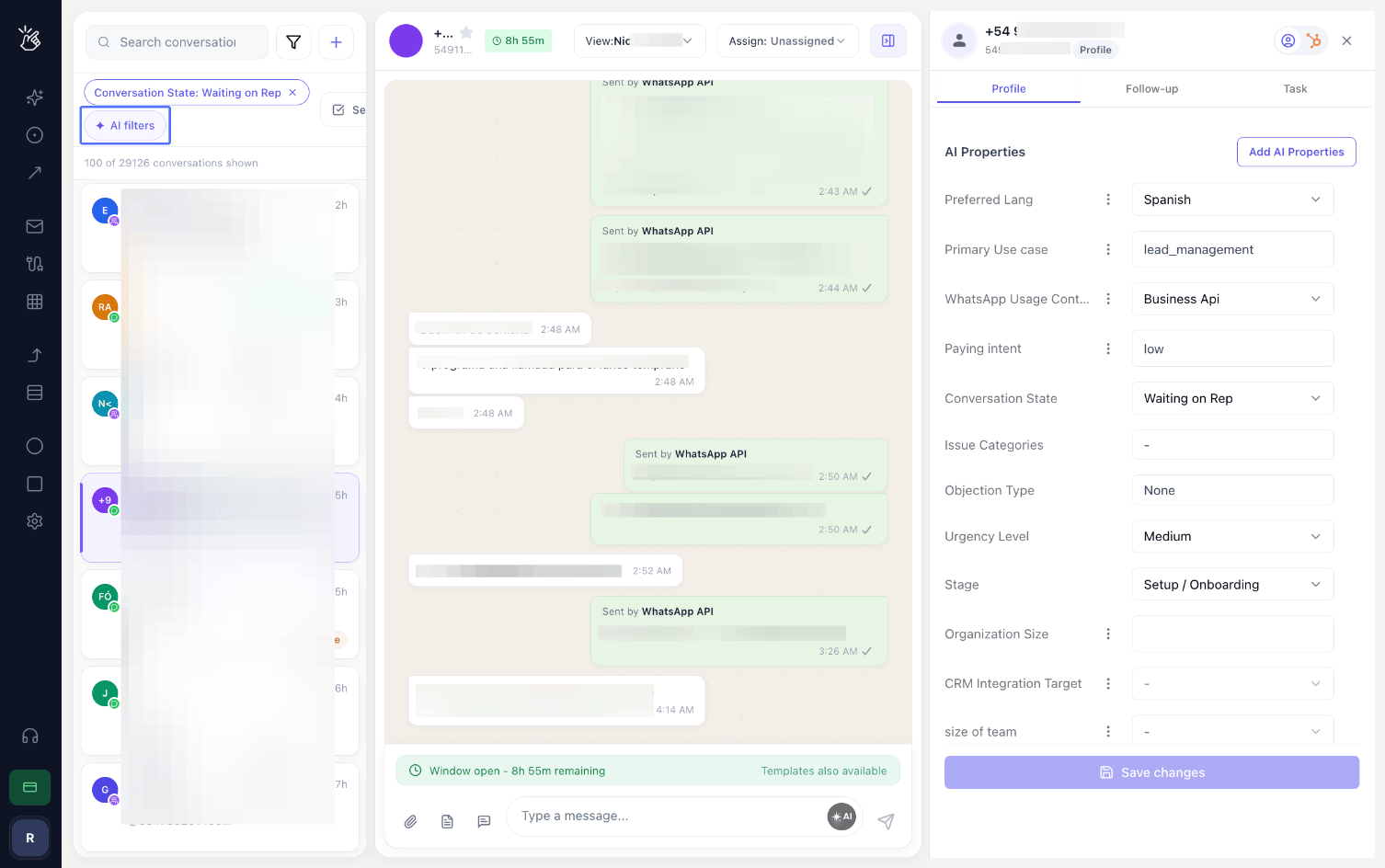
Combining Filters
Multiple AI filters can be applied at once, and each one narrows the list further. AI filters can also be combined with the standard chat filters, such as channel or assignee, in the same view.Example Filters
Behaviour to Be Aware Of
- Filtering only changes what is shown. Filters do not delete, move, or edit conversations.
- A chat appears once the property has a value. Conversations where the property is empty are not returned.
- Stacked filters narrow, they do not widen. Two filters that exclude one another return an empty list.
Related
AI Properties
Add your own fields so you can filter by them
BEA Radar Overview
How BEA Radar works end to end