> ## Documentation Index
> Fetch the complete documentation index at: https://help.eazybe.com/llms.txt
> Use this file to discover all available pages before exploring further.
# Broadcasts Overview
> Send WhatsApp campaigns from Eazybe and track delivery from one workspace.
Broadcasts let you send an approved WhatsApp template to multiple contacts and track each recipient's delivery status. This guide helps you choose the right recipient source and understand what happens before and after you send.
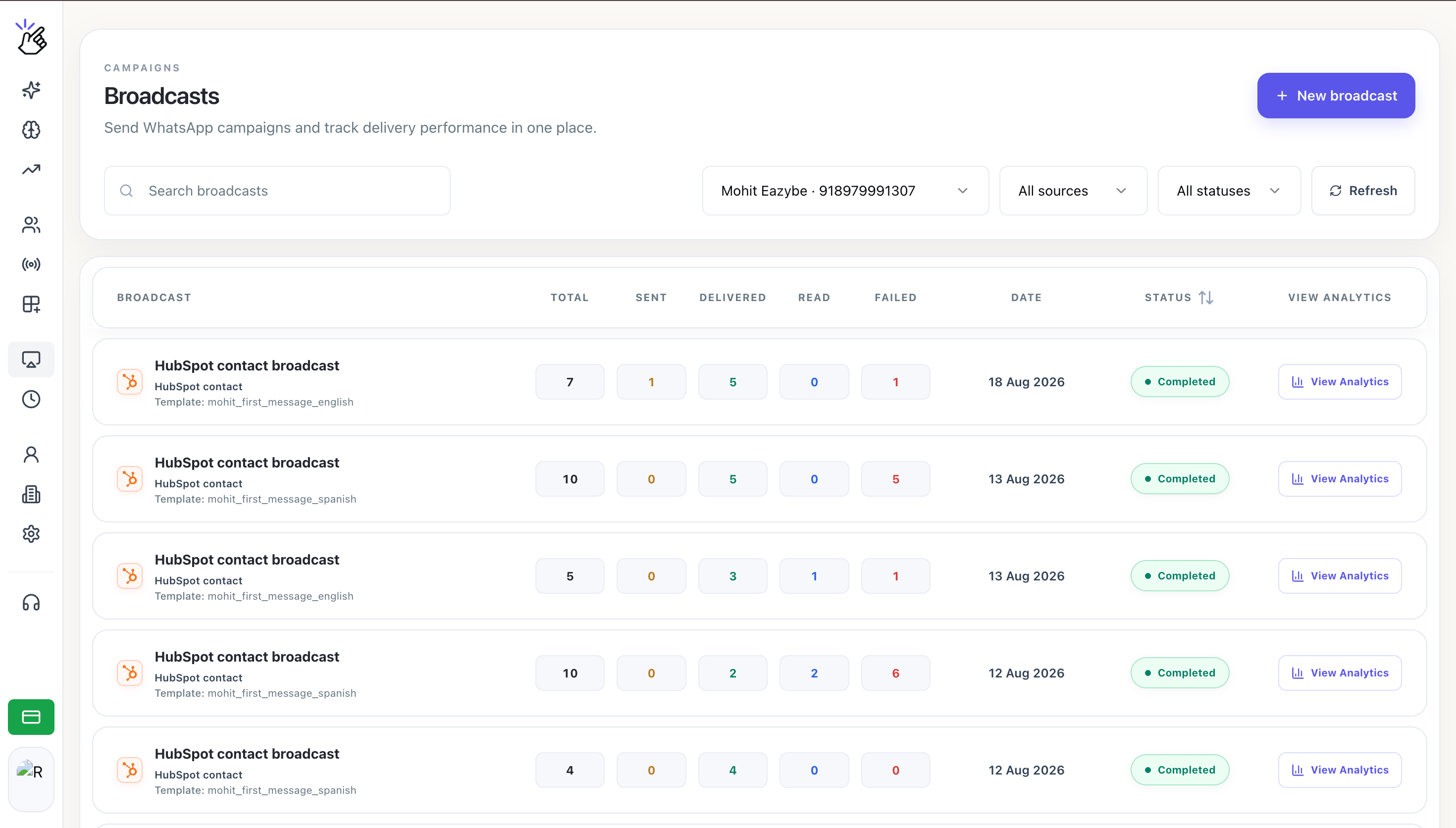 The campaigns, phone numbers, dates, and delivery totals in these screenshots are examples. Your Broadcasts page shows data from your workspace.
## Before You Begin
You need:
* A WhatsApp Business number connected through Meta
* At least one approved WhatsApp template
* Enough Eazybe wallet balance for the campaign
* A CSV or Excel contact file, or a connected HubSpot account with a contact list
Only approved templates appear in **Template message**. Templates that are pending or rejected cannot be used for a broadcast.
## Choose a Recipient Source
| Source | Use it when | What to prepare |
| ------------------------ | ---------------------------------------------------------------------- | ------------------------------------------------------------------------- |
| **Upload a list** | Your contacts are in a CSV or Excel file | Valid international phone numbers and a value for every template variable |
| **HubSpot contact list** | HubSpot is connected and the contacts already belong to a HubSpot list | A list whose contacts have valid values in `mobilephone` or `phone` |
**HubSpot contact list** appears only when HubSpot is connected to the current Eazybe workspace.
## What You Can Do
Create a New Broadcast
}
>
Choose the sending number and template, add recipients, review the estimate, and send.
Upload Contacts
}
>
Format a CSV or Excel file and select the contacts who should receive the campaign.
Use a HubSpot Contact List
}
>
Select a synced HubSpot list and use its contact properties for personalization.
View Broadcast Analytics
}
>
Review **Total**, **Sent**, **Delivered**, **Read**, and **Failed** results by recipient.
## What Happens When You Send
Eazybe validates the selected contacts and shows an estimated cost in the footer. After you select **Send broadcast**, the campaign appears on the Broadcasts page, where its status and delivery totals update as WhatsApp processes the messages.
Sending a broadcast uses wallet balance. Review the template, variables, recipient count, and estimated cost before selecting **Send broadcast**. You cannot recall a submitted campaign from the Broadcasts page.
See the Complete Workflow
}
>
Follow the five stages from opening **New broadcast** through monitoring delivery.
The campaigns, phone numbers, dates, and delivery totals in these screenshots are examples. Your Broadcasts page shows data from your workspace.
## Before You Begin
You need:
* A WhatsApp Business number connected through Meta
* At least one approved WhatsApp template
* Enough Eazybe wallet balance for the campaign
* A CSV or Excel contact file, or a connected HubSpot account with a contact list
Only approved templates appear in **Template message**. Templates that are pending or rejected cannot be used for a broadcast.
## Choose a Recipient Source
| Source | Use it when | What to prepare |
| ------------------------ | ---------------------------------------------------------------------- | ------------------------------------------------------------------------- |
| **Upload a list** | Your contacts are in a CSV or Excel file | Valid international phone numbers and a value for every template variable |
| **HubSpot contact list** | HubSpot is connected and the contacts already belong to a HubSpot list | A list whose contacts have valid values in `mobilephone` or `phone` |
**HubSpot contact list** appears only when HubSpot is connected to the current Eazybe workspace.
## What You Can Do
Create a New Broadcast
}
>
Choose the sending number and template, add recipients, review the estimate, and send.
Upload Contacts
}
>
Format a CSV or Excel file and select the contacts who should receive the campaign.
Use a HubSpot Contact List
}
>
Select a synced HubSpot list and use its contact properties for personalization.
View Broadcast Analytics
}
>
Review **Total**, **Sent**, **Delivered**, **Read**, and **Failed** results by recipient.
## What Happens When You Send
Eazybe validates the selected contacts and shows an estimated cost in the footer. After you select **Send broadcast**, the campaign appears on the Broadcasts page, where its status and delivery totals update as WhatsApp processes the messages.
Sending a broadcast uses wallet balance. Review the template, variables, recipient count, and estimated cost before selecting **Send broadcast**. You cannot recall a submitted campaign from the Broadcasts page.
See the Complete Workflow
}
>
Follow the five stages from opening **New broadcast** through monitoring delivery.