> ## Documentation Index
> Fetch the complete documentation index at: https://help.eazybe.com/llms.txt
> Use this file to discover all available pages before exploring further.
# Create a New Broadcast
> Choose a template and recipients, review the estimated cost, and send a WhatsApp campaign.
Create a broadcast from the Eazybe workspace when you want to send one approved WhatsApp template to multiple contacts. You will choose the message, add recipients, and confirm the cost before sending.
Before you start, connect a WhatsApp Business number through Meta, approve a WhatsApp template, and add enough balance to your Eazybe wallet.
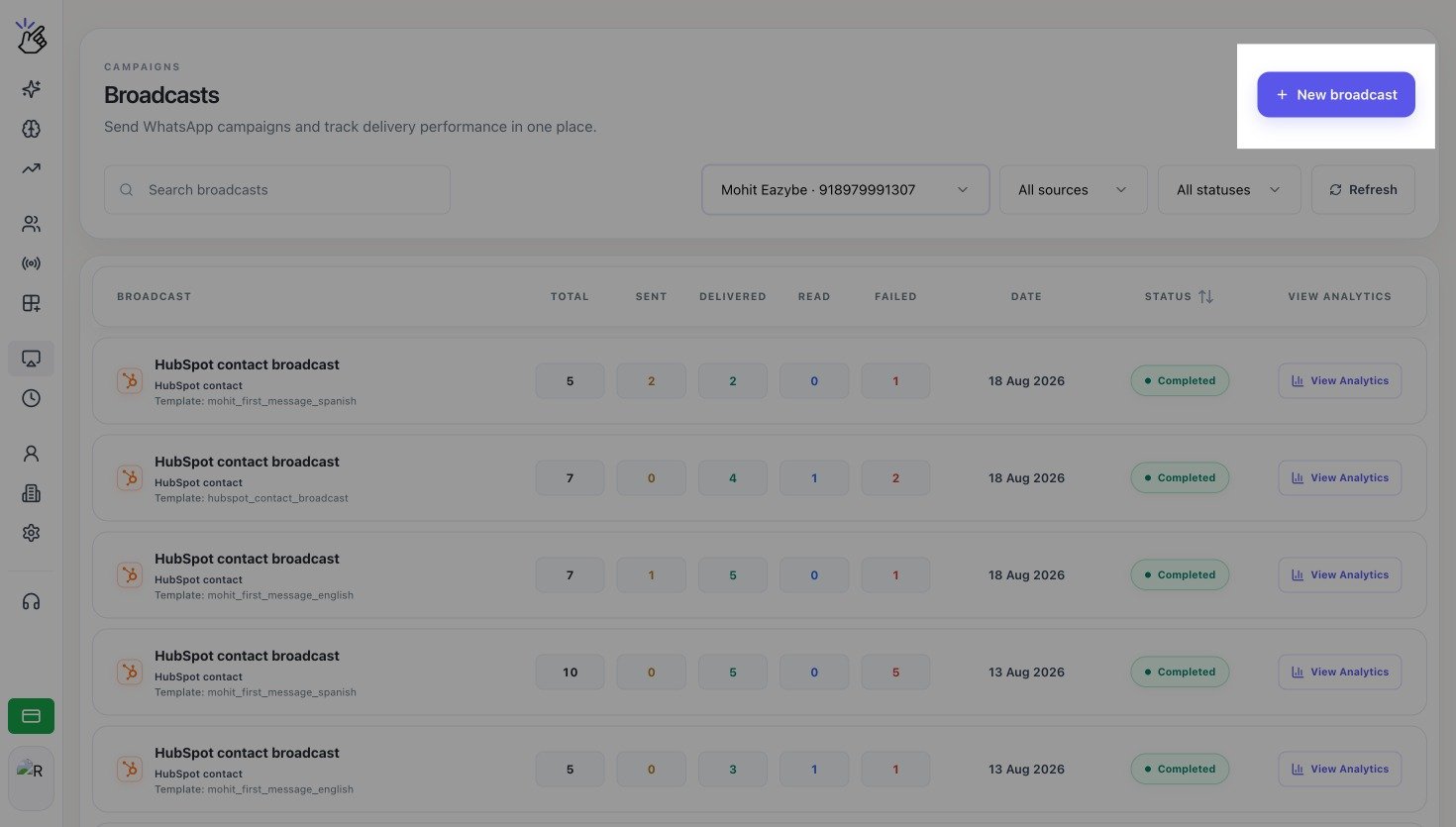
Open **Broadcasts**, then select **New broadcast**. Eazybe opens the **Create broadcast** page.
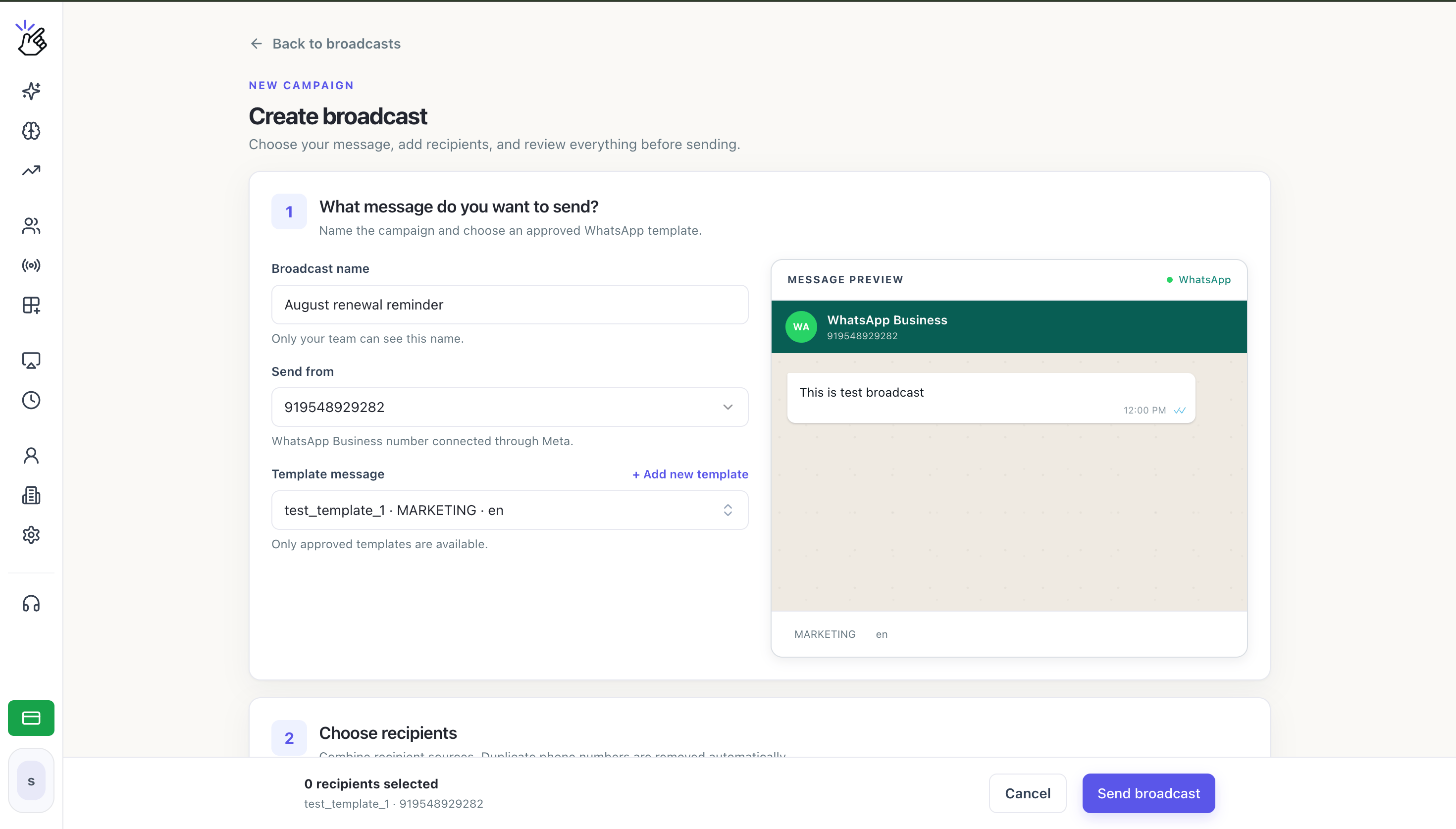
 Complete the first section:
1. Enter a **Broadcast name**. Only your team sees this name.
2. Select the WhatsApp Business number in **Send from**.
3. Select an approved template in **Template message**.
4. Check the **Message preview** on the right.
Complete the first section:
1. Enter a **Broadcast name**. Only your team sees this name.
2. Select the WhatsApp Business number in **Send from**.
3. Select an approved template in **Template message**.
4. Check the **Message preview** on the right.
 If the template you need is not listed, confirm that Meta has approved it. You can also select **Add new template** to start creating one.
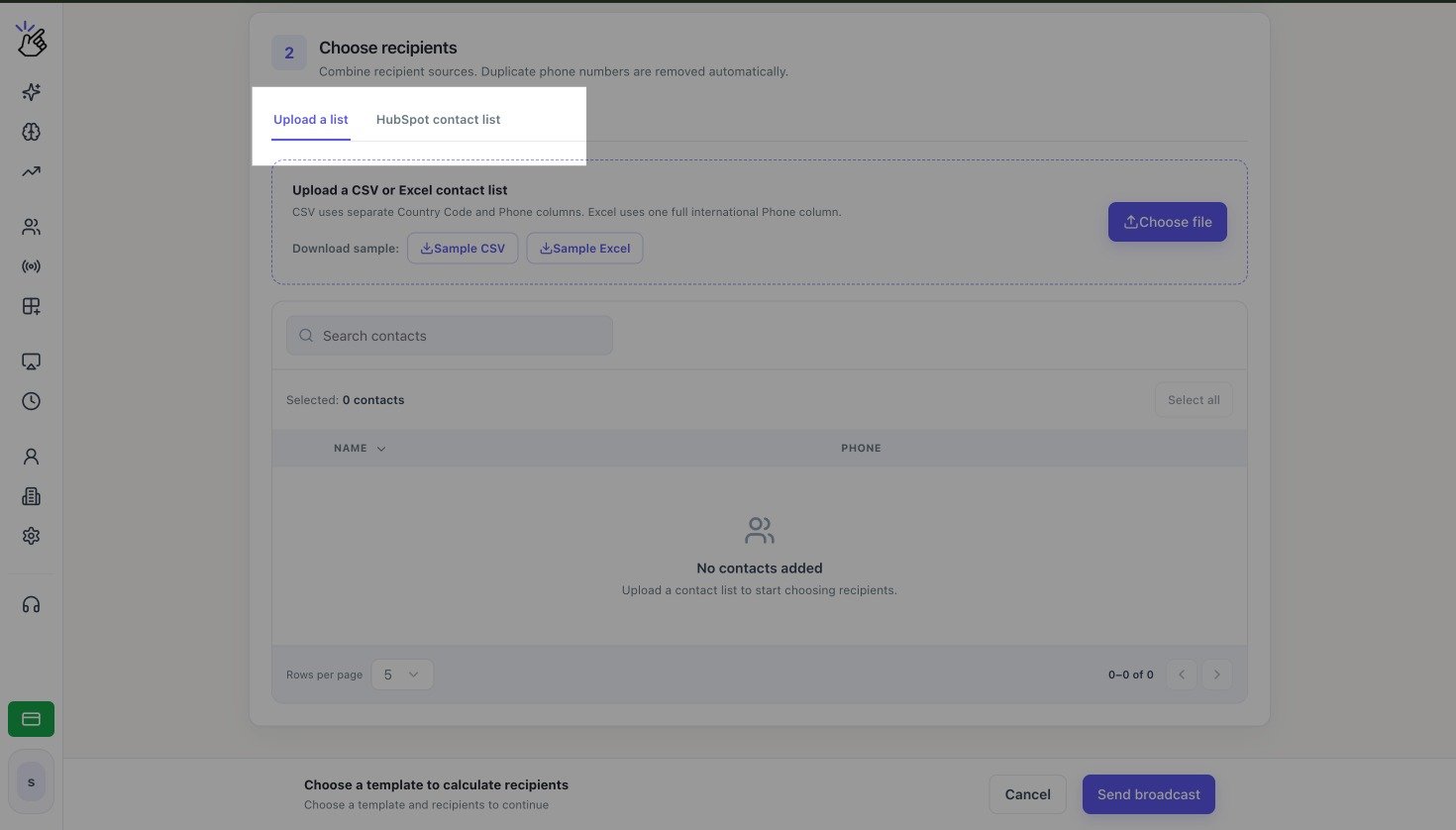
In **Choose recipients**, select one source:
* **Upload a list** to add a CSV or Excel file.
* **HubSpot contact list** to select a synced HubSpot list. This tab appears only when HubSpot is connected.
If the template you need is not listed, confirm that Meta has approved it. You can also select **Add new template** to start creating one.
In **Choose recipients**, select one source:
* **Upload a list** to add a CSV or Excel file.
* **HubSpot contact list** to select a synced HubSpot list. This tab appears only when HubSpot is connected.
 Upload a List
}
>
Prepare the phone number and variable columns before uploading.
Use a HubSpot List
}
>
Search for and select one synced HubSpot contact list.
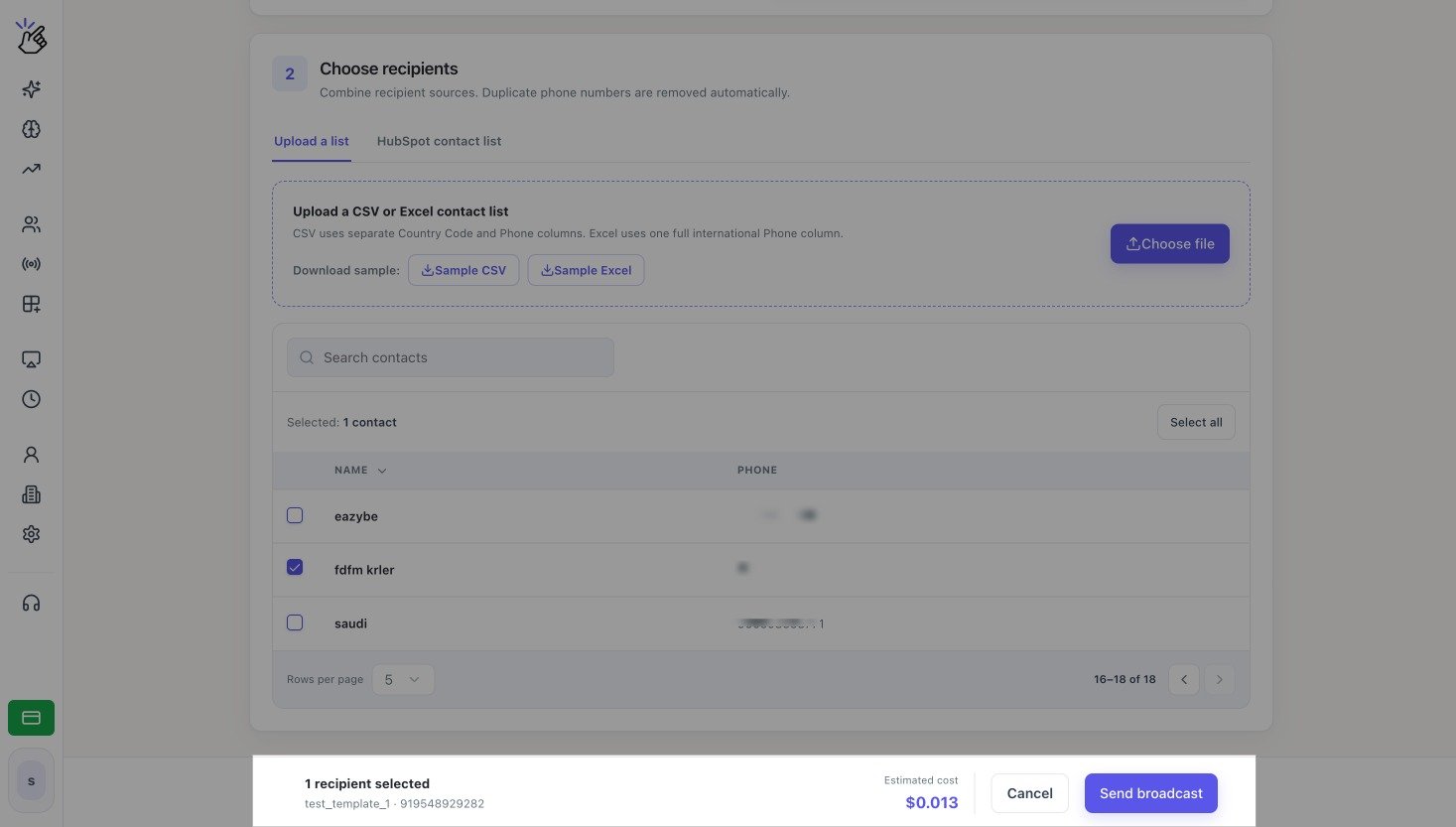
Select the contacts who should receive the message. In the footer, confirm the selected recipient count, sending number, template, and **Estimated cost**. Select **Send broadcast** when the details are correct.
Upload a List
}
>
Prepare the phone number and variable columns before uploading.
Use a HubSpot List
}
>
Search for and select one synced HubSpot contact list.
Select the contacts who should receive the message. In the footer, confirm the selected recipient count, sending number, template, and **Estimated cost**. Select **Send broadcast** when the details are correct.
 Sending a broadcast uses wallet balance. Check every template variable and recipient before you send; you cannot recall a submitted campaign from this page.
After submission, return to **Broadcasts** to monitor delivery. Select **View Analytics** beside the campaign for recipient-level results.
Sending a broadcast uses wallet balance. Check every template variable and recipient before you send; you cannot recall a submitted campaign from this page.
After submission, return to **Broadcasts** to monitor delivery. Select **View Analytics** beside the campaign for recipient-level results.