> ## Documentation Index
> Fetch the complete documentation index at: https://help.eazybe.com/llms.txt
> Use this file to discover all available pages before exploring further.
# Entegrasyonu Onayla
> Eazybe ile HubSpot entegrasyonunuzun başarılı olduğunu nasıl doğrularsınız
## Entegrasyonun Başarılı Olduğunu Nasıl Onaylayabilirim?
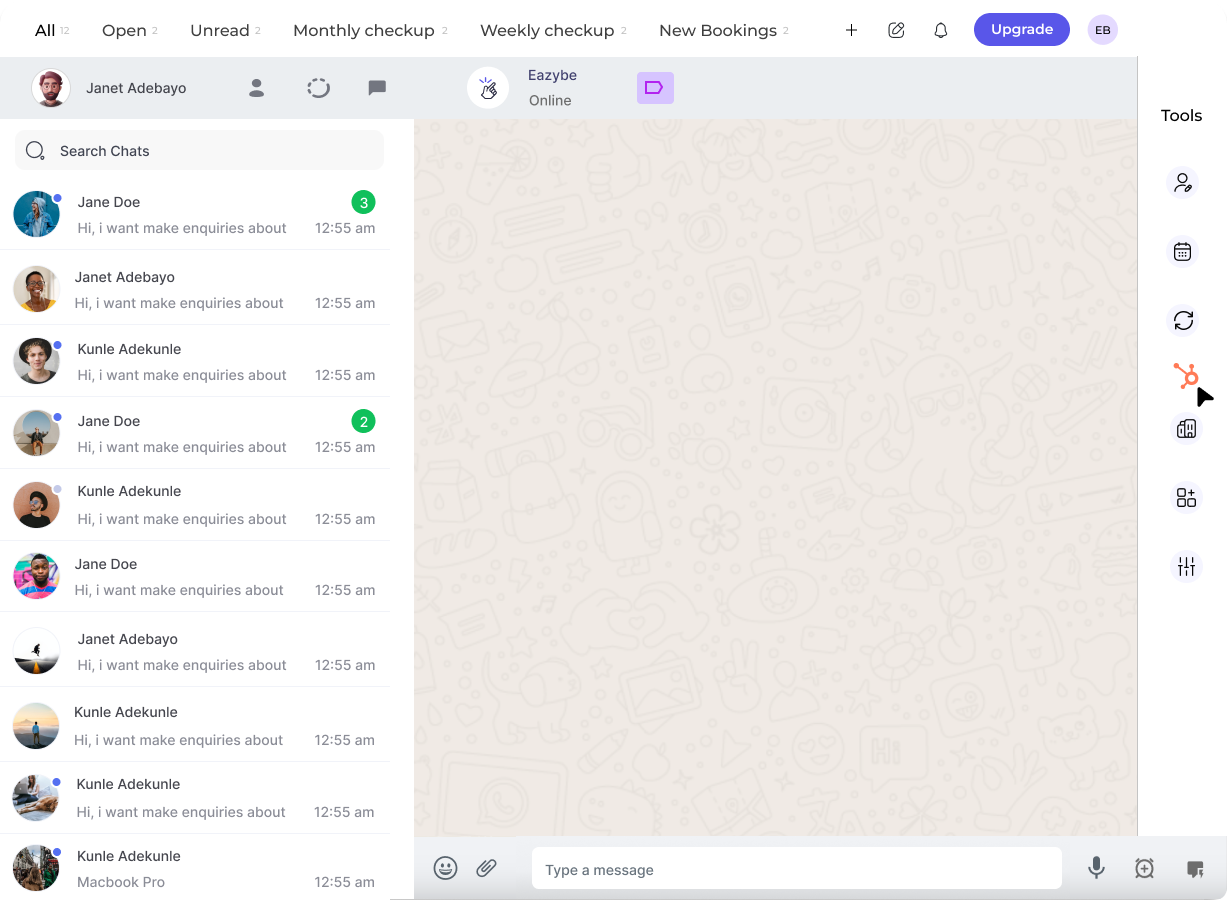
Eazybe WhatsApp uzantısı ile HubSpot entegrasyon sürecini tamamladıktan sonra, otomatik olarak WhatsApp Web'e yönlendirileceksiniz.
**HubSpot simgesi WhatsApp Web arayüzünüzün sağ kenar çubuğunda görünecektir**. Bu simge, entegrasyonunuzun başarıyla tamamlandığını onaylar.
***
## Nelere Bakmalısınız
Eazybe uzantısındaki HubSpot bağlantı adımlarını izleyin.
Yetkilendirmeden sonra WhatsApp Web'e geri yönlendirileceksiniz.
WhatsApp Web arayüzünüzün sağ kenar çubuğunda HubSpot simgesini arayın. Görüyorsanız, entegrasyonunuz tamamlanmıştır!
***
## Sorun Giderme
Entegrasyonu tamamladıktan sonra HubSpot simgesini görmüyorsanız, WhatsApp Web'i yenilemeyi veya uzantıya tekrar giriş yapmayı deneyin.
Hâlâ sorun yaşıyorsanız, destek ekibimize **[hey@eazybe.com](mailto:hey@eazybe.com)** adresinden ulaşın
 ***
## Nelere Bakmalısınız
***
## Nelere Bakmalısınız