> ## Documentation Index
> Fetch the complete documentation index at: https://help.eazybe.com/llms.txt
> Use this file to discover all available pages before exploring further.
# Managing Unreplied Chats with Eazybe AI Agent
## Introduction
Eazybe’s AI-powered chat management system helps sales and support teams efficiently manage their WhatsApp conversations by prioritizing unreplied chats. This tool analyzes chat content, categorizes messages by urgency, and provides actionable notifications and filters so your team can focus on what matters most.
## How Eazybe AI Chat Prioritization Works
* **Automatic Chat Categorization:**
The AI agent scans every unreplied chat and applies a priority label. **Critical** or **Non-Critical** based on specific indicators such as keywords (e.g., urgent, cancel, refund), customer value from your CRM, and the nature of the inquiry.
* **Real-Time Status Updates:**
Team members see visual labels beside chats in the Team Inbox or chat extension, highlighting high-priority conversations to act on immediately.
* **Scheduled Admin Notifications:**
Designated administrators receive WhatsApp message summaries every three hours listing unreplied chats, grouped by criticality to keep oversight tight.
## Step-by-Step Usage Guide
## Step 1: Open Your Team Inbox
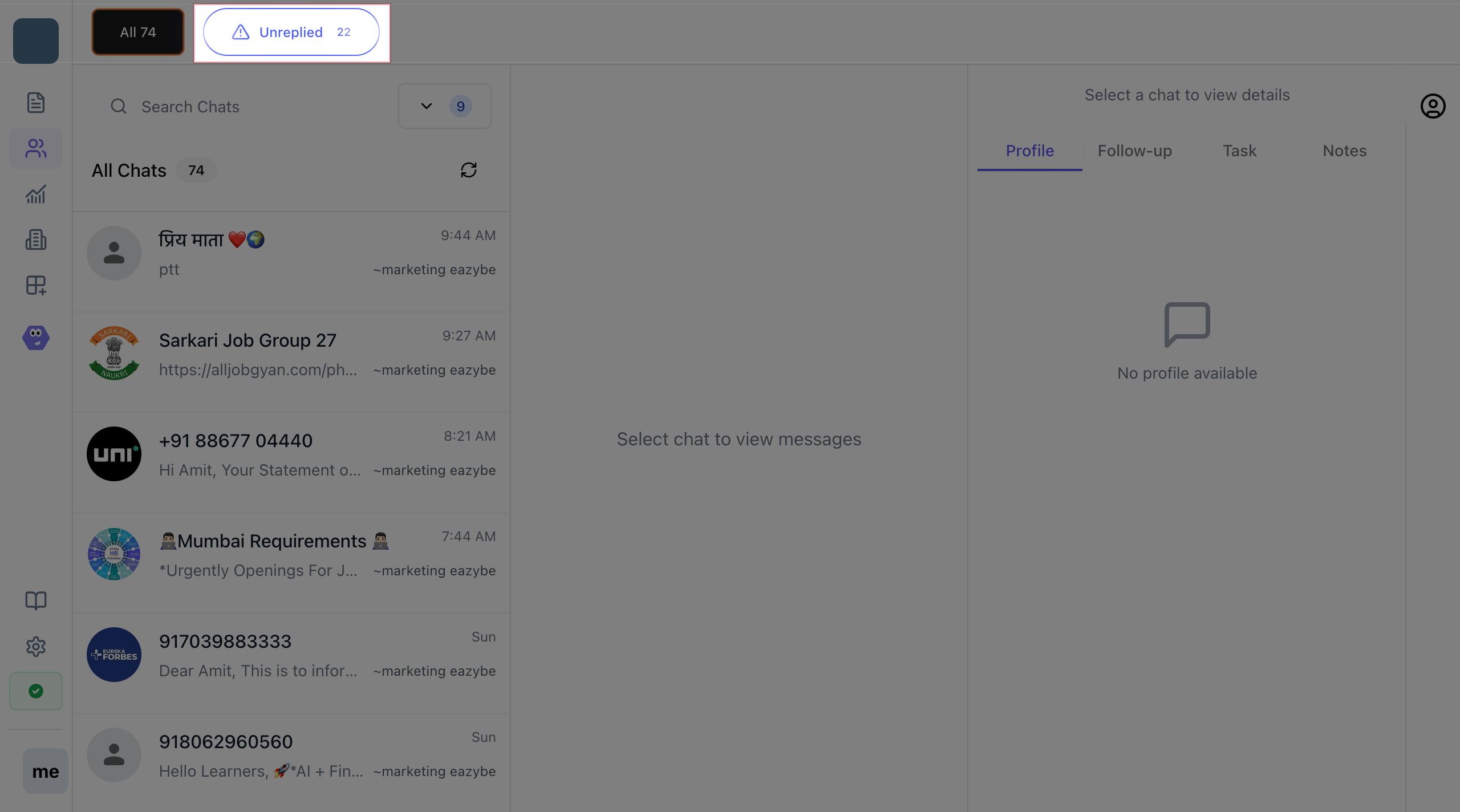
* Log in to the Eazybe workspace.
* Navigate to the **Team Inbox** from the sidebar menu.
* Click on **Unreplied**
* View all chat conversations sorted by status, including those awaiting replies.
 ## Step 2: Identify Critical Chats
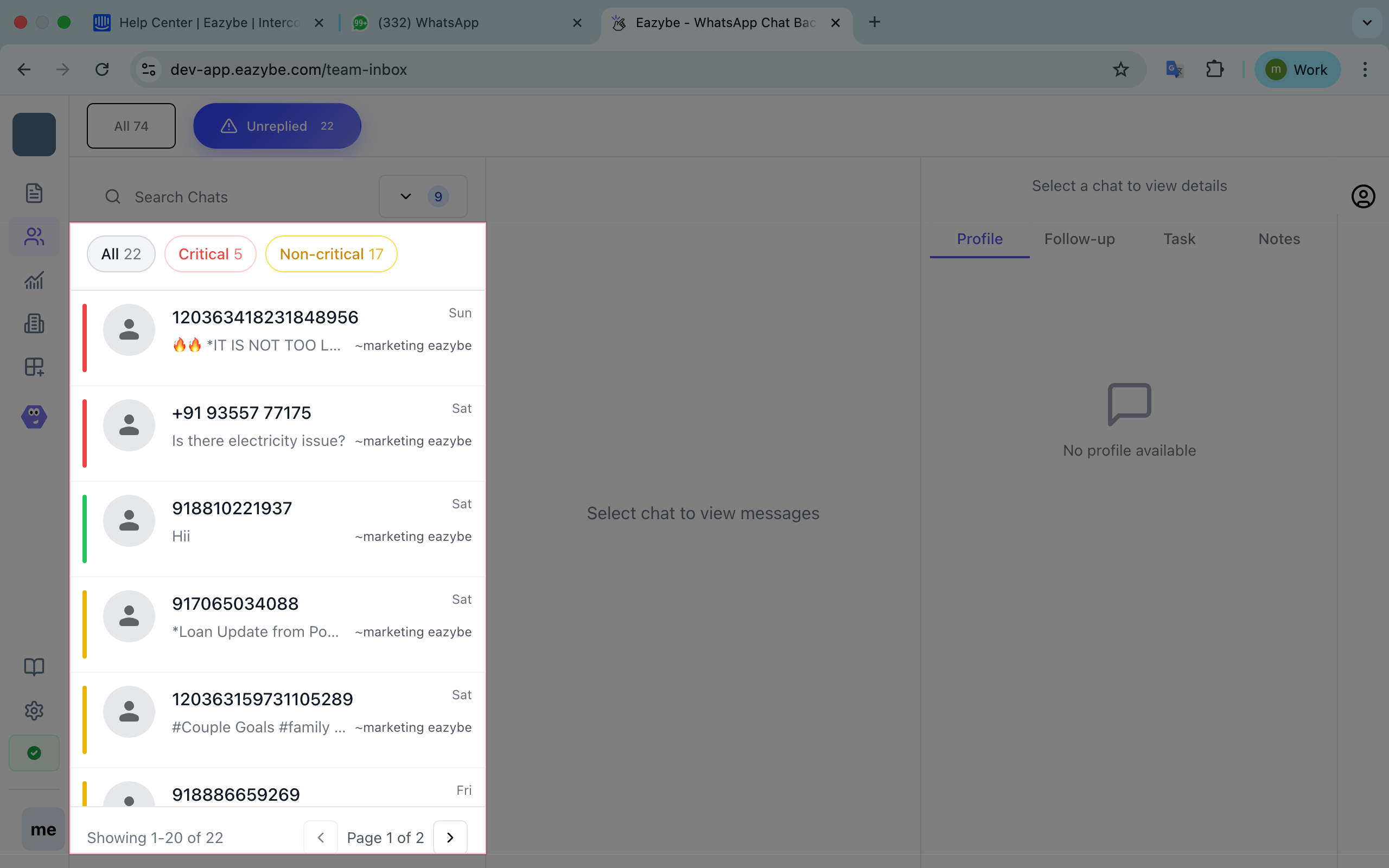
* Critical chats will have a clear red label or icon indicating high priority.
* Regularly scan this list to quickly identify issues requiring urgent attention.
* Example indicators for critical chats include complaints, billing questions, order cancellations, and high-value customer alerts.
## Step 2: Identify Critical Chats
* Critical chats will have a clear red label or icon indicating high priority.
* Regularly scan this list to quickly identify issues requiring urgent attention.
* Example indicators for critical chats include complaints, billing questions, order cancellations, and high-value customer alerts.
 ## Step 3: Filter Your Chat View
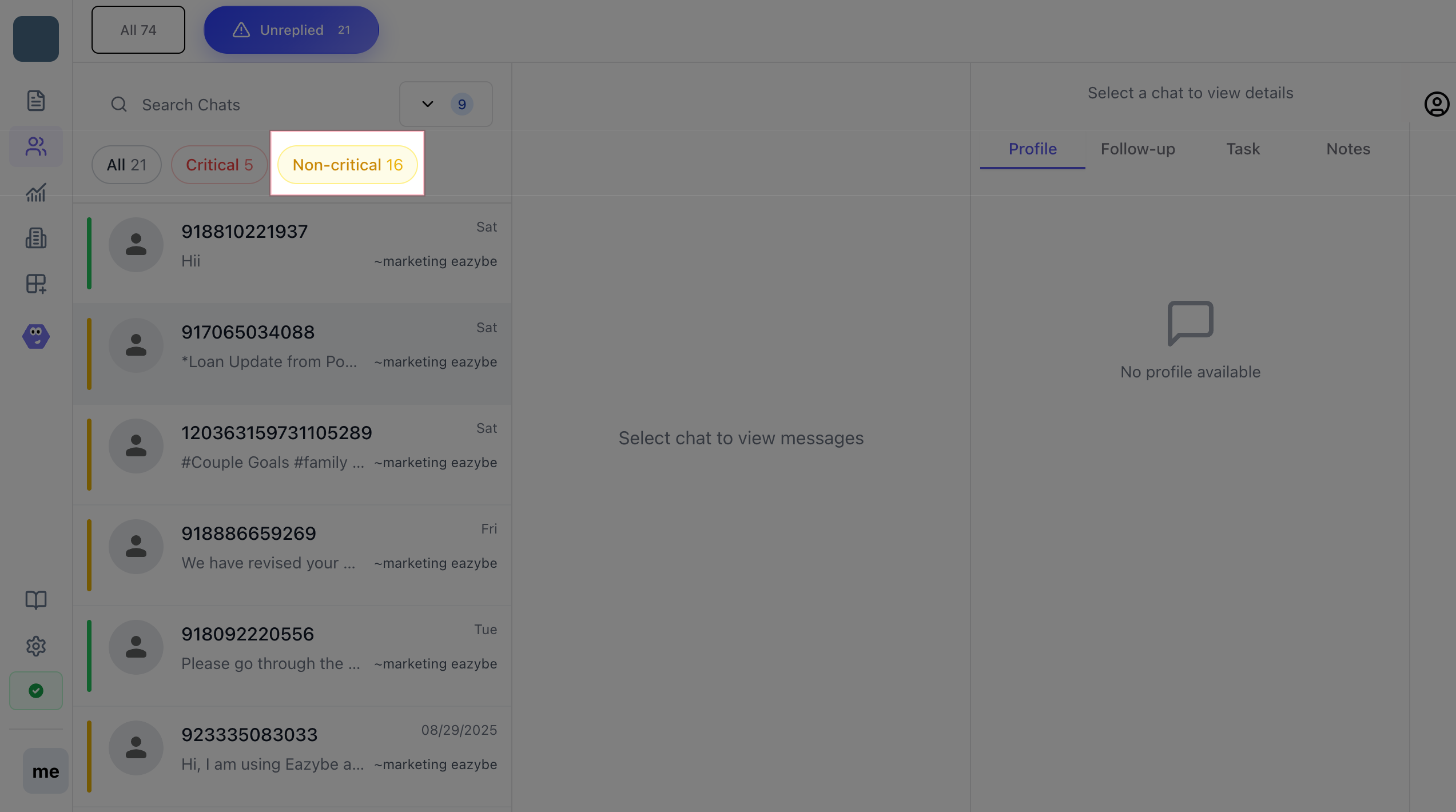
* Use the built-in filter control to toggle between viewing:
All chats
* Only critical chats
* Only non-critical chats
This helps streamline task focus and workload management.
## Step 3: Filter Your Chat View
* Use the built-in filter control to toggle between viewing:
All chats
* Only critical chats
* Only non-critical chats
This helps streamline task focus and workload management.
 ## Administrator Features & Controls
* Receive **automated WhatsApp notifications** at customizable intervals with chat summary stats.
* Access detailed chat logs for performance review.
* Configure notification timings to align with business hours.
* Customize thresholds or keywords for chat prioritization (coming soon as advanced feature).
For help setting up or customizing your AI chat prioritization system, contact your Eazybe customer success or visit the Eazybe helpdesk portal.
## Administrator Features & Controls
* Receive **automated WhatsApp notifications** at customizable intervals with chat summary stats.
* Access detailed chat logs for performance review.
* Configure notification timings to align with business hours.
* Customize thresholds or keywords for chat prioritization (coming soon as advanced feature).
For help setting up or customizing your AI chat prioritization system, contact your Eazybe customer success or visit the Eazybe helpdesk portal.