> ## Documentation Index
> Fetch the complete documentation index at: https://help.eazybe.com/llms.txt
> Use this file to discover all available pages before exploring further.
# Labels
> Organize conversations with custom labels and sub-labels
## Labels
Labels help you categorize and organize WhatsApp conversations for better tracking and filtering.
### Creating Labels
Click the **Add Label** button in the sidebar
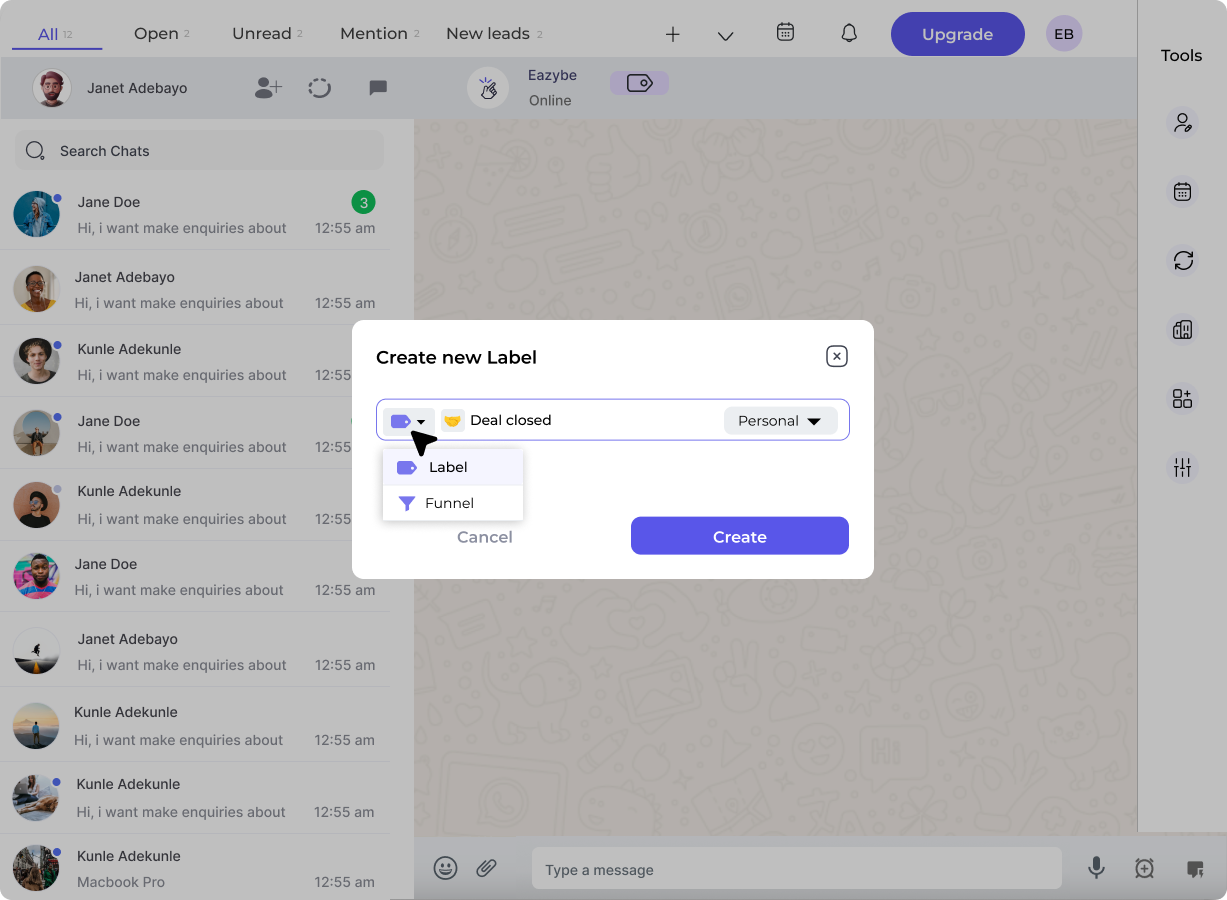
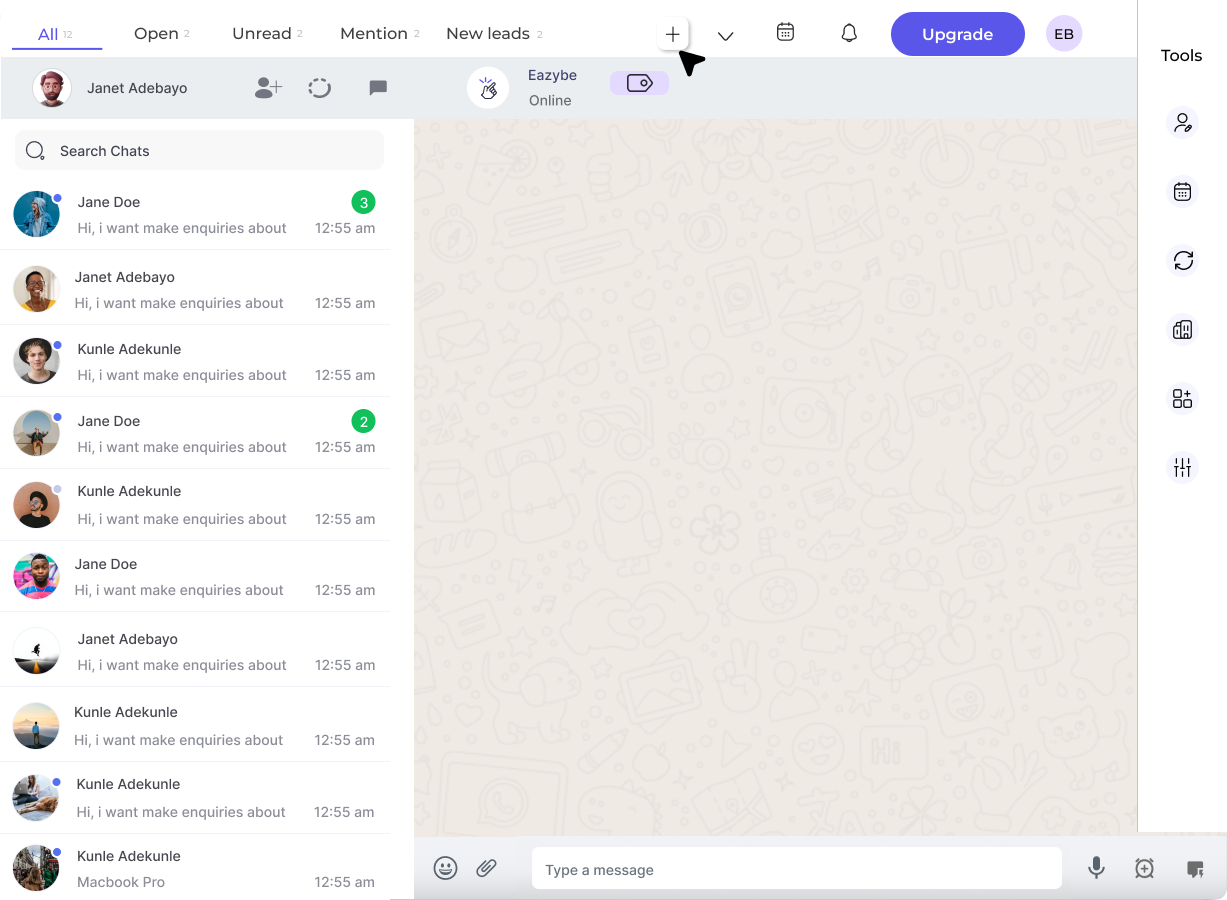 Select **Label** (for categorization) or **Funnel** (for stages)
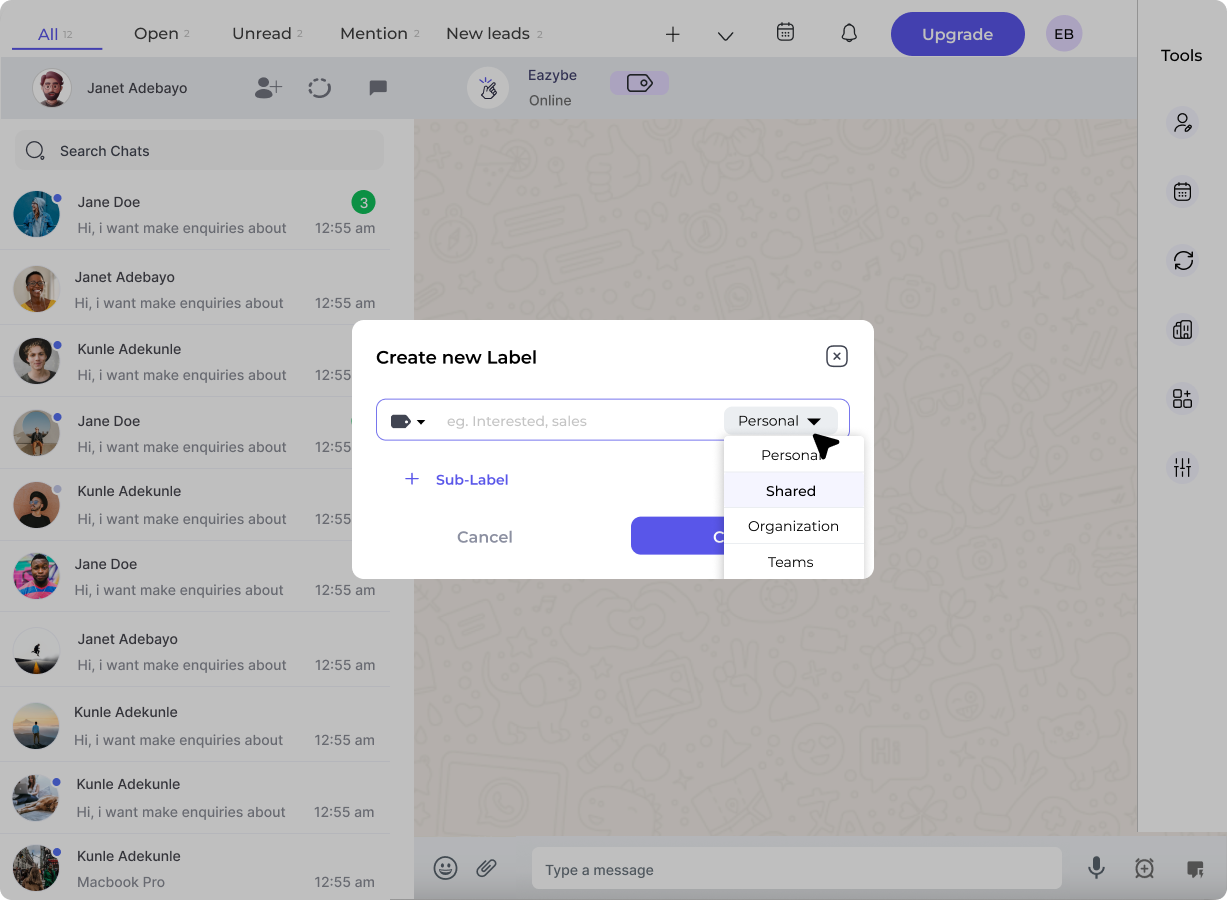
 Choose visibility:
* **Personal** - Only visible to you
* **Shared** - Visible to your team/organization
Choose visibility:
* **Personal** - Only visible to you
* **Shared** - Visible to your team/organization
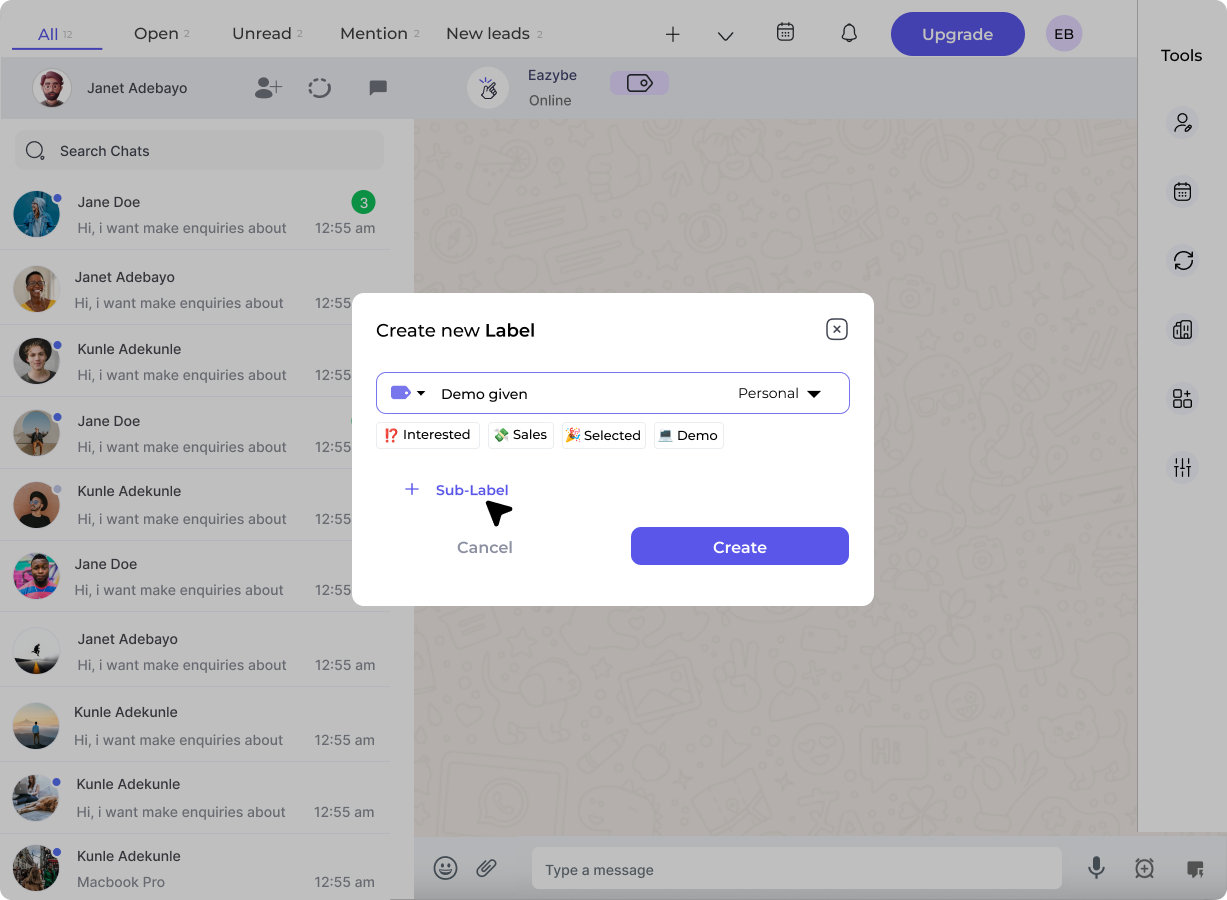
 Create sub-labels for more granular organization
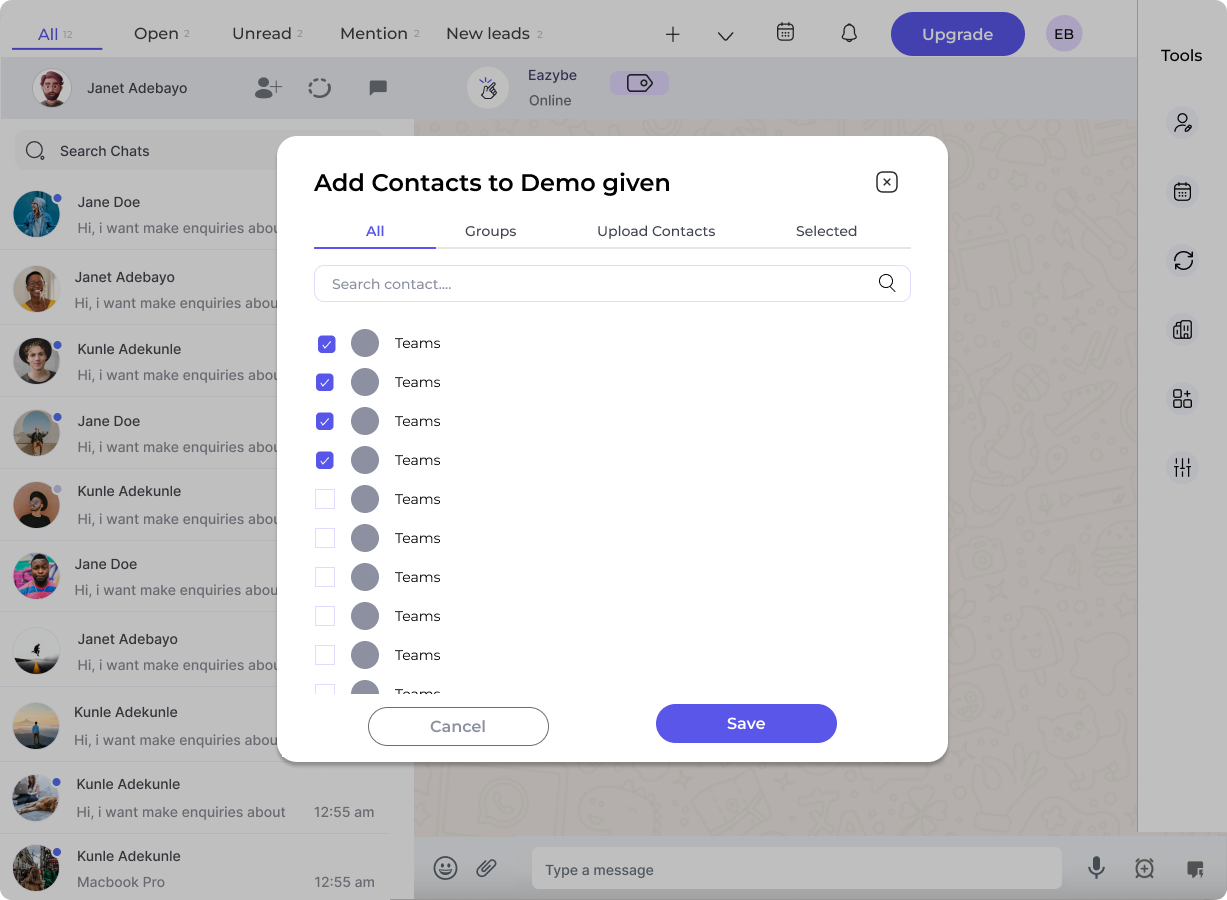
 Select contacts to add to this label
 ### Labels vs Funnels
| Feature | Labels | Funnels |
| ---------------- | -------------------- | --------------------- |
| Purpose | Categorization | Pipeline stages |
| Sub-items | Sub-labels | Stages |
| Contact position | Can be in multiple | One stage at a time |
| Use case | Hot Lead, VIP, Issue | New → Qualified → Won |
### Example Label Structure
```
🏷️ Lead Status
├── 🔥 Hot Lead
├── 🌡️ Warm Lead
└── ❄️ Cold Lead
🏷️ Customer Type
├── 💎 VIP
├── 🔄 Returning
└── 🆕 New
```
### Applying Labels to Chats
1. Open a conversation in WhatsApp Web
2. Click the **Label** icon in the Eazybe sidebar
3. Select the label to apply
4. The chat will now appear under that label in Team Inbox
Labels sync with your CRM when [Dynamic Labels](/integrations/hubspot/dynamic-labels) is enabled.
### Labels vs Funnels
| Feature | Labels | Funnels |
| ---------------- | -------------------- | --------------------- |
| Purpose | Categorization | Pipeline stages |
| Sub-items | Sub-labels | Stages |
| Contact position | Can be in multiple | One stage at a time |
| Use case | Hot Lead, VIP, Issue | New → Qualified → Won |
### Example Label Structure
```
🏷️ Lead Status
├── 🔥 Hot Lead
├── 🌡️ Warm Lead
└── ❄️ Cold Lead
🏷️ Customer Type
├── 💎 VIP
├── 🔄 Returning
└── 🆕 New
```
### Applying Labels to Chats
1. Open a conversation in WhatsApp Web
2. Click the **Label** icon in the Eazybe sidebar
3. Select the label to apply
4. The chat will now appear under that label in Team Inbox
Labels sync with your CRM when [Dynamic Labels](/integrations/hubspot/dynamic-labels) is enabled.