> ## Documentation Index
> Fetch the complete documentation index at: https://help.eazybe.com/llms.txt
> Use this file to discover all available pages before exploring further.
# Create Broadcast Campaign
> Step-by-step guide to send your first WhatsApp broadcast
## Send Your First Broadcast
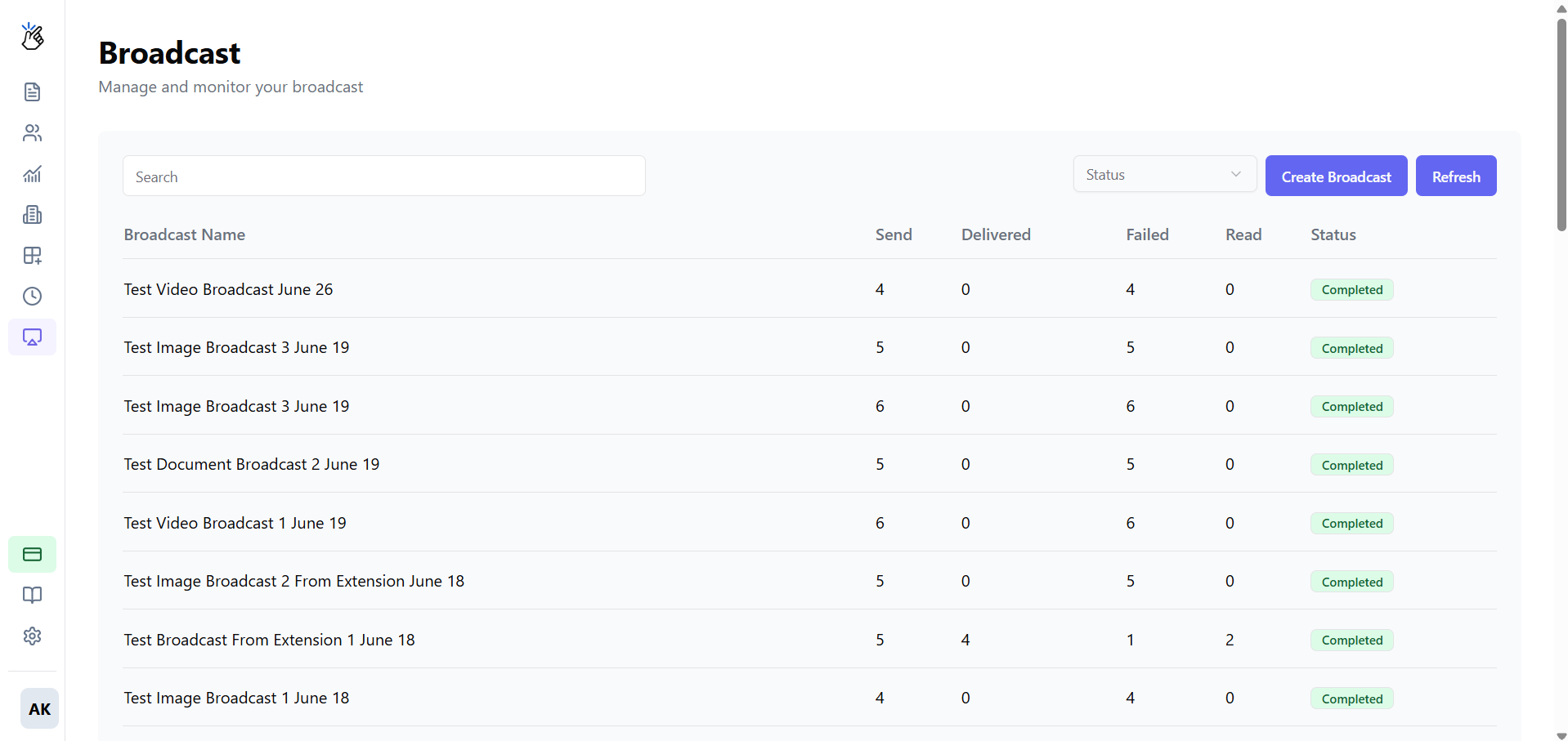
Go to **Workspace** → **Broadcasts** → **Create Broadcast**
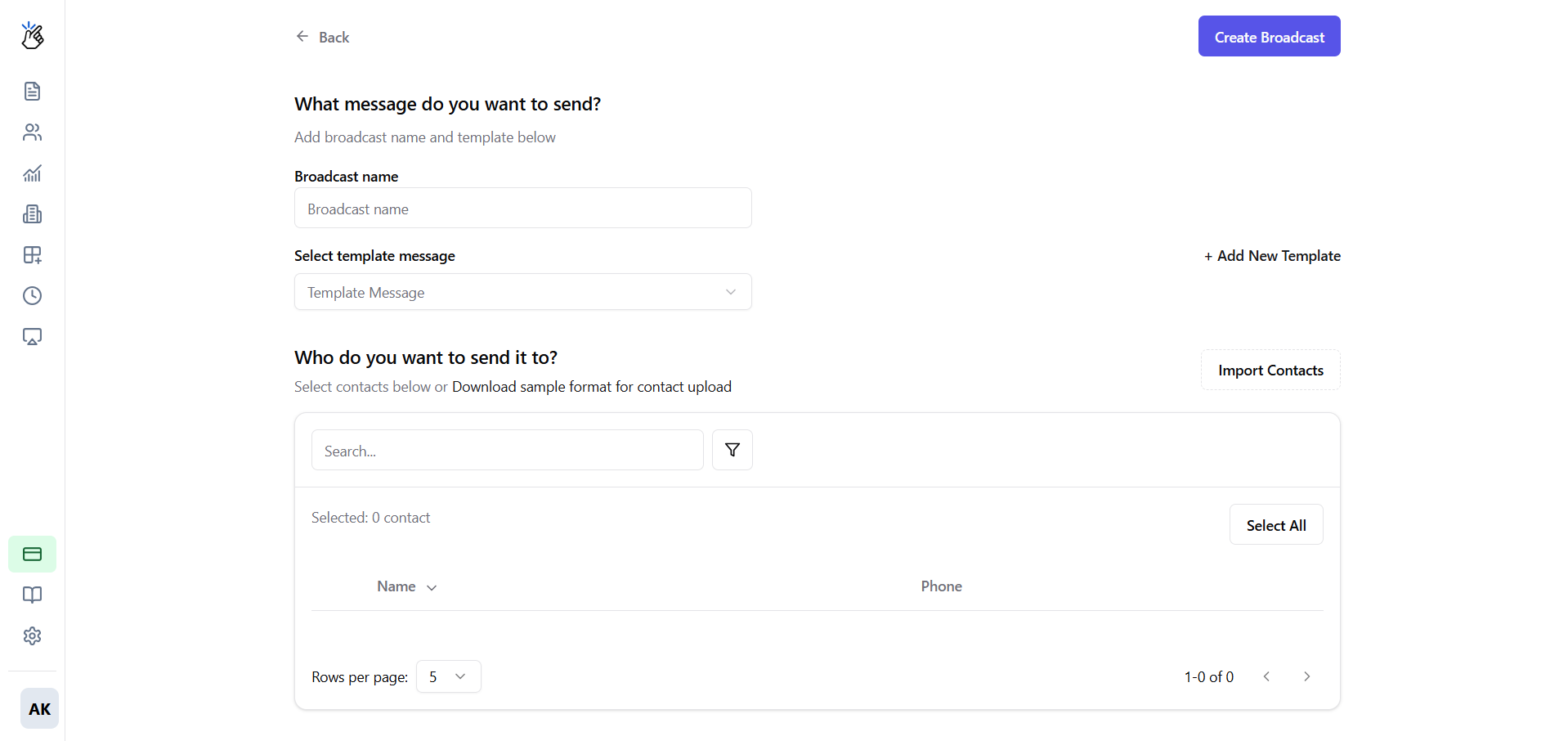
 Give your broadcast a clear, internal name:
* ✅ "January\_Sale\_2026"
* ✅ "Order\_Update\_Batch\_5"
* ❌ "test" or "broadcast1"
Give your broadcast a clear, internal name:
* ✅ "January\_Sale\_2026"
* ✅ "Order\_Update\_Batch\_5"
* ❌ "test" or "broadcast1"
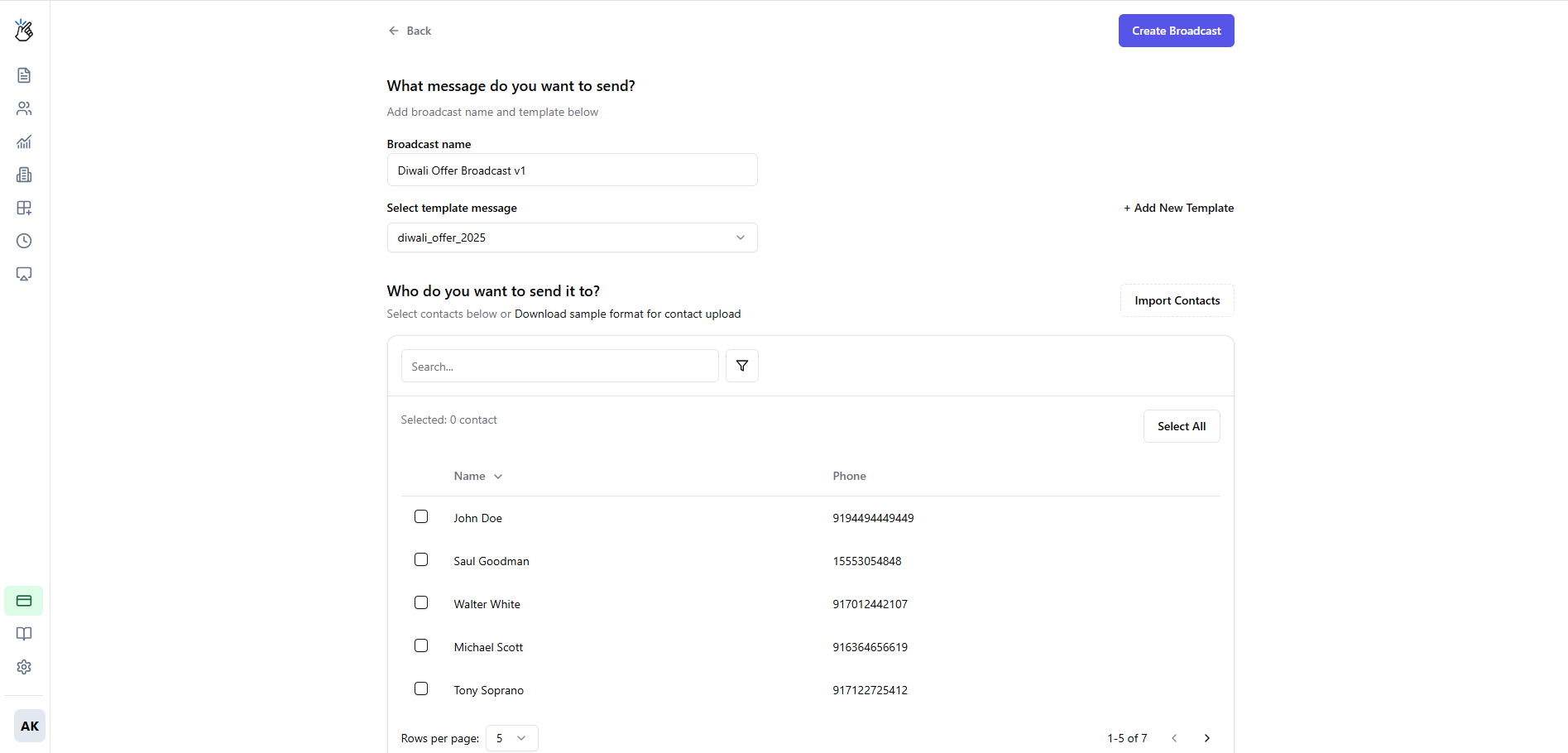
 Choose an **Approved** template from the dropdown.
Only approved templates appear here. If you don't see your template, check its status in Templates section.
**Option A: CSV Upload**
Click **Upload CSV** and select your file.
Choose an **Approved** template from the dropdown.
Only approved templates appear here. If you don't see your template, check its status in Templates section.
**Option A: CSV Upload**
Click **Upload CSV** and select your file.
 Required CSV format:
```csv theme={null}
Phone,Name,OrderID
919876543210,John,ORD001
919876543211,Jane,ORD002
```
Phone numbers must be in **international format** without + sign (e.g., 919876543210 for India)
**Option B: Select from Labels**
If contacts are already labeled in your inbox, select the label(s) to include.
Review imported contacts and select which ones to include:
Required CSV format:
```csv theme={null}
Phone,Name,OrderID
919876543210,John,ORD001
919876543211,Jane,ORD002
```
Phone numbers must be in **international format** without + sign (e.g., 919876543210 for India)
**Option B: Select from Labels**
If contacts are already labeled in your inbox, select the label(s) to include.
Review imported contacts and select which ones to include:
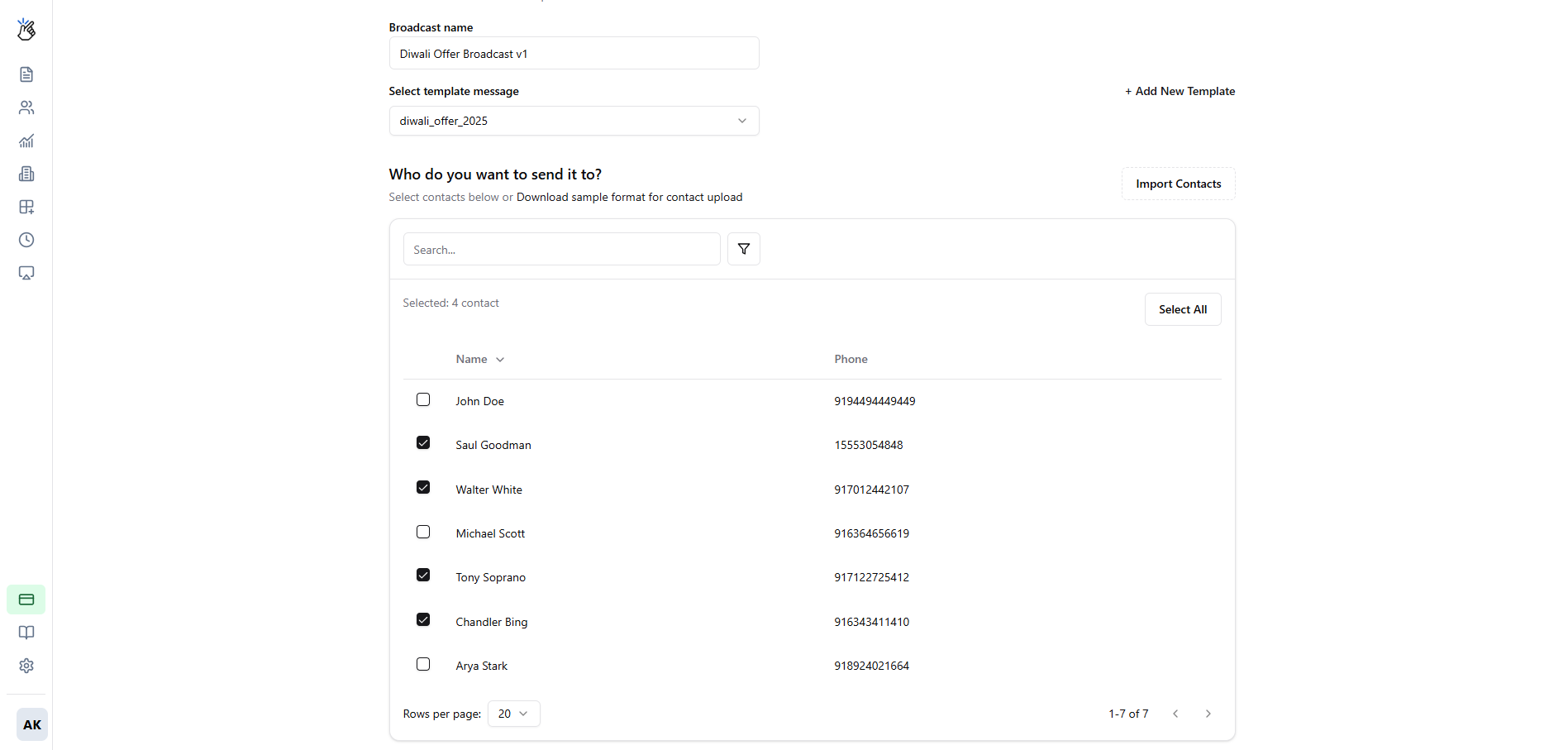 * ✅ Select All
* ✅ Individual selection
* ❌ Exclude invalid numbers
If your template has variables (`{{1}}`, `{{2}}`), map them to CSV columns or enter values:
| Variable | Value |
| -------- | -------------- |
| {1} | Name column |
| {2} | OrderID column |
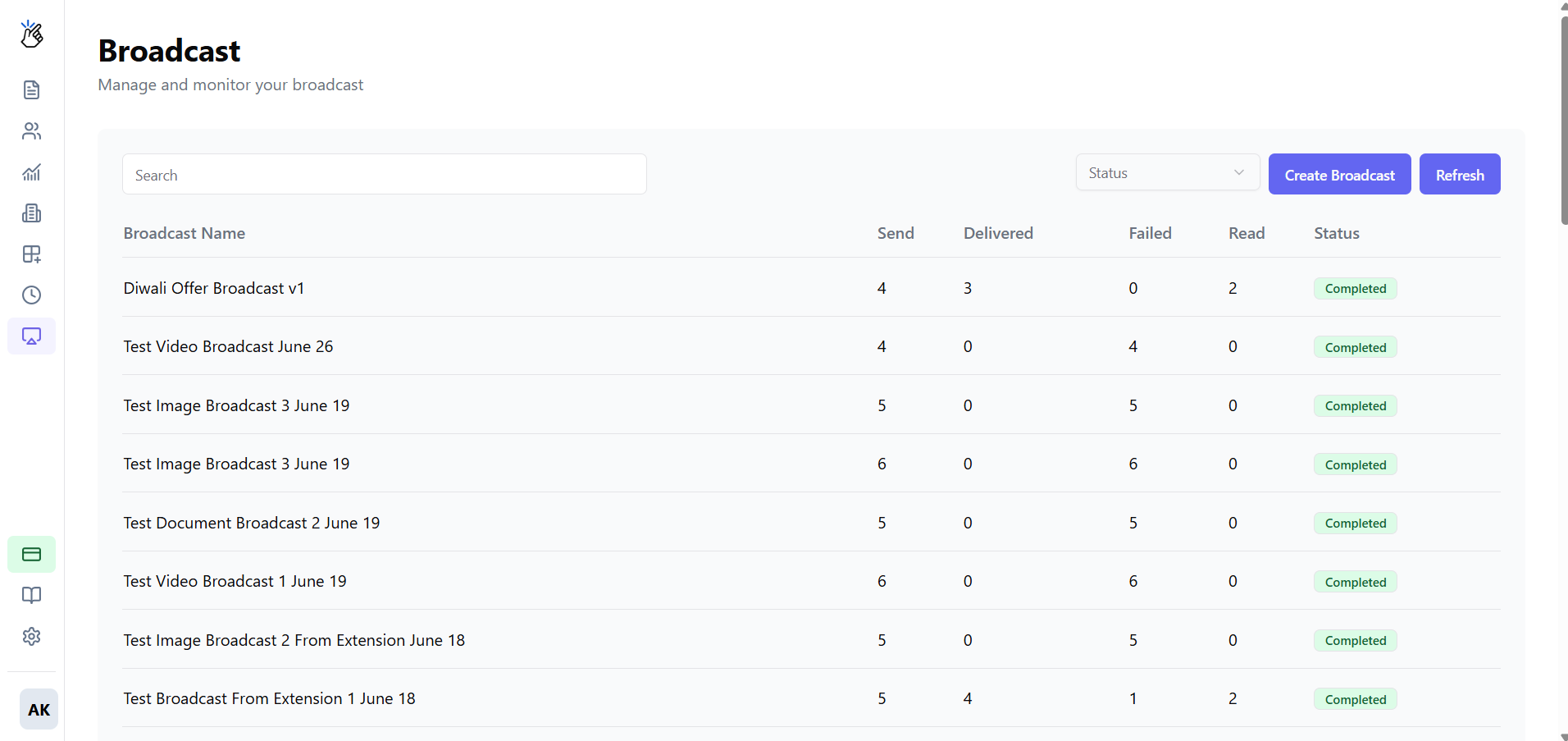
Review the preview, then click **Send Broadcast**
* ✅ Select All
* ✅ Individual selection
* ❌ Exclude invalid numbers
If your template has variables (`{{1}}`, `{{2}}`), map them to CSV columns or enter values:
| Variable | Value |
| -------- | -------------- |
| {1} | Name column |
| {2} | OrderID column |
Review the preview, then click **Send Broadcast**
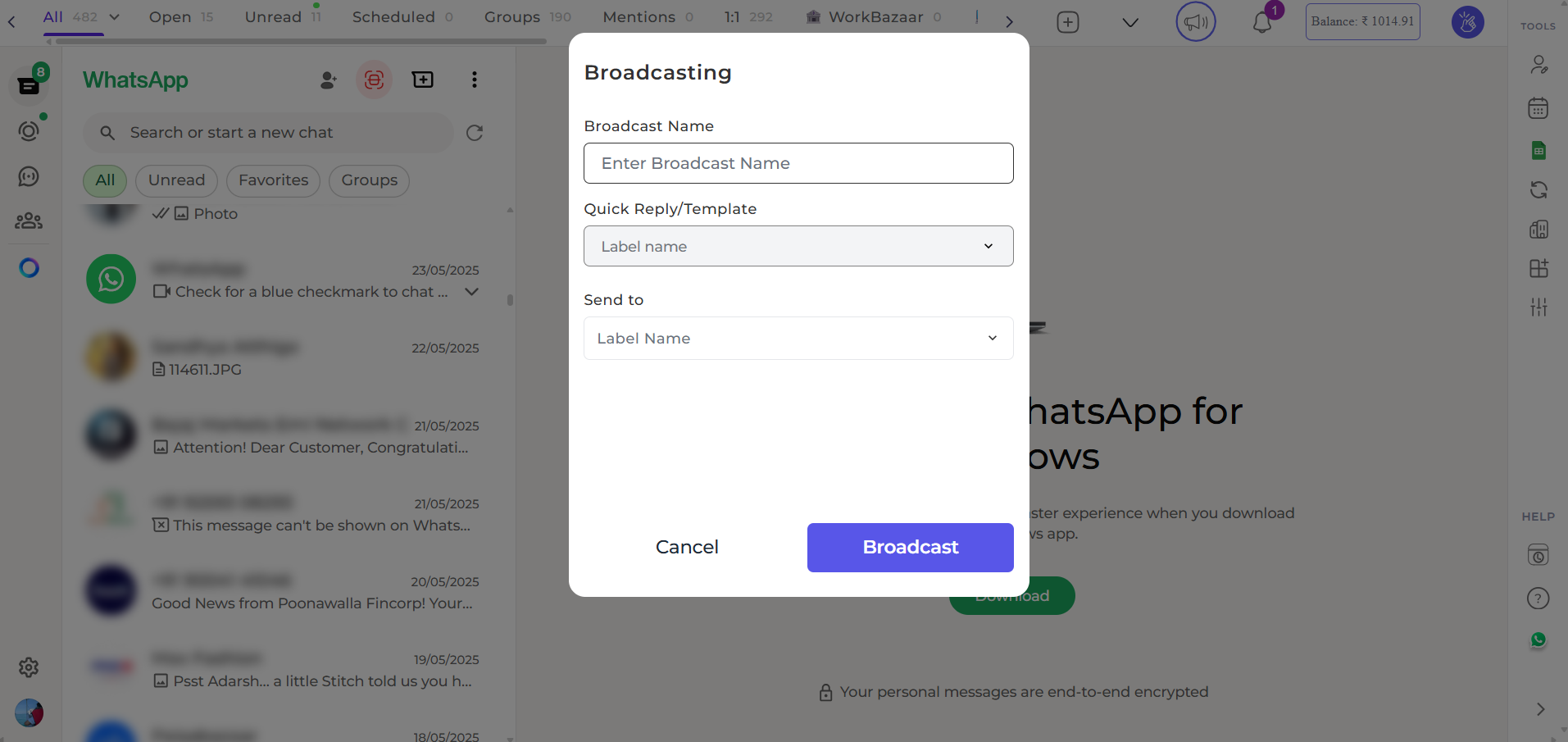
 In WhatsApp Web with Eazybe extension:
Click **WABA** → **Broadcasts** → **New Broadcast**
In WhatsApp Web with Eazybe extension:
Click **WABA** → **Broadcasts** → **New Broadcast**
 Choose a label containing your target contacts:
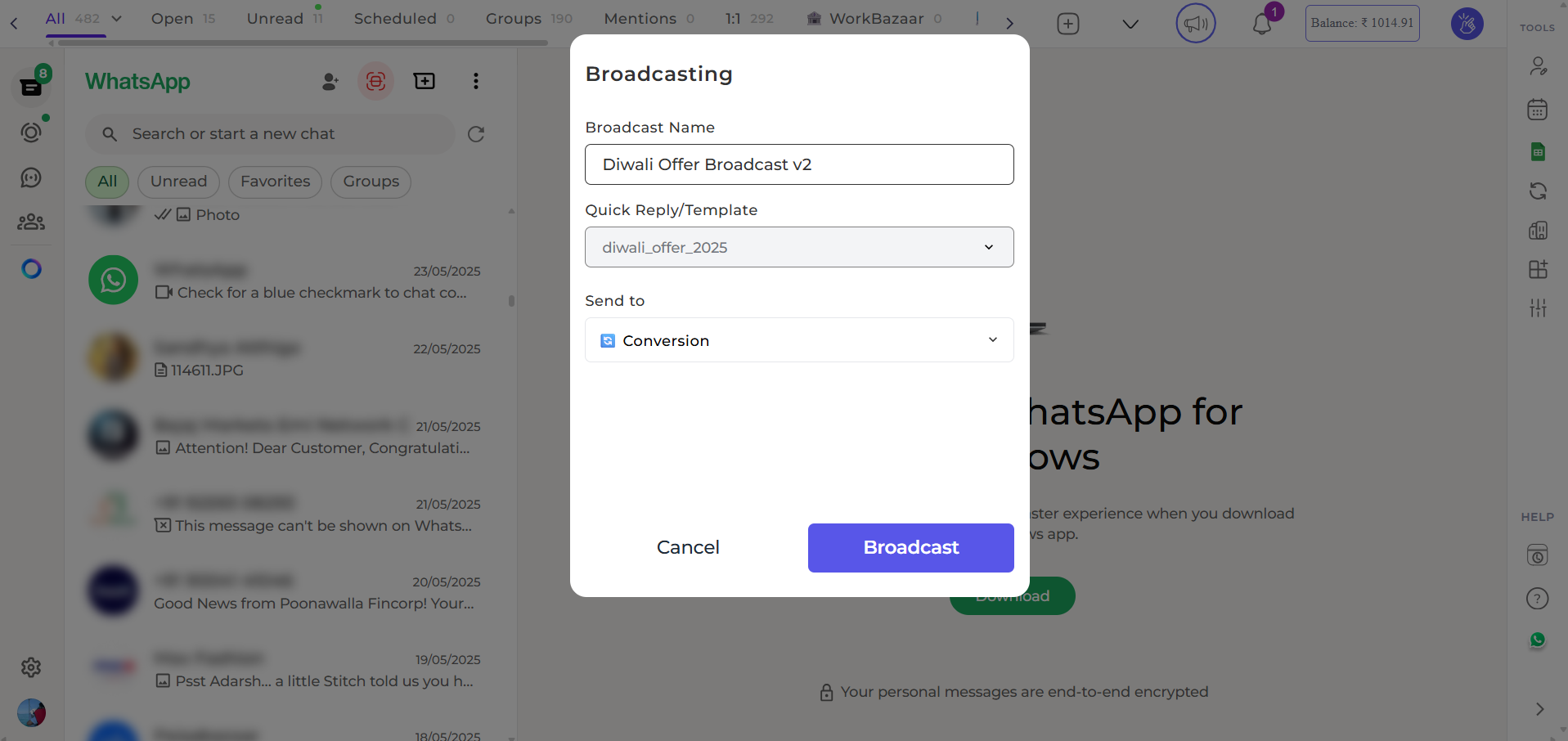 Ensure only individual contacts are labeled, not groups.
Select your approved template, preview, and click **Send**
Ensure only individual contacts are labeled, not groups.
Select your approved template, preview, and click **Send**
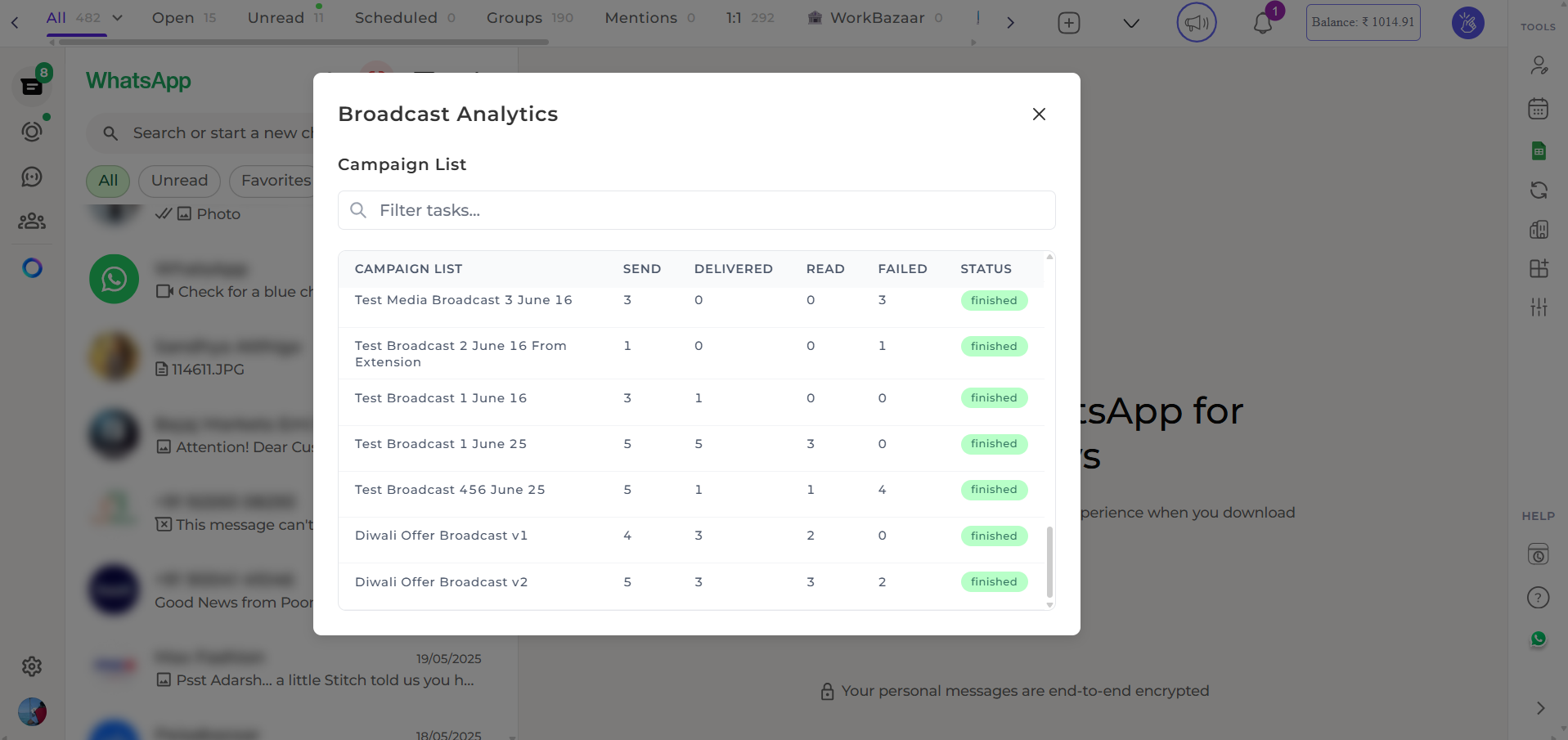 ## After Sending
Your broadcast enters the queue and messages are sent progressively. Track status in **Broadcasts** dashboard:
| Status | Meaning |
| ------------- | -------------------------------------- |
| **Queued** | Waiting to send |
| **Sending** | In progress |
| **Sent** | Delivered to WhatsApp |
| **Delivered** | Reached recipient's phone |
| **Read** | Recipient opened message |
| **Failed** | Delivery failed (invalid number, etc.) |
Track campaign performance and engagement
## After Sending
Your broadcast enters the queue and messages are sent progressively. Track status in **Broadcasts** dashboard:
| Status | Meaning |
| ------------- | -------------------------------------- |
| **Queued** | Waiting to send |
| **Sending** | In progress |
| **Sent** | Delivered to WhatsApp |
| **Delivered** | Reached recipient's phone |
| **Read** | Recipient opened message |
| **Failed** | Delivery failed (invalid number, etc.) |
Track campaign performance and engagement