> ## Documentation Index
> Fetch the complete documentation index at: https://help.eazybe.com/llms.txt
> Use this file to discover all available pages before exploring further.
# Wallet Management
> Learn how to view and recharge your Eazybe Wallet balance for WhatsApp broadcasts
This guide explains how to view and recharge your Eazybe Wallet balance to ensure uninterrupted WhatsApp broadcast campaigns.
## How the Eazybe Wallet Works
All charges for sending WhatsApp broadcasts are managed through the Eazybe Wallet. Your wallet balance is deducted each time you send broadcast messages.
Every new business (organization) connecting WABA for the first time receives **₹100 or \$1 in free credits** to get started!
Once your free credits are exhausted, you'll need to add funds to continue sending broadcasts.
## Viewing Your Wallet Balance
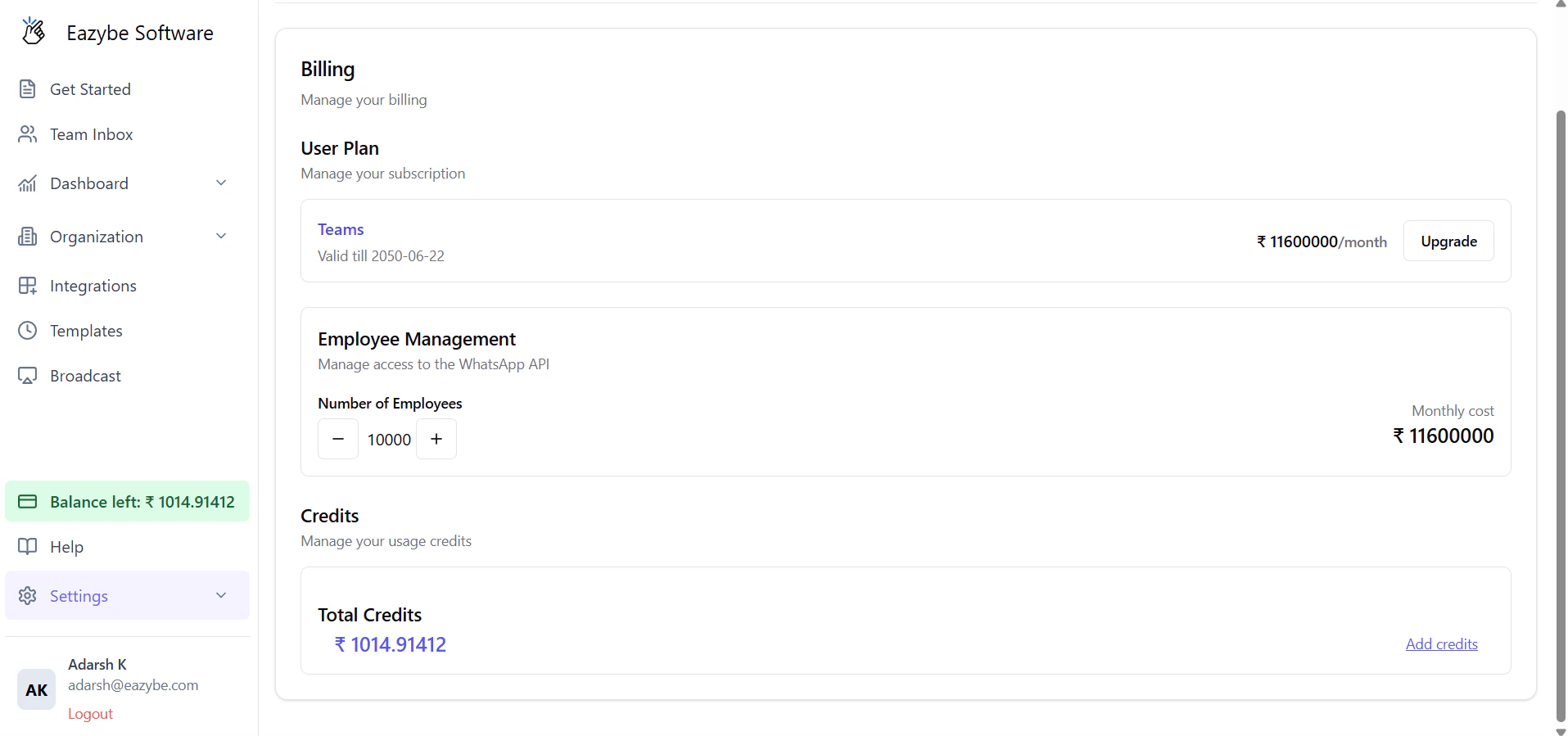
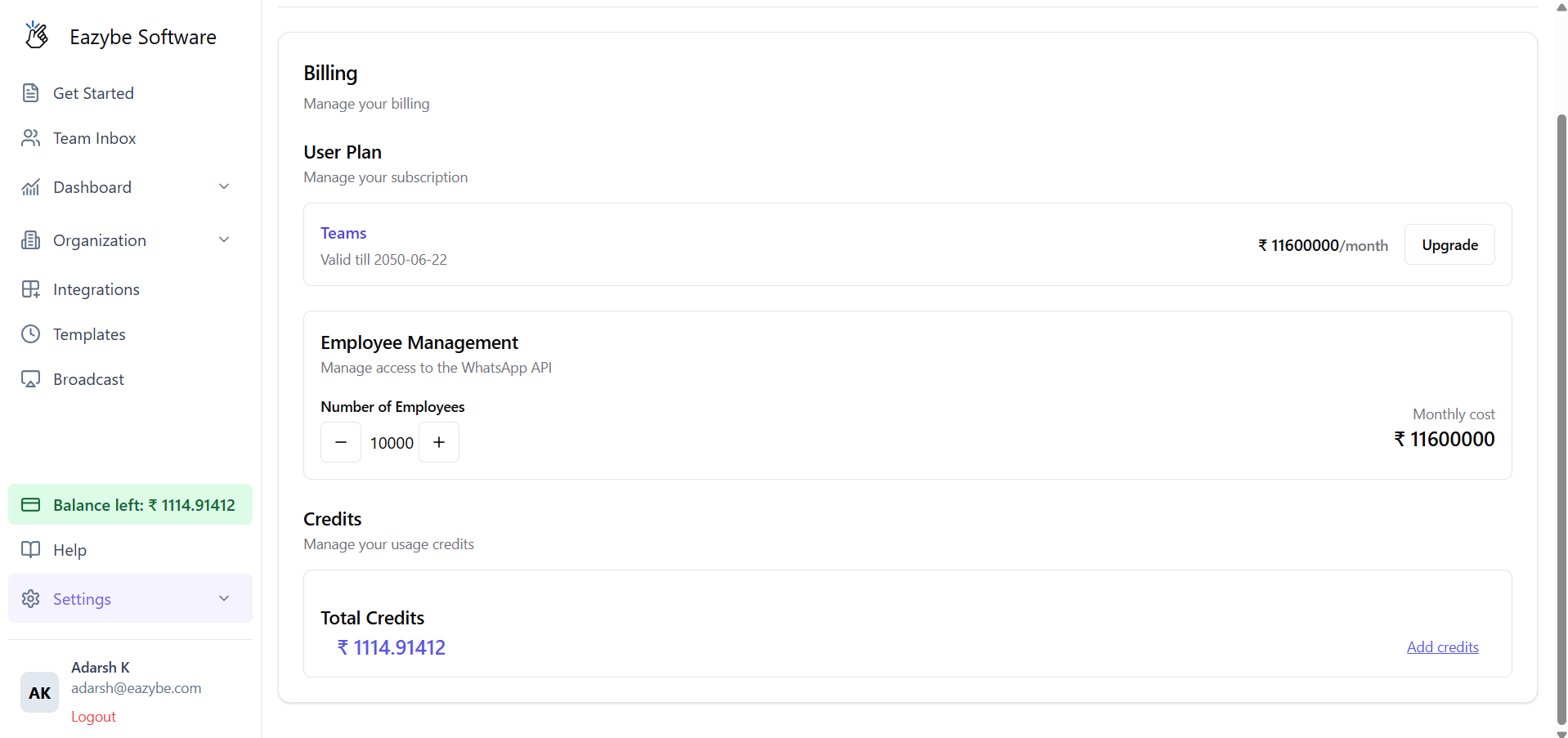
Navigate to the **Billing** section in your Eazybe dashboard to view your current balance and transaction history.
 ## How to Recharge Your Wallet
Access the **Billing** section in the Eazybe dashboard. Here you can view your current balance and complete transaction history.
## How to Recharge Your Wallet
Access the **Billing** section in the Eazybe dashboard. Here you can view your current balance and complete transaction history.
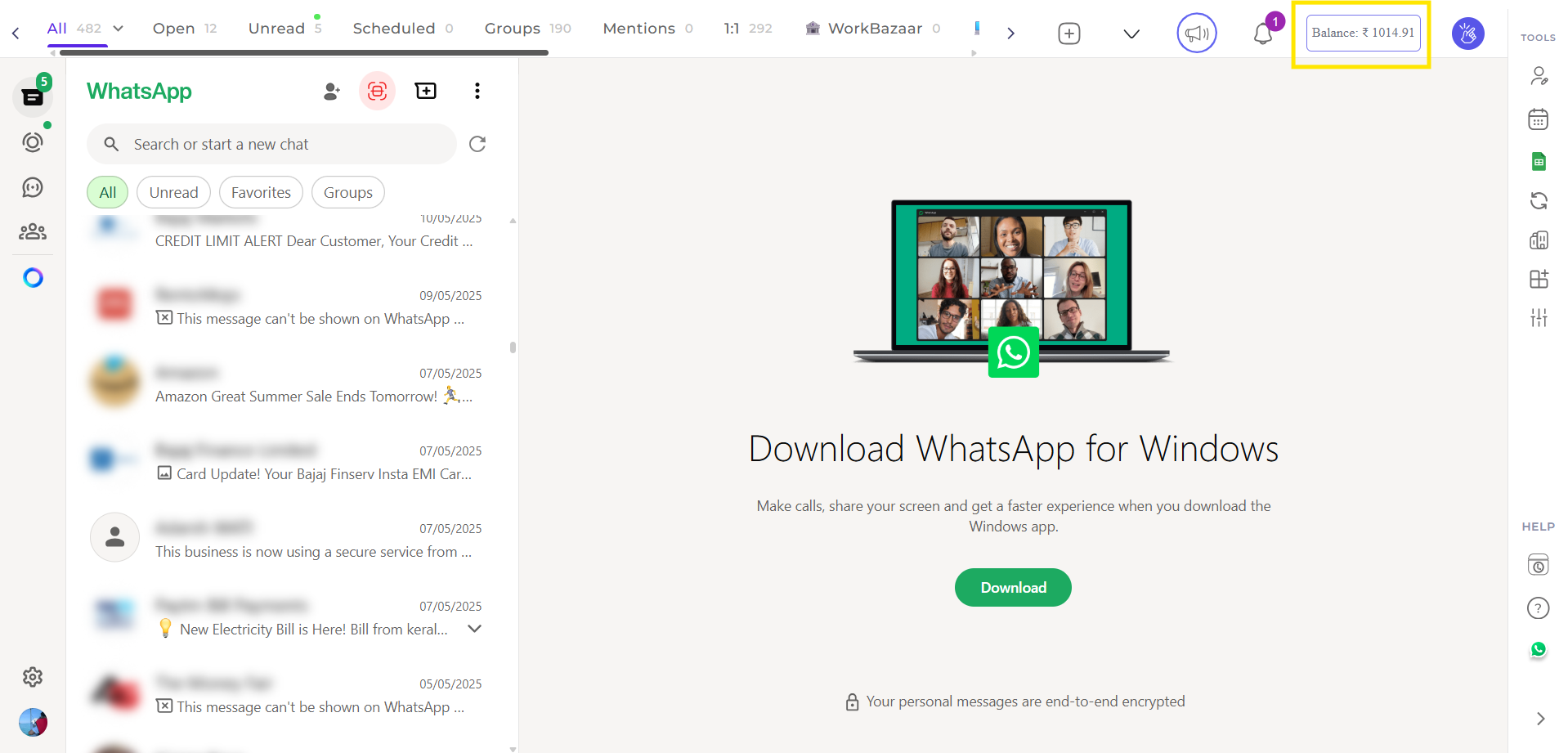 Select the **+ Add Credits** button to initiate a recharge.
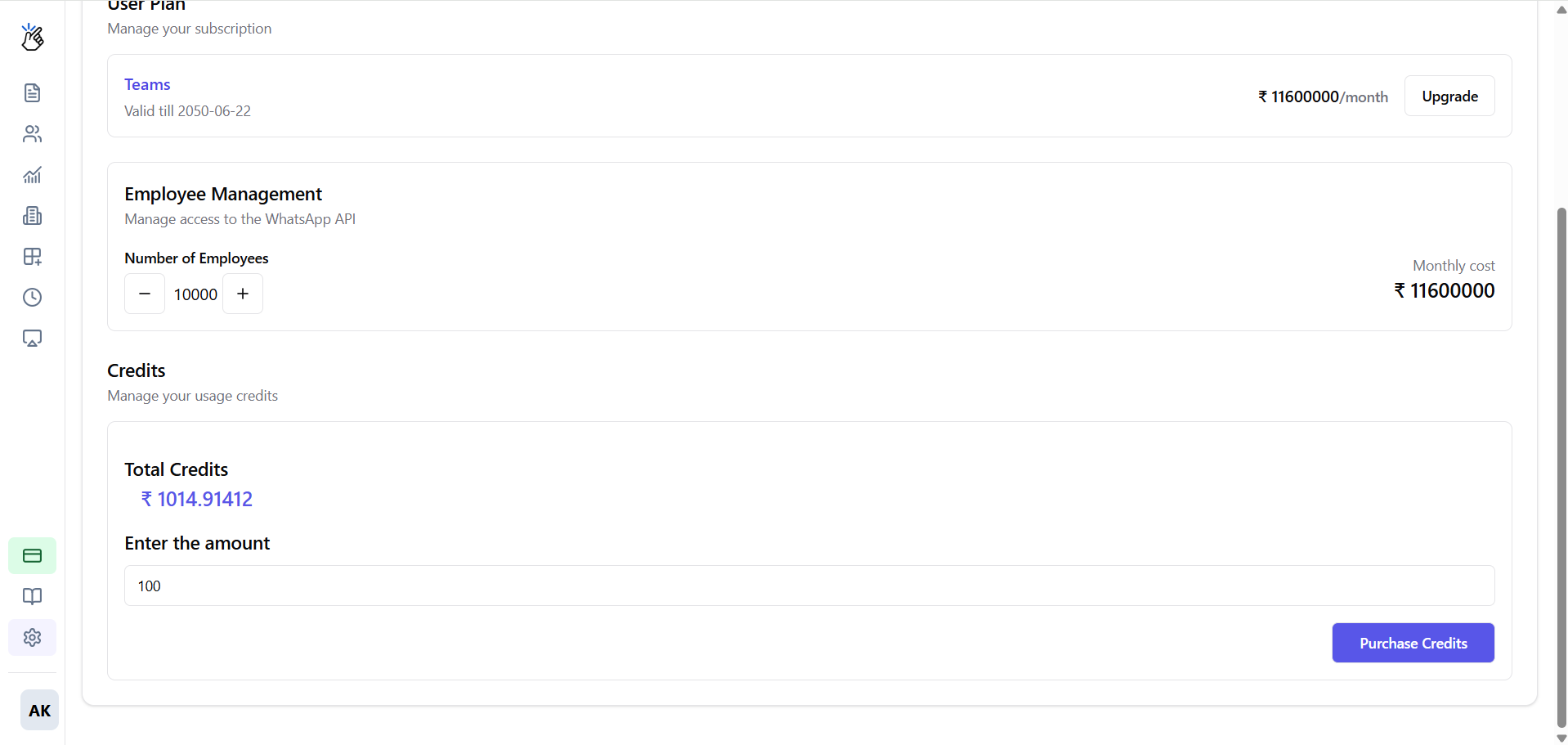 Input your desired recharge amount and click **Purchase Credits**.
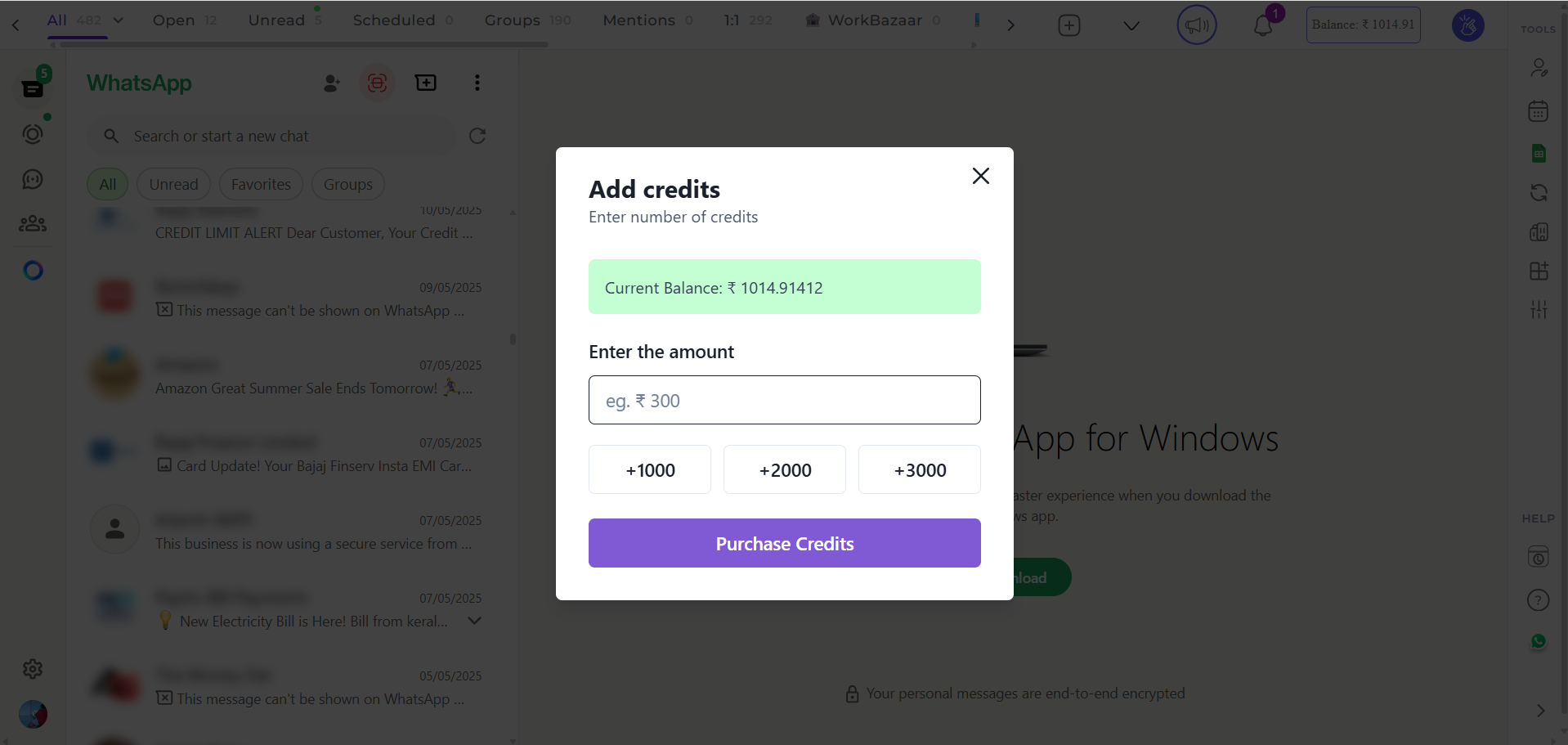 Consider adding a larger amount to avoid frequent recharges and ensure your campaigns run smoothly.
You will be redirected to Stripe's secure payment gateway to complete your transaction.
Consider adding a larger amount to avoid frequent recharges and ensure your campaigns run smoothly.
You will be redirected to Stripe's secure payment gateway to complete your transaction.
 Stripe provides enterprise-grade security for all payment transactions.
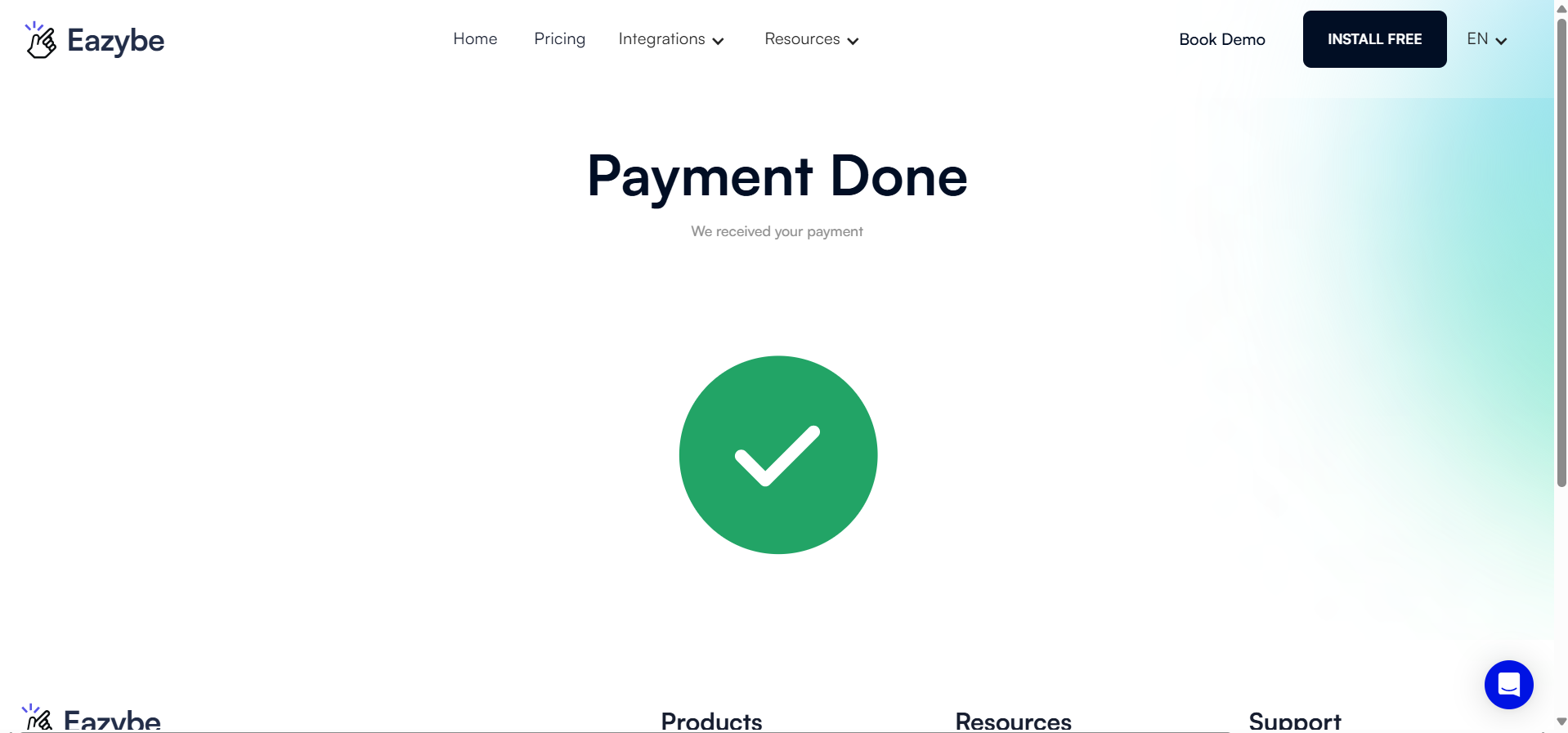
After successful payment, your new balance will be reflected in your wallet immediately.
Stripe provides enterprise-grade security for all payment transactions.
After successful payment, your new balance will be reflected in your wallet immediately.
 Ensure your wallet has sufficient balance before scheduling broadcast campaigns to avoid interruptions.
## Need Help?
If you have any questions or need further assistance, feel free to reach out to us at [hey@eazybe.com](mailto:hey@eazybe.com). We're happy to help!
Ensure your wallet has sufficient balance before scheduling broadcast campaigns to avoid interruptions.
## Need Help?
If you have any questions or need further assistance, feel free to reach out to us at [hey@eazybe.com](mailto:hey@eazybe.com). We're happy to help!