> ## Documentation Index
> Fetch the complete documentation index at: https://help.eazybe.com/llms.txt
> Use this file to discover all available pages before exploring further.
# Set Up WABA Disconnect Alerts
> Choose who receives an email when a WhatsApp Business number disconnects and reconnect the number from WABA settings.
Set up disconnect alerts so the people you choose receive an email when a WhatsApp Business number loses its connection to Meta. You can manage recipients, check your numbers, and reconnect a disconnected number from **Settings → WABA**.
Only workspace admins can change disconnect alerts or reconnect a number. Managers and employees can open the page, but the recipient list is blurred and marked **Admin only**.
## Set up disconnect alerts
Go to **Settings** and select **WABA** in the left menu. Under **Notifications**, you will see the **Disconnect alerts** card.
The **Connected numbers** section below it shows the connection status of your workspace's WhatsApp Business numbers.
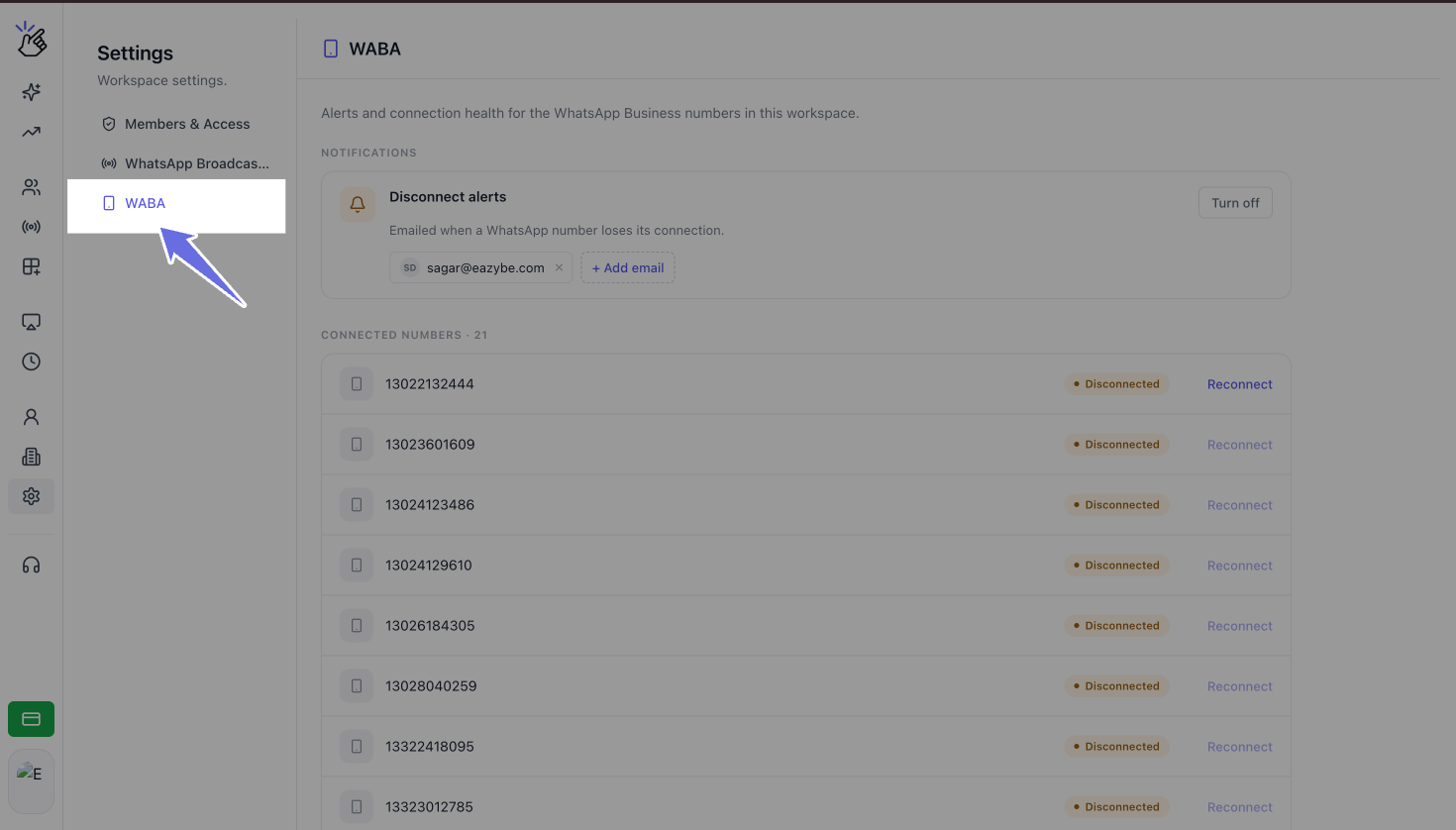 Disconnect alerts are enabled by default for every workspace. The **Disconnect alerts** card shows **Turn off** when alerts are on.
Your organization owner's email address is automatically added as the default recipient.
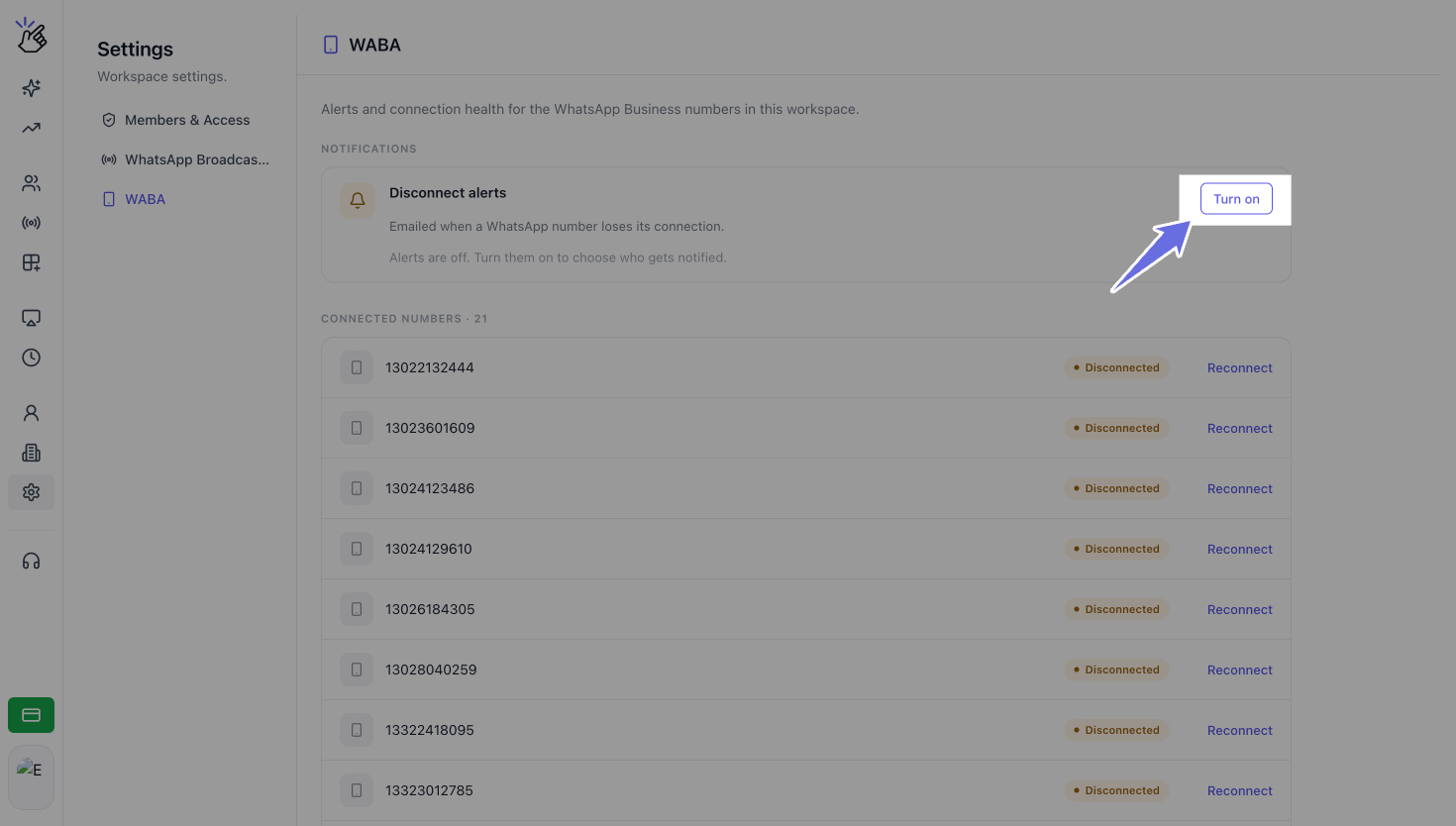
If alerts were previously turned off, select **Turn on** at the top right of the card to enable them again. The screenshot below shows this off state. While alerts are off, the card reads *Alerts are off. Turn them on to choose who gets notified.*
Disconnect alerts are enabled by default for every workspace. The **Disconnect alerts** card shows **Turn off** when alerts are on.
Your organization owner's email address is automatically added as the default recipient.
If alerts were previously turned off, select **Turn on** at the top right of the card to enable them again. The screenshot below shows this off state. While alerts are off, the card reads *Alerts are off. Turn them on to choose who gets notified.*
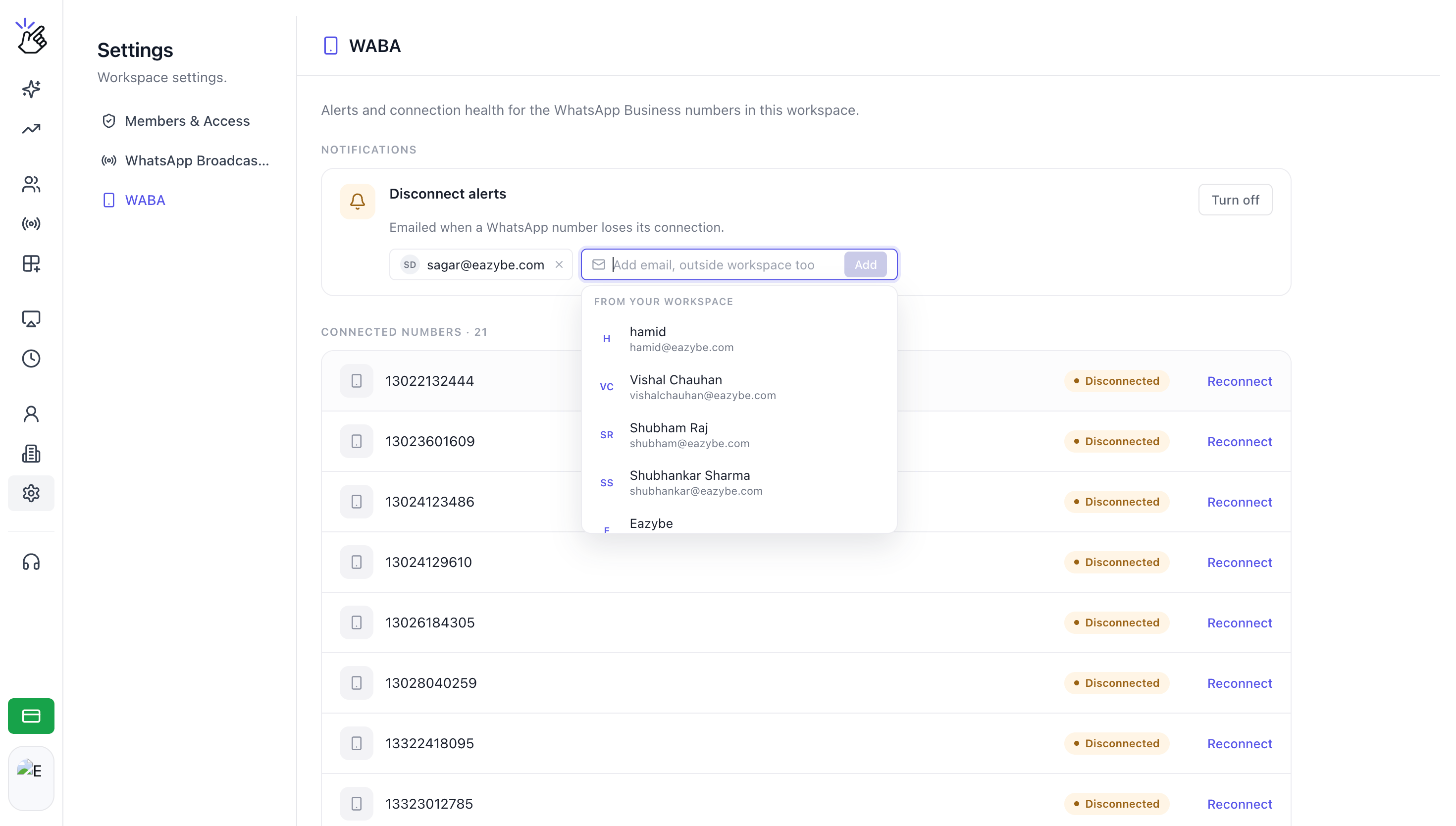
 Select **+ Add email** to add another recipient. Choose a recipient in either of these ways:
* Select a teammate under **From your workspace**. Scroll through the list or type to filter by name or email address.
* Type an email address and press **Enter** or select **Add**.
Repeat this action for each person who should receive an alert.
Recipients do not need to be workspace members. You can add a shared inbox such as `alerts@yourcompany.com`.
You can save up to **10 recipients**. When you reach the limit, **+ Add email** is replaced by **10 of 10 recipients added**. Remove a recipient to make room for another.
Select **+ Add email** to add another recipient. Choose a recipient in either of these ways:
* Select a teammate under **From your workspace**. Scroll through the list or type to filter by name or email address.
* Type an email address and press **Enter** or select **Add**.
Repeat this action for each person who should receive an alert.
Recipients do not need to be workspace members. You can add a shared inbox such as `alerts@yourcompany.com`.
You can save up to **10 recipients**. When you reach the limit, **+ Add email** is replaced by **10 of 10 recipients added**. Remove a recipient to make room for another.
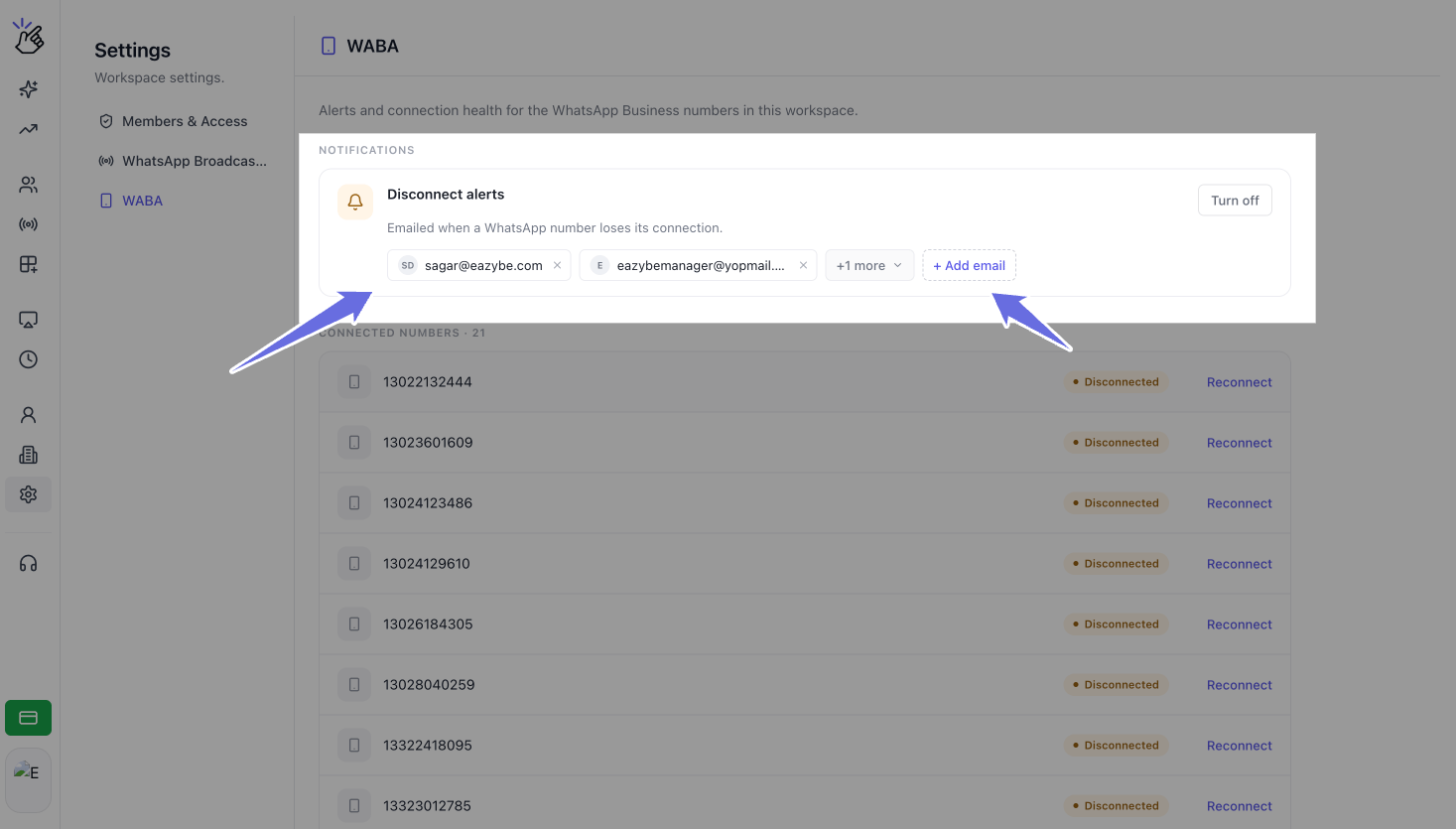
 The first two recipients appear as chips on the card. If you have added more than two, select **+N more** to open the full list.
In the full list, search by name or email address and use the **×** button to remove a recipient.
Changes save immediately. There is no separate **Save** button.
The first two recipients appear as chips on the card. If you have added more than two, select **+N more** to open the full list.
In the full list, search by name or email address and use the **×** button to remove a recipient.
Changes save immediately. There is no separate **Save** button.
 ## Understand the alert email
When a number loses its connection to Meta, every recipient on your list receives the same alert email. Your recipient list applies to the whole workspace, rather than to individual numbers.
A disconnected number cannot send or receive messages until it is reconnected. Open **Settings → WABA** to check its status and reconnect it.
## Reconnect a disconnected number
In **Settings → WABA**, scroll to **Connected numbers**. Each number has a **Connected** or **Disconnected** badge. Disconnected numbers appear first.
Select **Reconnect** next to the number showing **Disconnected**. This opens the same Meta sign-up window used by **Connect to API** on the Channels page.
You must be a workspace admin to reconnect a number.
Follow the Meta sign-up flow using the same WhatsApp Business account you use when connecting through the Channels page.
Once Meta confirms the connection, the list refreshes and the number's badge returns to **Connected**.
## Manage recipients and turn alerts off
To remove a recipient from the full list, select **+N more**, find the recipient, and select **×**. When you remove someone from a list of 10, **+ Add email** becomes available again.
While alerts are on, you must keep at least one recipient. If you try to remove the last one, you will see *Keep at least one recipient while disconnect alerts are on. Turn the alerts off instead.*
To stop alert emails, select **Turn off** on the **Disconnect alerts** card. Your recipient list stays saved, so you can select **Turn on** later without rebuilding it. Adding recipients, removing recipients, and turning alerts on or off each save automatically.
## Who can use disconnect alerts
| Action | Admin | Manager | Employee |
| ------------------------ | ----- | --------------------------------- | --------------------------------- |
| Open WABA settings | Yes | Yes | Yes |
| View the recipient list | Yes | Blurred and marked **Admin only** | Blurred and marked **Admin only** |
| Add or remove recipients | Yes | No | No |
| Turn alerts on or off | Yes | No | No |
| Reconnect a number | Yes | No | No |
## Troubleshooting
### WABA is missing from Settings
Reload the page. Every role can open WABA settings, but the menu appears after your workspace permissions finish loading.
### You see an invalid email message
If you see *Enter a valid email address.*, check the address for a missing `@` or domain, correct it, and try again.
### You see a duplicate recipient message
If you see *\ is already on the list.*, that email address is already saved. Check the recipient chips or select **+N more** to view the full list.
### Your recipient change does not save
If you see *Could not save disconnect alert recipients. Please try again.*, the change did not reach Eazybe. The list returns to its previous state. Check your internet connection and retry the change.
### Nobody received an alert
Check the following:
* The card shows **Turn off**, which means alerts are currently on.
* At least one recipient is saved.
* Recipients have checked their spam folders.
## Understand the alert email
When a number loses its connection to Meta, every recipient on your list receives the same alert email. Your recipient list applies to the whole workspace, rather than to individual numbers.
A disconnected number cannot send or receive messages until it is reconnected. Open **Settings → WABA** to check its status and reconnect it.
## Reconnect a disconnected number
In **Settings → WABA**, scroll to **Connected numbers**. Each number has a **Connected** or **Disconnected** badge. Disconnected numbers appear first.
Select **Reconnect** next to the number showing **Disconnected**. This opens the same Meta sign-up window used by **Connect to API** on the Channels page.
You must be a workspace admin to reconnect a number.
Follow the Meta sign-up flow using the same WhatsApp Business account you use when connecting through the Channels page.
Once Meta confirms the connection, the list refreshes and the number's badge returns to **Connected**.
## Manage recipients and turn alerts off
To remove a recipient from the full list, select **+N more**, find the recipient, and select **×**. When you remove someone from a list of 10, **+ Add email** becomes available again.
While alerts are on, you must keep at least one recipient. If you try to remove the last one, you will see *Keep at least one recipient while disconnect alerts are on. Turn the alerts off instead.*
To stop alert emails, select **Turn off** on the **Disconnect alerts** card. Your recipient list stays saved, so you can select **Turn on** later without rebuilding it. Adding recipients, removing recipients, and turning alerts on or off each save automatically.
## Who can use disconnect alerts
| Action | Admin | Manager | Employee |
| ------------------------ | ----- | --------------------------------- | --------------------------------- |
| Open WABA settings | Yes | Yes | Yes |
| View the recipient list | Yes | Blurred and marked **Admin only** | Blurred and marked **Admin only** |
| Add or remove recipients | Yes | No | No |
| Turn alerts on or off | Yes | No | No |
| Reconnect a number | Yes | No | No |
## Troubleshooting
### WABA is missing from Settings
Reload the page. Every role can open WABA settings, but the menu appears after your workspace permissions finish loading.
### You see an invalid email message
If you see *Enter a valid email address.*, check the address for a missing `@` or domain, correct it, and try again.
### You see a duplicate recipient message
If you see *\ is already on the list.*, that email address is already saved. Check the recipient chips or select **+N more** to view the full list.
### Your recipient change does not save
If you see *Could not save disconnect alert recipients. Please try again.*, the change did not reach Eazybe. The list returns to its previous state. Check your internet connection and retry the change.
### Nobody received an alert
Check the following:
* The card shows **Turn off**, which means alerts are currently on.
* At least one recipient is saved.
* Recipients have checked their spam folders.