> ## Documentation Index
> Fetch the complete documentation index at: https://help.eazybe.com/llms.txt
> Use this file to discover all available pages before exploring further.
# Create Template
> Learn how to create and manage WhatsApp Message Templates to send broadcasts or initiate conversations with WABA
This guide explains how to create and use Message Templates to send a broadcast (or initiate any conversation) with WABA.
## What is a Message Template?
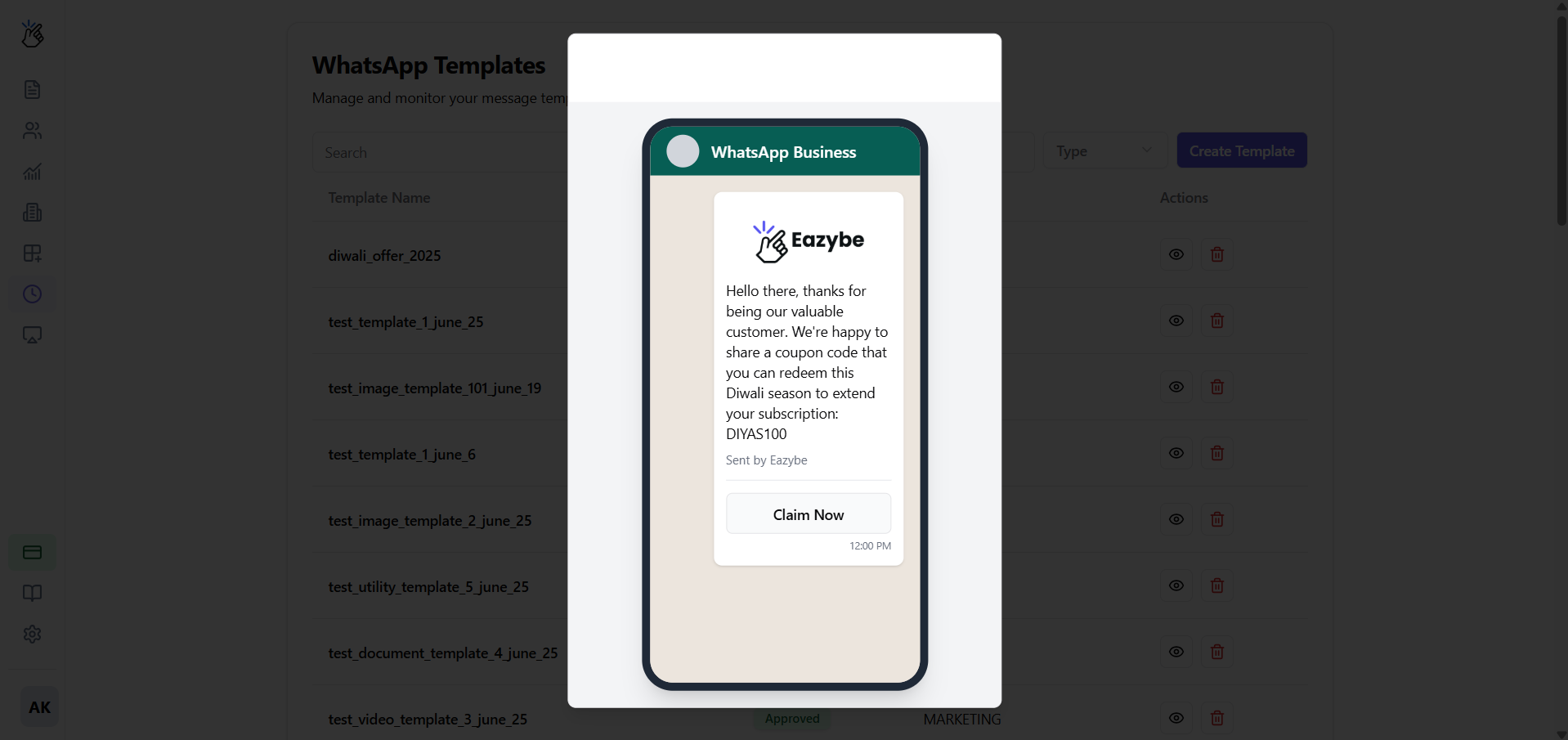
A Message Template is a pre-approved message format that allows you to send outbound notifications or start conversations with your customers. Every template must be submitted to Meta for approval to prevent spam and ensure high-quality communication.
Message Templates are required for initiating conversations outside the 24-hour messaging window or sending broadcast campaigns.
## How to Create a Message Template
Navigate to the **Templates** section within your Eazybe dashboard.
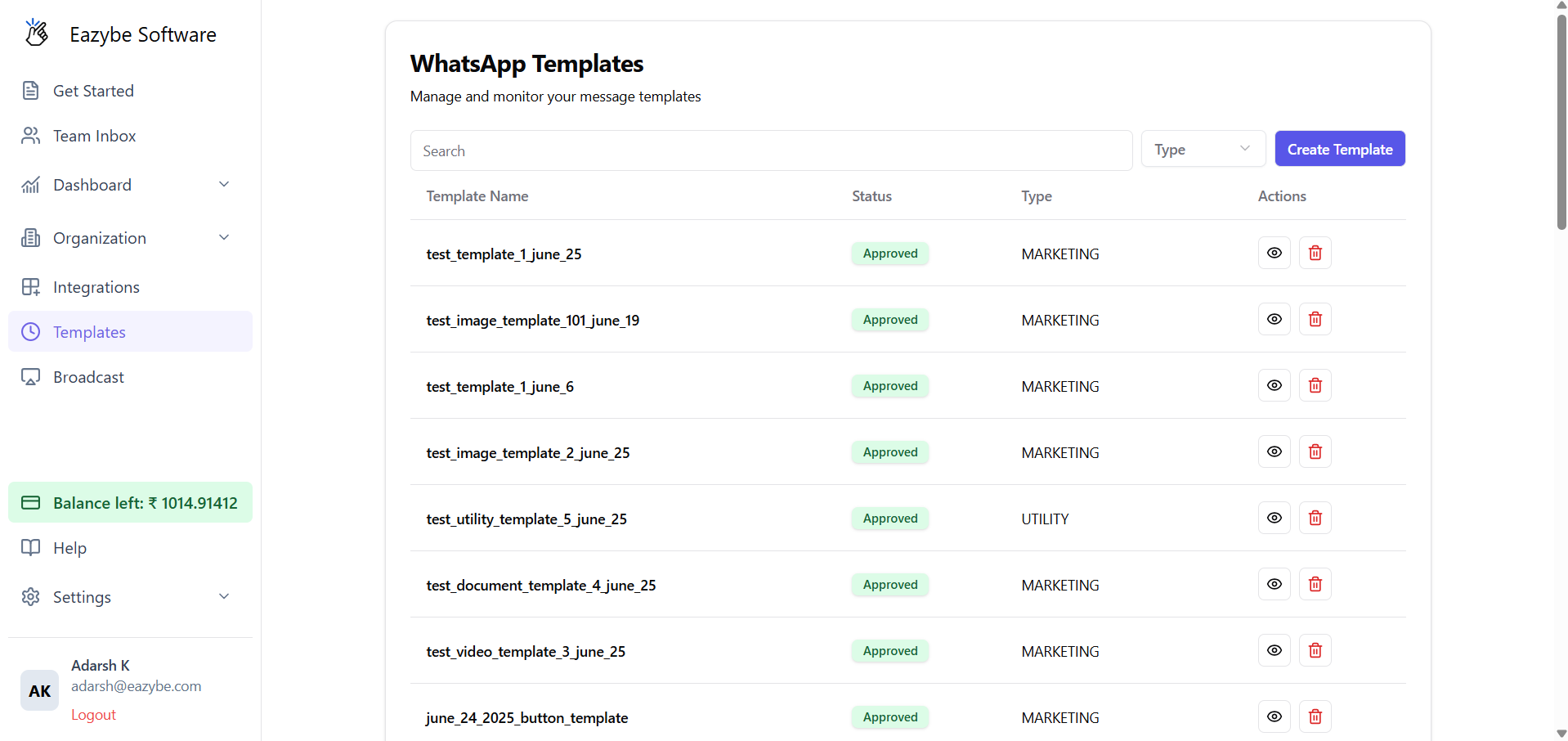 Select the **Create Template** button to begin.
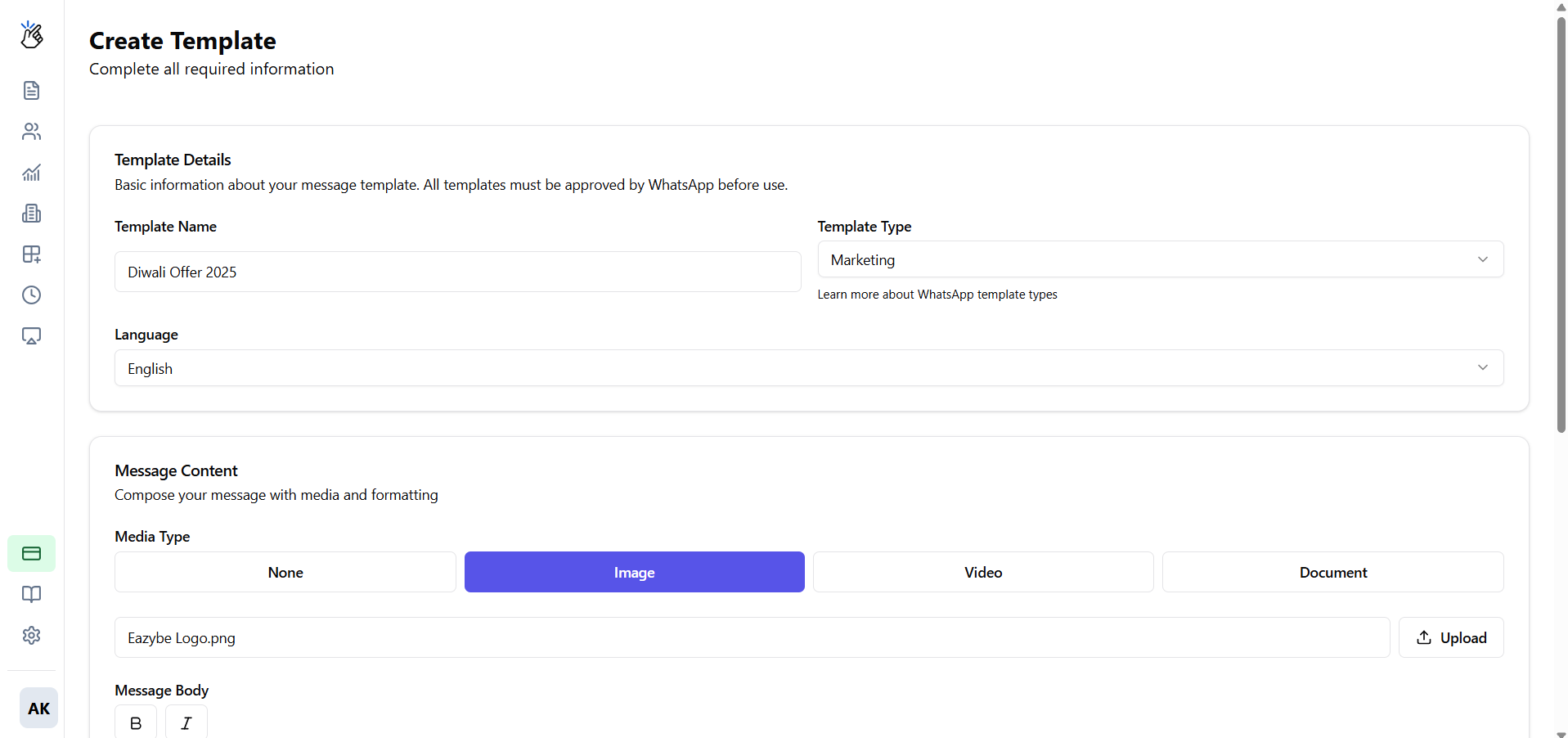
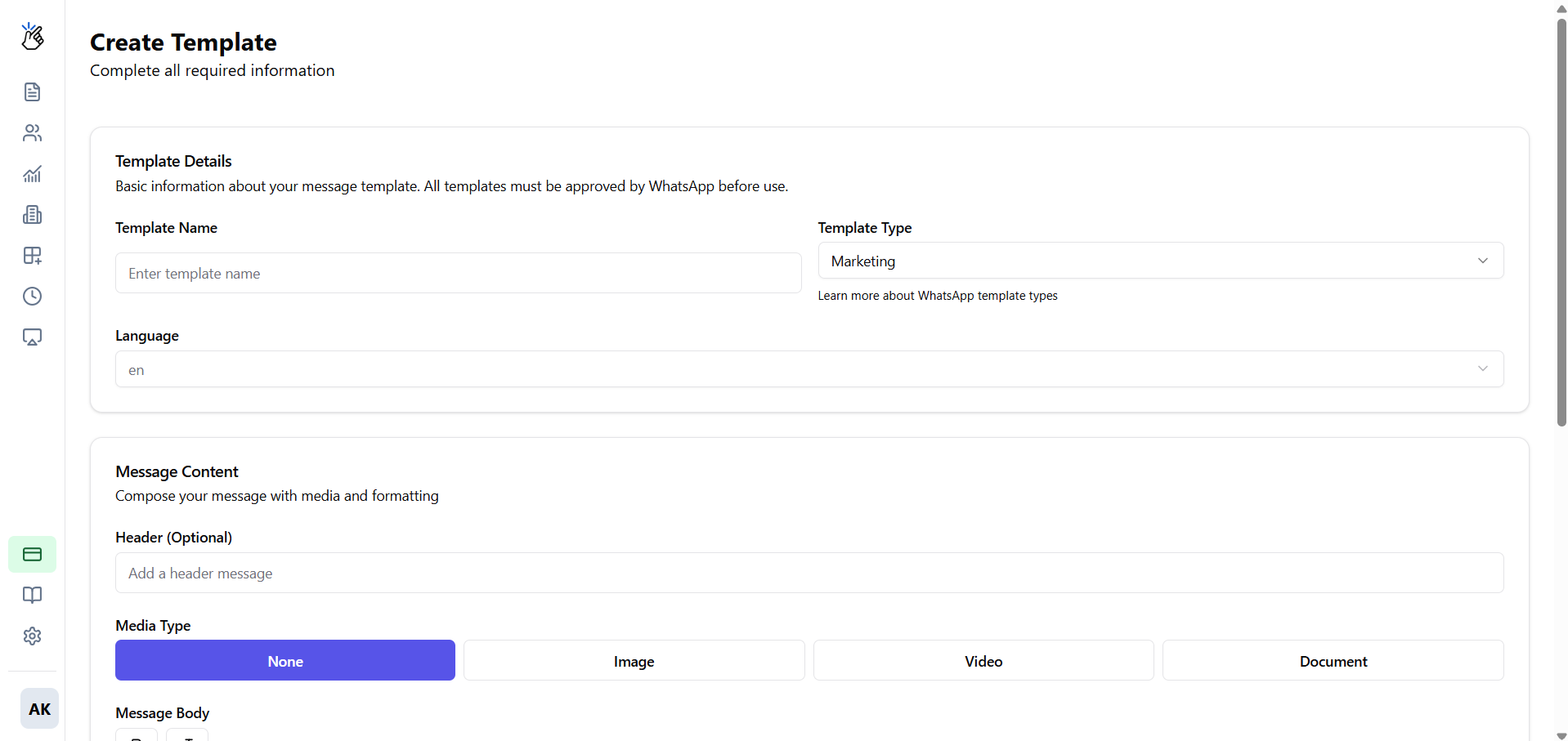 Complete the following fields:
 * **Template Name:** A unique, lowercase name with underscores (e.g., `christmas_offer_v2`)
* **Category:** Select the message type:
* **Marketing** - Promotional messages and offers
* **Utility** - Transactional messages like order updates
* **Authentication** - OTPs and verification codes
* **Language:** Choose the template language
### Optional Components
* **Header:** Add text, image, video, or document at the top
* **Body:** This is the main text of your message
* **Footer:** Short text line at the bottom
* **Buttons:** Add up to two buttons - Quick Replies (e.g., "Yes," "No") or Calls to Action (e.g., "Visit Website," "Call Us")
* **Template Name:** A unique, lowercase name with underscores (e.g., `christmas_offer_v2`)
* **Category:** Select the message type:
* **Marketing** - Promotional messages and offers
* **Utility** - Transactional messages like order updates
* **Authentication** - OTPs and verification codes
* **Language:** Choose the template language
### Optional Components
* **Header:** Add text, image, video, or document at the top
* **Body:** This is the main text of your message
* **Footer:** Short text line at the bottom
* **Buttons:** Add up to two buttons - Quick Replies (e.g., "Yes," "No") or Calls to Action (e.g., "Visit Website," "Call Us")
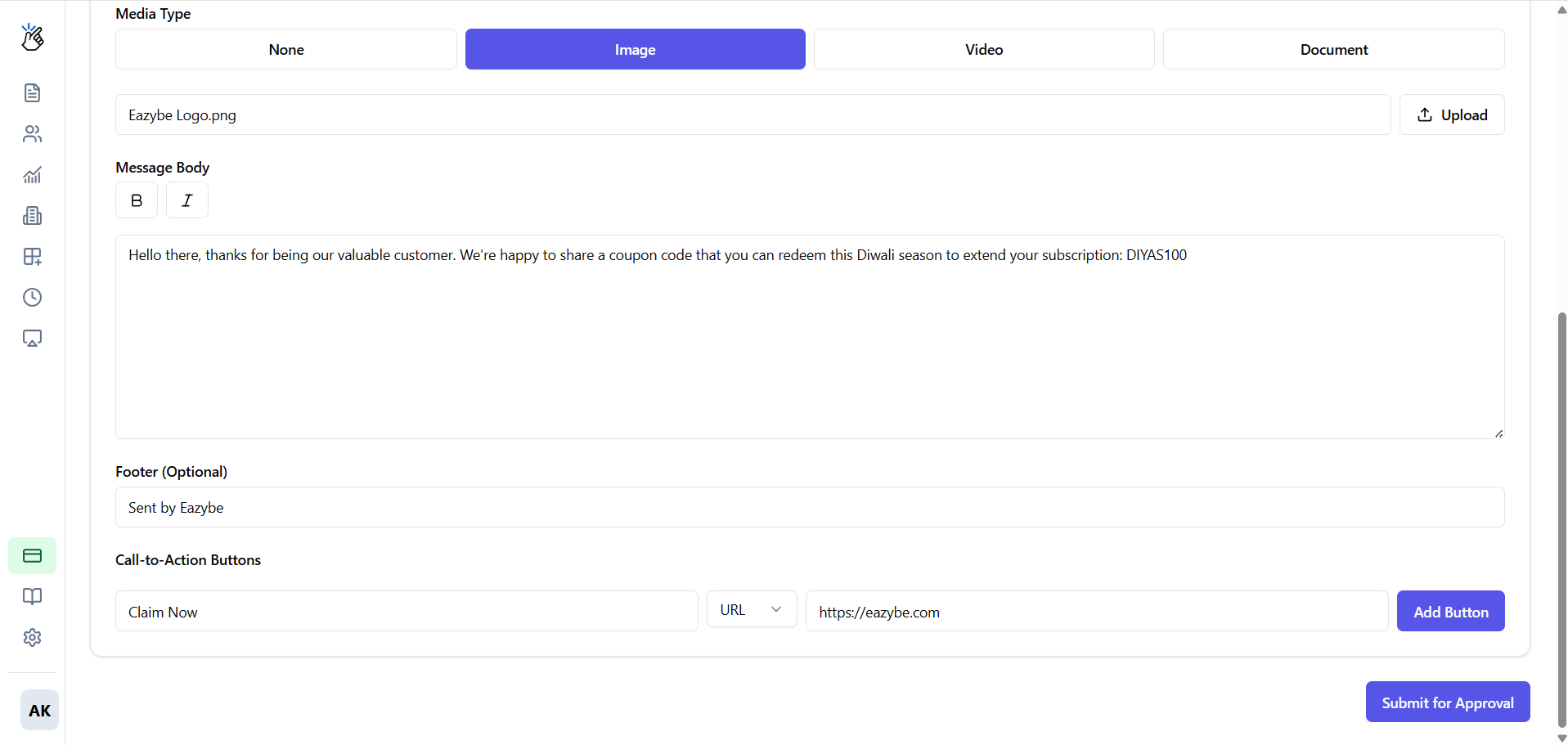 Use variables like `{{1}}`, `{{2}}` in your template body to personalize messages with customer names, order numbers, or other dynamic content.
Click **Submit** to send the template to Meta for review.
Use variables like `{{1}}`, `{{2}}` in your template body to personalize messages with customer names, order numbers, or other dynamic content.
Click **Submit** to send the template to Meta for review.
 Review your template carefully before submitting. Ensure there are no spelling errors or policy violations that could cause rejection.
## Checking Template Status
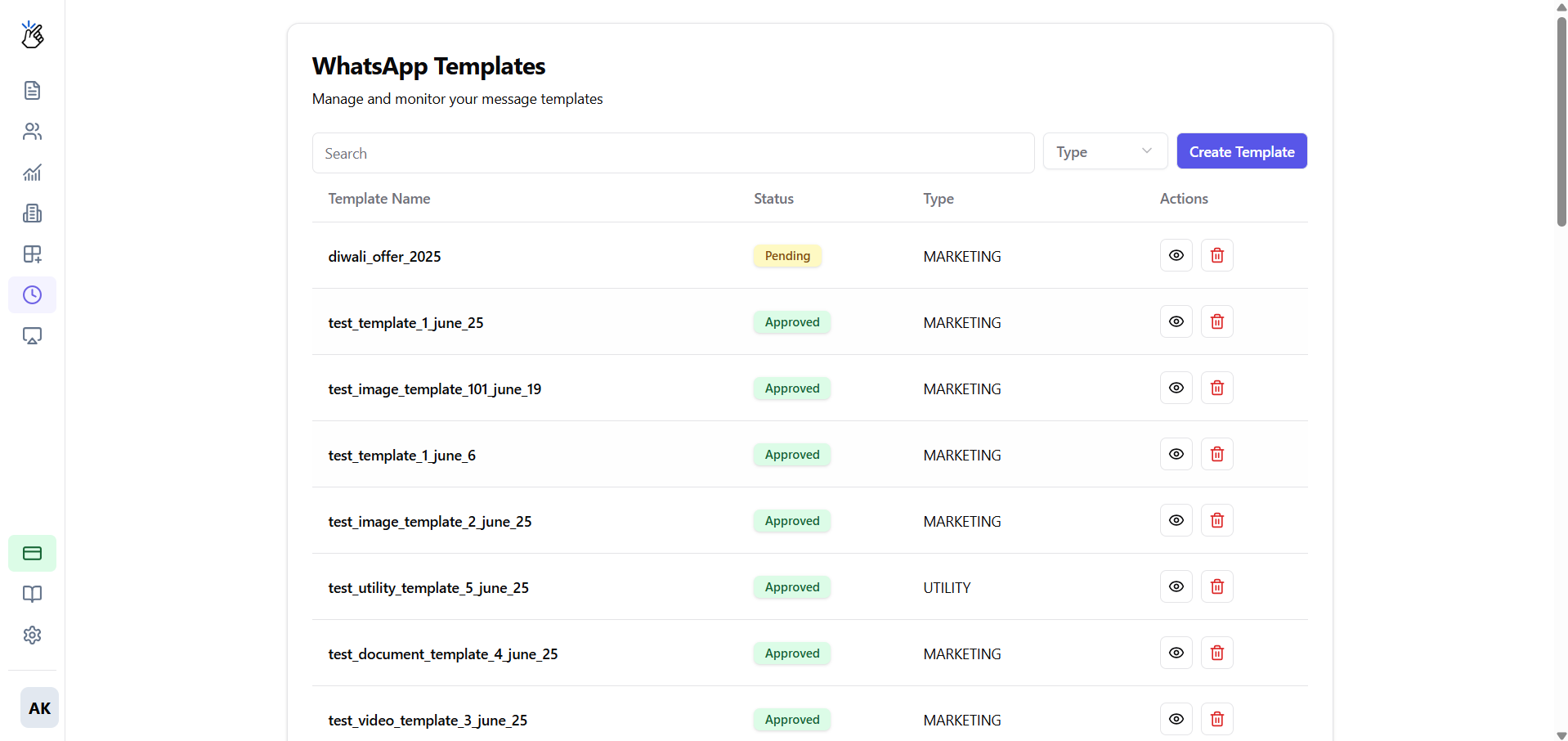
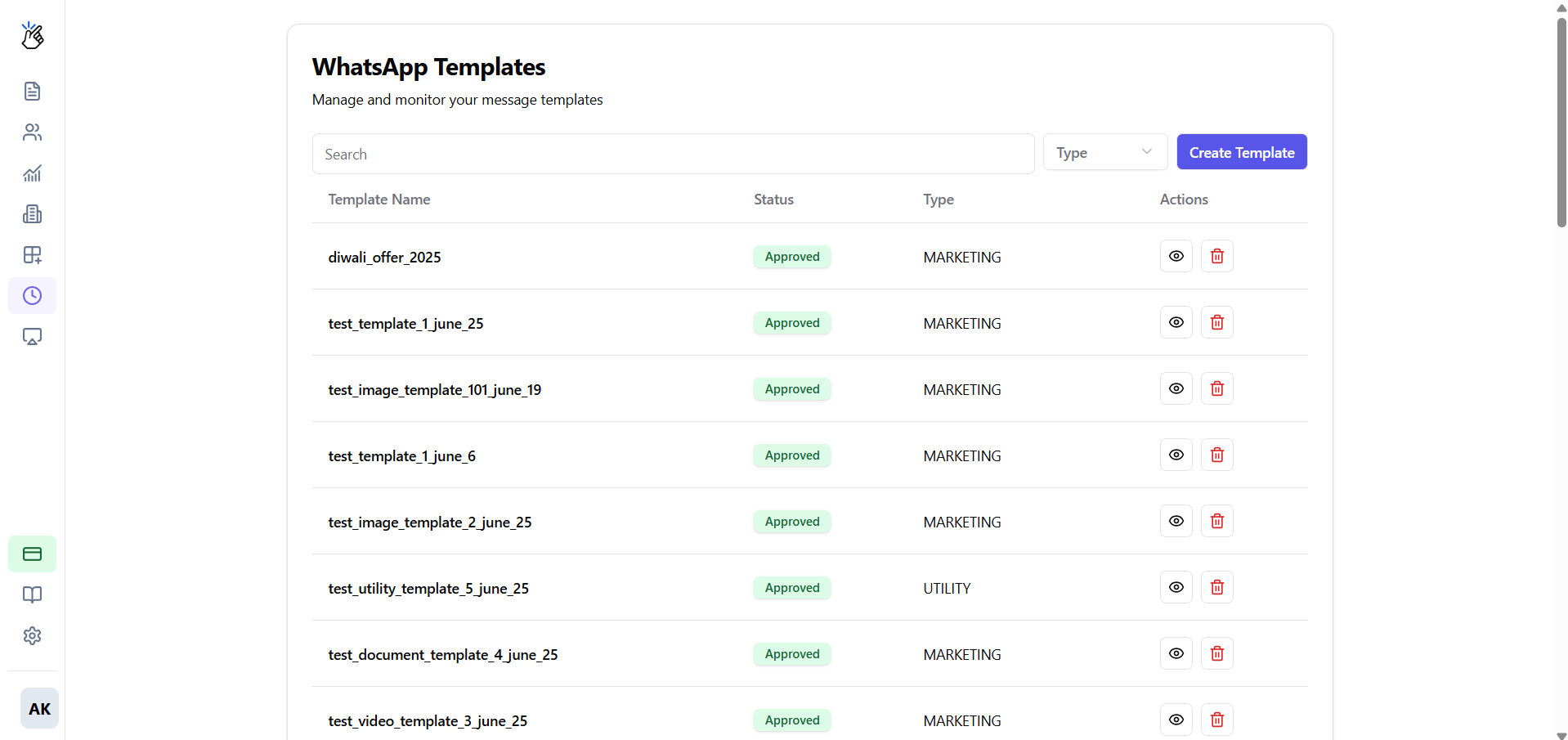
After submission, your template will display one of the following statuses:
Review your template carefully before submitting. Ensure there are no spelling errors or policy violations that could cause rejection.
## Checking Template Status
After submission, your template will display one of the following statuses:
 The template is under review by Meta. This can take anywhere from a few minutes to 24 hours.
Your template is ready to use for broadcasts and customer conversations.
The template did not meet Meta's policies. Review the feedback provided, make necessary changes, and resubmit.
## Need Help?
If you have any questions or need further assistance, feel free to reach out to us at [hey@eazybe.com](mailto:hey@eazybe.com). We're happy to help!
The template is under review by Meta. This can take anywhere from a few minutes to 24 hours.
Your template is ready to use for broadcasts and customer conversations.
The template did not meet Meta's policies. Review the feedback provided, make necessary changes, and resubmit.
## Need Help?
If you have any questions or need further assistance, feel free to reach out to us at [hey@eazybe.com](mailto:hey@eazybe.com). We're happy to help!