> ## Documentation Index
> Fetch the complete documentation index at: https://help.eazybe.com/llms.txt
> Use this file to discover all available pages before exploring further.
# Create Template with Extension
> Learn how to create WhatsApp message templates directly from the Eazybe browser extension using the Quick Reply feature
Creating WhatsApp templates directly from the Eazybe extension makes it easy to send approved messages or quick replies to your contacts without leaving WhatsApp Web.
## Overview
The Eazybe browser extension allows you to create message templates on-the-fly while chatting with customers. This is ideal for quickly setting up reusable messages for common responses.
Templates created through the extension are submitted to Meta for approval and become available across all your conversations once approved.
## How to Create Templates from the Extension
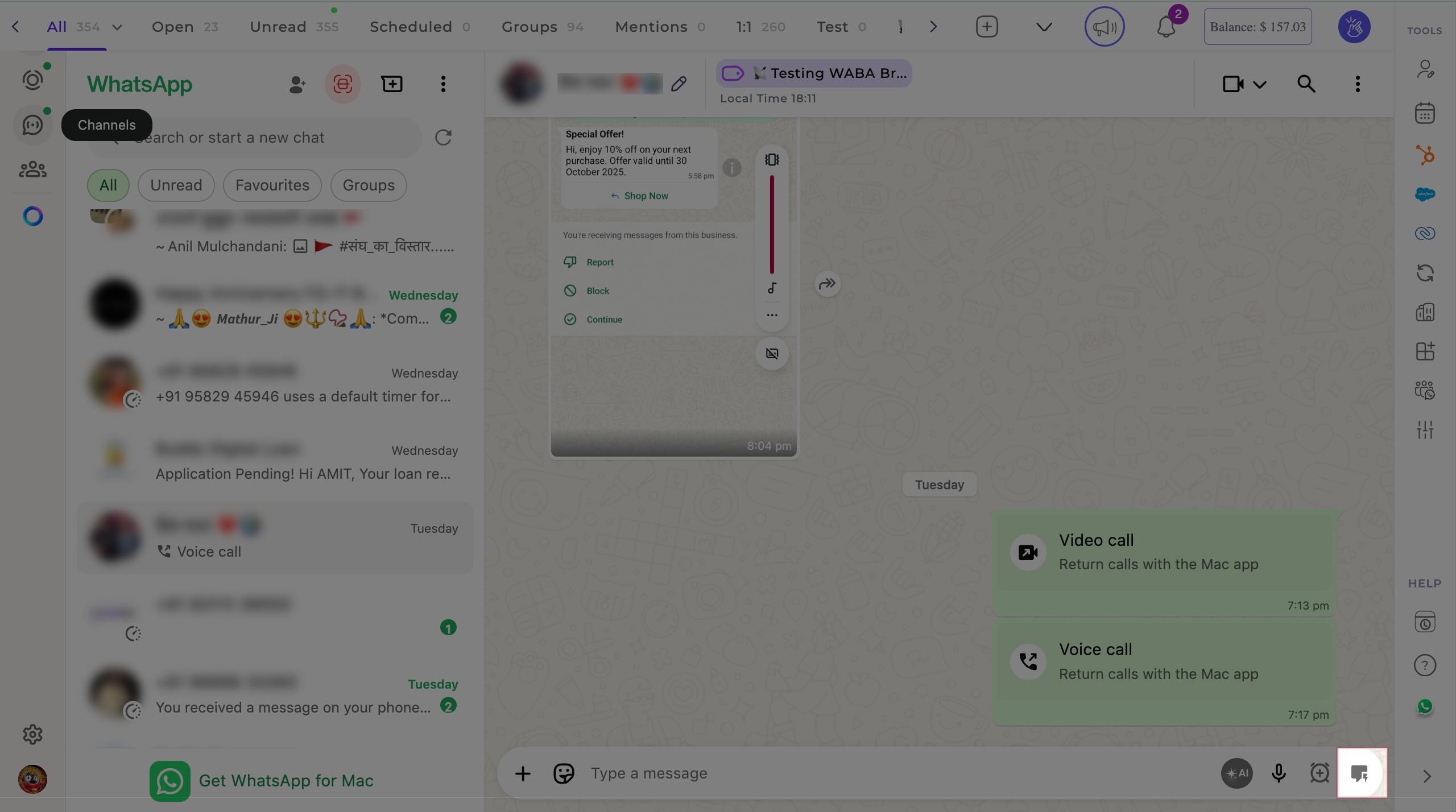
Open the Eazybe extension on WhatsApp Web and locate the chat input section in any conversation. Click the **Quick Reply** option below the input field.
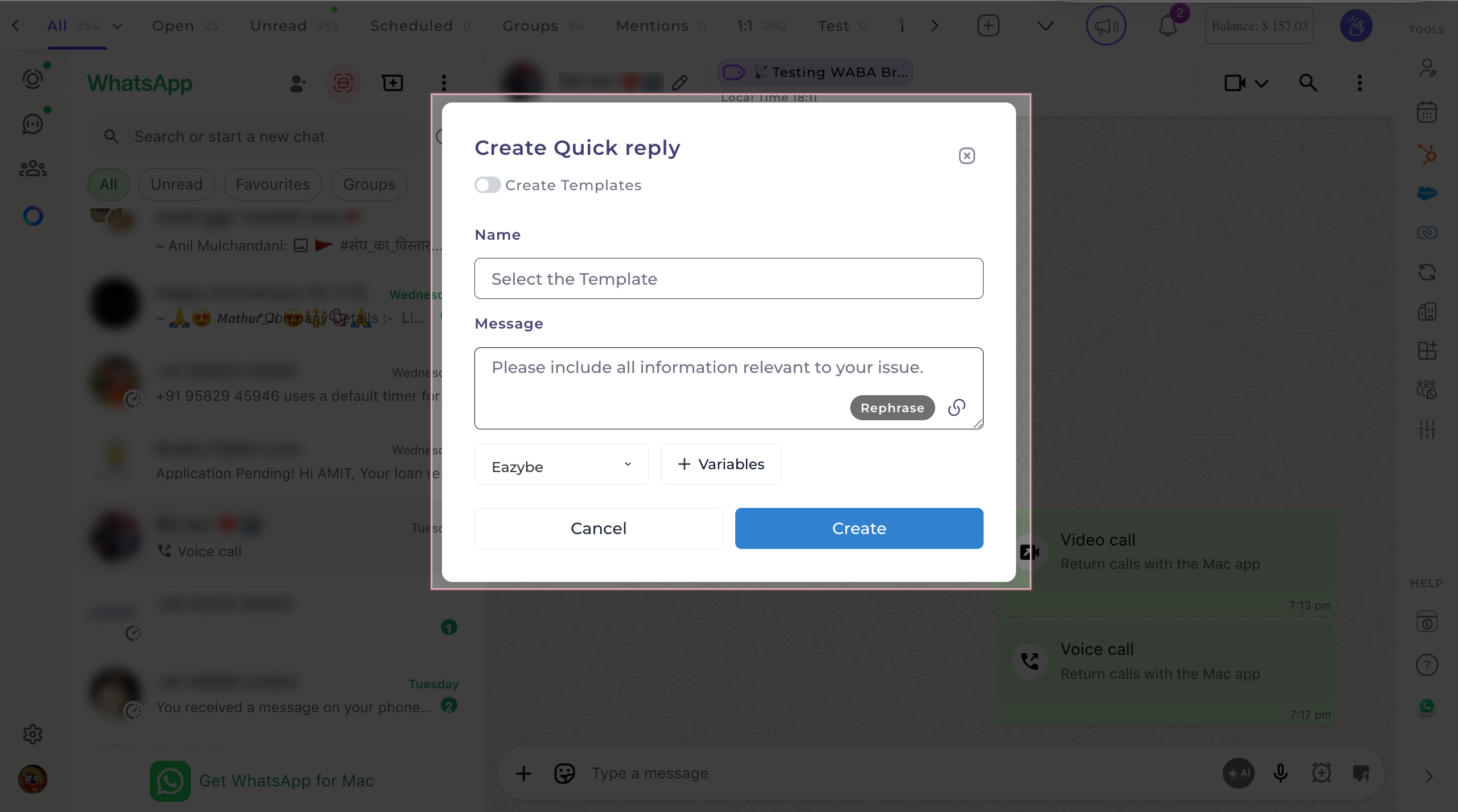
 In the quick reply menu, turn **ON** the "Create Template" toggle. This activates the reusable message template creation mode.
 Complete the required fields for your template:
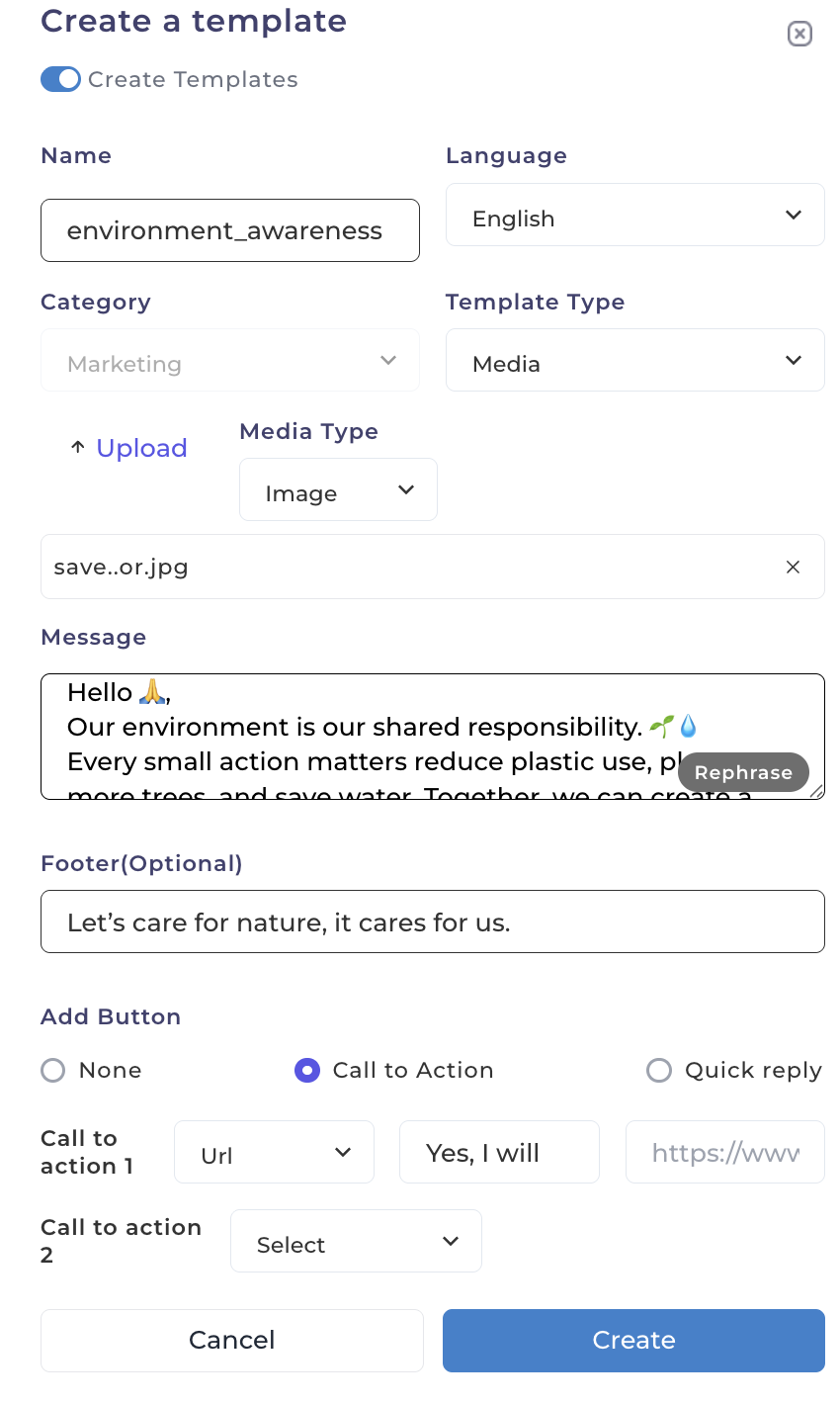 | Field | Description |
| -------------------------- | -------------------------------------------- |
| **Template Name** | A unique name for your template |
| **Language** | Select the template language |
| **Category** | Choose Marketing, Utility, or Authentication |
| **Template Type** | Select the appropriate type |
| **Message Content** | Write your template message |
| **Footer** | Optional footer text |
| **Call-to-Action Buttons** | Add up to 2 buttons (optional) |
Use placeholders like `{{1}}`, `{{2}}` in your message to personalize content with customer names, invoice numbers, or other dynamic data.
Review your template for accuracy, then click the **Create** button to save it.
| Field | Description |
| -------------------------- | -------------------------------------------- |
| **Template Name** | A unique name for your template |
| **Language** | Select the template language |
| **Category** | Choose Marketing, Utility, or Authentication |
| **Template Type** | Select the appropriate type |
| **Message Content** | Write your template message |
| **Footer** | Optional footer text |
| **Call-to-Action Buttons** | Add up to 2 buttons (optional) |
Use placeholders like `{{1}}`, `{{2}}` in your message to personalize content with customer names, invoice numbers, or other dynamic data.
Review your template for accuracy, then click the **Create** button to save it.
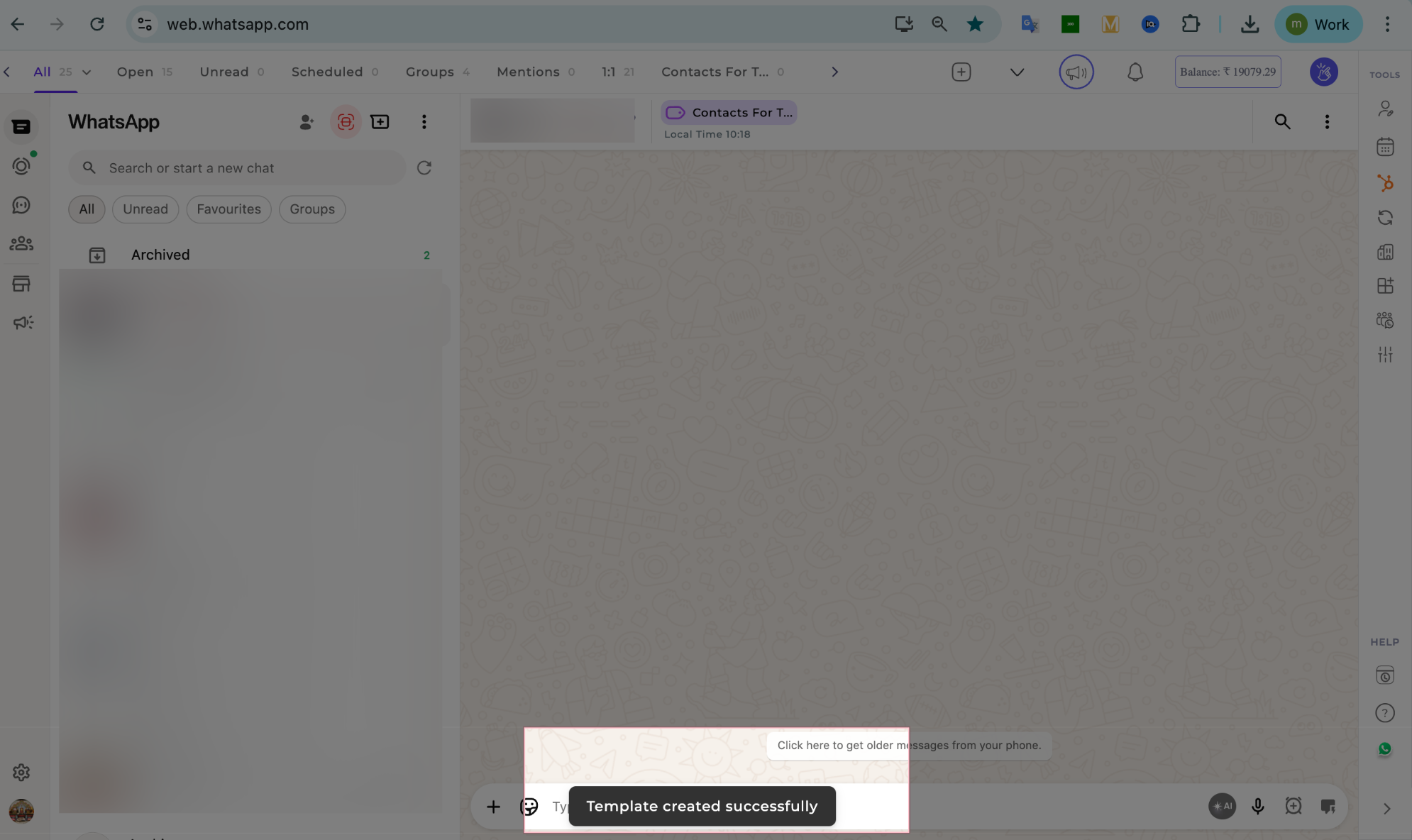 Ensure your template follows Meta's messaging policies to avoid rejection during the approval process.
## After Creation
Once created, your template will be submitted to Meta for approval. After approval:
Access saved templates instantly via the Quick Reply menu in any conversation
Use approved templates for broadcast campaigns and bulk messaging
## Use Cases
* **Customer Support:** Create templates for common support responses
* **Sales Outreach:** Build personalized follow-up templates with placeholders
* **Order Updates:** Set up utility templates for shipping and delivery notifications
* **Appointment Reminders:** Create reminder templates with date/time placeholders
## Need Help?
If you have any questions or need further assistance, feel free to reach out to us at [hey@eazybe.com](mailto:hey@eazybe.com). We're happy to help!
Ensure your template follows Meta's messaging policies to avoid rejection during the approval process.
## After Creation
Once created, your template will be submitted to Meta for approval. After approval:
Access saved templates instantly via the Quick Reply menu in any conversation
Use approved templates for broadcast campaigns and bulk messaging
## Use Cases
* **Customer Support:** Create templates for common support responses
* **Sales Outreach:** Build personalized follow-up templates with placeholders
* **Order Updates:** Set up utility templates for shipping and delivery notifications
* **Appointment Reminders:** Create reminder templates with date/time placeholders
## Need Help?
If you have any questions or need further assistance, feel free to reach out to us at [hey@eazybe.com](mailto:hey@eazybe.com). We're happy to help!