> ## Documentation Index
> Fetch the complete documentation index at: https://help.eazybe.com/llms.txt
> Use this file to discover all available pages before exploring further.
# Team Inbox
> Learn how to view incoming and outgoing messages between your WABA and customers
The Team Inbox serves as your collaborative hub for all customer conversations on your WABA number. This guide explains how messaging works based on your specific setup.
## Understanding Your Messaging Setup
Your experience in the Team Inbox depends on how you've configured your WhatsApp integration:
Uses Chrome extension to sync WhatsApp conversations without WABA connection
Uses Team Inbox as the primary interface for official WhatsApp Business API
Operates both channels simultaneously for maximum flexibility
## For Extension-Only Users
Your experience in the Team Inbox remains unchanged. Key features include:
* Conversations sync directly from WhatsApp Web
* You can send and receive any type of message (text, media, etc.) at any time without restrictions
 ## Key Concepts for WABA-Powered Messaging
### The 24-Hour Customer Service Window
WhatsApp enforces specific messaging windows that determine how you can communicate with customers:
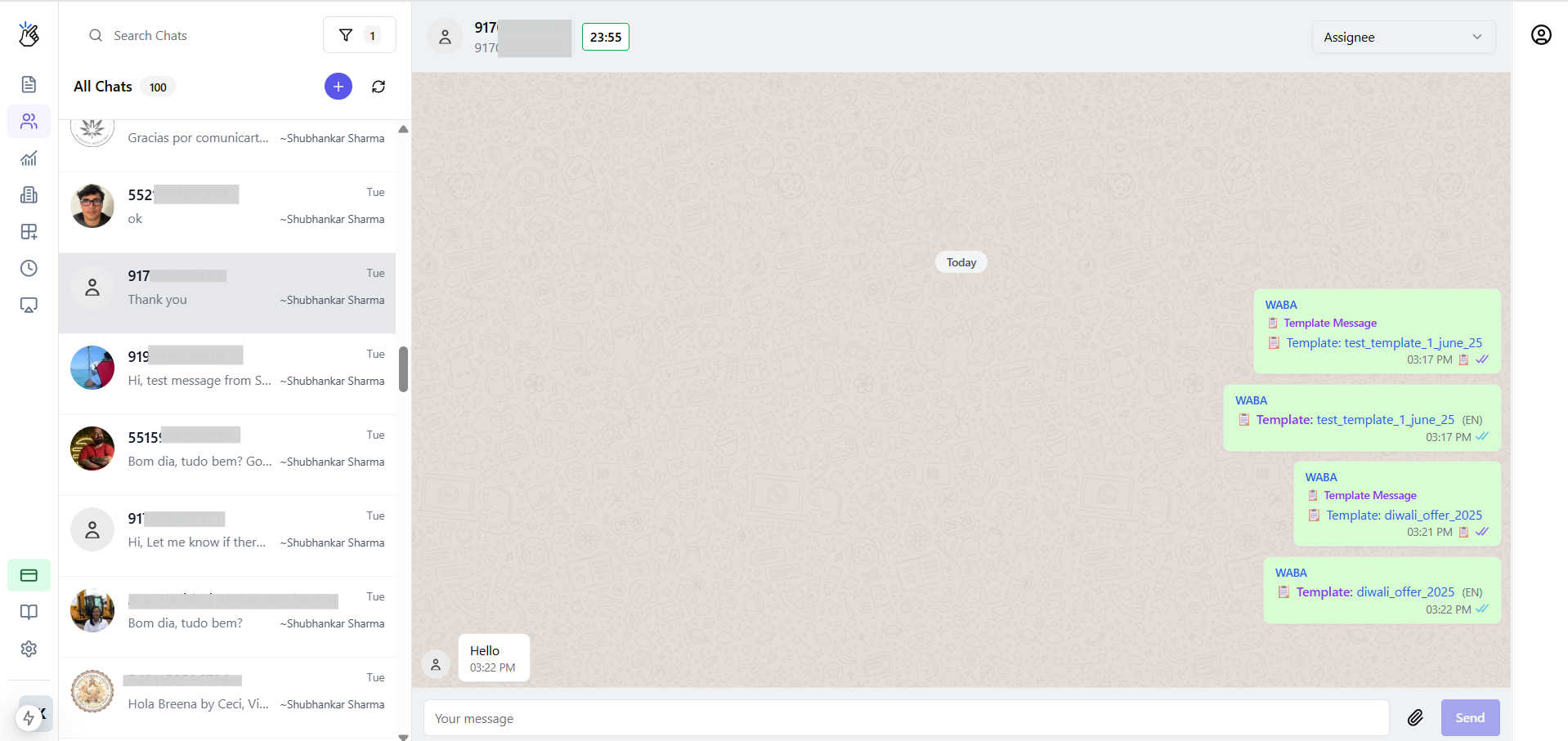
When a customer messages you, a 24-hour window opens. The Team Inbox displays the time remaining (e.g., "15h 30m"). During this window, free-form messaging is allowed.
## Key Concepts for WABA-Powered Messaging
### The 24-Hour Customer Service Window
WhatsApp enforces specific messaging windows that determine how you can communicate with customers:
When a customer messages you, a 24-hour window opens. The Team Inbox displays the time remaining (e.g., "15h 30m"). During this window, free-form messaging is allowed.
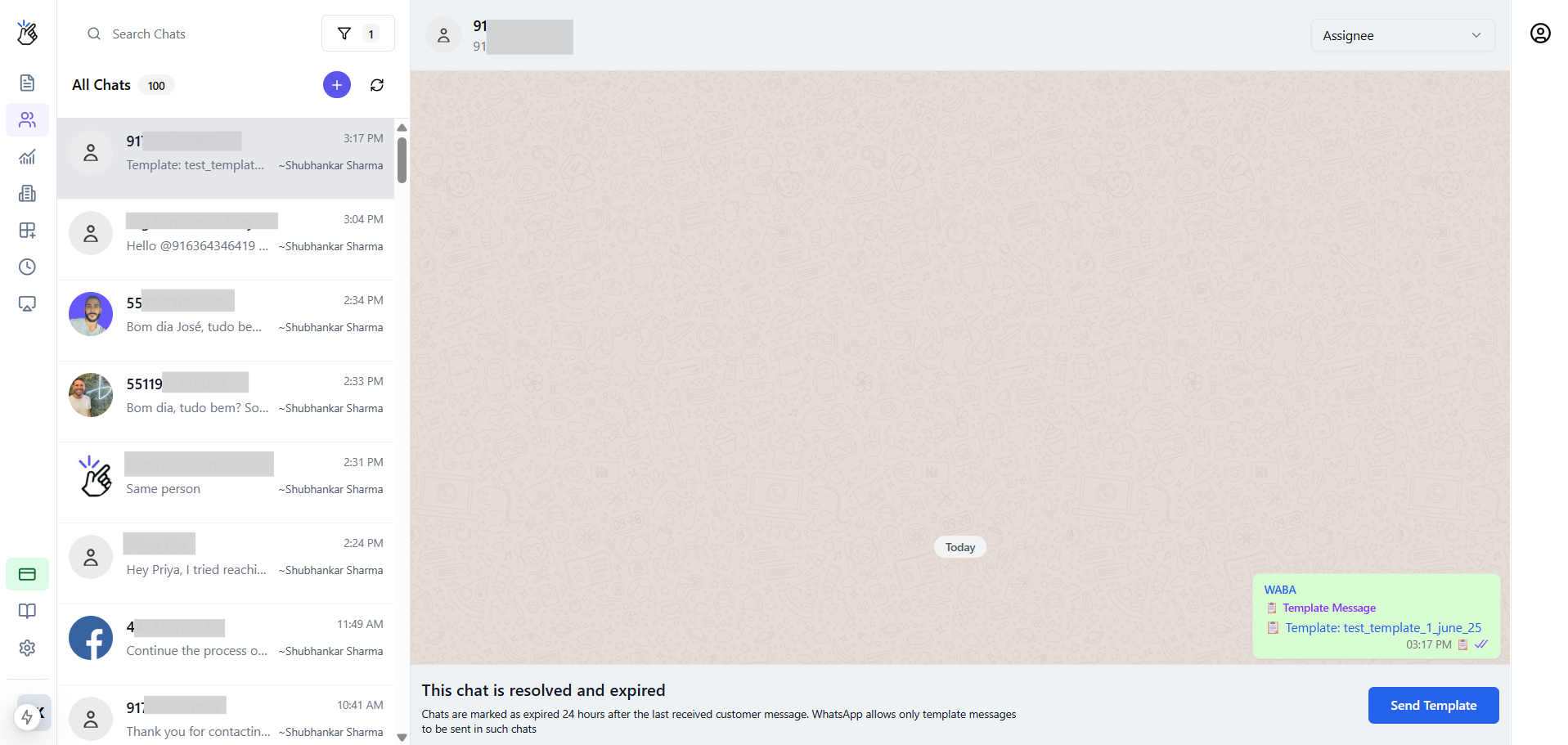
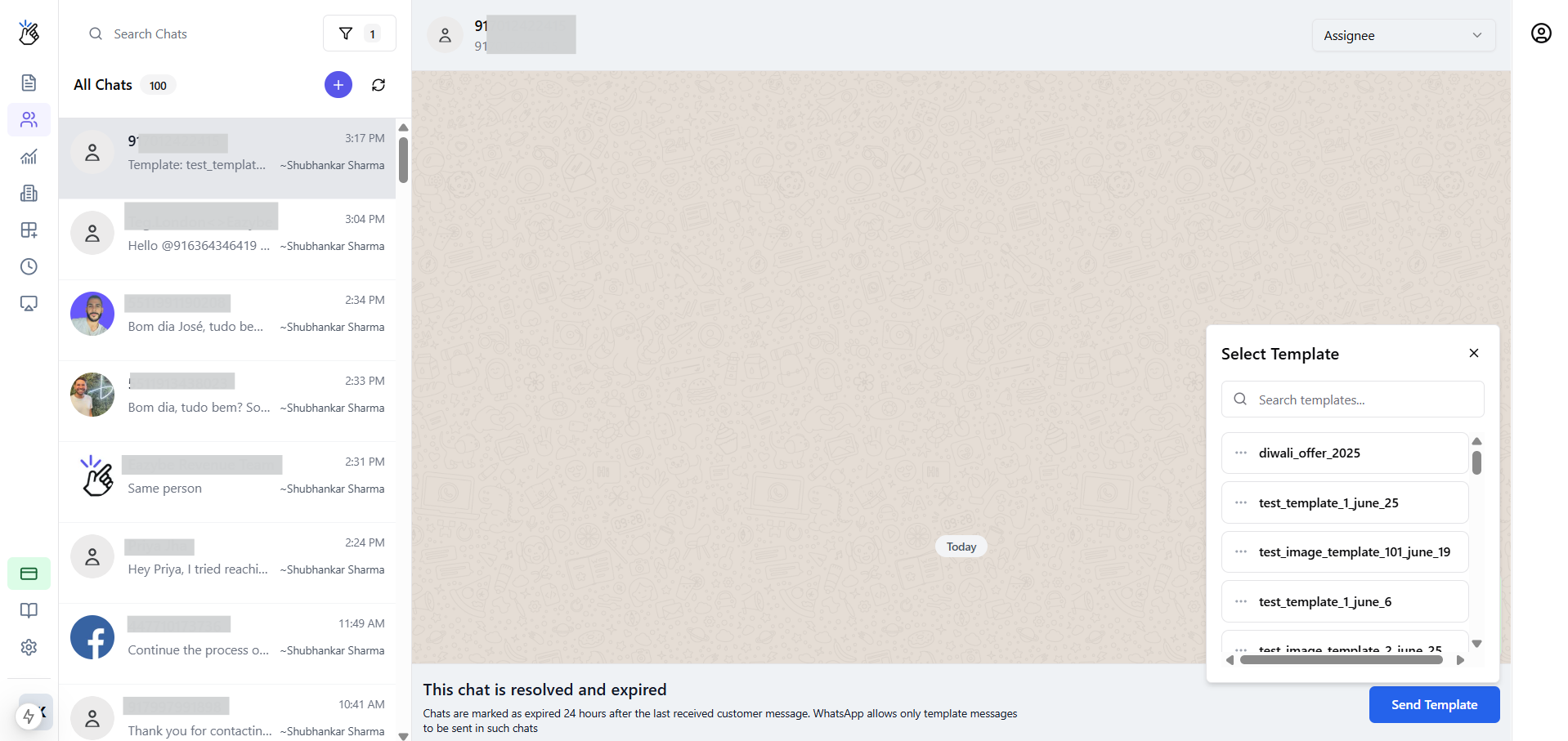 After 24 hours without customer interaction, the window closes. The display shows "This chat is resolved and expired." Only template messages are permitted.
 ### The Dynamic Message Composer
The message input area adapts automatically based on the window status:
* **Open window:** Standard free-form composer for unrestricted messaging
* **Closed window:** "Send Template" button replaces the composer
### The Dynamic Message Composer
The message input area adapts automatically based on the window status:
* **Open window:** Standard free-form composer for unrestricted messaging
* **Closed window:** "Send Template" button replaces the composer
 ### Sending Message Templates
When the messaging window is closed, follow these steps to send a template:
Click the **Send Template** button in the message composer area.
A pop-up appears displaying your approved templates list.
### Sending Message Templates
When the messaging window is closed, follow these steps to send a template:
Click the **Send Template** button in the message composer area.
A pop-up appears displaying your approved templates list.
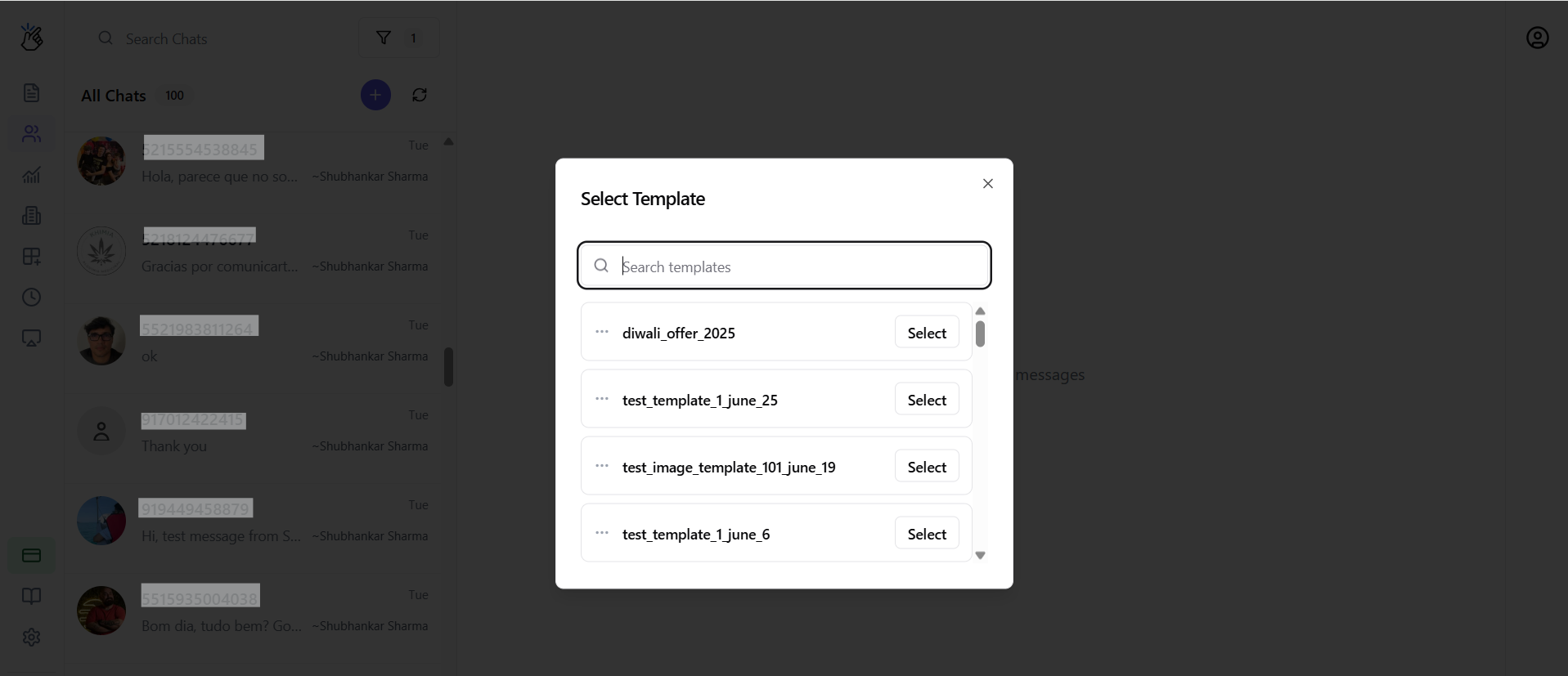 View each template's name, category, and language to select the appropriate one.
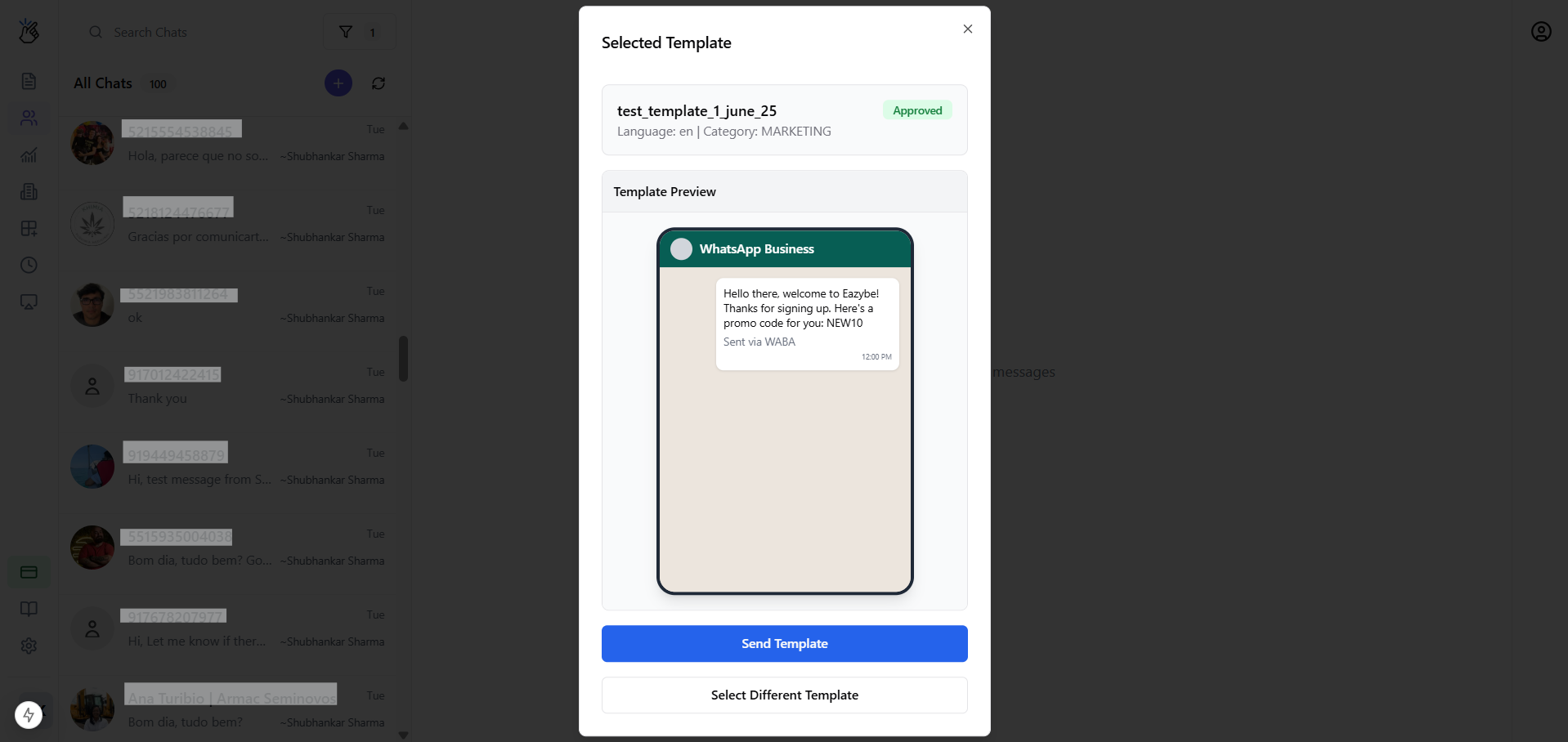
Select your desired template to send it to the customer.
## How Messaging Works for Your Specific Setup
### Scenario A: WABA-Only User
As a WABA-only user, all your messaging follows WhatsApp Business API rules.
* **Starting conversations:** Requires selecting a Message Template
* **Replying to customers:** Depends on window status—free-form if open, templates only if closed
View each template's name, category, and language to select the appropriate one.
Select your desired template to send it to the customer.
## How Messaging Works for Your Specific Setup
### Scenario A: WABA-Only User
As a WABA-only user, all your messaging follows WhatsApp Business API rules.
* **Starting conversations:** Requires selecting a Message Template
* **Replying to customers:** Depends on window status—free-form if open, templates only if closed
 ### Scenario B: Dual User (Extension + WABA)
#### Using Different Numbers
When your extension and WABA use different phone numbers:
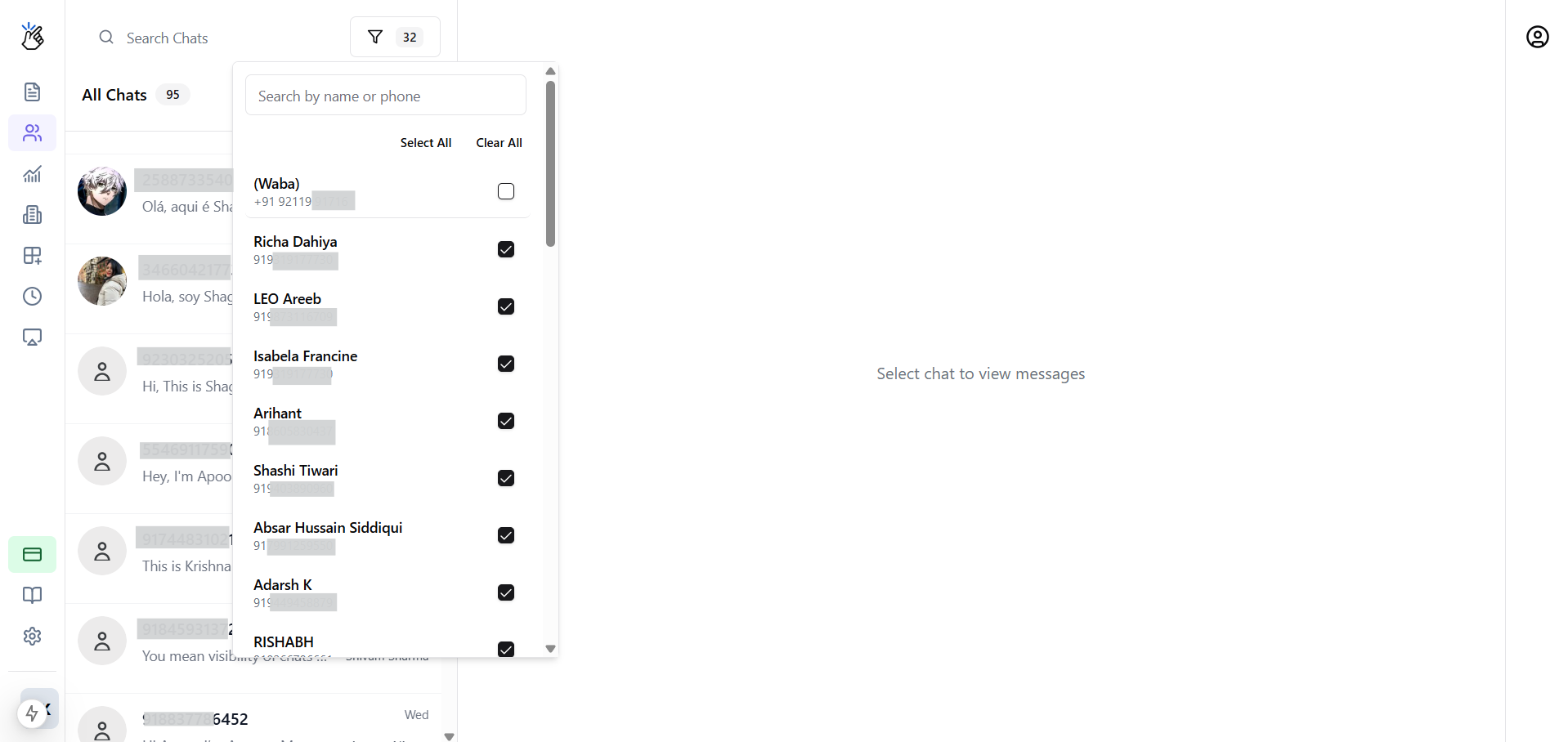
* Team Inbox separates conversations by number filter
* **Extension-synced chats:** Message freely anytime without restrictions
* **WABA chats:** Follow WABA rules (24-hour window, templates)
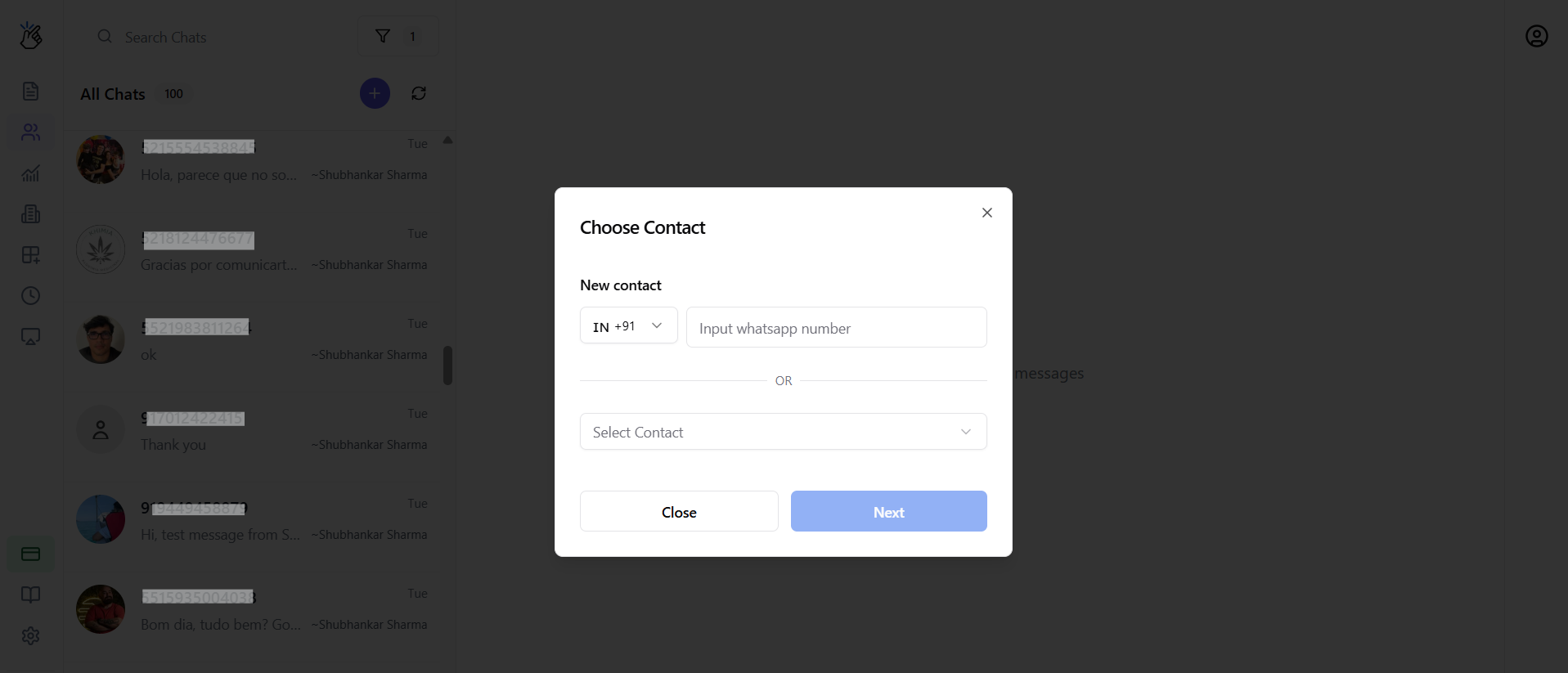
* **New chats:** Prompt appears to choose contact and select sending number
### Scenario B: Dual User (Extension + WABA)
#### Using Different Numbers
When your extension and WABA use different phone numbers:
* Team Inbox separates conversations by number filter
* **Extension-synced chats:** Message freely anytime without restrictions
* **WABA chats:** Follow WABA rules (24-hour window, templates)
* **New chats:** Prompt appears to choose contact and select sending number
 #### Using the Same Number
When both channels share the same phone number:
**WABA is Default:** Any message you send from the Team Inbox will default to using the WABA (Cloud API) channel. WABA rules apply automatically.
* Conversations merge into single threads
* All messages follow WABA messaging rules
## WABA Message Statuses and Errors
Understanding message status indicators helps you track delivery:
| Status | Indicator | Meaning |
| ------------- | -------------------- | --------------------------------------- |
| **Sent** | One grey tick | Message sent to WhatsApp servers |
| **Delivered** | Two grey ticks | Message delivered to recipient's device |
| **Read** | Two blue ticks | Recipient has read the message |
| **Failed** | Red exclamation mark | Message failed to send |
## Need Help?
If you have any questions or need further assistance, feel free to reach out to us at [hey@eazybe.com](mailto:hey@eazybe.com). We're happy to help!
#### Using the Same Number
When both channels share the same phone number:
**WABA is Default:** Any message you send from the Team Inbox will default to using the WABA (Cloud API) channel. WABA rules apply automatically.
* Conversations merge into single threads
* All messages follow WABA messaging rules
## WABA Message Statuses and Errors
Understanding message status indicators helps you track delivery:
| Status | Indicator | Meaning |
| ------------- | -------------------- | --------------------------------------- |
| **Sent** | One grey tick | Message sent to WhatsApp servers |
| **Delivered** | Two grey ticks | Message delivered to recipient's device |
| **Read** | Two blue ticks | Recipient has read the message |
| **Failed** | Red exclamation mark | Message failed to send |
## Need Help?
If you have any questions or need further assistance, feel free to reach out to us at [hey@eazybe.com](mailto:hey@eazybe.com). We're happy to help!