> ## Documentation Index
> Fetch the complete documentation index at: https://help.eazybe.com/llms.txt
> Use this file to discover all available pages before exploring further.

# Signup Troubleshooting

> Troubleshoot common issues when enabling WhatsApp Coexistence for your business

This comprehensive guide addresses common issues when enabling WhatsApp Coexistence, which allows businesses to use the WhatsApp Business App and Business API simultaneously with the same phone number.

<img src="https://mintcdn.com/eazybe/LwZyGcAmA1wyXuKZ/images/1855687476.png?fit=max&auto=format&n=LwZyGcAmA1wyXuKZ&q=85&s=26efc773d5bfc5977697152d6c6eb827" alt="Coexistence Overview" width="726" height="409" data-path="images/1855687476.png" />

## Quick Pre-Flight Checklist

Before troubleshooting, verify these requirements:

<CardGroup cols={2}>
  <Card title="App Version" icon="mobile">
    Confirm WhatsApp Business App version **2.24.17** or newer
  </Card>

  <Card title="Solution Provider" icon="handshake">
    Work with an official WhatsApp Solution Provider
  </Card>

  <Card title="Active Usage" icon="clock">
    Ensure minimum **7 days** of active usage on Business App
  </Card>

  <Card title="Cooldown Period" icon="hourglass">
    Delete old WABA and respect **1-2 month** cooldown if applicable
  </Card>
</CardGroup>

<Tip>
  Back up important conversations before starting. WhatsApp Coexistence supports up to 6 months of sync capacity.
</Tip>

## Common Issues and Solutions

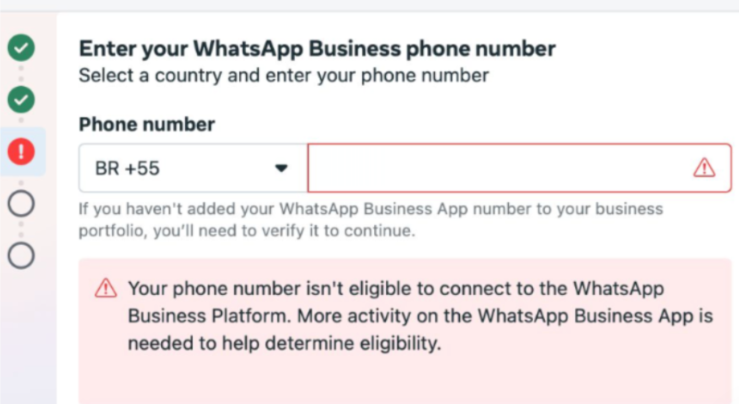
### 1. Phone Number Not Eligible

<Warning>
  **Error Message:** "Your phone number isn't eligible to connect to the WhatsApp Business Platform."
</Warning>

**Root Causes:**

* Insufficient usage history (requires 7 days minimum on Business App)
* Newly registered numbers or low chat activity
* Previous WABA linkage blocking eligibility

<AccordionGroup>
  <Accordion title="Solutions" icon="wrench">
    - Exchange real conversations for minimum **7 days**; 30-60 days recommended
    - Avoid repeatedly deleting and re-registering the number
    - Remove old WABA setup and maintain **1-2 month** cooldown period
  </Accordion>
</AccordionGroup>

### 2. Forcing Re-Onboarding for Stuck Numbers

**Objective:** Force a re-onboarding of a phone number that is currently stuck or improperly linked to the WhatsApp Business App, bypassing Meta's standard cooling-off period.

<Steps>
  <Step>
    <h3>Phase 1: Meta Business Suite (The Cloud Side)</h3>
    <p><strong>Navigate:</strong> Open Meta Business Suite → WhatsApp Manager</p>
    <p><strong>Locate Number:</strong> Go to the Phone Numbers tab</p>
    <p><strong>Settings:</strong> Click the Settings/Gear icon on the right side of the specific phone number</p>
    <p><strong>Disable 2FA:</strong> Select the option to Turn off Two-Step Verification</p>
    <p><strong>Verification:</strong> Meta will send a reset/disable link to the registered admin email. Open the email, click the link, and confirm via the OTP provided.</p>
  </Step>

  <Step>
    <h3>Phase 2: Client Device (The Local Side)</h3>
    <p><strong>Disconnect:</strong> In the WhatsApp Business App on the client's phone, use the "Tap to Disconnect" feature (if accessible)</p>
    <p><strong>Hard Uninstall:</strong> Completely Uninstall the WhatsApp Business App from the mobile device. This clears local cache and registration tokens that often cause onboarding loops.</p>
  </Step>

  <Step>
    <h3>Phase 3: Re-Onboarding</h3>
    <p><strong>Reinstall:</strong> Download a fresh version of the WhatsApp Business App</p>
    <p><strong>Re-register:</strong> Follow the standard onboarding flow to reconnect your number</p>
  </Step>
</Steps>

### 3. Country or Region Not Supported

**Root Causes:**

* Meta compliance and regulatory restrictions in specific regions
* Nigeria and South Africa are commonly unsupported

<AccordionGroup>
  <Accordion title="Solutions" icon="wrench">
    **Supported Countries include:**

    * India, Brazil, Mexico, Indonesia

    * USA, Hong Kong, Singapore

    * Monitor Meta documentation for expanding regional support

    * Consider alternate messaging channels pending availability
  </Accordion>
</AccordionGroup>

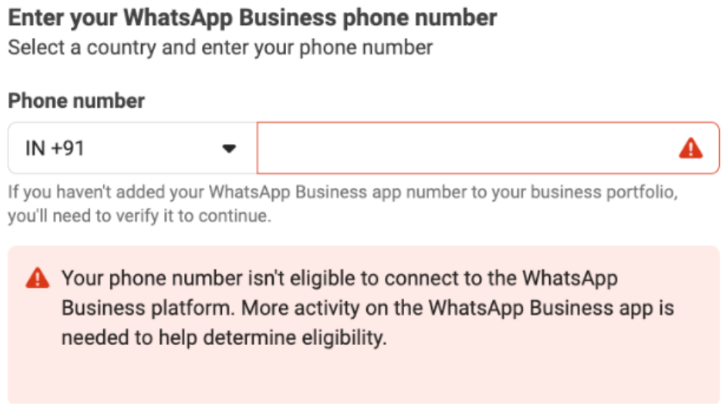
### 3. Number Previously Used With WhatsApp Business API

**Root Cause:** Meta enforces mandatory cooldown periods between provider transitions.

<img src="https://mintcdn.com/eazybe/LwZyGcAmA1wyXuKZ/images/1855689918.png?fit=max&auto=format&n=LwZyGcAmA1wyXuKZ&q=85&s=9ea625c3abd770697baecfc36c98c23f" alt="Provider Transition" width="739" height="416" data-path="images/1855689918.png" />

<AccordionGroup>
  <Accordion title="Solutions" icon="wrench">
    * Delete old WABA configuration completely
    * Re-register in Business App and maintain active status for **1-2 months**
    * Avoid rushing API reconnection during cooldown period
  </Accordion>
</AccordionGroup>

### 4. Chat Sync Delays or Failures

**Root Causes:**

* Large chat histories and contact lists extend sync time
* Unstable connectivity or closed app during synchronization

<AccordionGroup>
  <Accordion title="Solutions" icon="wrench">
    - Keep phone unlocked with app open during sync
    - Maintain reliable Wi-Fi or strong mobile data
    - Allow **4-6+ hours** for large histories
    - Rescan QR code if stuck; verify app version 2.24.17+
  </Accordion>
</AccordionGroup>

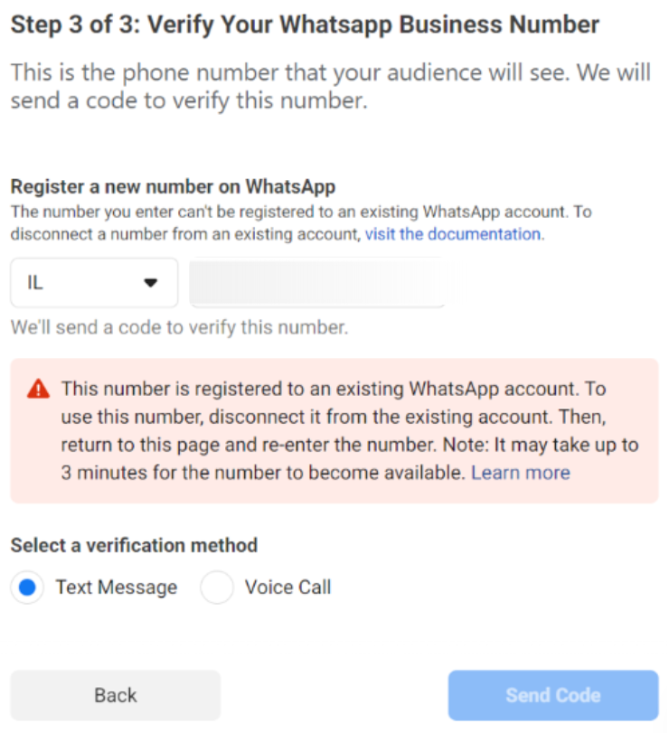
### 5. QR Code Not Appearing or Not Scanning

**Root Causes:**

* Outdated WhatsApp Business App version
* Incorrect signup flow navigation
* Camera or temporary Meta service issues

<img src="https://mintcdn.com/eazybe/LwZyGcAmA1wyXuKZ/images/1855690369.png?fit=max&auto=format&n=LwZyGcAmA1wyXuKZ&q=85&s=788c5b924ceefcad55d1add79650c1b6" alt="QR Code Issue" width="667" height="733" data-path="images/1855690369.png" />

<AccordionGroup>
  <Accordion title="Solutions" icon="wrench">
    * Update to version **2.24.17** or newer
    * Follow correct path: **Settings > WhatsApp > Sign Up with Facebook**
    * Clean camera lens and optimize lighting
    * Close and retry after waiting; reinstall if persistent
  </Accordion>
</AccordionGroup>

### 6. Facebook Page Linking Issues

**Root Causes:**

* Missing Facebook Page or Meta Business Account
* Insufficient admin permissions
* Account-level Meta restrictions

<AccordionGroup>
  <Accordion title="Solutions" icon="wrench">
    - Create or connect Facebook Page via Business Tools settings
    - Verify admin access on both Page and Business Account
    - Complete Meta Business Account setup with all required details
  </Accordion>
</AccordionGroup>

### 7. Cannot Disable Coexistence

<Info>
  Coexistence is controlled from the WhatsApp Business App side. The Cloud API interface does not expose a direct "disable" option.
</Info>

<AccordionGroup>
  <Accordion title="Solutions" icon="wrench">
    * Use app disconnect: **Settings > Account > Business Platform**
    * Avoid uninstalling the app
    * Contact your provider or Meta support if status doesn't update
  </Accordion>
</AccordionGroup>

### 8. Unsupported Companion Devices

**Root Causes:**

* Only WhatsApp Web and official desktop apps are supported
* Messages from unsupported devices won't sync to API

<AccordionGroup>
  <Accordion title="Solutions" icon="wrench">
    - Link via **WhatsApp Web** or official **Mac/Windows** desktop app
    - Monitor provider updates for expanding device support
    - Watch for placeholder warnings on unsupported messages
  </Accordion>
</AccordionGroup>

### 9. Business Name Locked After Onboarding

**Root Cause:** Meta enforces consistent business identity across platforms after onboarding completion.

<AccordionGroup>
  <Accordion title="Solutions" icon="wrench">
    * Finalize your business name **before** starting signup
    * Request post-onboarding changes via Meta support (approval not guaranteed)
  </Accordion>
</AccordionGroup>

## Key Takeaway

<Info>
  With the right preparation and troubleshooting, most onboarding issues can be resolved quickly. If problems persist, contact your WhatsApp solution provider's support team.
</Info>

## Need Help?

If you have any questions or need further assistance, feel free to reach out to us at [hey@eazybe.com](mailto:hey@eazybe.com). We're happy to help!