> ## Documentation Index
> Fetch the complete documentation index at: https://help.eazybe.com/llms.txt
> Use this file to discover all available pages before exploring further.
# Connect with Existing WhatsApp
> Connect your existing WhatsApp Business App to Eazybe using coexistence mode - use both the mobile app and Cloud API simultaneously
WhatsApp Business App Coexistence allows your business to use the same WhatsApp number with both the WhatsApp Business App and the WhatsApp Cloud API simultaneously. This prevents chat history loss during transition to API-powered messaging.
## What is Coexistence?
Use the same WhatsApp number across both platforms seamlessly
Real-time message and contact synchronization between app and API
Combine manual interactions with automated workflows
Keep existing conversations, contacts, and mobile interface access
This is the safest method to migrate to Cloud API without losing any data. You can continue using the WhatsApp Business App normally after connecting.
## Prerequisites
Before starting the onboarding process, ensure you meet all these requirements:
WhatsApp Business App **version 2.24.17 or higher** is required. Older versions will fail during QR-linking.
You must have a verified Meta Business Account with completed business verification.
Your number must:
* Not be linked to other API providers
* Be an active WhatsApp Business number
* Have no Meta restrictions or policy violations
Active Eazybe Cloud API access with proper permissions is required.
* Configured webhook endpoints
* Session logging enabled
## 8-Step Onboarding Process
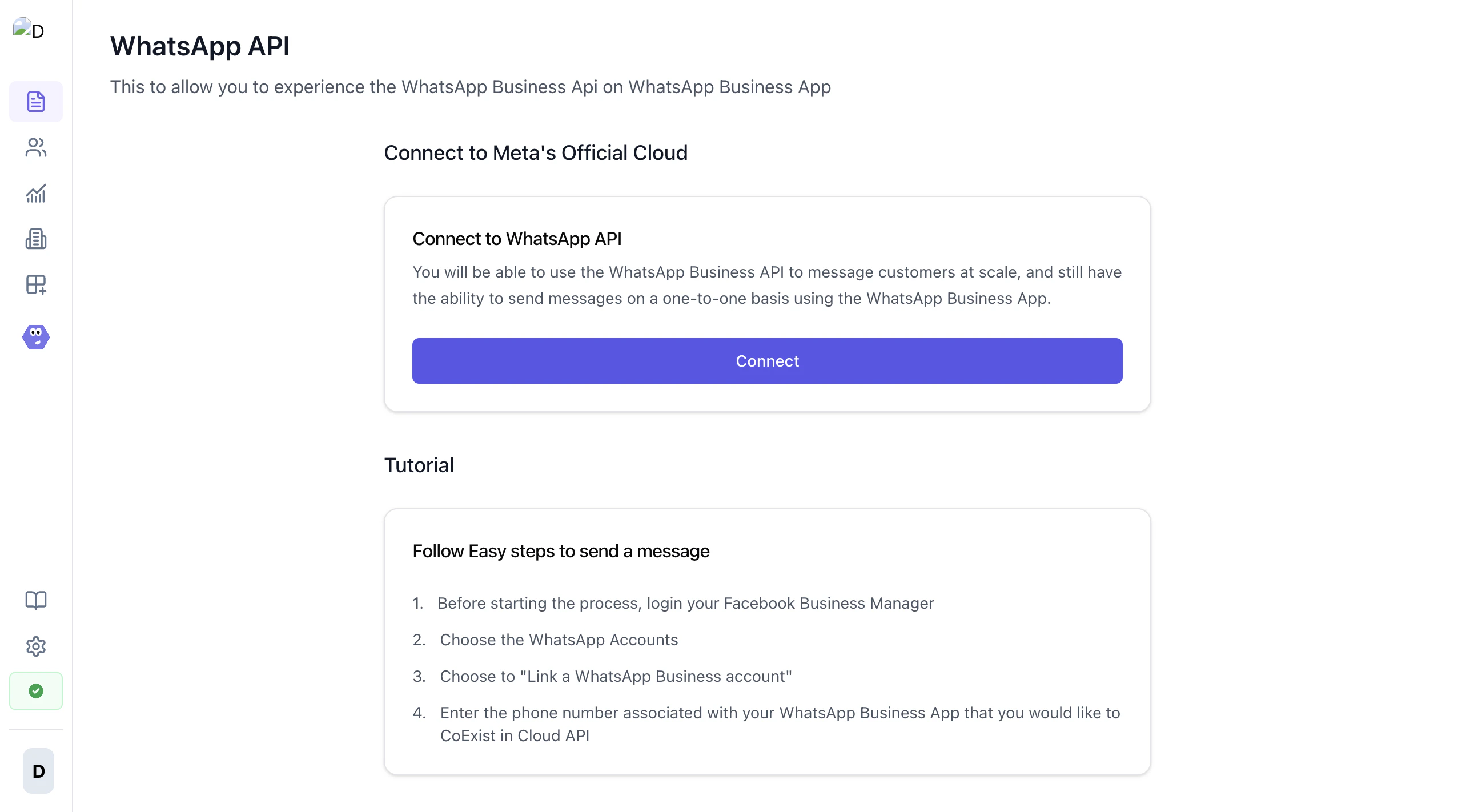
Click the **Connect** button to access your Facebook Business Account and begin the embedded sign-up flow.
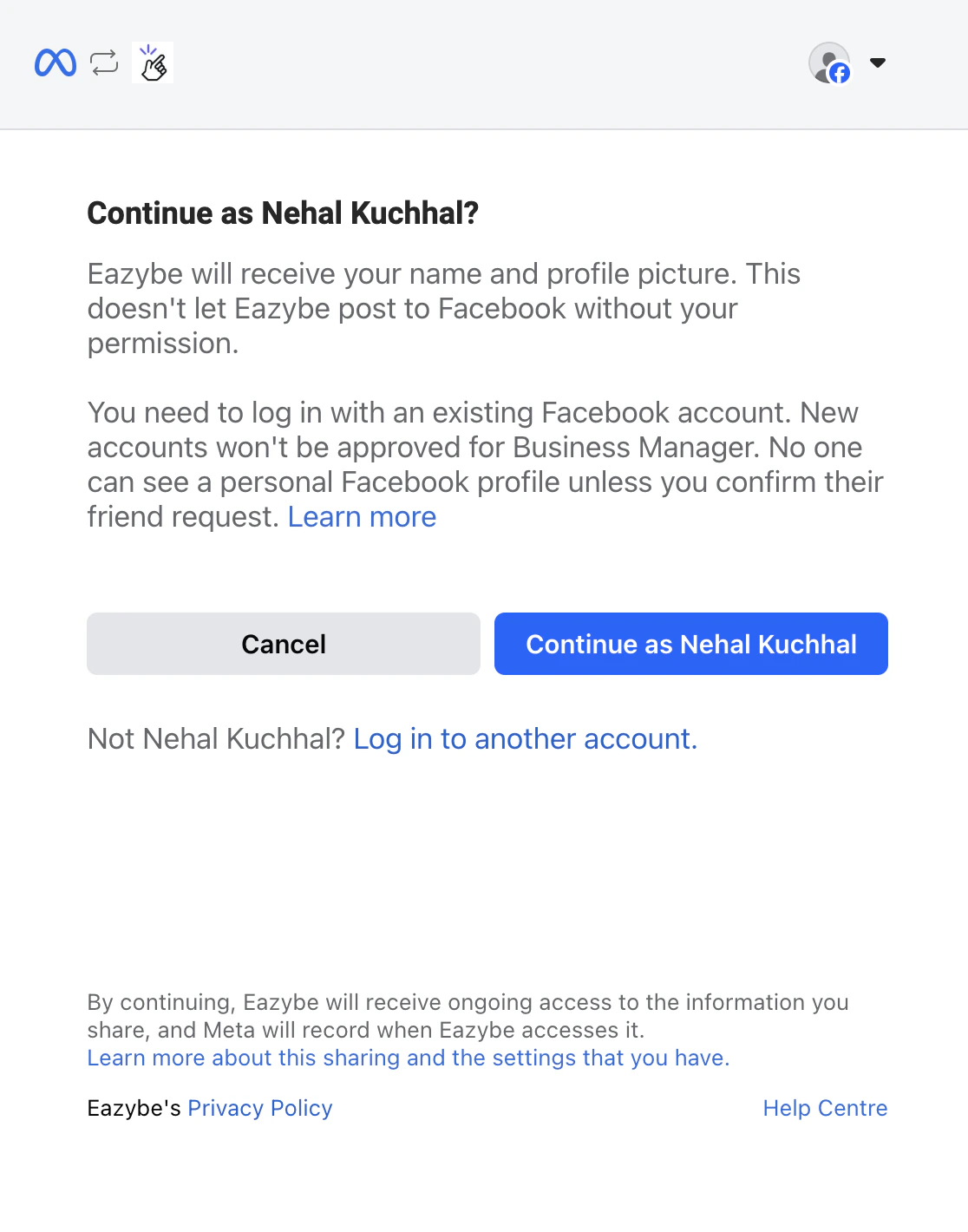
 Complete the business information form with accurate details in all required input fields.
 Enter your existing WhatsApp Business mobile number with the correct country code.
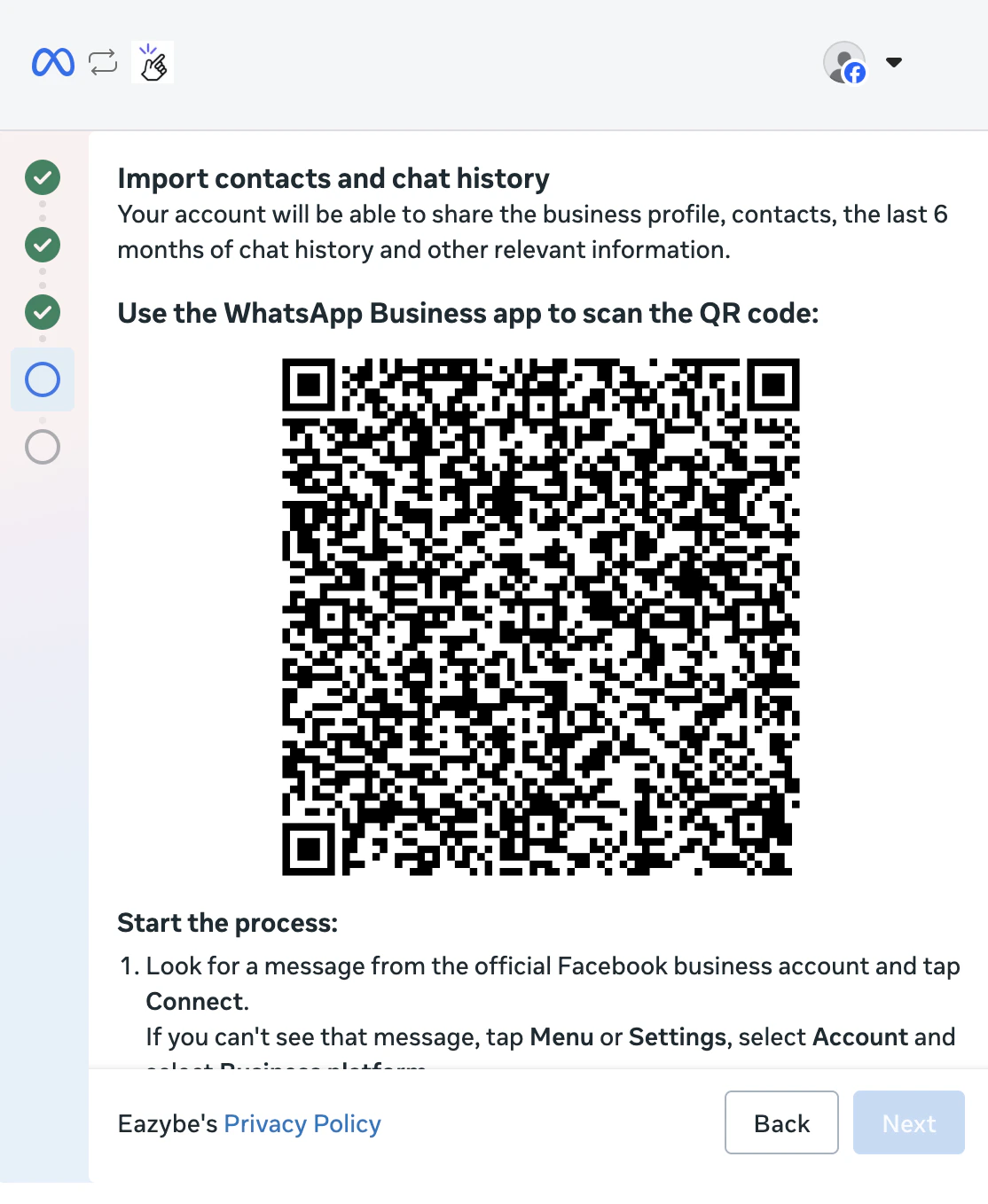
 Scan the QR code using your WhatsApp Business App. There are two options available:
Open WhatsApp Business App and scan the QR code displayed on screen.
Scan the QR code using your WhatsApp Business App. There are two options available:
Open WhatsApp Business App and scan the QR code displayed on screen.
 Navigate to Settings > Linked Devices > Link a Device in your WhatsApp Business App.
 Choose whether to sync your chat history:
* **All contacts** are imported automatically
* **Optional:** Up to 6 months of 1:1 chat history
* **Optional:** Up to 2 weeks of media files
* **Note:** Group chats are not imported
Choose whether to sync your chat history:
* **All contacts** are imported automatically
* **Optional:** Up to 6 months of 1:1 chat history
* **Optional:** Up to 2 weeks of media files
* **Note:** Group chats are not imported
 Keep the WhatsApp Business App running during setup to prevent message loss.
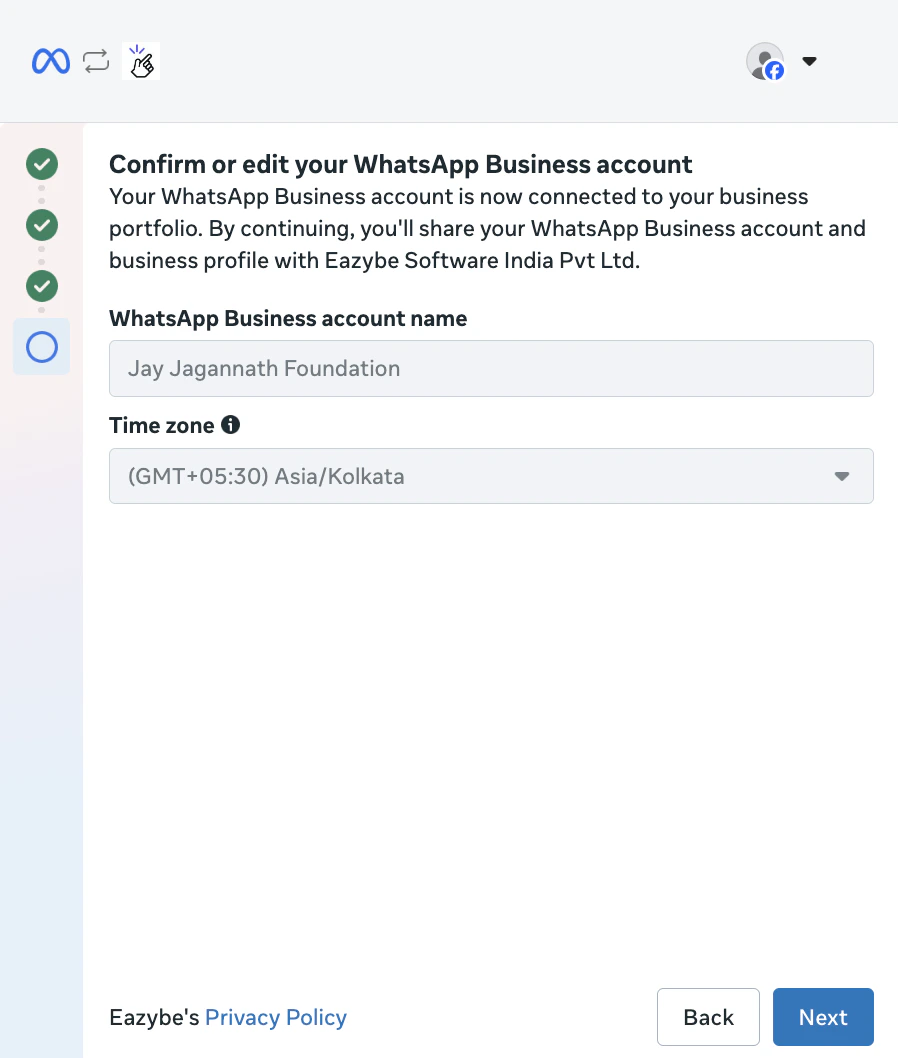
Review and update your WhatsApp Business account details including:
* Business display name
* Business category
* Timezone settings
Keep the WhatsApp Business App running during setup to prevent message loss.
Review and update your WhatsApp Business account details including:
* Business display name
* Business category
* Timezone settings
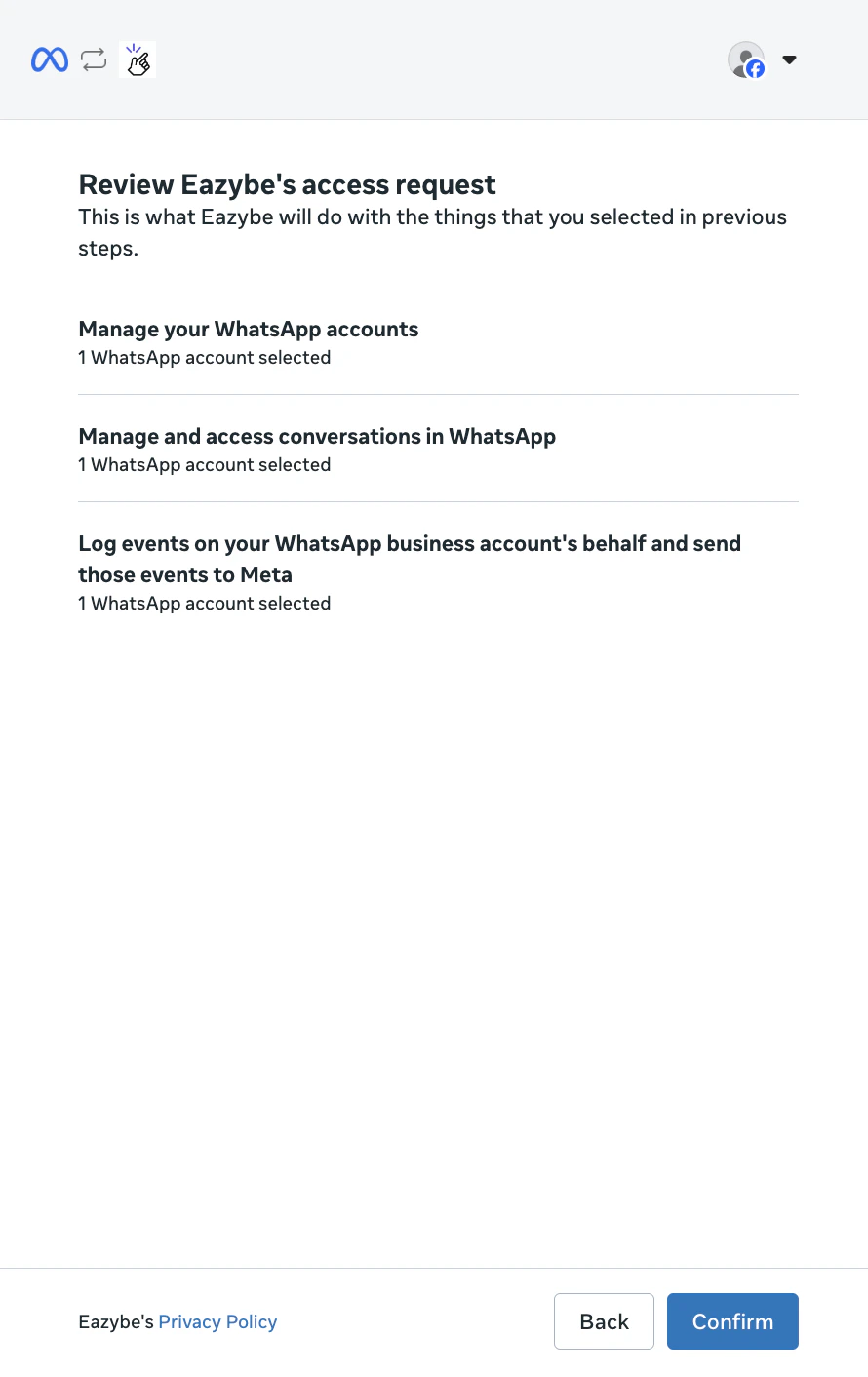
 Review and confirm the access permissions required for the integration to function properly.
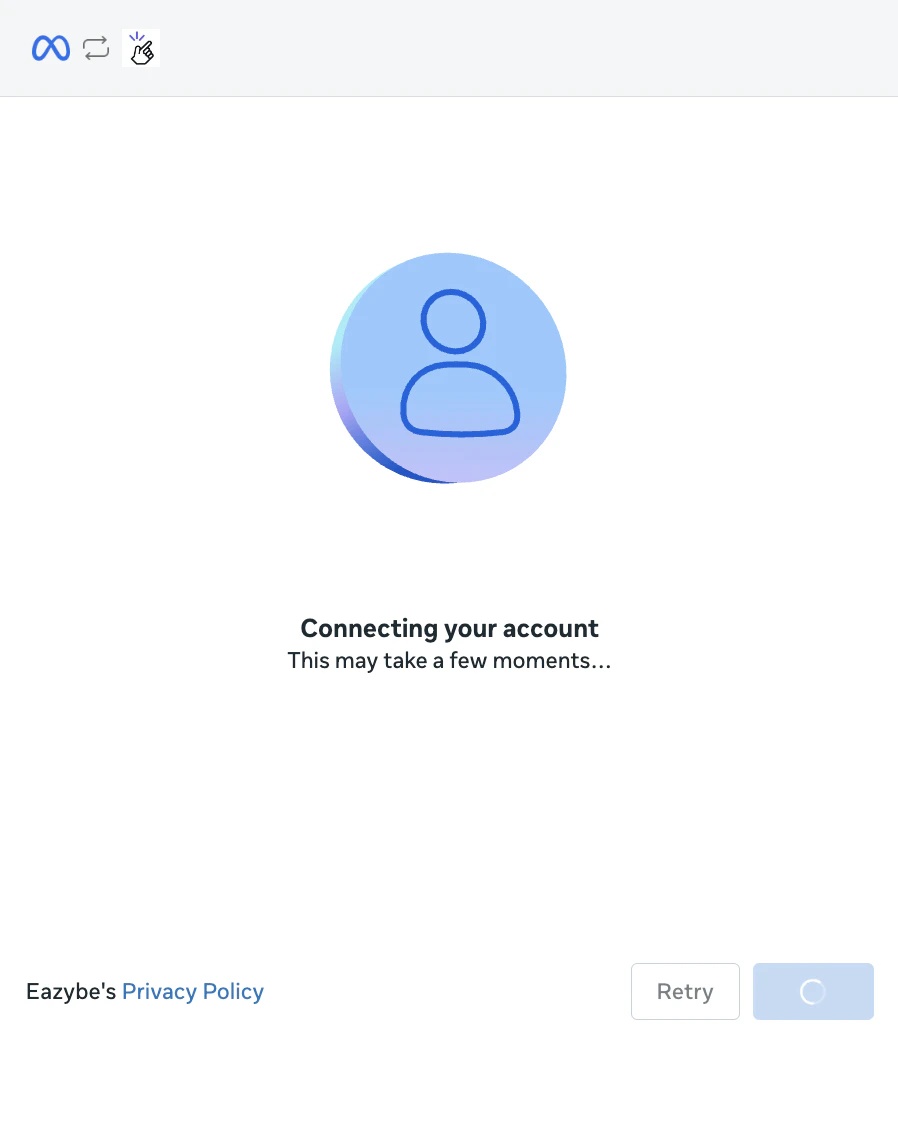
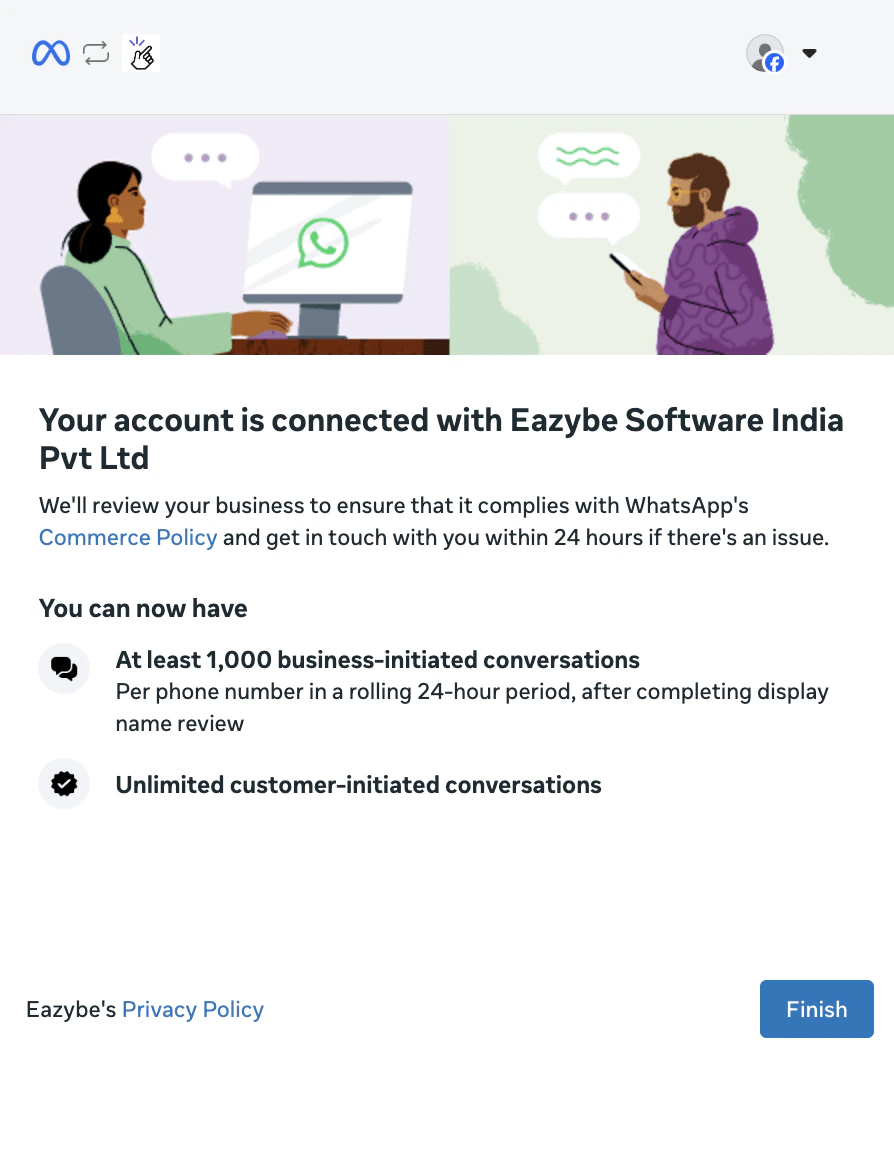
 Click **Finish** to complete the connection process. Your WhatsApp Business App is now connected to Eazybe Cloud API.
 ## Post-Connection Setup
After completing the connection:
Messages will sync in real-time between the mobile app and Eazybe dashboard
All contacts are automatically imported to your Eazybe workspace
## Post-Connection Setup
After completing the connection:
Messages will sync in real-time between the mobile app and Eazybe dashboard
All contacts are automatically imported to your Eazybe workspace
 ## Verification Steps
To verify your connection is working properly:
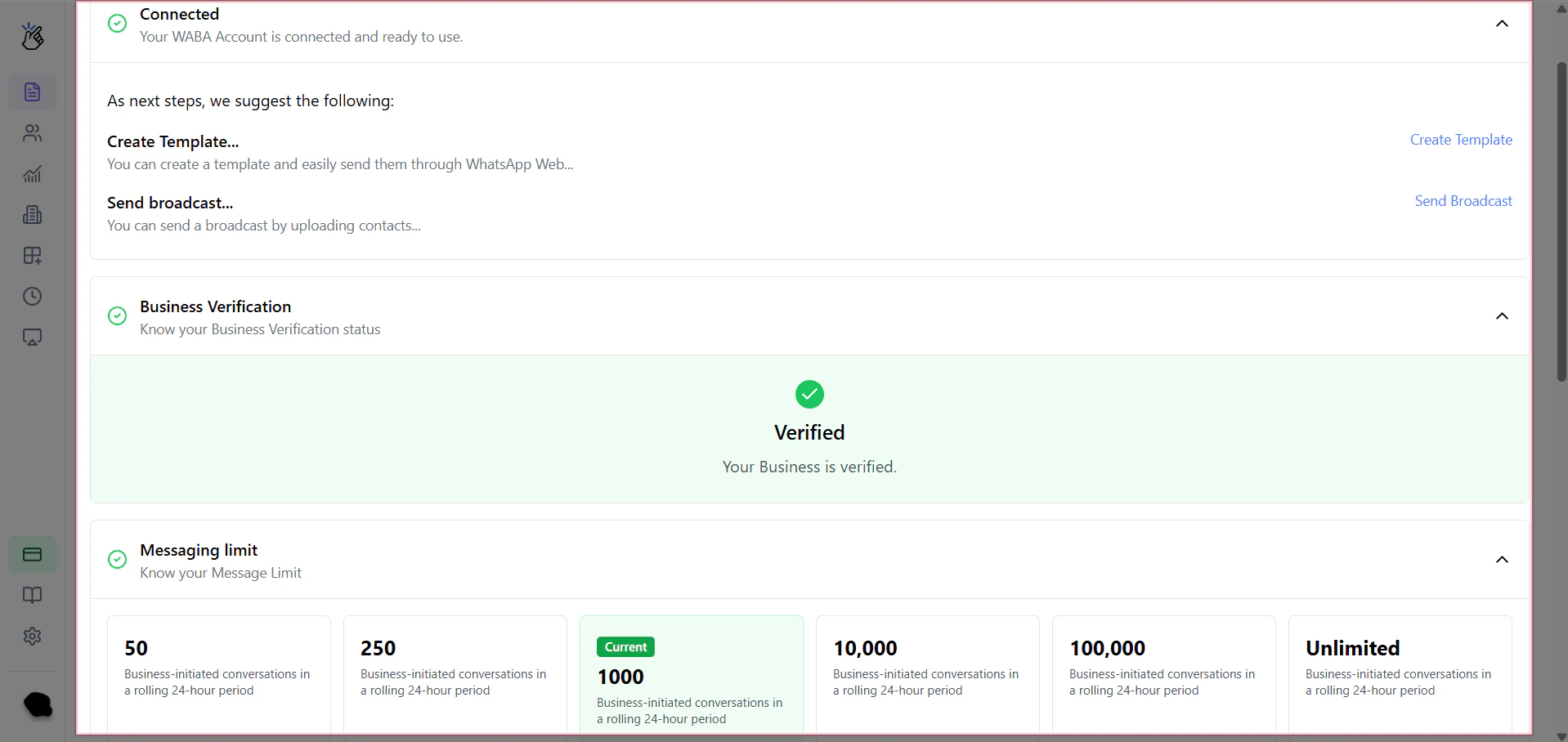
Navigate to your Eazybe workspace and verify the connection status shows as "Connected".
## Verification Steps
To verify your connection is working properly:
Navigate to your Eazybe workspace and verify the connection status shows as "Connected".
 Send a test message from either the mobile app or Eazybe dashboard to confirm sync is working.
 Check that messages sent from Eazybe appear in your WhatsApp Business App.
 ## Troubleshooting
**Common causes:**
* WhatsApp Business App version is outdated
* Poor internet connection
* Camera permission not granted
**Solution:** Update your app to version 2.24.17 or higher and ensure stable internet connectivity.
If you skipped history import initially:
1. Open WhatsApp Business App
2. Navigate to **Settings > Business Tools > WhatsApp Business Platform**
3. Tap **Disconnect** to remove the current connection
4. Restart the onboarding process from the beginning
**Common reasons:**
* Number is linked to another API provider
* Meta restrictions on the account
* No Facebook Page admin access
**Solution:** Use a number with active WhatsApp Business usage and no policy violations.
* Ensure both devices have stable internet connection
* Check that the WhatsApp Business App is running in the background
* Verify webhook endpoints are properly configured
## FAQs
**Yes**, if your number meets all the prerequisites: WhatsApp Business App version 2.24.17+, verified Meta Business Account, and no existing API provider connections.
**No** — seamless synchronization occurs during the setup process. All contacts are automatically imported, and you can optionally sync up to 6 months of chat history.
**Yes**, you can continue using the WhatsApp Business App for personal chats while Eazybe manages automated responses and broadcasts.
You can unlink the connection via your Eazybe workspace settings. Note that a **1-2 month cooldown period** applies if you want to reconnect the number.
**No**, there are no additional fees for coexistence itself. Standard Meta messaging fees and Eazybe subscription charges apply as normal.
## Need Help?
If you have any questions or need further assistance, feel free to reach out to us at [hey@eazybe.com](mailto:hey@eazybe.com). We're happy to help!
## Troubleshooting
**Common causes:**
* WhatsApp Business App version is outdated
* Poor internet connection
* Camera permission not granted
**Solution:** Update your app to version 2.24.17 or higher and ensure stable internet connectivity.
If you skipped history import initially:
1. Open WhatsApp Business App
2. Navigate to **Settings > Business Tools > WhatsApp Business Platform**
3. Tap **Disconnect** to remove the current connection
4. Restart the onboarding process from the beginning
**Common reasons:**
* Number is linked to another API provider
* Meta restrictions on the account
* No Facebook Page admin access
**Solution:** Use a number with active WhatsApp Business usage and no policy violations.
* Ensure both devices have stable internet connection
* Check that the WhatsApp Business App is running in the background
* Verify webhook endpoints are properly configured
## FAQs
**Yes**, if your number meets all the prerequisites: WhatsApp Business App version 2.24.17+, verified Meta Business Account, and no existing API provider connections.
**No** — seamless synchronization occurs during the setup process. All contacts are automatically imported, and you can optionally sync up to 6 months of chat history.
**Yes**, you can continue using the WhatsApp Business App for personal chats while Eazybe manages automated responses and broadcasts.
You can unlink the connection via your Eazybe workspace settings. Note that a **1-2 month cooldown period** applies if you want to reconnect the number.
**No**, there are no additional fees for coexistence itself. Standard Meta messaging fees and Eazybe subscription charges apply as normal.
## Need Help?
If you have any questions or need further assistance, feel free to reach out to us at [hey@eazybe.com](mailto:hey@eazybe.com). We're happy to help!