> ## Documentation Index
> Fetch the complete documentation index at: https://help.eazybe.com/llms.txt
> Use this file to discover all available pages before exploring further.
# Connect with WABA
> Step-by-step guide to connect your WhatsApp Business Account to Eazybe through Meta's Embedded Signup
Connecting your official WABA to Eazybe is a simple process handled through Meta's secure, Embedded Signup flow.
## Step-by-Step Connection Guide
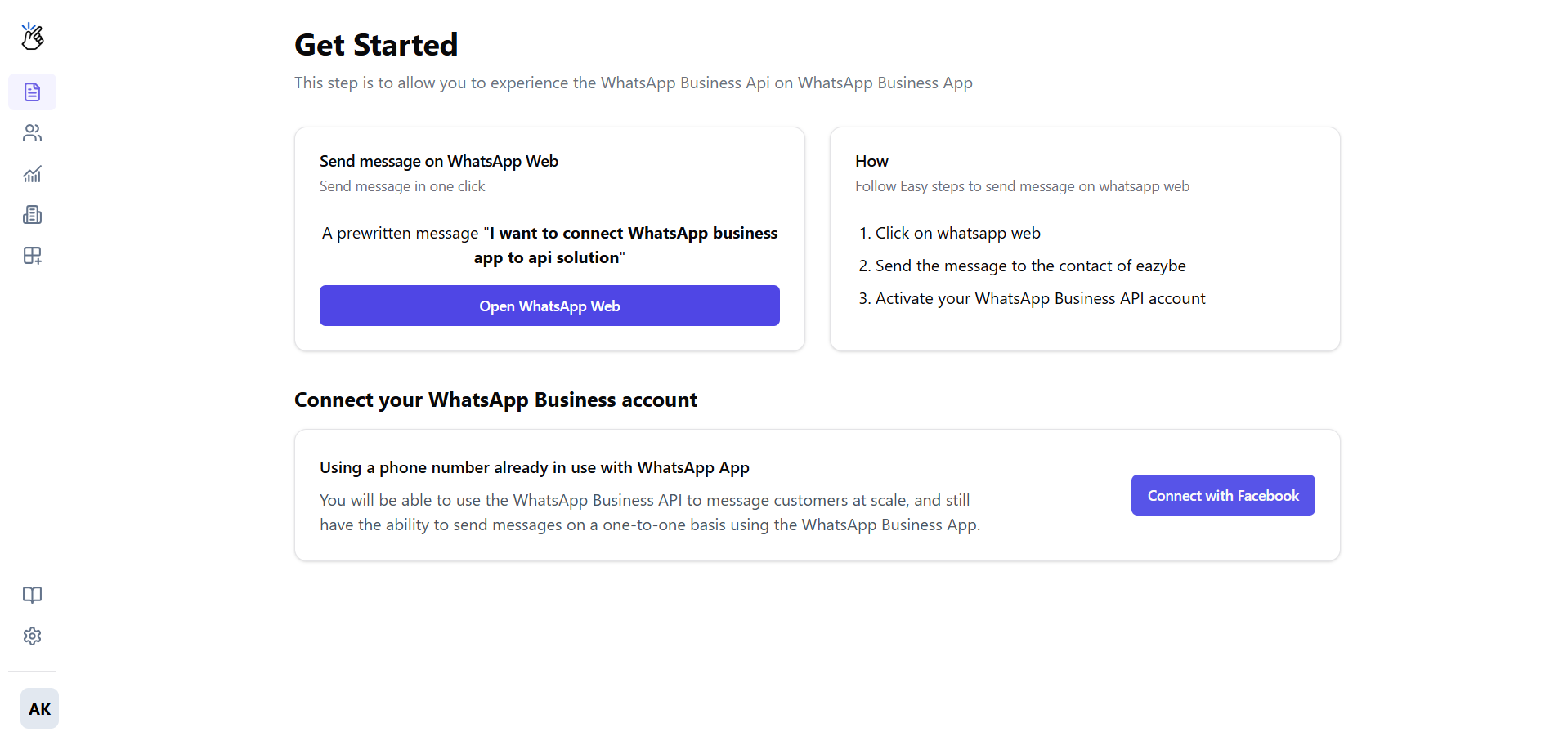
Access your Eazybe dashboard and go to **Get Started** → **Connect with Facebook**.
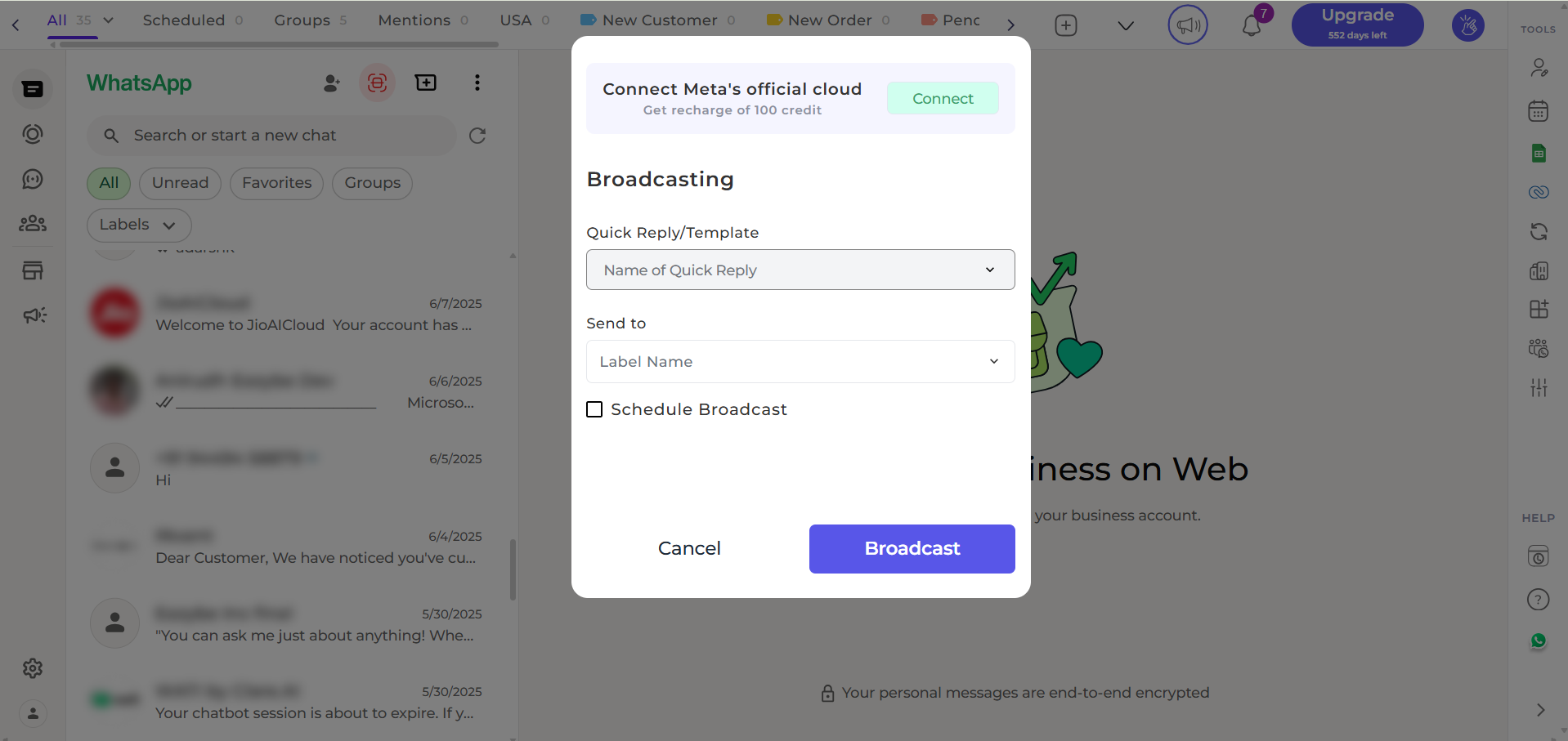 Click **"Connect with Facebook"** to open Meta's secure setup window.
 This popup is managed by Facebook. Eazybe does not see or store your personal Facebook login details.
Log into the Facebook profile that has **admin access** to your Facebook Business Account.
This popup is managed by Facebook. Eazybe does not see or store your personal Facebook login details.
Log into the Facebook profile that has **admin access** to your Facebook Business Account.
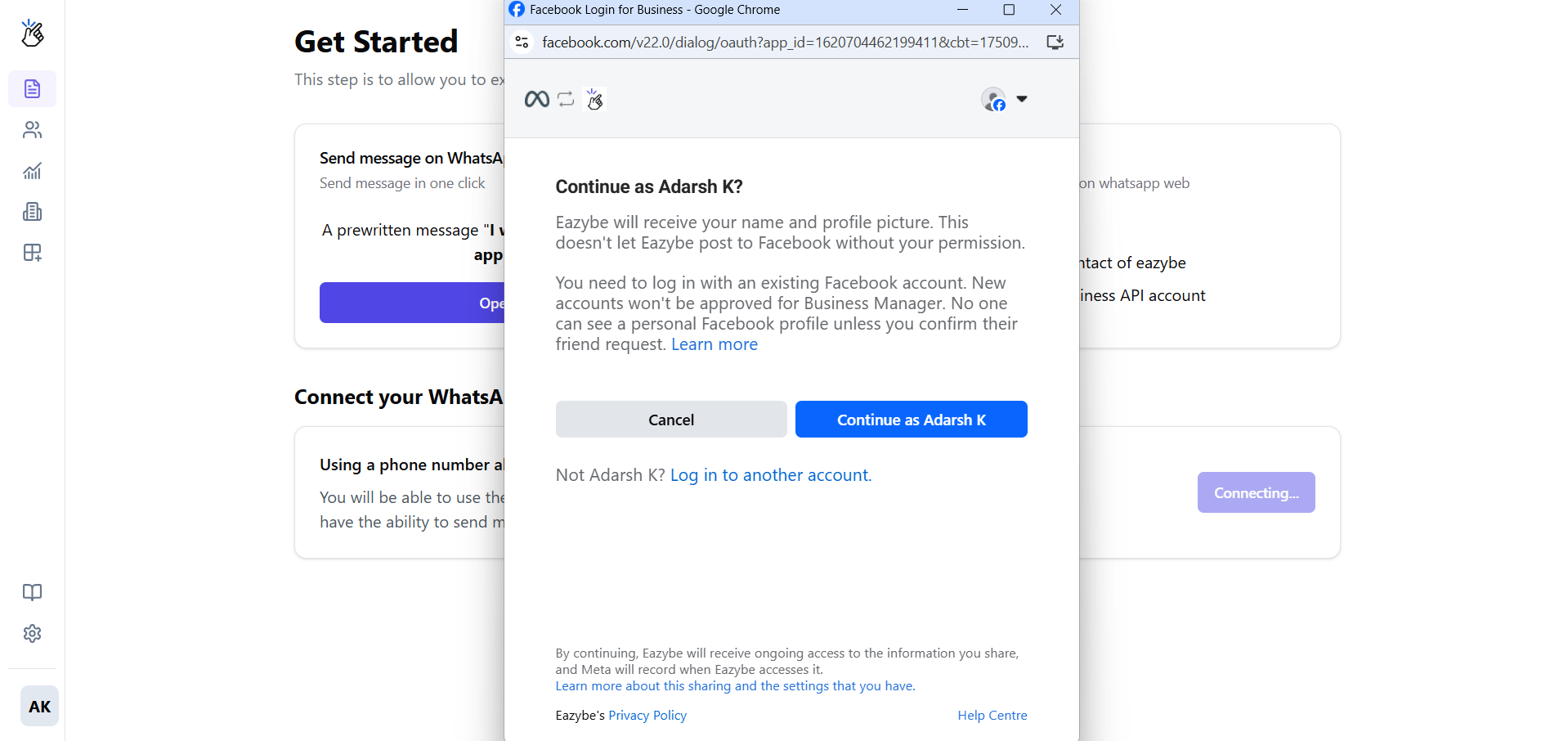 Then grant Eazybe the necessary permissions to manage WhatsApp assets.
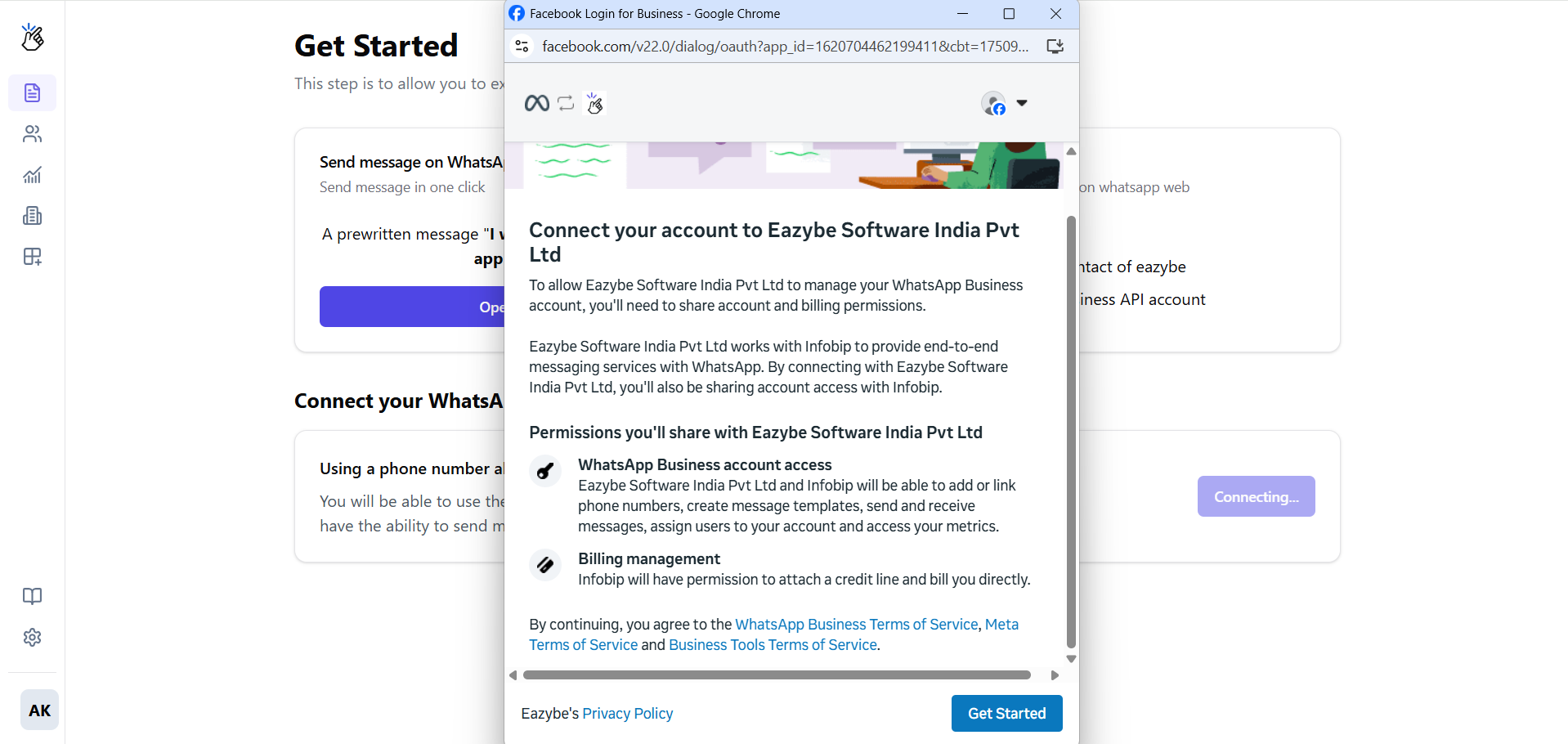 Follow the prompts to configure your business setup:
**Choose or create a Meta Business Account:**
Follow the prompts to configure your business setup:
**Choose or create a Meta Business Account:** 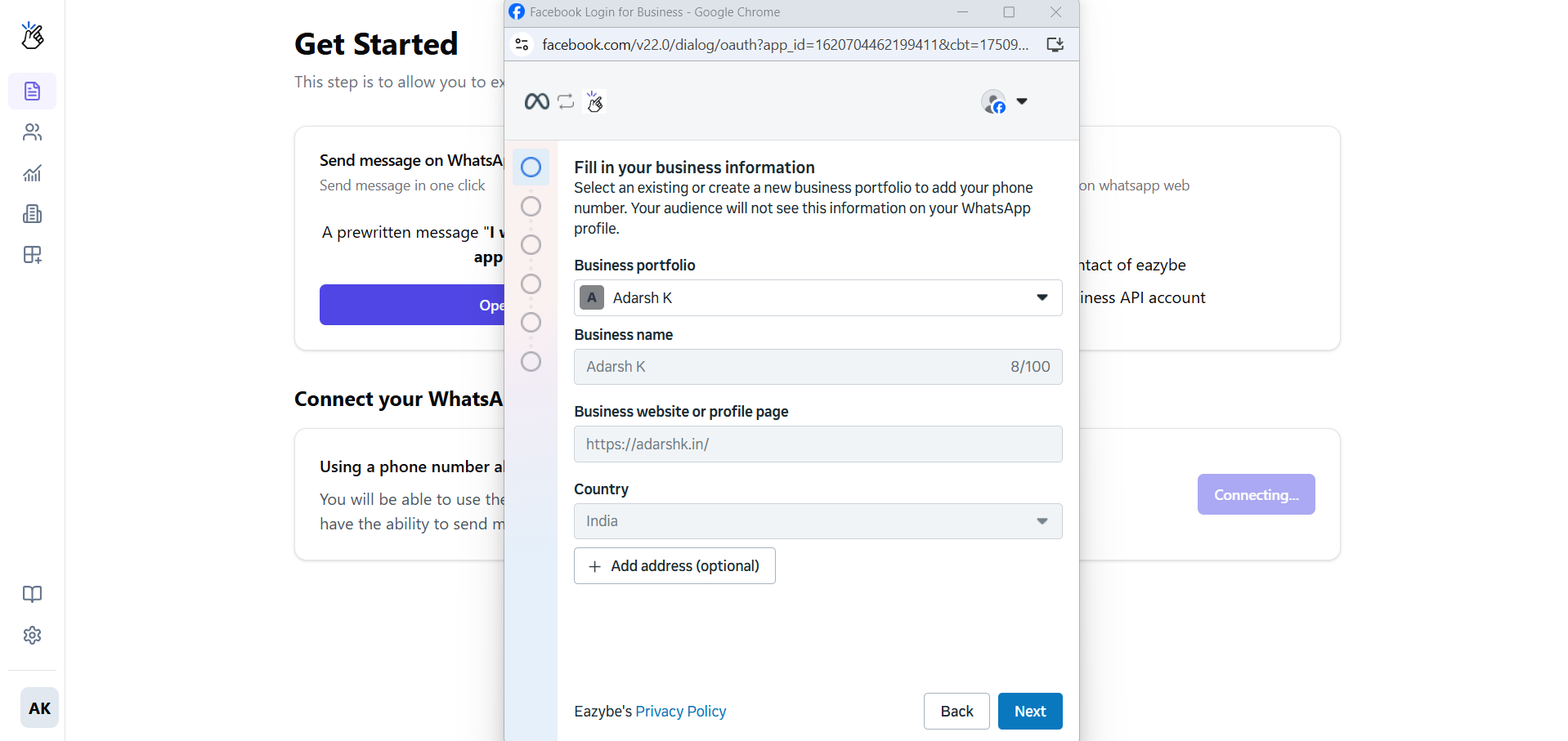 **Choose or create a WhatsApp Business Account (WABA):**
 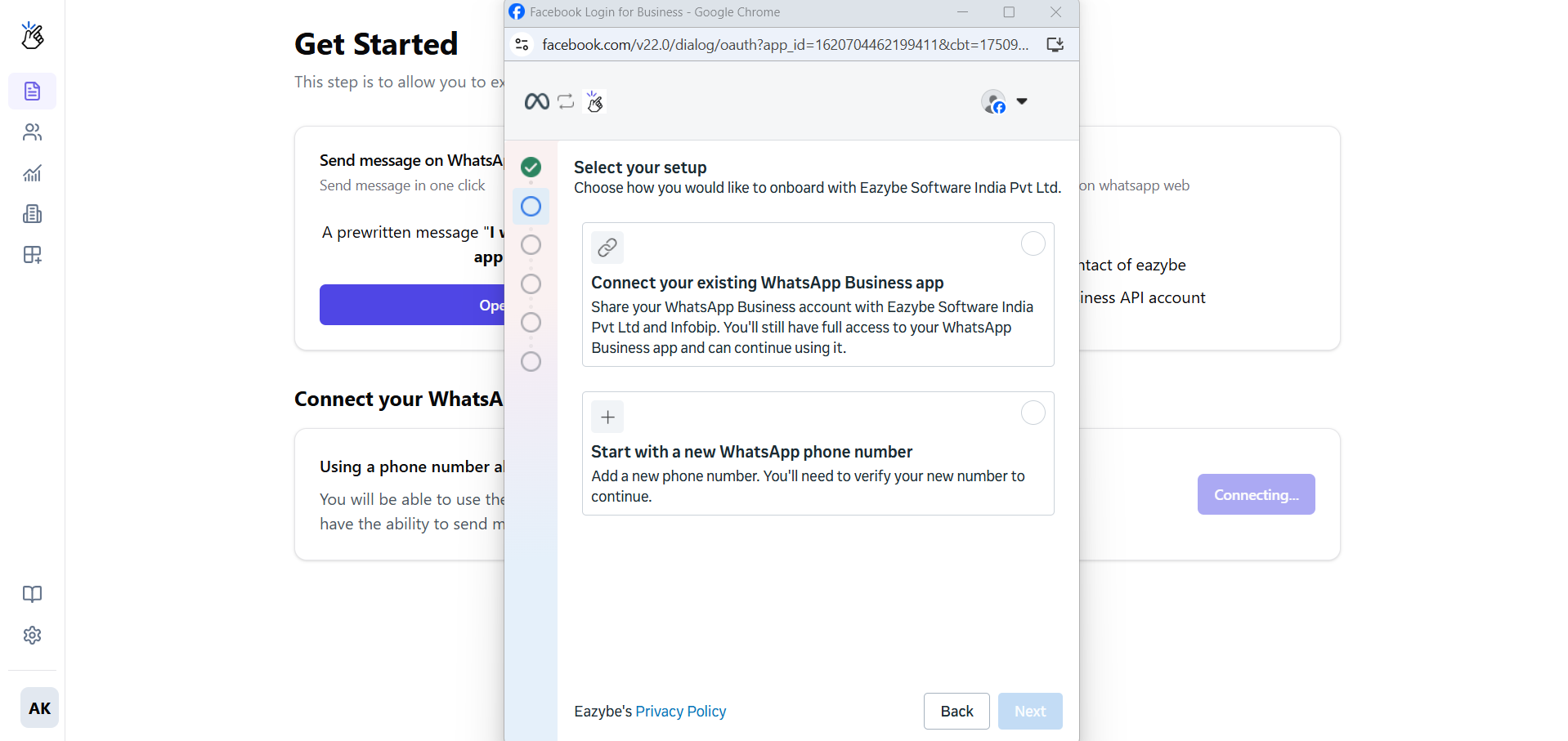 **Choose or create your WhatsApp Business Profile:**
 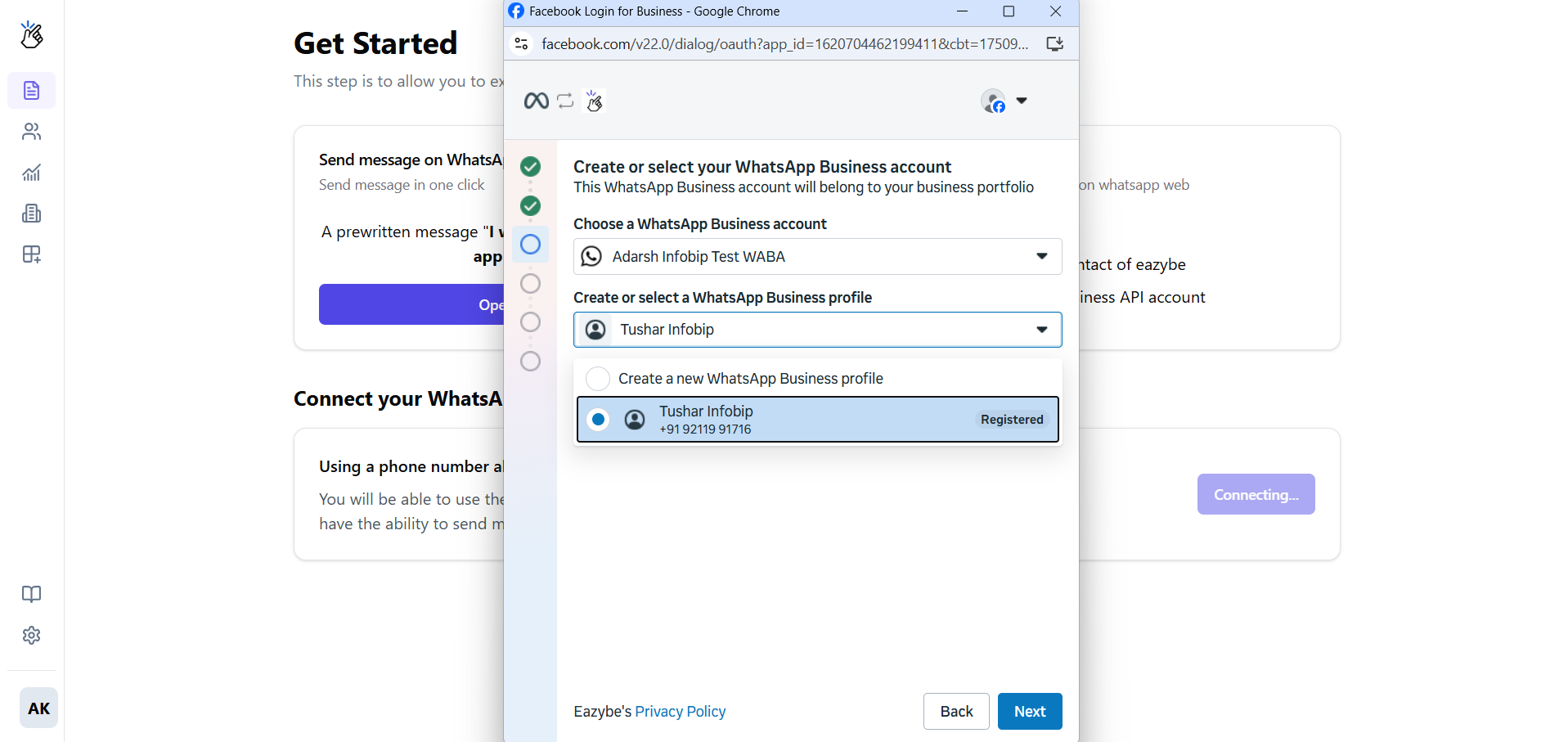 Connect to an existing WhatsApp Business number or add a new one.
 Complete verification by entering the code you receive via SMS or voice call.
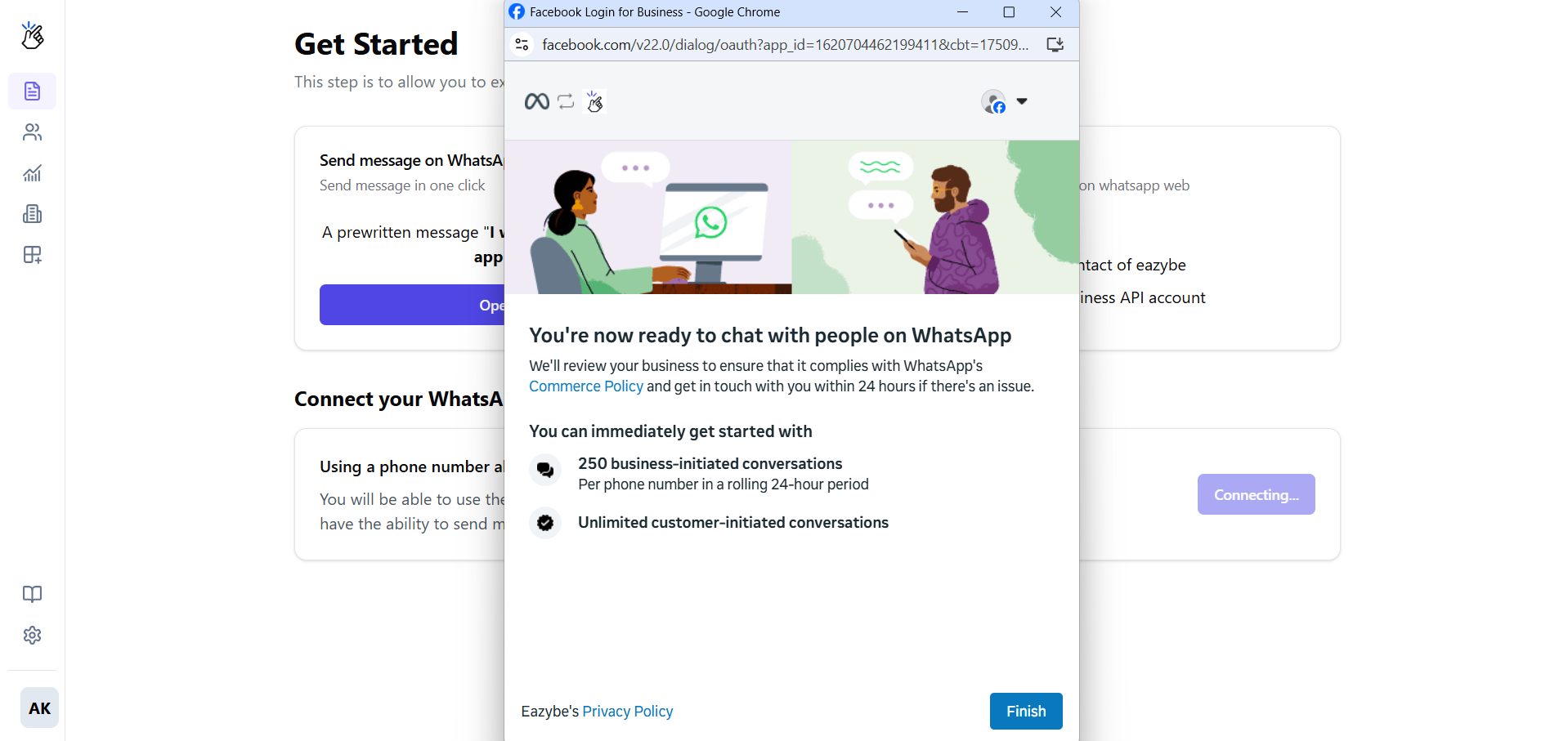
 Review your selections and click **Finish**.
 If you're using an existing WhatsApp Business number, you'll have the option to share (or not share) chat history of up to six months during the initial setup.
## Connection Complete
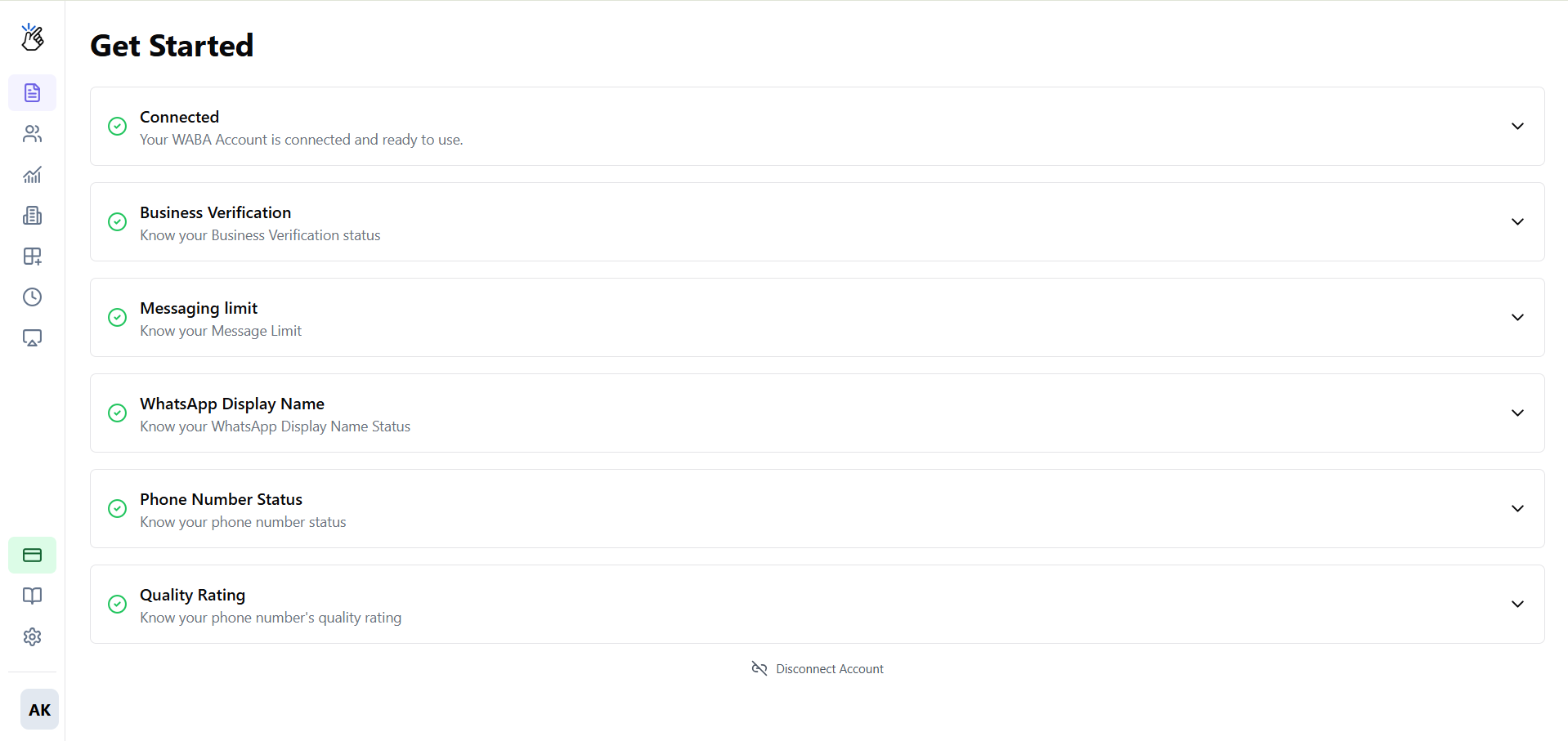
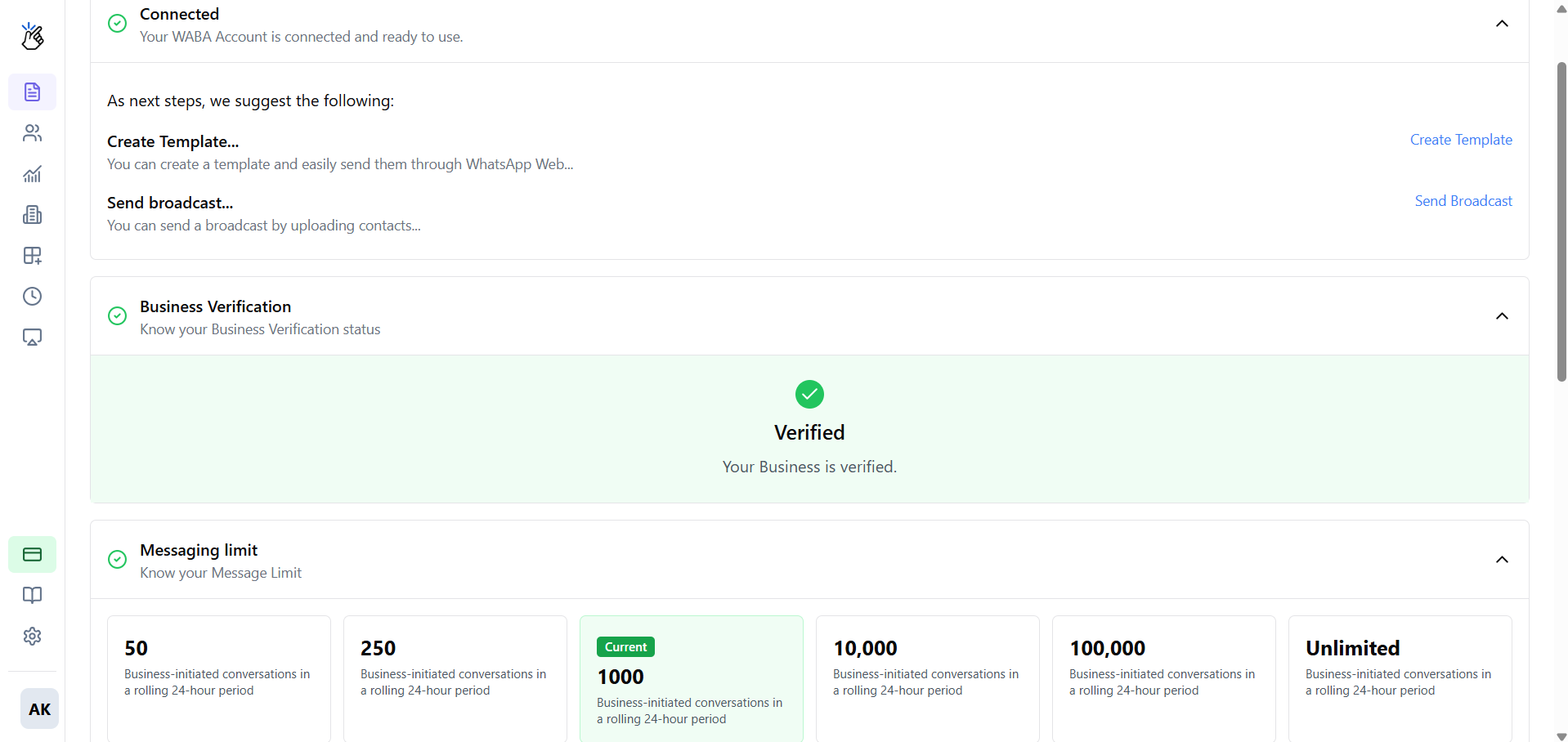
Your WABA is now connected to Eazybe! You'll be redirected back to your dashboard, where you can see the connection status.
Design and submit message templates for Meta approval
Launch your first broadcast campaign
## Need Help?
If you have any questions or need further assistance, feel free to reach out to us at [support@eazybe.com](mailto:hey@eazybe.com). We're happy to help!
If you're using an existing WhatsApp Business number, you'll have the option to share (or not share) chat history of up to six months during the initial setup.
## Connection Complete
Your WABA is now connected to Eazybe! You'll be redirected back to your dashboard, where you can see the connection status.
Design and submit message templates for Meta approval
Launch your first broadcast campaign
## Need Help?
If you have any questions or need further assistance, feel free to reach out to us at [support@eazybe.com](mailto:hey@eazybe.com). We're happy to help!