> ## Documentation Index
> Fetch the complete documentation index at: https://help.eazybe.com/llms.txt
> Use this file to discover all available pages before exploring further.
# Send Broadcast
> Learn how to send a WhatsApp broadcast campaign using WABA
This guide explains how to send template message broadcasts (bulk messages) using your WhatsApp Business Account (WABA).
## Prerequisites
Before sending a broadcast campaign, ensure you have:
Your WhatsApp Business Account must be connected to Eazybe
Ensure your Eazybe Wallet has sufficient balance
You need at least one approved Message Template
Every new business (organization) connecting WABA for the first time receives ₹100 or \$1 in free credits.
## How to Send a Broadcast Campaign
Select **Broadcasts** from the main menu in your Eazybe dashboard.
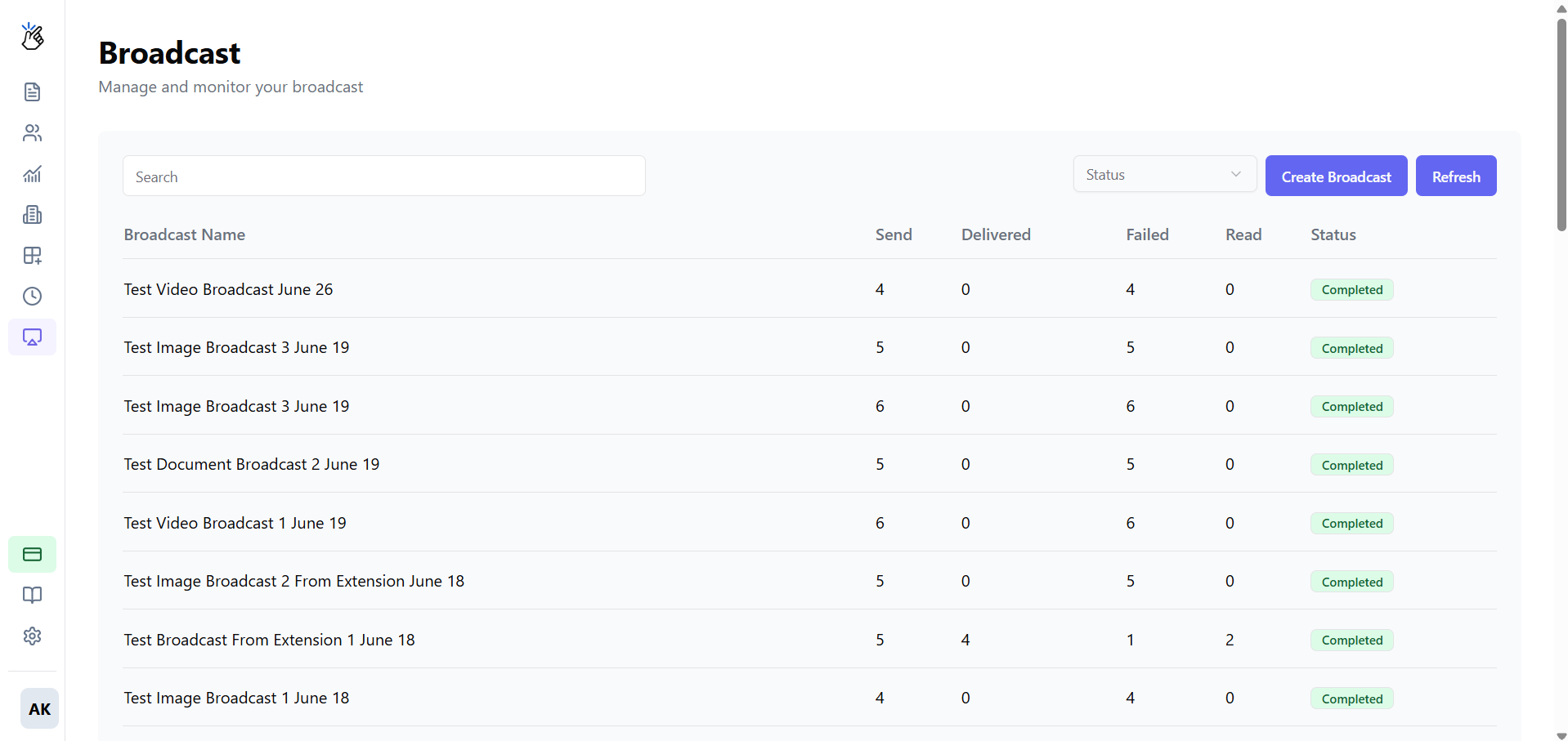 Click the **Create Broadcast** button to start a new campaign.
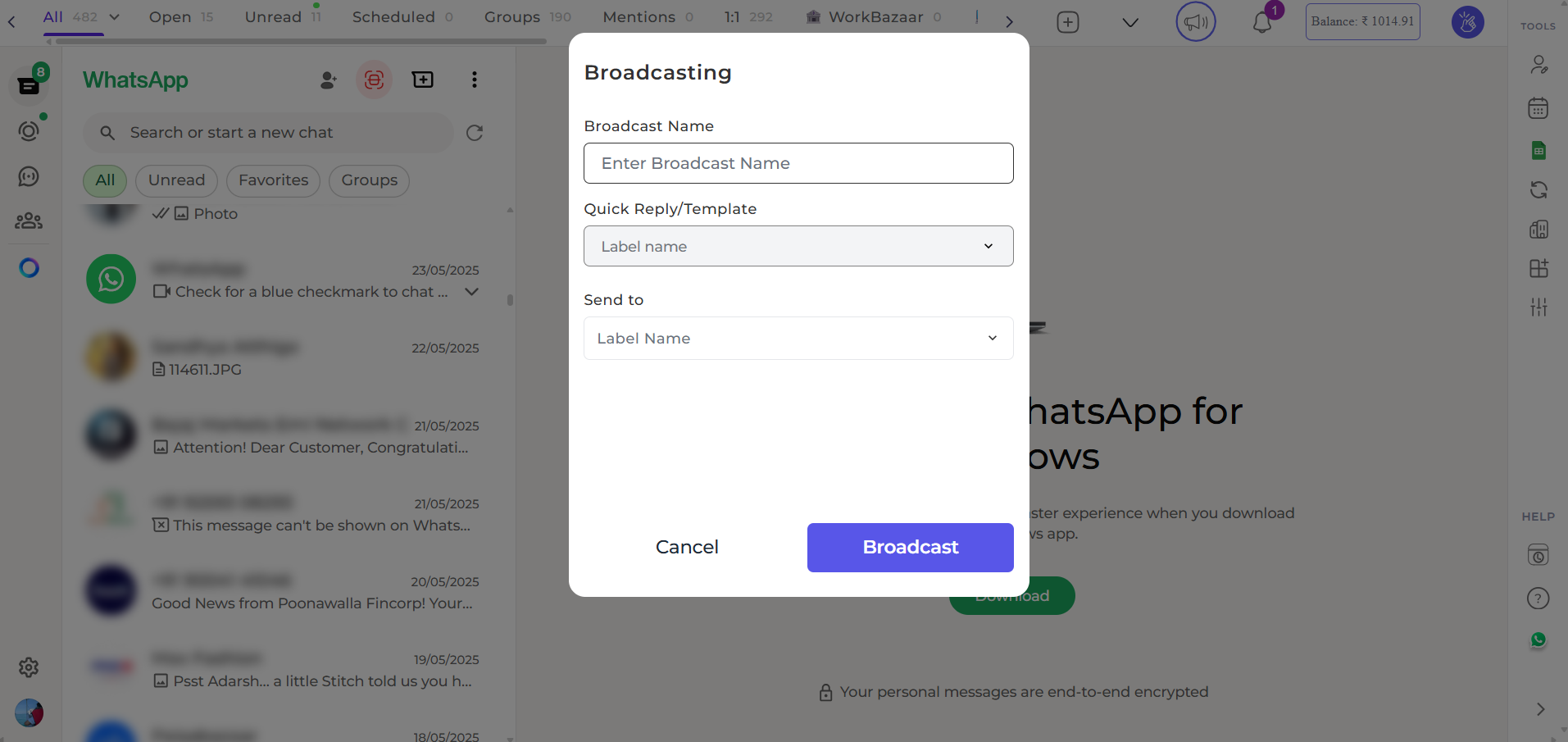 Provide an internal name for your campaign to help you identify it later.
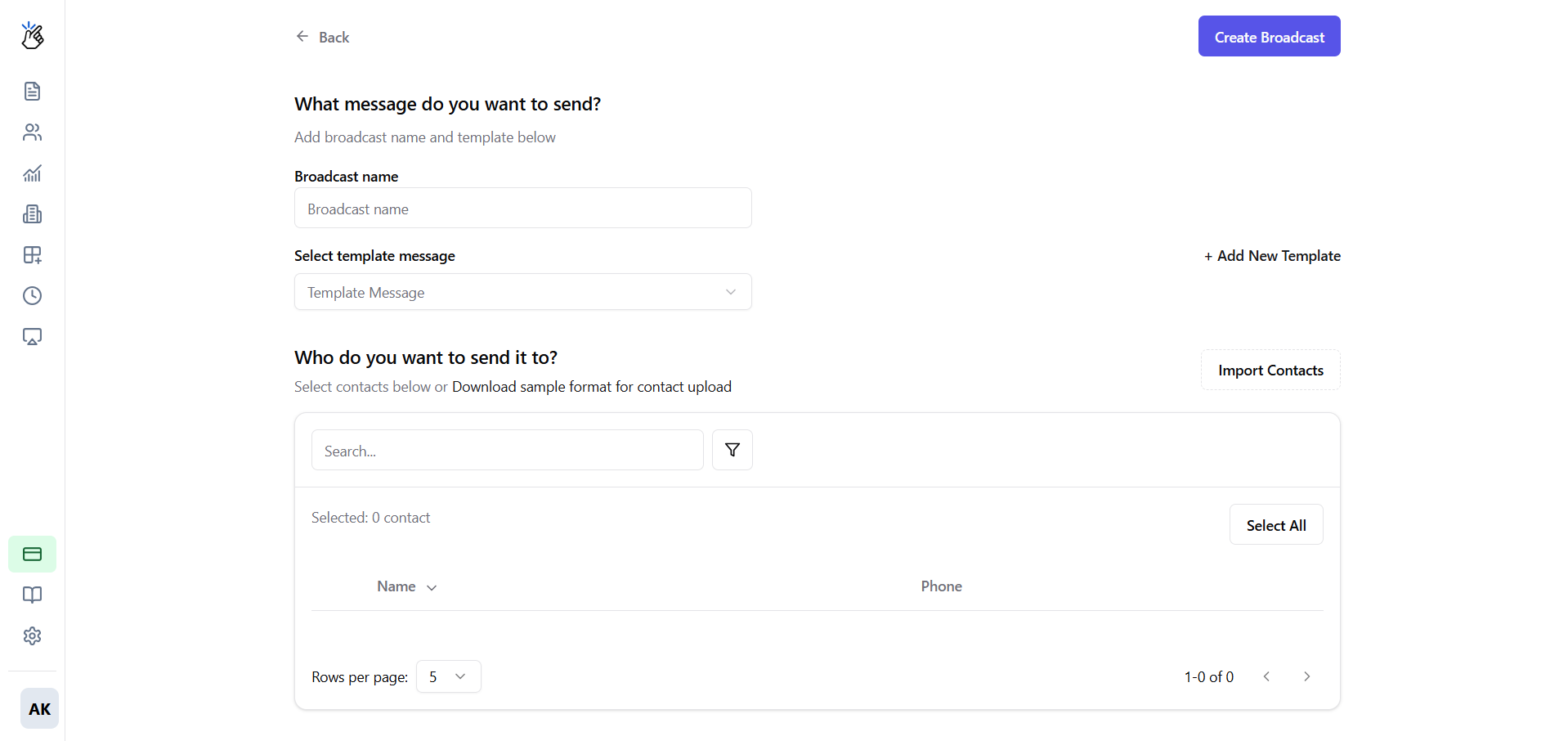 Use descriptive names like "June Newsletter 2025" or "Holiday Sale Announcement" to easily find campaigns later.
Choose an **Approved Message Template** from the dropdown list.
Use descriptive names like "June Newsletter 2025" or "Holiday Sale Announcement" to easily find campaigns later.
Choose an **Approved Message Template** from the dropdown list.
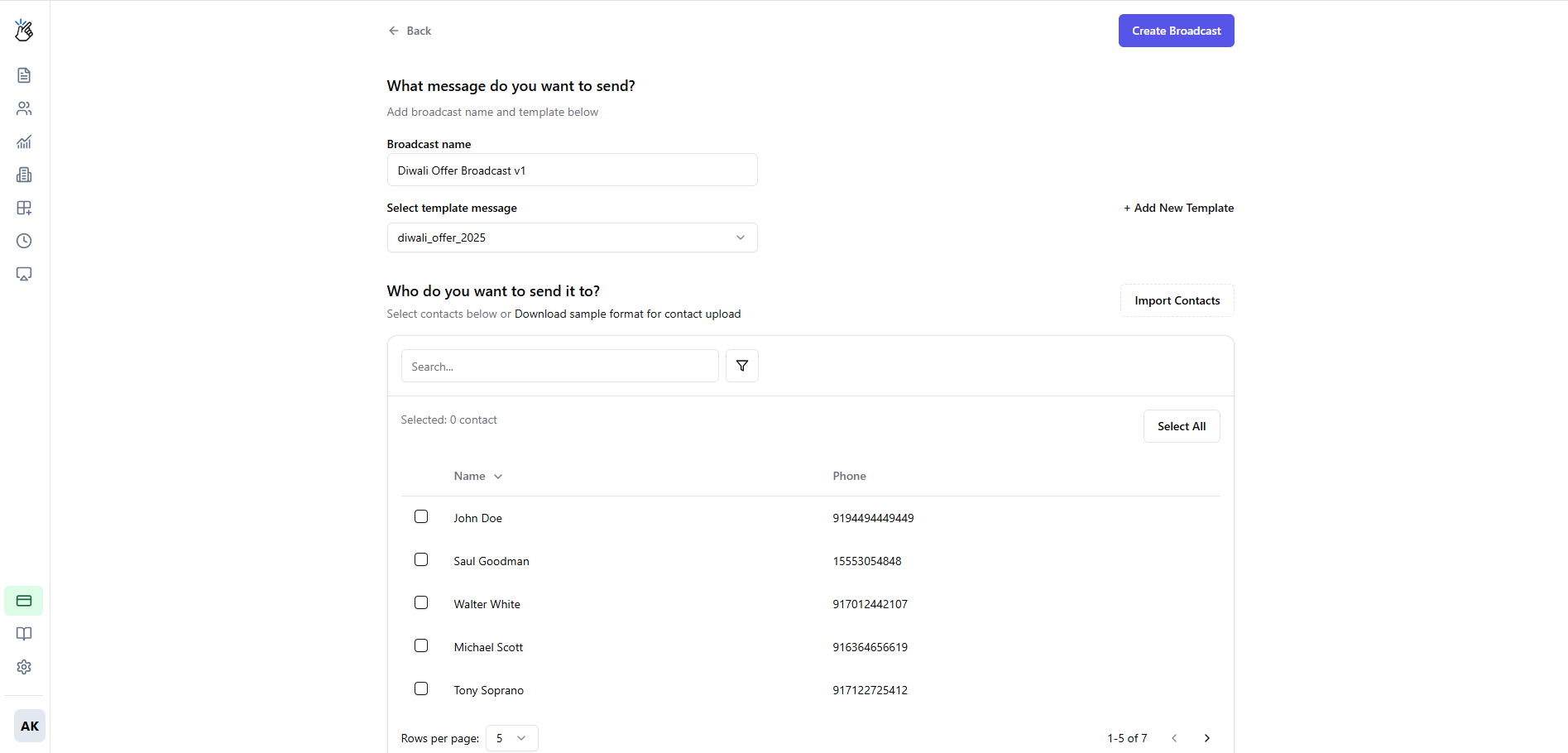 Only templates with "Approved" status can be used for broadcasts. Pending or rejected templates will not appear in the list.
Click **Upload CSV** and select your file containing phone numbers.
Only templates with "Approved" status can be used for broadcasts. Pending or rejected templates will not appear in the list.
Click **Upload CSV** and select your file containing phone numbers.
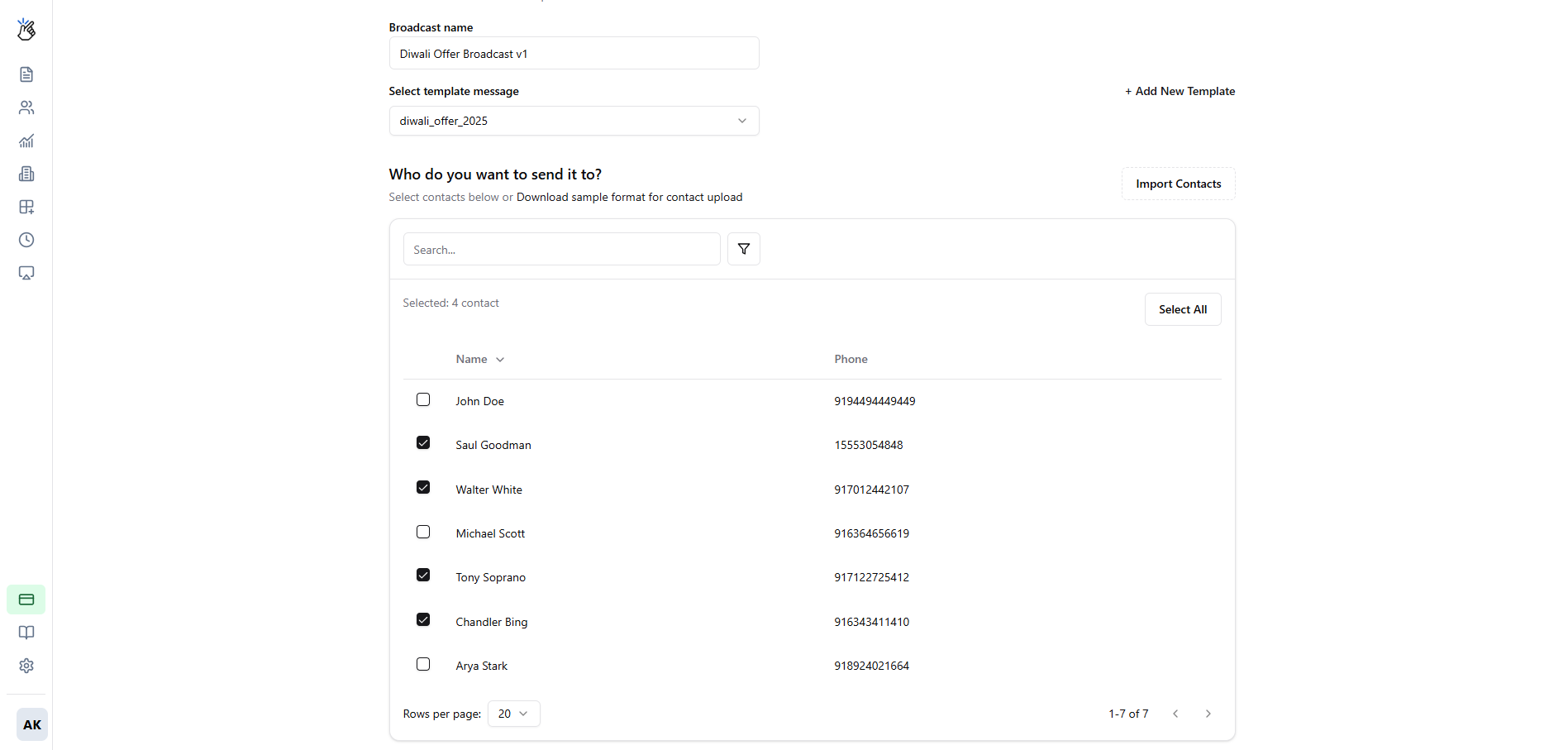 Phone numbers must be in international format without the "+" sign (e.g., 91xxxxxxxxxx for India, 1xxxxxxxxxx for USA).
Choose the contacts you want to include in your broadcast from the imported CSV.
Phone numbers must be in international format without the "+" sign (e.g., 91xxxxxxxxxx for India, 1xxxxxxxxxx for USA).
Choose the contacts you want to include in your broadcast from the imported CSV.
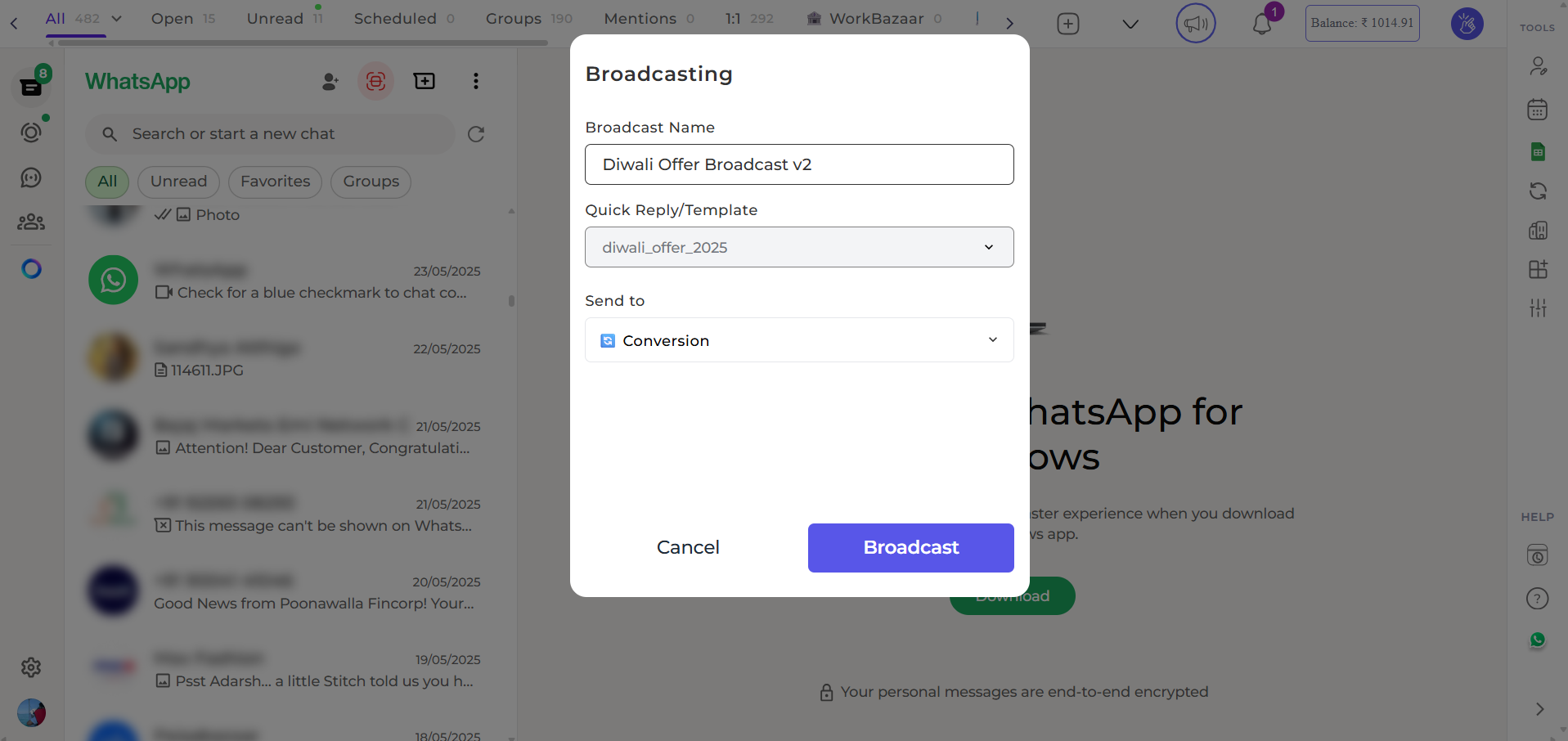 If you're using the Eazybe extension, you can select a label containing tagged contacts.
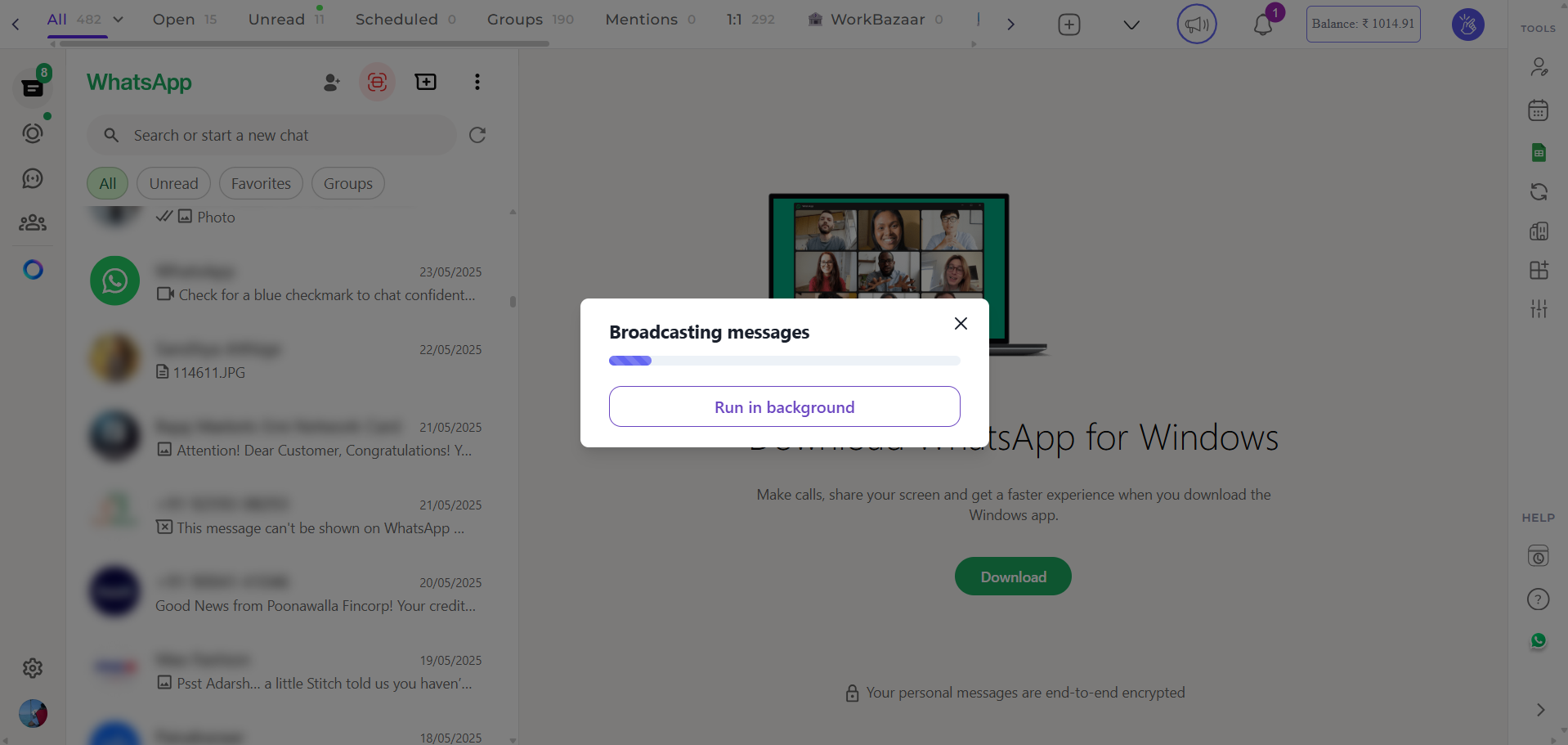 Labels work with individual contacts only, not groups.
Click **Send Broadcast** to start sending messages to your selected recipients.
Labels work with individual contacts only, not groups.
Click **Send Broadcast** to start sending messages to your selected recipients.
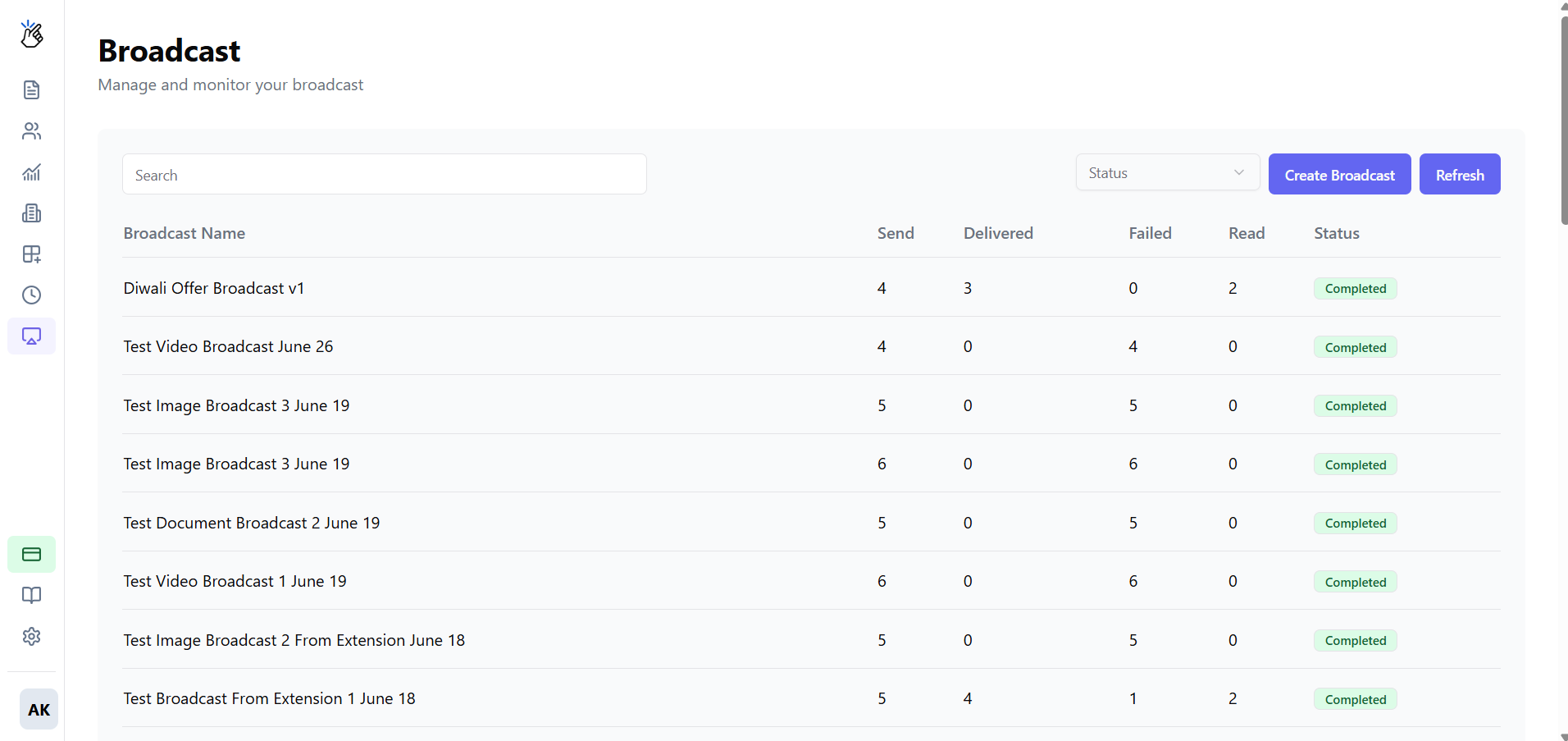 ## Tracking Campaign Performance
After launching your campaign, you can track its performance directly from the Broadcast dashboard.
## Tracking Campaign Performance
After launching your campaign, you can track its performance directly from the Broadcast dashboard.
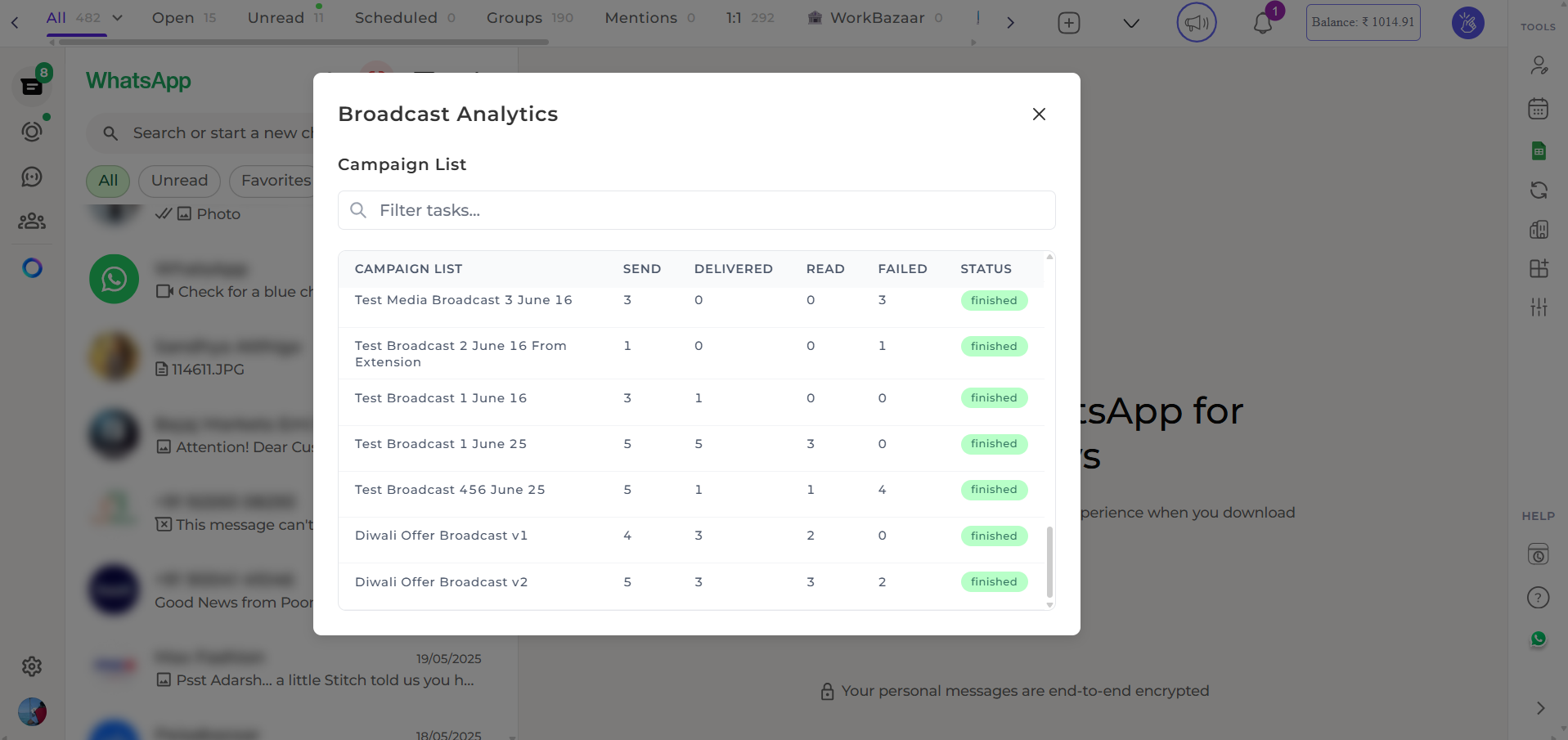 The dashboard shows you:
* **Messages Sent** - Total number of messages dispatched
* **Messages Delivered** - Successfully delivered to recipients
* **Messages Read** - Opened and read by recipients
## Need Help?
If you have any questions or need further assistance, feel free to reach out to us at [support@eazybe.com](mailto:hey@eazybe.com). We're happy to help!
The dashboard shows you:
* **Messages Sent** - Total number of messages dispatched
* **Messages Delivered** - Successfully delivered to recipients
* **Messages Read** - Opened and read by recipients
## Need Help?
If you have any questions or need further assistance, feel free to reach out to us at [support@eazybe.com](mailto:hey@eazybe.com). We're happy to help!