> ## Documentation Index
> Fetch the complete documentation index at: https://help.eazybe.com/llms.txt
> Use this file to discover all available pages before exploring further.
# HubSpot Workflow for WhatsApp Campaigns
> Create automated WhatsApp marketing campaigns using HubSpot workflows. Learn how to set up triggers, actions, and integrations to send personalized WhatsApp messages and streamline customer communication.
This guide walks you through creating a HubSpot workflow that automatically sends WhatsApp messages to your contacts using the Eazybe integration.
## Prerequisites
Before setting up your workflow, ensure you have:
An active HubSpot account with workflow access
WhatsApp Integration by Eazybe installed in HubSpot
## Creating Your HubSpot Workflow
Log in to your HubSpot account to begin setting up the workflow.
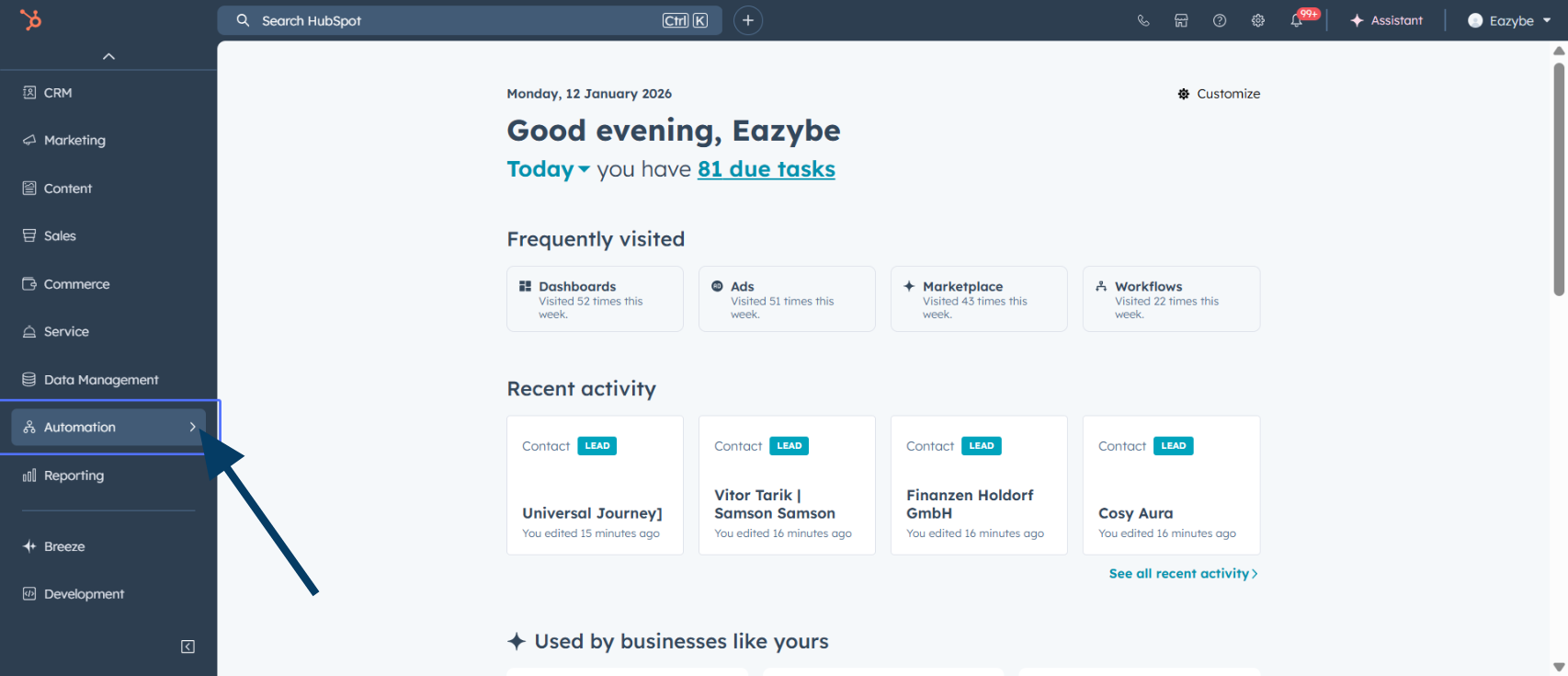 Click on the **Automation** button in the main navigation menu.
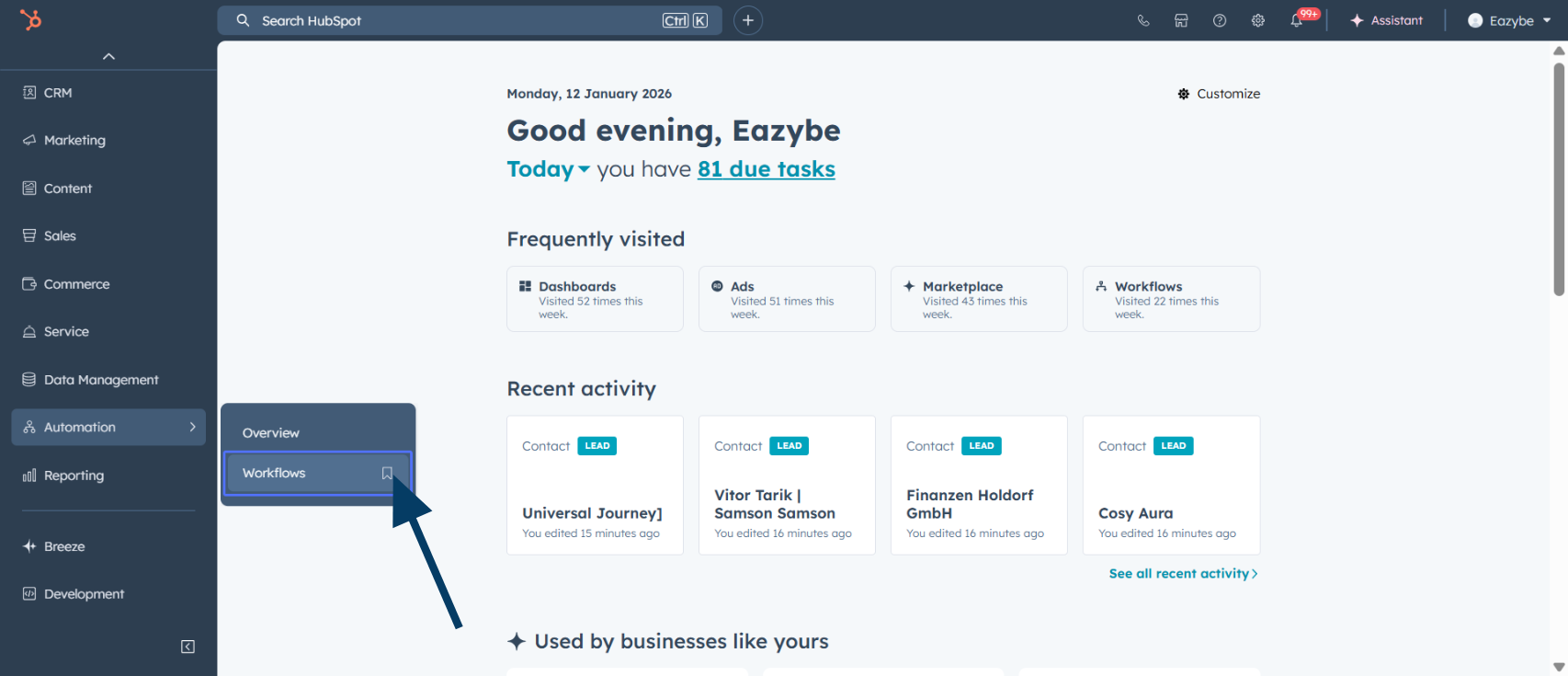 From the automation menu, select **Workflows** to access the workflow builder.
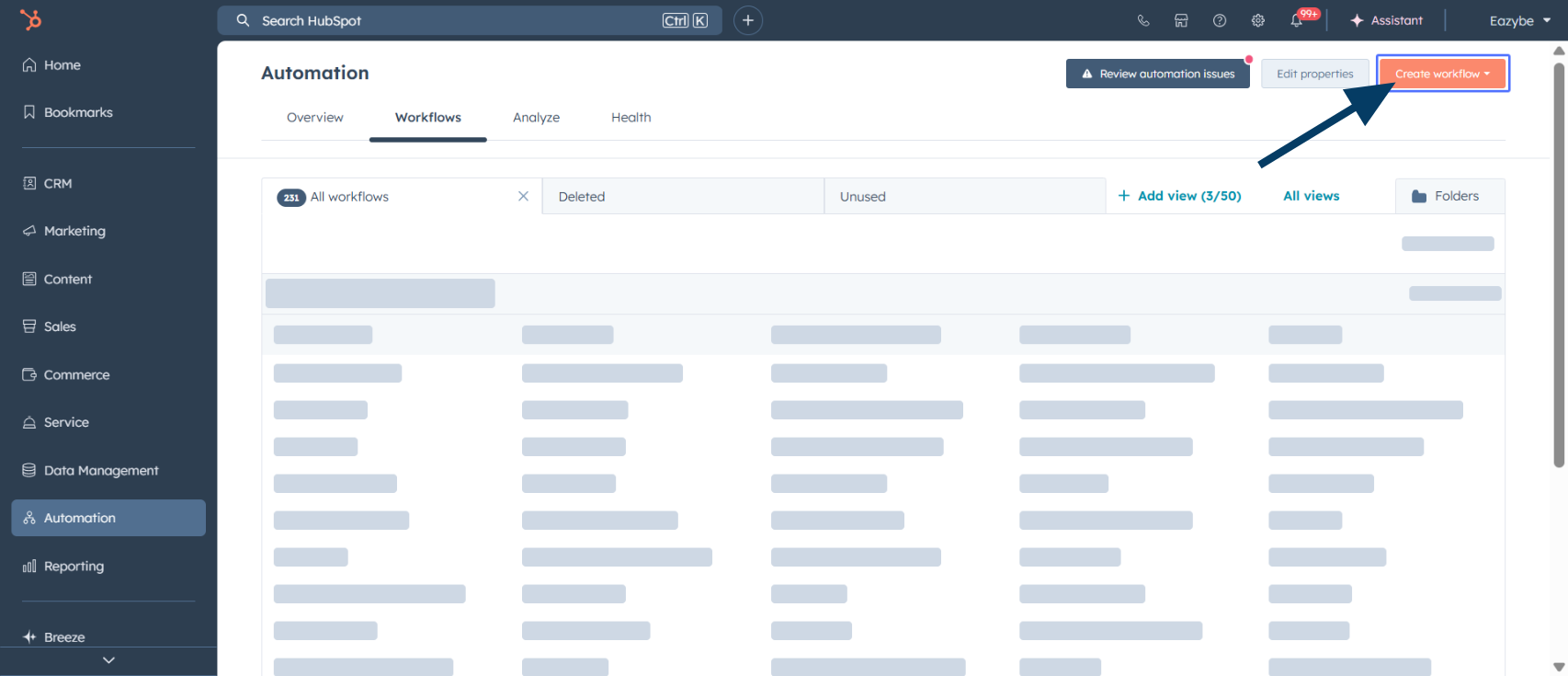 Click **Create workflow** to start building a new automation.
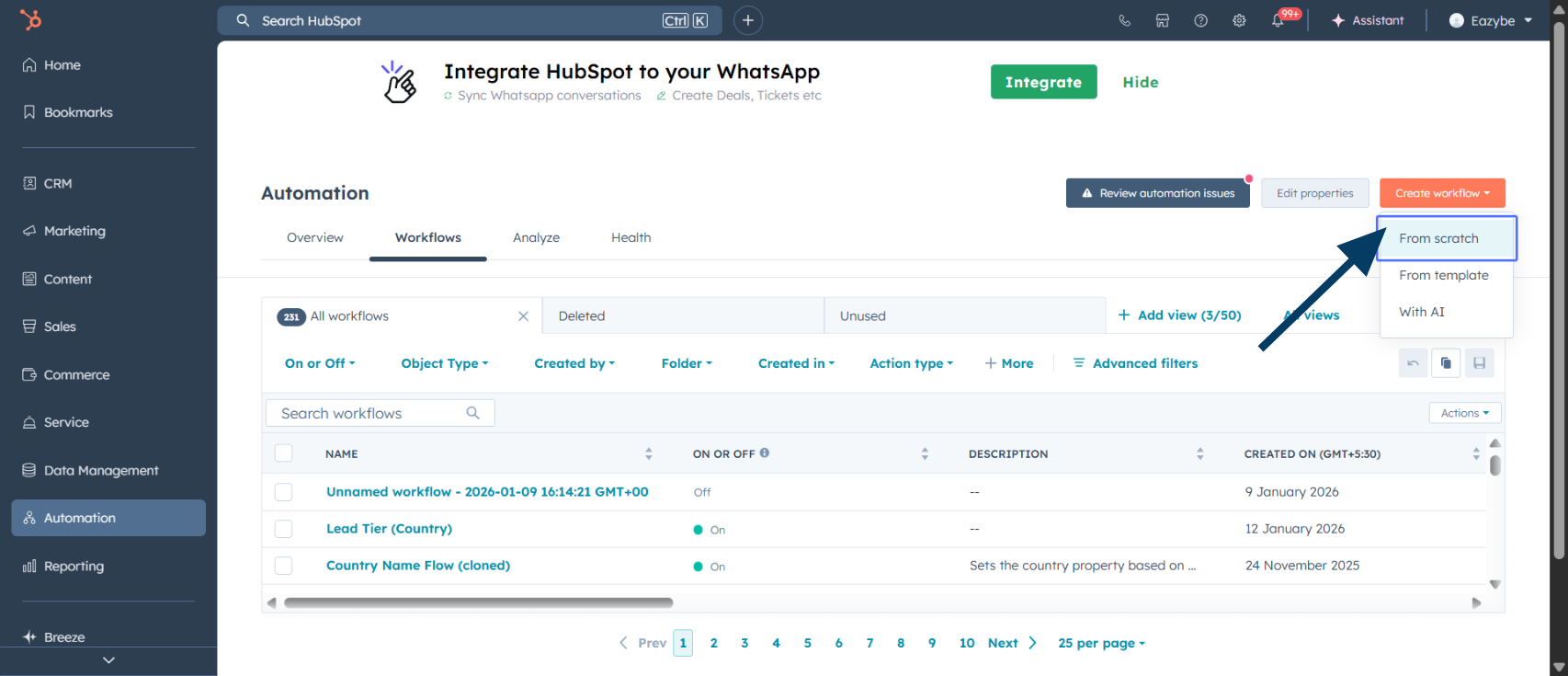 Select **From scratch** to create a custom workflow tailored to your needs.
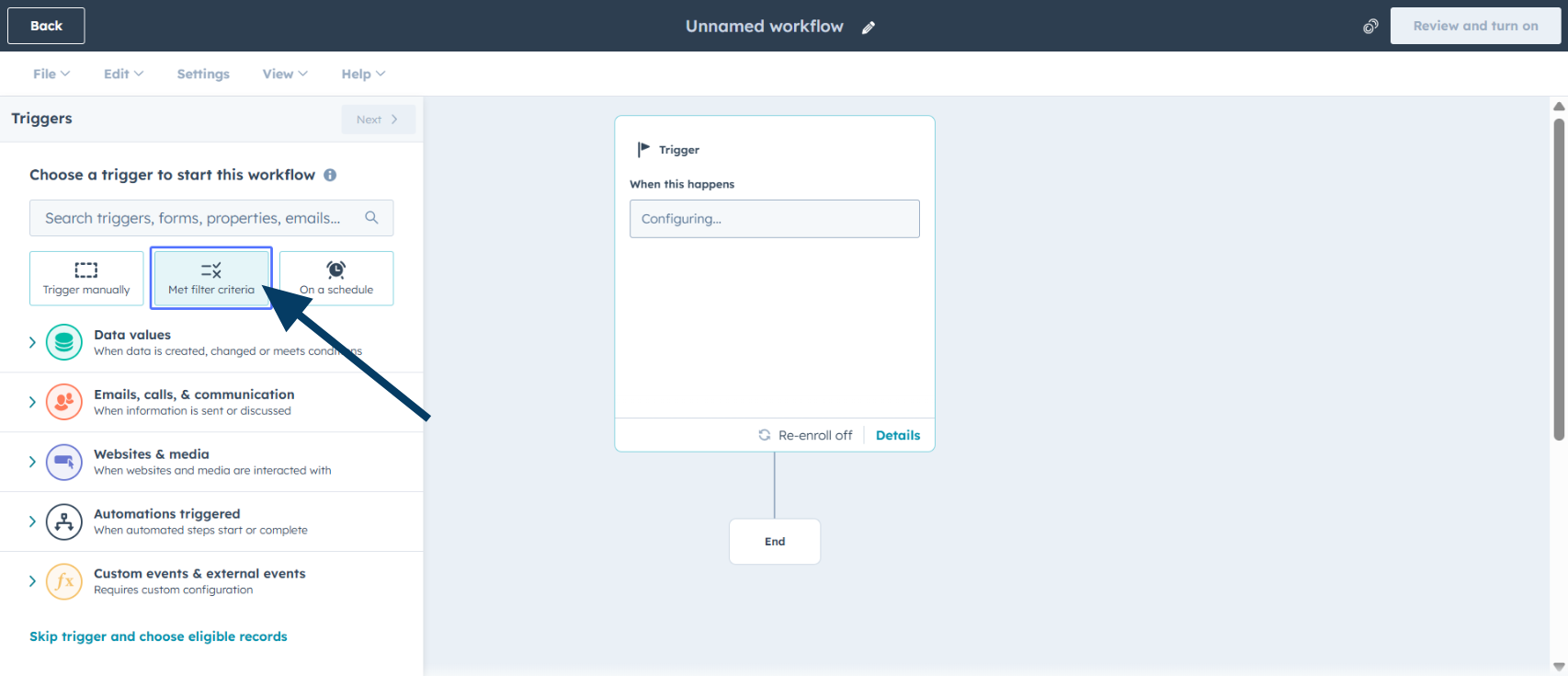 Click **Met filter criteria** to define the conditions for workflow enrollment.
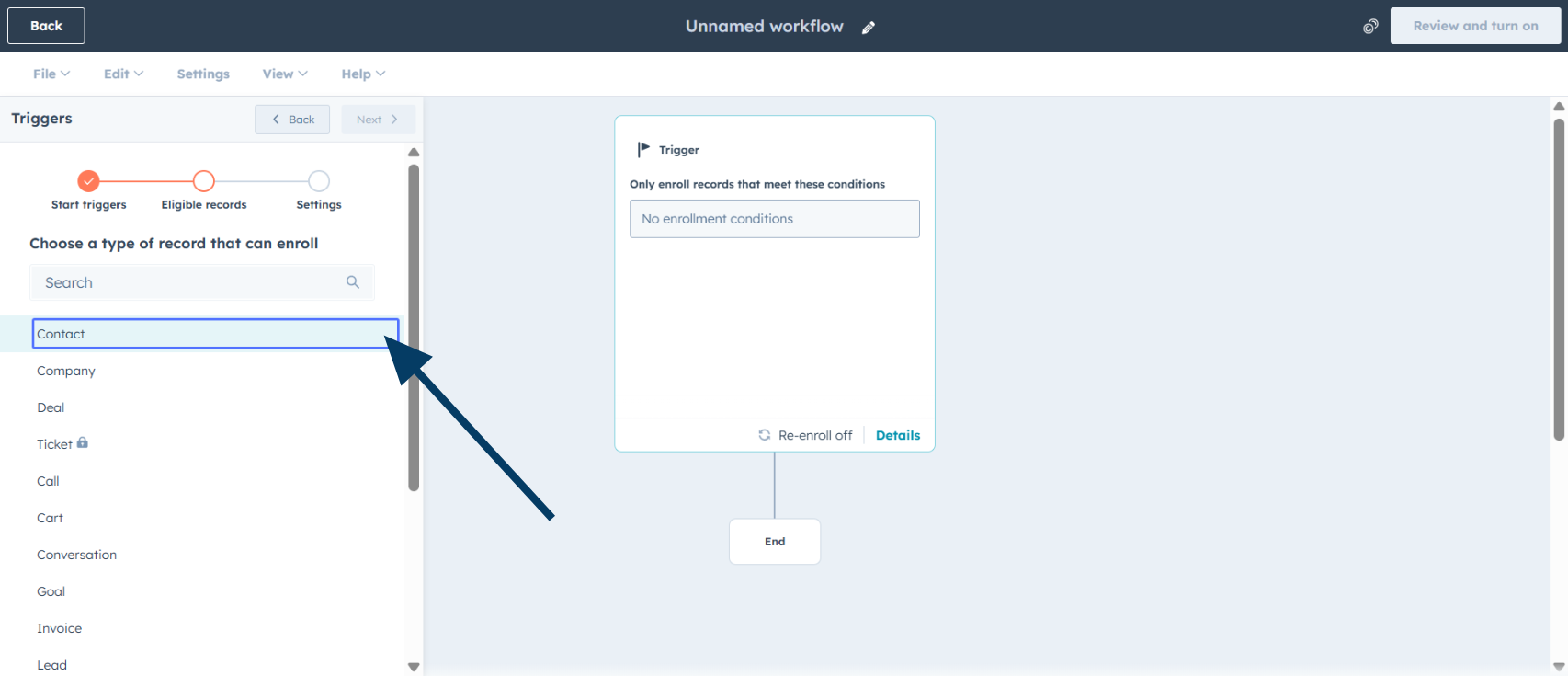 Choose **Contact** as the object type that will trigger this workflow.
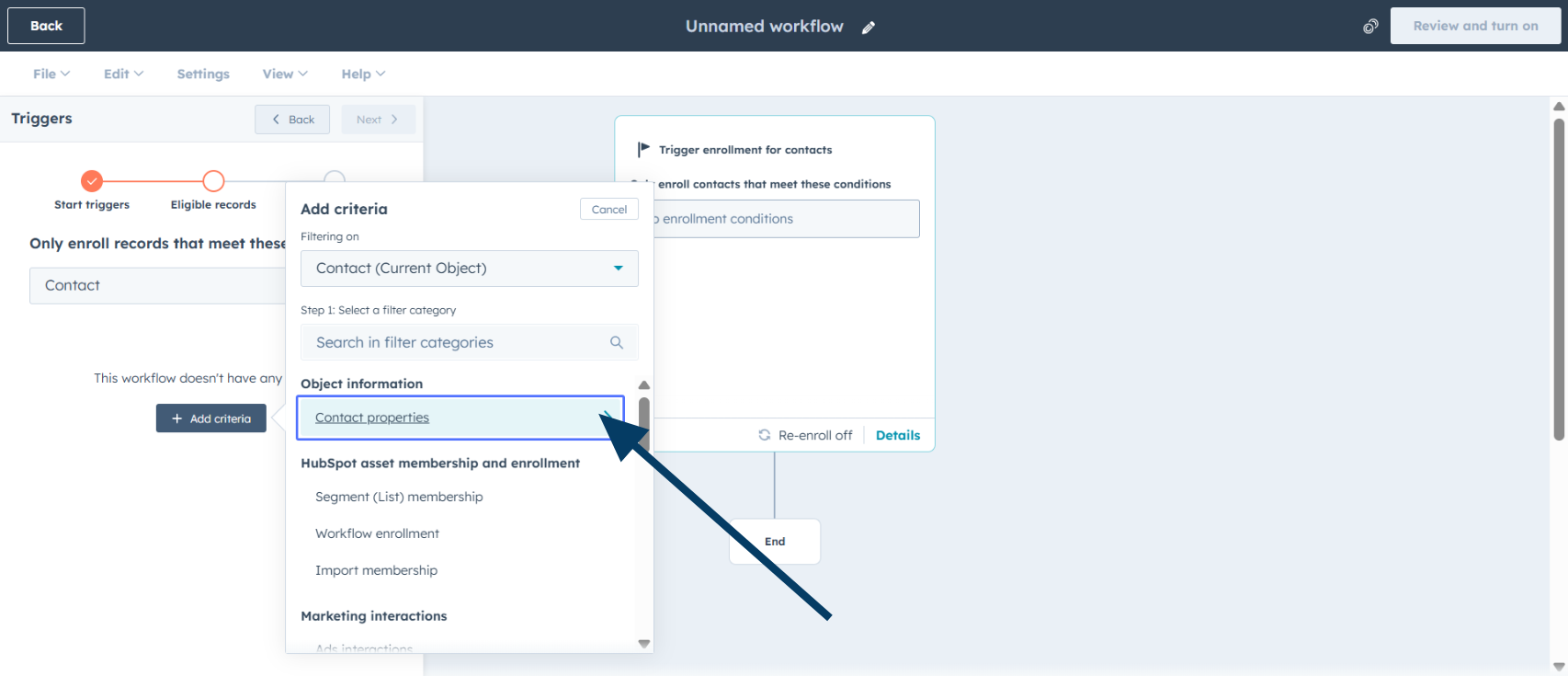 Click on **Contact properties** to configure specific enrollment criteria.
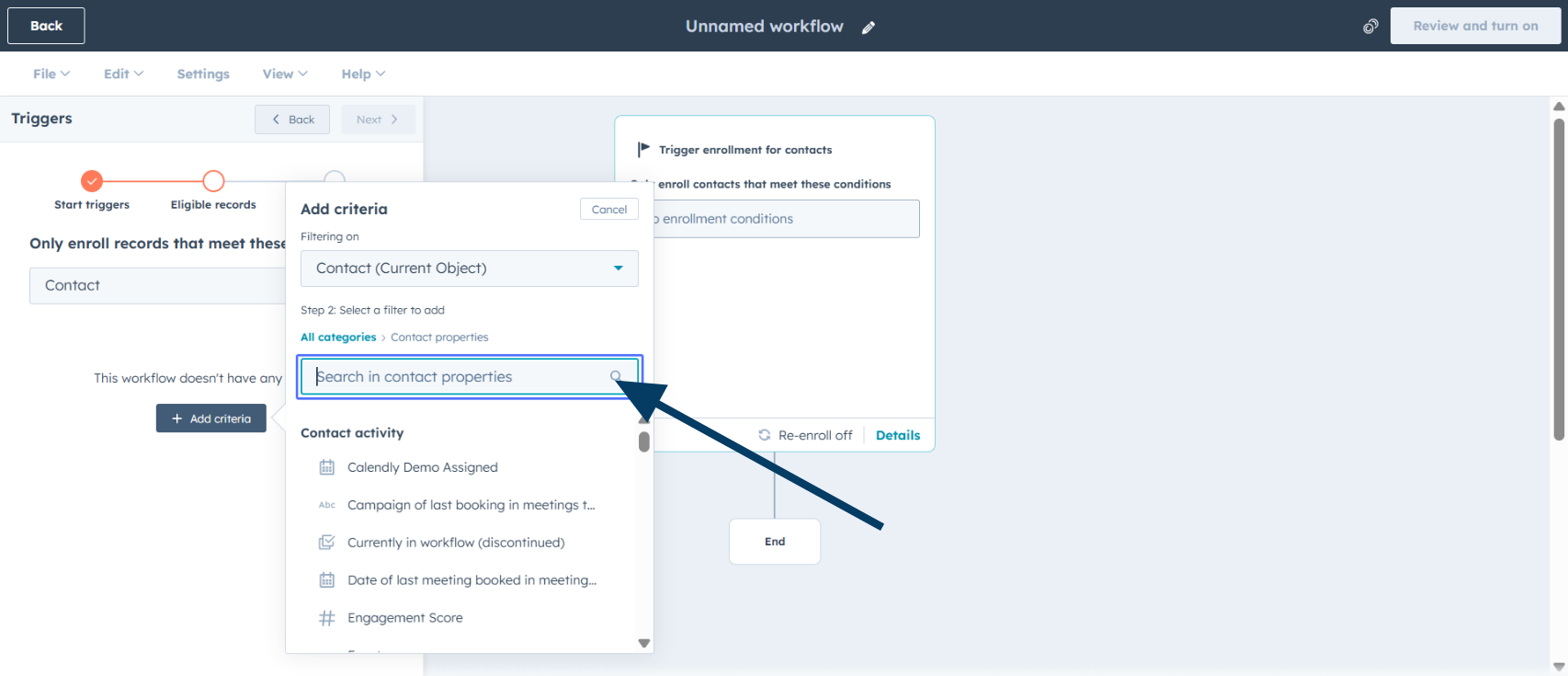 Search for the contact property you want to use as the enrollment trigger.
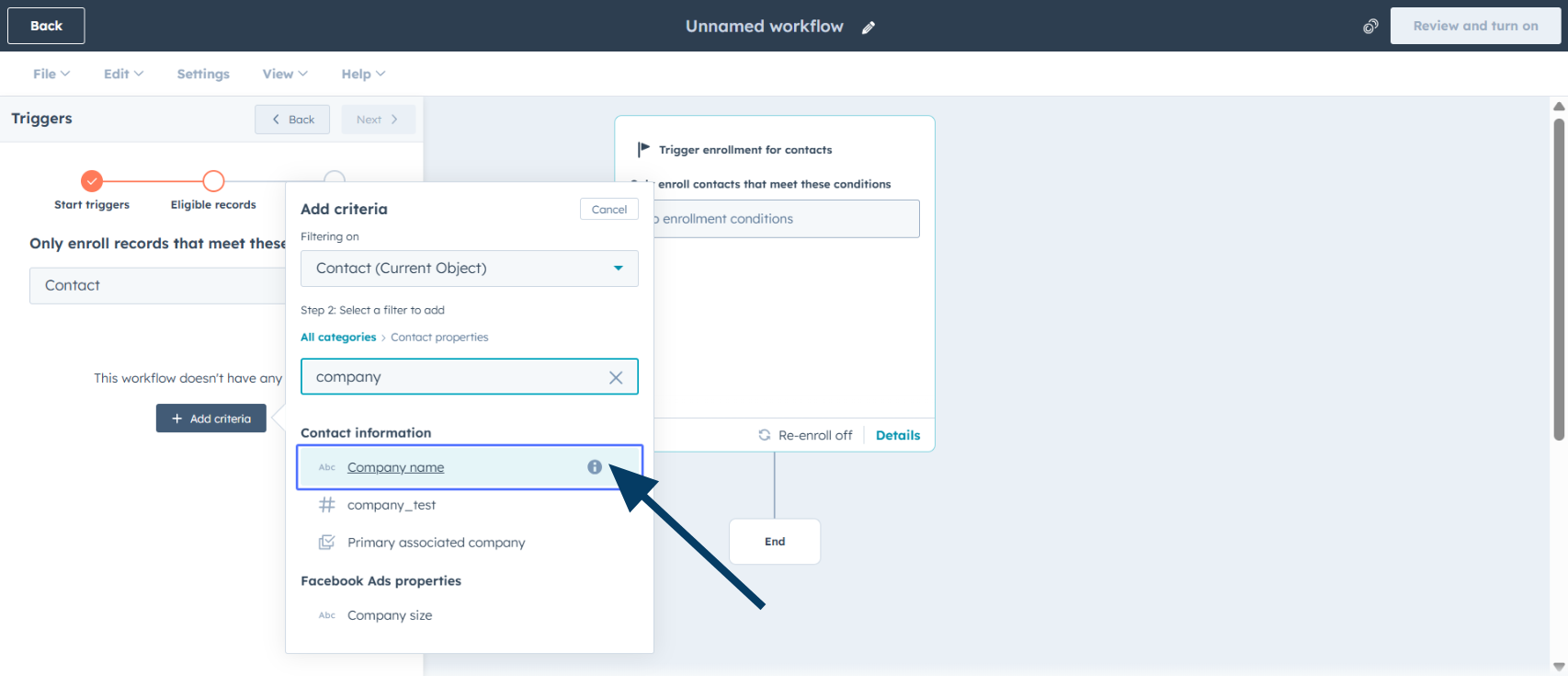 Select your desired property (for example, "Company name") from the list.
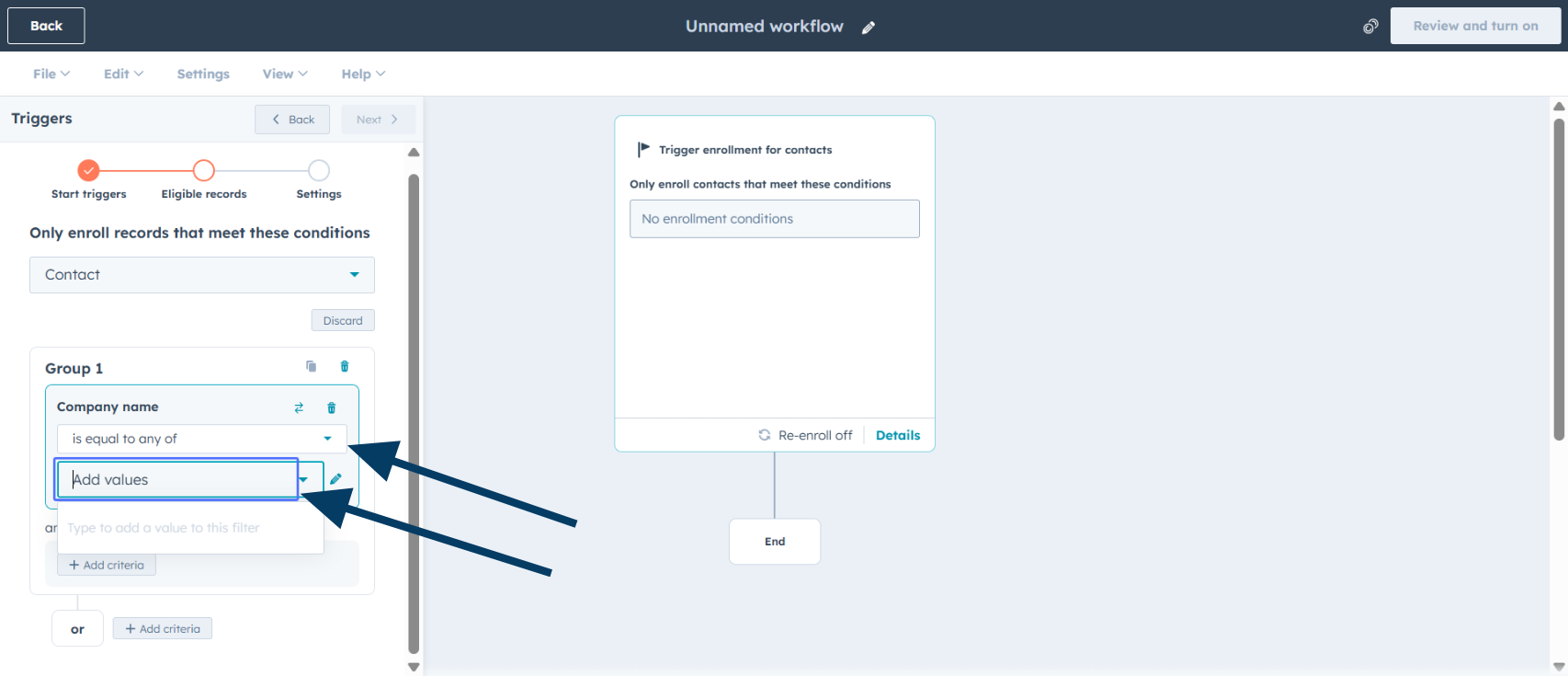 You can use any contact property such as lifecycle stage, lead status, or custom properties you've created.
Set the condition (e.g., "is equal to any of") and add the matching values under **Add values**.
You can use any contact property such as lifecycle stage, lead status, or custom properties you've created.
Set the condition (e.g., "is equal to any of") and add the matching values under **Add values**.
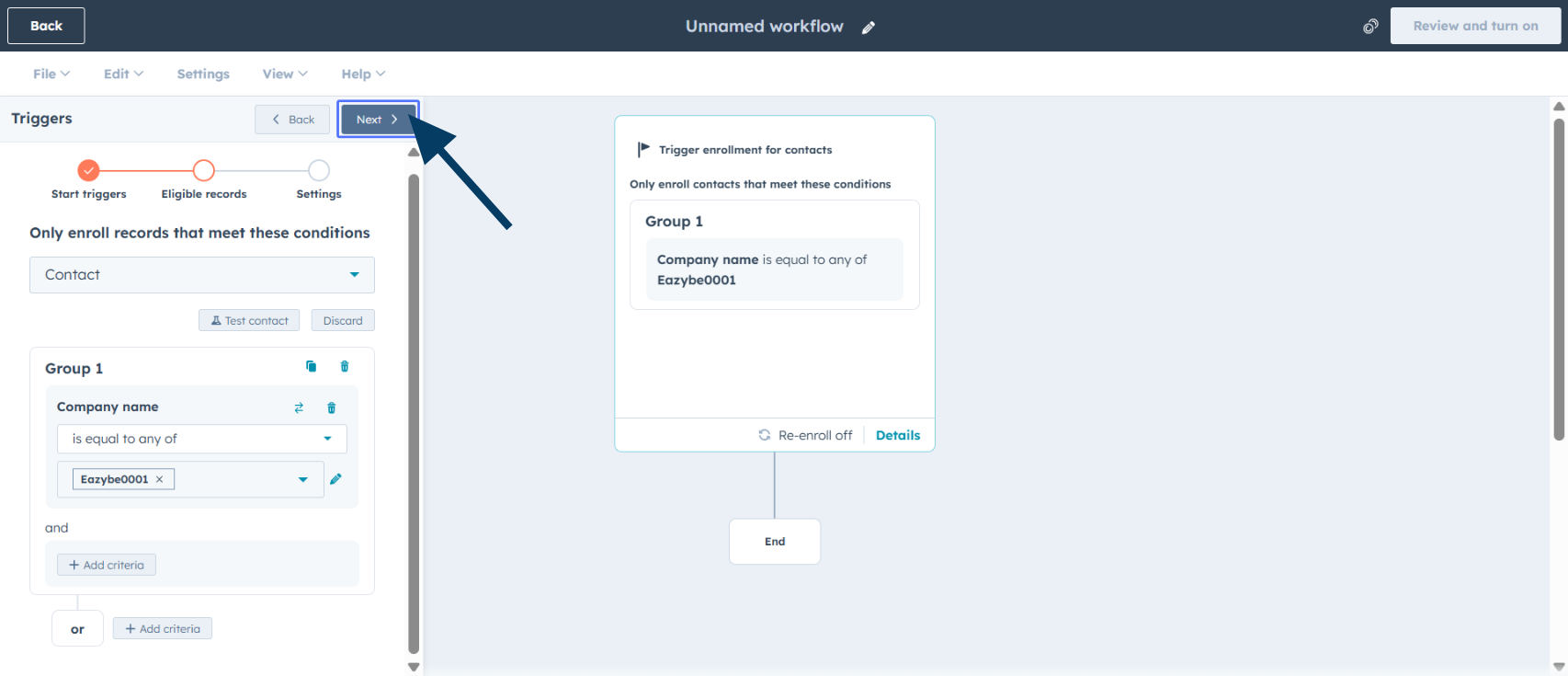 Click **Next** to continue to the re-enrollment settings.
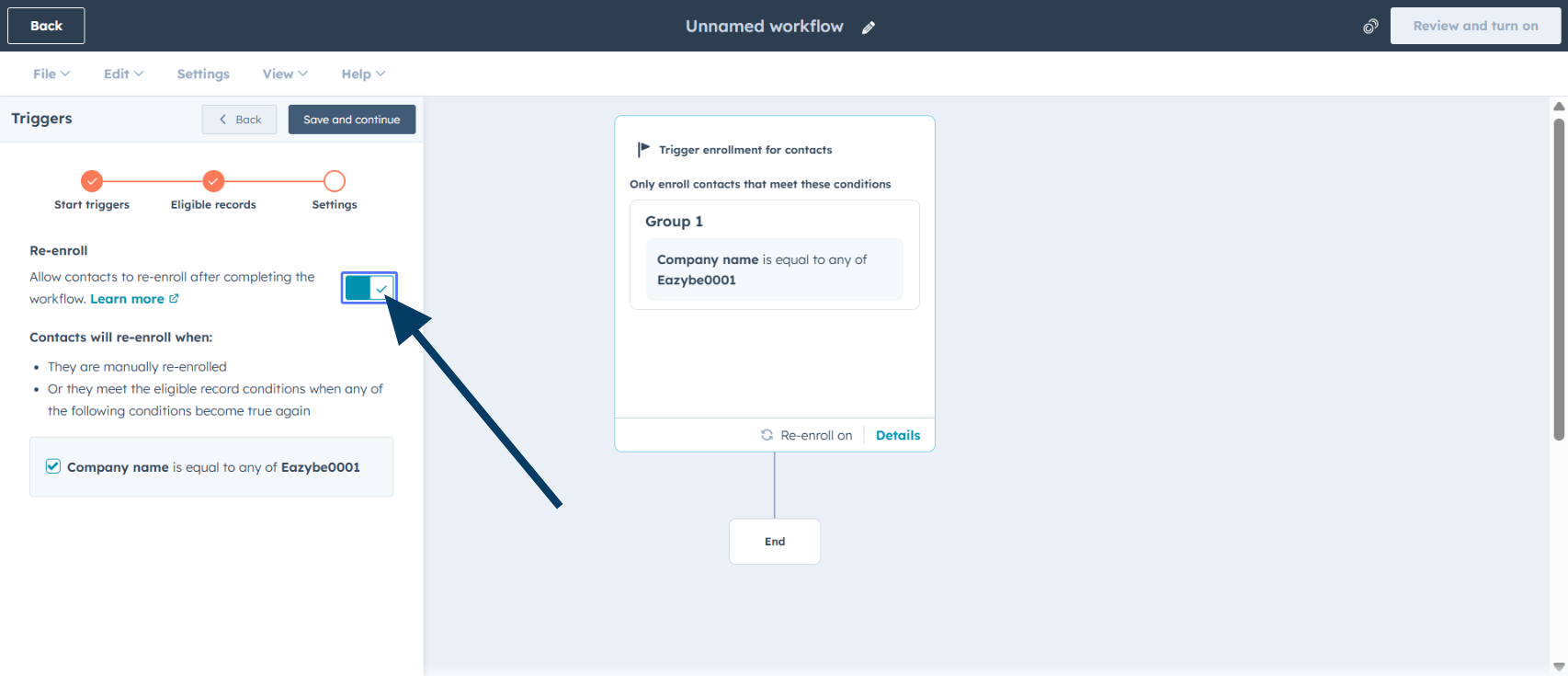 Toggle **Re-enroll** if you want contacts who already met the criteria to enter the workflow again.
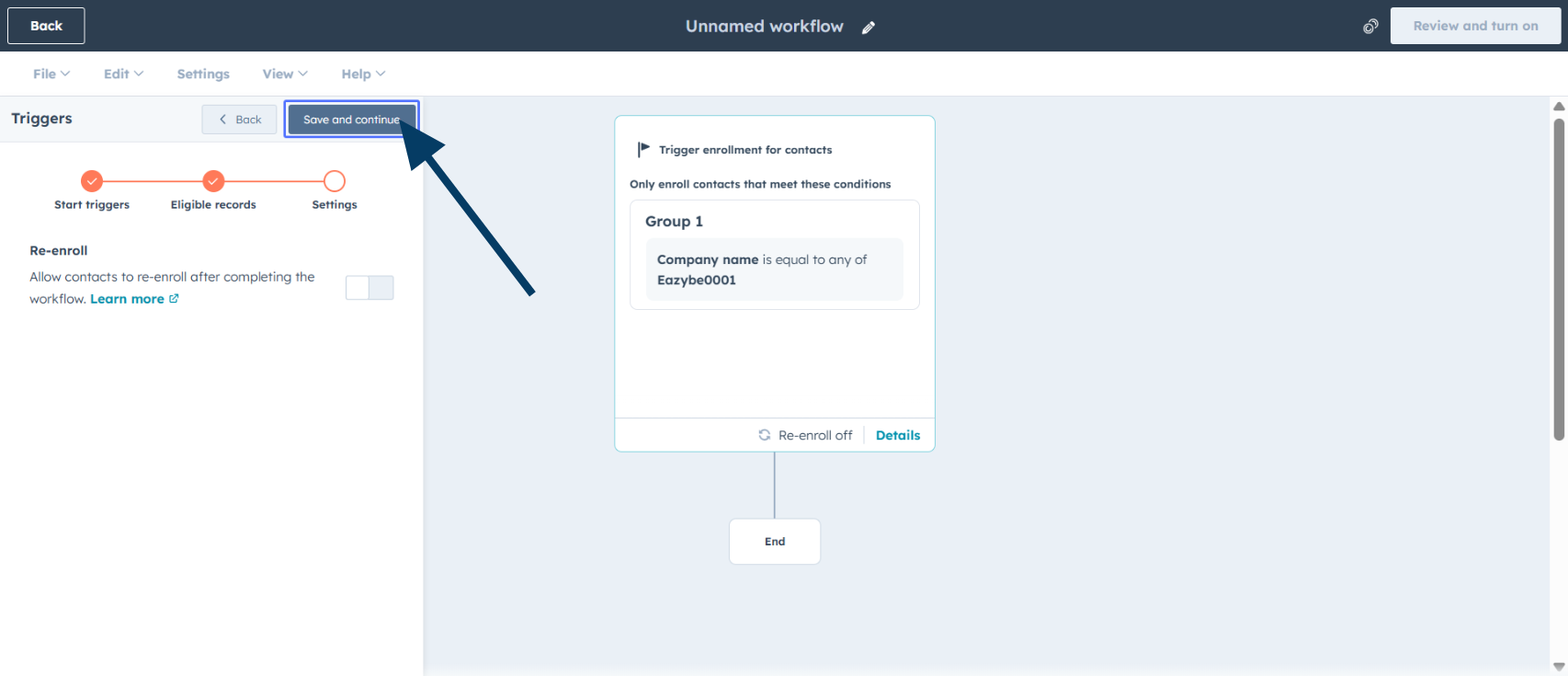 Be cautious with re-enrollment settings to avoid sending duplicate messages to the same contacts.
Click **Save and continue** to preserve your enrollment configuration.
Be cautious with re-enrollment settings to avoid sending duplicate messages to the same contacts.
Click **Save and continue** to preserve your enrollment configuration.
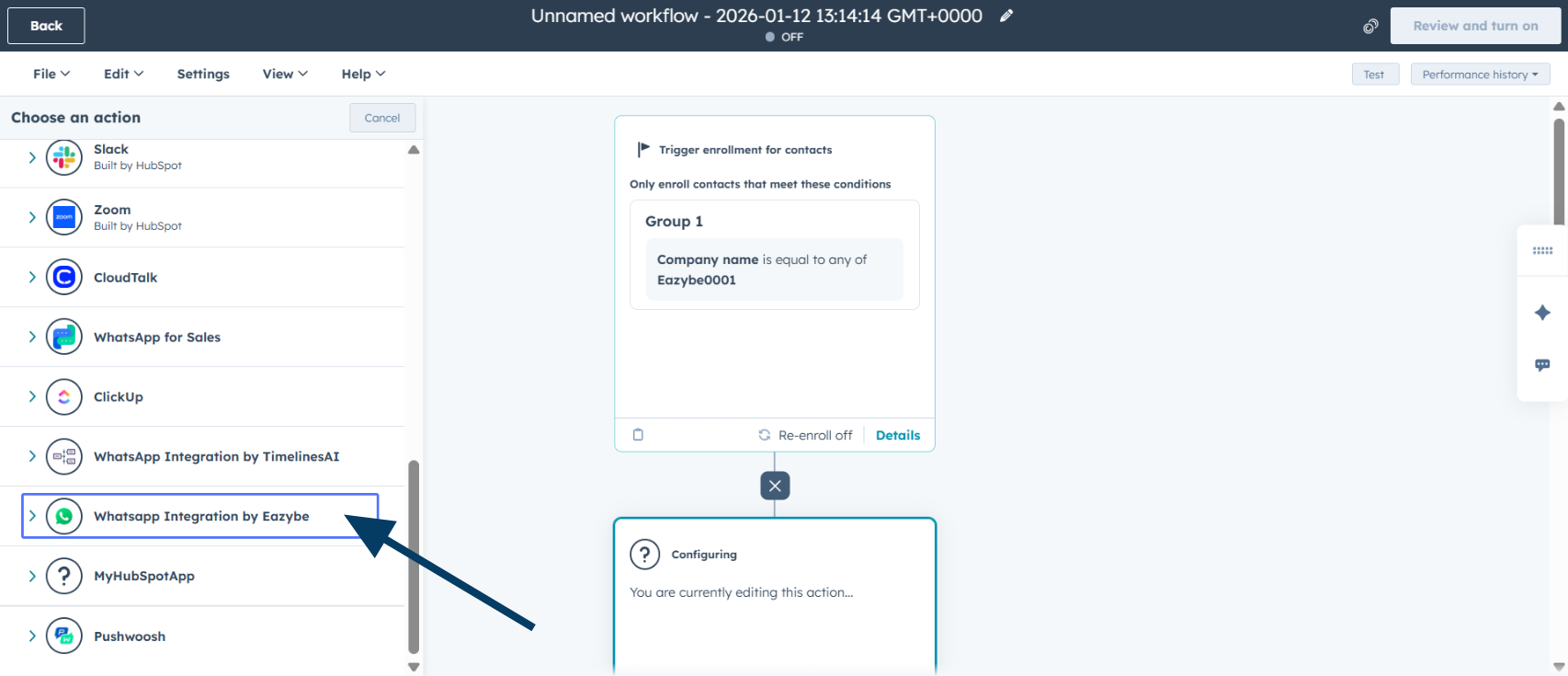 Scroll down in the actions panel and select **WhatsApp Integration by Eazybe**.
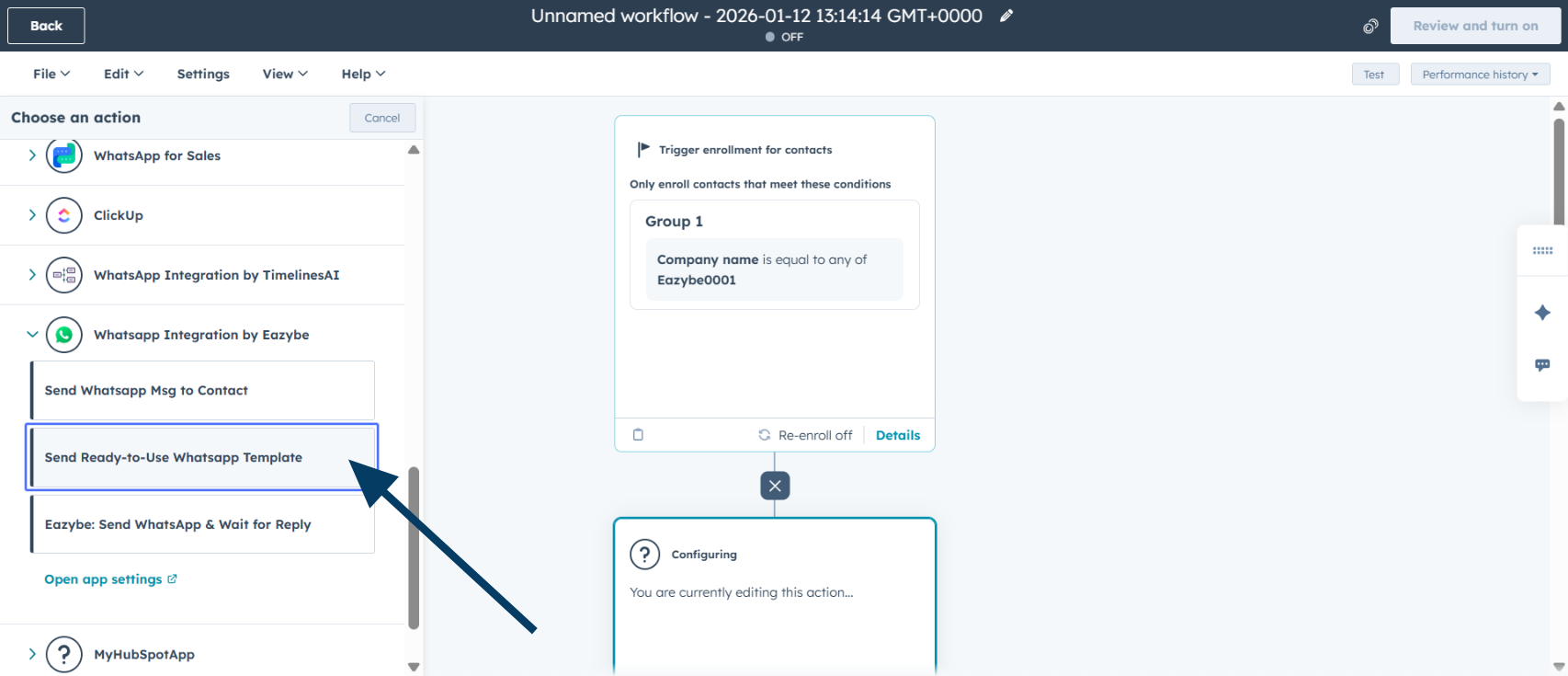 Click **Send Ready-to-Use WhatsApp Template** to choose a pre-approved message template.
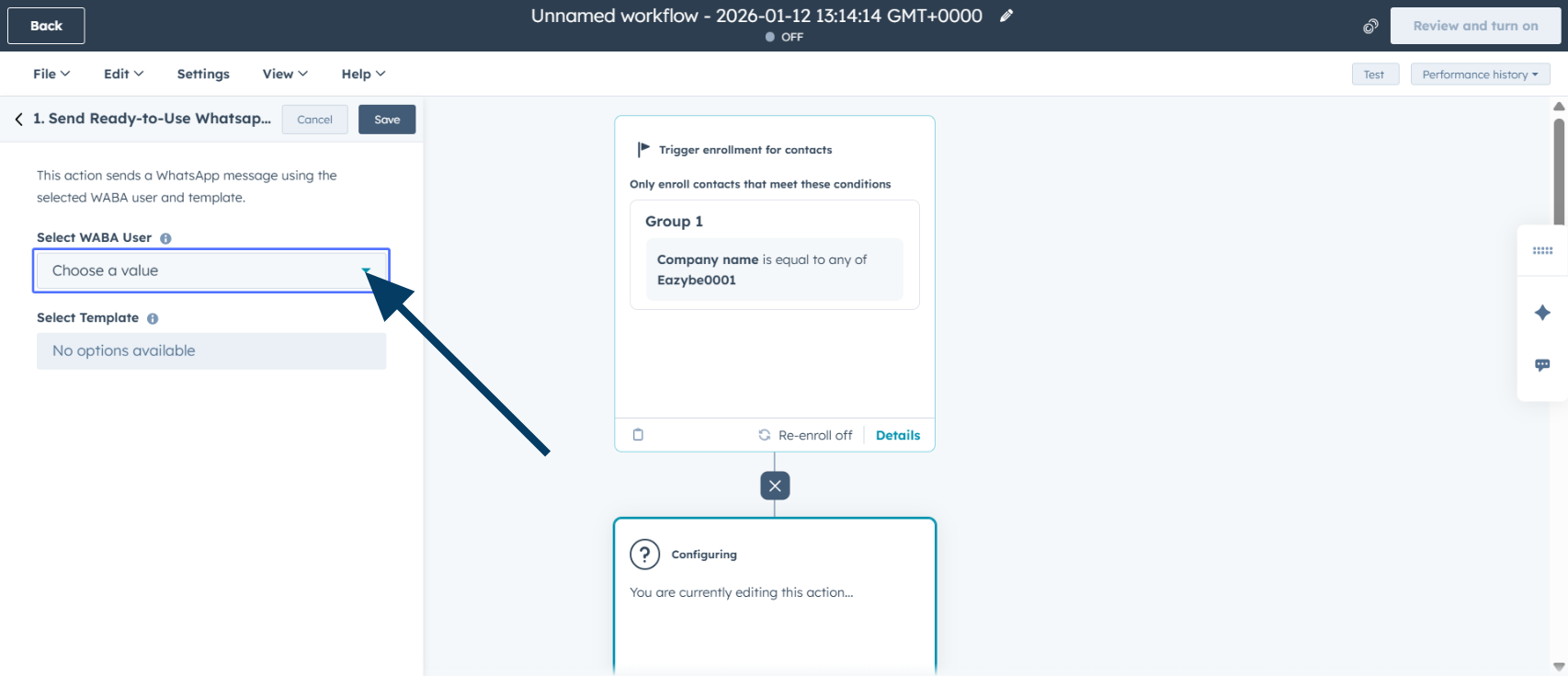 Choose which contact property field contains the recipient's phone number.
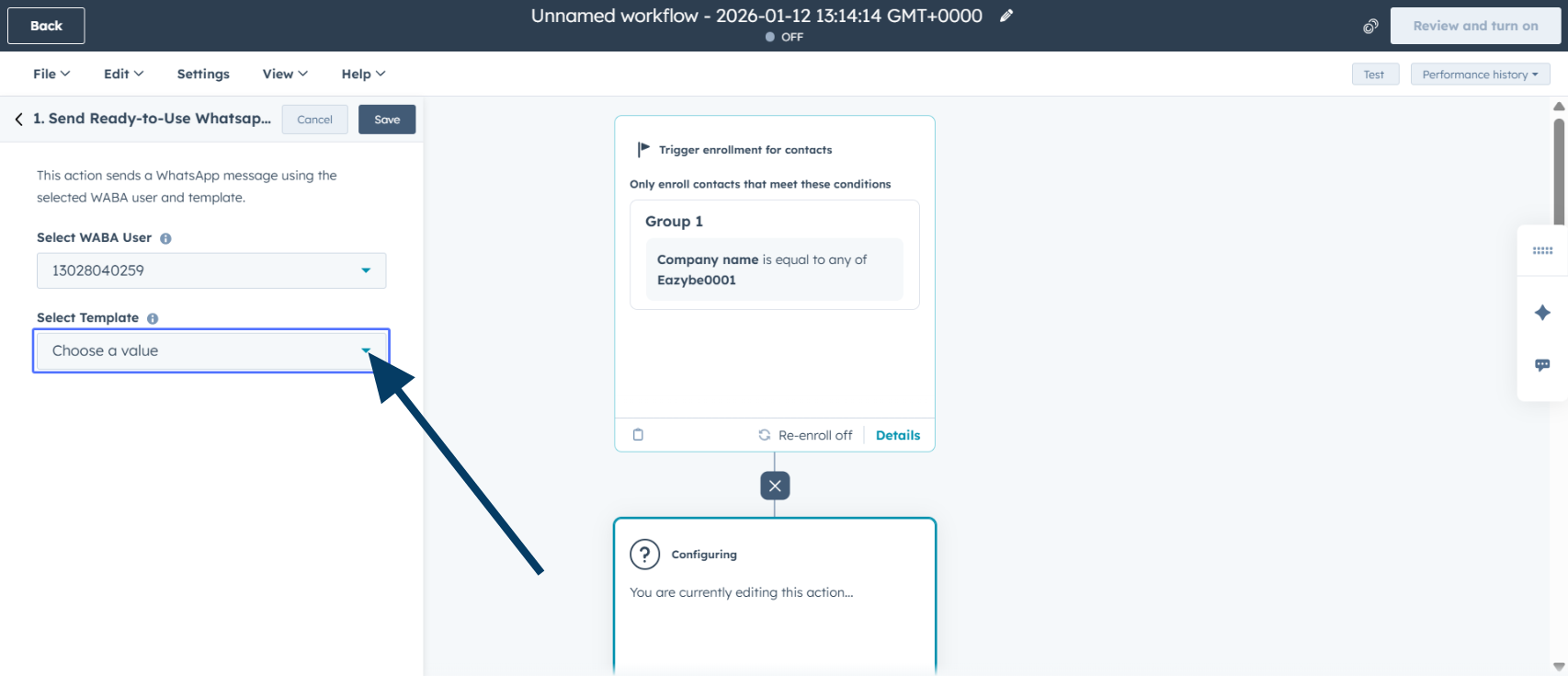 Ensure phone numbers are stored in international format (e.g., +1234567890) for successful delivery.
Select an approved WhatsApp template from the available options.
Ensure phone numbers are stored in international format (e.g., +1234567890) for successful delivery.
Select an approved WhatsApp template from the available options.
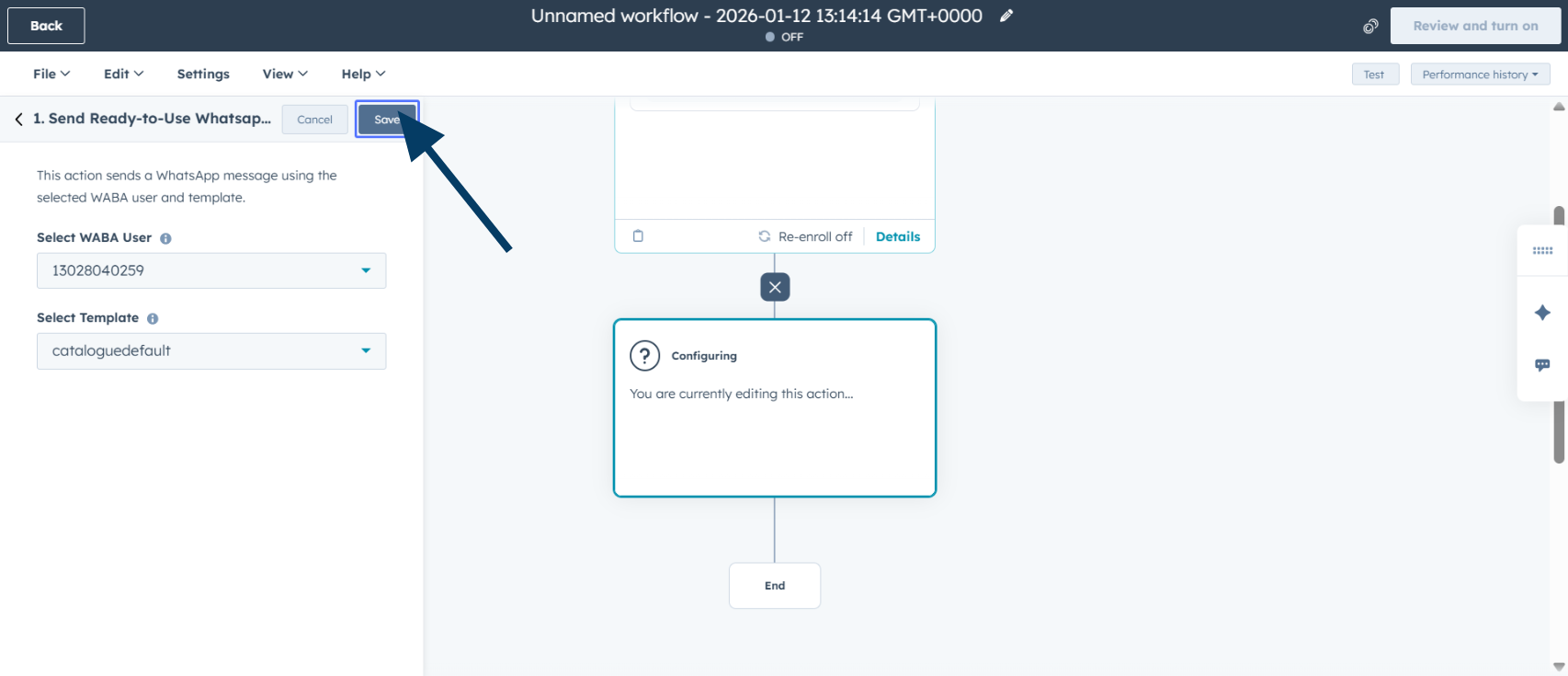 Click **Save** to confirm your template selection.
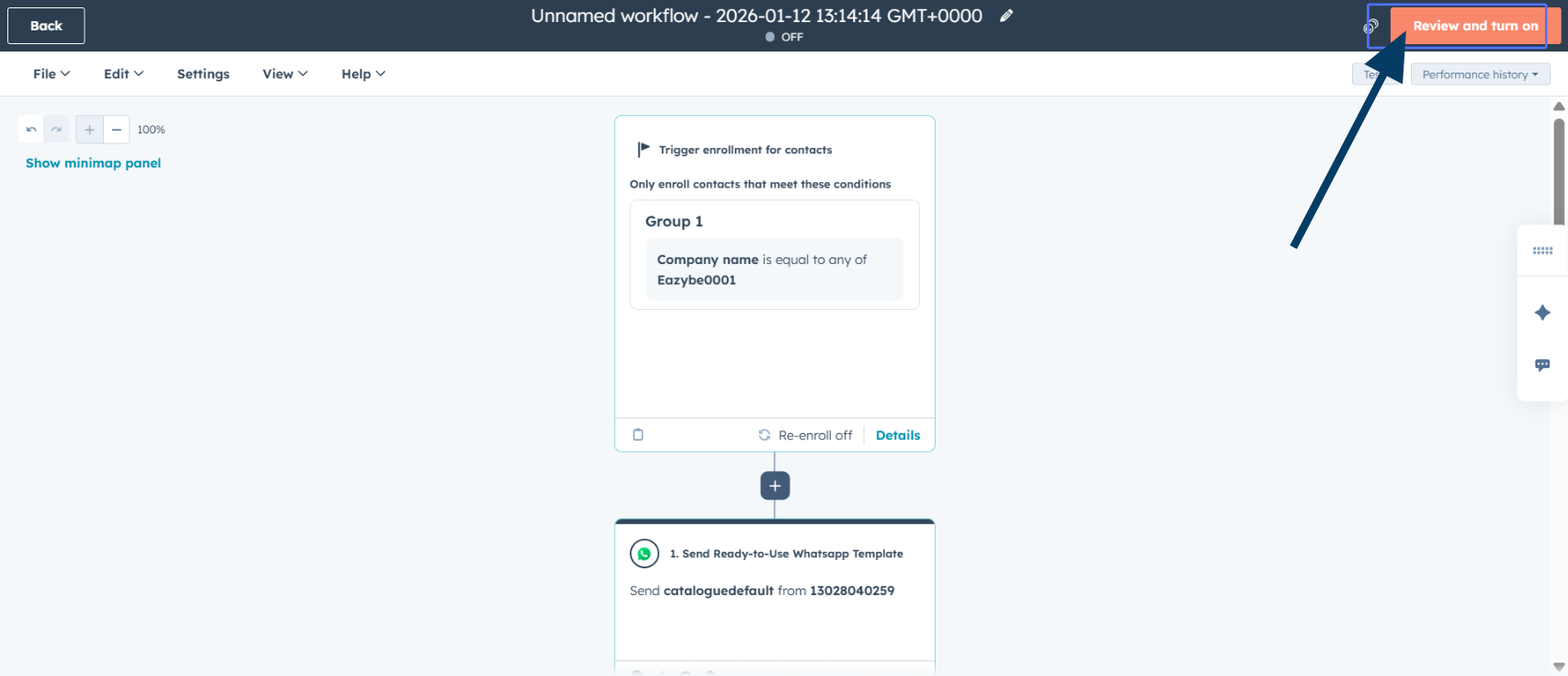 Click **Review and turn on** to access the final review screen.
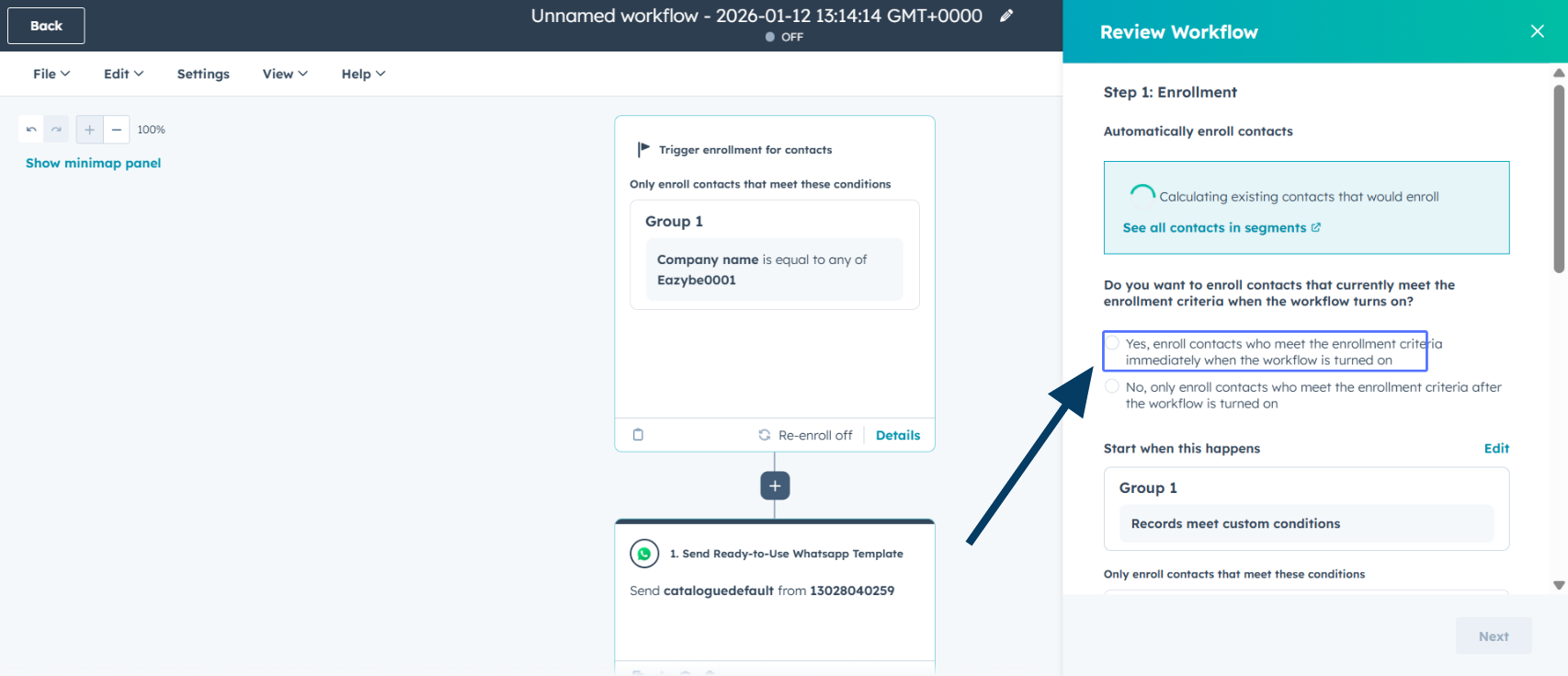 Configure your enrollment preference settings based on your campaign requirements.
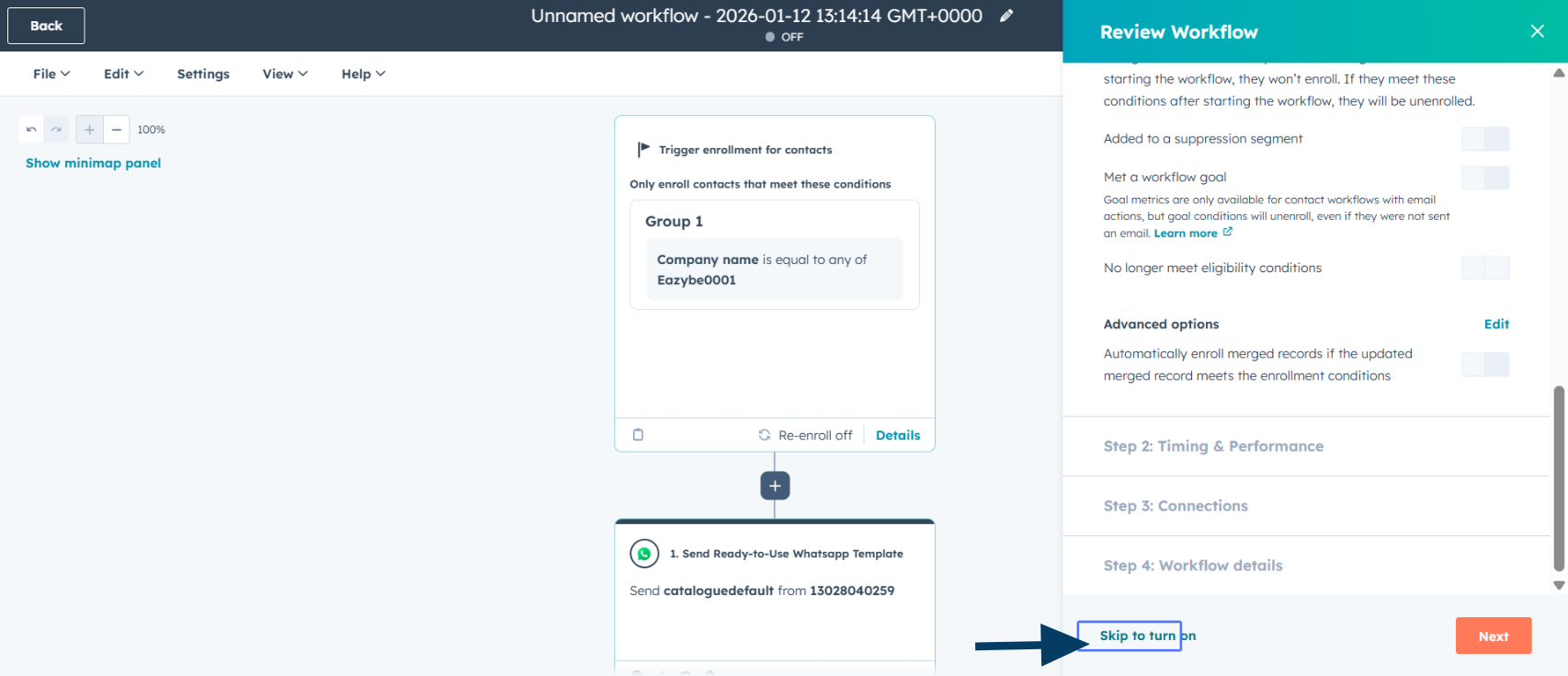 Either click **Skip to turn on** or click **Next** to perform additional validation checks.
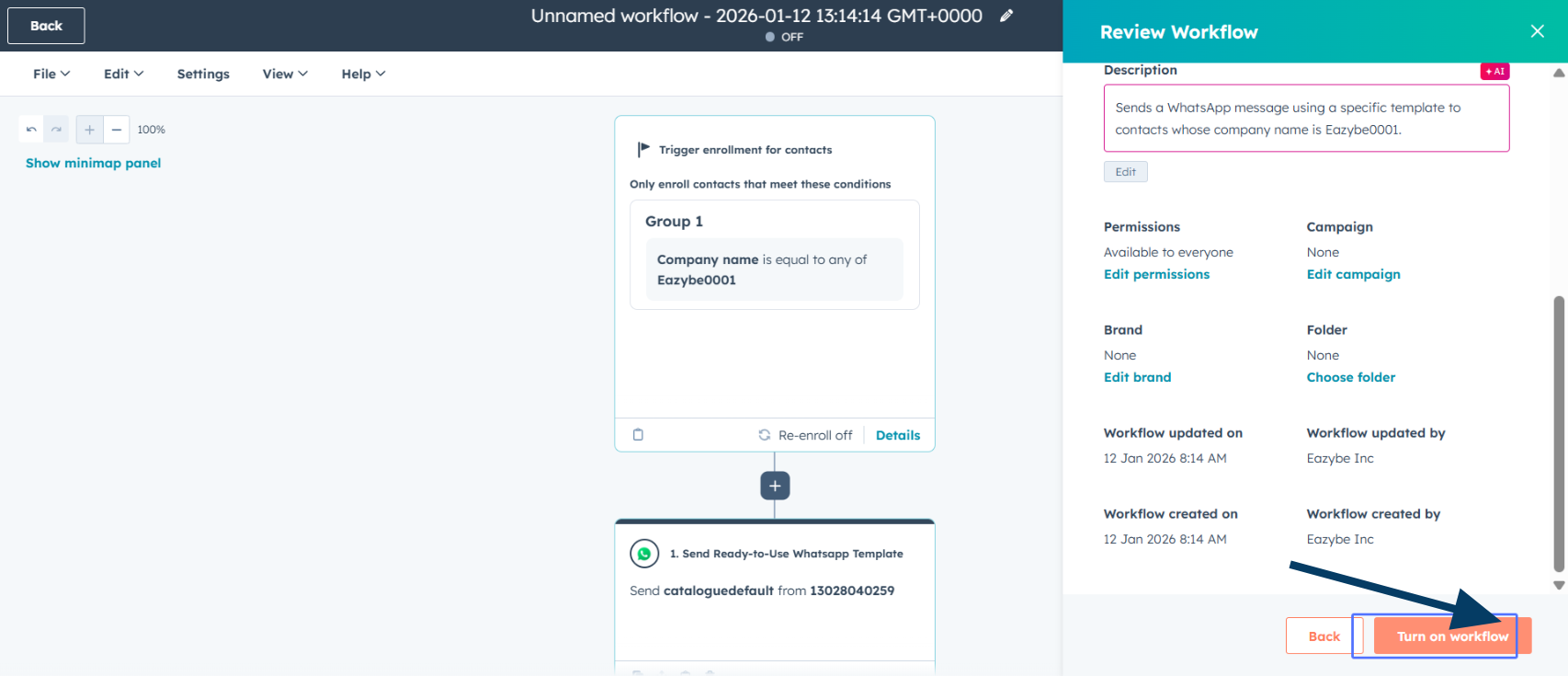 Click **Turn on workflow** to activate your WhatsApp campaign automation.
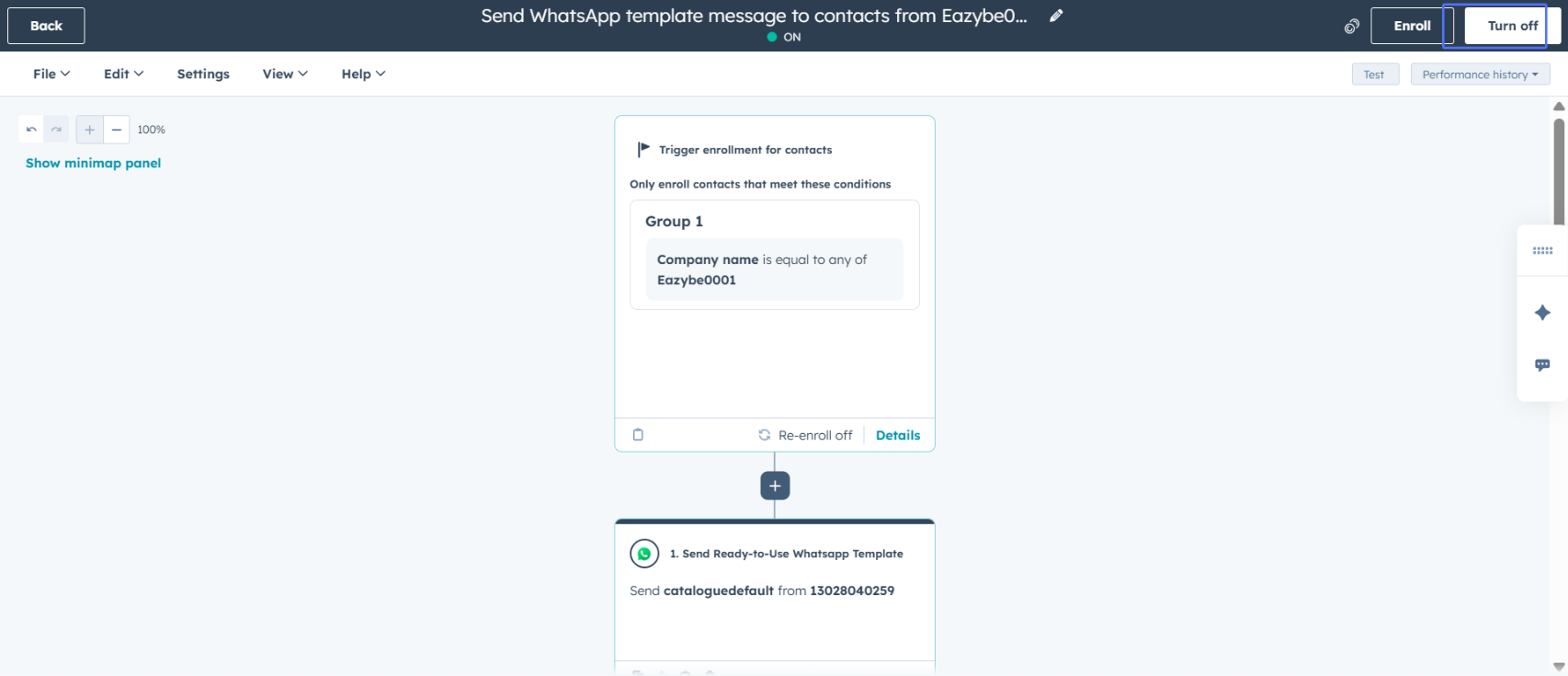 ## Your Workflow is Ready
Congratulations! Your HubSpot workflow is now configured to automatically send WhatsApp messages to contacts who meet your specified criteria.
Your workflow will now automatically trigger WhatsApp messages whenever a contact meets the enrollment criteria you defined.
## Related Resources
Learn more about sending WhatsApp messages through HubSpot workflows
Common issues and solutions for HubSpot workflow problems
Use HubSpot contact properties in your WhatsApp templates
Send bulk WhatsApp messages to multiple recipients
## Need Help?
If you have any questions or need further assistance, feel free to reach out to us at [support@eazybe.com](mailto:hey@eazybe.com). We're happy to help!
## Your Workflow is Ready
Congratulations! Your HubSpot workflow is now configured to automatically send WhatsApp messages to contacts who meet your specified criteria.
Your workflow will now automatically trigger WhatsApp messages whenever a contact meets the enrollment criteria you defined.
## Related Resources
Learn more about sending WhatsApp messages through HubSpot workflows
Common issues and solutions for HubSpot workflow problems
Use HubSpot contact properties in your WhatsApp templates
Send bulk WhatsApp messages to multiple recipients
## Need Help?
If you have any questions or need further assistance, feel free to reach out to us at [support@eazybe.com](mailto:hey@eazybe.com). We're happy to help!