> ## Documentation Index
> Fetch the complete documentation index at: https://help.eazybe.com/llms.txt
> Use this file to discover all available pages before exploring further.
# Buy and Manage Phone Numbers
> Search for a voice number, review its price, purchase it, and manage your numbers.
Use **Phone Numbers** to search for and purchase voice numbers, then review the numbers your organization owns.
Open **Phone Numbers** under **CALLS**. Choose **Buy a number** to search or **Your numbers** to manage purchased numbers.
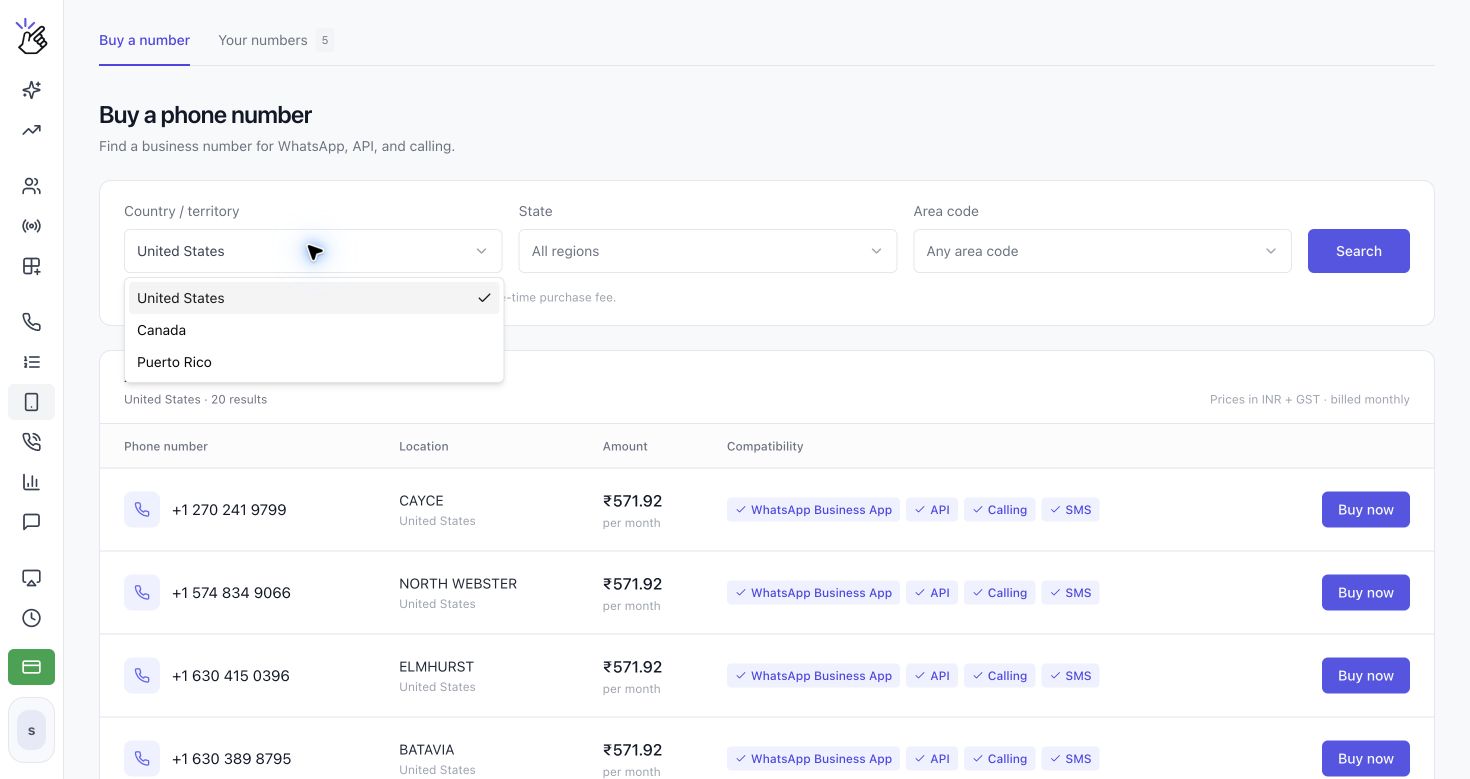
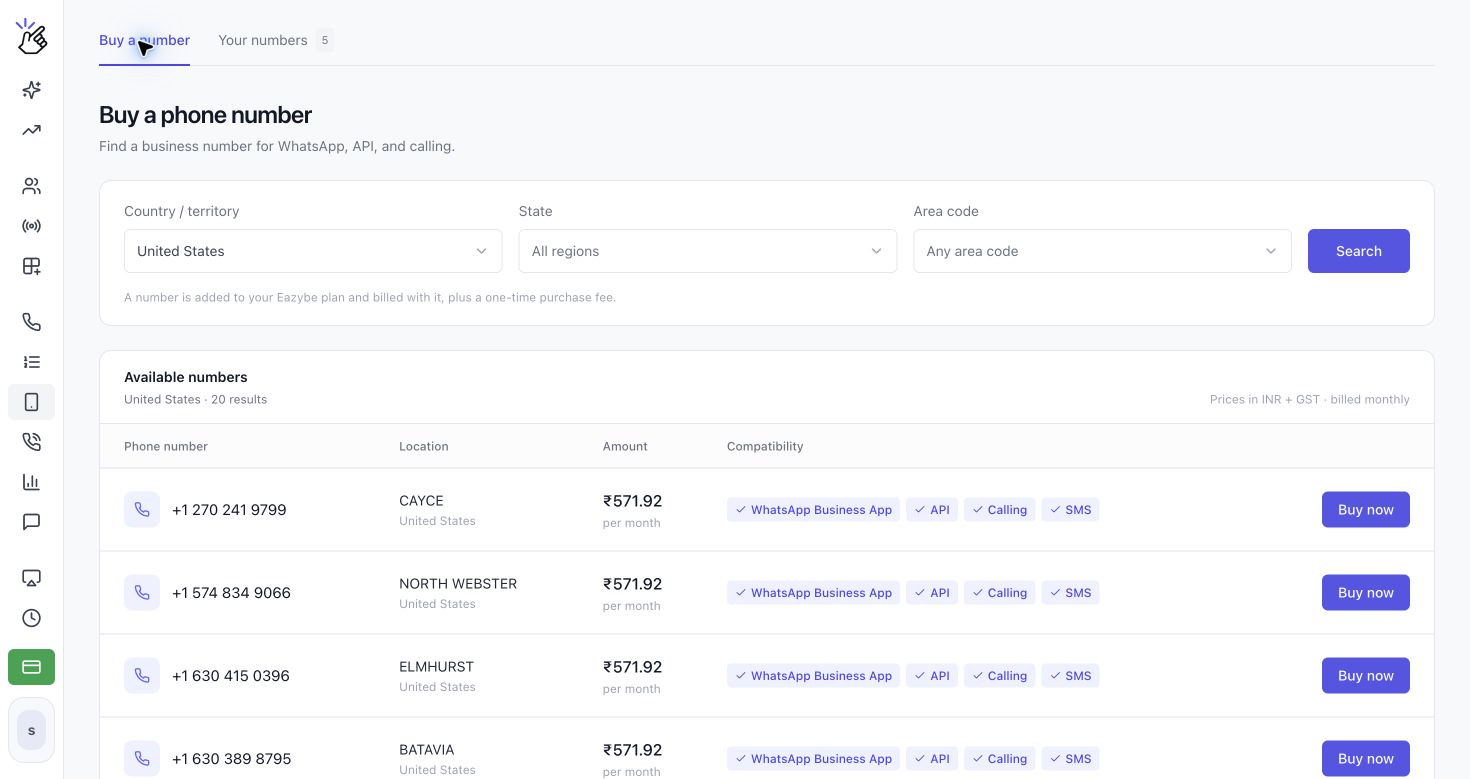 Under **Country / territory**, choose **United States**, **Canada**, or **Puerto Rico**. Then choose **State** and **Area code** when available. Click **Search**.
 The results show **Phone number**, **Location**, **Amount**, and **Compatibility**. Compatibility can include **WhatsApp Business App**, **API**, **Calling**, and **SMS**. Click **Buy now** beside the number you want.
Prices are shown in your billing currency and may include GST. A number has a recurring rental charge and a one-time purchase or setup fee. Calls and messages are charged separately.
On **Review your purchase**, check the number, location, compatibility, and **Pay today** total. Under **Number details**, enter a name in **Give your number a name**. This name appears in Phone Numbers and Channels.
The results show **Phone number**, **Location**, **Amount**, and **Compatibility**. Compatibility can include **WhatsApp Business App**, **API**, **Calling**, and **SMS**. Click **Buy now** beside the number you want.
Prices are shown in your billing currency and may include GST. A number has a recurring rental charge and a one-time purchase or setup fee. Calls and messages are charged separately.
On **Review your purchase**, check the number, location, compatibility, and **Pay today** total. Under **Number details**, enter a name in **Give your number a name**. This name appears in Phone Numbers and Channels.
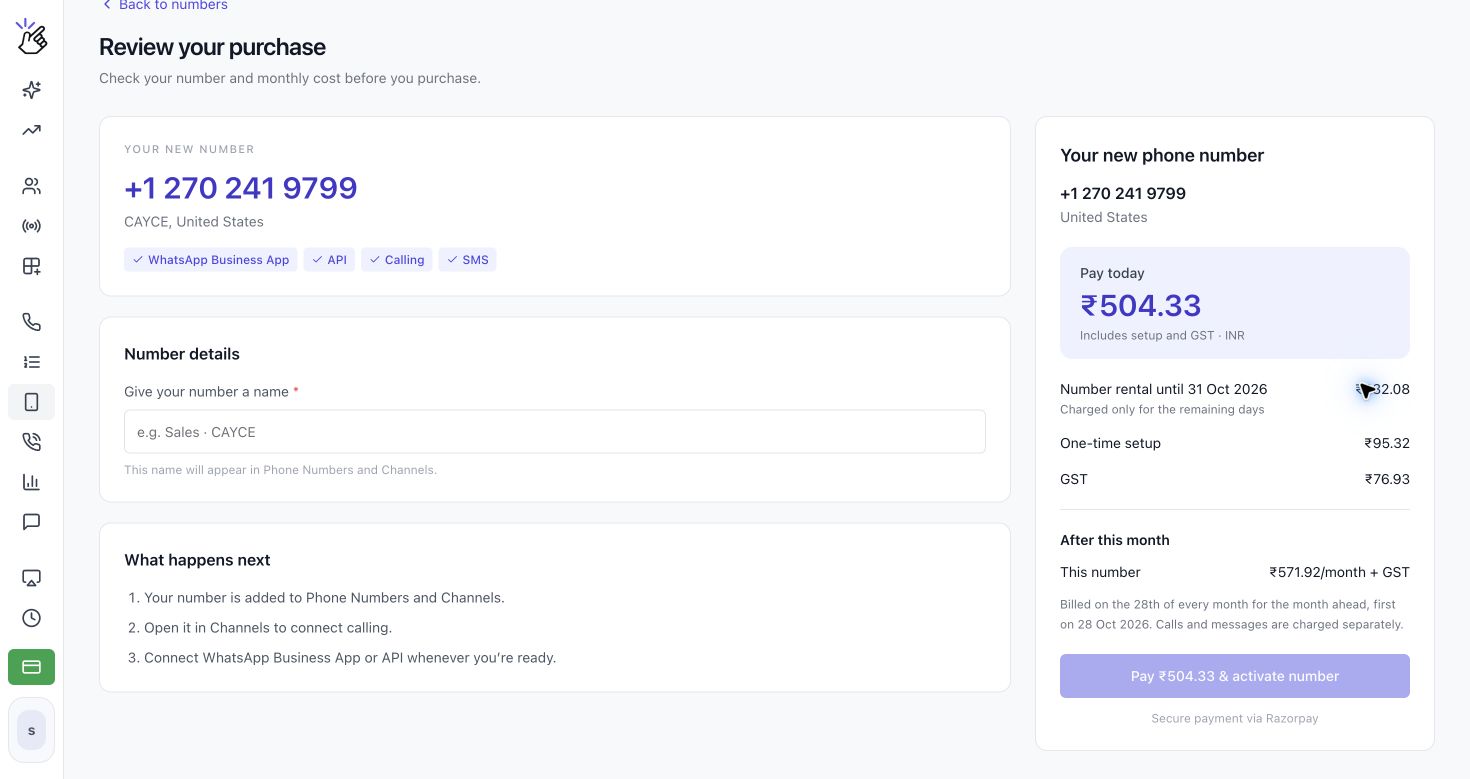 Review the rental period, one-time setup, tax, and recurring amount. The page explains what happens next: the number is added to Phone Numbers and Channels, you can open it in Channels to connect calling, and you can connect WhatsApp later. Click **Pay & activate number** to continue to payment.
Purchasing a number is a financial transaction. Confirm the displayed total and billing schedule before paying.
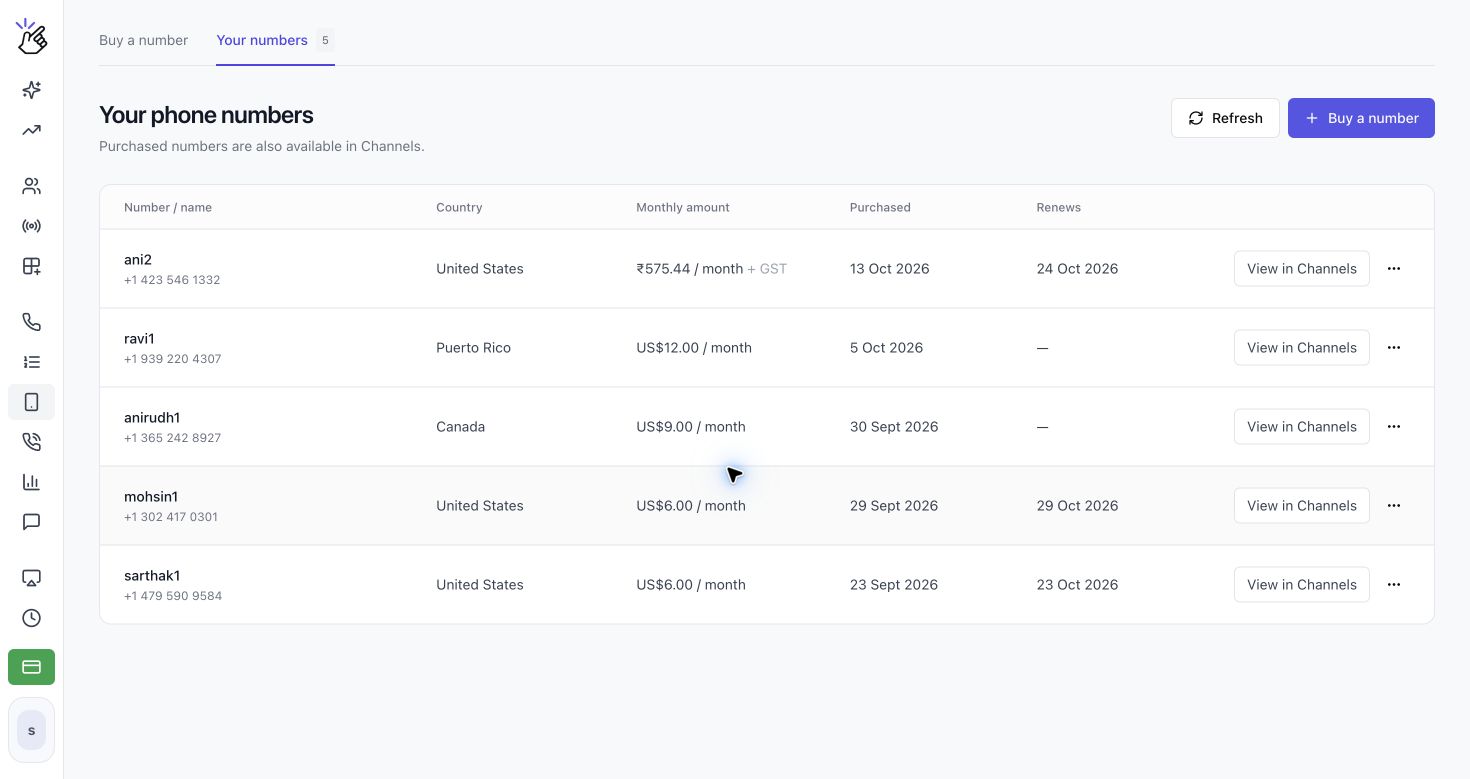
Open **Your numbers** to see each number's name, country, monthly amount, purchase date, and renewal date. Use **View in Channels** to open its channel settings. **More actions** includes **Verification code** and, for managers, **Cancel subscription**.
Review the rental period, one-time setup, tax, and recurring amount. The page explains what happens next: the number is added to Phone Numbers and Channels, you can open it in Channels to connect calling, and you can connect WhatsApp later. Click **Pay & activate number** to continue to payment.
Purchasing a number is a financial transaction. Confirm the displayed total and billing schedule before paying.
Open **Your numbers** to see each number's name, country, monthly amount, purchase date, and renewal date. Use **View in Channels** to open its channel settings. **More actions** includes **Verification code** and, for managers, **Cancel subscription**.
 A cancelled number remains available until the paid period ends, then it is released and cannot be recovered. Cancel before the 28th to avoid the next monthly charge.
## Connect WhatsApp with your Voice Number
A purchased number can be used with the **WhatsApp Business App** or the **WhatsApp API** when the number’s compatibility shows that option. WhatsApp sends the verification code by SMS, and you can read that code in Eazybe.
### Connect the WhatsApp Business App
1. Install and open the **WhatsApp Business** app on your phone.
2. Start the account setup and enter the Voice Number shown in Eazybe, including its country code.
3. Request the verification code by SMS.
4. Open [**SMS in Eazybe**](https://app.eazybe.com/calls/sms) and find the verification message sent to your Voice Number.
5. Return to WhatsApp Business and enter the code to finish verifying the number.
### Connect WhatsApp API
1. Open **Channels** in Eazybe and select **Add channel**.
2. Choose **WhatsApp** to continue to Meta, then sign in and follow the setup prompts.
3. Enter the Voice Number shown in Eazybe and request a verification code by SMS.
4. Open [**SMS in Eazybe**](https://app.eazybe.com/calls/sms) and find the verification message.
5. Return to Meta, enter the code, and complete the connection.
### If WhatsApp shows “Login not available right now”
WhatsApp can temporarily block sign-in for security reasons. If this message appears, connect your VPN to the country where you purchased the Voice Number, then retry the sign-in. For example, use a US VPN for a US number when you are connecting from India. Request a new SMS code after retrying and enter the new code in WhatsApp Business or Meta.
Use the country that matches the purchased number when choosing the VPN location. Request a fresh code after changing the connection, because an earlier code may expire.
This documentation is built and hosted on [Mintlify](https://mintlify.com), a developer documentation platform.
A cancelled number remains available until the paid period ends, then it is released and cannot be recovered. Cancel before the 28th to avoid the next monthly charge.
## Connect WhatsApp with your Voice Number
A purchased number can be used with the **WhatsApp Business App** or the **WhatsApp API** when the number’s compatibility shows that option. WhatsApp sends the verification code by SMS, and you can read that code in Eazybe.
### Connect the WhatsApp Business App
1. Install and open the **WhatsApp Business** app on your phone.
2. Start the account setup and enter the Voice Number shown in Eazybe, including its country code.
3. Request the verification code by SMS.
4. Open [**SMS in Eazybe**](https://app.eazybe.com/calls/sms) and find the verification message sent to your Voice Number.
5. Return to WhatsApp Business and enter the code to finish verifying the number.
### Connect WhatsApp API
1. Open **Channels** in Eazybe and select **Add channel**.
2. Choose **WhatsApp** to continue to Meta, then sign in and follow the setup prompts.
3. Enter the Voice Number shown in Eazybe and request a verification code by SMS.
4. Open [**SMS in Eazybe**](https://app.eazybe.com/calls/sms) and find the verification message.
5. Return to Meta, enter the code, and complete the connection.
### If WhatsApp shows “Login not available right now”
WhatsApp can temporarily block sign-in for security reasons. If this message appears, connect your VPN to the country where you purchased the Voice Number, then retry the sign-in. For example, use a US VPN for a US number when you are connecting from India. Request a new SMS code after retrying and enter the new code in WhatsApp Business or Meta.
Use the country that matches the purchased number when choosing the VPN location. Request a fresh code after changing the connection, because an earlier code may expire.
This documentation is built and hosted on [Mintlify](https://mintlify.com), a developer documentation platform.