> ## Documentation Index
> Fetch the complete documentation index at: https://help.eazybe.com/llms.txt
> Use this file to discover all available pages before exploring further.
# Dialer
> Call a customer from your voice number, use the call controls, and resolve common calling issues.
Use **Dialer** to call one person at a time from your Eazybe voice number. You speak and listen through your browser using your computer's microphone and speakers or a headset.
## Before You Call
* Your organization needs an active voice number and a subscription that includes calling.
* Your voice number must be available to you. If a number is missing, ask your admin to check its status and your access.
* Your browser phone must be connected in the window you are using. Allow microphone access for Eazybe when prompted, and check that your headset is connected.
* Your organization needs enough wallet balance to start a call.
Calls are charged to your organization's wallet after they end. Clicking **Call** starts a real call to the number you entered.
## Make a Call
In the Eazybe sidebar, open **Dialer** under **CALLS**. The **Dialer** window opens with the description **Call from your business number**.
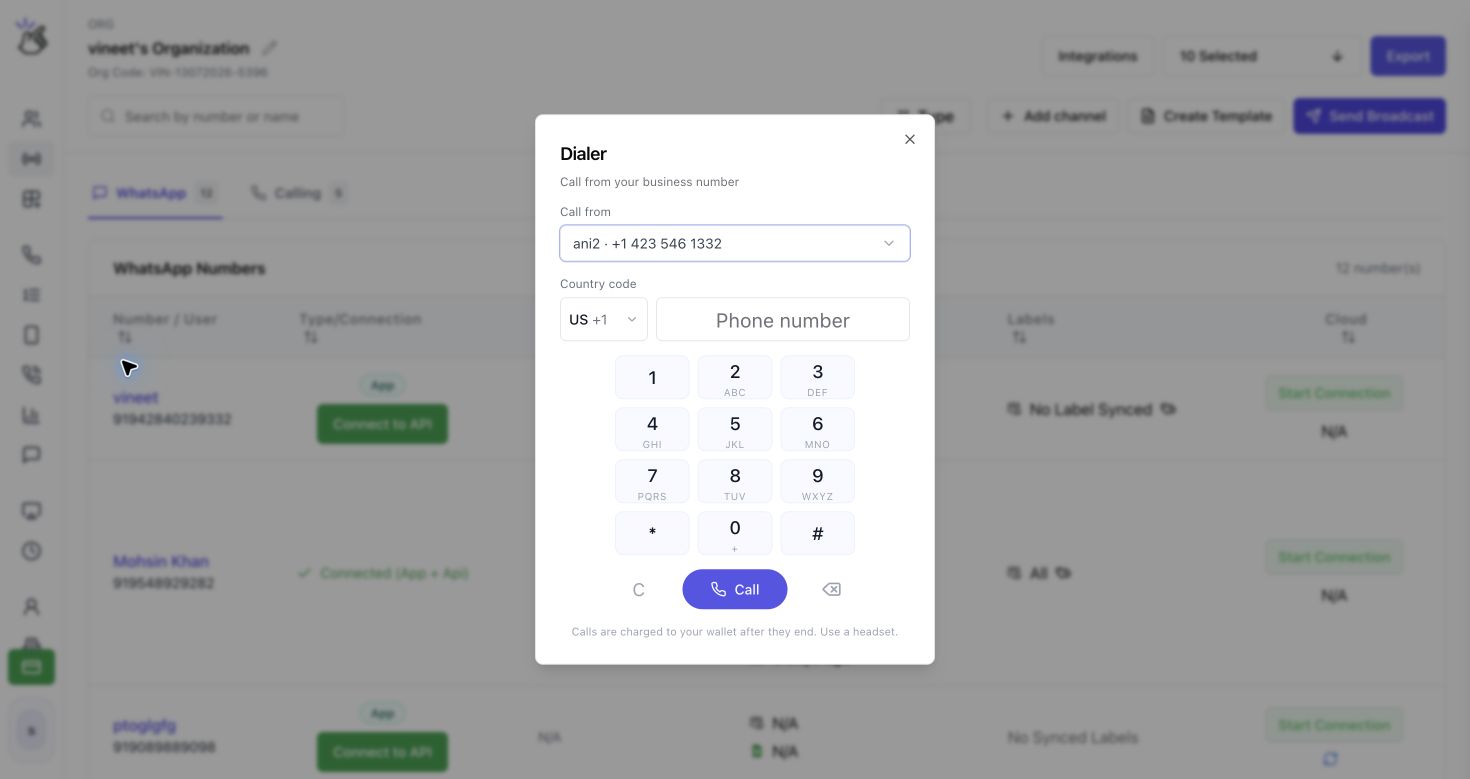 If you see **Browser phone is offline**, connect your browser phone before continuing. See the troubleshooting section below.
Open **Call from** and select the voice number you want to use for the outgoing call. If a number has a name, the list shows its name beside the number. Check the selection before every call, especially if you have several numbers.
If you see **Browser phone is offline**, connect your browser phone before continuing. See the troubleshooting section below.
Open **Call from** and select the voice number you want to use for the outgoing call. If a number has a name, the list shows its name beside the number. Check the selection before every call, especially if you have several numbers.
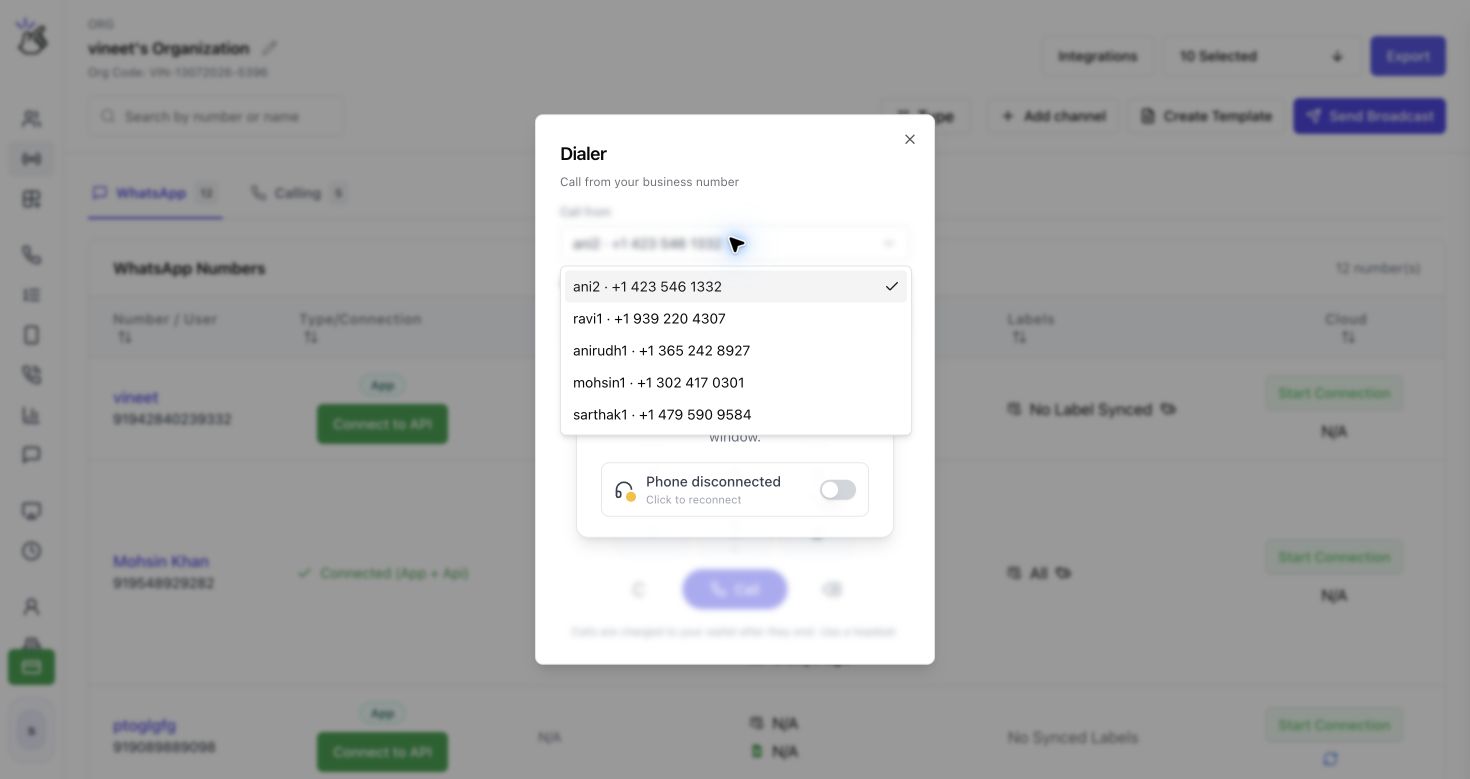 **Call from** is your business number. **Phone number** is the person you want to call. Your list may differ from the example because it depends on your organization's numbers and your access.
Choose the recipient's **Country code**, then enter the remaining digits in **Phone number**. You can type the number or use the on-screen keypad.
For example, for the illustrative number **+1 202 555 0123**, choose **US +1** and enter **2025550123**. Do not enter the country code a second time.
* Use **C** to clear the number.
* Use the delete icon to remove the last digit.
* Confirm both the country code and the recipient's number before continuing.
You can also paste a complete international number beginning with **+**. The Dialer recognizes a supported calling code and separates it from the remaining digits. Check both fields after pasting.
Click **Call**. Eazybe first connects your browser phone, then rings the recipient. When the recipient answers, the Dialer shows **Connected** and the elapsed call time.
You can have one call at a time. End your current call before starting another. The Dialer stays open during a call so you can reach **End call**.
## During the Call
| Control | What it does |
| - | - |
| **Mute** / **Unmute** | Turn your microphone off or back on during the call. |
| **Hold** / **Resume** | Put the connected call on hold, then resume it. Hold becomes available after the recipient answers. |
| **Keypad** | Open the keypad to send digits, **\***, or **#** to a phone menu or enter a code requested during the call. Close the keypad to return to the main call controls. |
| **End call** | Use the red handset button to end the call. |
Before a call, the keypad enters the recipient's number. During a call, it sends tones to the connected phone system.
## After the Call
The Dialer returns to the number-entry view when the call ends. If the call was not answered or could not connect, a short outcome message may appear. Open **Call History** under **CALLS** to review your calls.
## Troubleshooting
### The Browser Phone Is Offline
If **Browser phone is offline** appears, use the connection control in the message to connect your browser phone in this window. Wait for the connection to finish before calling.
**Call from** is your business number. **Phone number** is the person you want to call. Your list may differ from the example because it depends on your organization's numbers and your access.
Choose the recipient's **Country code**, then enter the remaining digits in **Phone number**. You can type the number or use the on-screen keypad.
For example, for the illustrative number **+1 202 555 0123**, choose **US +1** and enter **2025550123**. Do not enter the country code a second time.
* Use **C** to clear the number.
* Use the delete icon to remove the last digit.
* Confirm both the country code and the recipient's number before continuing.
You can also paste a complete international number beginning with **+**. The Dialer recognizes a supported calling code and separates it from the remaining digits. Check both fields after pasting.
Click **Call**. Eazybe first connects your browser phone, then rings the recipient. When the recipient answers, the Dialer shows **Connected** and the elapsed call time.
You can have one call at a time. End your current call before starting another. The Dialer stays open during a call so you can reach **End call**.
## During the Call
| Control | What it does |
| - | - |
| **Mute** / **Unmute** | Turn your microphone off or back on during the call. |
| **Hold** / **Resume** | Put the connected call on hold, then resume it. Hold becomes available after the recipient answers. |
| **Keypad** | Open the keypad to send digits, **\***, or **#** to a phone menu or enter a code requested during the call. Close the keypad to return to the main call controls. |
| **End call** | Use the red handset button to end the call. |
Before a call, the keypad enters the recipient's number. During a call, it sends tones to the connected phone system.
## After the Call
The Dialer returns to the number-entry view when the call ends. If the call was not answered or could not connect, a short outcome message may appear. Open **Call History** under **CALLS** to review your calls.
## Troubleshooting
### The Browser Phone Is Offline
If **Browser phone is offline** appears, use the connection control in the message to connect your browser phone in this window. Wait for the connection to finish before calling.
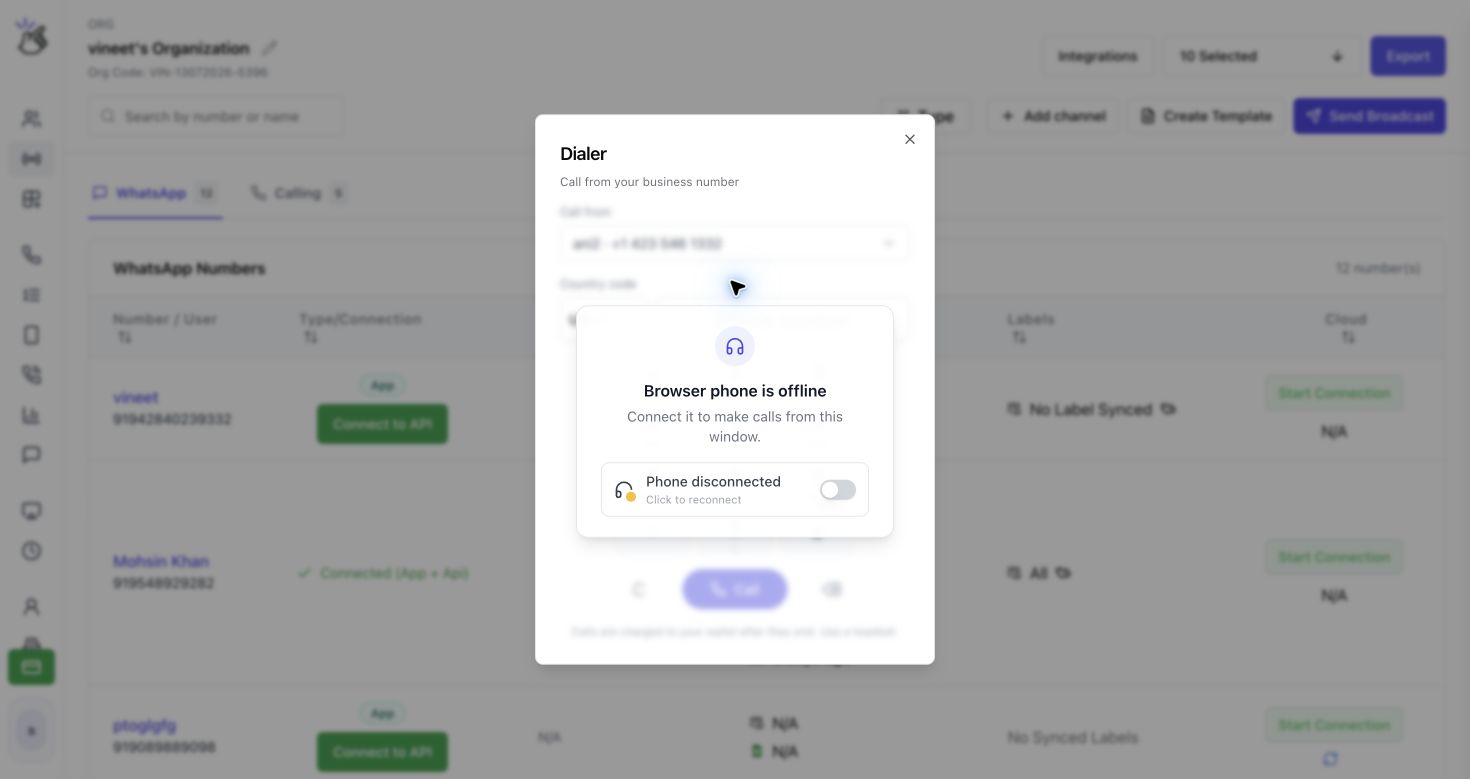 If the connection fails, read the displayed reason. Check microphone permission for Eazybe and your audio device. If the browser phone is active in another window, finish the call there before reconnecting here.
### No Voice Number Appears
**No phone number yet** means there is no active number available in the current view. If you see **Buy a number**, use it to open the purchase flow. Otherwise, ask your admin to arrange a number. If **Call from** has no usable number, ask your admin to check that your number is active and available to you or your team.
### Calling Is Blocked by Billing
**No subscription** means your organization needs an eligible subscription. **Insufficient balance** means the wallet needs a recharge. An admin can use **View plans** or **Recharge wallet** when shown; other users should contact their admin.
### The Call Button Is Unavailable
Check that your browser phone is connected, a **Call from** number is selected, and you are not already on a call or receiving one. If **Connecting call updates...** appears, wait for it to finish. If a connection error offers **Reconnect**, use it before trying again.
### The Phone Number Is Rejected
Choose the correct **Country code** and enter the remaining digits in **Phone number**. If a pasted country code is not recognized, select the country from the list and enter the number again.
This documentation is built and hosted on [Mintlify](https://mintlify.com), a developer documentation platform.
If the connection fails, read the displayed reason. Check microphone permission for Eazybe and your audio device. If the browser phone is active in another window, finish the call there before reconnecting here.
### No Voice Number Appears
**No phone number yet** means there is no active number available in the current view. If you see **Buy a number**, use it to open the purchase flow. Otherwise, ask your admin to arrange a number. If **Call from** has no usable number, ask your admin to check that your number is active and available to you or your team.
### Calling Is Blocked by Billing
**No subscription** means your organization needs an eligible subscription. **Insufficient balance** means the wallet needs a recharge. An admin can use **View plans** or **Recharge wallet** when shown; other users should contact their admin.
### The Call Button Is Unavailable
Check that your browser phone is connected, a **Call from** number is selected, and you are not already on a call or receiving one. If **Connecting call updates...** appears, wait for it to finish. If a connection error offers **Reconnect**, use it before trying again.
### The Phone Number Is Rejected
Choose the correct **Country code** and enter the remaining digits in **Phone number**. If a pasted country code is not recognized, select the country from the list and enter the number again.
This documentation is built and hosted on [Mintlify](https://mintlify.com), a developer documentation platform.