> ## Documentation Index
> Fetch the complete documentation index at: https://help.eazybe.com/llms.txt
> Use this file to discover all available pages before exploring further.
# Auto Dialer
> Import a contact list and call each contact in order with a controlled time gap.
Auto Dialer calls a reviewed list one contact at a time from your selected voice number. You can upload a CSV or Excel file, choose the delay between calls, and monitor each result.
Uploading a list does not start calls. Calls begin only after you click **Start auto dialer**.
Open **Auto Dialer** under **CALLS**. The page shows **Upload list**, **Review contacts**, and **Start calling**.
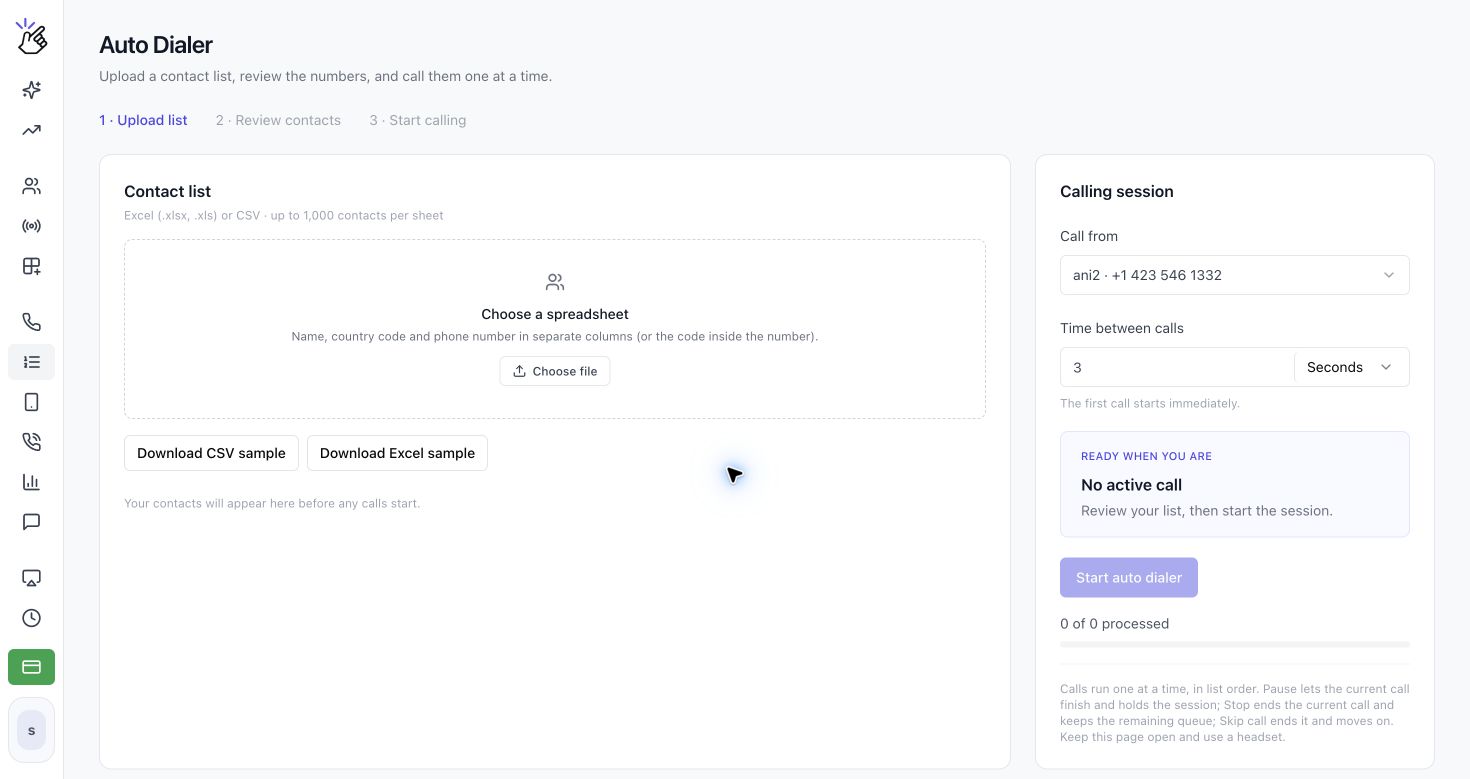 In **Contact list**, click **Choose file** and select a `.csv`, `.xlsx`, or `.xls` file. Each sheet can contain up to 1,000 contacts plus a header, and the file must be smaller than 5 MB.
Use separate columns for **Name**, **Country Code**, and **Phone Number**. A phone number may include its country code instead, such as `+14155550101`.
Use **Download CSV sample** to download a CSV template, or **Download Excel sample** to download an XLS/XLSX template. Add your contacts to either sample file, save it, and upload the completed file before starting the Auto Dialer.
Review the contact table before calling. Eazybe detects the phone, name, and country-code columns. Use **Adjust import settings** if the detected columns are incorrect. You can also choose a sheet, change **Phone column**, **Name column**, or **Country code column**, and set **First row contains column names (e.g. Name, Phone)**.
Contacts with invalid numbers are listed in an amber warning and will not be called. Correct those rows and upload the file again.
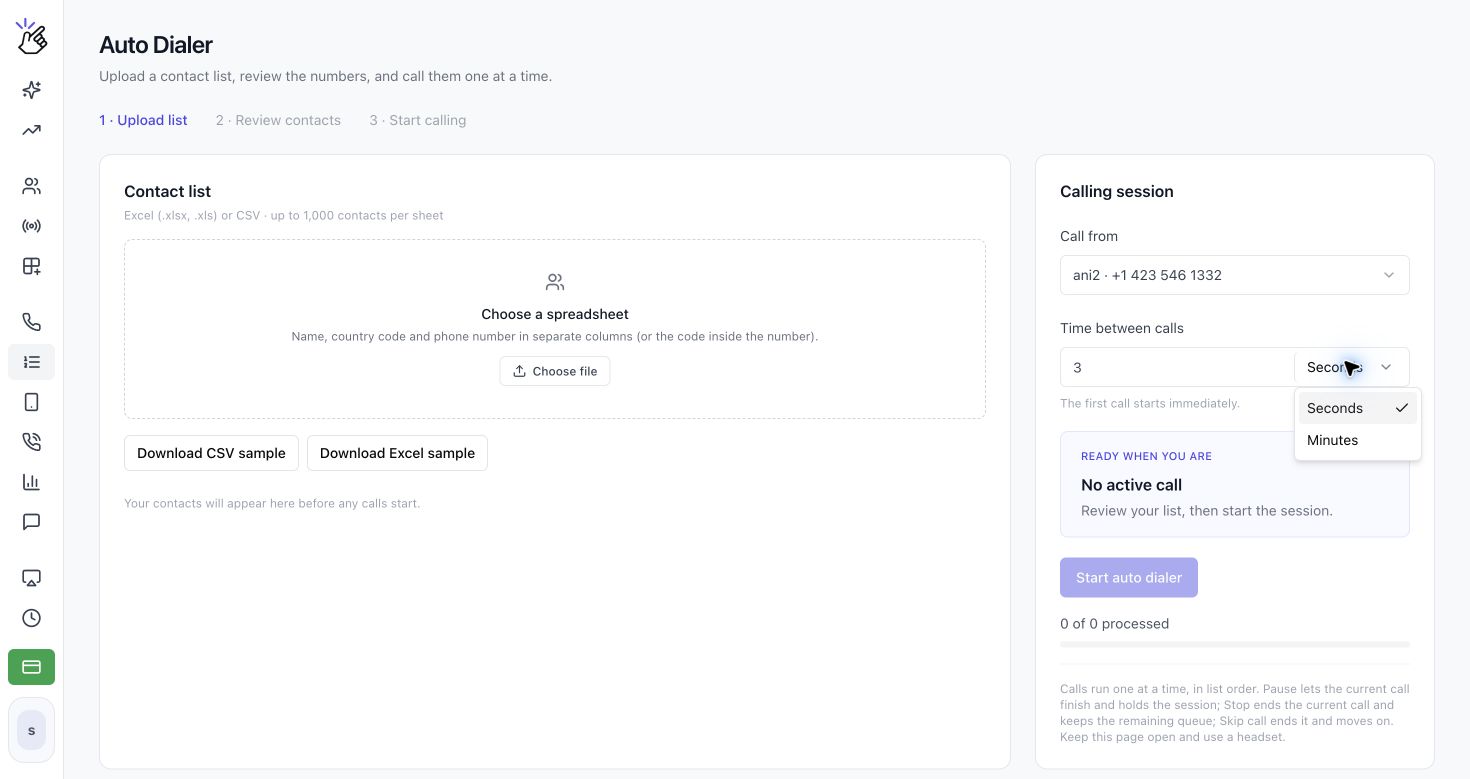
Under **Calling session**, choose **Call from** and select the voice number that will place the calls. Set **Time between calls** as a whole number and choose **Seconds** or **Minutes**. The first call starts immediately; the delay applies between subsequent calls.
In **Contact list**, click **Choose file** and select a `.csv`, `.xlsx`, or `.xls` file. Each sheet can contain up to 1,000 contacts plus a header, and the file must be smaller than 5 MB.
Use separate columns for **Name**, **Country Code**, and **Phone Number**. A phone number may include its country code instead, such as `+14155550101`.
Use **Download CSV sample** to download a CSV template, or **Download Excel sample** to download an XLS/XLSX template. Add your contacts to either sample file, save it, and upload the completed file before starting the Auto Dialer.
Review the contact table before calling. Eazybe detects the phone, name, and country-code columns. Use **Adjust import settings** if the detected columns are incorrect. You can also choose a sheet, change **Phone column**, **Name column**, or **Country code column**, and set **First row contains column names (e.g. Name, Phone)**.
Contacts with invalid numbers are listed in an amber warning and will not be called. Correct those rows and upload the file again.
Under **Calling session**, choose **Call from** and select the voice number that will place the calls. Set **Time between calls** as a whole number and choose **Seconds** or **Minutes**. The first call starts immediately; the delay applies between subsequent calls.
 Click **Start auto dialer**. Contacts are called in list order. The table shows **Calling**, **On call**, **Done**, and each outcome.
While the session is running, the **Calling session** panel shows **SESSION IN PROGRESS**, the current contact, the phone number, and the **Dialling...** status. The current contact is marked **Calling** in the contact table. Use **Pause**, **Stop**, **Skip call**, or **Mute** to control the active call.
Click **Start auto dialer**. Contacts are called in list order. The table shows **Calling**, **On call**, **Done**, and each outcome.
While the session is running, the **Calling session** panel shows **SESSION IN PROGRESS**, the current contact, the phone number, and the **Dialling...** status. The current contact is marked **Calling** in the contact table. Use **Pause**, **Stop**, **Skip call**, or **Mute** to control the active call.
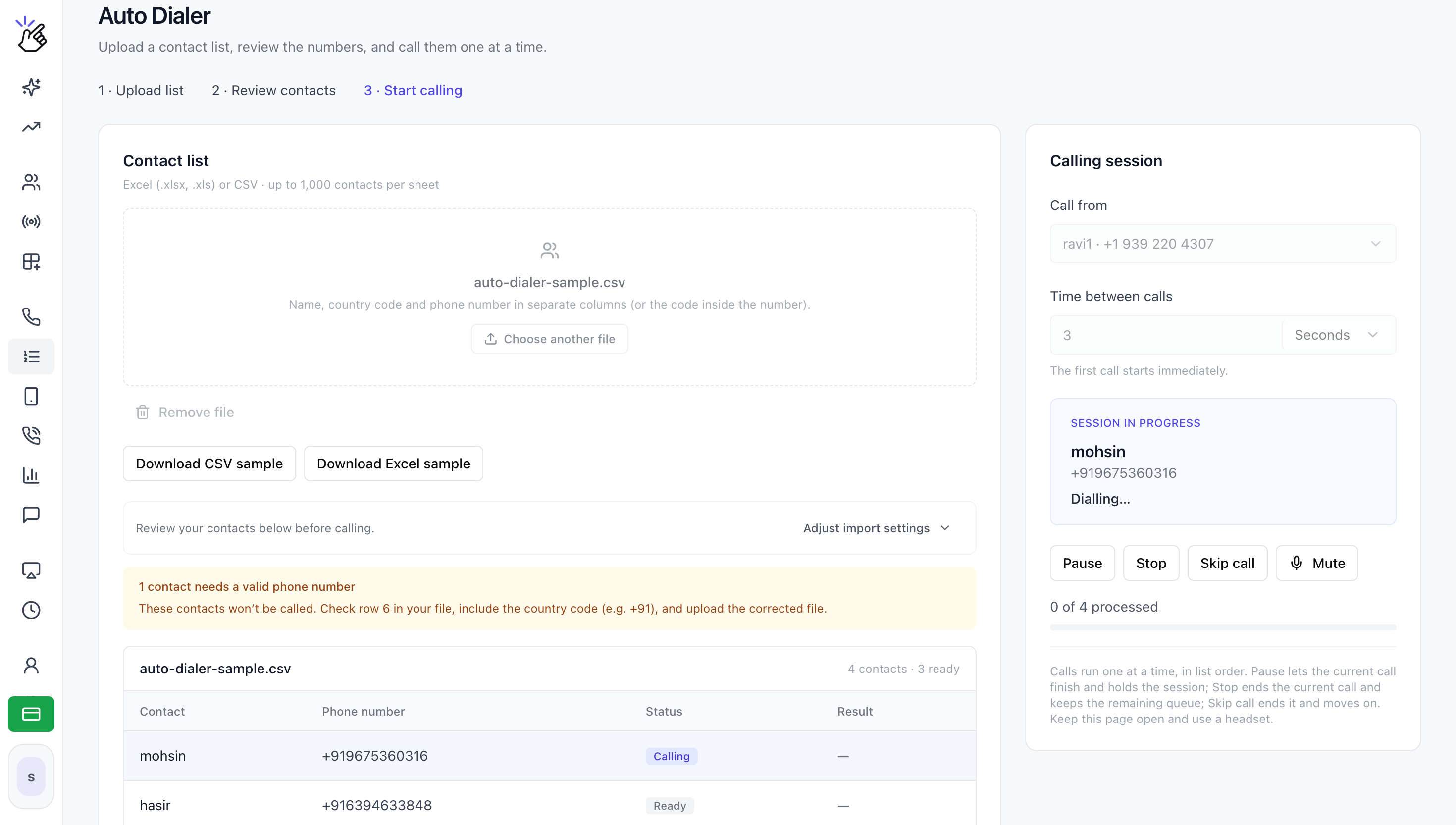 * **Pause** lets the current call finish and holds the session.
* **Stop** ends the current call and keeps the remaining queue.
* **Skip call** ends the current call and moves to the next contact.
* **Resume** continues a paused session.
Keep the page open and use a headset. Calls require an active voice number, browser phone, eligible subscription, and wallet balance.
This documentation is built and hosted on [Mintlify](https://mintlify.com), a developer documentation platform.
* **Pause** lets the current call finish and holds the session.
* **Stop** ends the current call and keeps the remaining queue.
* **Skip call** ends the current call and moves to the next contact.
* **Resume** continues a paused session.
Keep the page open and use a headset. Calls require an active voice number, browser phone, eligible subscription, and wallet balance.
This documentation is built and hosted on [Mintlify](https://mintlify.com), a developer documentation platform.