> ## Documentation Index
> Fetch the complete documentation index at: https://help.eazybe.com/llms.txt
> Use this file to discover all available pages before exploring further.

# Team Inbox

> Learn how to use Team Inbox to manage shared WhatsApp conversations, assign chats to team members, and collaborate with your support team.

# Team Inbox

Team Inbox is a shared workspace that allows multiple team members to access and manage WhatsApp conversations from a unified dashboard. With features like chat assignment, conversation filtering, and real-time collaboration, your team can handle customer inquiries efficiently without overlapping responses or missed messages.

## Key Features

* **Shared Access**: Multiple team members can view and manage conversations simultaneously
* **Smart Chat Assignment**: Route conversations to specific team members or teams
* **Conversation Filtering**: Filter chats by status (All, Unreplied, Groups, Broadcast)
* **Number-Level Filtering**: View conversations by WhatsApp number (normal or WABA API)
* **Search Functionality**: Quickly find specific conversations
* **Assignment Tracking**: Monitor who is handling which conversation
* **Message Templates**: Send pre-approved templates directly from the chat interface

***

## Step by Step Introduction

<Steps>
  <Step>
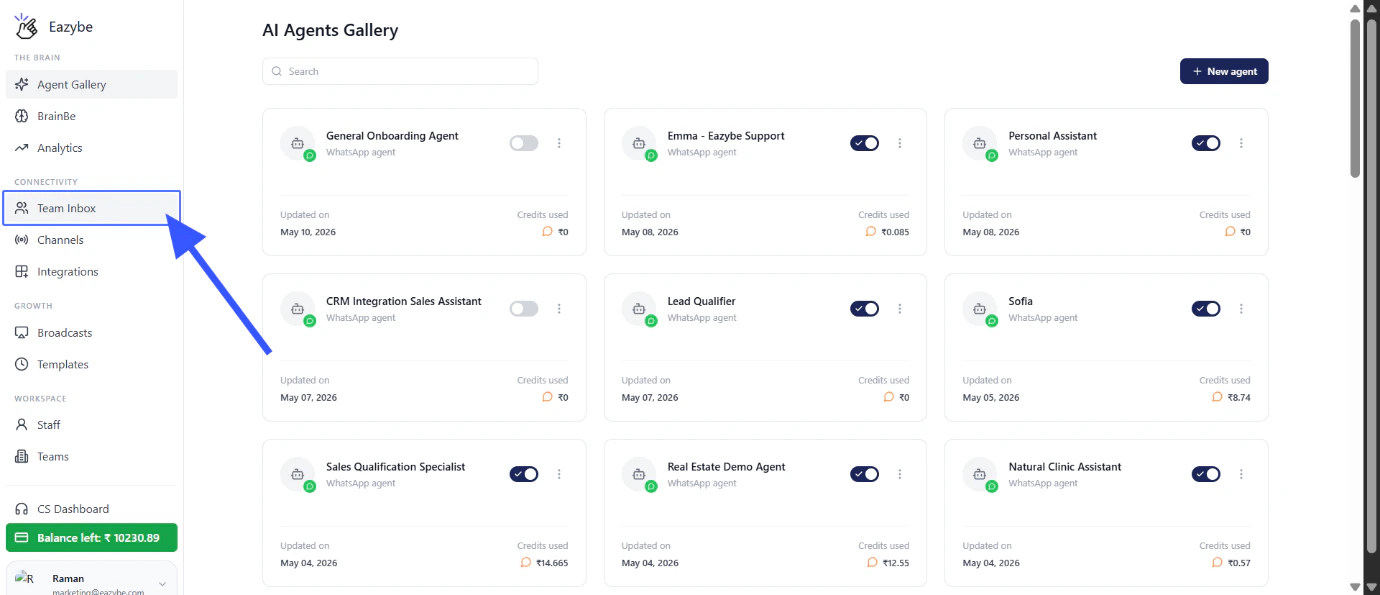
    <h3>Access Team Inbox</h3>
    <p>Click on <strong>"Team Inbox"</strong> in the navigation menu.</p>

    <img src="https://mintcdn.com/eazybe/Jsu_u4L2Vytz51VM/images/team-inbox-1.png?fit=max&auto=format&n=Jsu_u4L2Vytz51VM&q=85&s=0caa29a36f1b5a2010ef0128560953ef" alt="Click on Team Inbox" width="1380" height="595" data-path="images/team-inbox-1.png" />
  </Step>

  <Step>
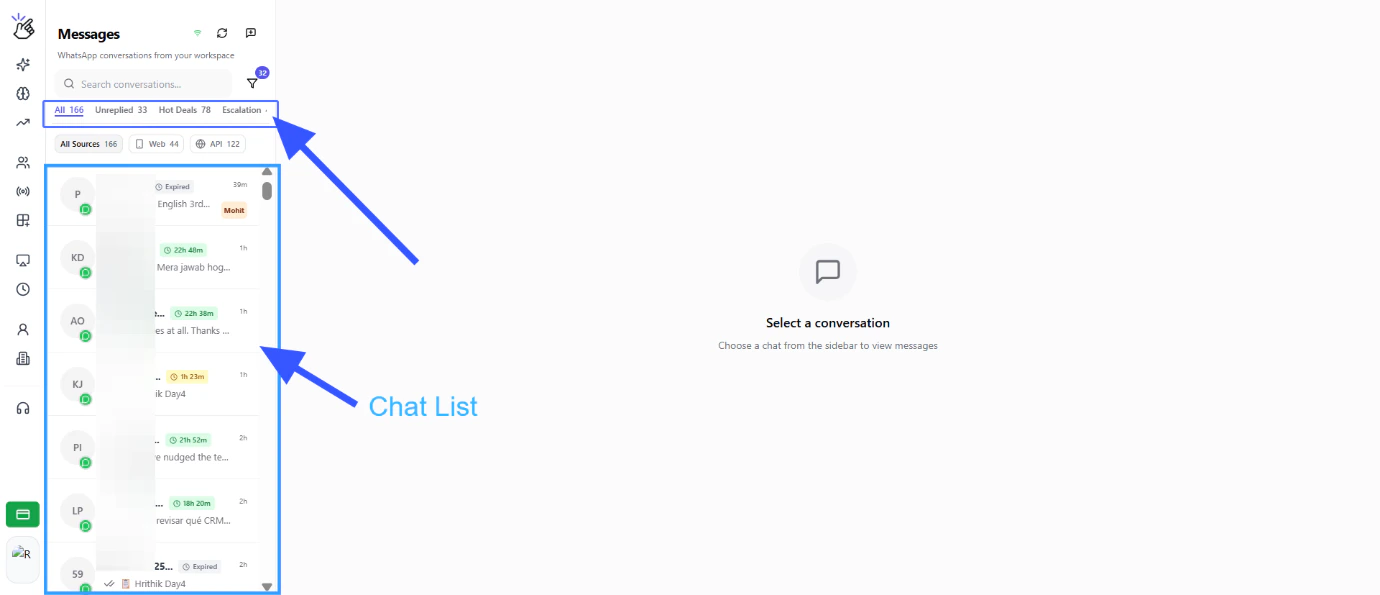
    <h3>View Chat Filters</h3>
    <p>Under the Team Inbox you have chat filters: All, Unreplied, Groups, Broadcast, etc.</p>

    <img src="https://mintcdn.com/eazybe/Jsu_u4L2Vytz51VM/images/team-inbox-2.png?fit=max&auto=format&n=Jsu_u4L2Vytz51VM&q=85&s=759f3cb5d4f7ebd0a5522219027cf445" alt="Team Inbox chat filters" width="1380" height="595" data-path="images/team-inbox-2.png" />
  </Step>

  <Step>
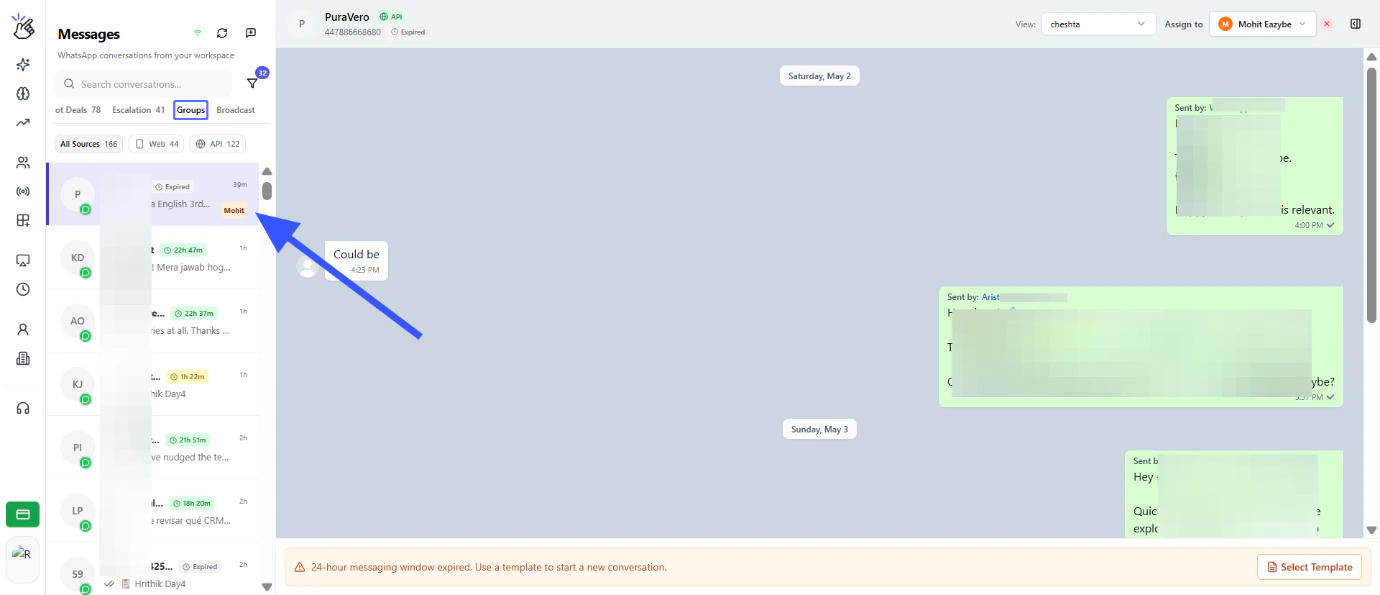
    <h3>View Corresponding Chats</h3>
    <p>Click on any filter to view the corresponding chats.</p>

    <img src="https://mintcdn.com/eazybe/Jsu_u4L2Vytz51VM/images/team-inbox-3.png?fit=max&auto=format&n=Jsu_u4L2Vytz51VM&q=85&s=4c93d368fee9ee0cd18ea8907c62b37b" alt="View corresponding chats" width="1380" height="595" data-path="images/team-inbox-3.png" />
  </Step>

  <Step>
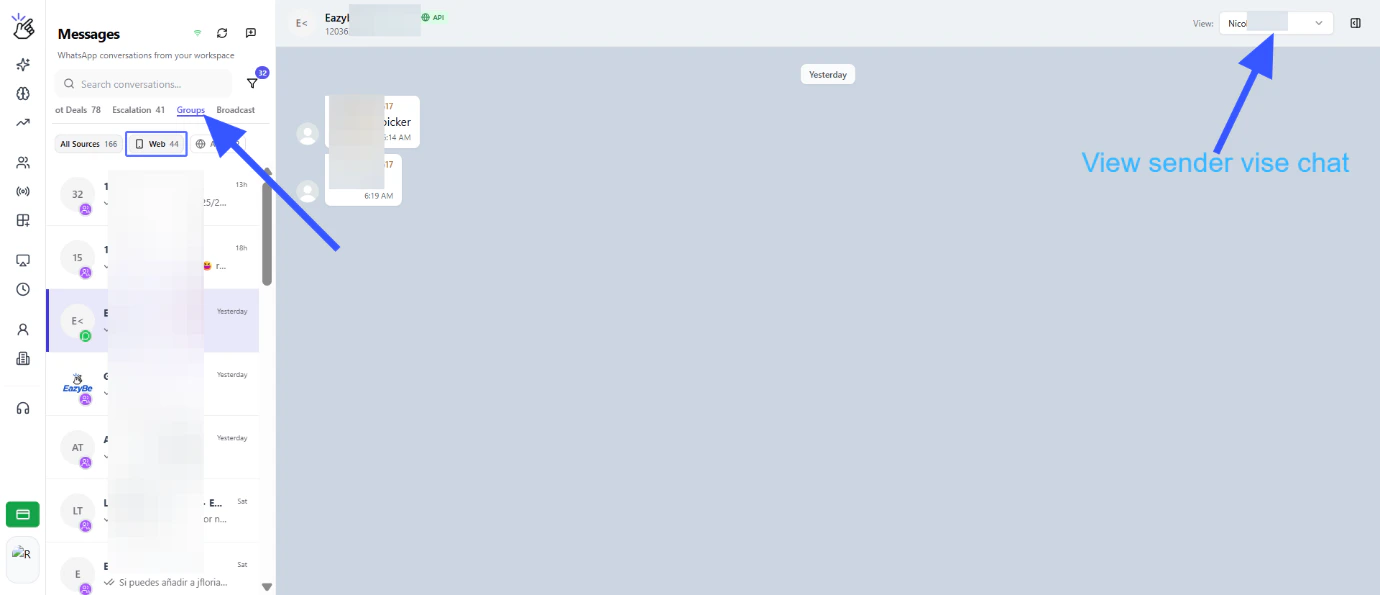
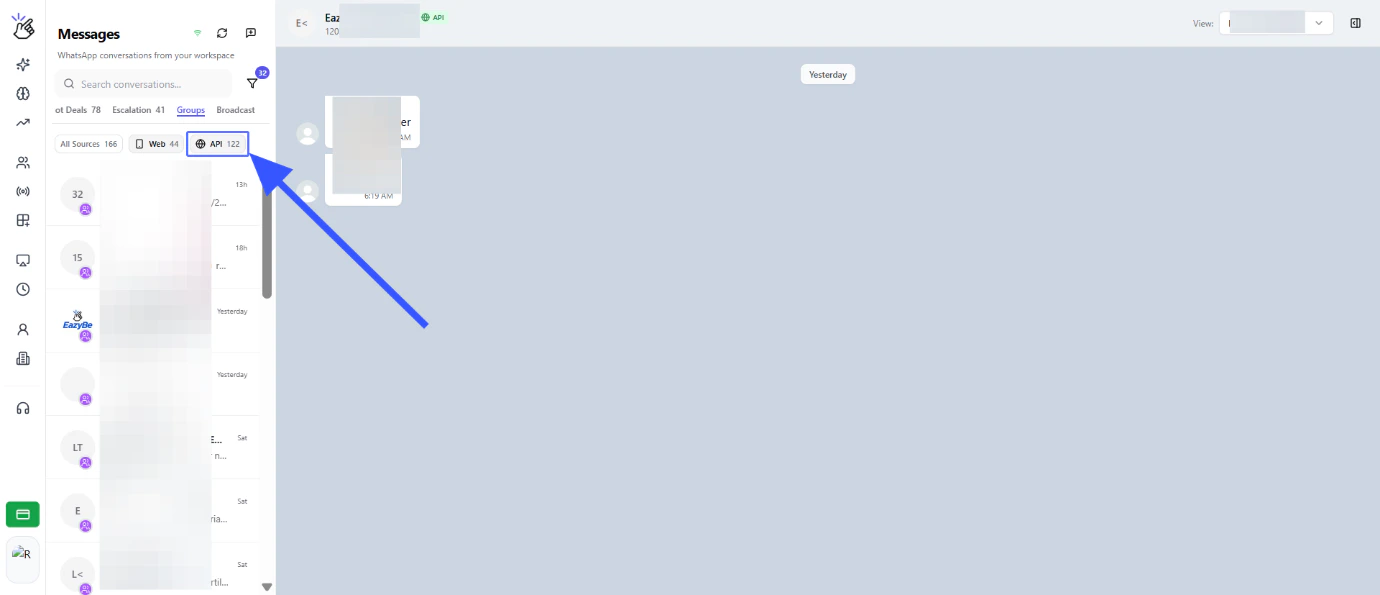
    <h3>View Group Chats</h3>
    <p>Click on group filter to view group chats.</p>

    <img src="https://mintcdn.com/eazybe/Jsu_u4L2Vytz51VM/images/team-inbox-4.png?fit=max&auto=format&n=Jsu_u4L2Vytz51VM&q=85&s=f0b1fc10cd71af18c9c056f89812e9da" alt="Group chats filter" width="1380" height="595" data-path="images/team-inbox-4.png" />
  </Step>

  <Step>
    <h3>Filter by Number Type</h3>
    <p>You have different layers of chat list filters where you can choose and view chat list based on normal WhatsApp and WABA API numbers.</p>

    <img src="https://mintcdn.com/eazybe/Jsu_u4L2Vytz51VM/images/team-inbox-5.png?fit=max&auto=format&n=Jsu_u4L2Vytz51VM&q=85&s=20ff277e0617ce6186e1f7aaac4939b3" alt="Number type filters" width="1380" height="595" data-path="images/team-inbox-5.png" />
  </Step>

  <Step>
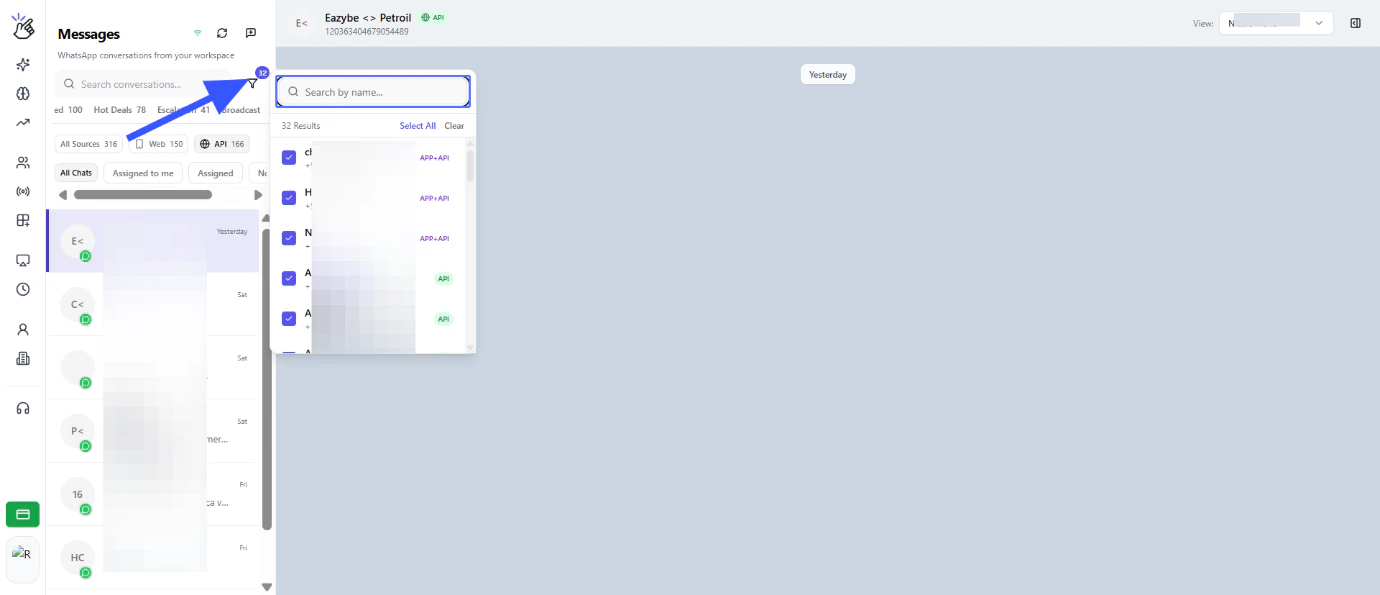
    <h3>Select Specific Numbers</h3>
    <p>Click on filter, where you can select the numbers of which you want to see the Chat list.</p>

    <img src="https://mintcdn.com/eazybe/Jsu_u4L2Vytz51VM/images/team-inbox-6.png?fit=max&auto=format&n=Jsu_u4L2Vytz51VM&q=85&s=5e55bd3d8124bbb0d75baf2d5f488d61" alt="Select numbers filter" width="1380" height="595" data-path="images/team-inbox-6.png" />
  </Step>

  <Step>
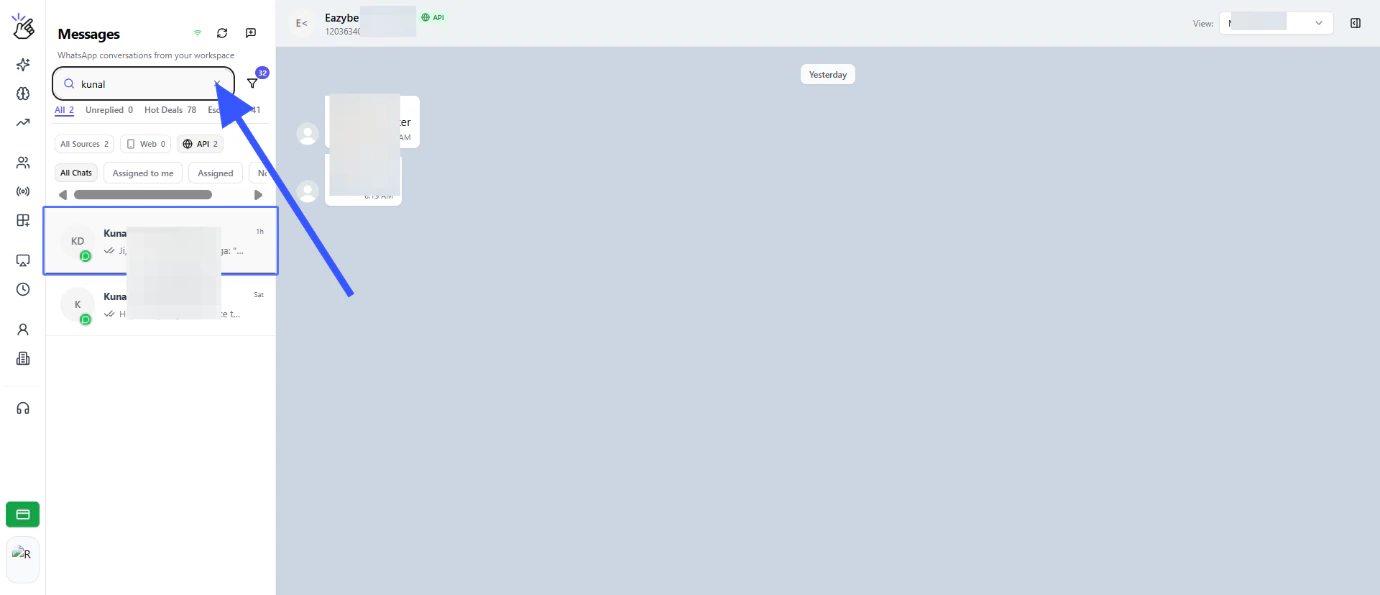
    <h3>Search for Chats</h3>
    <p>You can search for chats using the search bar.</p>

    <img src="https://mintcdn.com/eazybe/Jsu_u4L2Vytz51VM/images/team-inbox-7.png?fit=max&auto=format&n=Jsu_u4L2Vytz51VM&q=85&s=4857631d13296e10c10f1857d228e972" alt="Chat search bar" width="1380" height="595" data-path="images/team-inbox-7.png" />
  </Step>

  <Step>
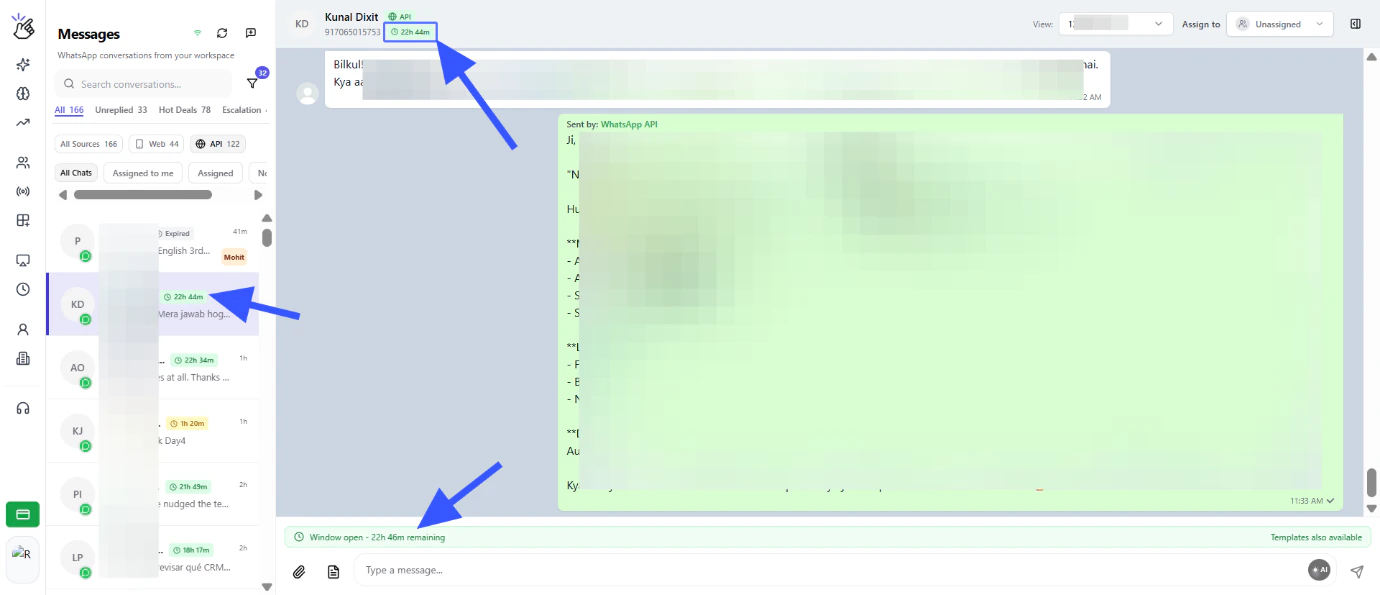
    <h3>Service Window Timer</h3>
    <p>View the service window timer for WABA numbers.</p>

    <img src="https://mintcdn.com/eazybe/Jsu_u4L2Vytz51VM/images/team-inbox-8.png?fit=max&auto=format&n=Jsu_u4L2Vytz51VM&q=85&s=9050ca79e84cf024ad0c2ce465d1f828" alt="Service window timer" width="1380" height="595" data-path="images/team-inbox-8.png" />
  </Step>
</Steps>

***

## Chat View Features

<Steps>
  <Step>
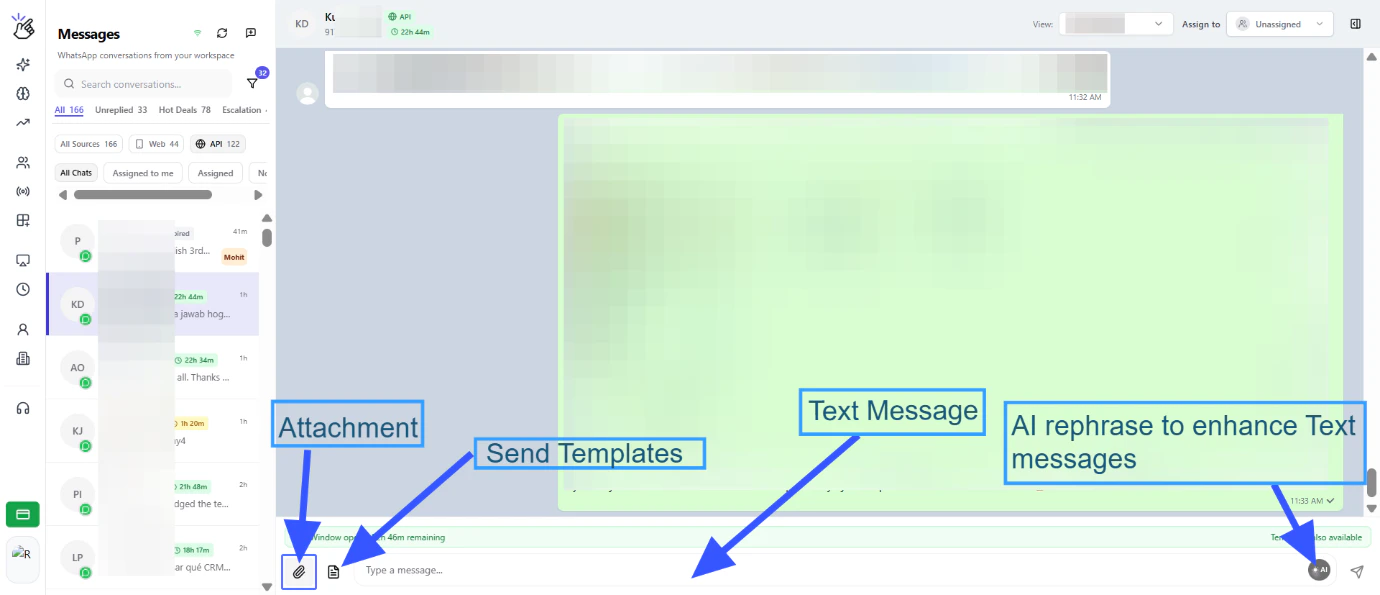
    <h3>View Chat Interface</h3>
    <p>The chat view displays all conversations in a clean, organized interface.</p>

    <img src="https://mintcdn.com/eazybe/Jsu_u4L2Vytz51VM/images/team-inbox-9.png?fit=max&auto=format&n=Jsu_u4L2Vytz51VM&q=85&s=798dabd6dc8acf9633f343568e032869" alt="Chat view interface" width="1380" height="595" data-path="images/team-inbox-9.png" />
  </Step>

  <Step>
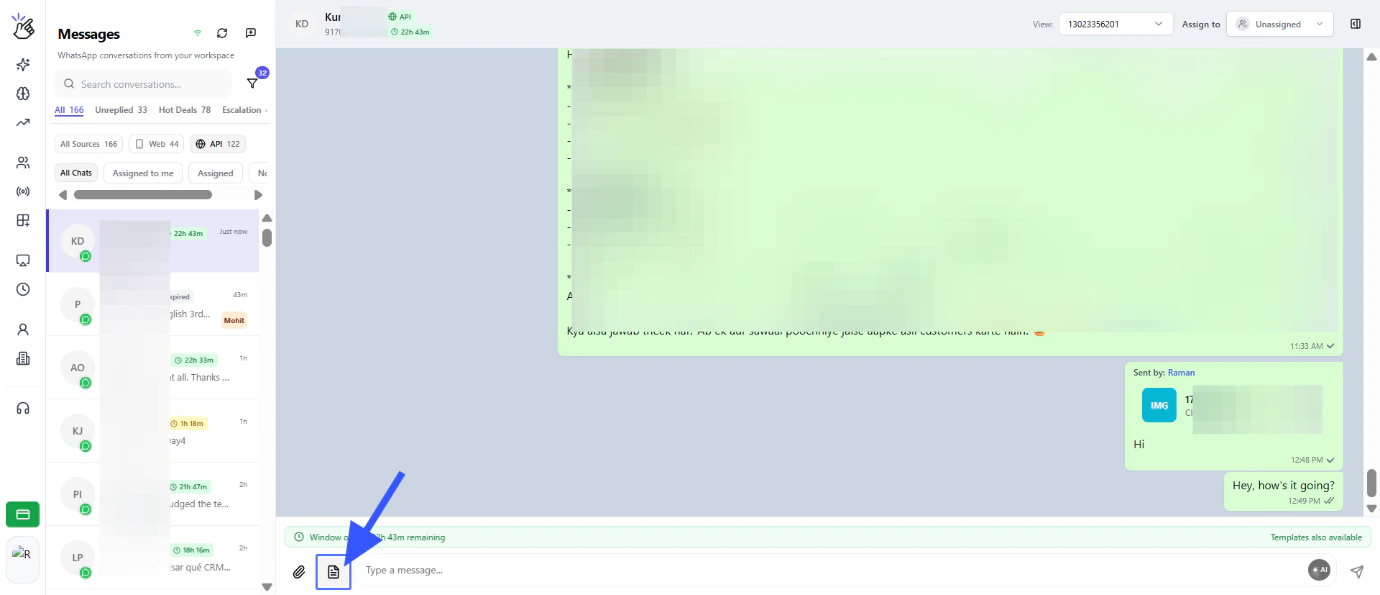
    <h3>Send Template Messages</h3>
    <p>Click on "Send template" to use pre-approved message templates.</p>

    <img src="https://mintcdn.com/eazybe/Jsu_u4L2Vytz51VM/images/team-inbox-10.png?fit=max&auto=format&n=Jsu_u4L2Vytz51VM&q=85&s=a044be677de3a23d42e175f04015478f" alt="Send template option" width="1380" height="595" data-path="images/team-inbox-10.png" />
  </Step>

  <Step>
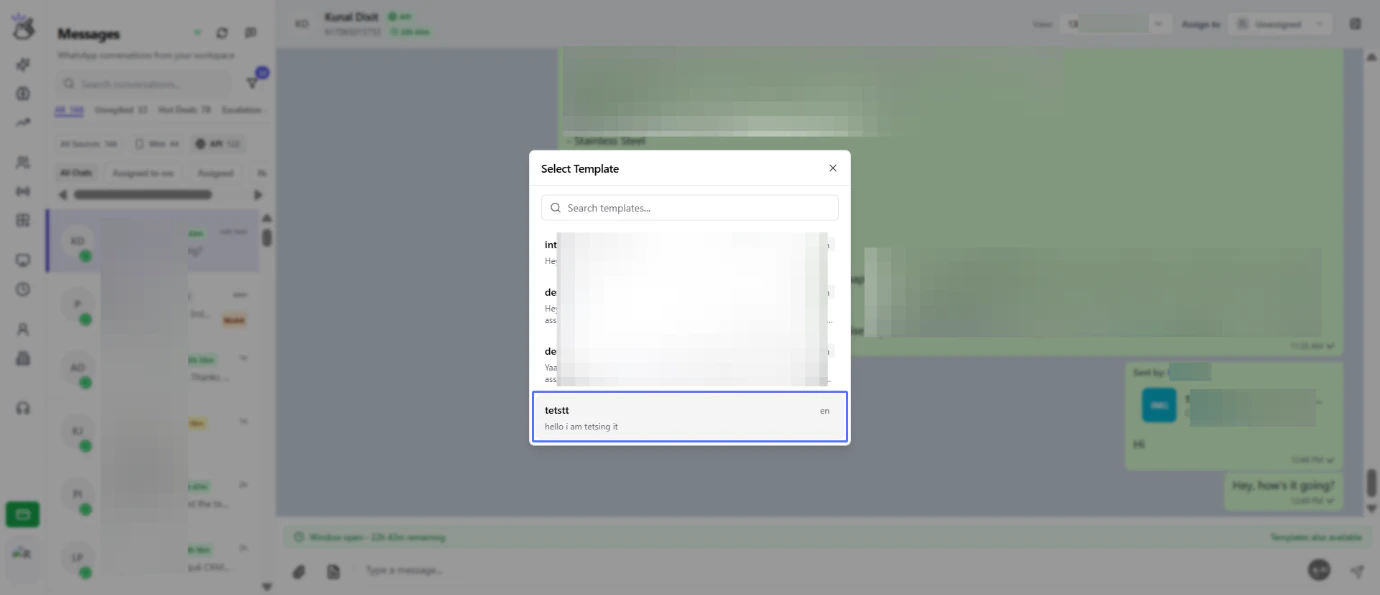
    <h3>Select and Send Template</h3>
    <p>Select a template and click on send.</p>

    <img src="https://mintcdn.com/eazybe/Jsu_u4L2Vytz51VM/images/team-inbox-11.png?fit=max&auto=format&n=Jsu_u4L2Vytz51VM&q=85&s=30bcd88c23d98aca575a01cf547db28c" alt="Select template" width="1380" height="595" data-path="images/team-inbox-11.png" />
  </Step>

  <Step>
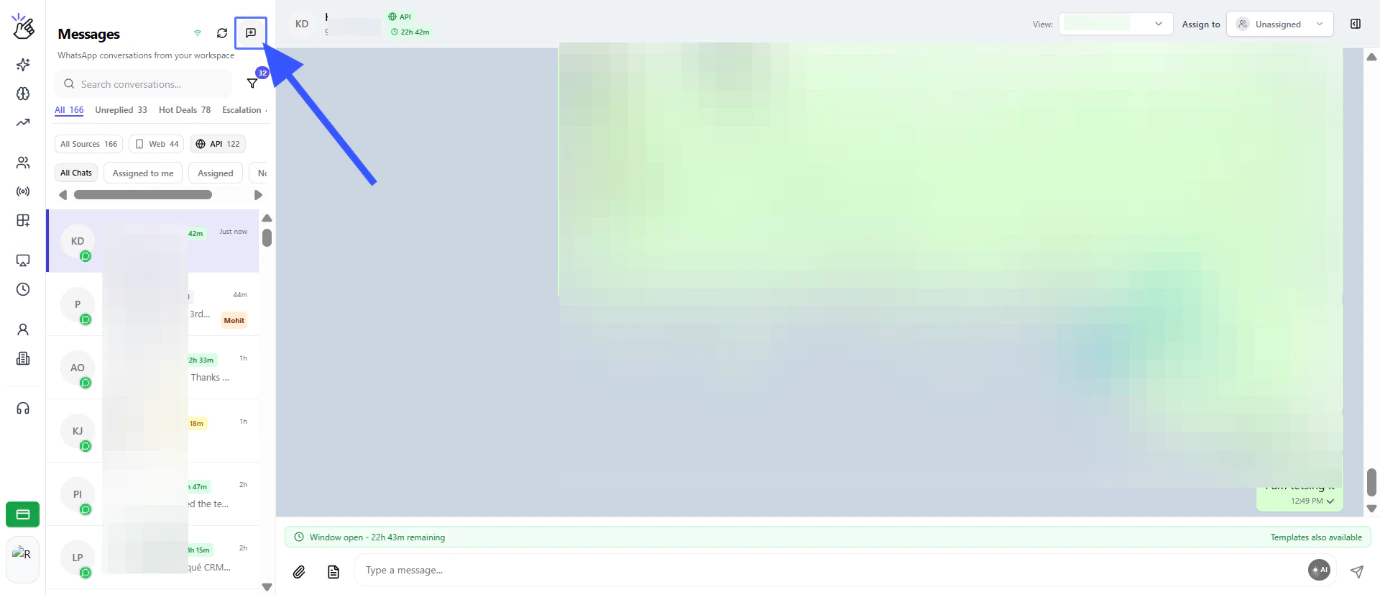
    <h3>Start New Chat</h3>
    <p>Click on "Start new chat" to message a new contact.</p>

    <img src="https://mintcdn.com/eazybe/Jsu_u4L2Vytz51VM/images/team-inbox-12.png?fit=max&auto=format&n=Jsu_u4L2Vytz51VM&q=85&s=098cfe04da31b19310972edd5963c3ff" alt="Start new chat button" width="1380" height="595" data-path="images/team-inbox-12.png" />
  </Step>

  <Step>
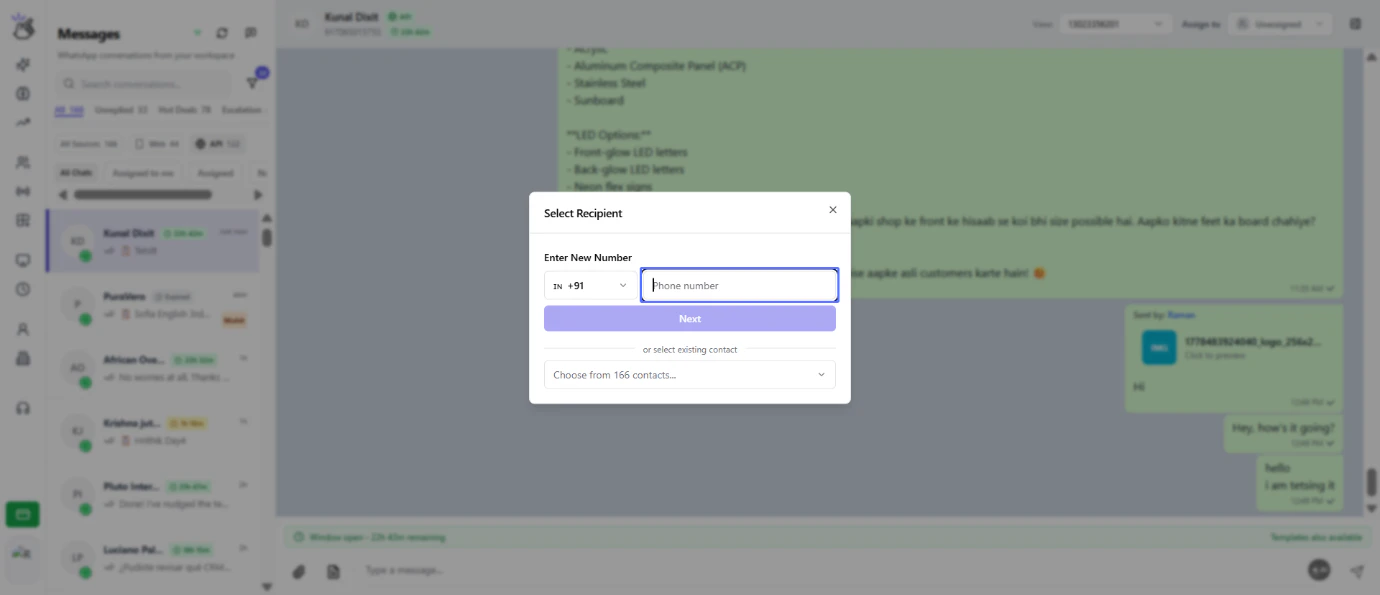
    <h3>Enter Contact Number</h3>
    <p>Click on the input field to enter the new contact details.</p>

    <img src="https://mintcdn.com/eazybe/Jsu_u4L2Vytz51VM/images/team-inbox-13.png?fit=max&auto=format&n=Jsu_u4L2Vytz51VM&q=85&s=575bb36120b7afa1e93fbaf51e351b71" alt="Contact input field" width="1380" height="595" data-path="images/team-inbox-13.png" />
  </Step>

  <Step>
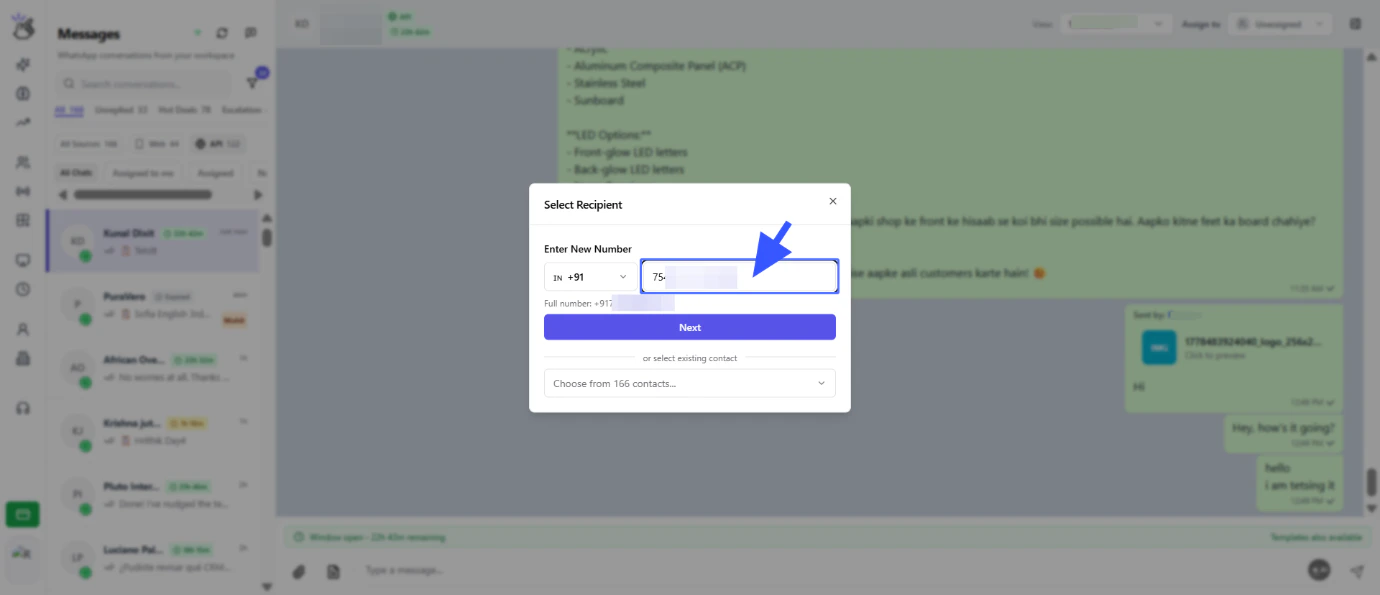
    <h3>Input Number with Country Code</h3>
    <p>Input the new number with country code and click on next.</p>

    <img src="https://mintcdn.com/eazybe/Jsu_u4L2Vytz51VM/images/team-inbox-14.png?fit=max&auto=format&n=Jsu_u4L2Vytz51VM&q=85&s=b10ac8140bfdc733908e905f12c0edf9" alt="Enter country code and number" width="1380" height="595" data-path="images/team-inbox-14.png" />
  </Step>

  <Step>
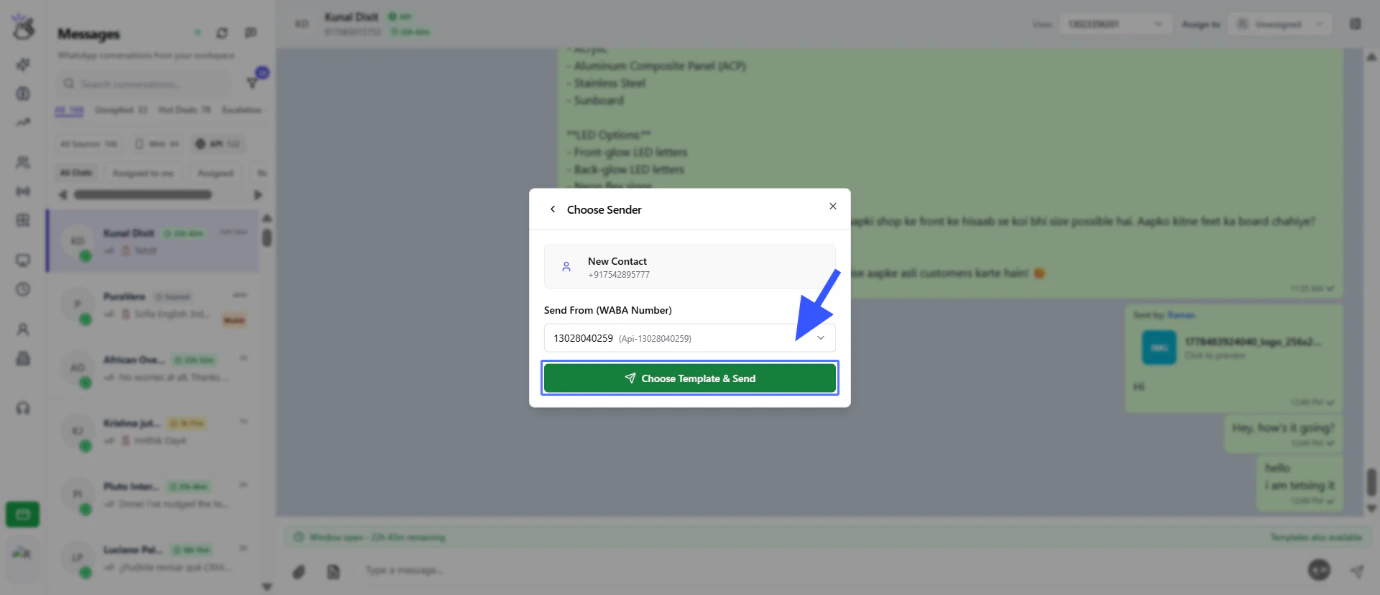
    <h3>Select WABA Number</h3>
    <p>Select the WABA number and click on the button "Choose Template & Send".</p>

    <img src="https://mintcdn.com/eazybe/Jsu_u4L2Vytz51VM/images/team-inbox-15.png?fit=max&auto=format&n=Jsu_u4L2Vytz51VM&q=85&s=0f472db53740b15e73c79a495f655dec" alt="Select WABA number" width="1380" height="595" data-path="images/team-inbox-15.png" />
  </Step>

  <Step>
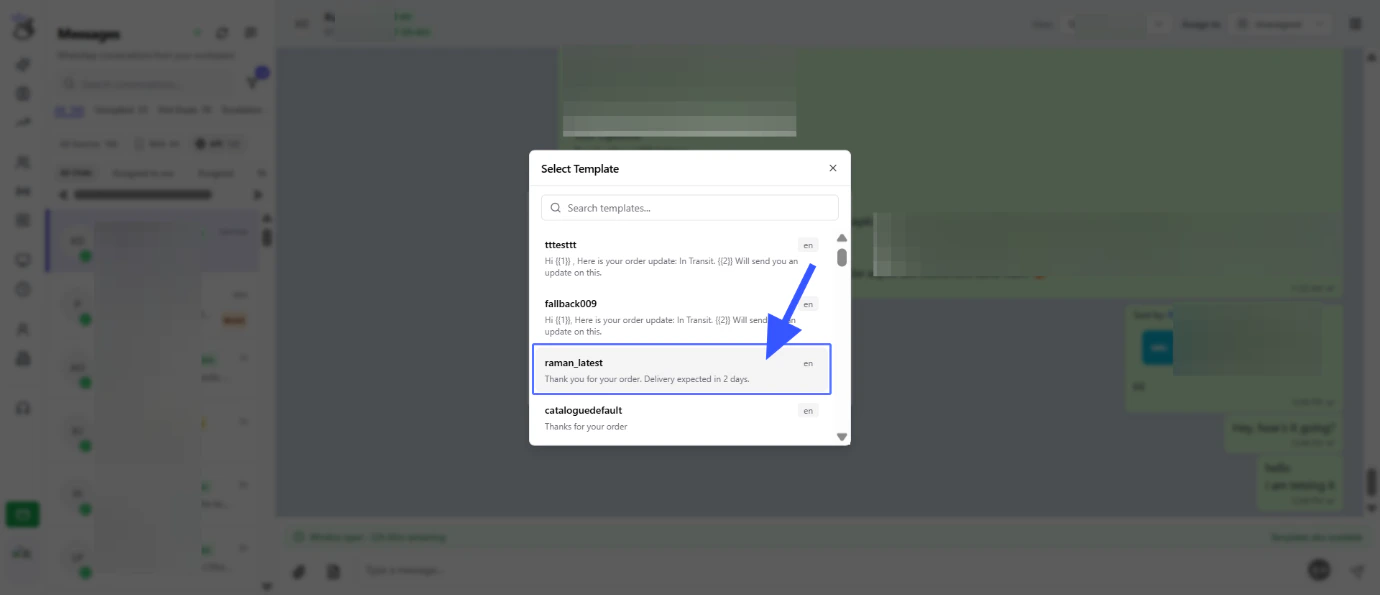
    <h3>Choose Template</h3>
    <p>Select the template and click on send.</p>

    <img src="https://mintcdn.com/eazybe/Jsu_u4L2Vytz51VM/images/team-inbox-16.png?fit=max&auto=format&n=Jsu_u4L2Vytz51VM&q=85&s=9642857b5f7357109f5e7aaa7b6b3915" alt="Choose and send template" width="1380" height="595" data-path="images/team-inbox-16.png" />
  </Step>
</Steps>

***

## Chat Assignment

<Steps>
  <Step>
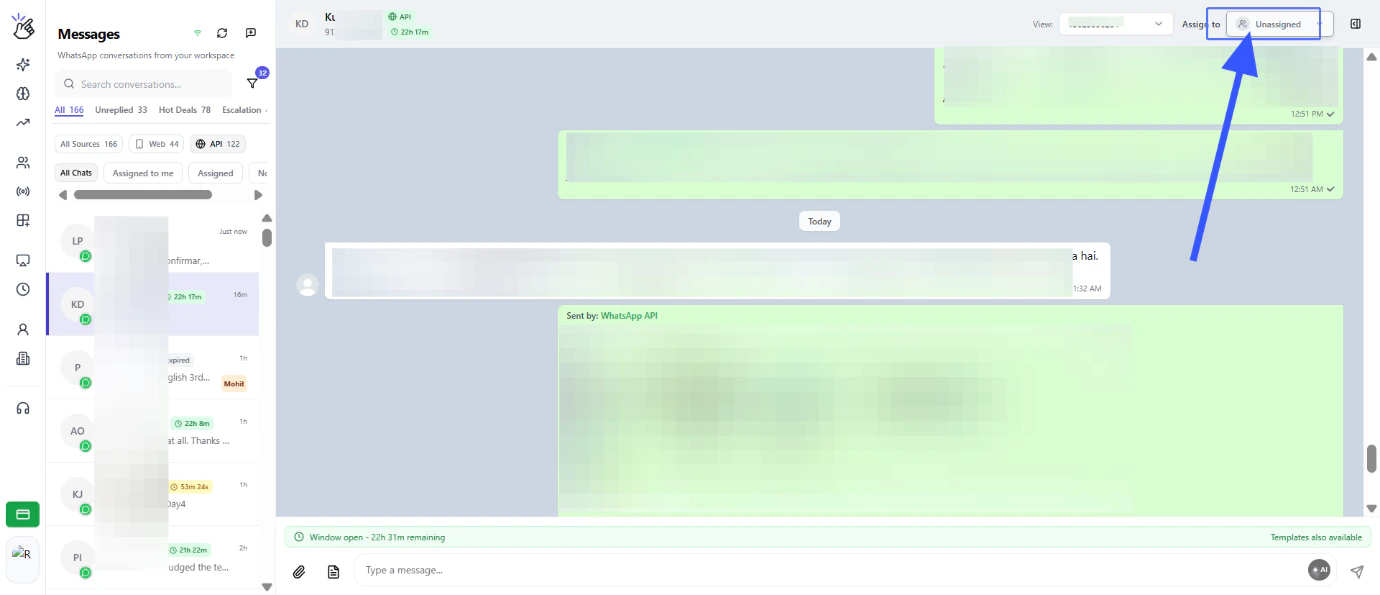
    <h3>Access Assignment Options</h3>
    <p>Click on the "Assign to" dropdown to assign the chat.</p>

    <img src="https://mintcdn.com/eazybe/Jsu_u4L2Vytz51VM/images/team-inbox-17.png?fit=max&auto=format&n=Jsu_u4L2Vytz51VM&q=85&s=3f589a4a662a4b6f4775f534cff0e98e" alt="Assign to dropdown" width="1380" height="595" data-path="images/team-inbox-17.png" />
  </Step>

  <Step>
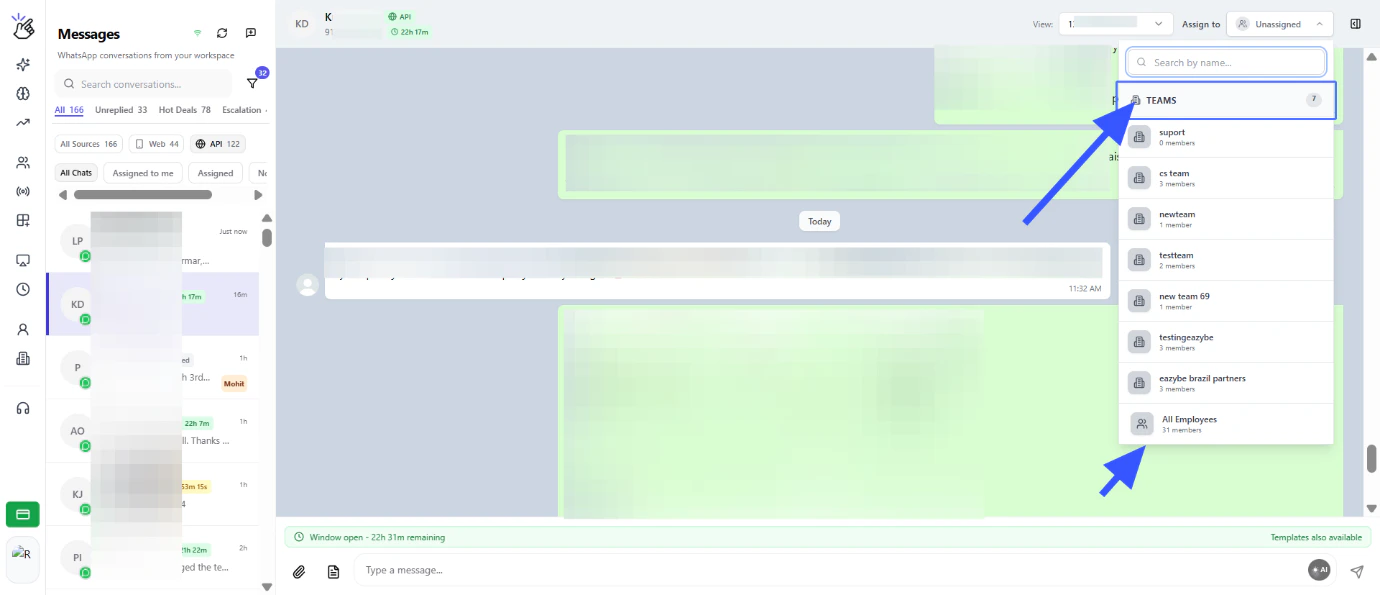
    <h3>View Team Structure</h3>
    <p>You get a Team-wise employees list and also an All Employees section to assign this chat.</p>

    <img src="https://mintcdn.com/eazybe/Jsu_u4L2Vytz51VM/images/team-inbox-18.png?fit=max&auto=format&n=Jsu_u4L2Vytz51VM&q=85&s=4452dae8df3dca3243221c8d8c81577a" alt="Team employees list" width="1380" height="595" data-path="images/team-inbox-18.png" />
  </Step>

  <Step>
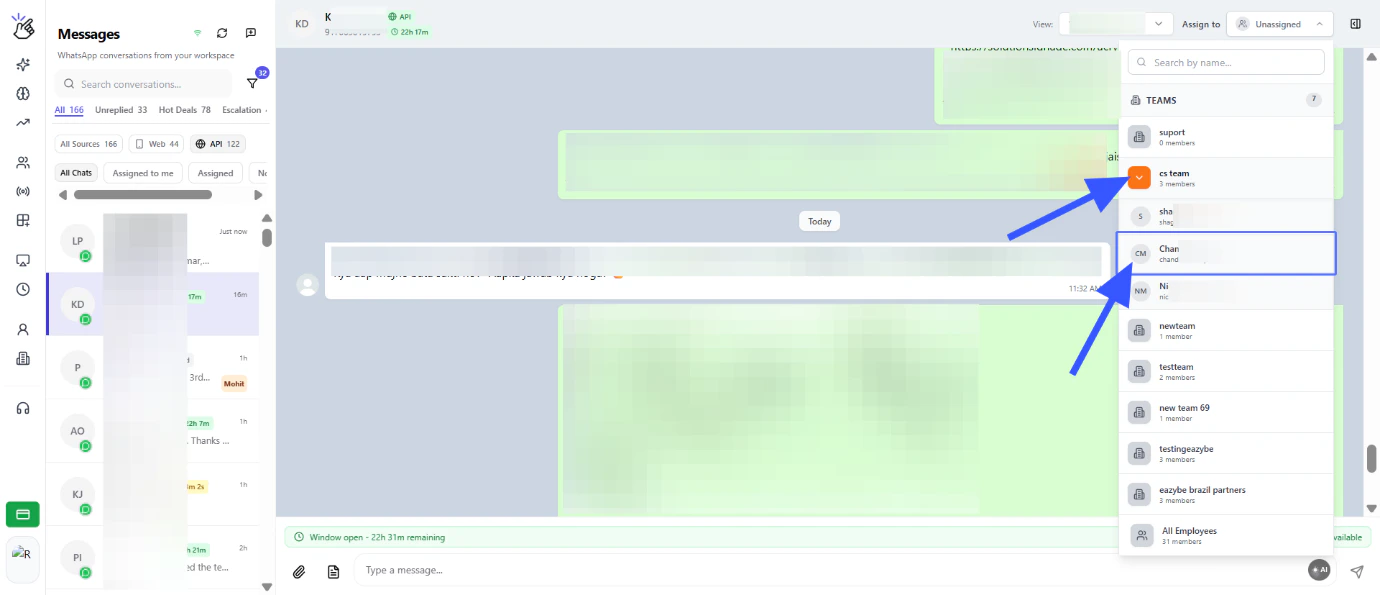
    <h3>Select Team Member</h3>
    <p>Click on any Team and select whom to assign.</p>

    <img src="https://mintcdn.com/eazybe/Jsu_u4L2Vytz51VM/images/team-inbox-19.png?fit=max&auto=format&n=Jsu_u4L2Vytz51VM&q=85&s=b046077192a0599b5b6a12b739449b88" alt="Select team member" width="1380" height="595" data-path="images/team-inbox-19.png" />
  </Step>

  <Step>
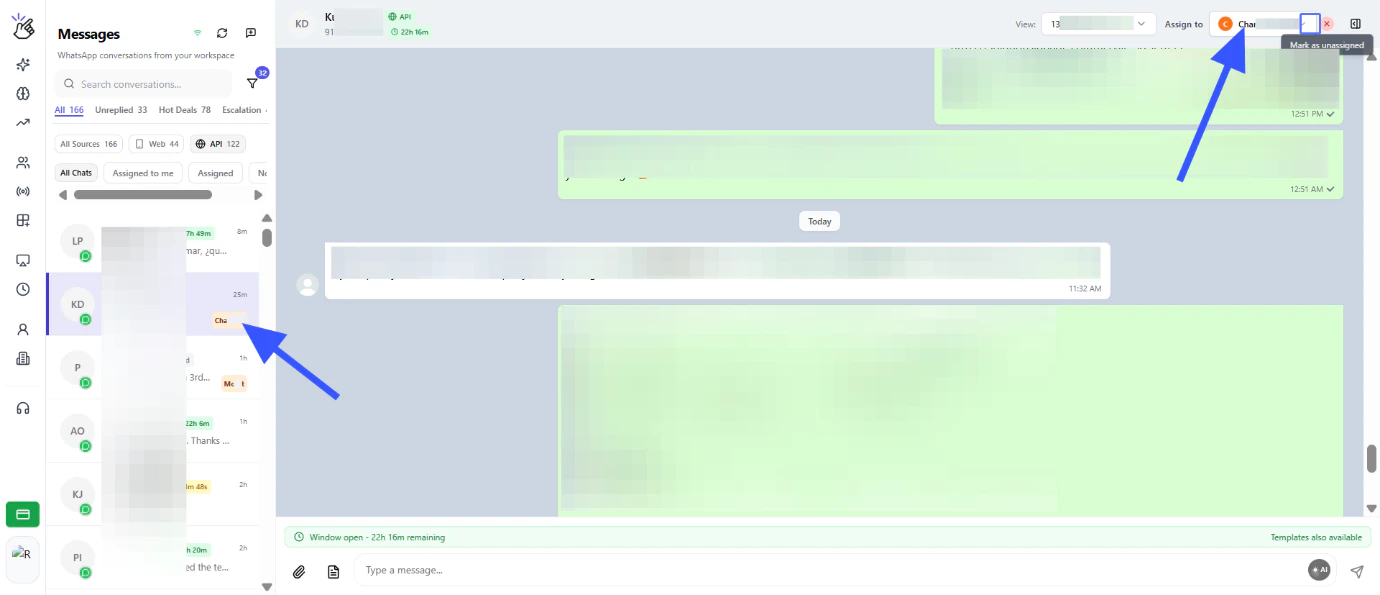
    <h3>Assignment Complete</h3>
    <p>Now the chat has been assigned to the selected Employee and they can access this under their login.</p>

    <img src="https://mintcdn.com/eazybe/Jsu_u4L2Vytz51VM/images/team-inbox-20.png?fit=max&auto=format&n=Jsu_u4L2Vytz51VM&q=85&s=a3c776fa61c1c505b010012e8753e902" alt="Assigned chat confirmation" width="1380" height="595" data-path="images/team-inbox-20.png" />
  </Step>

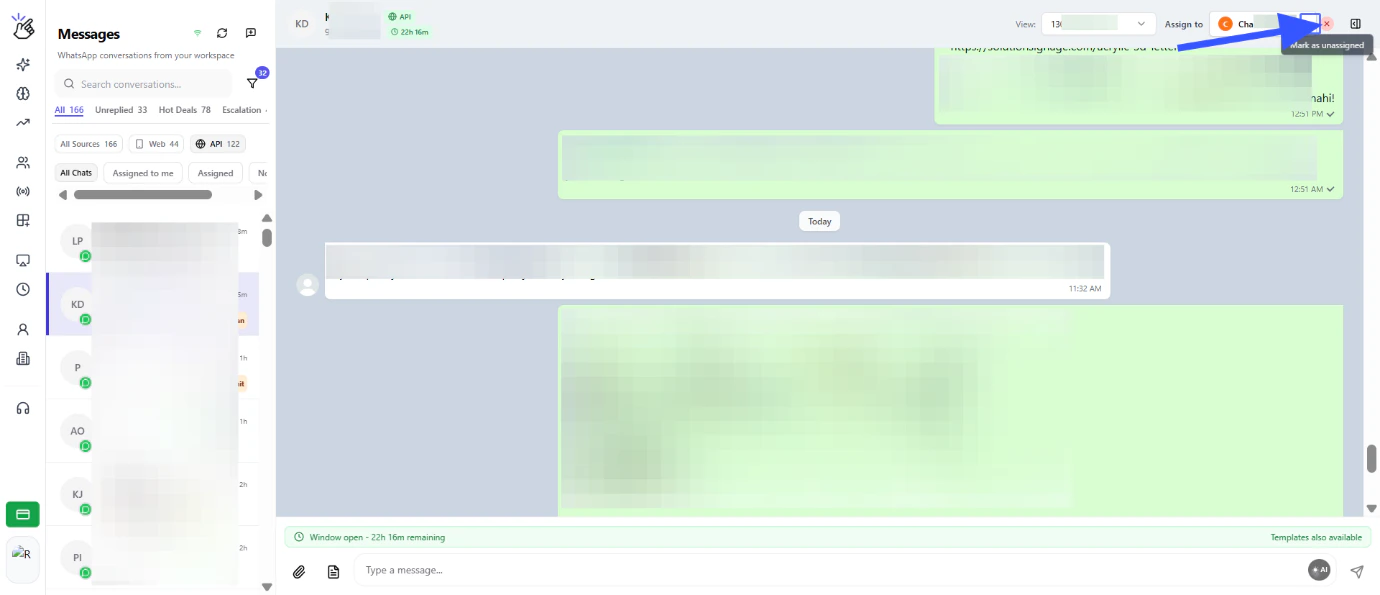
  <Step>
    <h3>Unassign Chats</h3>
    <p>You can also mark the chat as unassigned if needed.</p>

    <img src="https://mintcdn.com/eazybe/Jsu_u4L2Vytz51VM/images/team-inbox-21.png?fit=max&auto=format&n=Jsu_u4L2Vytz51VM&q=85&s=d0e81f65cee144ef779a1e6b9a2ed2f8" alt="Unassign chat option" width="1380" height="595" data-path="images/team-inbox-21.png" />
  </Step>
</Steps>

<Note>
  Team Inbox allows multiple team members to collaborate on WhatsApp conversations seamlessly with real-time synchronization and smart assignment features.
</Note>

<Tip>
  Use the "Sent By" tracking feature to monitor which team members are handling specific conversations for better accountability and performance tracking.
</Tip>