> ## Documentation Index
> Fetch the complete documentation index at: https://help.eazybe.com/llms.txt
> Use this file to discover all available pages before exploring further.
# Filters in Team Inbox
> Learn how to find the right conversations using channel, assignee, expiry-time, and AI-property filters.
Filters help you focus on the conversations that need attention without changing or deleting any chat. You can narrow the inbox by WhatsApp number, owner, messaging-window expiry, or AI-generated customer information.
Filters only change the conversations shown to you. They do not delete, move, or edit conversations.
## Choose the right filter
View conversations from selected APP, API, or COEX WhatsApp numbers.
Find conversations owned by one or more team members.
Prioritize chats whose WhatsApp messaging window will close soon.
Segment conversations using AI-generated customer information.
 ## Search conversations
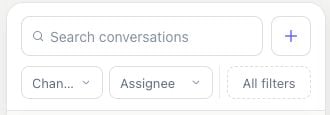
Enter a contact name or phone number in **Search conversations**. Search works together with active filters, which is useful when you need to find one customer inside a filtered list.
Select the **x** in the search field to remove only the search text. Your other filters remain active.
## Filter by channel
Use **Channels** to display conversations from one or more connected WhatsApp numbers. The list includes every number you can access and shows its channel type:
| Channel type | What it means | When it is useful |
| ------------ | ---------------------------------------------------------------------- | ------------------------------------------------------------------------- |
| **APP** | A WhatsApp or WhatsApp Business App number connected through Eazybe | Separate conversations synced from team members' app numbers |
| **API** | An official WhatsApp Business API number | Focus on support, sales, or automation conversations handled through WABA |
| **COEX** | A coexistence number used with the WhatsApp Business App and Cloud API | View conversations from numbers operating in coexistence mode |
The beginning of the list shows COEX and API numbers:
## Search conversations
Enter a contact name or phone number in **Search conversations**. Search works together with active filters, which is useful when you need to find one customer inside a filtered list.
Select the **x** in the search field to remove only the search text. Your other filters remain active.
## Filter by channel
Use **Channels** to display conversations from one or more connected WhatsApp numbers. The list includes every number you can access and shows its channel type:
| Channel type | What it means | When it is useful |
| ------------ | ---------------------------------------------------------------------- | ------------------------------------------------------------------------- |
| **APP** | A WhatsApp or WhatsApp Business App number connected through Eazybe | Separate conversations synced from team members' app numbers |
| **API** | An official WhatsApp Business API number | Focus on support, sales, or automation conversations handled through WABA |
| **COEX** | A coexistence number used with the WhatsApp Business App and Cloud API | View conversations from numbers operating in coexistence mode |
The beginning of the list shows COEX and API numbers:
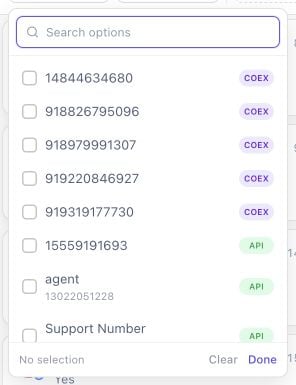 Scroll down to see APP numbers:
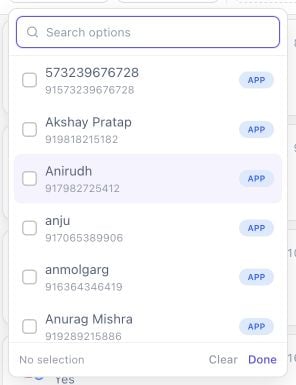 Click **Channels** above the conversation list.
Search by channel name or number, or scroll through the available APP, API, and COEX channels.
Select one or more numbers and click **Done**. Selecting multiple numbers displays conversations from any of those channels.
Channel availability follows your workspace access. If a number is missing, ask a workspace admin to confirm that you can access it.
## Filter by assignee
Use **Assignee** to find conversations owned by specific workspace members. This helps managers review workloads and helps agents focus on the chats they are responsible for.
Click **Channels** above the conversation list.
Search by channel name or number, or scroll through the available APP, API, and COEX channels.
Select one or more numbers and click **Done**. Selecting multiple numbers displays conversations from any of those channels.
Channel availability follows your workspace access. If a number is missing, ask a workspace admin to confirm that you can access it.
## Filter by assignee
Use **Assignee** to find conversations owned by specific workspace members. This helps managers review workloads and helps agents focus on the chats they are responsible for.
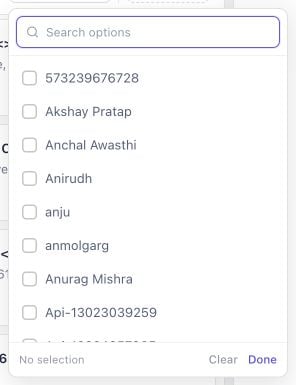 You can select one or more assignees:
* Select one member to review that person's queue.
* Select multiple members to review a team's combined workload.
* Use **is known** in **All filters** to show assigned conversations.
* Use **is unknown** to find conversations that do not have an owner.
Click **Done** after making your selection.
## Filter by messaging-window expiry
Use **Expire time** to prioritize conversations before the WhatsApp messaging window closes.
You can select one or more assignees:
* Select one member to review that person's queue.
* Select multiple members to review a team's combined workload.
* Use **is known** in **All filters** to show assigned conversations.
* Use **is unknown** to find conversations that do not have an owner.
Click **Done** after making your selection.
## Filter by messaging-window expiry
Use **Expire time** to prioritize conversations before the WhatsApp messaging window closes.
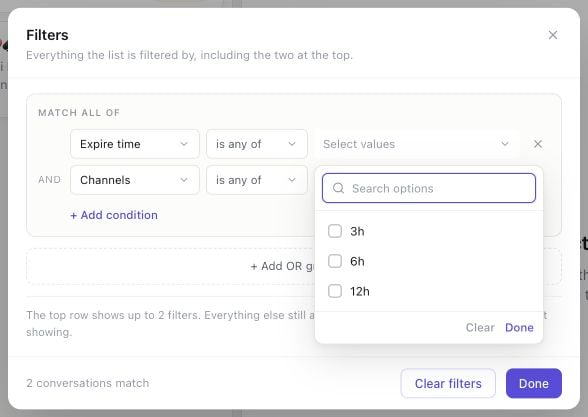 Choose the time range that matches your workflow:
* **3h:** Work on the most urgent conversations first.
* **6h:** Plan the current support or sales shift.
* **12h:** Review conversations that may need attention later in the day.
When the messaging window expires, an API conversation may require an approved WhatsApp template before you can send another message.
## Filter by AI properties
AI properties are customer details extracted or maintained by Eazybe AI, such as **Urgency Level**, **Conversation State**, **Issue Category**, or **Stage**. The exact properties available depend on your workspace configuration.
Choose the time range that matches your workflow:
* **3h:** Work on the most urgent conversations first.
* **6h:** Plan the current support or sales shift.
* **12h:** Review conversations that may need attention later in the day.
When the messaging window expires, an API conversation may require an approved WhatsApp template before you can send another message.
## Filter by AI properties
AI properties are customer details extracted or maintained by Eazybe AI, such as **Urgency Level**, **Conversation State**, **Issue Category**, or **Stage**. The exact properties available depend on your workspace configuration.
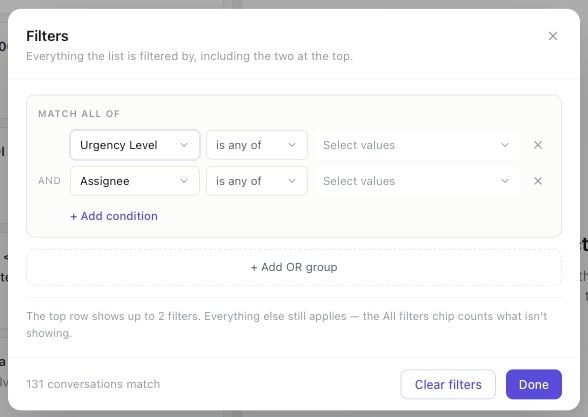 AI-property filters help you create useful customer segments, for example:
* High-urgency conversations that need immediate attention
* Customers in a specific sales stage
* Conversations with a known issue category
* Contacts whose property is still unknown and needs review
Choose an AI property in **All filters**, select an operator, and select values when required.
## Use All filters
Click **All filters** when you need more control than the quick filters provide. The editor shows every active condition, including conditions created through **Channels** and **Assignee**.
AI-property filters help you create useful customer segments, for example:
* High-urgency conversations that need immediate attention
* Customers in a specific sales stage
* Conversations with a known issue category
* Contacts whose property is still unknown and needs review
Choose an AI property in **All filters**, select an operator, and select values when required.
## Use All filters
Click **All filters** when you need more control than the quick filters provide. The editor shows every active condition, including conditions created through **Channels** and **Assignee**.
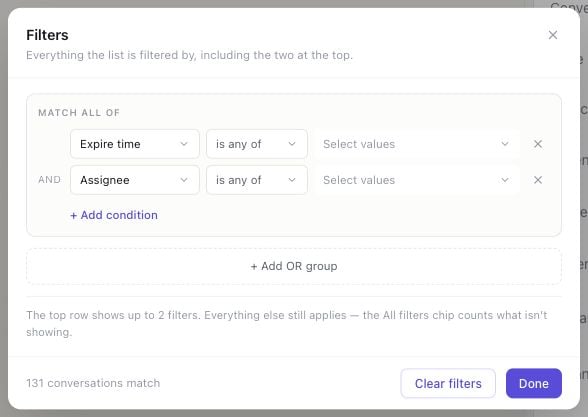 In **All filters**, you can:
* Change the property being filtered
* Choose how values should match
* Add more conditions with **+ Add condition**
* Create alternative groups with **+ Add OR group**
* Remove individual conditions
* Clear every active filter
### Filter operators
| Operator | Result |
| -------------- | ----------------------------------------------------------- |
| **is any of** | Includes conversations matching at least one selected value |
| **is none of** | Excludes conversations matching any selected value |
| **is known** | Includes conversations where the property has a value |
| **is unknown** | Includes conversations where the property has no value |
**Expire time** and **Channels** support **is any of** and **is none of**. Assignee and AI properties can also support **is known** and **is unknown**.
## Combine conditions with AND and OR
Conditions in the same group use **AND** logic. A conversation must match every condition in that group.
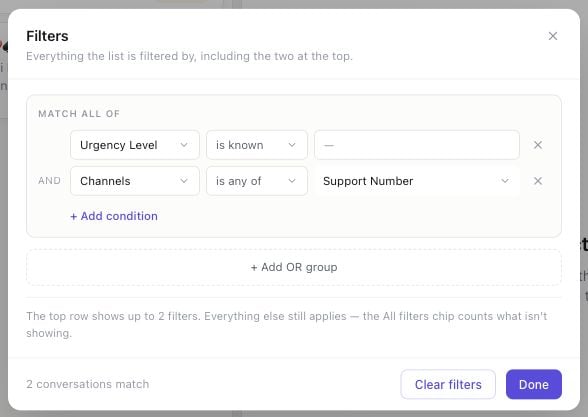
For example, **Urgency Level is known AND Channels is any of Support Number** returns conversations that have an urgency value and came through the selected support number.
Click **+ Add OR group** when either set of conditions may match. For example, use separate groups to show conversations assigned to Alice **OR** conversations received through the Support API channel.
If no conversations match, remove one condition or move alternative conditions into separate OR groups.
## Apply a filter
Use the quick filters or configure conditions in **All filters**.
The bottom-left corner of the editor shows how many conversations match before you apply the filter.
The inbox refreshes only after you click **Done**.
Active quick filters are highlighted. The badge on **All filters** represents active conditions that are not already visible in the quick-filter row.
In **All filters**, you can:
* Change the property being filtered
* Choose how values should match
* Add more conditions with **+ Add condition**
* Create alternative groups with **+ Add OR group**
* Remove individual conditions
* Clear every active filter
### Filter operators
| Operator | Result |
| -------------- | ----------------------------------------------------------- |
| **is any of** | Includes conversations matching at least one selected value |
| **is none of** | Excludes conversations matching any selected value |
| **is known** | Includes conversations where the property has a value |
| **is unknown** | Includes conversations where the property has no value |
**Expire time** and **Channels** support **is any of** and **is none of**. Assignee and AI properties can also support **is known** and **is unknown**.
## Combine conditions with AND and OR
Conditions in the same group use **AND** logic. A conversation must match every condition in that group.
For example, **Urgency Level is known AND Channels is any of Support Number** returns conversations that have an urgency value and came through the selected support number.
Click **+ Add OR group** when either set of conditions may match. For example, use separate groups to show conversations assigned to Alice **OR** conversations received through the Support API channel.
If no conversations match, remove one condition or move alternative conditions into separate OR groups.
## Apply a filter
Use the quick filters or configure conditions in **All filters**.
The bottom-left corner of the editor shows how many conversations match before you apply the filter.
The inbox refreshes only after you click **Done**.
Active quick filters are highlighted. The badge on **All filters** represents active conditions that are not already visible in the quick-filter row.
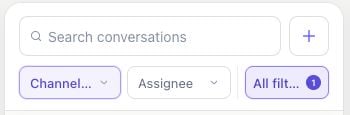 Open **All filters** again to review every active condition and the current match count:
 ## Save filters as a view
After applying at least one filter, click **Save as view** in the result bar.
Enter a clear name, such as **Urgent support conversations**.
Select **Only me** for **My views**, or **Everyone** for **Shared views**.
Click **Save view**. The view stores all conditions, values, operators, and AND/OR groups.
Select a saved view in the left sidebar to restore its filters. If you change an active saved view, use **Update view** to replace its saved configuration.
## Clear filters
* Click **Clear filters** in the full editor to remove every conversation filter.
* Click **Clear** in the result bar to return to the unfiltered **All conversations** list.
* Removing search text does not clear the other active filters.
## Troubleshooting
Remove one condition, select broader values, or move alternatives into separate OR groups.
Available options follow your workspace access. Ask an admin to confirm that the number or member is available to you.
This is expected. Click **Done** in the dropdown or full filter editor to apply your selection.
The quick-filter row shows up to two filters. Other active conditions remain applied and are represented by the badge.
## Save filters as a view
After applying at least one filter, click **Save as view** in the result bar.
Enter a clear name, such as **Urgent support conversations**.
Select **Only me** for **My views**, or **Everyone** for **Shared views**.
Click **Save view**. The view stores all conditions, values, operators, and AND/OR groups.
Select a saved view in the left sidebar to restore its filters. If you change an active saved view, use **Update view** to replace its saved configuration.
## Clear filters
* Click **Clear filters** in the full editor to remove every conversation filter.
* Click **Clear** in the result bar to return to the unfiltered **All conversations** list.
* Removing search text does not clear the other active filters.
## Troubleshooting
Remove one condition, select broader values, or move alternatives into separate OR groups.
Available options follow your workspace access. Ask an admin to confirm that the number or member is available to you.
This is expected. Click **Done** in the dropdown or full filter editor to apply your selection.
The quick-filter row shows up to two filters. Other active conditions remain applied and are represented by the badge.