> ## Documentation Index
> Fetch the complete documentation index at: https://help.eazybe.com/llms.txt
> Use this file to discover all available pages before exploring further.
# Setting Button
> Learn how to access and configure the Settings button in Eazybe to customize your WhatsApp experience with privacy, display, and personalization options.
The Settings button provides access to a comprehensive panel of customization options for your Eazybe experience, including privacy settings, display preferences, and personalization features.
## Accessing the Settings Panel
Click on the settings button on the right-side bar to open the settings panel.
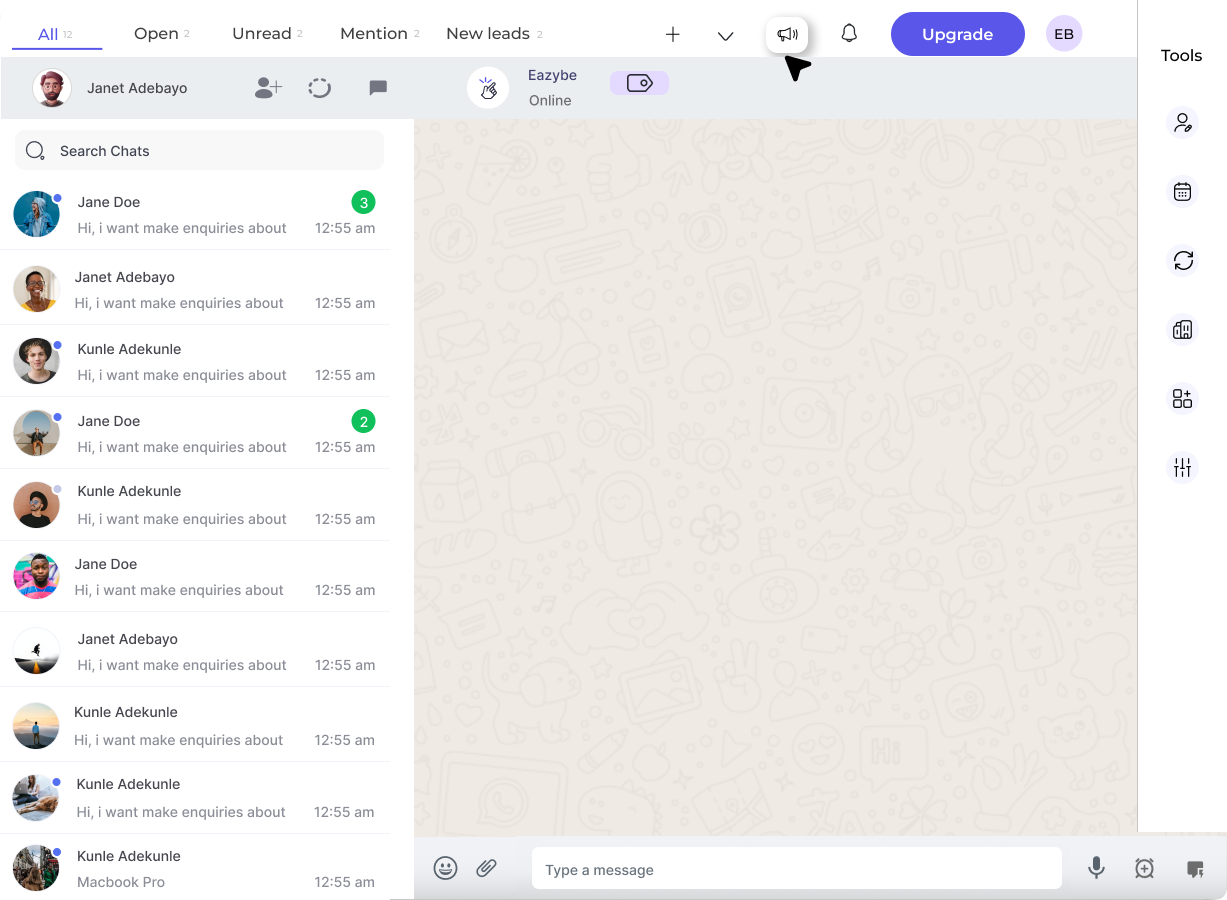 You will see a list of sections. Admins can select whether settings apply to **everyone** or **everyone except admin** by clicking on the dropdown.
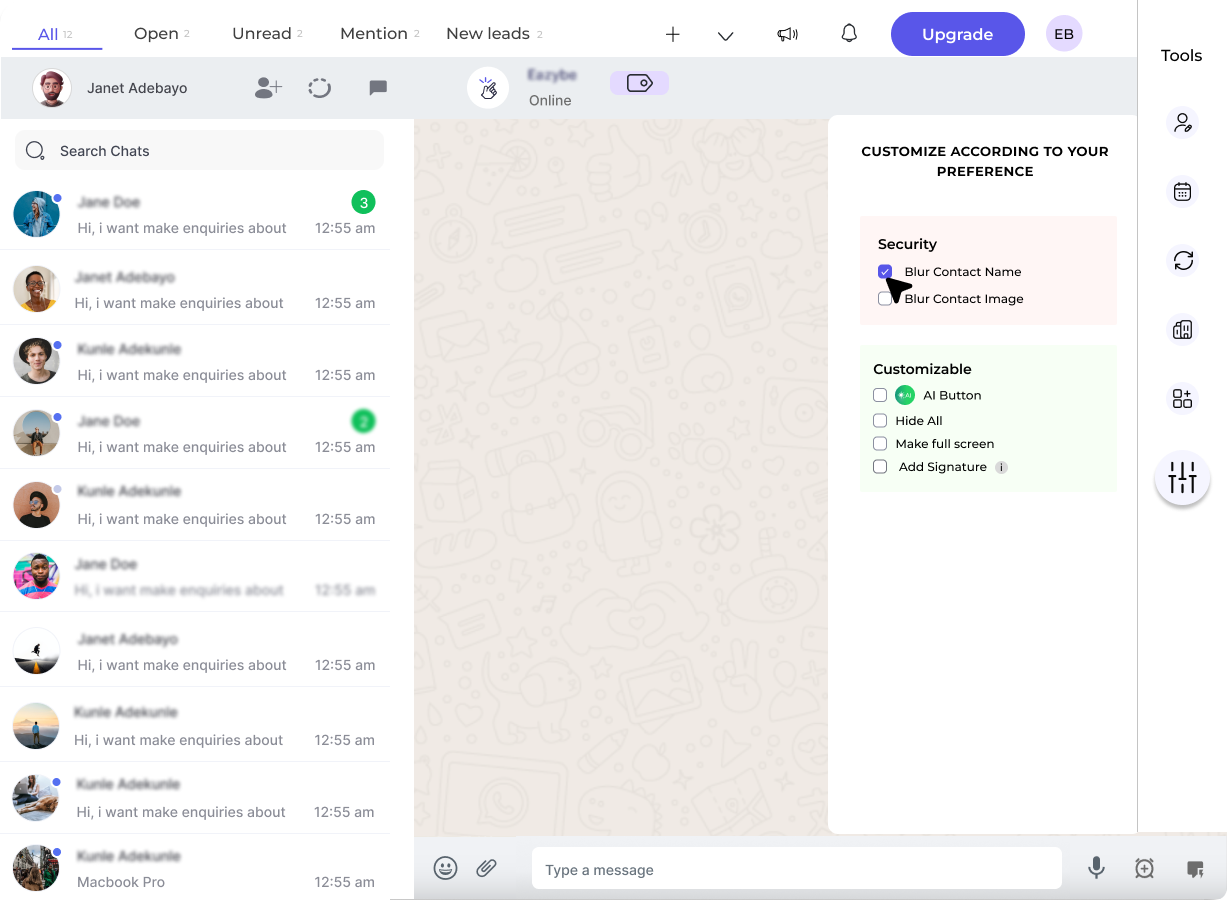 ## Security Settings
### Blur Contact Name
Checking this checkbox will blur the contact name for all contacts.
## Security Settings
### Blur Contact Name
Checking this checkbox will blur the contact name for all contacts.
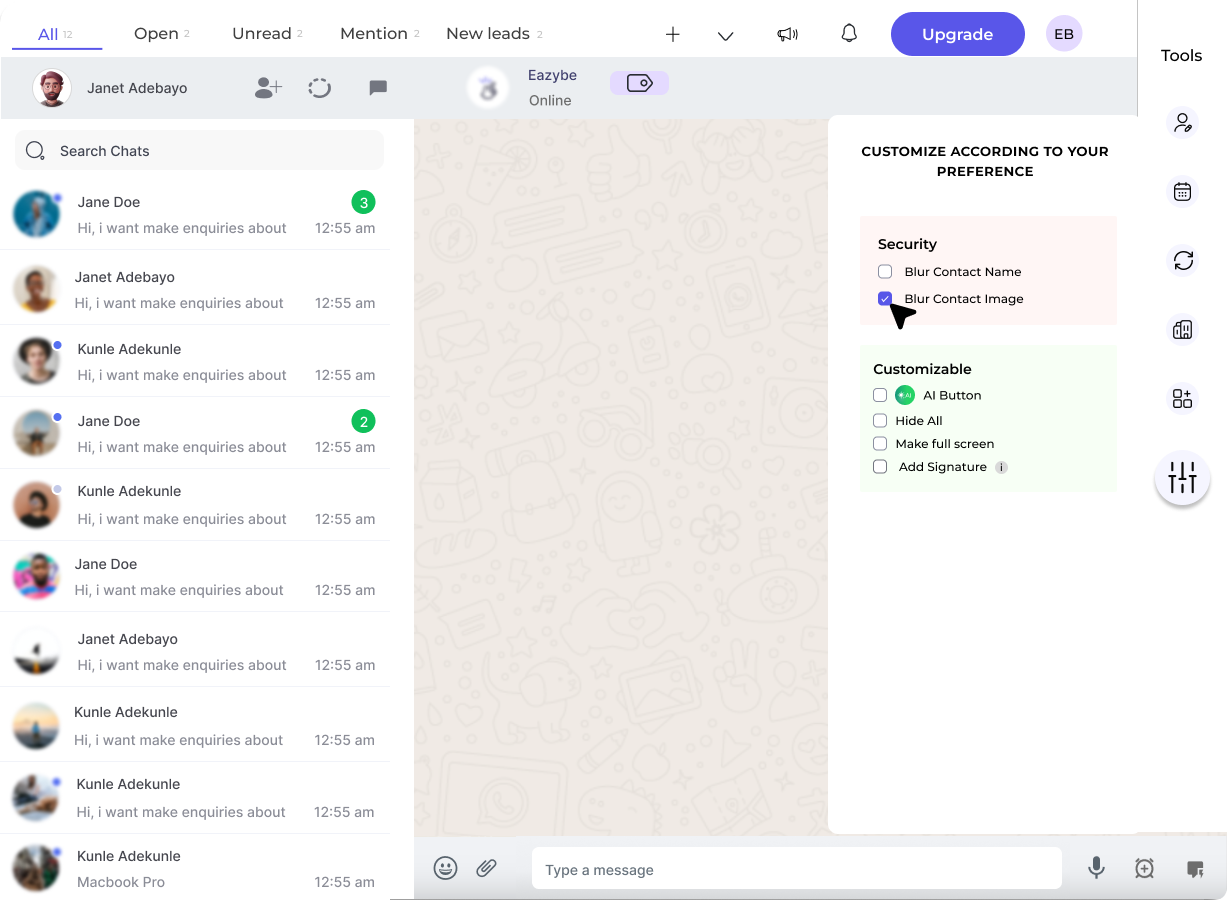 ### Blur Contact Image
Checking this checkbox will blur the profile picture of all contacts.
No, blurred details won't be visible to others after applying the settings.
This feature enhances privacy in chats and groups by hiding identifying information.
The blurring feature applies to individual chats, group chats, and about sections.
Currently, blurring settings apply universally to all contacts. You cannot selectively blur individual contacts.
Yes, you can customize settings for everyone or everyone except the admin using the dropdown selector.
## Customizable Settings
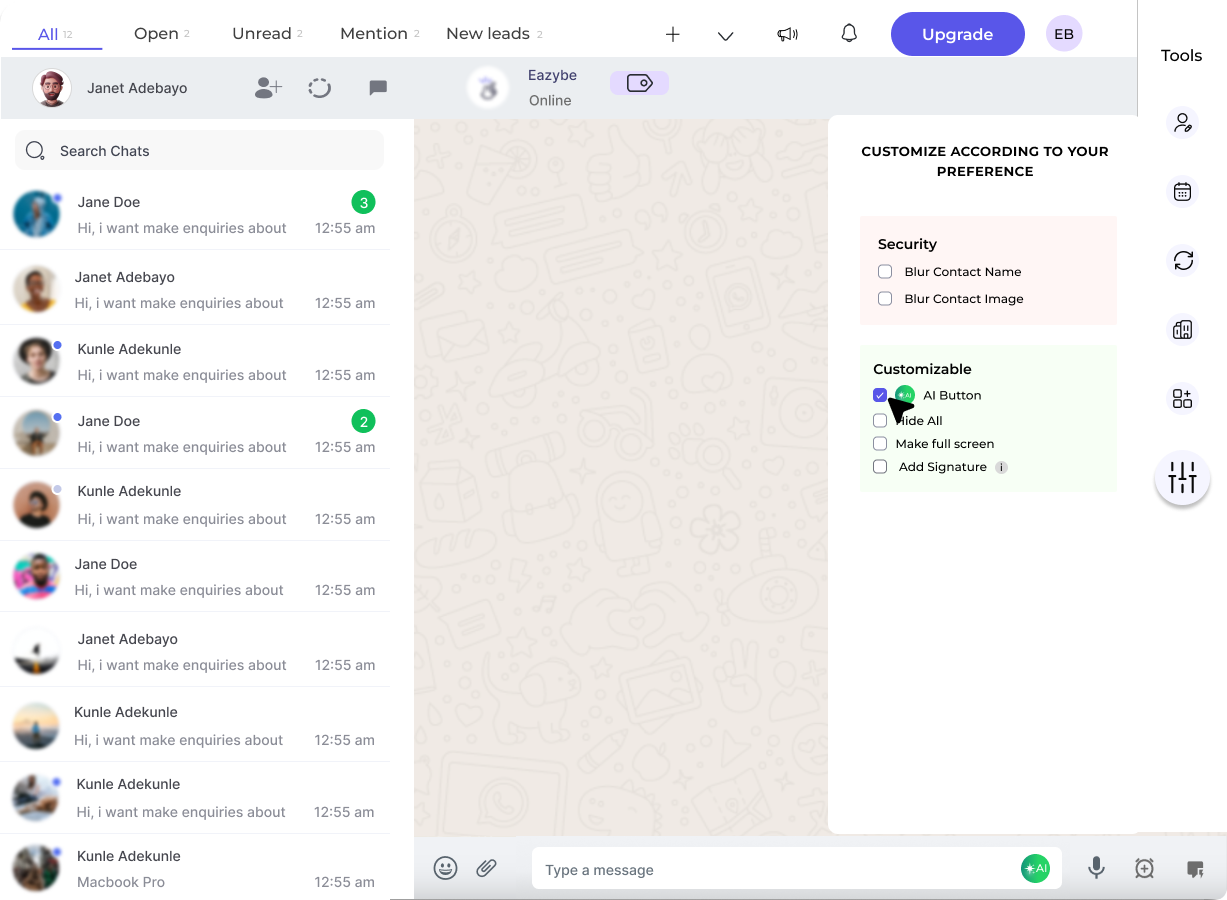
### AI Button
Checking this checkbox will enable the AI button in your interface.
### Blur Contact Image
Checking this checkbox will blur the profile picture of all contacts.
No, blurred details won't be visible to others after applying the settings.
This feature enhances privacy in chats and groups by hiding identifying information.
The blurring feature applies to individual chats, group chats, and about sections.
Currently, blurring settings apply universally to all contacts. You cannot selectively blur individual contacts.
Yes, you can customize settings for everyone or everyone except the admin using the dropdown selector.
## Customizable Settings
### AI Button
Checking this checkbox will enable the AI button in your interface.
 ### Make Full Screen
Checking this checkbox will make WhatsApp cover the entire screen for a distraction-free experience.
### Add Signature
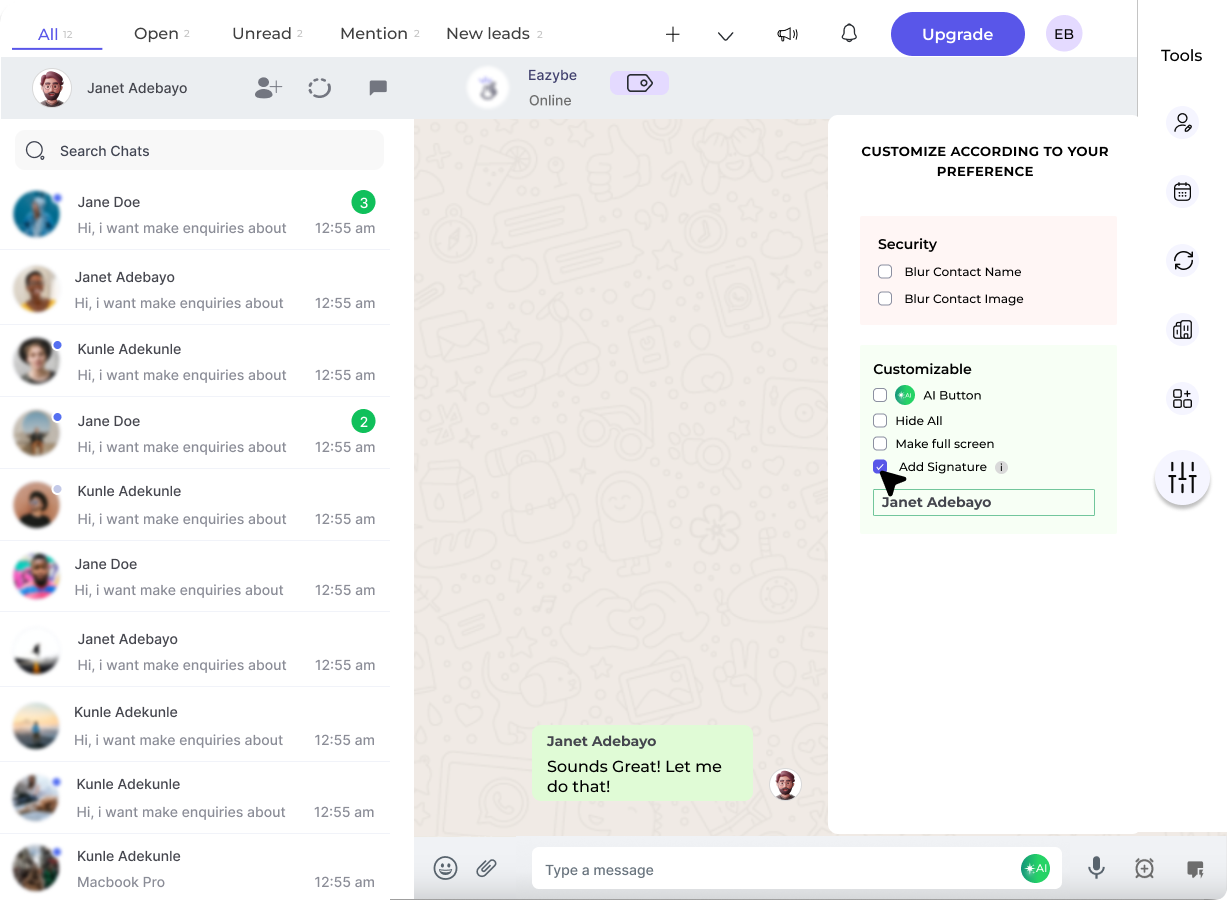
You can add a personalized signature that appears above every outgoing WhatsApp chat message.
Check the **Add Signature** checkbox to enable the feature.
Enter your desired signature text in the text field.
Click the tick mark to save your signature.
### Make Full Screen
Checking this checkbox will make WhatsApp cover the entire screen for a distraction-free experience.
### Add Signature
You can add a personalized signature that appears above every outgoing WhatsApp chat message.
Check the **Add Signature** checkbox to enable the feature.
Enter your desired signature text in the text field.
Click the tick mark to save your signature.
 There is no specified character limit for signature text. You can customize it as needed.
Signatures apply only to outgoing messages, not to incoming messages.
Emojis are not currently supported in signatures.
You can disable your signature by turning off the Add Signature checkbox.
### Hide All Label
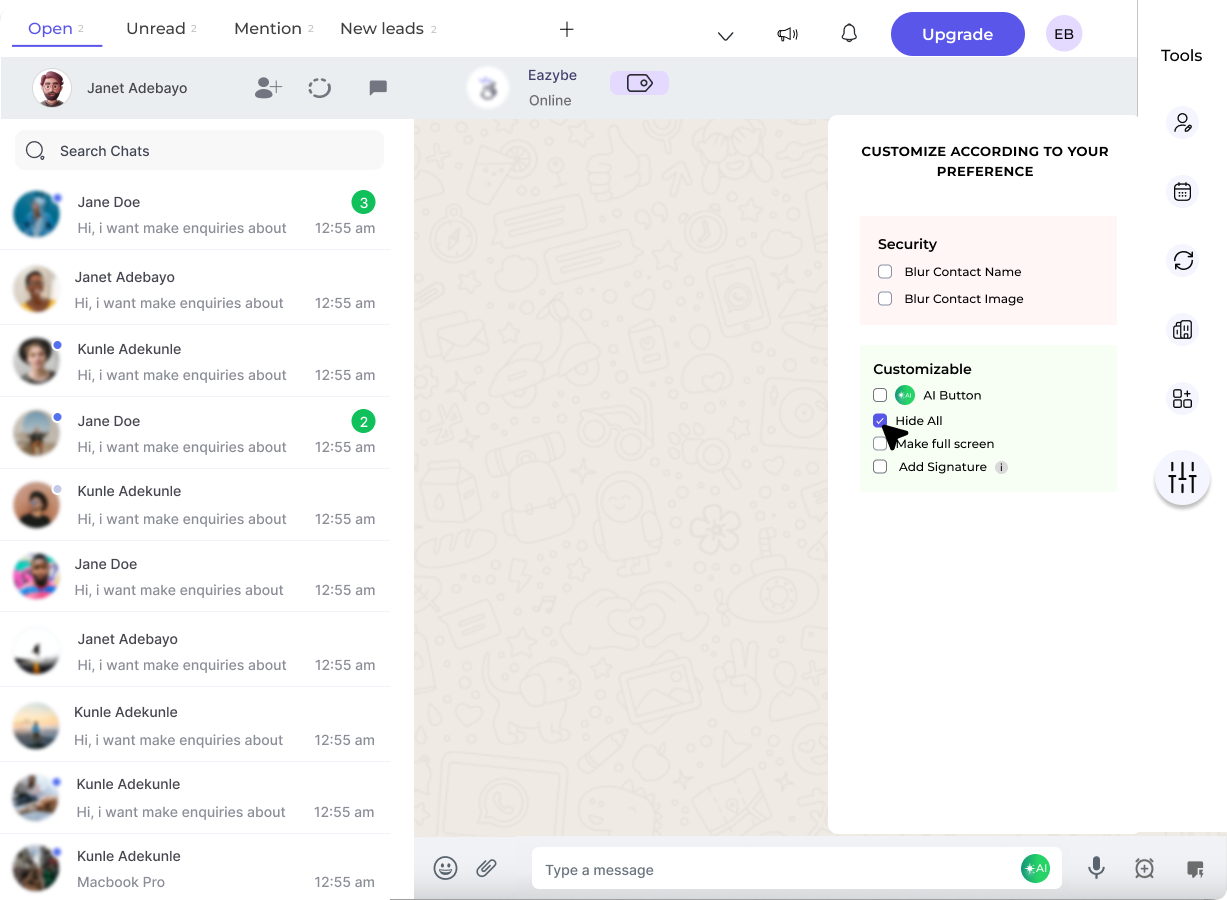
You can hide the **All** label from the top bar by checking this checkbox.
There is no specified character limit for signature text. You can customize it as needed.
Signatures apply only to outgoing messages, not to incoming messages.
Emojis are not currently supported in signatures.
You can disable your signature by turning off the Add Signature checkbox.
### Hide All Label
You can hide the **All** label from the top bar by checking this checkbox.
 Use the Settings button to quickly customize your Eazybe experience. Privacy settings like contact blurring are especially useful when sharing your screen during presentations or demos.