> ## Documentation Index
> Fetch the complete documentation index at: https://help.eazybe.com/llms.txt
> Use this file to discover all available pages before exploring further.

# Scheduler Message

> Learn how to schedule WhatsApp messages in Eazybe to send at a specific date and time, with options for recurring messages.

Schedule your WhatsApp messages to be sent at a specific date and time. This feature helps you reach your contacts at the perfect moment, even when you're not available.

<iframe width="560" height="315" src="https://www.youtube.com/embed/7rgS5g39owk" title="YouTube video player" frameBorder="0" allow="accelerometer; autoplay; clipboard-write; encrypted-media; gyroscope; picture-in-picture" allowFullScreen />

## How to Schedule a Message

<Steps>
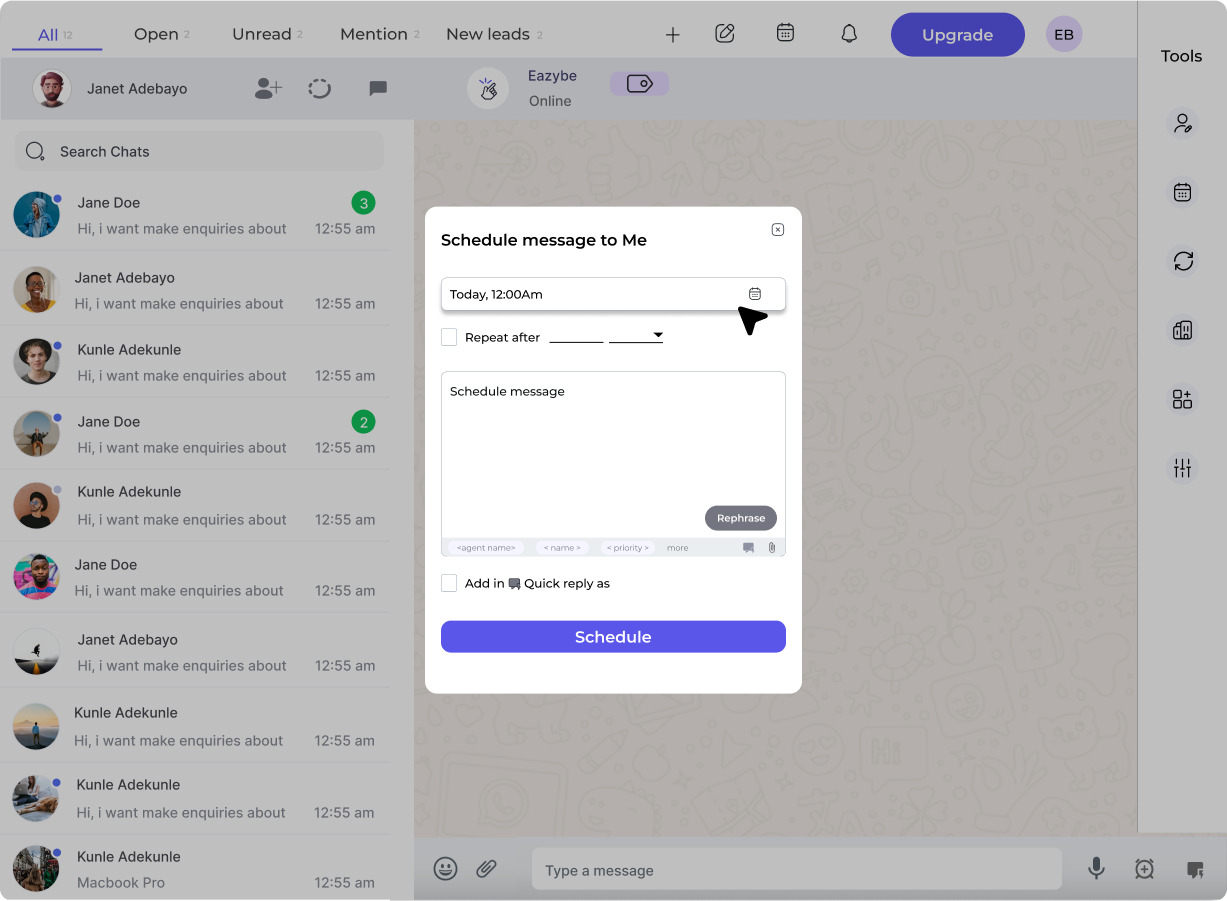
  <Step title="Click on the Scheduler Button">
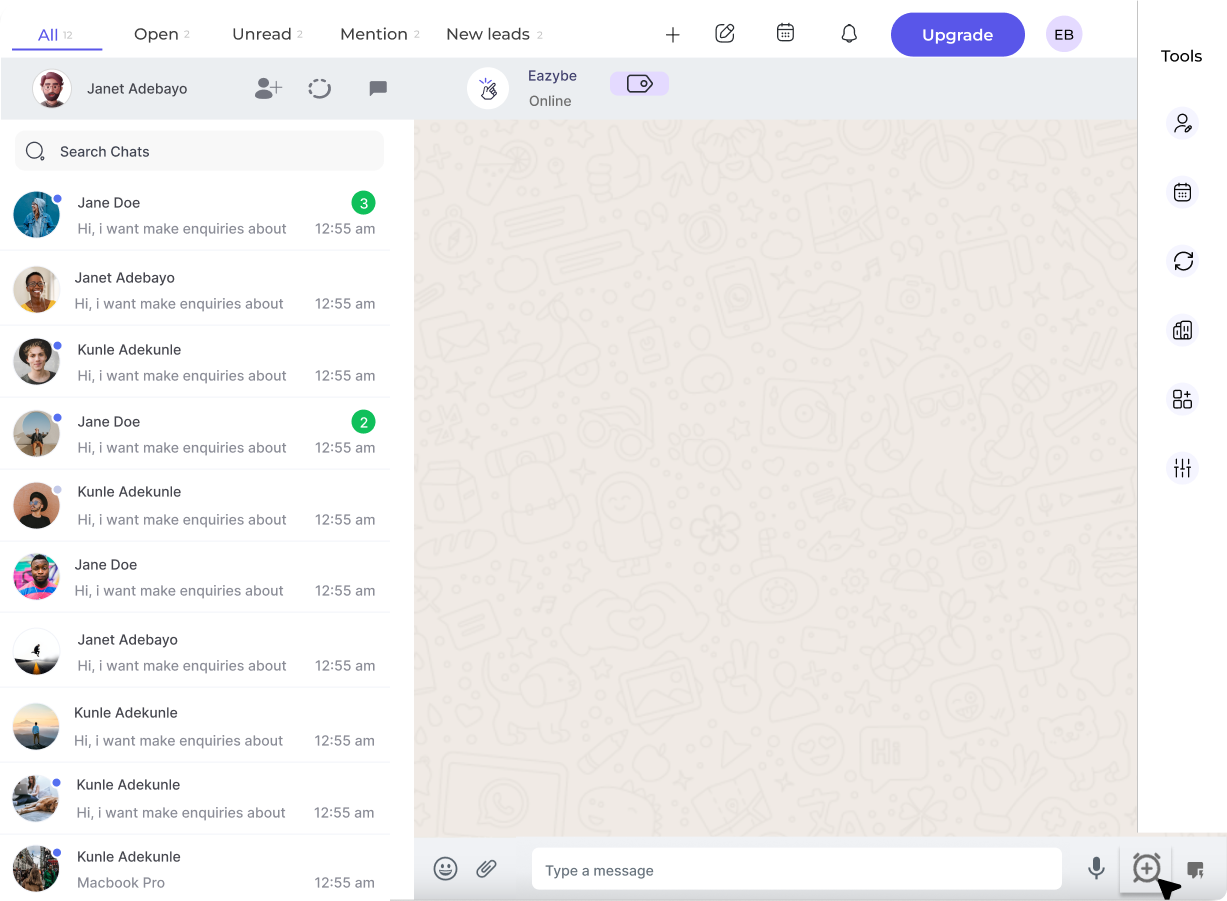
    Click on the **Scheduler** button to open the scheduling interface.

    <img src="https://mintcdn.com/eazybe/xksL31rO_HHL2lYQ/images/1112605613.png?fit=max&auto=format&n=xksL31rO_HHL2lYQ&q=85&s=c93dadae374bb658b22e6ae26a9102e2" alt="Scheduler Button" width="1227" height="901" data-path="images/1112605613.png" />
  </Step>

  <Step title="Select Date and Time">
    Choose the date and time when you want your message to be sent.

    <img src="https://mintcdn.com/eazybe/xksL31rO_HHL2lYQ/images/1112605768.png?fit=max&auto=format&n=xksL31rO_HHL2lYQ&q=85&s=a982444ea13de3532a6e4c7f03aaa483" alt="Select Date Time" width="1227" height="901" data-path="images/1112605768.png" />
  </Step>

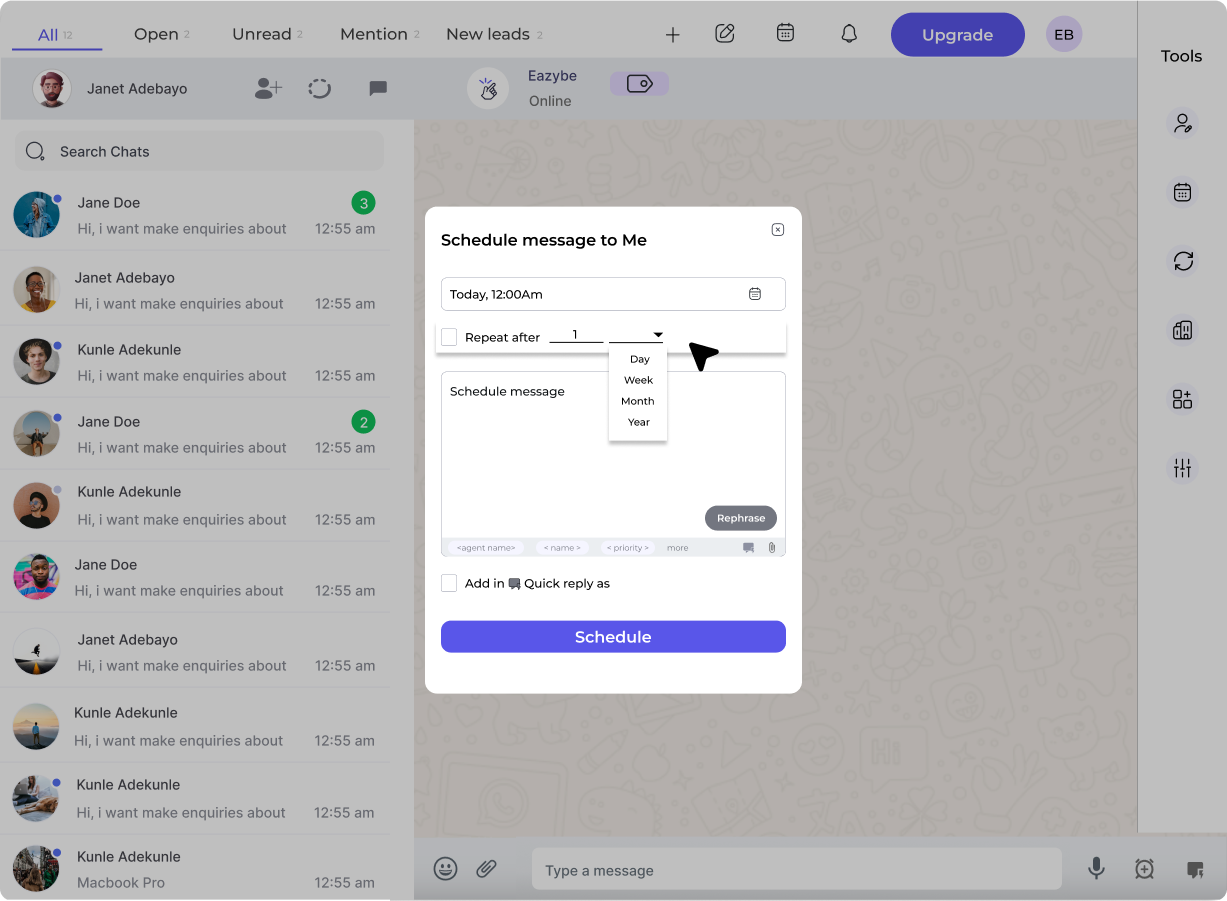
  <Step title="Configure Message Repetition">
    You can choose to repeat the message after a specified time interval for recurring communications.

    <img src="https://mintcdn.com/eazybe/xksL31rO_HHL2lYQ/images/1112605870.png?fit=max&auto=format&n=xksL31rO_HHL2lYQ&q=85&s=6e00e7e594bd80c1ef39f31fab7e51be" alt="Configure Repetition" width="1227" height="901" data-path="images/1112605870.png" />
  </Step>

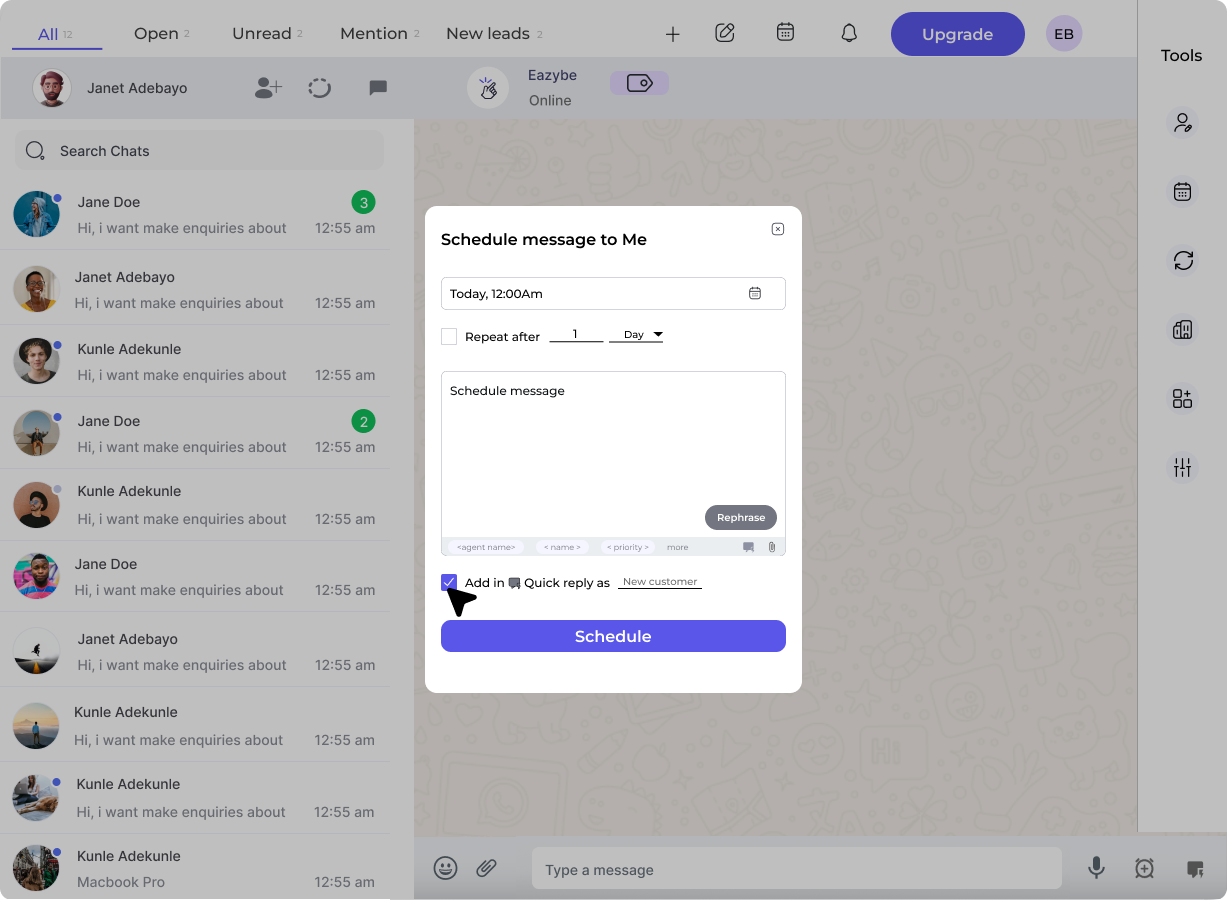
  <Step title="Add to Quick Reply (Optional)">
    Select the fields from the bottom and check the **Add to Quick Reply** checkbox if you want to save this message for future use.

    <img src="https://mintcdn.com/eazybe/xksL31rO_HHL2lYQ/images/1112605985.png?fit=max&auto=format&n=xksL31rO_HHL2lYQ&q=85&s=f038a74d572dbed0536fcf4c86806e20" alt="Add to Quick Reply" width="1227" height="900" data-path="images/1112605985.png" />

    <img src="https://mintcdn.com/eazybe/xksL31rO_HHL2lYQ/images/1112606156.png?fit=max&auto=format&n=xksL31rO_HHL2lYQ&q=85&s=77c1782bc7a6315156d0e8230685e7e8" alt="Quick Reply Options" width="1227" height="900" data-path="images/1112606156.png" />
  </Step>

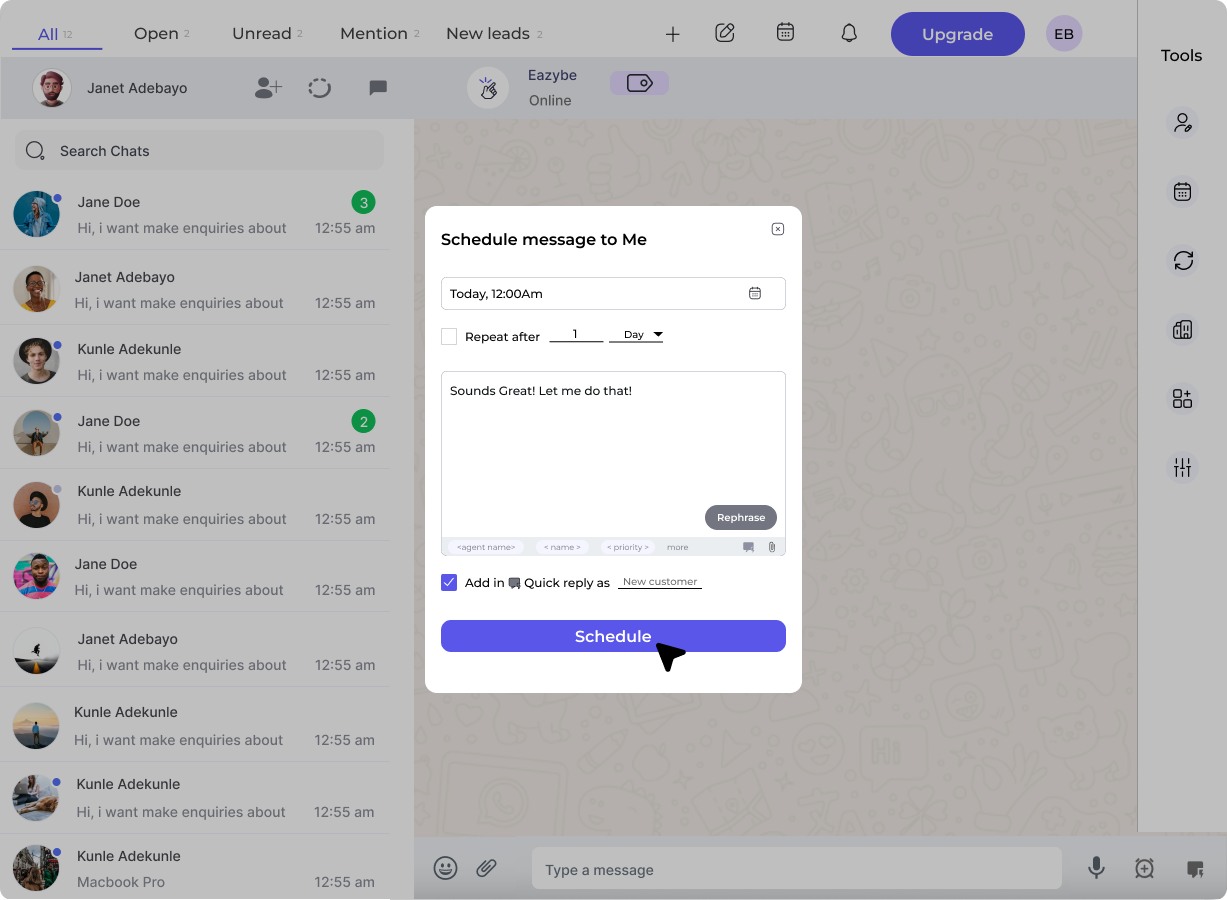
  <Step title="Schedule and Send">
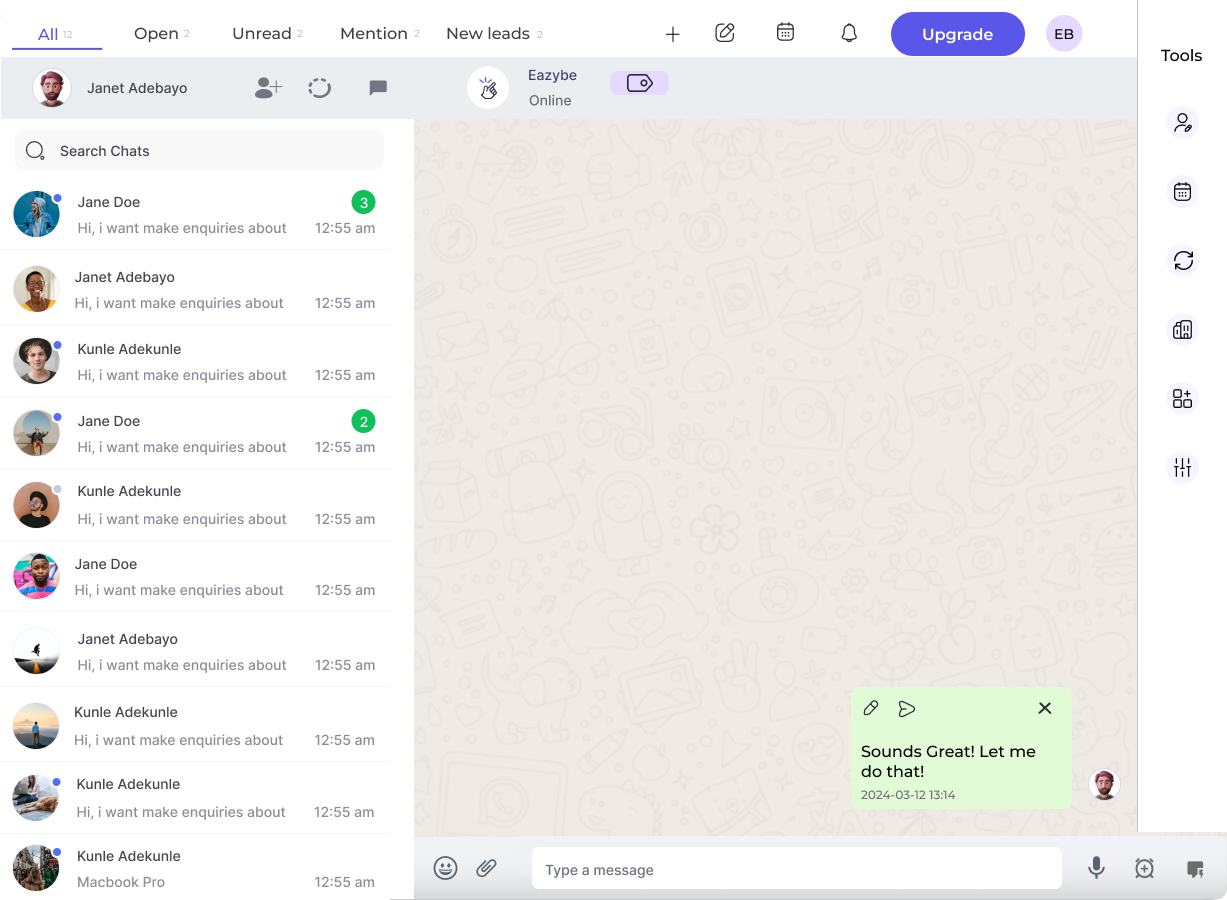
    The message will be scheduled and will be sent to the contact at the specified time.

    <img src="https://mintcdn.com/eazybe/xksL31rO_HHL2lYQ/images/1112607191.png?fit=max&auto=format&n=xksL31rO_HHL2lYQ&q=85&s=e0583ae548192b70a062b1cd2440eb10" alt="Schedule Message" width="1227" height="900" data-path="images/1112607191.png" />
  </Step>
</Steps>

## Frequently Asked Questions

<AccordionGroup>
  <Accordion title="Is adding the message to Quick Reply mandatory?">
    No, adding the message to Quick Replies is optional. It is provided for ease of access to frequently sent messages.
  </Accordion>

  <Accordion title="What are the file attachment limits?">
    The file size for attachments in scheduled messages cannot exceed **20MB**, and only one file can be attached per message.
  </Accordion>

  <Accordion title="Can I edit a scheduled message before it's sent?">
    Yes, you can edit the scheduled message before sending it. Additionally, you have the option to send it immediately if needed.
  </Accordion>

  <Accordion title="Can I view or edit scheduled messages after setting them?">
    Yes, you can view and edit scheduled messages. The interface allows you to manage and make changes to your scheduled messages at any time.
  </Accordion>

  <Accordion title="How do I set up recurring messages?">
    In Step 4, you have the option to set the message as a Recurring Message. Choose the frequency - Days, Weeks, Months, or Years - based on your needs.
  </Accordion>
</AccordionGroup>

<Tip>
  Use scheduled messages for follow-ups, reminders, or greetings to ensure timely communication with your contacts.
</Tip>