> ## Documentation Index
> Fetch the complete documentation index at: https://help.eazybe.com/llms.txt
> Use this file to discover all available pages before exploring further.

# Quick Reply

> Learn how to create and use Quick Replies in Eazybe to send pre-written messages instantly, saving time and ensuring consistent communication.

Quick Replies allow you to create pre-written messages that can be sent instantly, saving time and ensuring consistent communication across your team.

<iframe width="560" height="315" src="https://www.youtube.com/embed/SNsh0SzIxVw" title="YouTube video player" frameBorder="0" allow="accelerometer; autoplay; clipboard-write; encrypted-media; gyroscope; picture-in-picture" allowFullScreen />

## How to Create a Quick Reply

<Steps>
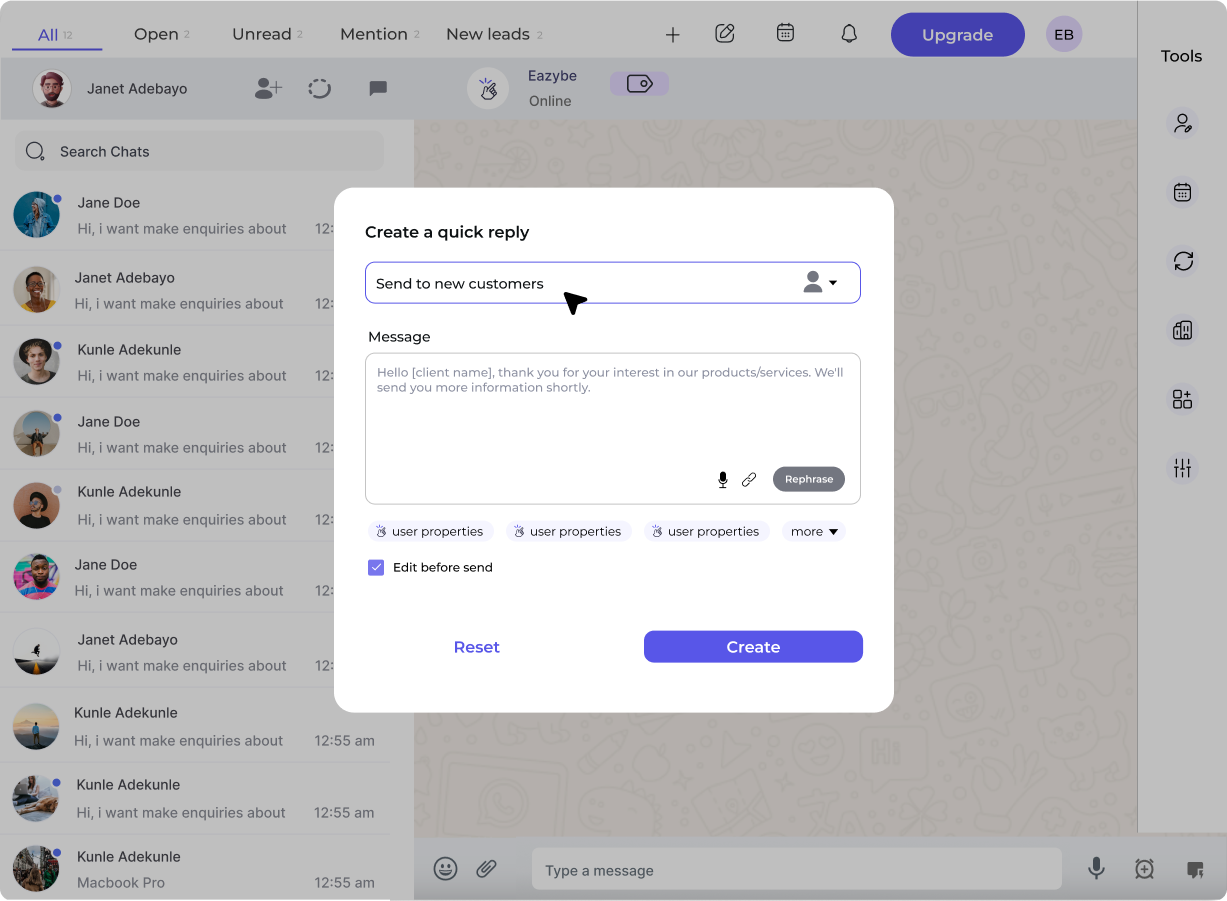
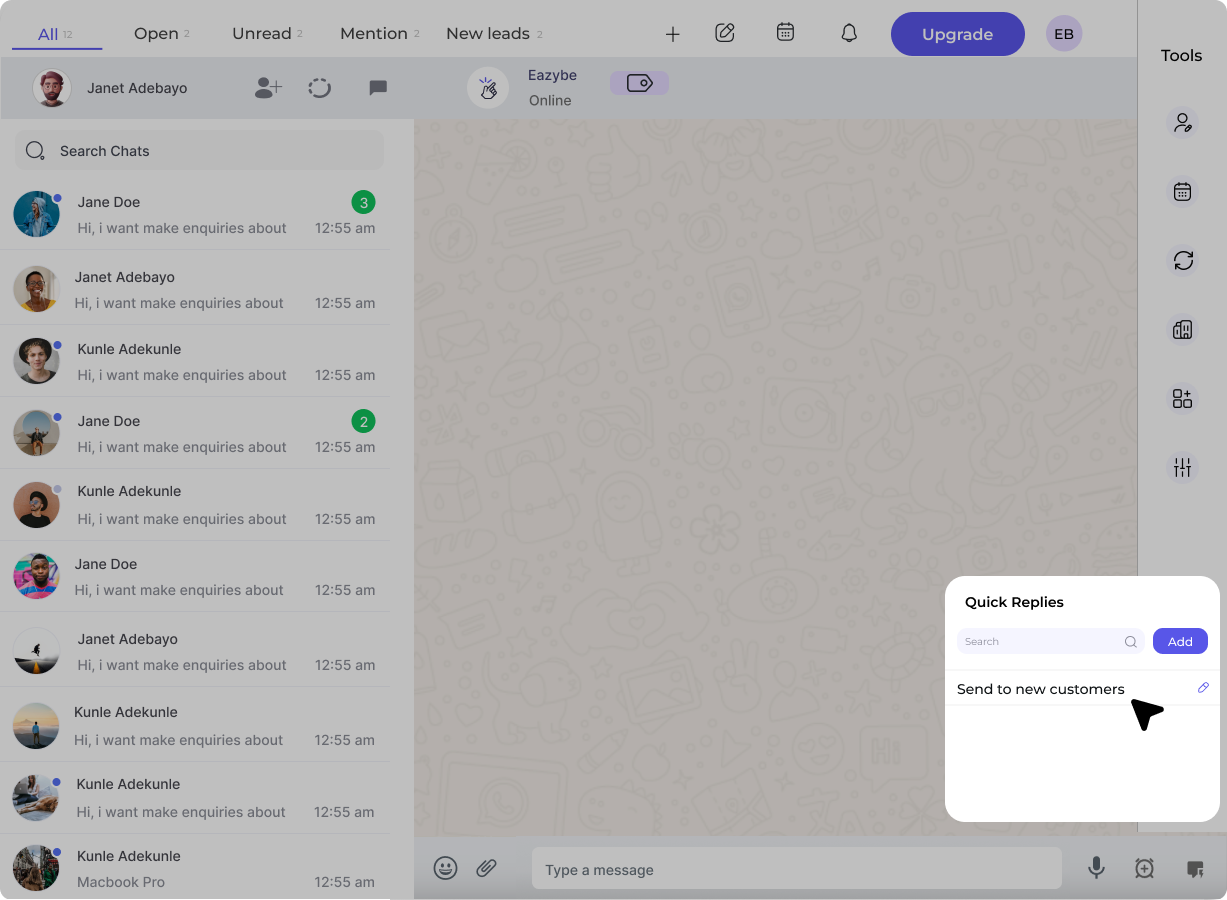
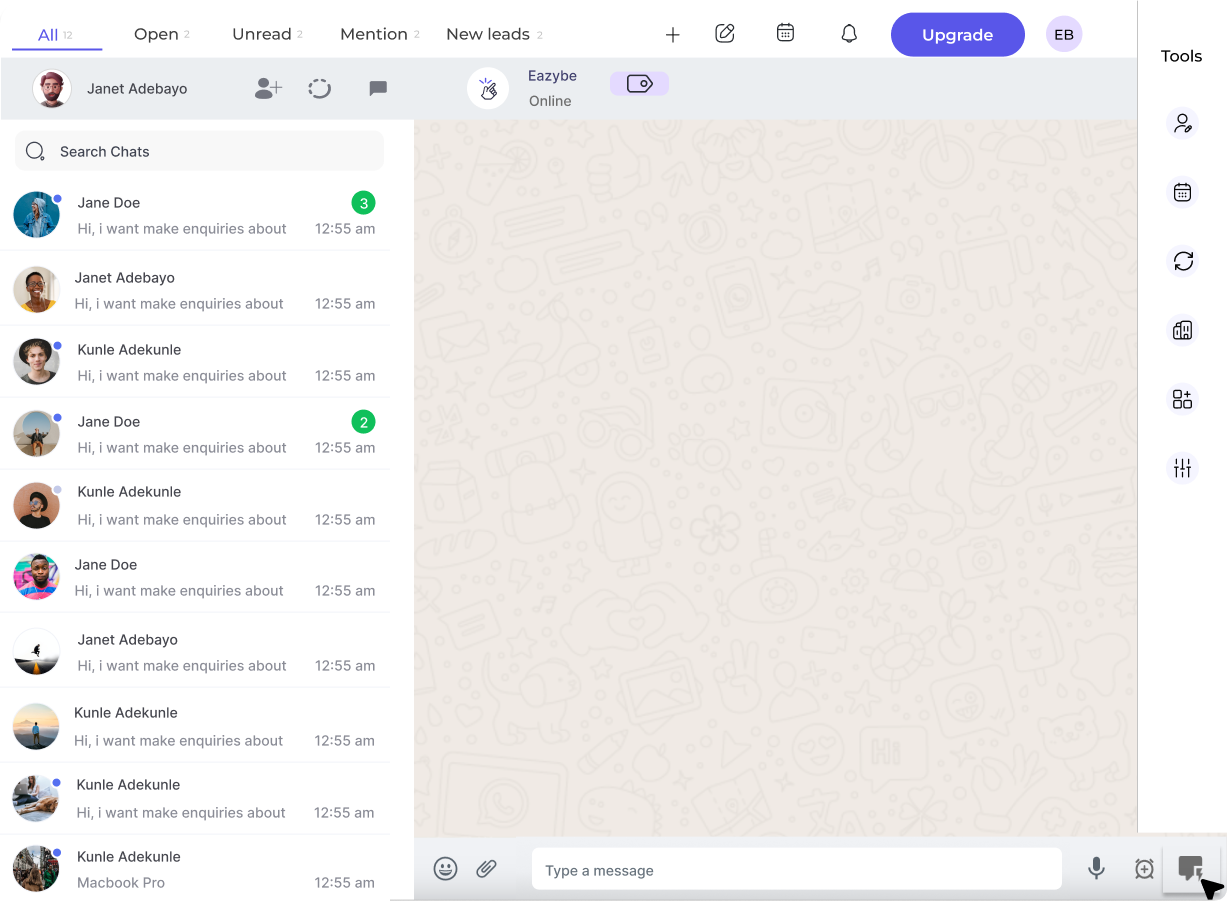
  <Step title="Click the Quick Reply Button">
    Click the **Quick Reply** button in the Eazybe interface to open the creation dialog.

    <img src="https://mintcdn.com/eazybe/xksL31rO_HHL2lYQ/images/1112602309.png?fit=max&auto=format&n=xksL31rO_HHL2lYQ&q=85&s=a231d09d372e40af39ab7c35eda80ced" alt="Quick Reply Button" width="1227" height="901" data-path="images/1112602309.png" />
  </Step>

  <Step title="Name Your Quick Reply">
    Assign a descriptive name to your Quick Reply and type your desired message content.

    <img src="https://mintcdn.com/eazybe/xksL31rO_HHL2lYQ/images/1112602543.png?fit=max&auto=format&n=xksL31rO_HHL2lYQ&q=85&s=2b2e4efe0edfe325baf4f8fb23e5a300" alt="Name Quick Reply" width="1227" height="901" data-path="images/1112602543.png" />
  </Step>

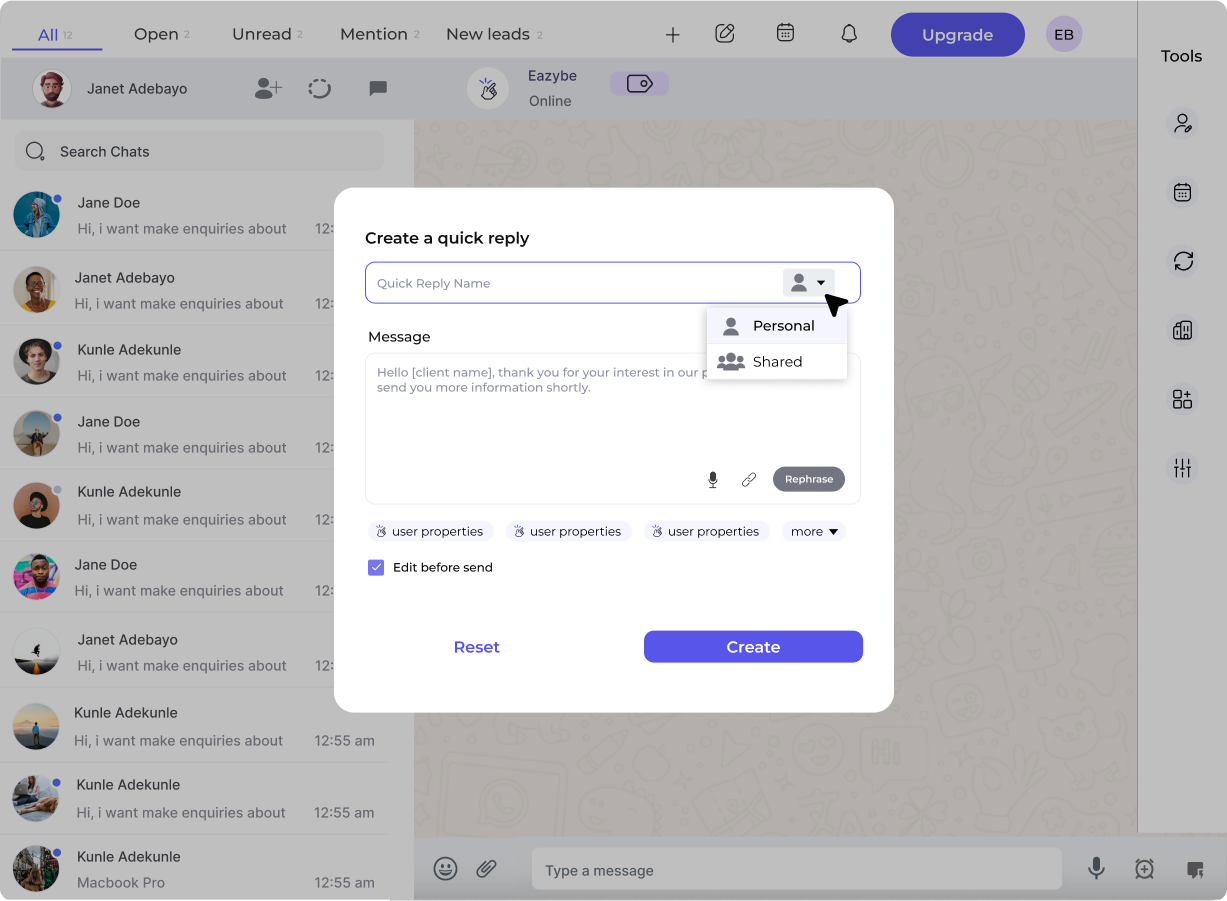
  <Step title="Choose Visibility">
    Select the visibility setting for your Quick Reply:

    * **Personal** - Only you can see and use this reply
    * **Shared** - Available to your entire organization

          <img src="https://mintcdn.com/eazybe/xksL31rO_HHL2lYQ/images/1112602937.png?fit=max&auto=format&n=xksL31rO_HHL2lYQ&q=85&s=67b0163bf958dd6eab72bd96f79758d8" alt="Choose Visibility" width="1227" height="901" data-path="images/1112602937.png" />
  </Step>

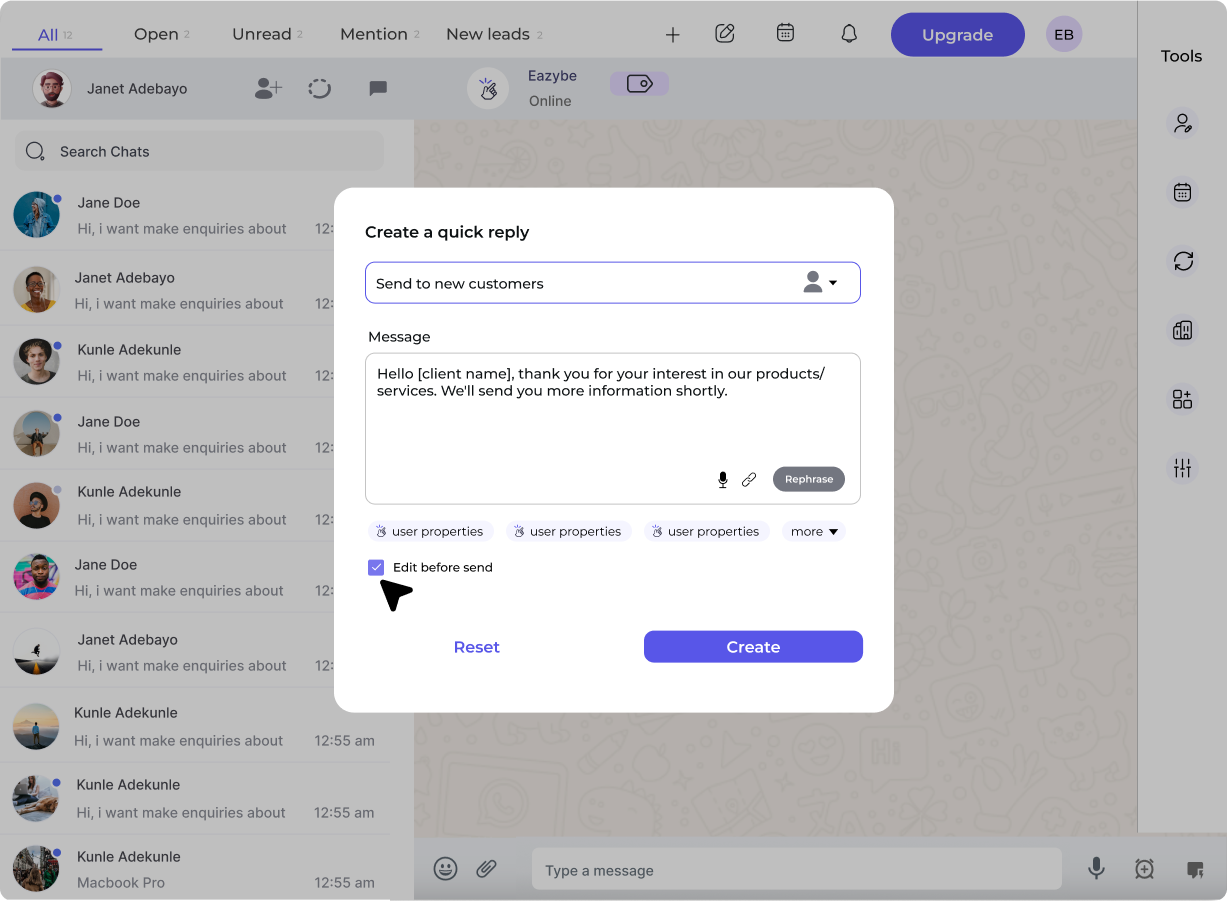
  <Step title="Configure Options">
    Optionally enable **Edit the reply before sending** if you want to customize the message each time you use it.

    <img src="https://mintcdn.com/eazybe/xksL31rO_HHL2lYQ/images/1112603250.png?fit=max&auto=format&n=xksL31rO_HHL2lYQ&q=85&s=540e48a442fb8312250109e67a7dc590" alt="Configure Options" width="1227" height="901" data-path="images/1112603250.png" />
  </Step>

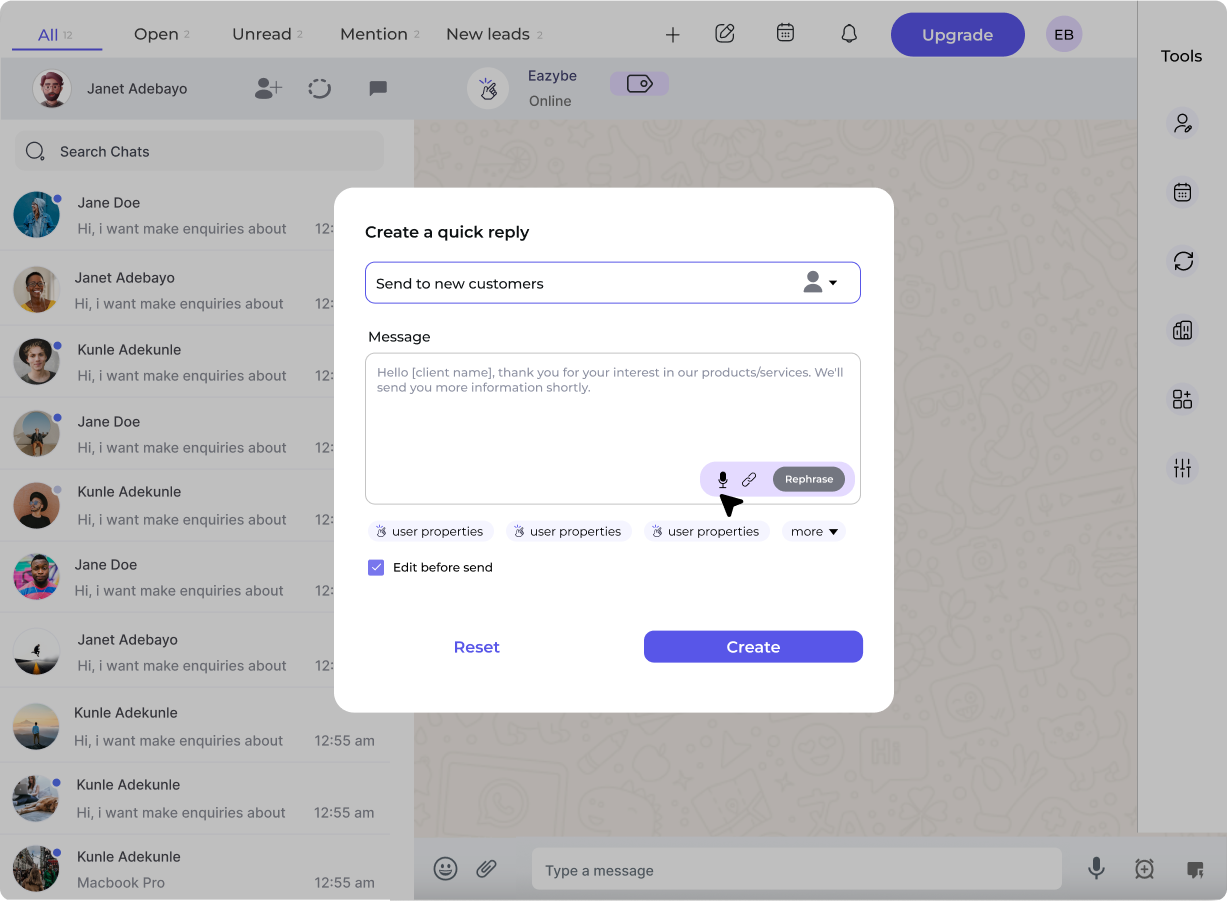
  <Step title="Add Enhancements (Optional)">
    You can enhance your Quick Reply with:

    * AI rephrasing for tone adjustment
    * Audio recording for voice messages
    * File attachments

          <img src="https://mintcdn.com/eazybe/xksL31rO_HHL2lYQ/images/1112603466.png?fit=max&auto=format&n=xksL31rO_HHL2lYQ&q=85&s=b503ef9343c1108d7008e3efef249a89" alt="Add Enhancements" width="1227" height="901" data-path="images/1112603466.png" />
  </Step>

  <Step title="Create Your Quick Reply">
    Click **Create** to finalize and save your Quick Reply.

    <img src="https://mintcdn.com/eazybe/xksL31rO_HHL2lYQ/images/1112603584.png?fit=max&auto=format&n=xksL31rO_HHL2lYQ&q=85&s=50b0ae0d9d46d60366585ad910b8269a" alt="Create Quick Reply" width="1227" height="900" data-path="images/1112603584.png" />
  </Step>
</Steps>

## Frequently Asked Questions

<AccordionGroup>
  <Accordion title="What visibility options are available?">
    You can choose from:

    * **Personal** - Only visible to you
    * **Shared** - Available to your entire organization
    * **Shared with team** - Available to specific team members
  </Accordion>

  <Accordion title="Can I add attachments to Quick Replies?">
    Yes, you can attach files to your Quick Replies. The file size limit for attachments is **20MB**, and voice notes are also supported. You can include one file maximum per Quick Reply.
  </Accordion>

  <Accordion title="What file types are supported?">
    Various file types are supported for attachments. The maximum file size is 20MB per attachment.
  </Accordion>

  <Accordion title="Is there a limit on how many Quick Replies I can create?">
    No, you can create **unlimited** Quick Replies to cover all your common messaging needs.
  </Accordion>

  <Accordion title="Can I edit or delete Quick Replies after creating them?">
    Yes, you have full edit and delete capability for all your Quick Replies. You can modify them anytime as your needs change.
  </Accordion>
</AccordionGroup>

<Tip>
  Create Quick Replies for your most common messages like greetings, follow-ups, and FAQs to dramatically speed up your response time.
</Tip>