> ## Documentation Index
> Fetch the complete documentation index at: https://help.eazybe.com/llms.txt
> Use this file to discover all available pages before exploring further.
# Managing Unreplied Chats
> Learn how to use Eazybe's AI-powered chat management system to efficiently prioritize and manage unreplied WhatsApp conversations.
Eazybe's AI-powered chat management system helps sales and support teams efficiently manage their WhatsApp conversations by prioritizing unreplied chats.
## How Eazybe AI Chat Prioritization Works
The AI agent scans every unreplied chat and applies a priority label (Critical or Non-Critical) based on specific indicators such as keywords (e.g., urgent, cancel, refund), customer value from your CRM, and the nature of the inquiry.
Team members see visual labels beside chats in the Team Inbox or chat extension, highlighting high-priority conversations to act on immediately.
Designated administrators receive WhatsApp message summaries every three hours listing unreplied chats, grouped by criticality to keep oversight tight.
## Step-by-Step Usage Guide
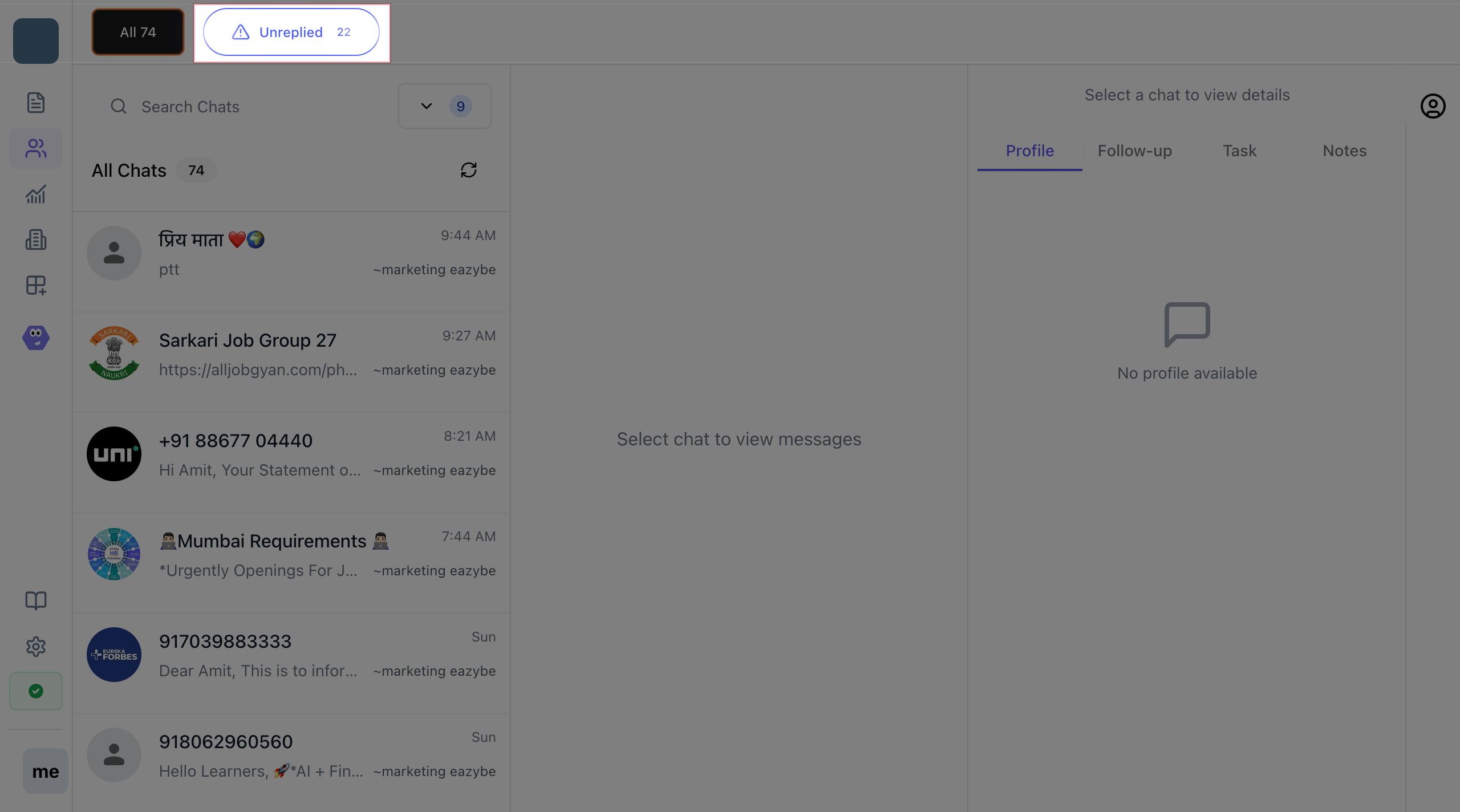
Log in to the Eazybe workspace and navigate to the **Team Inbox** from the sidebar menu. Click on **Unreplied** to view all chat conversations sorted by status, including those awaiting replies.
 Critical chats display a clear red label or icon indicating high priority. Scan regularly to identify urgent issues.
Example indicators for critical chats include:
* Complaints
* Billing questions
* Order cancellations
* High-value customer alerts
Critical chats display a clear red label or icon indicating high priority. Scan regularly to identify urgent issues.
Example indicators for critical chats include:
* Complaints
* Billing questions
* Order cancellations
* High-value customer alerts
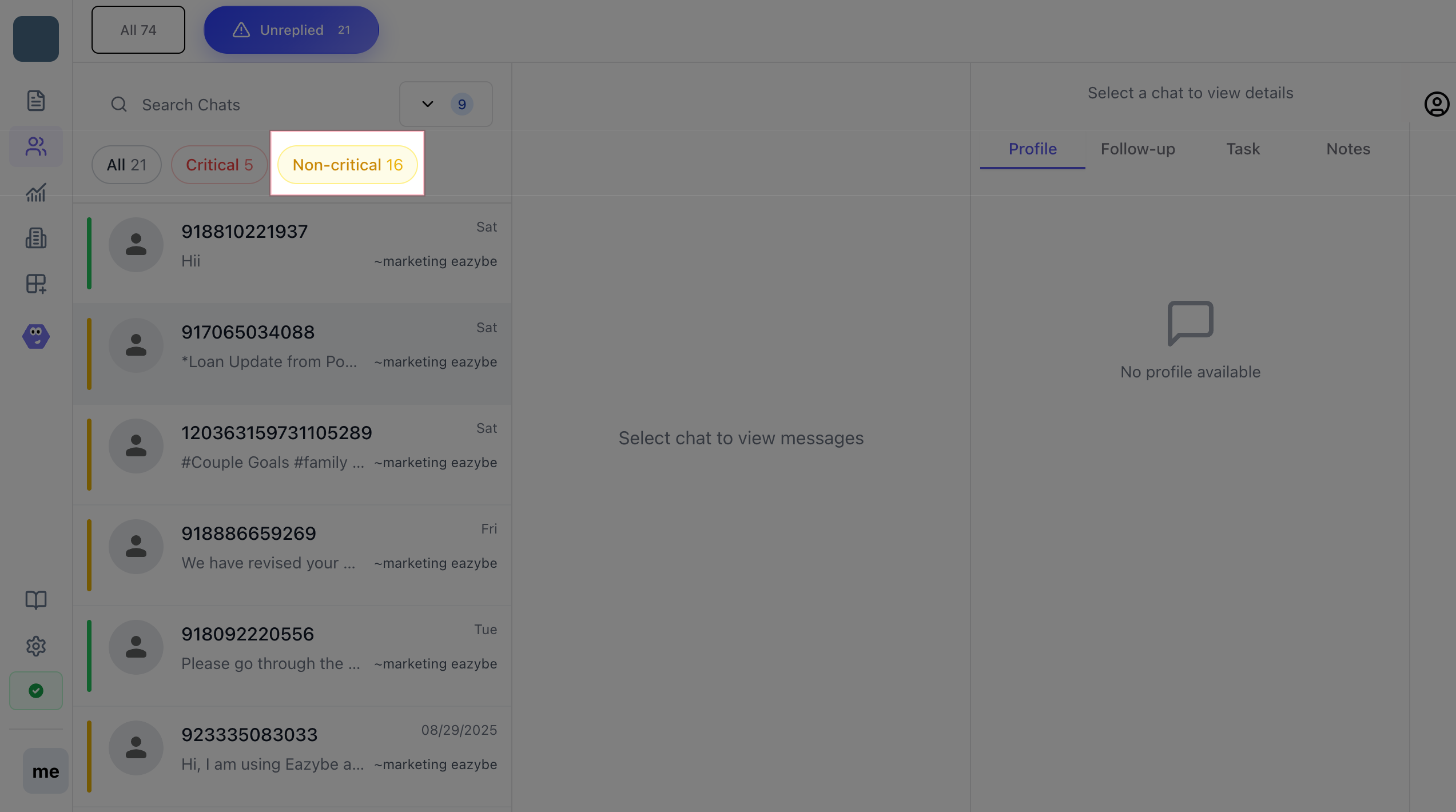
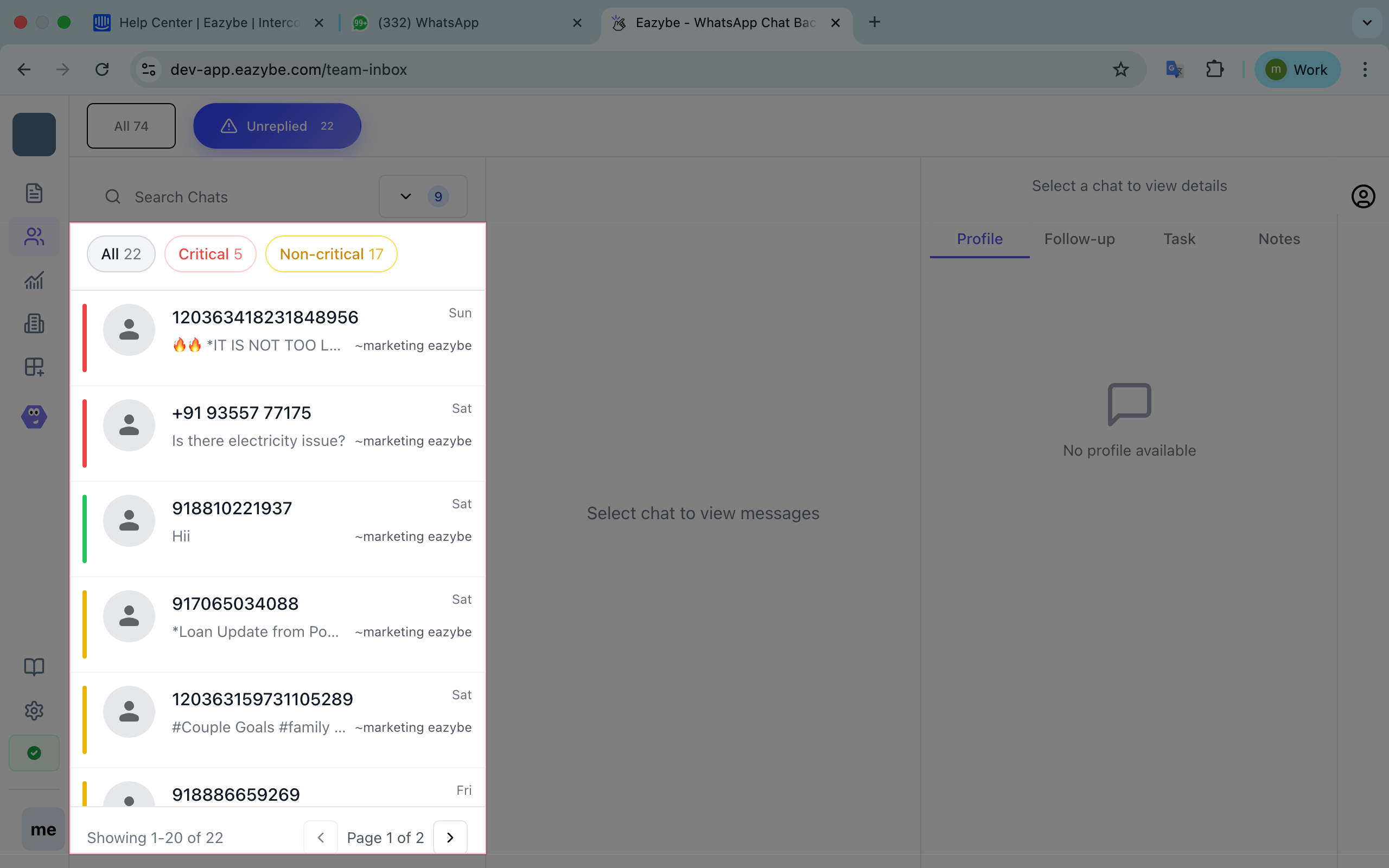 Use the built-in filter control to toggle between:
* **All chats**
* **Only critical chats**
* **Only non-critical chats**
This helps streamline task focus and workload management.
Use the built-in filter control to toggle between:
* **All chats**
* **Only critical chats**
* **Only non-critical chats**
This helps streamline task focus and workload management.
 ## Administrator Features & Controls
Receive automated WhatsApp notifications at customizable intervals with chat summary statistics to stay informed about pending conversations.
Access detailed chat logs for performance review and team accountability tracking.
Configure notification timings to align with your business hours and team availability.
Customize thresholds or keywords for chat prioritization as an advanced feature coming soon.
Enable critical chat notifications to ensure your team never misses urgent customer inquiries that could impact satisfaction or revenue.
## Administrator Features & Controls
Receive automated WhatsApp notifications at customizable intervals with chat summary statistics to stay informed about pending conversations.
Access detailed chat logs for performance review and team accountability tracking.
Configure notification timings to align with your business hours and team availability.
Customize thresholds or keywords for chat prioritization as an advanced feature coming soon.
Enable critical chat notifications to ensure your team never misses urgent customer inquiries that could impact satisfaction or revenue.