> ## Documentation Index
> Fetch the complete documentation index at: https://help.eazybe.com/llms.txt
> Use this file to discover all available pages before exploring further.
# Workflow
> Learn how to use Zoho workflows to automate sending WhatsApp messages through EazyBe integration
Automate your WhatsApp messaging through Zoho workflows to send personalized customer communications triggered by specific business events. This guide walks you through setting up a workflow that sends WhatsApp messages automatically.\
\
**Plugin:**\
[https://crm.zoho.com/market/installPrivatePlugin.do?portalName=rajatverma\&nameSpace=zohotrigger\&versionIndex=4520363000000182001](https://crm.zoho.com/market/installPrivatePlugin.do?portalName=rajatverma\&nameSpace=zohotrigger\&versionIndex=4520363000000182001)
**Note:**\
This plugin is only available on the **Scalar Plan**.
## Setting Up Zoho Workflows for WhatsApp
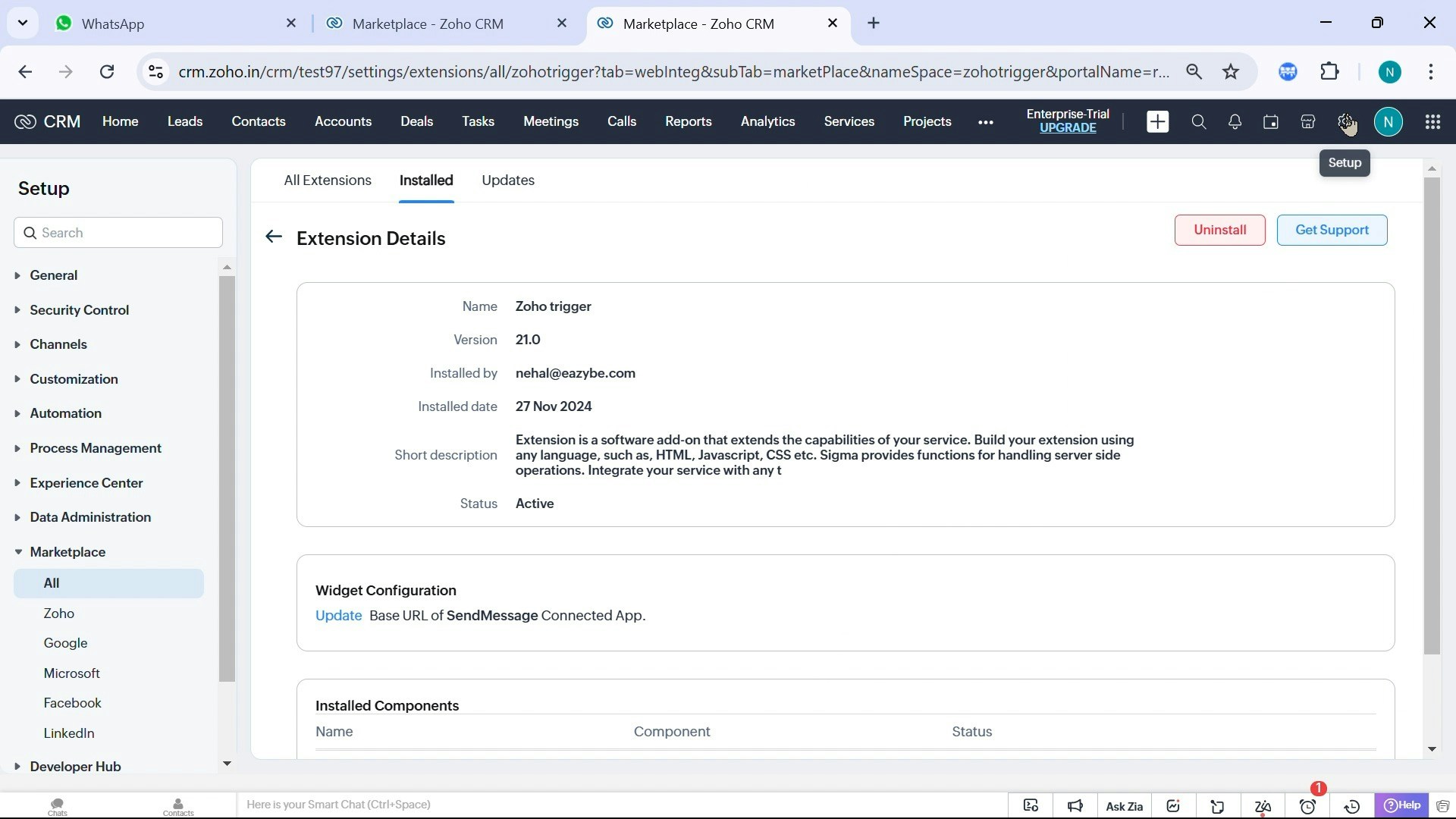
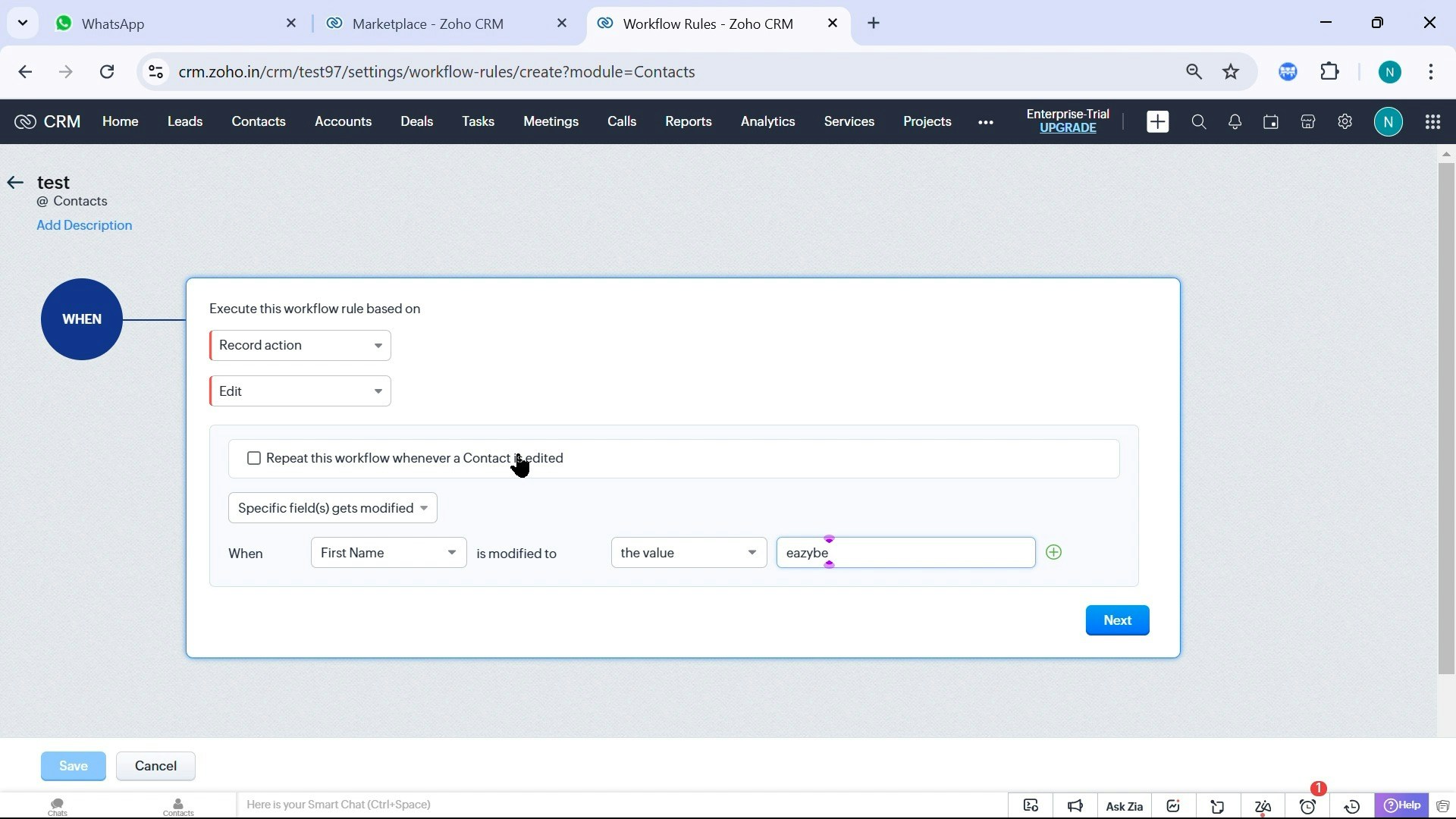
Navigate to **Settings** → **Automation** → **Workflow Rules** in your Zoho CRM.
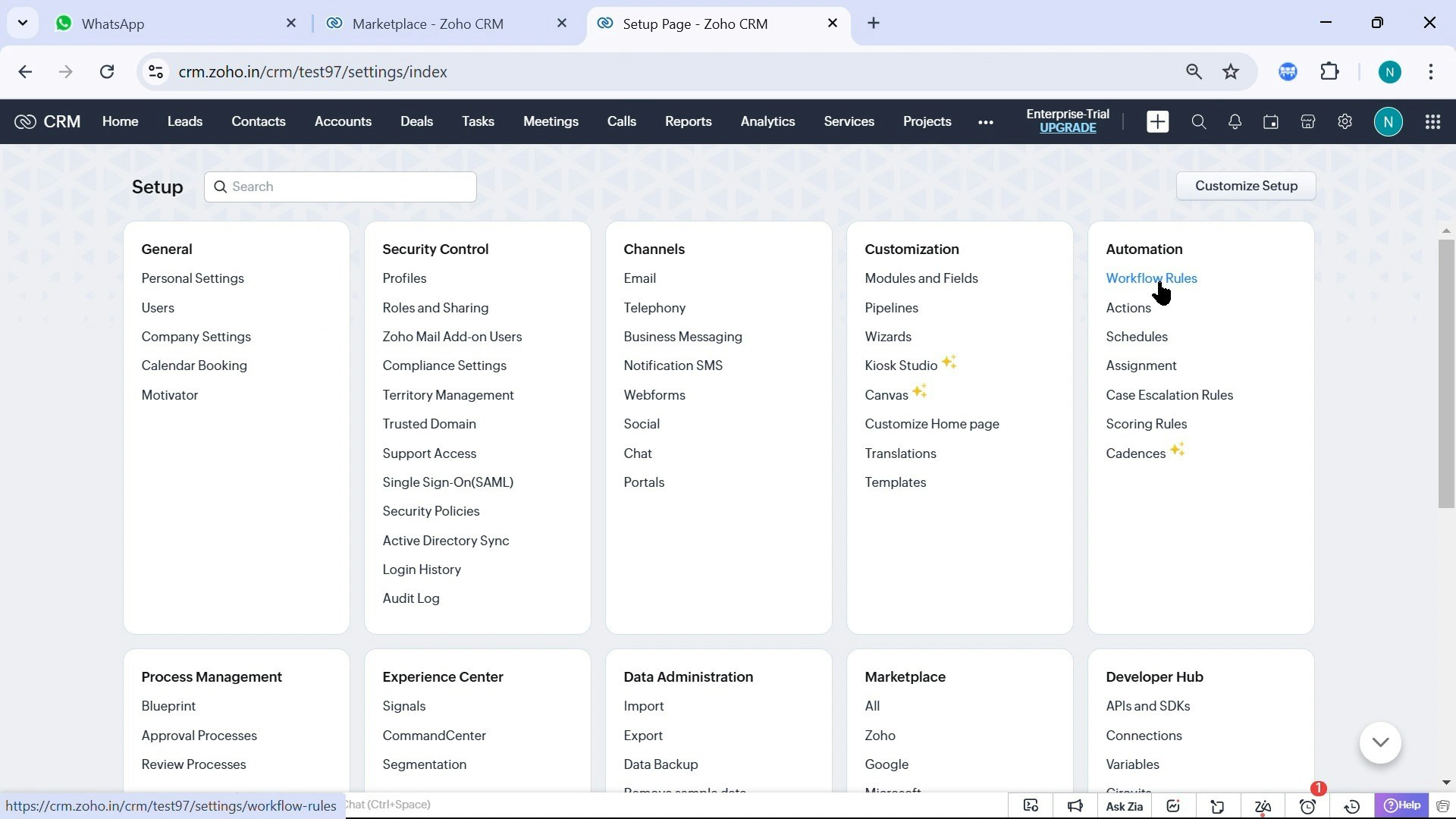
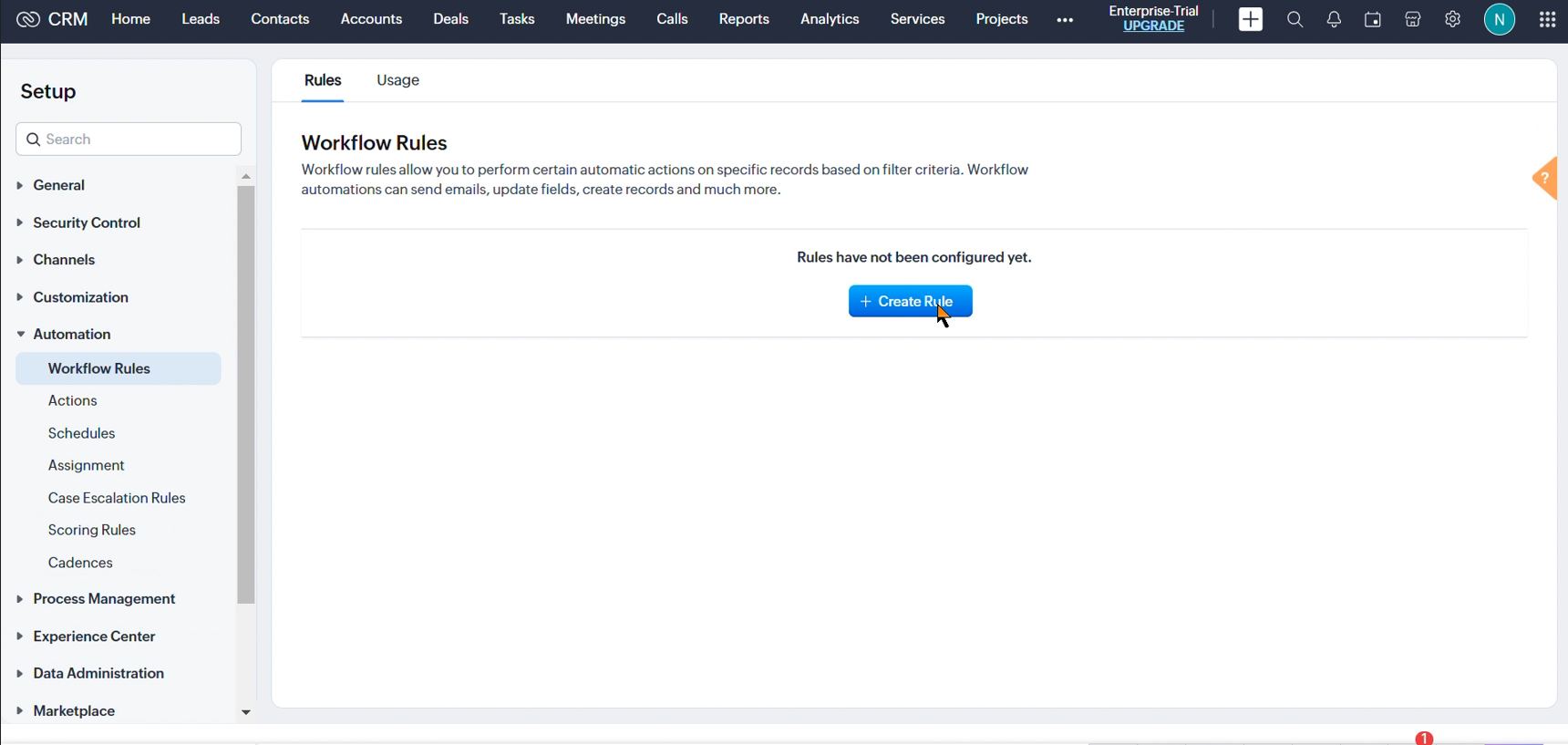
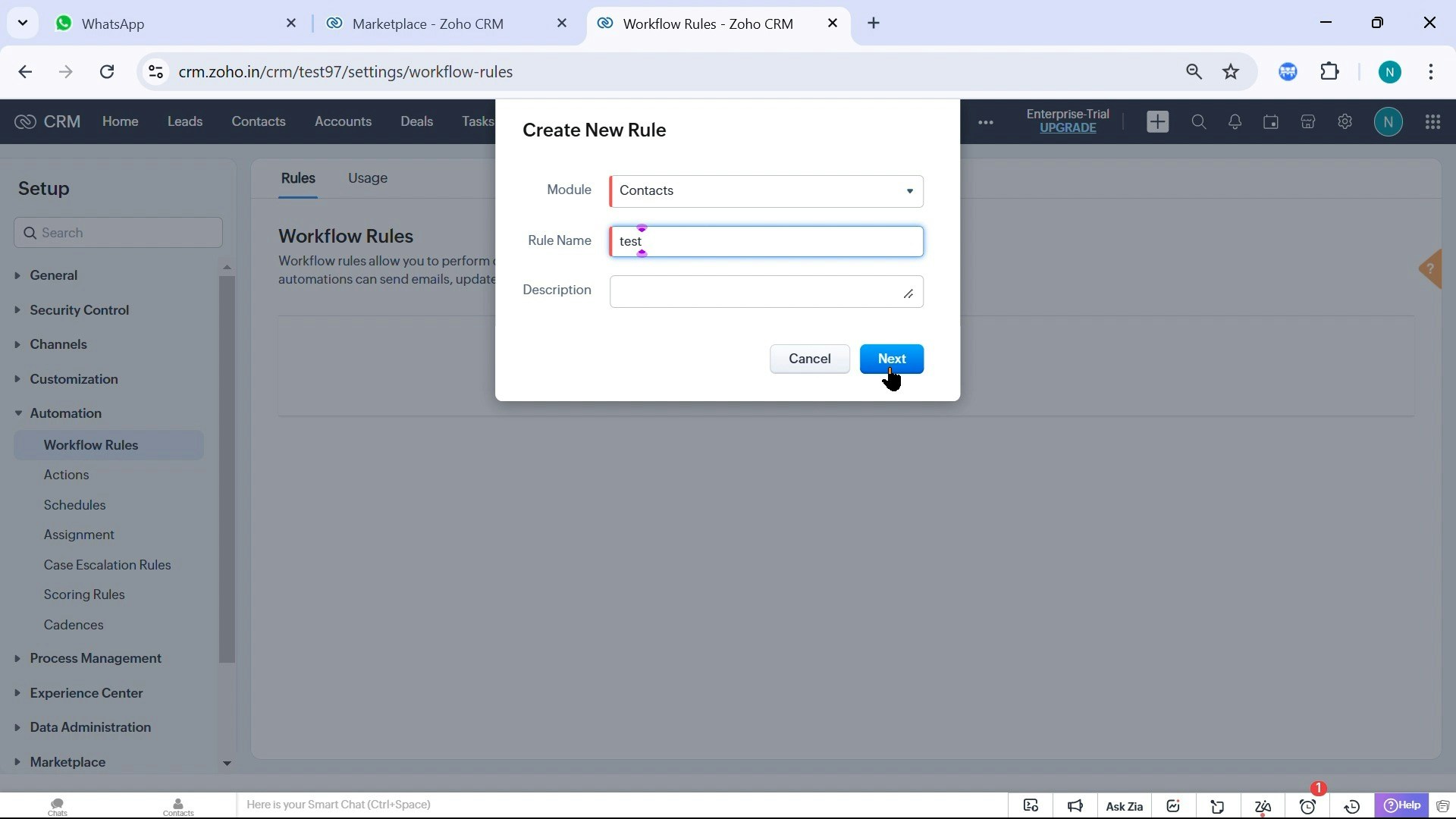
 Click on **Create Rule** and select the module you want to trigger the workflow from (Contacts, Deals, Leads, etc.). Give your workflow a descriptive name and define when it should execute (on record creation, edit, or on a scheduled basis).
 Set up the conditions that will trigger the workflow. For example, you might want to send a WhatsApp message when a Contact Stage changes to "New Lead" or when a Deal reaches a specific stage.
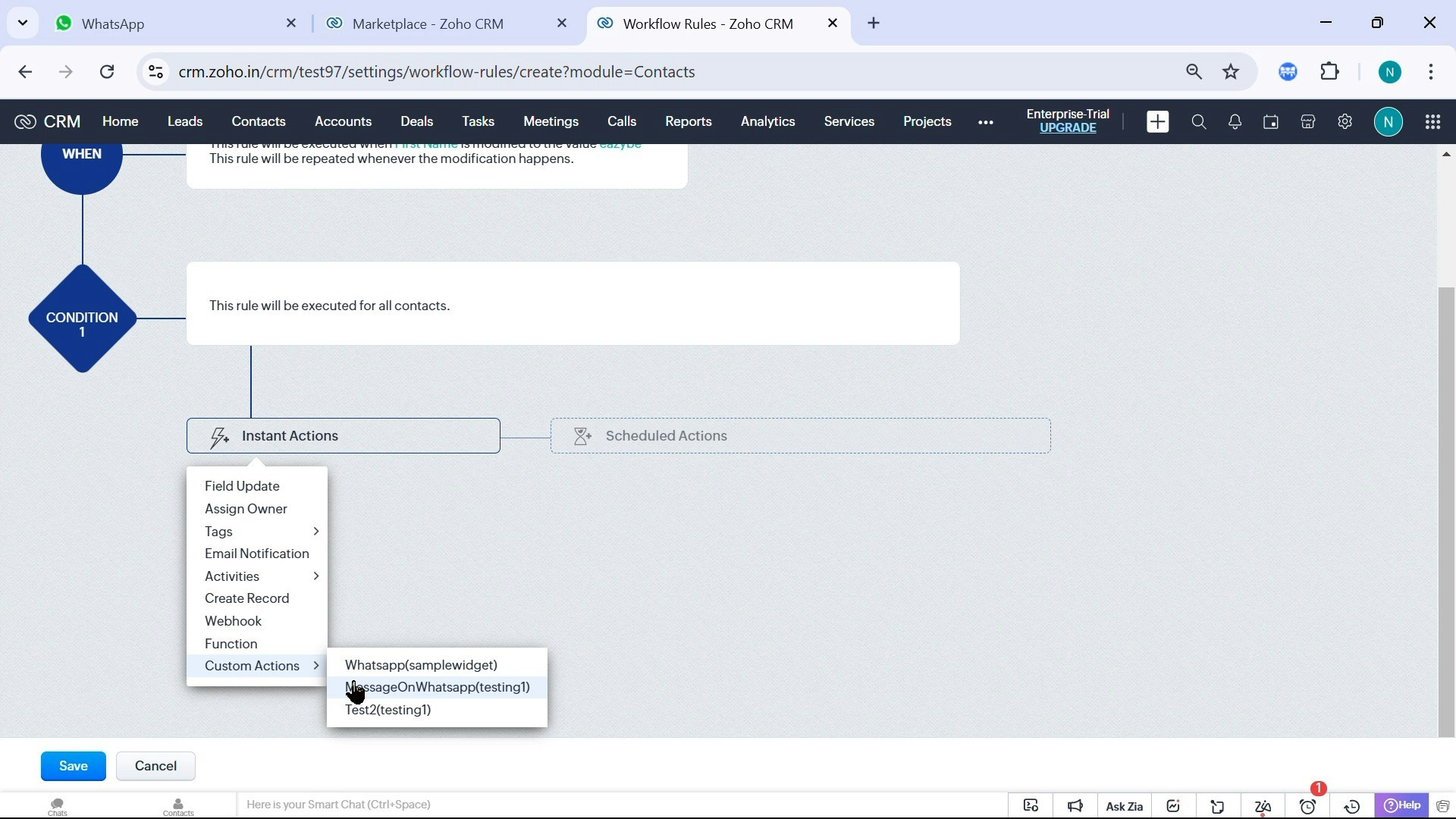
 In the workflow actions section, select **messageonWhatsApp** from the available actions. This is the EazyBe integration action that enables WhatsApp messaging.
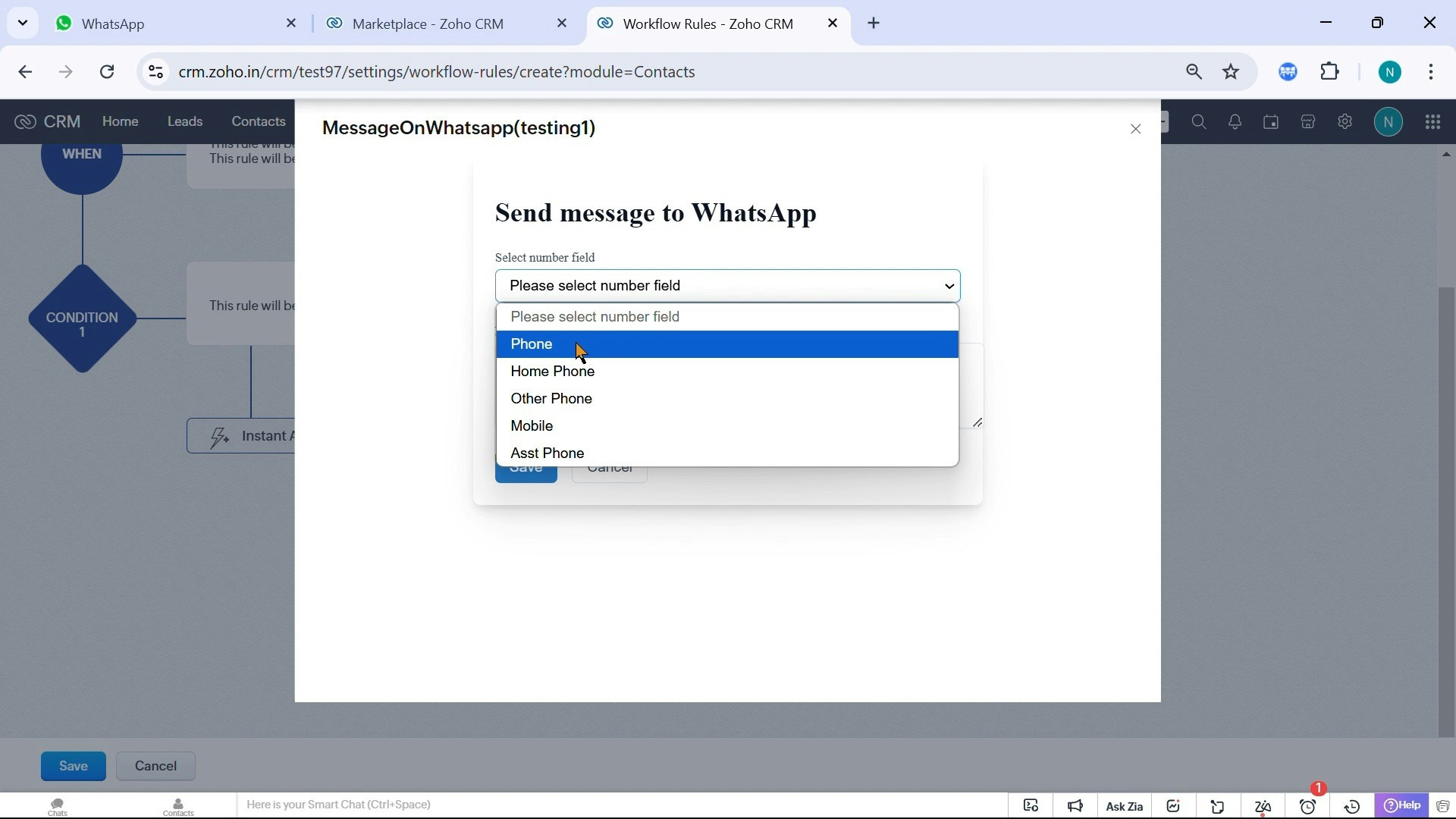
 Select the phone number that will send the WhatsApp messages. This must be a phone number that is already connected to your EazyBe account.
 Write your message content using dynamic Zoho fields to personalize the communication. You can use merge fields like `$First_Name`, `$Company`, or any other Zoho field to create personalized messages.
 Review all your workflow configurations to ensure everything is set up correctly. Once verified, save and activate the workflow to start sending automated WhatsApp messages.
 The workflow will automatically send WhatsApp messages whenever the trigger conditions are met. Make sure your EazyBe account is properly connected and the sender phone number is active.
Use personalization tokens like `$First_Name` to make your automated messages feel more personal and increase engagement rates.
## Need Help?
If you have any questions or need further assistance, feel free to reach out to our support team at [hey@eazybe.com](mailto:hey@eazybe.com).
The workflow will automatically send WhatsApp messages whenever the trigger conditions are met. Make sure your EazyBe account is properly connected and the sender phone number is active.
Use personalization tokens like `$First_Name` to make your automated messages feel more personal and increase engagement rates.
## Need Help?
If you have any questions or need further assistance, feel free to reach out to our support team at [hey@eazybe.com](mailto:hey@eazybe.com).