> ## Documentation Index
> Fetch the complete documentation index at: https://help.eazybe.com/llms.txt
> Use this file to discover all available pages before exploring further.
# Troubleshoot Workflow
> Learn how to troubleshoot common Zoho workflow issues and ensure successful WhatsApp message delivery
This guide helps you diagnose and resolve common issues with Zoho workflows for WhatsApp messaging through EazyBe.
## Workflow Integration Requirements
To use workflows successfully with Zoho, ensure the following prerequisites are met:
Ensure the user has the Zoho workflow integration installed and properly configured.
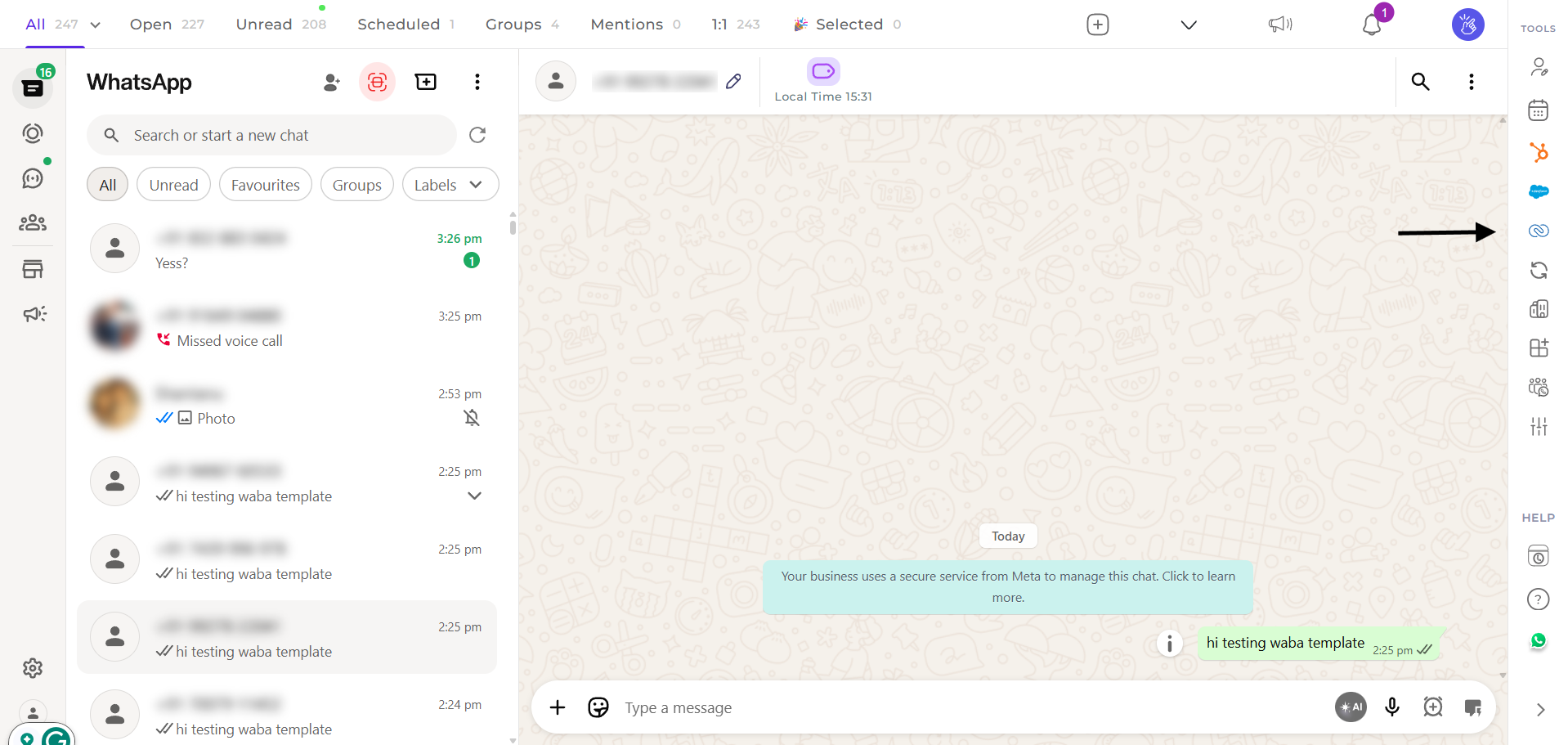 Once installed, proceed with creating and managing workflows through the Zoho automation settings.
## Message Sender Configuration
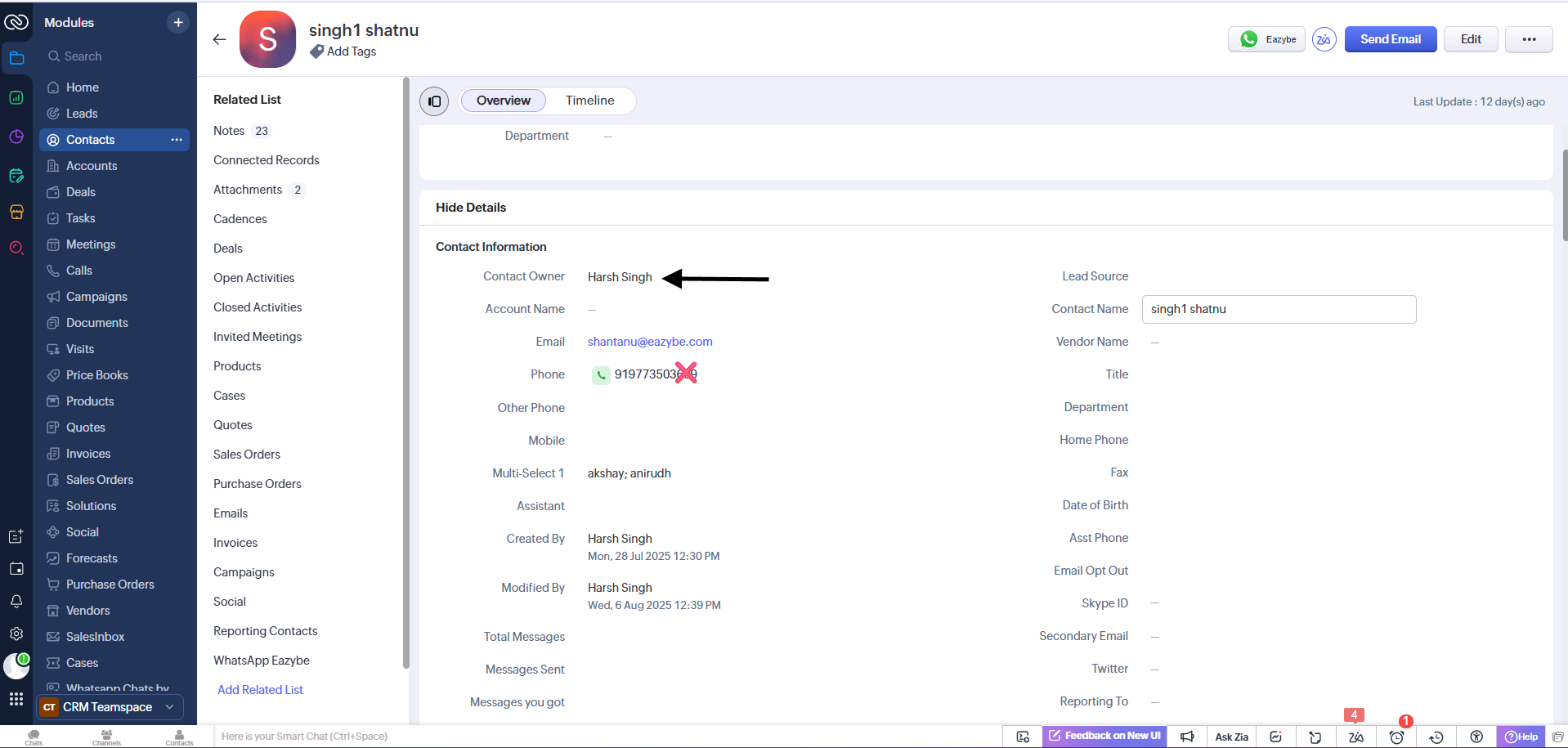
Workflow messages in Zoho are always sent from either the **contact owner's WhatsApp number** or the **lead owner's WhatsApp number**. Make sure the appropriate owner is assigned to each record.
Once installed, proceed with creating and managing workflows through the Zoho automation settings.
## Message Sender Configuration
Workflow messages in Zoho are always sent from either the **contact owner's WhatsApp number** or the **lead owner's WhatsApp number**. Make sure the appropriate owner is assigned to each record.
 ## Delivery Requirements
For workflow messages to be delivered successfully through Zoho, ensure the following:
The user must have the EazyBe extension/app installed on their device
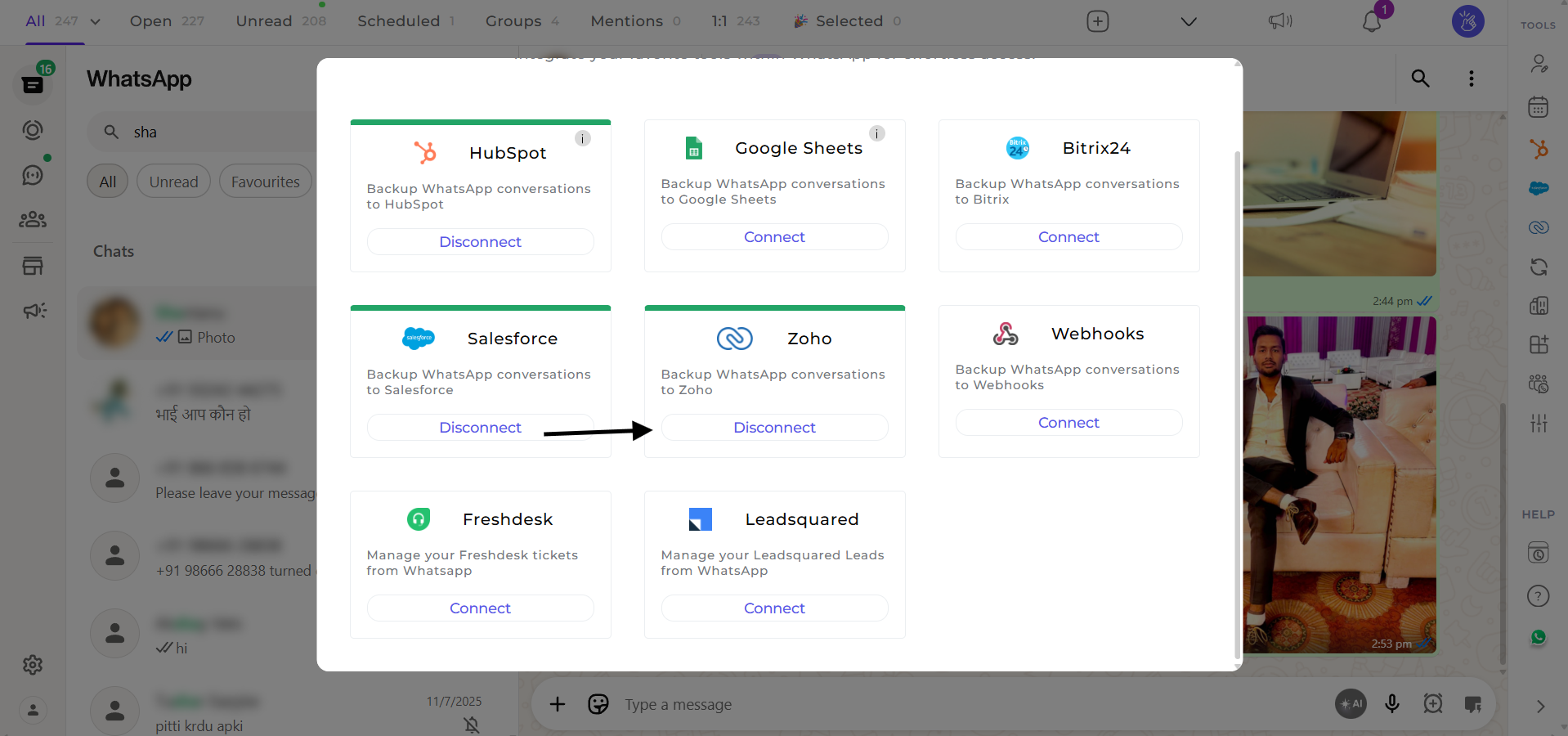
The Zoho integration must be properly connected with EazyBe
## Delivery Requirements
For workflow messages to be delivered successfully through Zoho, ensure the following:
The user must have the EazyBe extension/app installed on their device
The Zoho integration must be properly connected with EazyBe
 ## Avoiding Wrong Recipients
To prevent messages being sent to the wrong recipient:
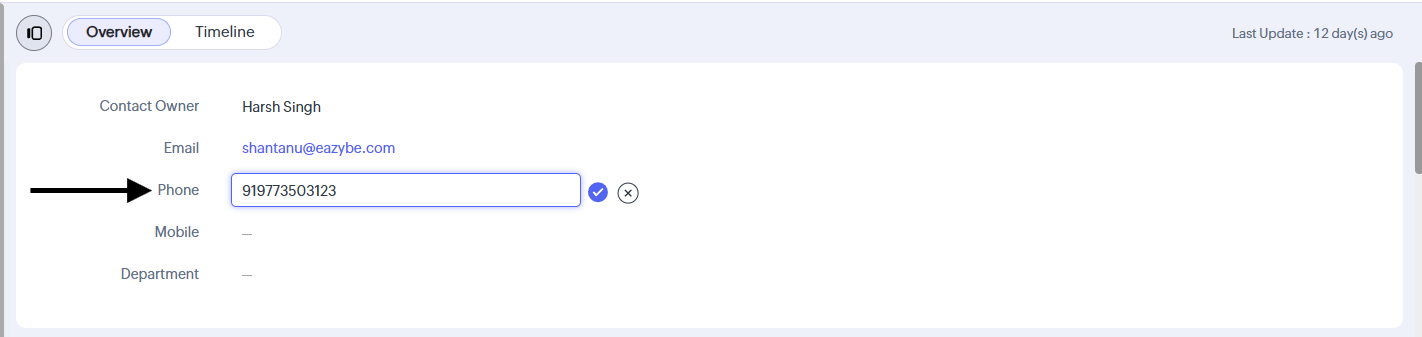
Make sure the phone number includes the correct country code (e.g., +1 for USA, +91 for India).
Double-check the number format before saving it in Zoho. Remove any spaces, dashes, or special characters.
Incorrect phone number formatting is one of the most common causes of workflow message delivery failures.
## Media File Size Limits
Media files have a size limit. To ensure successful delivery:
Verify that your media file size does not exceed **15MB**.
Compress or resize larger files before attaching them to workflows.
## Avoiding Wrong Recipients
To prevent messages being sent to the wrong recipient:
Make sure the phone number includes the correct country code (e.g., +1 for USA, +91 for India).
Double-check the number format before saving it in Zoho. Remove any spaces, dashes, or special characters.
Incorrect phone number formatting is one of the most common causes of workflow message delivery failures.
## Media File Size Limits
Media files have a size limit. To ensure successful delivery:
Verify that your media file size does not exceed **15MB**.
Compress or resize larger files before attaching them to workflows.
 Use online compression tools or reduce image resolution to keep file sizes under the 15MB limit while maintaining acceptable quality.
## Need Help?
If you have any questions or need further assistance, feel free to reach out to our support team at [hey@eazybe.com](mailto:hey@eazybe.com).
Use online compression tools or reduce image resolution to keep file sizes under the 15MB limit while maintaining acceptable quality.
## Need Help?
If you have any questions or need further assistance, feel free to reach out to our support team at [hey@eazybe.com](mailto:hey@eazybe.com).