> ## Documentation Index
> Fetch the complete documentation index at: https://help.eazybe.com/llms.txt
> Use this file to discover all available pages before exploring further.
# One Click Switch
> Learn how to seamlessly switch between Zoho CRM and WhatsApp conversations with a single click using EazyBe
EazyBe enables seamless navigation between Zoho CRM and WhatsApp messaging platforms. With single-click buttons, you can instantly jump between your CRM data and WhatsApp conversations without losing context.
## Go to Zoho Button
The **Go to Zoho** button provides quick access to your Zoho account directly from WhatsApp.
The button appears beside the contact or lead name at the top of the EazyBe panel, or within the Profile Section.
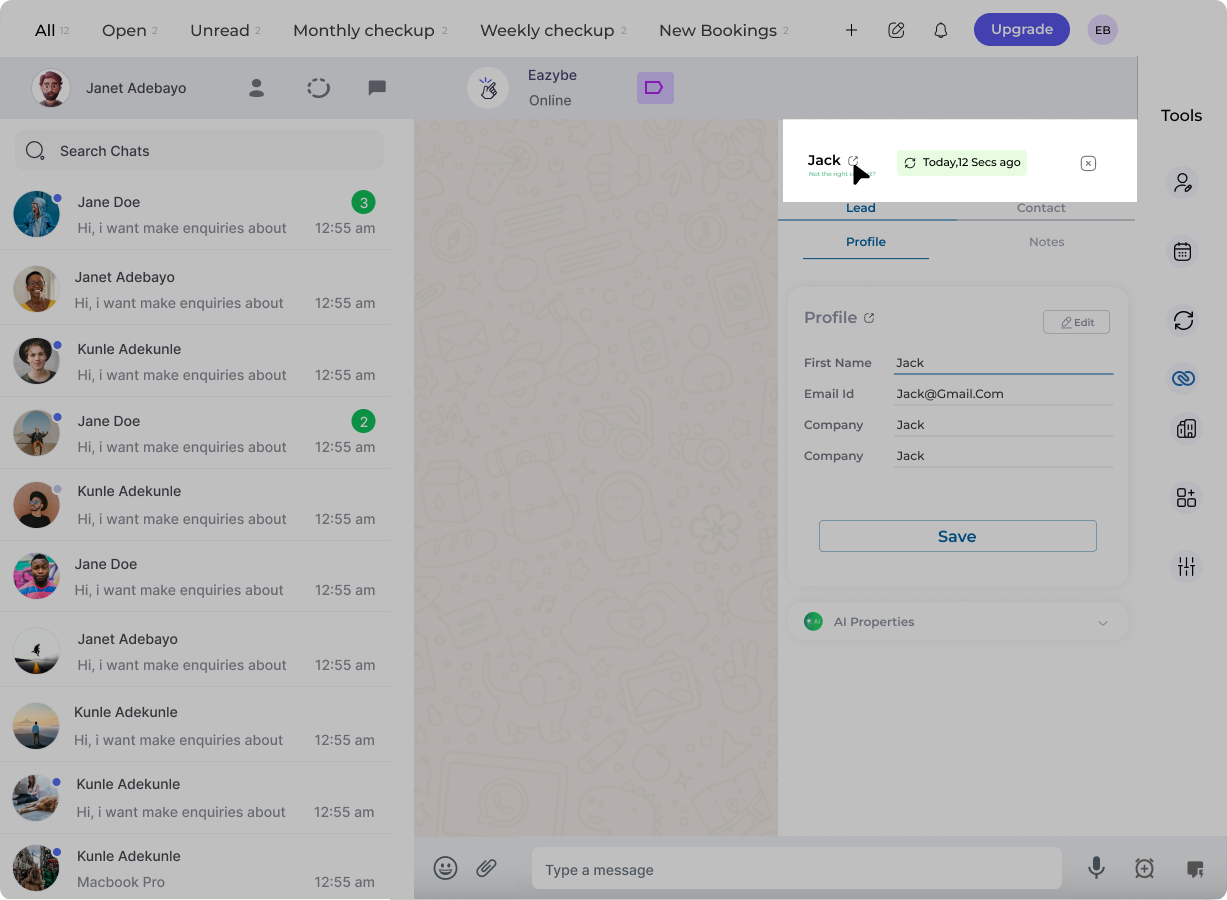 Click the button to jump directly to the corresponding contact or lead page in Zoho CRM. This allows you to view full CRM details without manually searching for the record.
This feature helps you quickly access detailed CRM information while managing WhatsApp conversations, improving your workflow efficiency.
## Go Back to WhatsApp Button
EazyBe also provides a complementary button on Zoho that instantly returns you to the WhatsApp conversation.
The **Go to WhatsApp** button displays consistently across:
* Contact pages
* Lead pages
* Phone column in Leads, Accounts, and Contacts modules
Click the button to jump directly to the corresponding contact or lead page in Zoho CRM. This allows you to view full CRM details without manually searching for the record.
This feature helps you quickly access detailed CRM information while managing WhatsApp conversations, improving your workflow efficiency.
## Go Back to WhatsApp Button
EazyBe also provides a complementary button on Zoho that instantly returns you to the WhatsApp conversation.
The **Go to WhatsApp** button displays consistently across:
* Contact pages
* Lead pages
* Phone column in Leads, Accounts, and Contacts modules
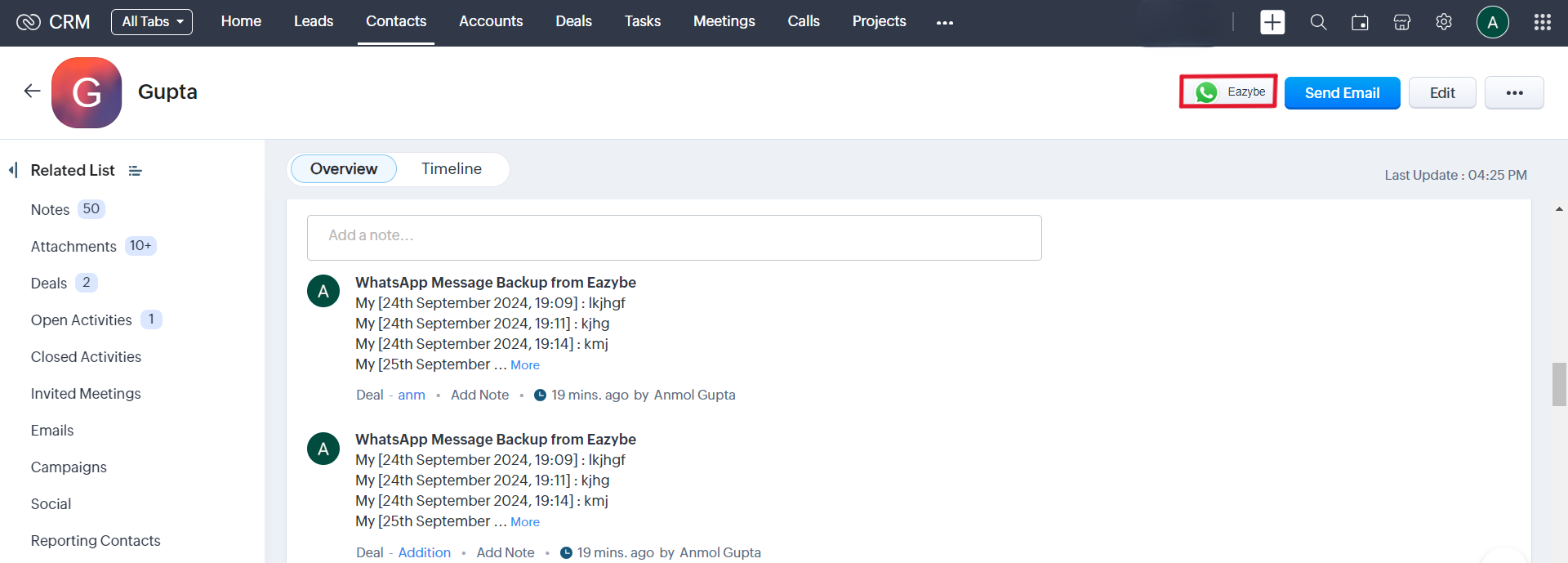 Click the button to instantly return to the WhatsApp conversation of the corresponding Zoho Lead or Contact.
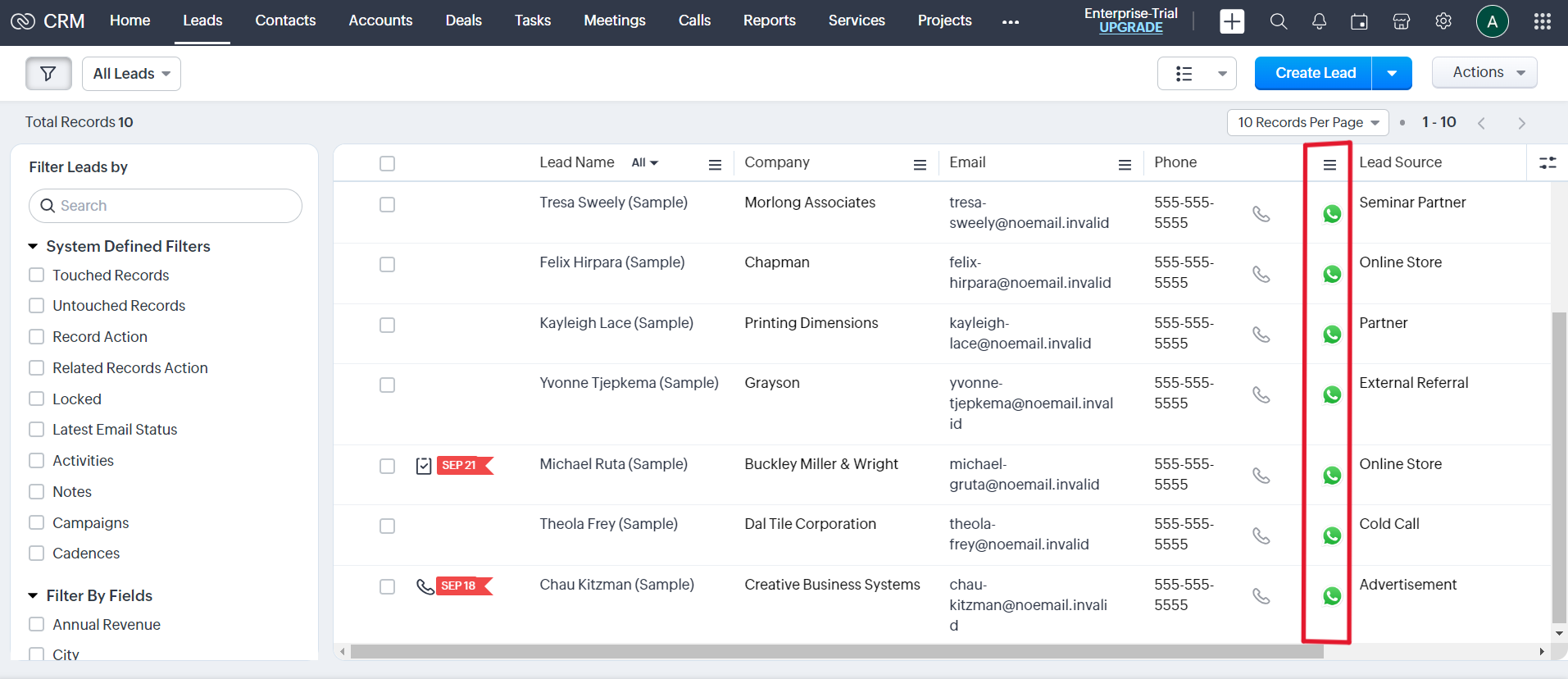 Use these navigation buttons to maintain context when switching between platforms. You can quickly check CRM details and return to the conversation without losing your place.
## Need Help?
If you have any questions or need further assistance, feel free to reach out to our support team at [hey@eazybe.com](mailto:hey@eazybe.com).
Use these navigation buttons to maintain context when switching between platforms. You can quickly check CRM details and return to the conversation without losing your place.
## Need Help?
If you have any questions or need further assistance, feel free to reach out to our support team at [hey@eazybe.com](mailto:hey@eazybe.com).