> ## Documentation Index
> Fetch the complete documentation index at: https://help.eazybe.com/llms.txt
> Use this file to discover all available pages before exploring further.
# Manage Contact Deals
> Learn how to edit, update, and manage existing deals for your Zoho Contacts directly from WhatsApp using the EazyBe extension
Manage deals associated with your Zoho Contacts directly from WhatsApp Chat. Edit deal properties, update stages, and keep your sales pipeline current without leaving your conversations.
## How to Manage Contact Deals
Access the WhatsApp conversation with the Zoho Contact whose deals you want to manage.
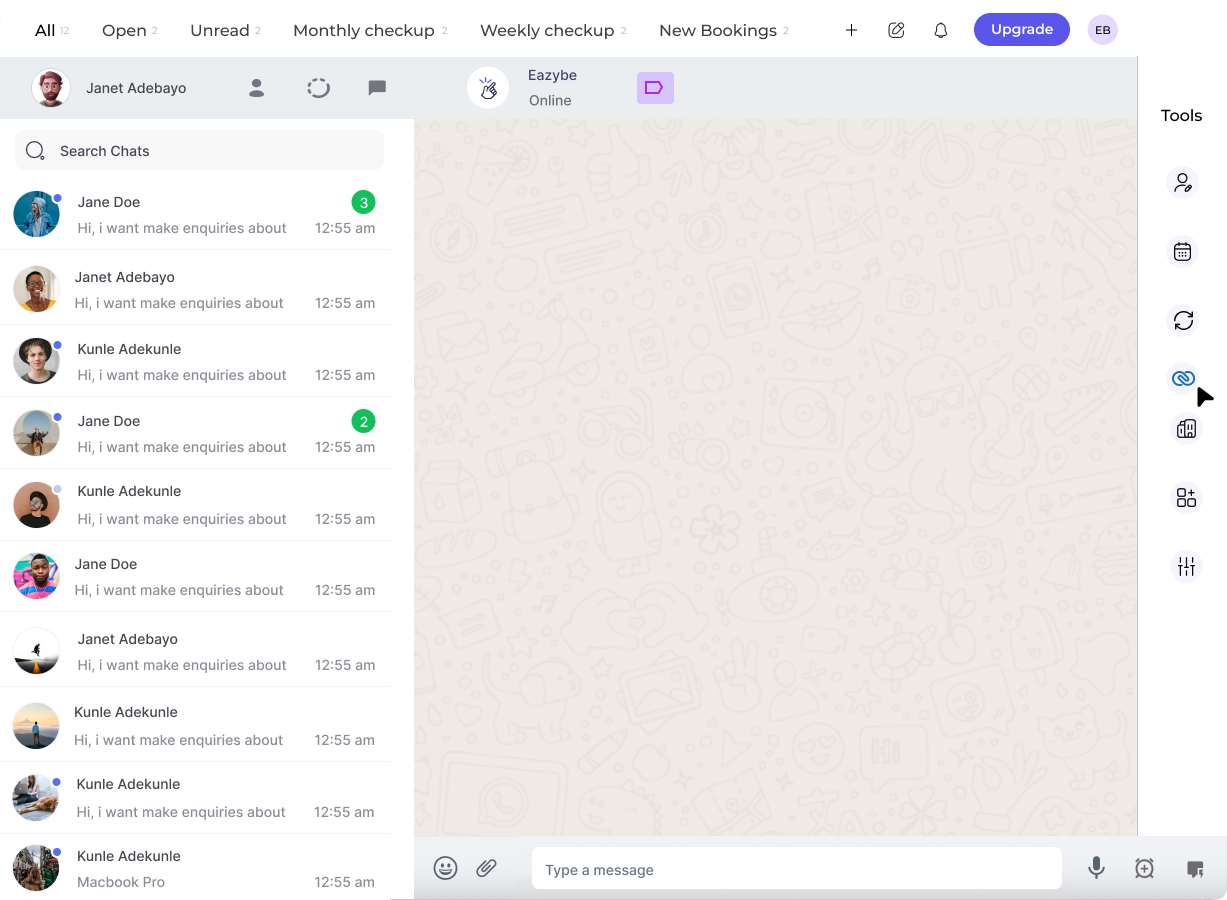 In the right sidebar of the EazyBe extension, locate and click on the **Zoho icon** to access your CRM features.
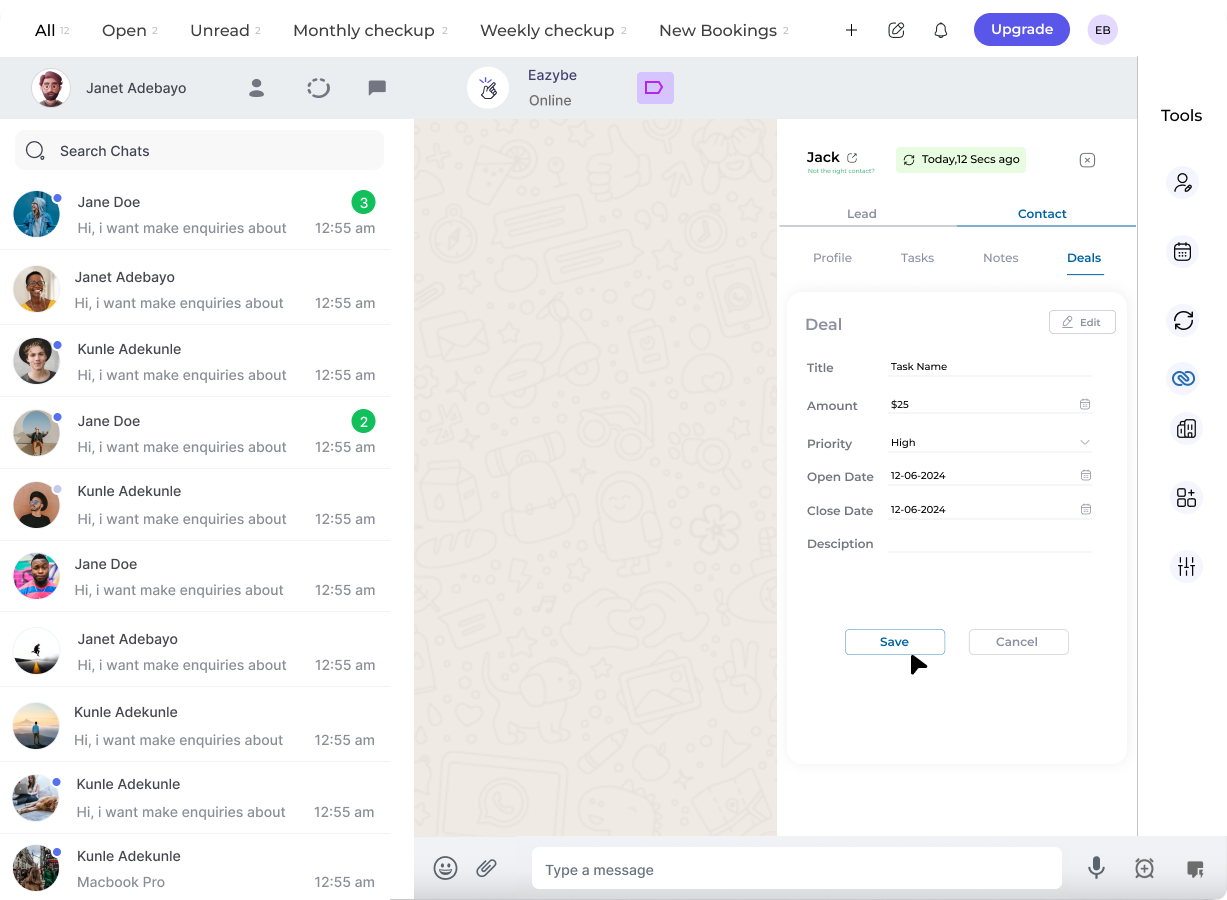
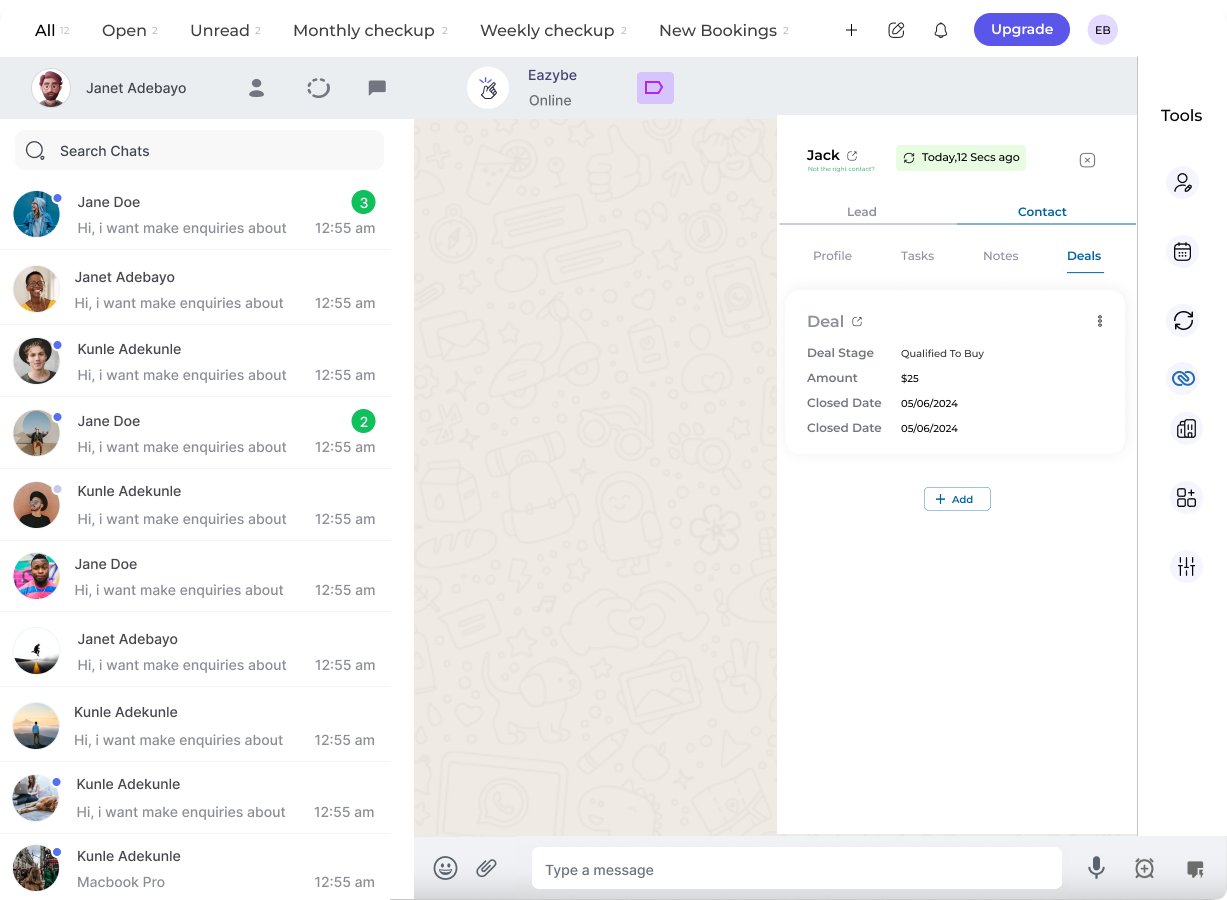 Under the Contact header, select the **Deals Section** to view all existing deals associated with this contact.
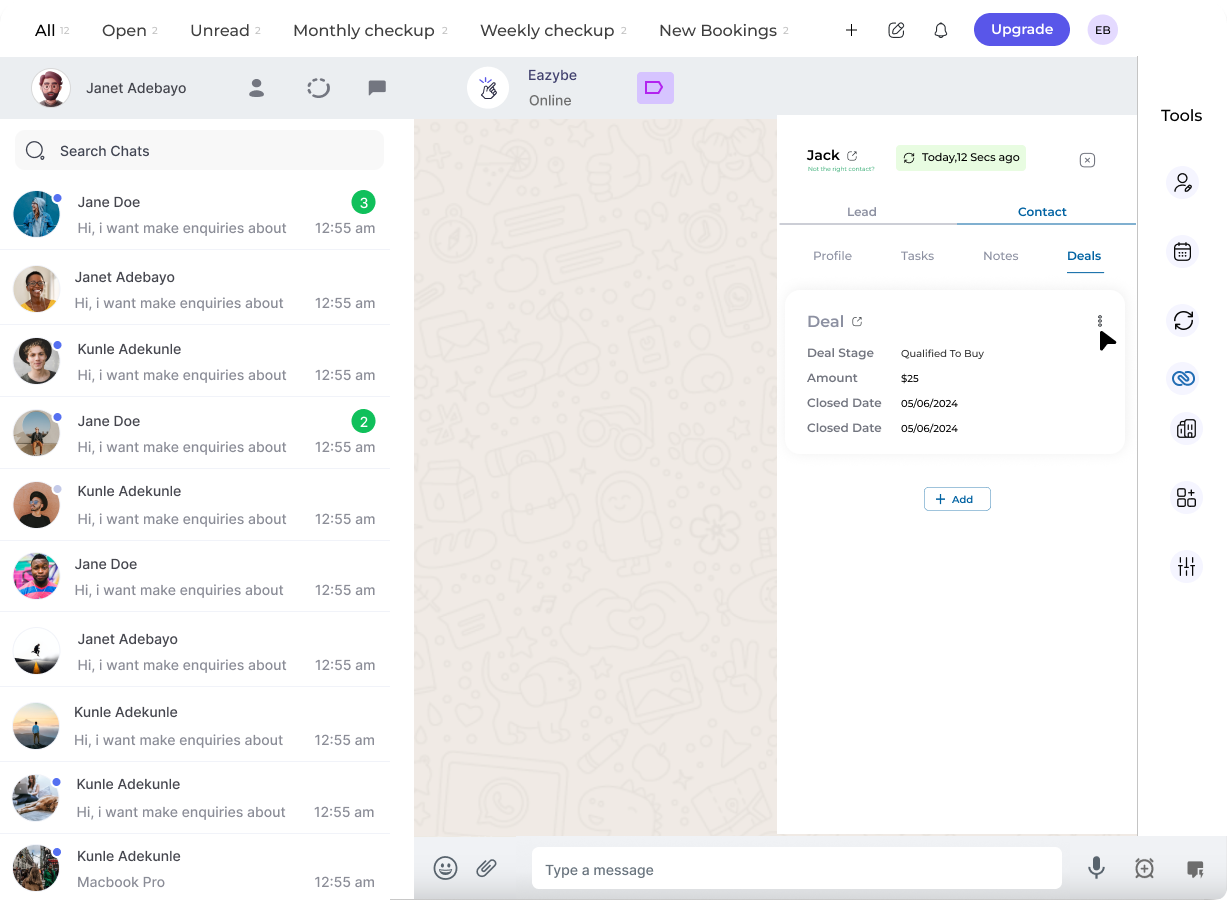 To modify an existing deal:
1. Click the **three dots** (⋮) next to the specific deal you want to edit
2. Click the **pencil icon** to open the deal details
3. Edit existing properties or add new ones as needed
To modify an existing deal:
1. Click the **three dots** (⋮) next to the specific deal you want to edit
2. Click the **pencil icon** to open the deal details
3. Edit existing properties or add new ones as needed
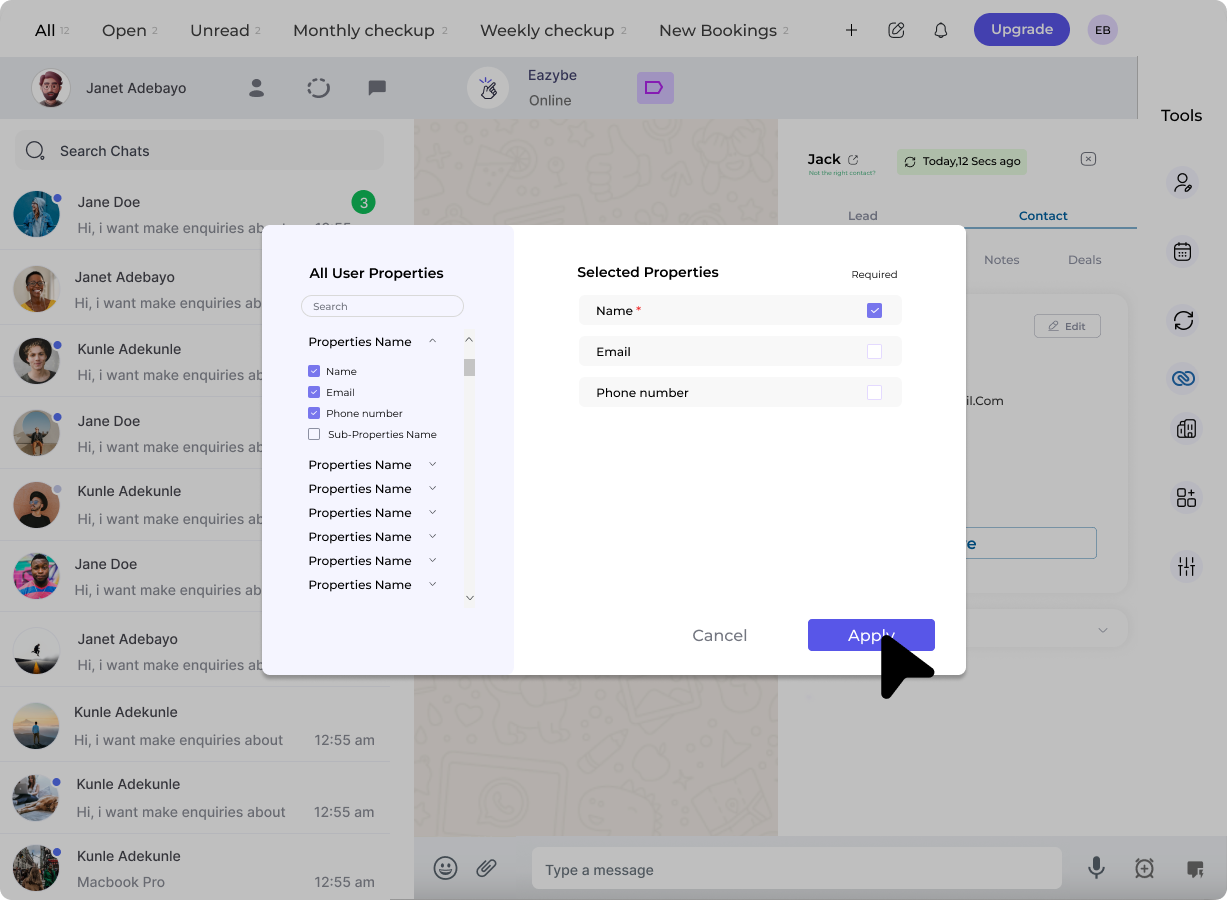 After making your modifications, click the **Save** button to update the deal with your changes.
 ## Deal Management Options
Modify deal values, stages, amounts, and custom fields
Access chat history synced with the deal record
You can view the chat backup in the **5 most recent deals** of your Zoho Contact, making it easy to reference past conversations related to each opportunity.
Regularly updating your deal stages helps maintain an accurate sales pipeline and ensures your team has visibility into the latest opportunity status.
## Need Help?
If you have any questions or need further assistance, feel free to reach out to our support team at [hey@eazybe.com](mailto:hey@eazybe.com).
## Deal Management Options
Modify deal values, stages, amounts, and custom fields
Access chat history synced with the deal record
You can view the chat backup in the **5 most recent deals** of your Zoho Contact, making it easy to reference past conversations related to each opportunity.
Regularly updating your deal stages helps maintain an accurate sales pipeline and ensures your team has visibility into the latest opportunity status.
## Need Help?
If you have any questions or need further assistance, feel free to reach out to our support team at [hey@eazybe.com](mailto:hey@eazybe.com).