> ## Documentation Index
> Fetch the complete documentation index at: https://help.eazybe.com/llms.txt
> Use this file to discover all available pages before exploring further.
# How to See Who's Connected
> Learn how to view which team members have connected their Zoho accounts to EazyBe
As an organization administrator, you can monitor which team members have connected their Zoho accounts to the EazyBe WhatsApp Extension.
## Viewing Connected Team Members
Access the EazyBe Workspace using your administrator credentials.
Go to the **Dashboard** section where complete information on your team's Zoho usage is displayed.
Look for the **CRM integrated** column in the dashboard table. Team members who have connected their Zoho accounts will display a Zoho icon in this column.
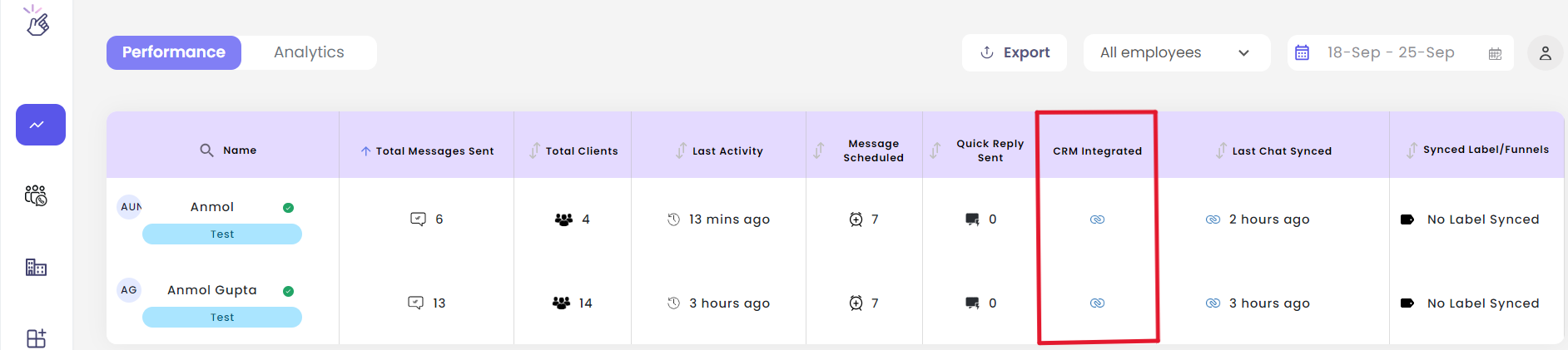 The dashboard provides a comprehensive overview of all team members and their Zoho connection status, making it easy to track who has completed the integration setup.
If a team member's Zoho icon is not visible, they may need to complete the integration process. Share the setup guide with them to help them connect their account.
## Need Help?
If you have any questions or need further assistance, feel free to reach out to our support team at [hey@eazybe.com](mailto:hey@eazybe.com).
The dashboard provides a comprehensive overview of all team members and their Zoho connection status, making it easy to track who has completed the integration setup.
If a team member's Zoho icon is not visible, they may need to complete the integration process. Share the setup guide with them to help them connect their account.
## Need Help?
If you have any questions or need further assistance, feel free to reach out to our support team at [hey@eazybe.com](mailto:hey@eazybe.com).