> ## Documentation Index
> Fetch the complete documentation index at: https://help.eazybe.com/llms.txt
> Use this file to discover all available pages before exploring further.
# Last Sync Time
> Learn how to check the last synchronization time for your team's Zoho integration
As an administrator, you can monitor your team's latest sync activity by accessing the EazyBe Workspace dashboard, which displays synchronization timestamps for all connected employees.
## How to Check Last Sync Time
Log into your EazyBe Workspace using your administrator credentials.
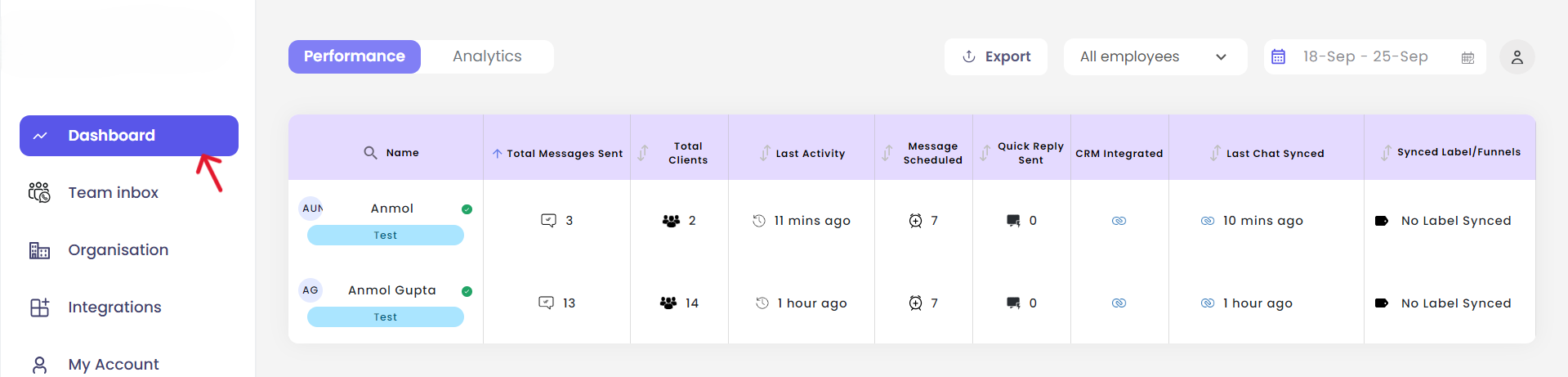 Once logged in, navigate to the **Dashboard** section from the main menu.
Locate the **"Last Chat Synced"** column in the dashboard to view synchronization times for all team members.
Once logged in, navigate to the **Dashboard** section from the main menu.
Locate the **"Last Chat Synced"** column in the dashboard to view synchronization times for all team members.
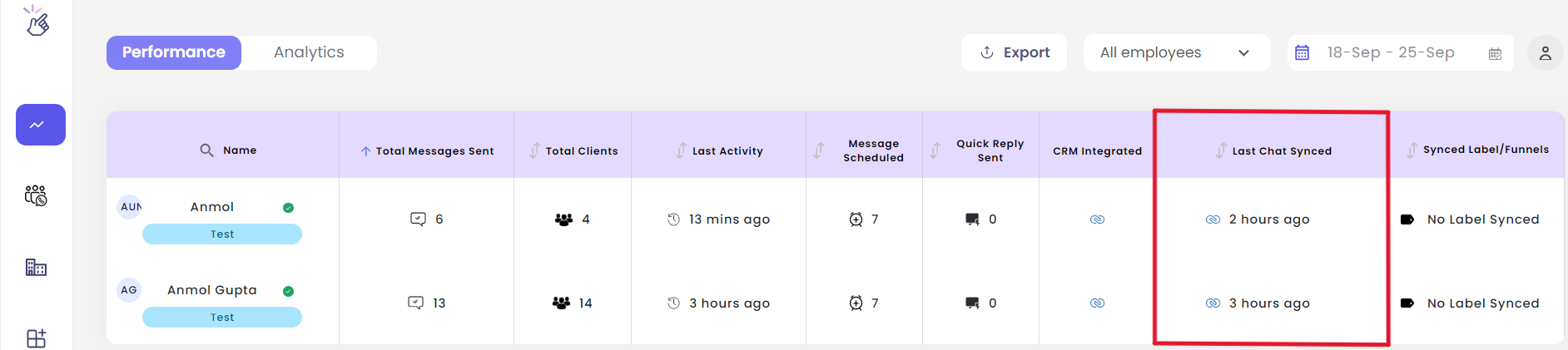 The "Last Chat Synced" column shows the timestamp of the most recent WhatsApp chat synchronization for each team member connected to Zoho.
Regularly monitoring sync times helps ensure all team members are properly connected and their chat data is being backed up to Zoho CRM.
The "Last Chat Synced" column shows the timestamp of the most recent WhatsApp chat synchronization for each team member connected to Zoho.
Regularly monitoring sync times helps ensure all team members are properly connected and their chat data is being backed up to Zoho CRM.