> ## Documentation Index
> Fetch the complete documentation index at: https://help.eazybe.com/llms.txt
> Use this file to discover all available pages before exploring further.
# How to Disconnect
> Learn how to disconnect the Zoho CRM integration from EazyBe WhatsApp extension
If you need to disconnect your Zoho CRM integration from EazyBe, follow these simple steps.
## Disconnecting Zoho Integration
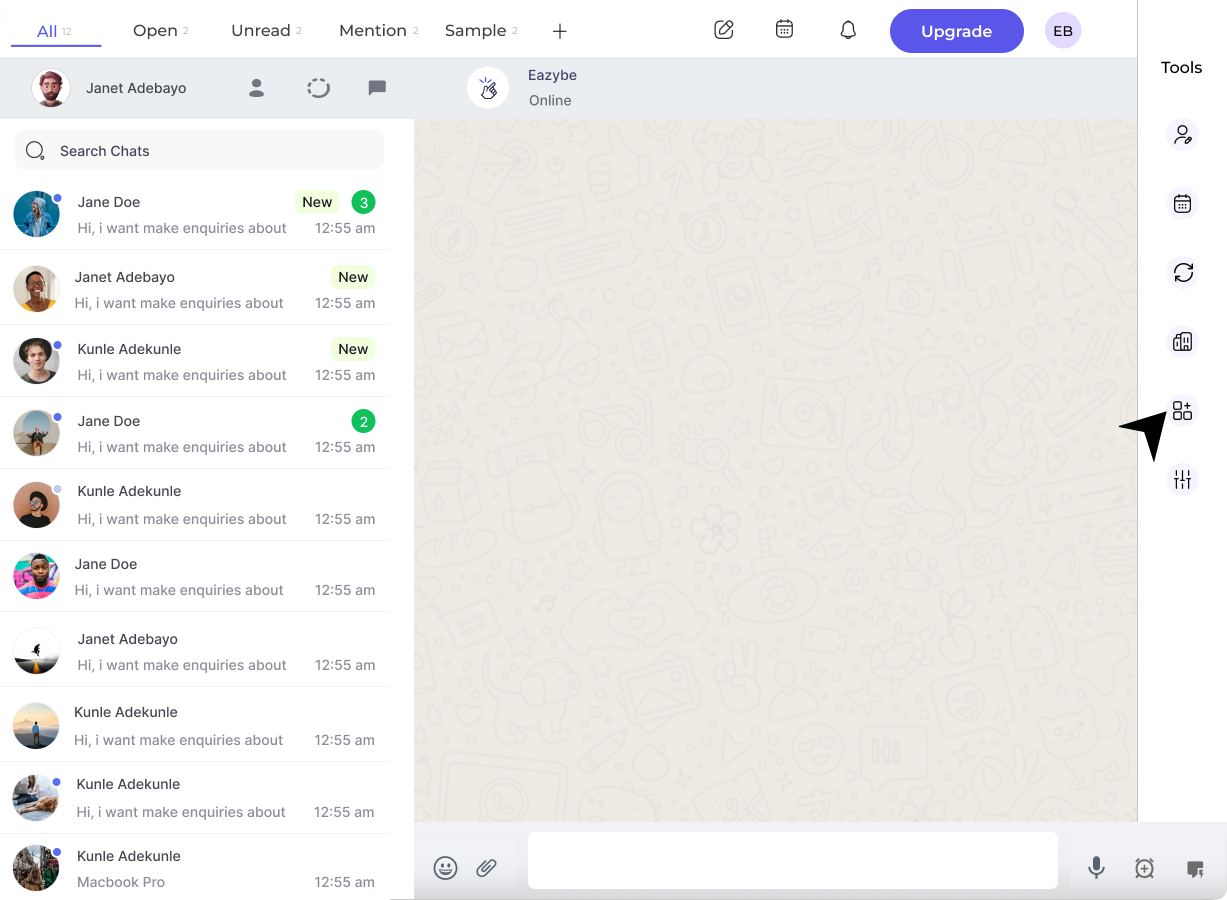
Click on the **integration button** in the right sidebar of the EazyBe extension panel.
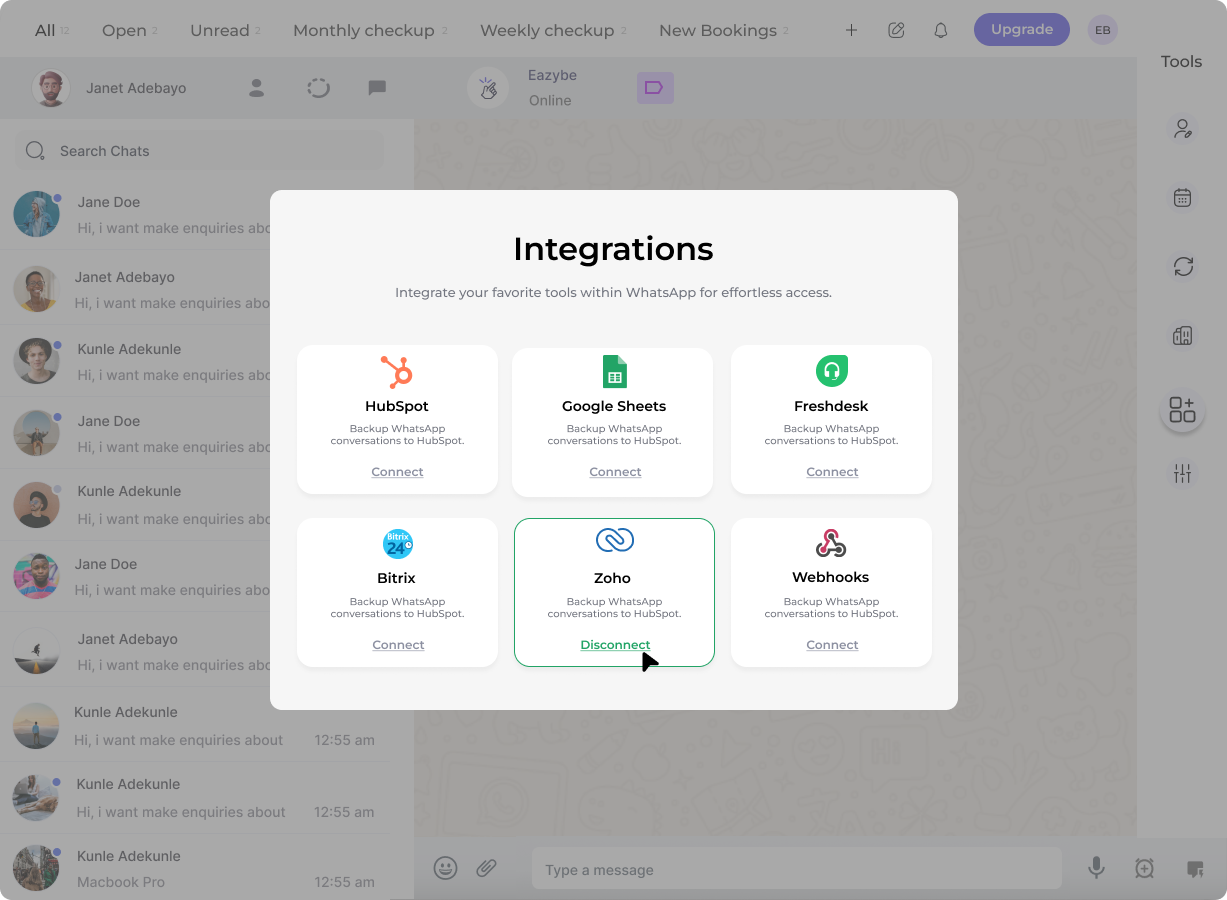
 Click on the **Disconnect button** under the Zoho section.
 A prompt will appear asking you to confirm the disconnection. Click **Confirm** to complete the process.
Disconnecting the integration will stop syncing contacts and messages between WhatsApp and Zoho CRM. Your existing data in Zoho will not be deleted.
You can reconnect the integration at any time by following the setup process again. All your settings will need to be reconfigured after reconnecting.
## Need Help?
If you have any questions or need further assistance, feel free to reach out to our support team at [hey@eazybe.com](mailto:hey@eazybe.com).
A prompt will appear asking you to confirm the disconnection. Click **Confirm** to complete the process.
Disconnecting the integration will stop syncing contacts and messages between WhatsApp and Zoho CRM. Your existing data in Zoho will not be deleted.
You can reconnect the integration at any time by following the setup process again. All your settings will need to be reconfigured after reconnecting.
## Need Help?
If you have any questions or need further assistance, feel free to reach out to our support team at [hey@eazybe.com](mailto:hey@eazybe.com).