> ## Documentation Index
> Fetch the complete documentation index at: https://help.eazybe.com/llms.txt
> Use this file to discover all available pages before exploring further.
# Dynamic WhatsApp Labels
> Learn how to automatically organize WhatsApp contacts using dynamic labels based on Zoho CRM properties
Dynamic labels allow you to automatically organize your WhatsApp contacts using real-time Zoho CRM data. These labels are created and updated automatically, giving your team immediate visibility into key customer segments.
## About Dynamic Labels
Dynamic labels are generated based on rules you define using Zoho properties. When contacts match your specified criteria, they are automatically added to the corresponding label. When they no longer meet the conditions, they are removed automatically.
Dynamic labels sync in real-time with your Zoho CRM data, ensuring your WhatsApp contact organization always reflects the current state of your CRM records.
## Creating a Dynamic Label
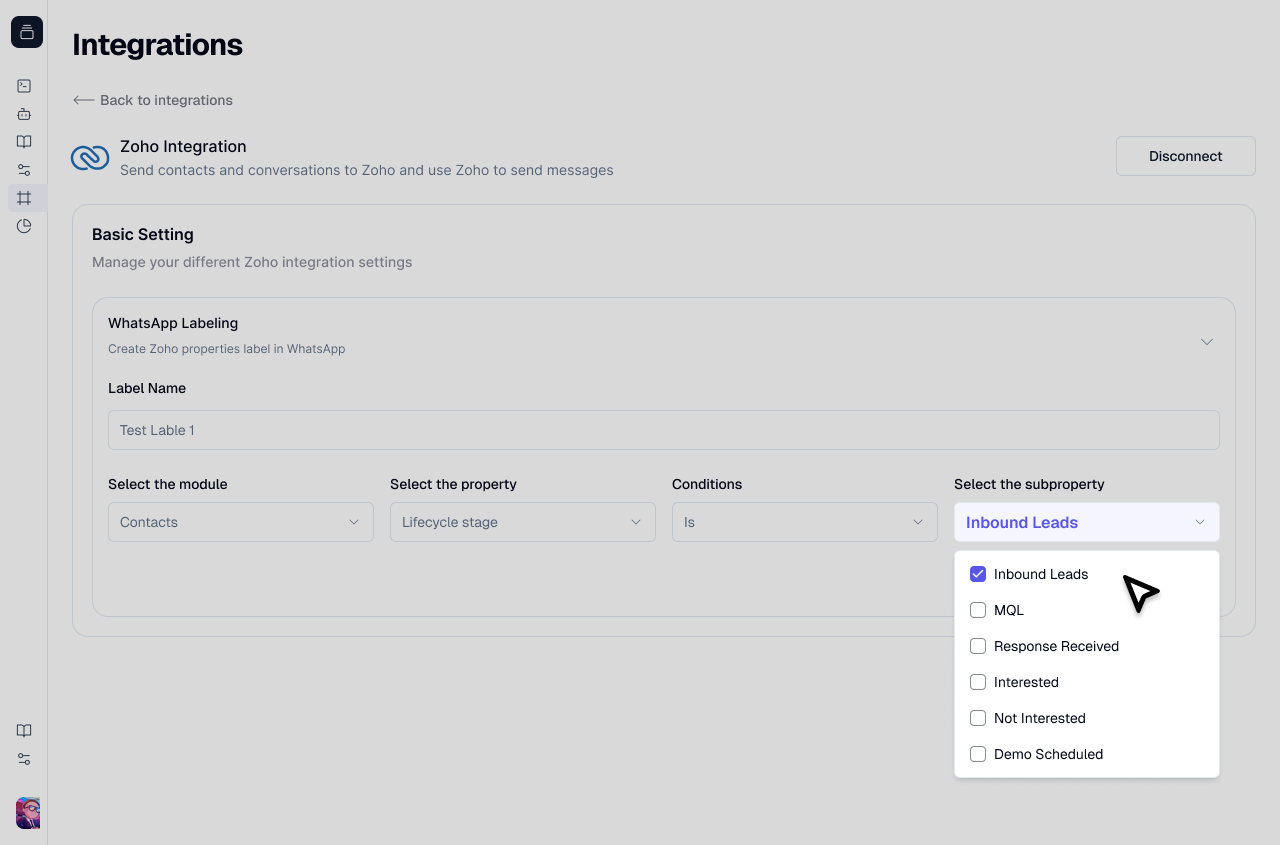
Enter a descriptive name for your label that clearly identifies the segment. Examples include "New Leads," "VIP Customers," or "High-Value Prospects."
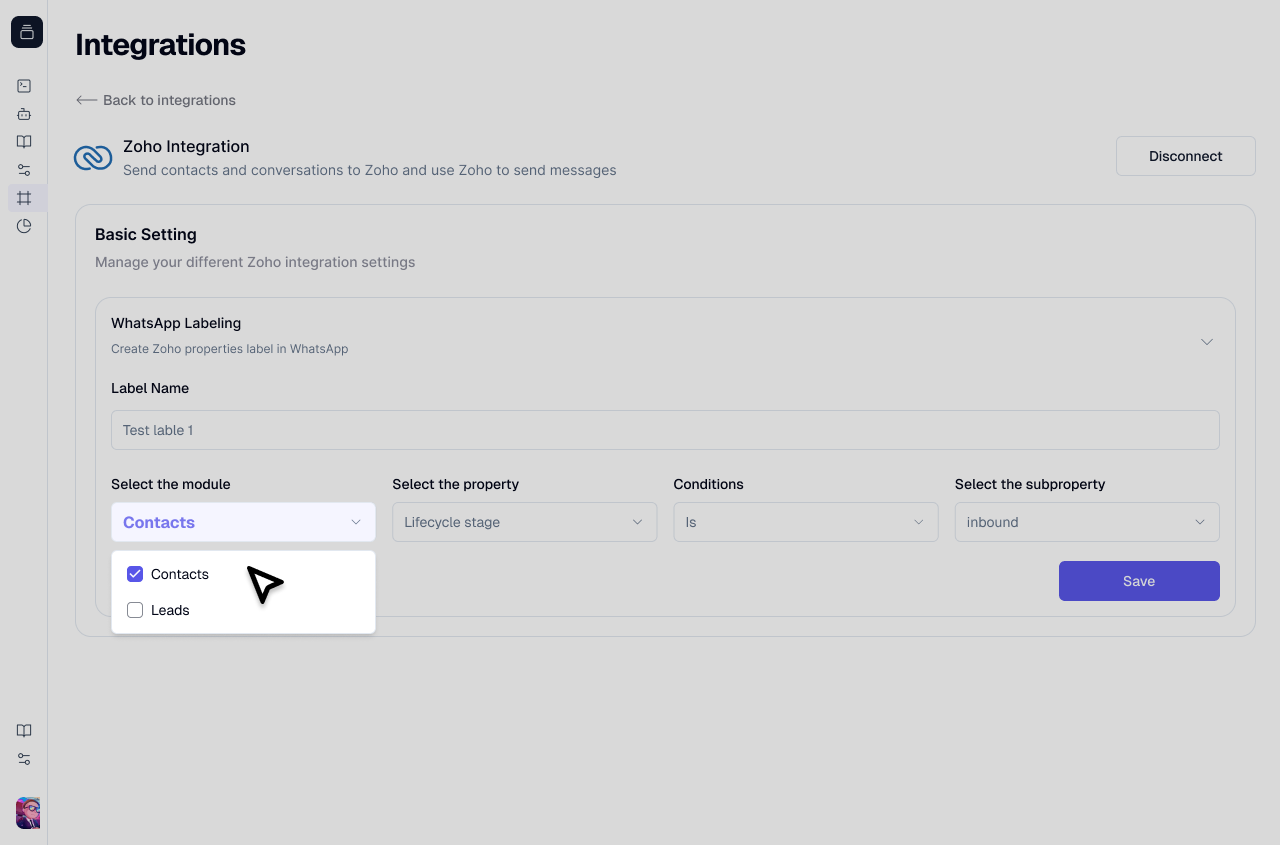
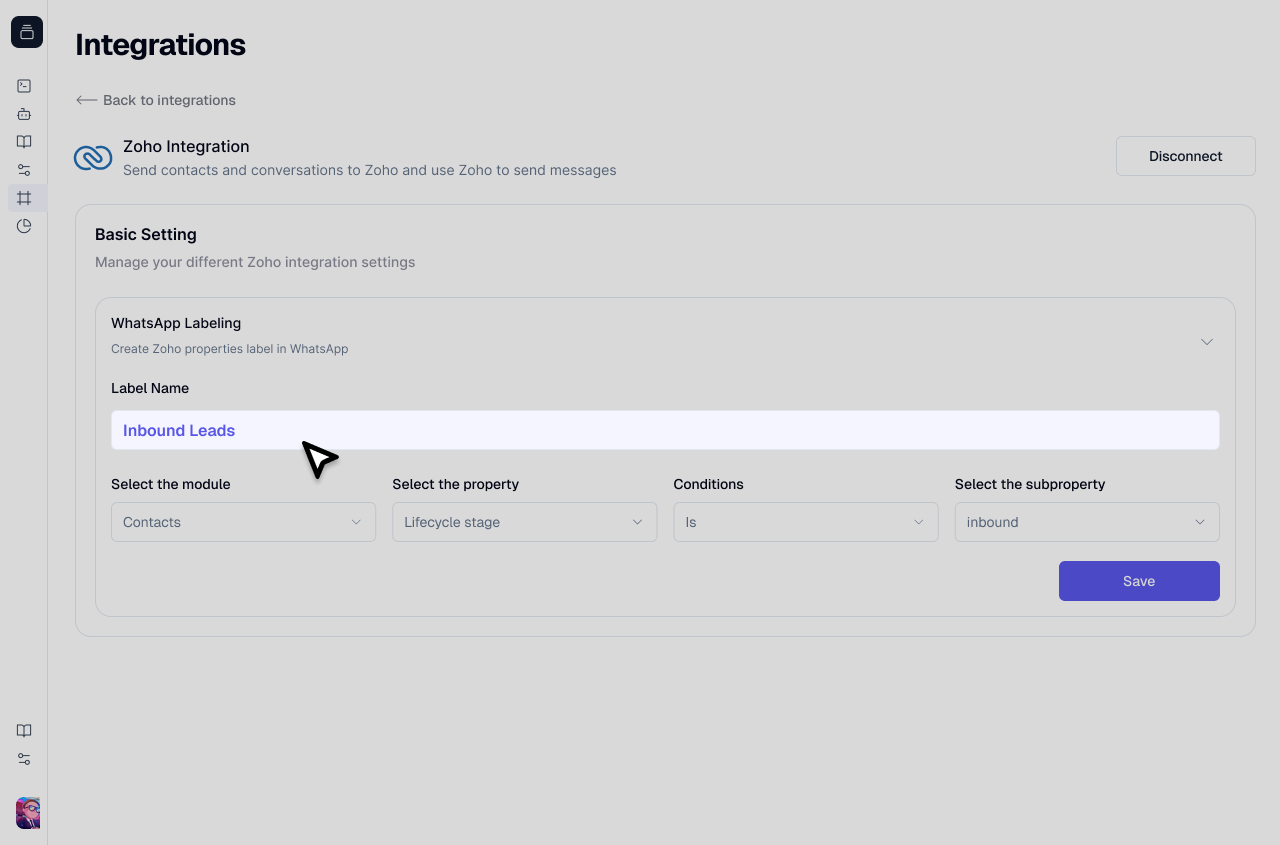 Choose the Zoho module you want to base your label on, such as Contacts or Leads.
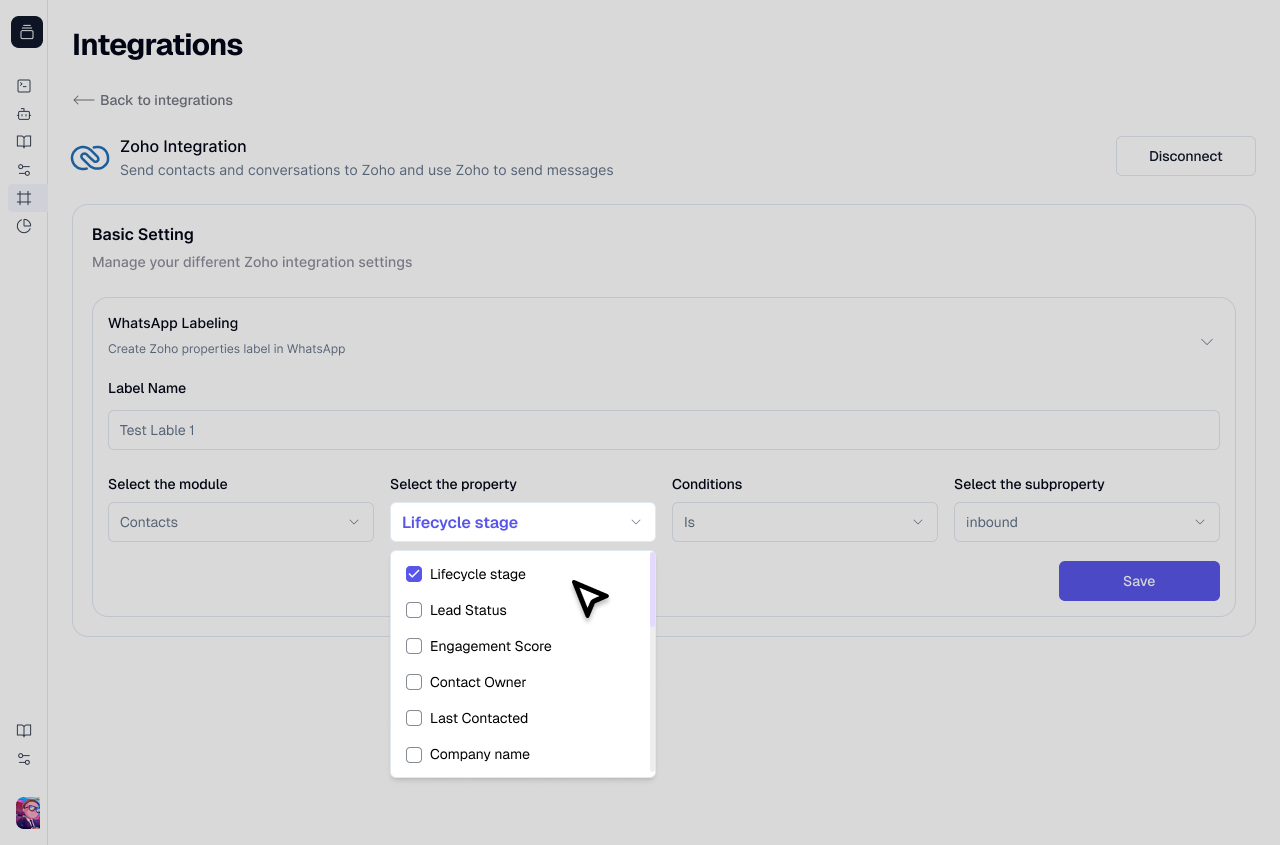
 Then select the property to use for filtering. Common options include:
* Lifecycle Stage
* Deal Stage
* Region
* Lead Status
Then select the property to use for filtering. Common options include:
* Lifecycle Stage
* Deal Stage
* Region
* Lead Status
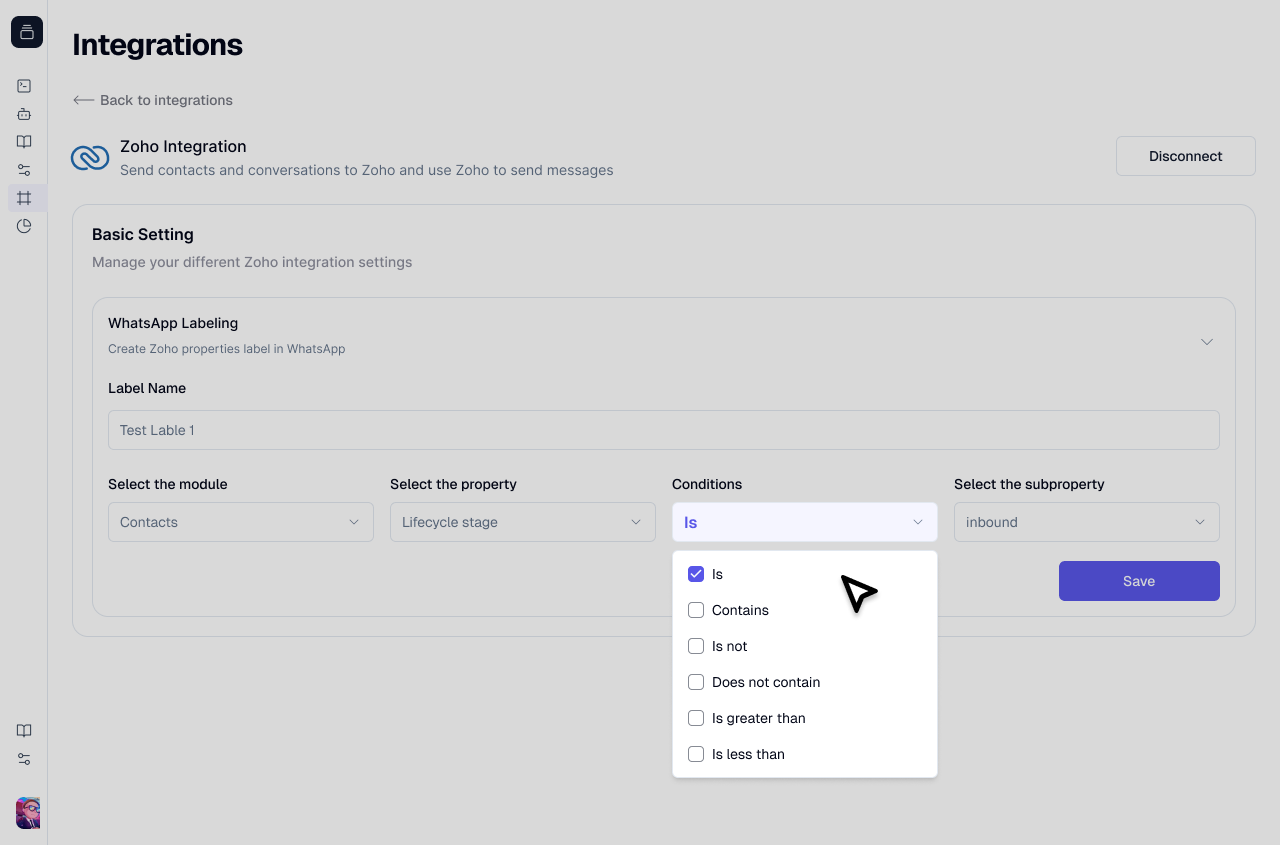
 Choose the condition that determines when contacts should be added to this label:
* **is equal to** - Exact match
* **is not equal to** - Excludes specific value
* **contains** - Partial match
* **does not contain** - Excludes partial match
Choose the condition that determines when contacts should be added to this label:
* **is equal to** - Exact match
* **is not equal to** - Excludes specific value
* **contains** - Partial match
* **does not contain** - Excludes partial match
 Specify the value that contacts must match. For example, "Customer," "Marketing Qualified Lead," or any other value from your Zoho properties.
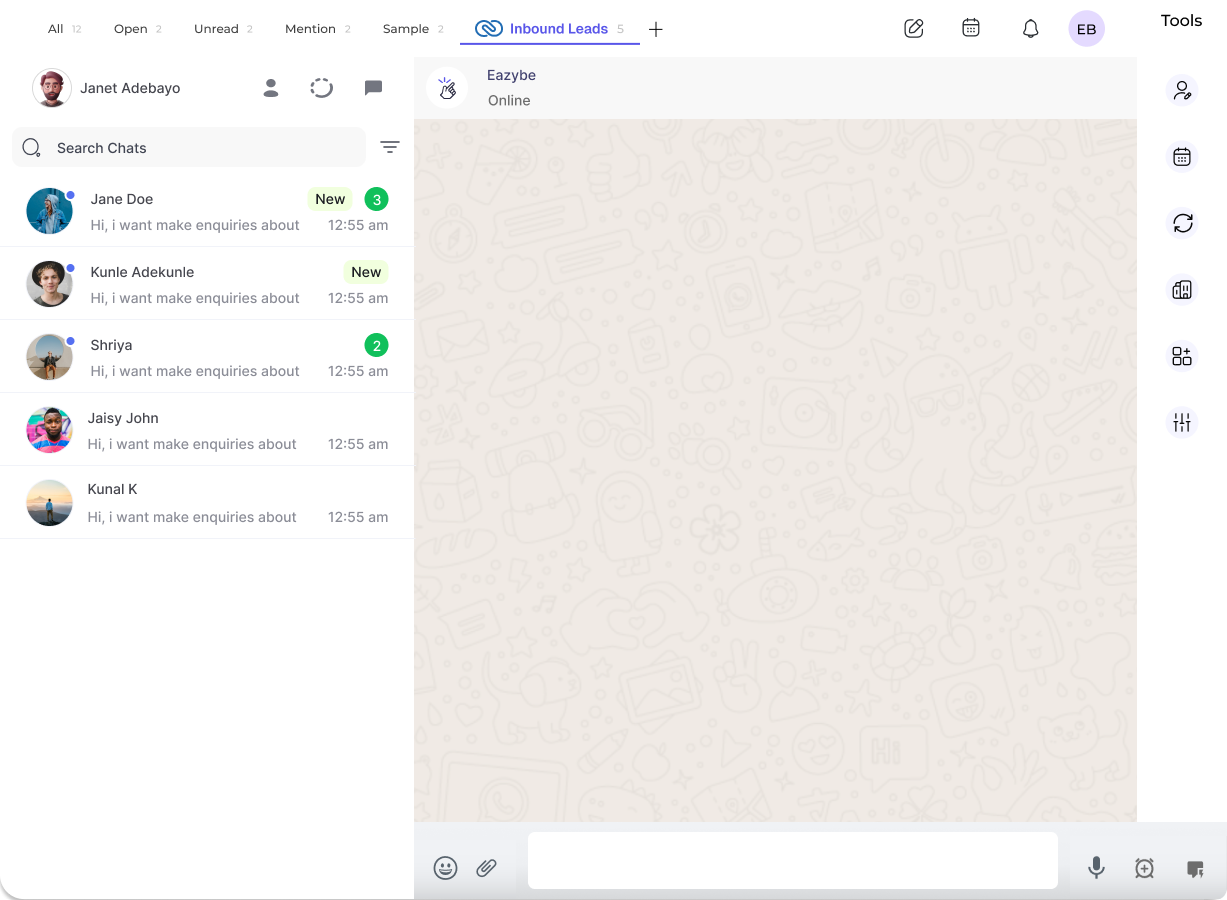
 Click save to create your dynamic label. The system will automatically:
* Create the label
* Add all matching contacts
* Maintain updates as Zoho data changes
Click save to create your dynamic label. The system will automatically:
* Create the label
* Add all matching contacts
* Maintain updates as Zoho data changes
 ## Benefits of Dynamic Labels
Contacts are automatically categorized based on CRM data without manual intervention
Labels update instantly when Zoho CRM properties change
Send targeted messages to specific customer segments with ease
Save time by eliminating manual contact categorization
Create multiple dynamic labels to segment your contacts by different criteria. This allows you to quickly filter and message specific groups based on their CRM status.
## Need Help?
If you have any questions or need further assistance, feel free to reach out to our support team at [hey@eazybe.com](mailto:hey@eazybe.com).
## Benefits of Dynamic Labels
Contacts are automatically categorized based on CRM data without manual intervention
Labels update instantly when Zoho CRM properties change
Send targeted messages to specific customer segments with ease
Save time by eliminating manual contact categorization
Create multiple dynamic labels to segment your contacts by different criteria. This allows you to quickly filter and message specific groups based on their CRM status.
## Need Help?
If you have any questions or need further assistance, feel free to reach out to our support team at [hey@eazybe.com](mailto:hey@eazybe.com).