> ## Documentation Index
> Fetch the complete documentation index at: https://help.eazybe.com/llms.txt
> Use this file to discover all available pages before exploring further.
# Custom Object Permissions
> Learn how to enable custom object permissions in Zoho CRM for seamless Eazybe integration
## Overview
To ensure a smooth integration with Eazybe, you must enable the necessary permissions for custom objects in your Zoho CRM account. These permissions allow Eazybe to sync custom objects correctly between Zoho CRM and your workspace.
## Steps to Enable Custom Object Permissions
Sign in to your Zoho CRM account using administrator credentials. You need admin access to modify permission settings.
Navigate to the **Permissions** or **Customization** settings in your Zoho CRM dashboard.
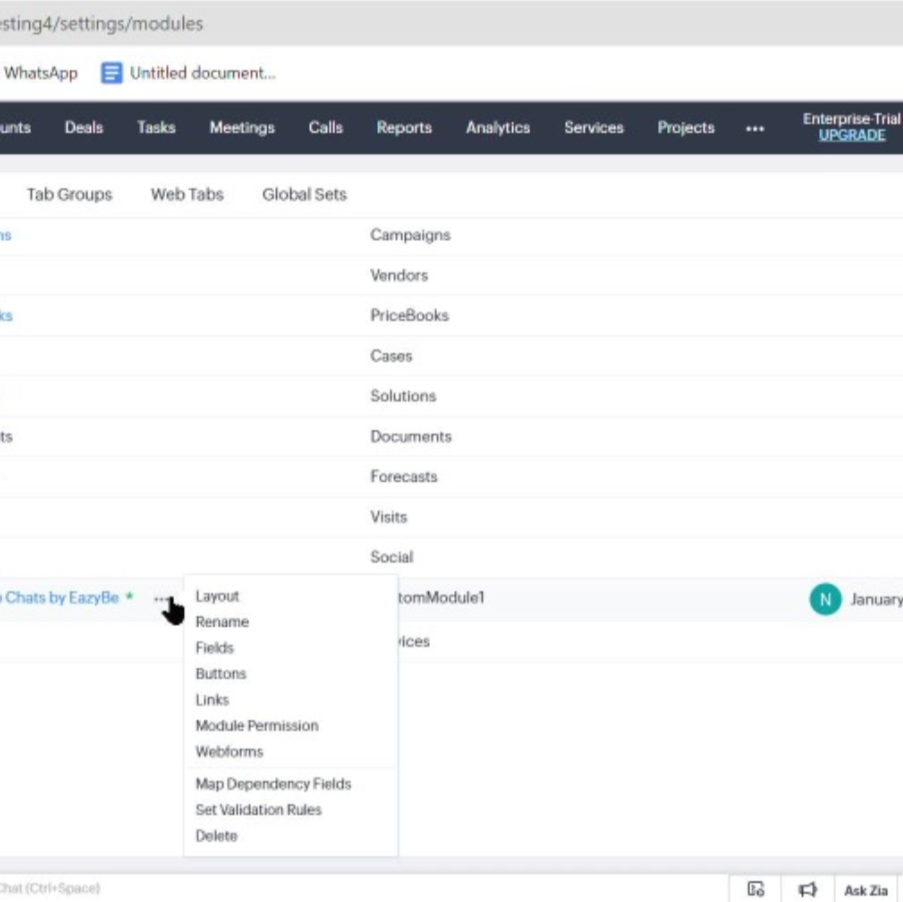 A dedicated "Custom Object" section may not be visible in the current interface. Look for permission settings within the general customization area.
Within the permissions area, ensure the following permissions are enabled:
* **Create Custom Objects** - Allows creating new custom objects
* **Edit Custom Objects** - Allows modifying existing custom objects
* **Update Custom Objects** - Allows updating custom object records
Click **Save** to confirm your settings and enable proper Eazybe integration management.
## Required Permissions Checklist
Permission to create new custom objects in Zoho CRM
Permission to modify custom object structures
Permission to update custom object records
**Important:** These permissions are crucial for the proper functioning of the Eazybe integration. Without them, the integration might not be able to sync custom objects correctly between Zoho CRM and Eazybe.
## Troubleshooting
Custom object permissions may be located under different menu sections depending on your Zoho CRM edition. Try checking under **Setup** → **Users and Control** → **Profiles** and edit the relevant profile.
After saving permission changes, you may need to log out and log back in for the changes to take effect. Also ensure you're editing the correct user profile.
Verify that all three permissions (Create, Edit, Update) are enabled. If issues persist, contact support at **[hey@eazybe.com](mailto:hey@eazybe.com)**.
A dedicated "Custom Object" section may not be visible in the current interface. Look for permission settings within the general customization area.
Within the permissions area, ensure the following permissions are enabled:
* **Create Custom Objects** - Allows creating new custom objects
* **Edit Custom Objects** - Allows modifying existing custom objects
* **Update Custom Objects** - Allows updating custom object records
Click **Save** to confirm your settings and enable proper Eazybe integration management.
## Required Permissions Checklist
Permission to create new custom objects in Zoho CRM
Permission to modify custom object structures
Permission to update custom object records
**Important:** These permissions are crucial for the proper functioning of the Eazybe integration. Without them, the integration might not be able to sync custom objects correctly between Zoho CRM and Eazybe.
## Troubleshooting
Custom object permissions may be located under different menu sections depending on your Zoho CRM edition. Try checking under **Setup** → **Users and Control** → **Profiles** and edit the relevant profile.
After saving permission changes, you may need to log out and log back in for the changes to take effect. Also ensure you're editing the correct user profile.
Verify that all three permissions (Create, Edit, Update) are enabled. If issues persist, contact support at **[hey@eazybe.com](mailto:hey@eazybe.com)**.