> ## Documentation Index
> Fetch the complete documentation index at: https://help.eazybe.com/llms.txt
> Use this file to discover all available pages before exploring further.
# Contact Profile
> Learn how to view and edit Zoho Contact profiles directly from WhatsApp using the EazyBe extension
Access and manage your Zoho Contact profiles directly from WhatsApp using the EazyBe extension. View basic contact details and update information without leaving your conversation.
## How to Access the Contact Profile
Open the WhatsApp conversation with your Zoho Contact whose profile you want to view or edit.
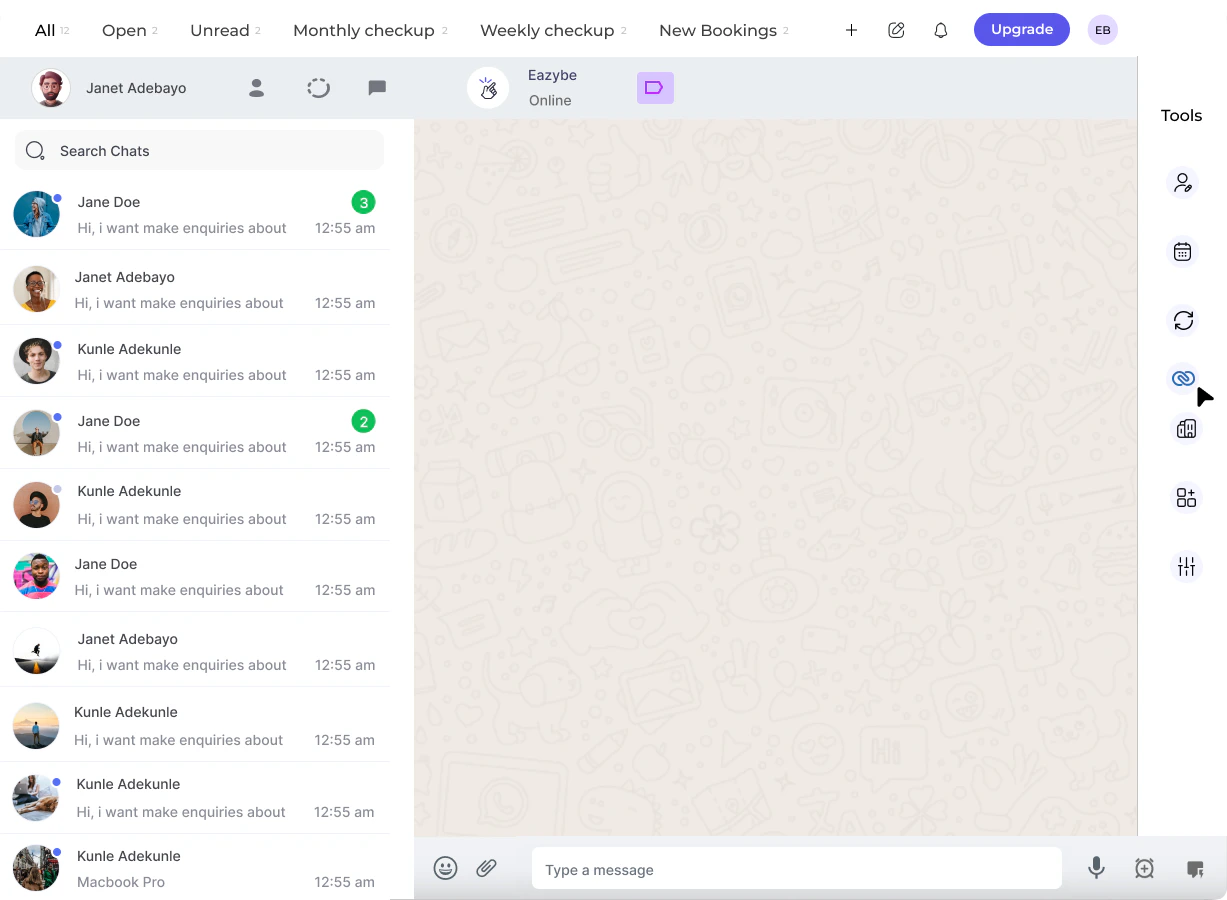 In the right-side panel of the EazyBe extension, locate and click on the **Zoho icon** to access your CRM features.
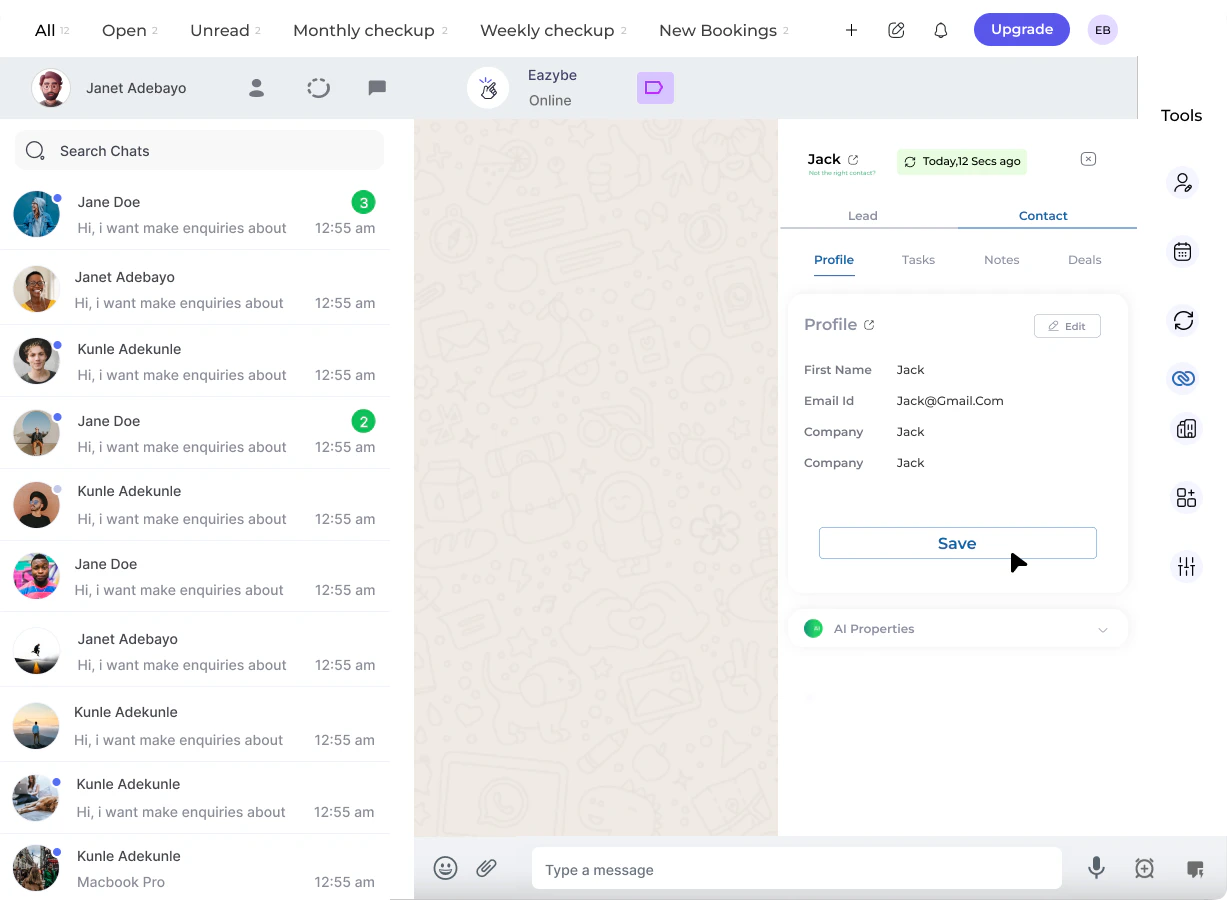
Click on the **Contact** header. The first section that opens will be the **Profile Section**, displaying the contact's basic details.
In the right-side panel of the EazyBe extension, locate and click on the **Zoho icon** to access your CRM features.
Click on the **Contact** header. The first section that opens will be the **Profile Section**, displaying the contact's basic details.
 ## Viewing and Editing Contact Details
Once in the Profile Section, you can:
See all user properties and contact information at a glance
Modify contact details directly from the extension
Make changes to any editable contact fields as needed.
After making your changes, click the **Save** button to update the contact profile in Zoho.
Changes made to the contact profile are automatically synced with your Zoho CRM, keeping your records up to date across platforms.
## Need Help?
If you have questions or need assistance, contact our support team at [hey@eazybe.com](mailto:hey@eazybe.com).
## Viewing and Editing Contact Details
Once in the Profile Section, you can:
See all user properties and contact information at a glance
Modify contact details directly from the extension
Make changes to any editable contact fields as needed.
After making your changes, click the **Save** button to update the contact profile in Zoho.
Changes made to the contact profile are automatically synced with your Zoho CRM, keeping your records up to date across platforms.
## Need Help?
If you have questions or need assistance, contact our support team at [hey@eazybe.com](mailto:hey@eazybe.com).