> ## Documentation Index
> Fetch the complete documentation index at: https://help.eazybe.com/llms.txt
> Use this file to discover all available pages before exploring further.
# Contact Notes
> Learn how to create and manage follow-up notes for your Zoho Contacts directly from WhatsApp using the EazyBe extension
Create follow-up notes and save important messages for future reference when conversations pause or require future follow-up. Keep all your contact communication details organized and accessible.
## How to Create Contact Notes
Open the WhatsApp conversation with your Zoho Contact that you want to add notes to.
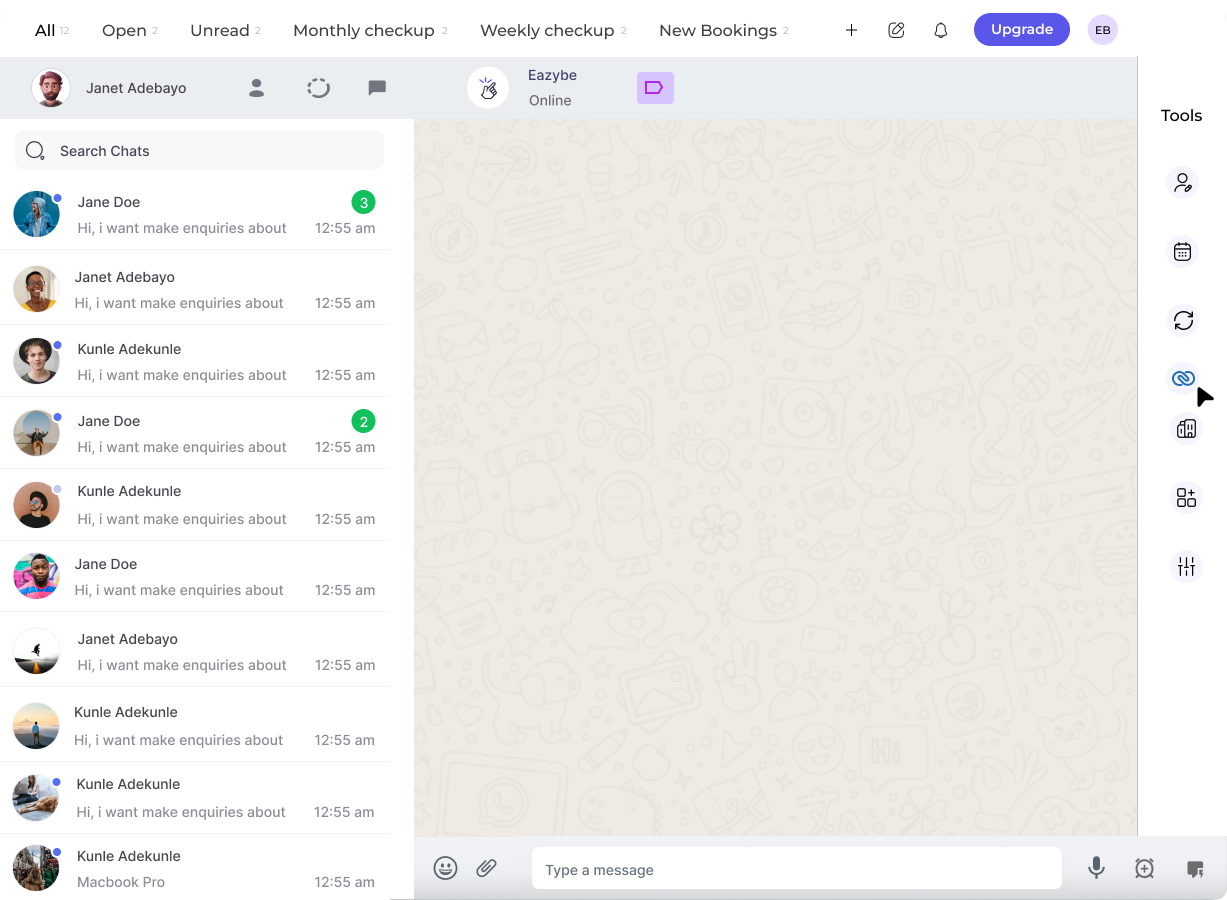 In the right-side panel of the EazyBe extension, locate and click on the **Zoho icon** to access your CRM features.
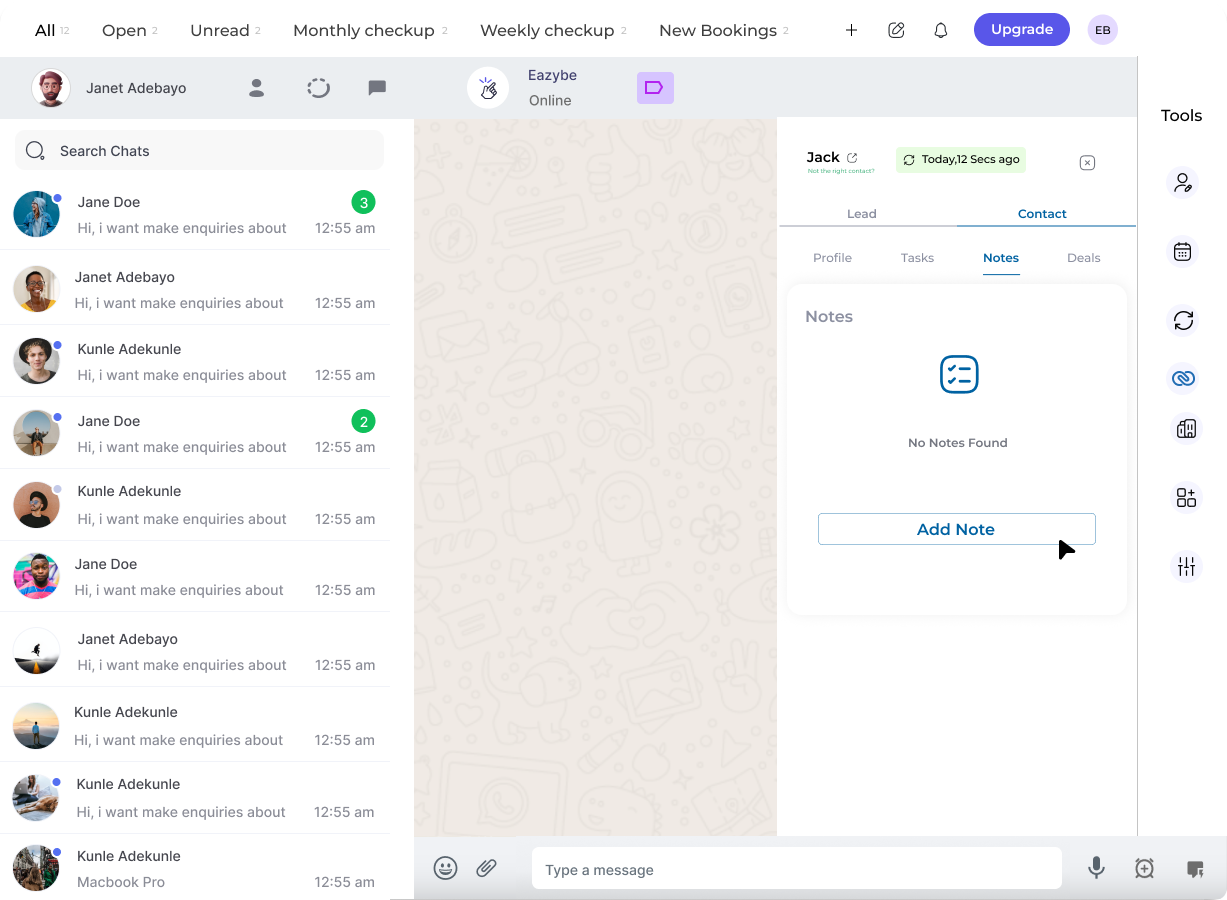 The **Notes section** is located as the second header under the Contact information area. Click on it to view existing notes or create new ones.
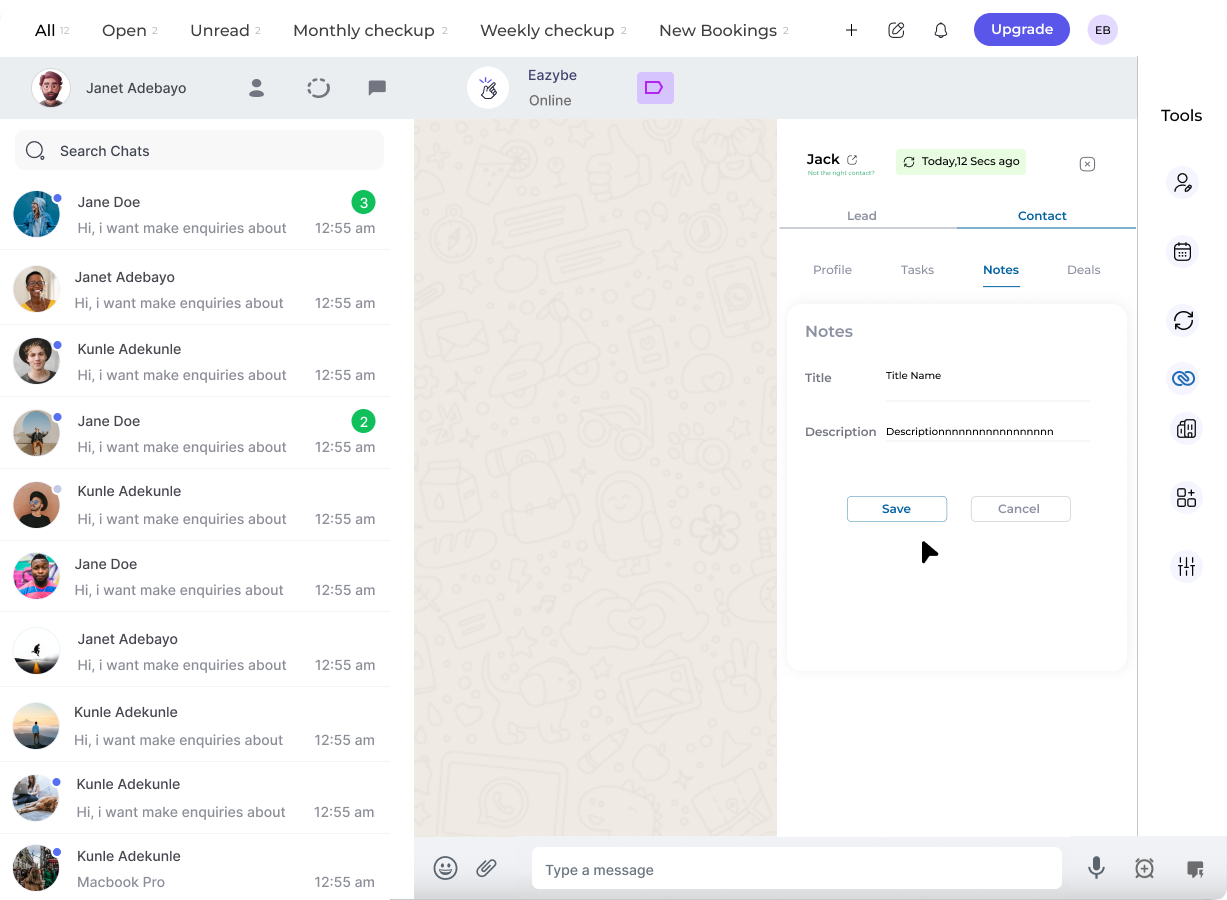 Click on the **New Note** button to open the note creation form.
Enter your note content in the form and click the **Save Note** button to save your entry.
Click on the **New Note** button to open the note creation form.
Enter your note content in the form and click the **Save Note** button to save your entry.
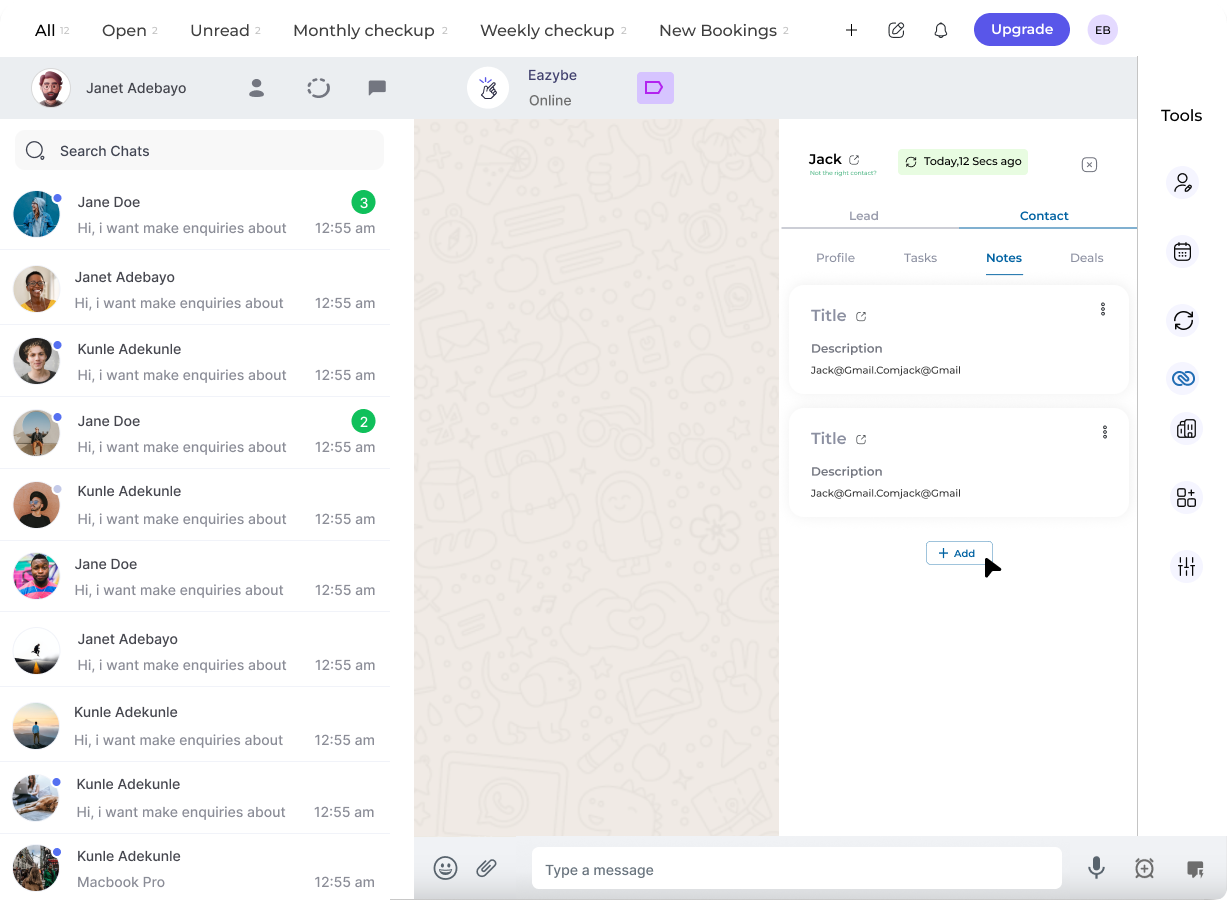 ## Managing Your Notes
Once created, you can perform the following actions on your notes:
Review all your saved notes for the contact
Modify existing notes to update information
Remove notes that are no longer needed
You can create multiple notes per contact, making it easy to track different conversation topics and follow-up items over time.
Regularly documenting your conversations helps maintain a complete history of your interactions with each contact, making follow-ups more effective.
## Need Help?
If you have questions or need assistance, contact our support team at [hey@eazybe.com](mailto:hey@eazybe.com).
## Managing Your Notes
Once created, you can perform the following actions on your notes:
Review all your saved notes for the contact
Modify existing notes to update information
Remove notes that are no longer needed
You can create multiple notes per contact, making it easy to track different conversation topics and follow-up items over time.
Regularly documenting your conversations helps maintain a complete history of your interactions with each contact, making follow-ups more effective.
## Need Help?
If you have questions or need assistance, contact our support team at [hey@eazybe.com](mailto:hey@eazybe.com).