> ## Documentation Index
> Fetch the complete documentation index at: https://help.eazybe.com/llms.txt
> Use this file to discover all available pages before exploring further.
# Contact Deals
> Learn how to create and manage deals for your Zoho Contacts directly from WhatsApp using the EazyBe extension
Zoho Deals gives you a clear view of the business opportunities you're pursuing, allowing you to track their progress from start to finish. Manage all your contact-related deals directly from WhatsApp.
## How to Create Contact Deals
Access the WhatsApp conversation with the Zoho Contact for whom you want to create a deal.
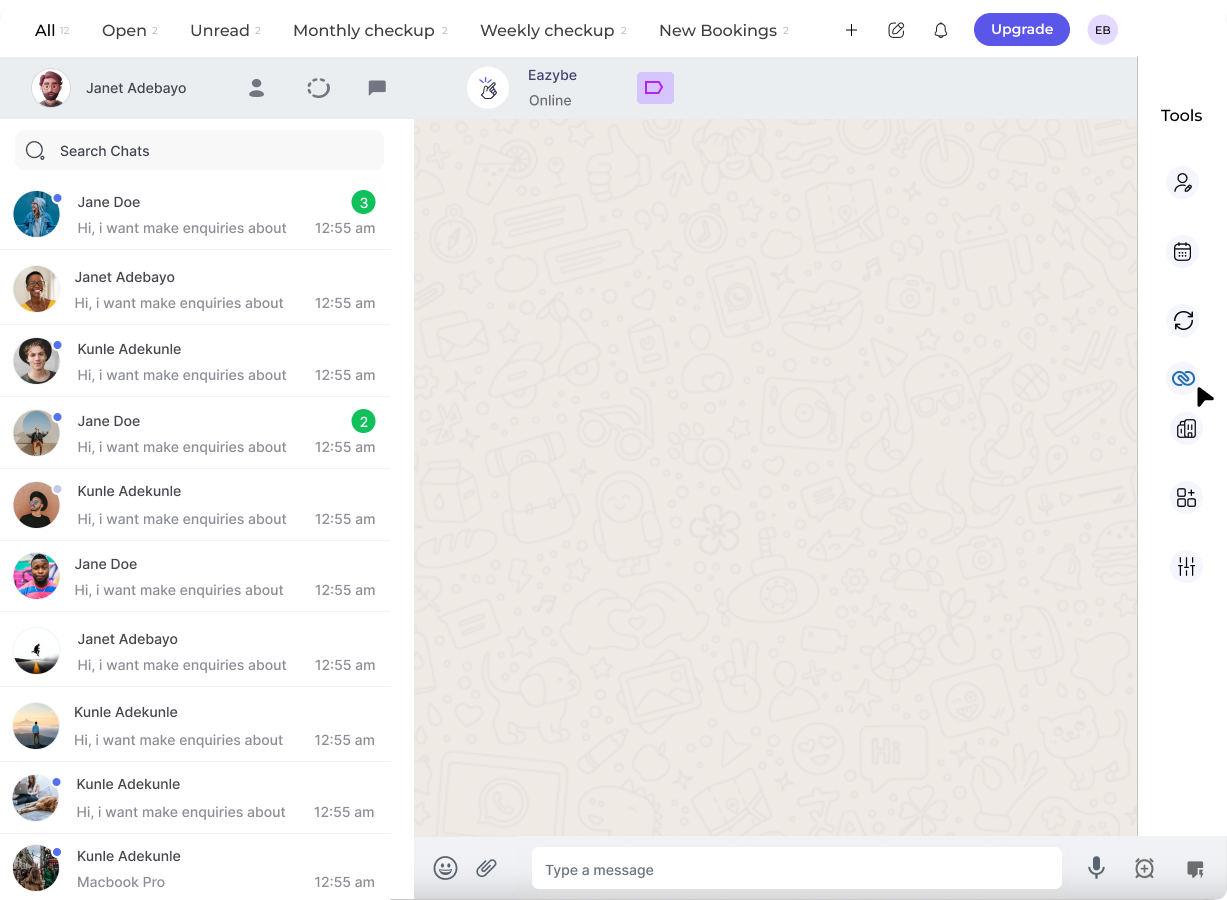 In the right sidebar of the EazyBe extension, locate and click on the **Zoho icon** to access your CRM features.
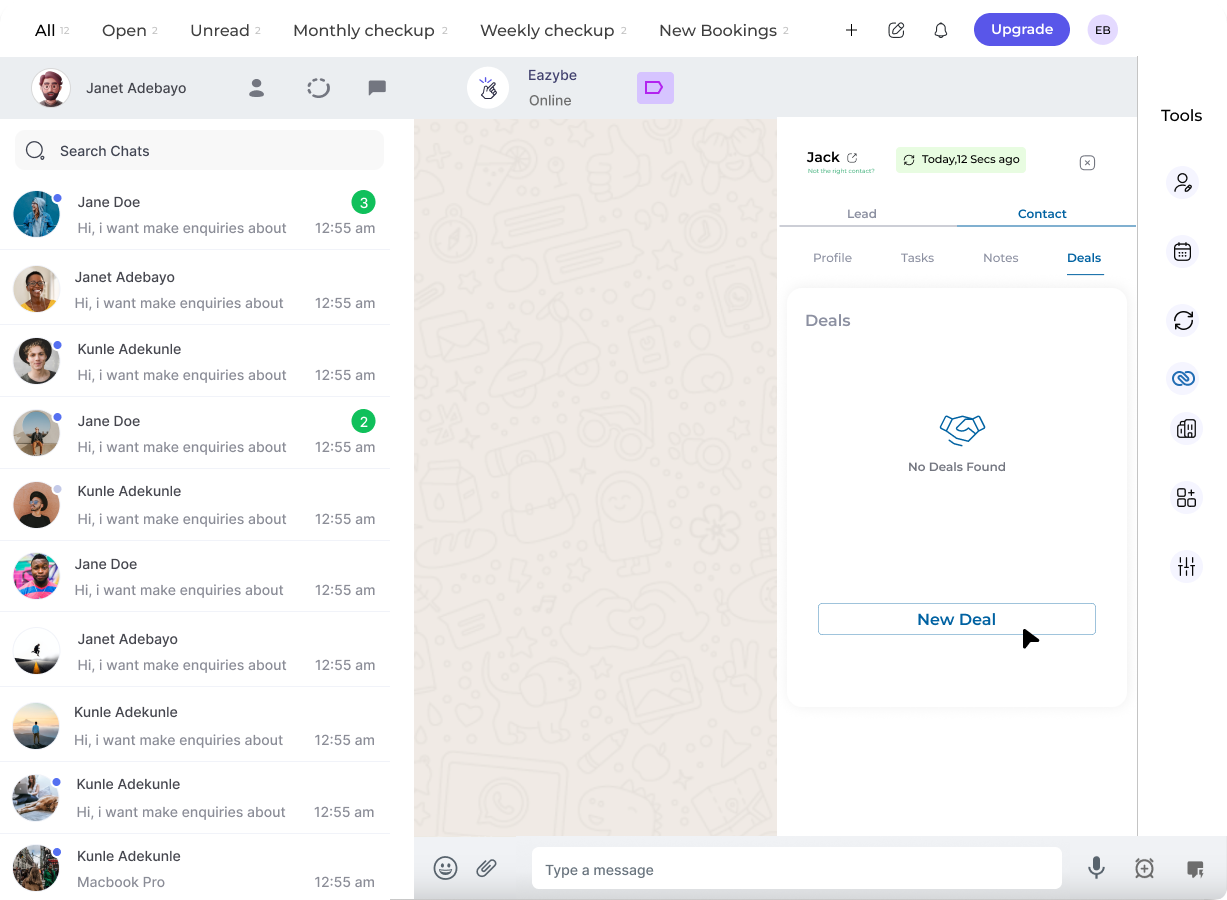 Navigate to the **Deals Section** header under the Contact information area.
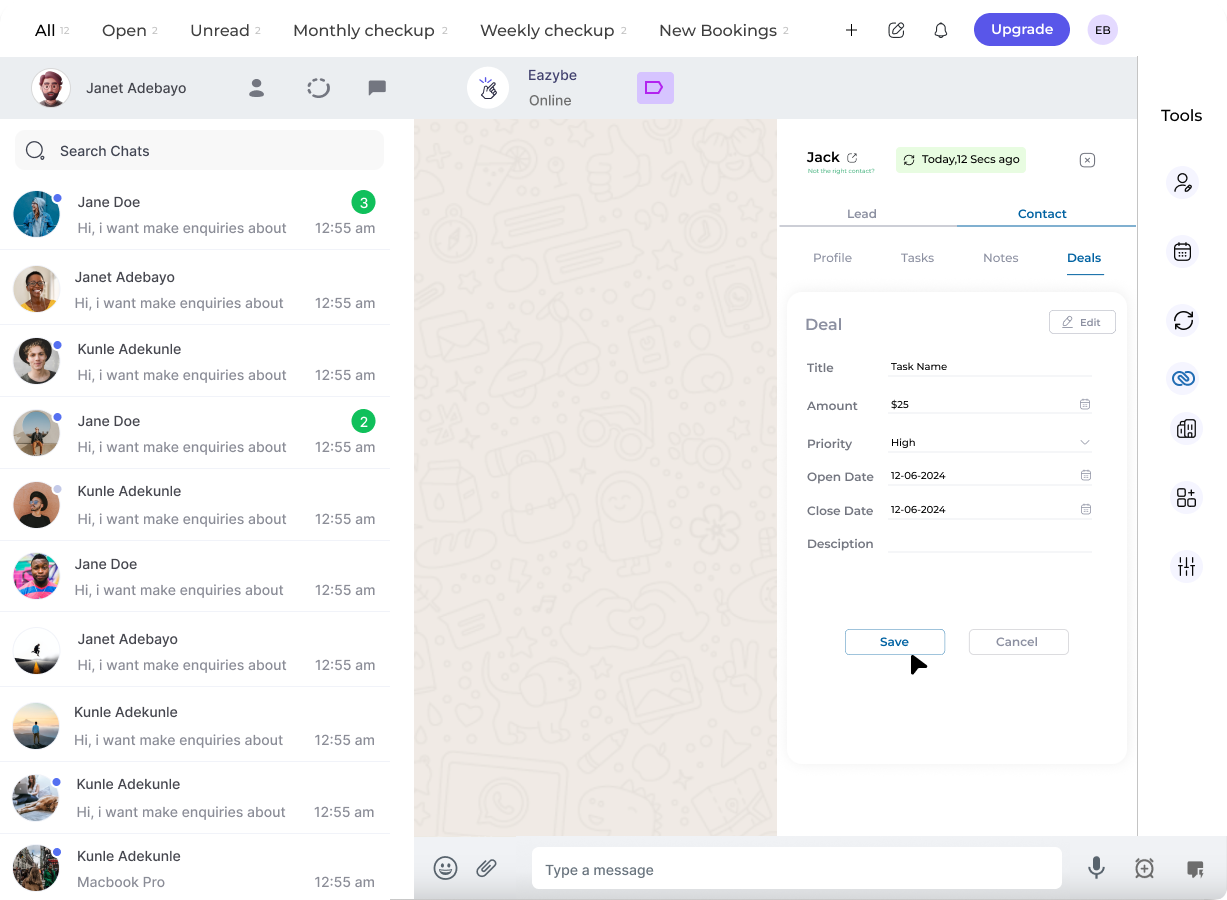 Click the **New Deal** button to initiate deal creation.
Enter the required deal information. You can customize additional properties by clicking the **Edit** button, then save your deal.
Click the **New Deal** button to initiate deal creation.
Enter the required deal information. You can customize additional properties by clicking the **Edit** button, then save your deal.
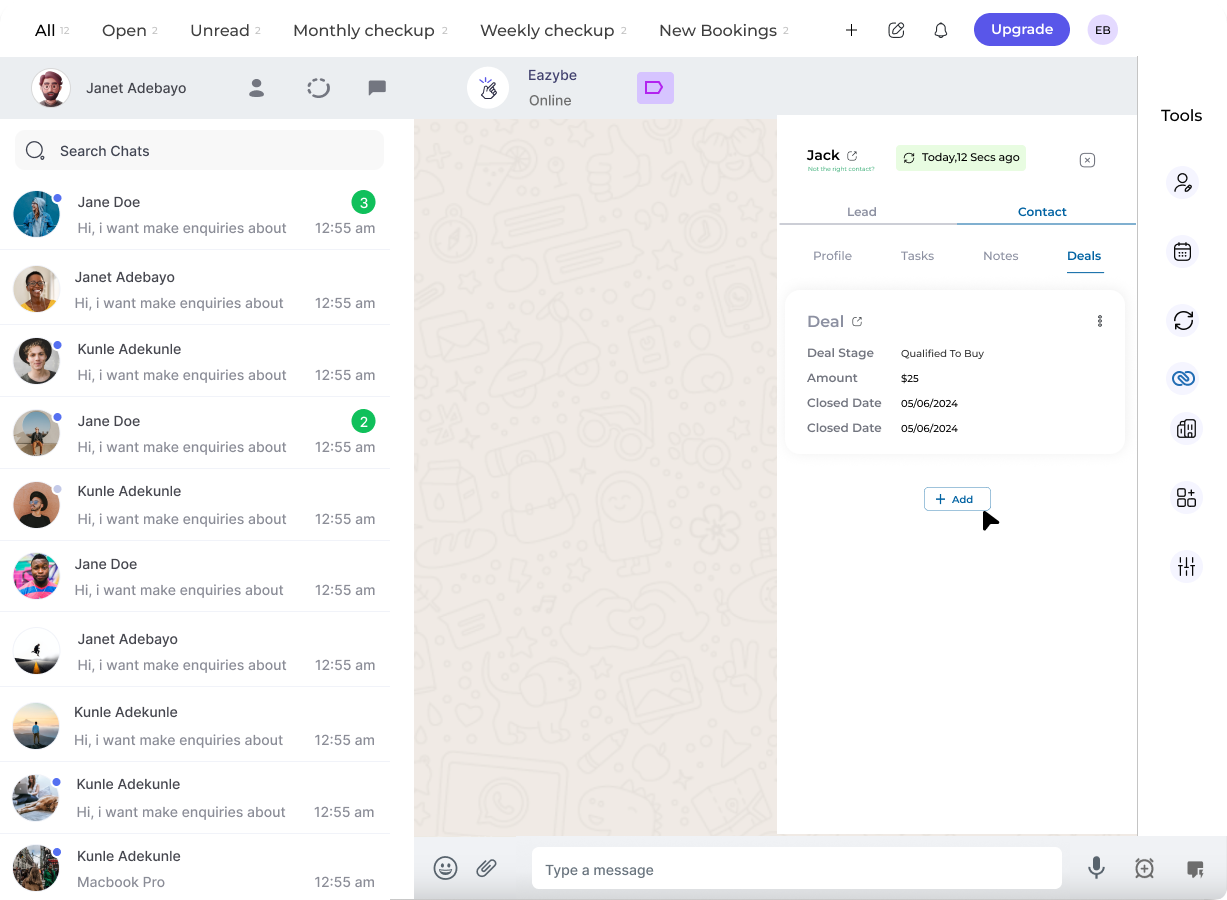 ## Managing Your Deals
Once created, you can perform the following actions on your deals:
Access and review all saved deals for the contact
Modify existing deals to update information or deal stage
Remove deals that are closed or no longer relevant
To edit or delete a deal, click the **three dots** (⋮) adjacent to each deal entry to access the management options.
Tracking deals for your contacts helps you maintain visibility into your sales pipeline and ensures no business opportunity is overlooked.
## Need Help?
If you have any questions or need further assistance, feel free to reach out to our support team at [hey@eazybe.com](mailto:hey@eazybe.com).
## Managing Your Deals
Once created, you can perform the following actions on your deals:
Access and review all saved deals for the contact
Modify existing deals to update information or deal stage
Remove deals that are closed or no longer relevant
To edit or delete a deal, click the **three dots** (⋮) adjacent to each deal entry to access the management options.
Tracking deals for your contacts helps you maintain visibility into your sales pipeline and ensures no business opportunity is overlooked.
## Need Help?
If you have any questions or need further assistance, feel free to reach out to our support team at [hey@eazybe.com](mailto:hey@eazybe.com).