> ## Documentation Index
> Fetch the complete documentation index at: https://help.eazybe.com/llms.txt
> Use this file to discover all available pages before exploring further.
# Component Backup
> Learn how to set up and use the Eazybe backup component in Zoho CRM for automatic WhatsApp chat backup
## Overview
Eazybe provides two primary features for Zoho CRM integration:
Automatically save your WhatsApp conversations within Zoho CRM
Send and receive WhatsApp messages directly from your CRM without switching platforms
## Prerequisites
**Administrator Action Required:** Before proceeding, administrators must install the custom object using the link below.
Install the Eazybe custom object: [Install Private Plugin](https://crm.zoho.in/market/installPrivatePlugin.do?portalName=akshayvats\&nameSpace=zohocrm34\&versionIndex=4525443000000189001)
## Step 1: Install from Zoho Marketplace
Sign in to your Zoho CRM account with administrator credentials.
 Go to the **Marketplace** in the top-right menu of your Zoho CRM dashboard.
 Search for "Eazybe" in the marketplace search bar and select the app from the results.
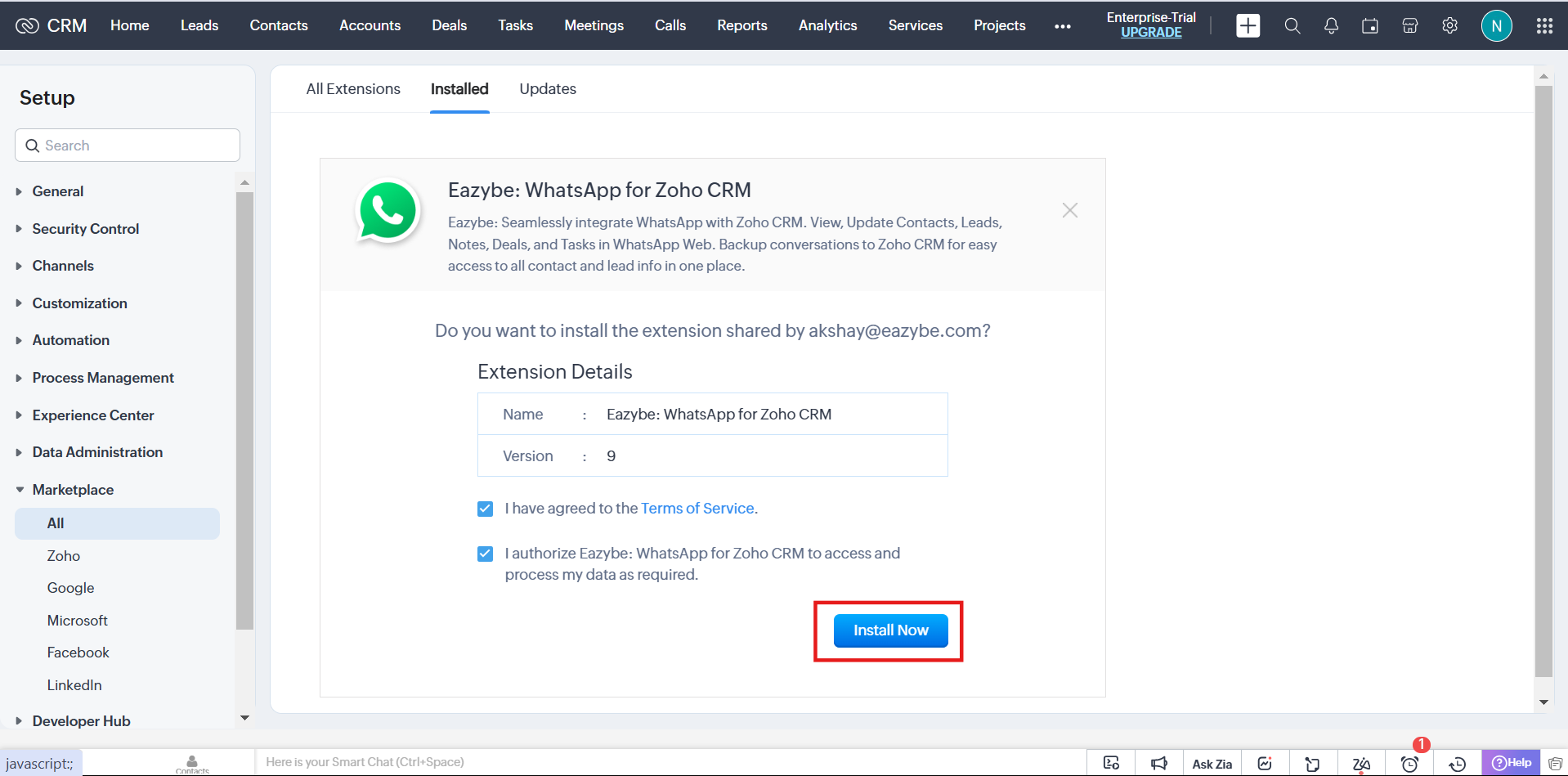
 Click **Install** to begin the installation process.
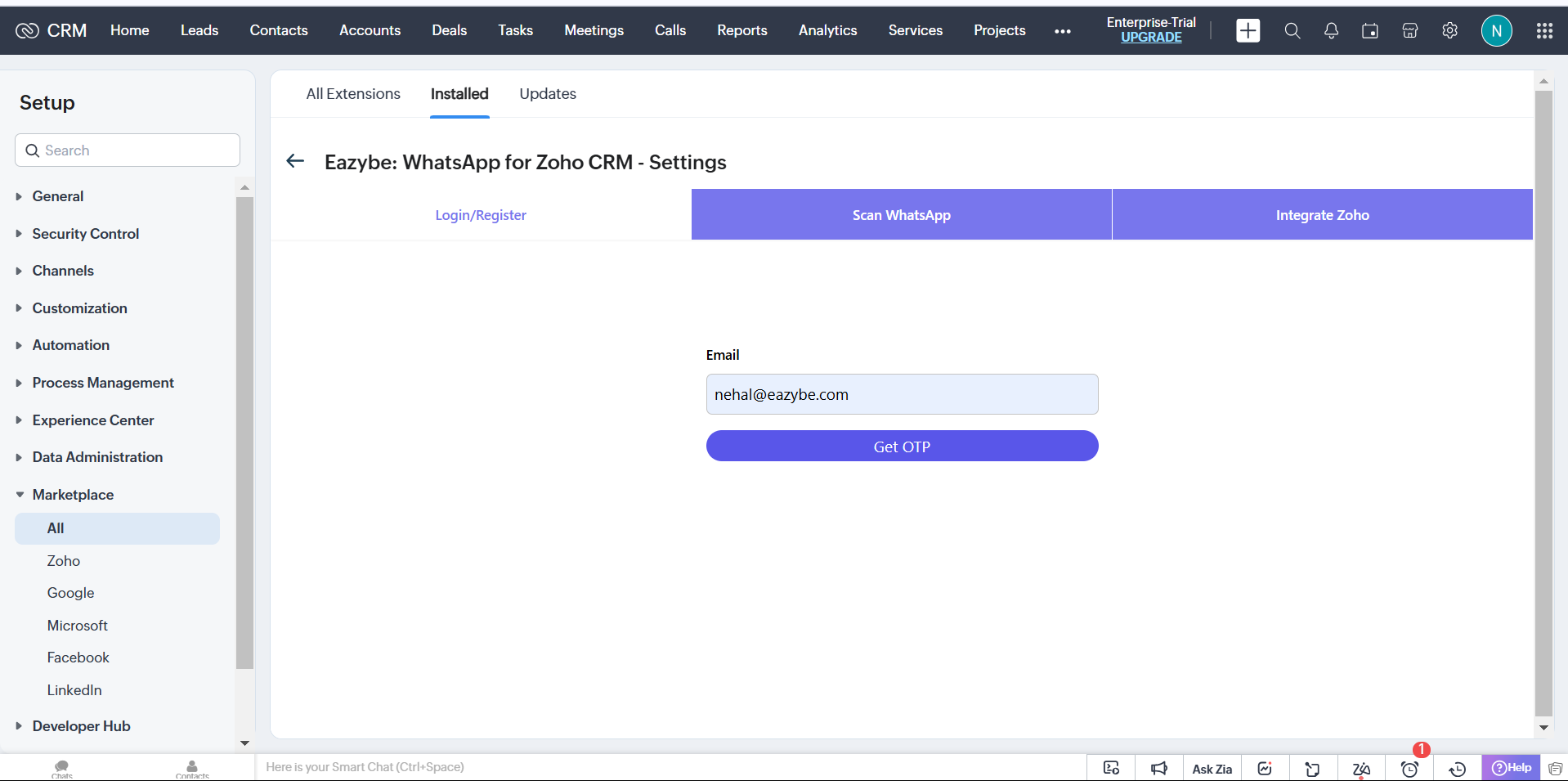
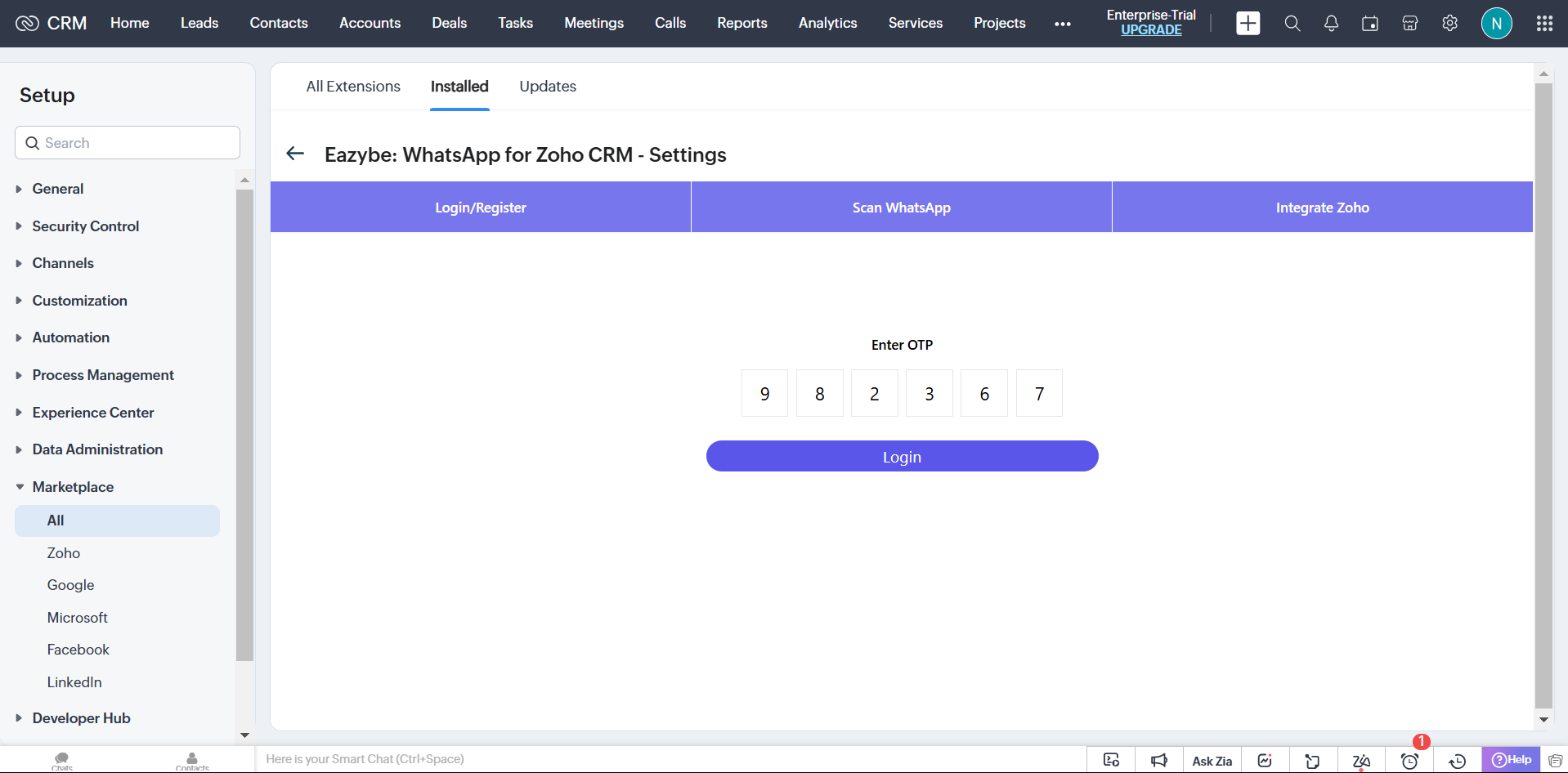 Add your email ID and enter the OTP verification code sent to your email.
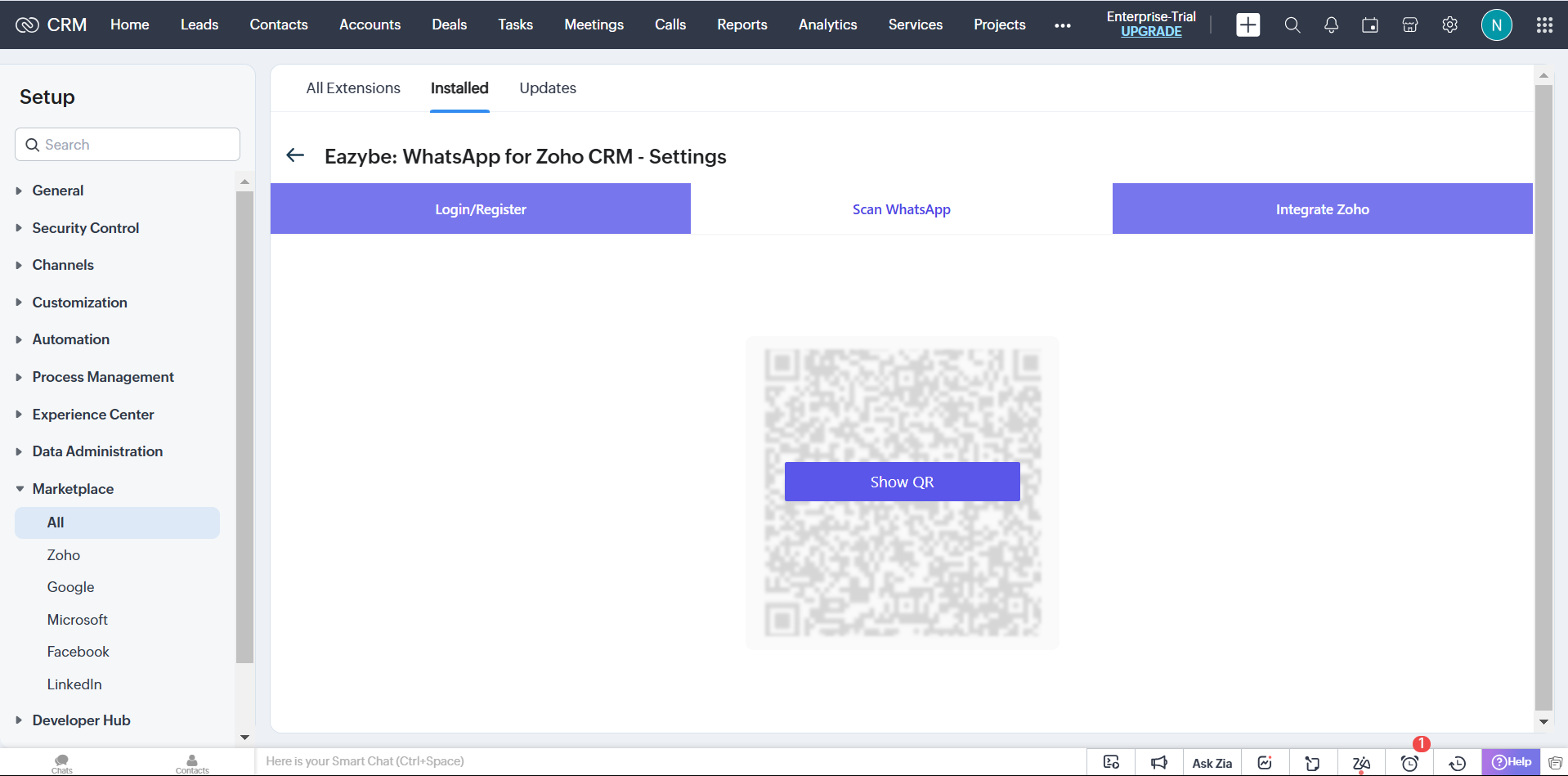 Click **Show QR** to generate a QR code for WhatsApp authentication.
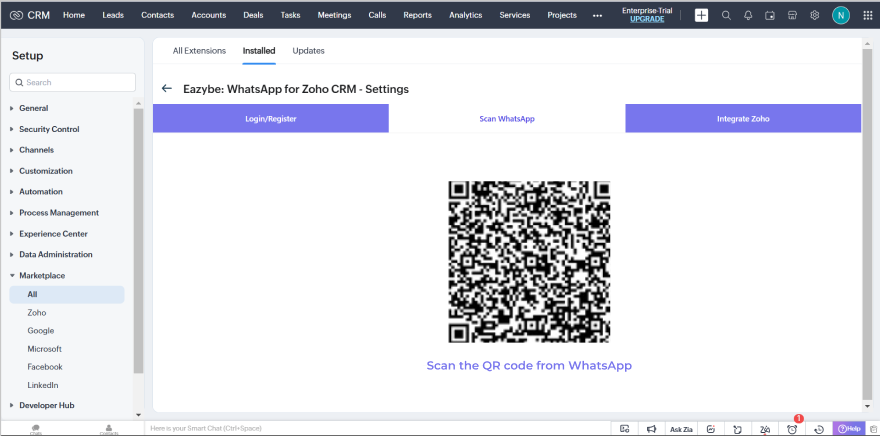 Scan the QR code with your WhatsApp mobile app to initiate the session and connect Zoho CRM with Eazybe.
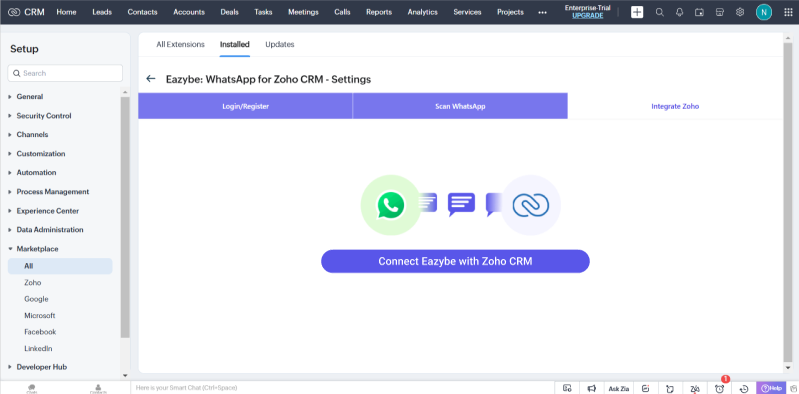 ## Step 2: Backup WhatsApp Chats
Once installation is complete, you can start backing up your WhatsApp conversations:
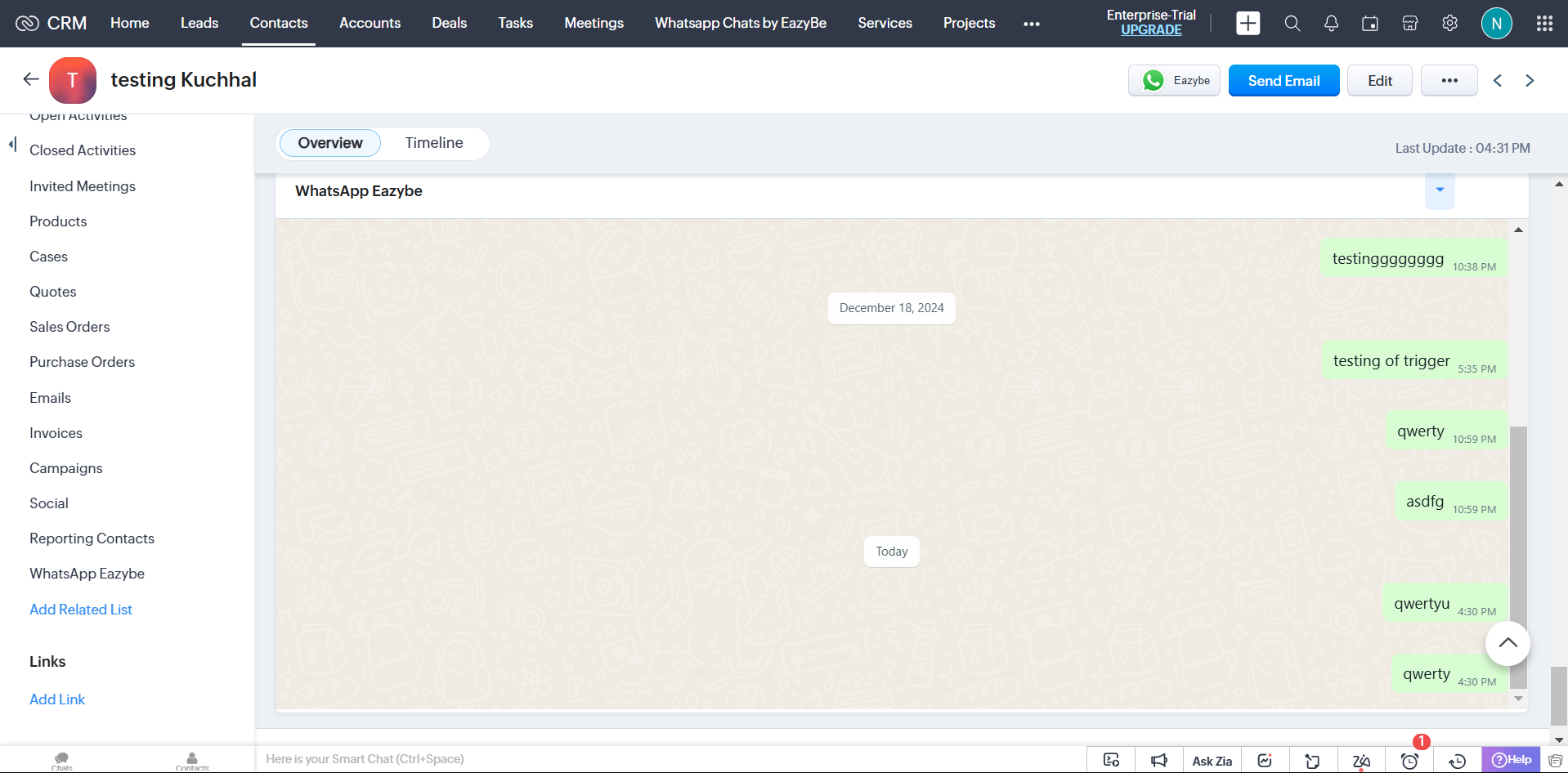
Go to the **Leads** or **Contacts** module in your Zoho CRM.
Click on **WhatsApp Eazybe** to access the backup interface.
All your WhatsApp chats will automatically back up in Zoho CRM.
Chat backups occur automatically every 3 minutes, ensuring your conversations are always up to date in Zoho CRM.
## Key Features
| Feature | Description |
| --------------------- | --------------------------------------------------------- |
| **Chat Backup** | Automatically save WhatsApp conversations within Zoho CRM |
| **Direct Messaging** | Send and receive WhatsApp messages directly from CRM |
| **Two-Way Data Sync** | Keep customer data synchronized between platforms |
## Need Help?
For support, contact us at **[support@eazybe.com](mailto:support@eazybe.com)**
## Step 2: Backup WhatsApp Chats
Once installation is complete, you can start backing up your WhatsApp conversations:
Go to the **Leads** or **Contacts** module in your Zoho CRM.
Click on **WhatsApp Eazybe** to access the backup interface.
All your WhatsApp chats will automatically back up in Zoho CRM.
Chat backups occur automatically every 3 minutes, ensuring your conversations are always up to date in Zoho CRM.
## Key Features
| Feature | Description |
| --------------------- | --------------------------------------------------------- |
| **Chat Backup** | Automatically save WhatsApp conversations within Zoho CRM |
| **Direct Messaging** | Send and receive WhatsApp messages directly from CRM |
| **Two-Way Data Sync** | Keep customer data synchronized between platforms |
## Need Help?
For support, contact us at **[support@eazybe.com](mailto:support@eazybe.com)**