> ## Documentation Index
> Fetch the complete documentation index at: https://help.eazybe.com/llms.txt
> Use this file to discover all available pages before exploring further.
# Enable Zoho CRM API Access
> Learn how to enable Zoho CRM API access for user profiles to allow Eazybe integration and seamless data communication.
This guide provides administrators with instructions for enabling API access at the profile level in Zoho CRM. Enabling API access is essential for Eazybe to communicate with your Zoho CRM data.
## Who Should Use This Guide
Zoho CRM administrators managing user permissions
Teams setting up system integrations
Developers configuring API-based integrations
Only users with administrative access can modify profile-level security settings in Zoho CRM.
## Prerequisites
Before proceeding, ensure you have:
* **Administrative access** to Zoho CRM
* Knowledge of which **profile** is assigned to the API-calling user (Standard, Sales, or custom profiles)
## Steps to Enable API Access
Sign in to your Zoho CRM account using administrator credentials.
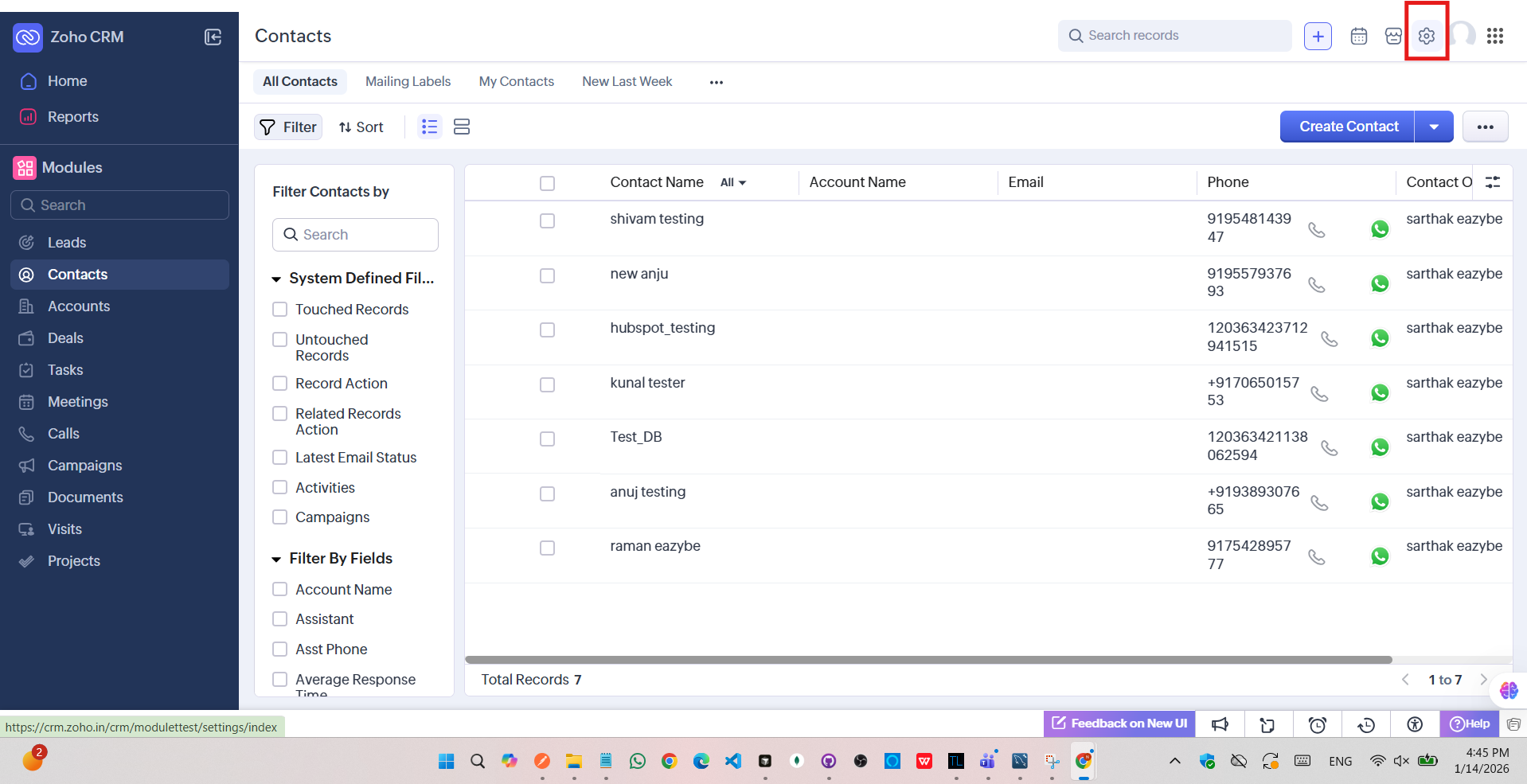 Click the **gear icon** (Setup) in the top-right corner of the screen.
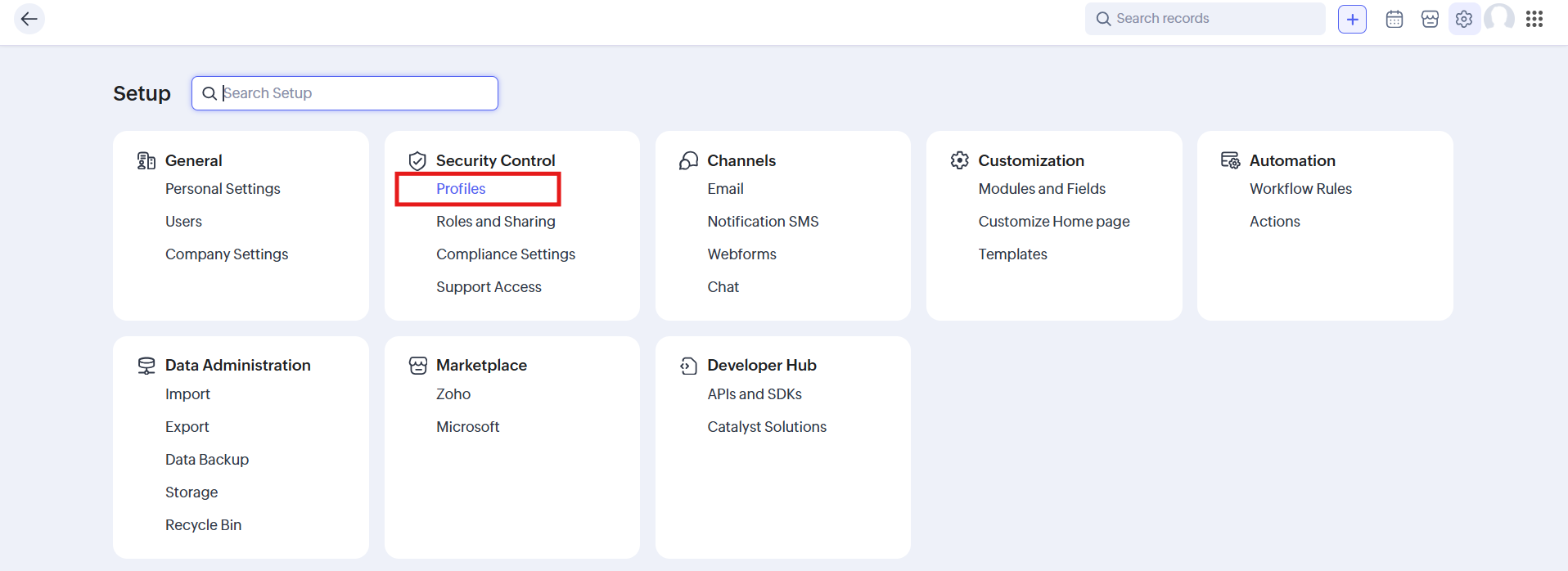 Go to **Security Control** and select **Profiles** from the available options.
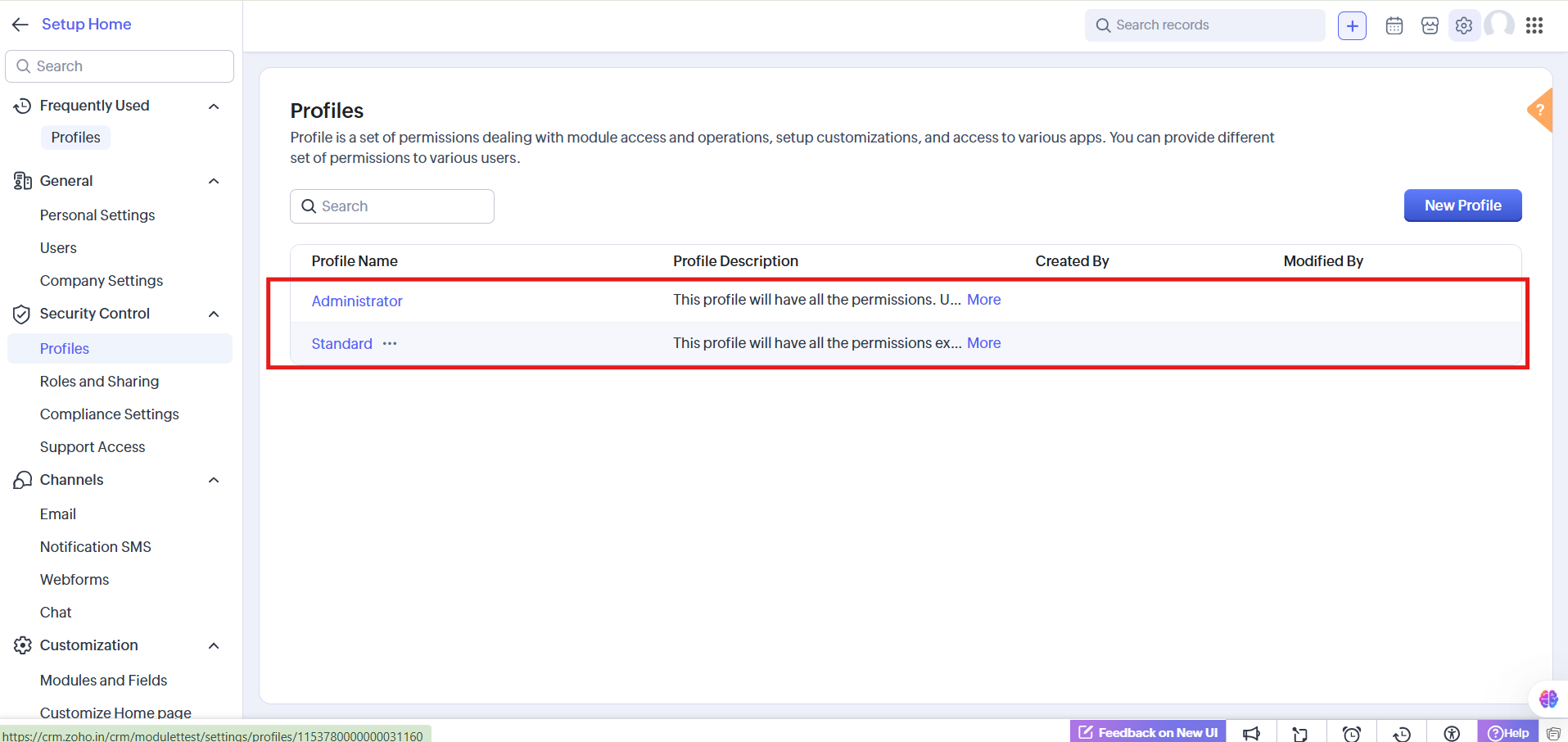 In the **Profiles** tab, locate and click the profile assigned to the API user.
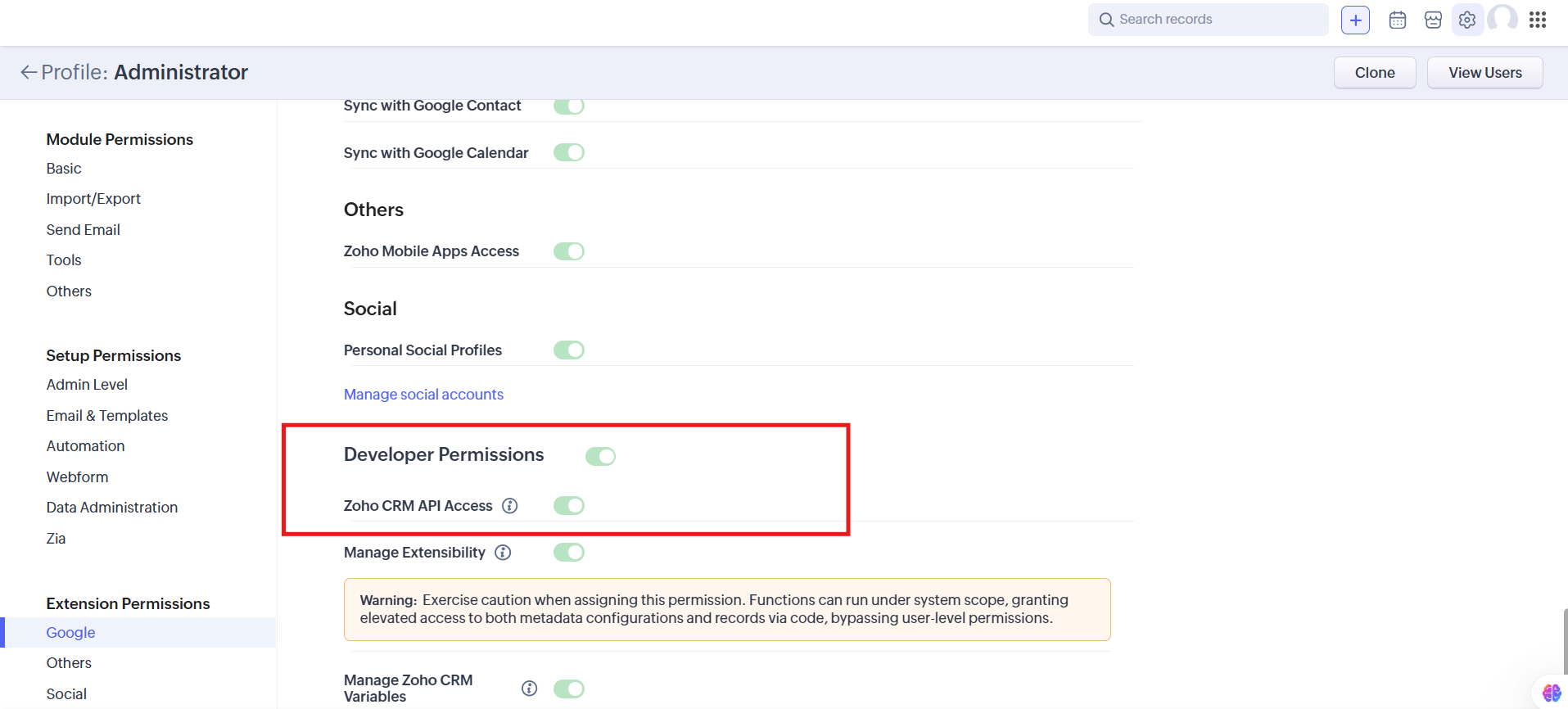
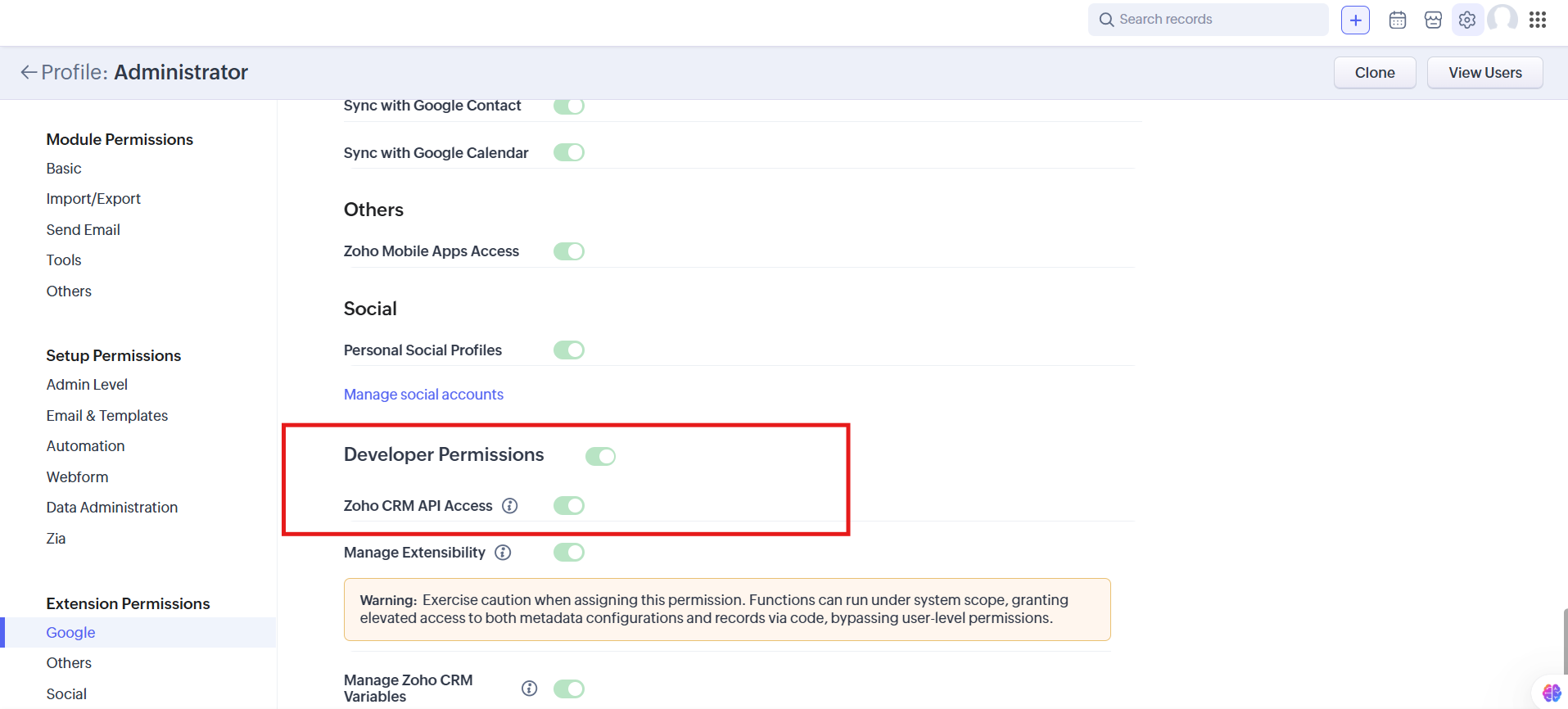 Scroll to the bottom of the profile settings page and find the **Developer Permissions** section.
Toggle the **Zoho CRM API Access** switch to **ON**. The switch displays green when enabled.
Scroll to the bottom of the profile settings page and find the **Developer Permissions** section.
Toggle the **Zoho CRM API Access** switch to **ON**. The switch displays green when enabled.
 Click **Save** to apply the updated permissions.
## Verification
After enabling API access, verify the configuration:
The profile should display **API Access** status as **ON**.
User authentication should succeed with API credentials or OAuth tokens.
API calls should no longer return permission errors.
## Troubleshooting
If API calls still fail after enabling access, check the following common issues:
| Issue | Solution |
| ------------------------- | -------------------------------------------------------------- |
| Incorrect profile updated | Verify you edited the correct profile assigned to the API user |
| Session not refreshed | Ask the user to log out and log back in |
| IP restrictions | Check if IP-based access restrictions are blocking API calls |
| OAuth scope | Verify OAuth token has the required scopes |
## Security Best Practices
Follow these security recommendations when managing API access:
* **Enable selectively** - Only enable API access for profiles that require it
* **Avoid broad access** - Do not enable API access for all profiles unnecessarily
* **Regular audits** - Periodically review which profiles have API access enabled
* **Revoke when unused** - Disable API access when integrations are no longer in use
## Need Help?
If you have any questions or need further assistance, feel free to reach out to us at [hey@eazybe.com](mailto:hey@eazybe.com). We're happy to help!
Click **Save** to apply the updated permissions.
## Verification
After enabling API access, verify the configuration:
The profile should display **API Access** status as **ON**.
User authentication should succeed with API credentials or OAuth tokens.
API calls should no longer return permission errors.
## Troubleshooting
If API calls still fail after enabling access, check the following common issues:
| Issue | Solution |
| ------------------------- | -------------------------------------------------------------- |
| Incorrect profile updated | Verify you edited the correct profile assigned to the API user |
| Session not refreshed | Ask the user to log out and log back in |
| IP restrictions | Check if IP-based access restrictions are blocking API calls |
| OAuth scope | Verify OAuth token has the required scopes |
## Security Best Practices
Follow these security recommendations when managing API access:
* **Enable selectively** - Only enable API access for profiles that require it
* **Avoid broad access** - Do not enable API access for all profiles unnecessarily
* **Regular audits** - Periodically review which profiles have API access enabled
* **Revoke when unused** - Disable API access when integrations are no longer in use
## Need Help?
If you have any questions or need further assistance, feel free to reach out to us at [hey@eazybe.com](mailto:hey@eazybe.com). We're happy to help!