> ## Documentation Index
> Fetch the complete documentation index at: https://help.eazybe.com/llms.txt
> Use this file to discover all available pages before exploring further.
# Edit Label and Funnel
> Learn how to edit, reorder, and manage your labels and funnels in EazyBe for better organization.
Manage your existing labels and funnels by editing their settings, reordering their position, or controlling their visibility in the top bar.
## Accessing the Edit Function
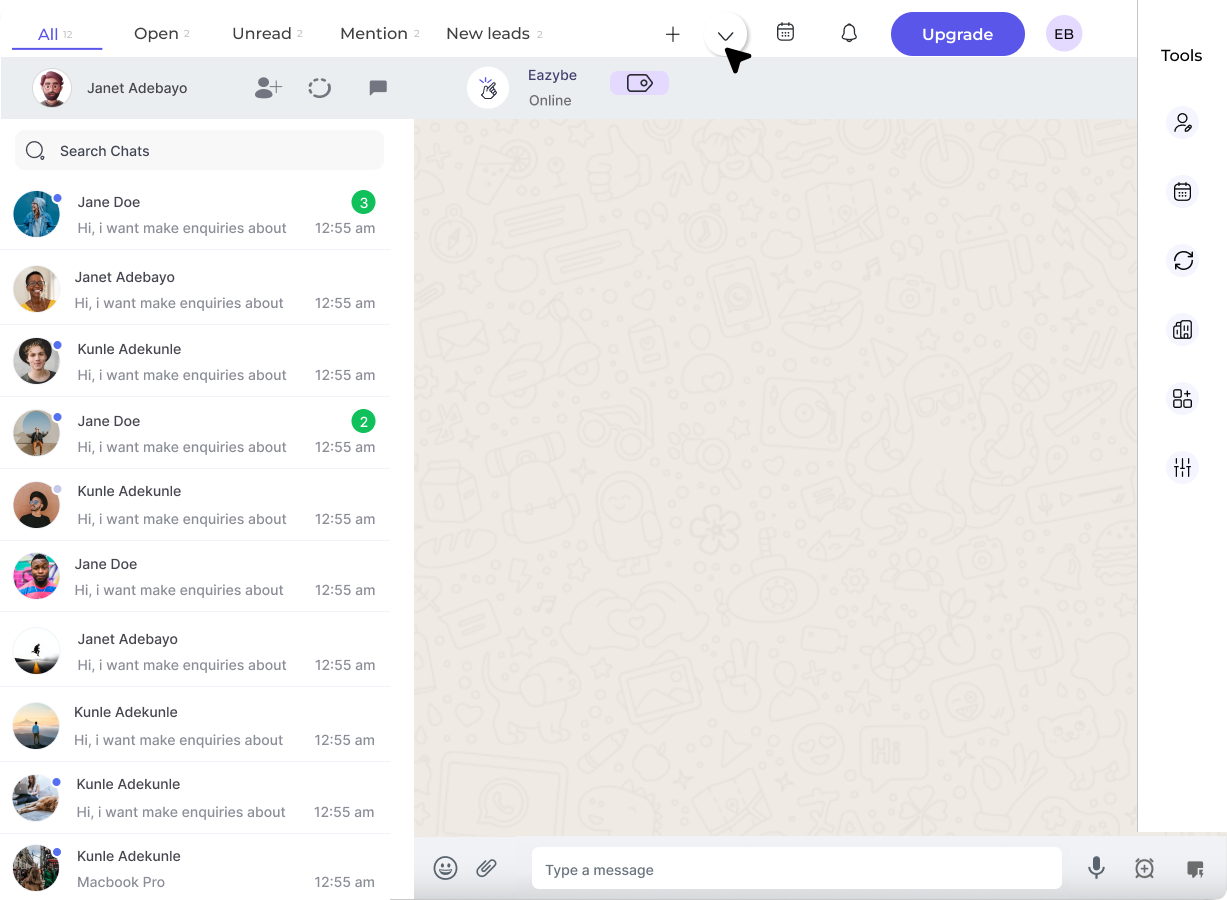
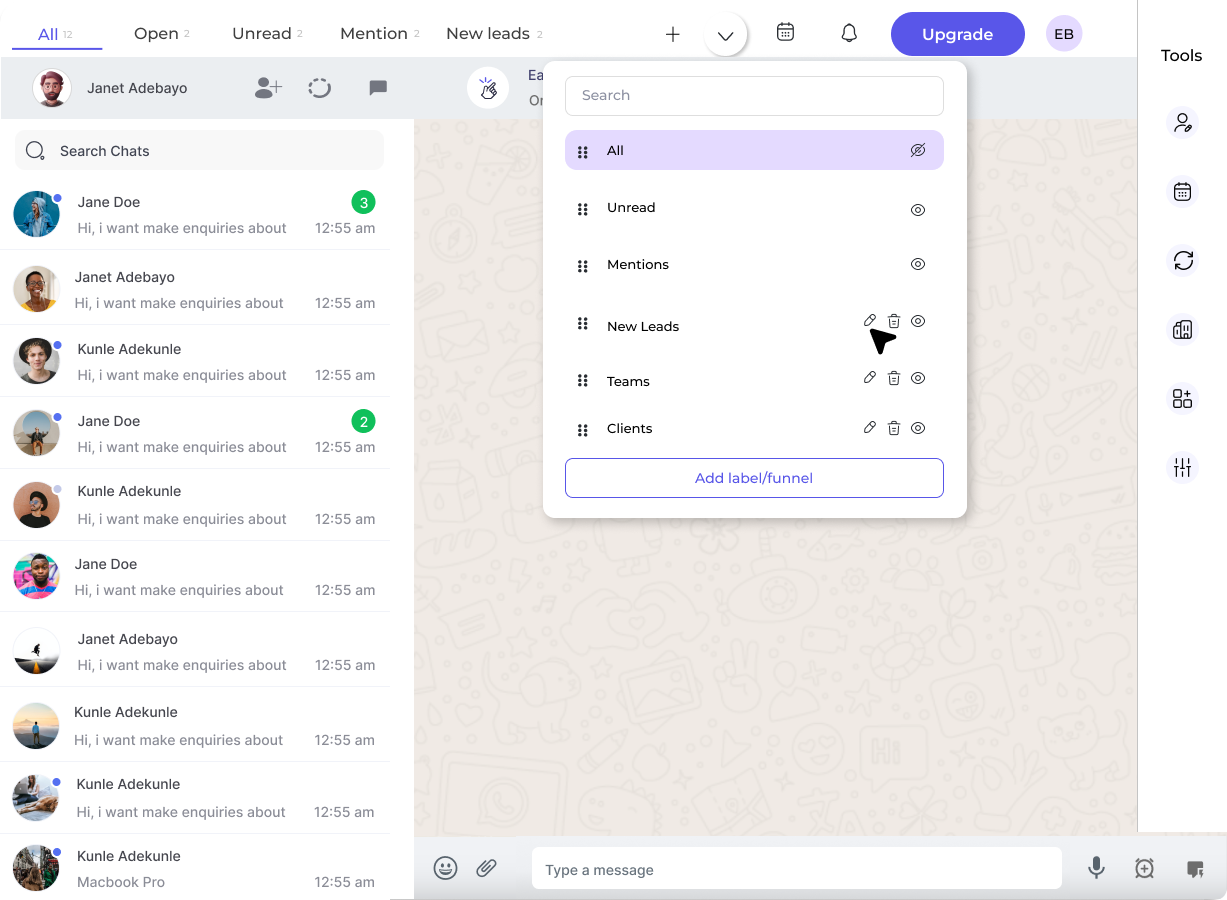
Click on the **Edit Label** dropdown to access label and funnel management options.
 ## Managing Labels and Funnels
### Reorder Labels
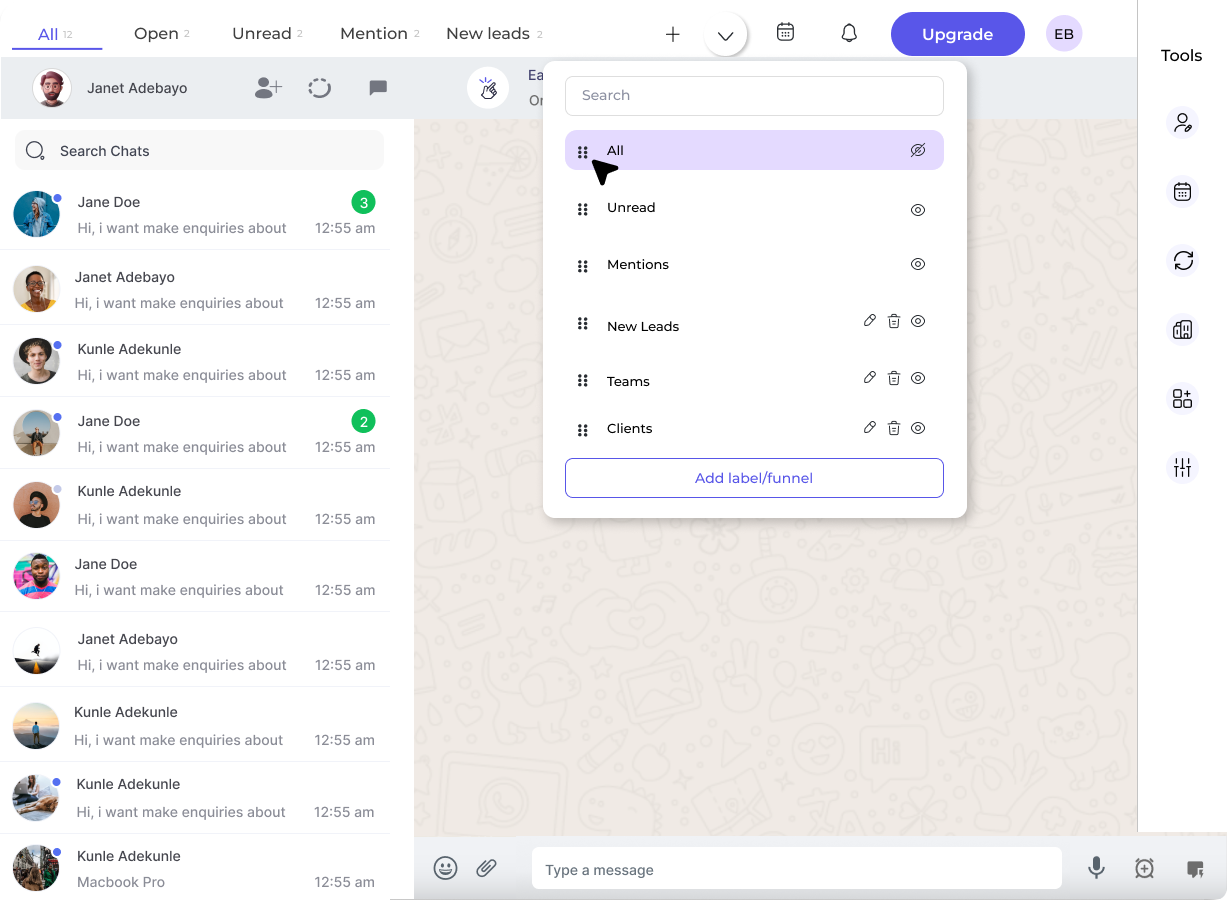
You can reorder the labels in the top bar by using the drag handles.
Use the **dots** on the sidebar and drag the required labels to your desired position.
## Managing Labels and Funnels
### Reorder Labels
You can reorder the labels in the top bar by using the drag handles.
Use the **dots** on the sidebar and drag the required labels to your desired position.
 ### Toggle Visibility
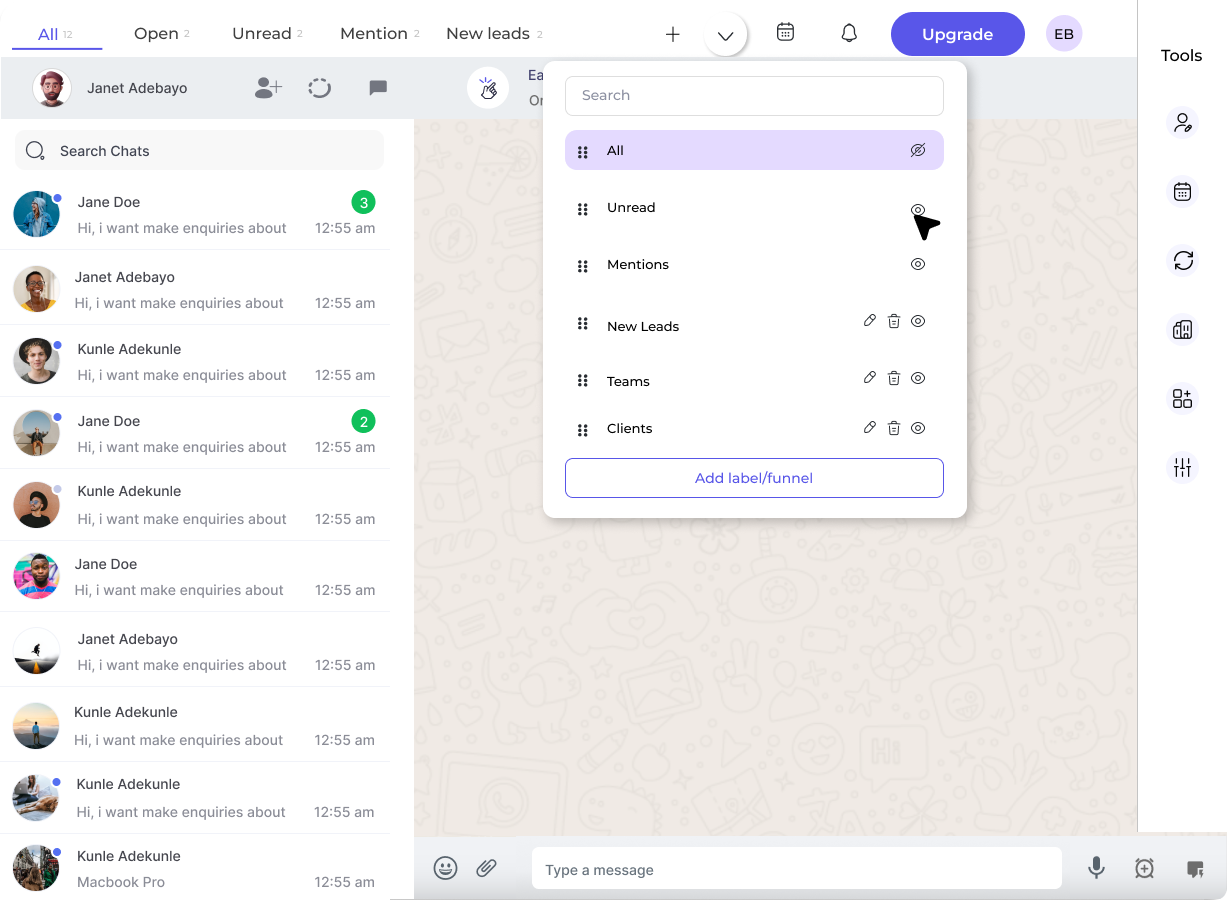
Control which labels appear in the top navigation bar.
Click the **eye button** to toggle the visibility of labels on the top bar.
### Toggle Visibility
Control which labels appear in the top navigation bar.
Click the **eye button** to toggle the visibility of labels on the top bar.
 ### Create New Entry
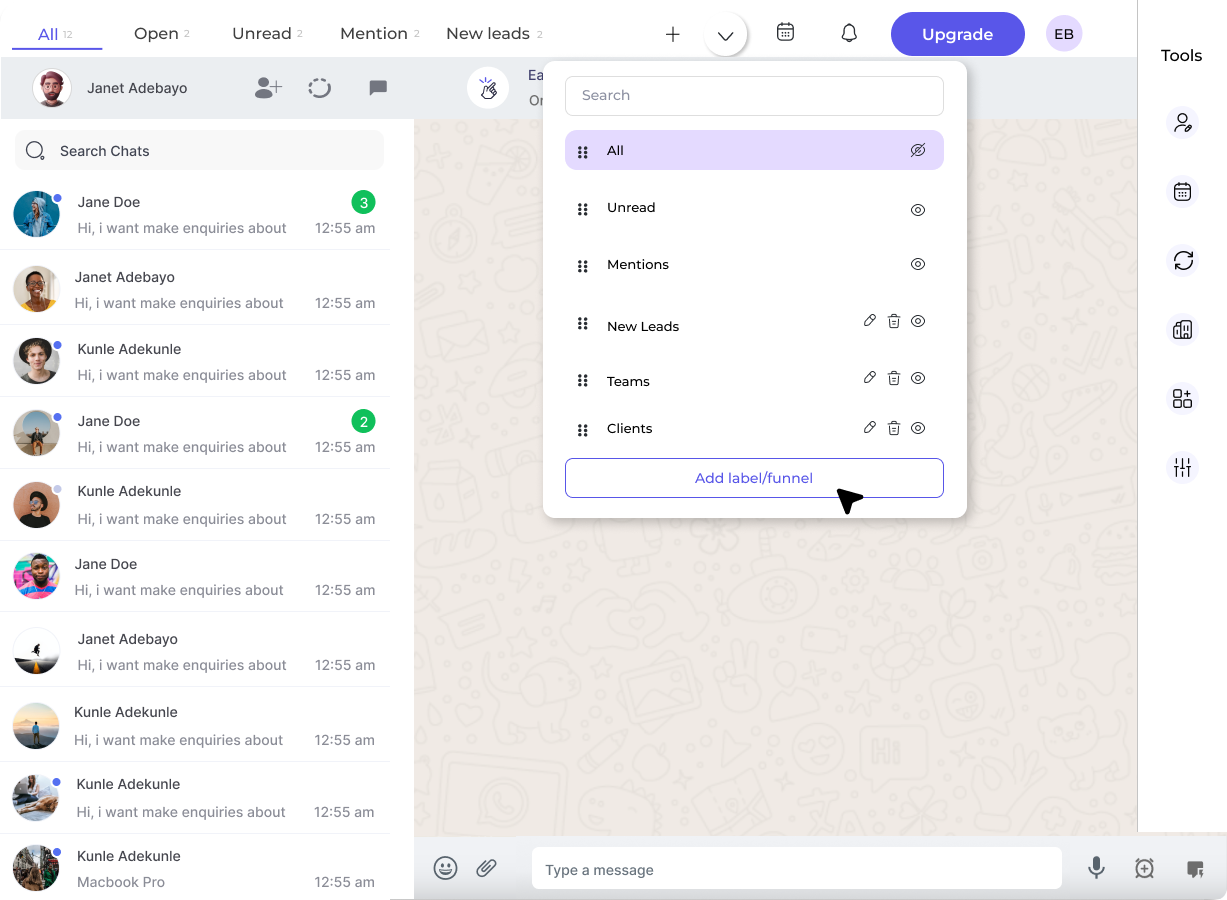
Add new labels or funnels directly from the management panel.
Click on the **Add Label/Funnel** button to create a new entry.
### Create New Entry
Add new labels or funnels directly from the management panel.
Click on the **Add Label/Funnel** button to create a new entry.
 ### Edit or Delete Entries
Modify or remove existing labels and funnels.
Click on the respective **Edit** or **Delete** buttons to modify or remove the label/funnel you've created.
### Edit or Delete Entries
Modify or remove existing labels and funnels.
Click on the respective **Edit** or **Delete** buttons to modify or remove the label/funnel you've created.
 Deleting a label or funnel is permanent. Make sure you want to remove it before confirming the deletion.
Use the visibility toggle to hide labels you don't need frequently without deleting them. You can always show them again later.
## Need Help?
If you have any questions or need further assistance, feel free to reach out to us at [hey@eazybe.com](mailto:hey@eazybe.com). We're happy to help!
Deleting a label or funnel is permanent. Make sure you want to remove it before confirming the deletion.
Use the visibility toggle to hide labels you don't need frequently without deleting them. You can always show them again later.
## Need Help?
If you have any questions or need further assistance, feel free to reach out to us at [hey@eazybe.com](mailto:hey@eazybe.com). We're happy to help!