> ## Documentation Index
> Fetch the complete documentation index at: https://help.eazybe.com/llms.txt
> Use this file to discover all available pages before exploring further.
# Business Label
> Learn how to use WhatsApp Business Labels with the EazyBe Chrome Extension to organize and filter your conversations.
Organize your WhatsApp chats using business labels through the EazyBe Chrome Extension. Create, view, manage, and filter conversations by category, status, or priority.
## Getting Started
Download and install the **Eazybe Chrome Extension** from the Chrome Web Store if you haven't already.
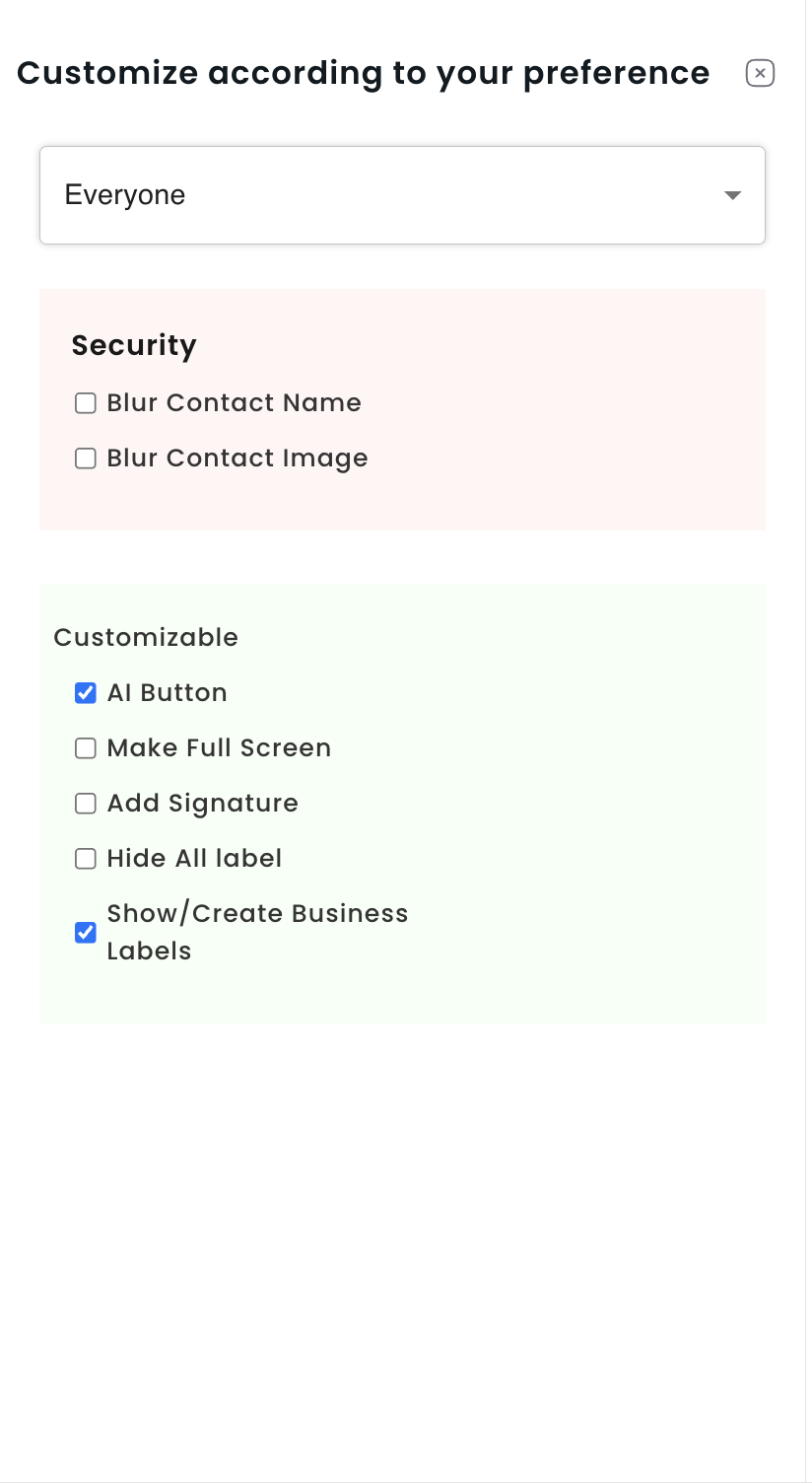 Open WhatsApp Web, navigate to the Eazybe sidebar at the bottom, and click **Settings**.
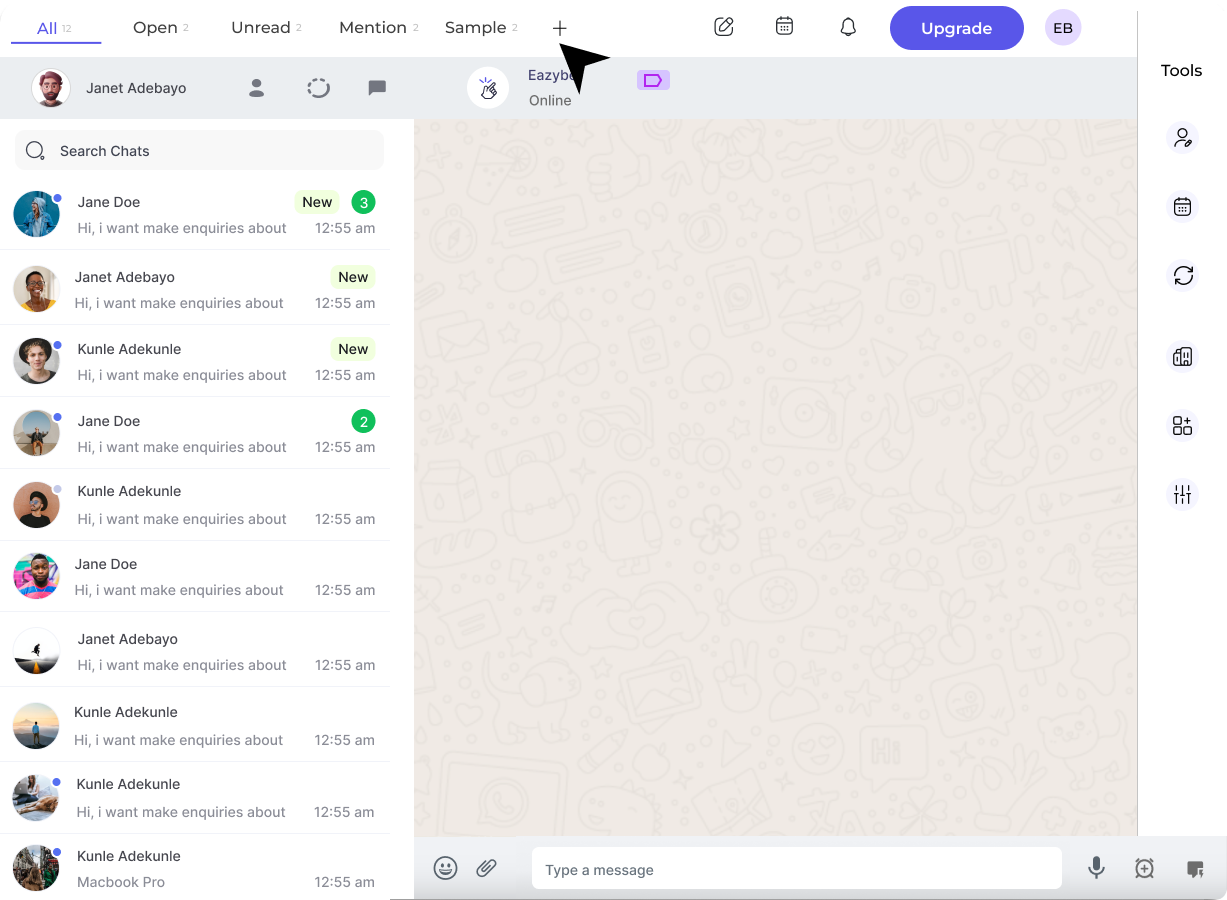 Locate and activate the **"Show/Create Business Labels"** option to enable the feature.
## Creating and Managing Labels
Click **"+ Create New Label"**, enter a name, assign a color, and save your new label.
Locate and activate the **"Show/Create Business Labels"** option to enable the feature.
## Creating and Managing Labels
Click **"+ Create New Label"**, enter a name, assign a color, and save your new label.
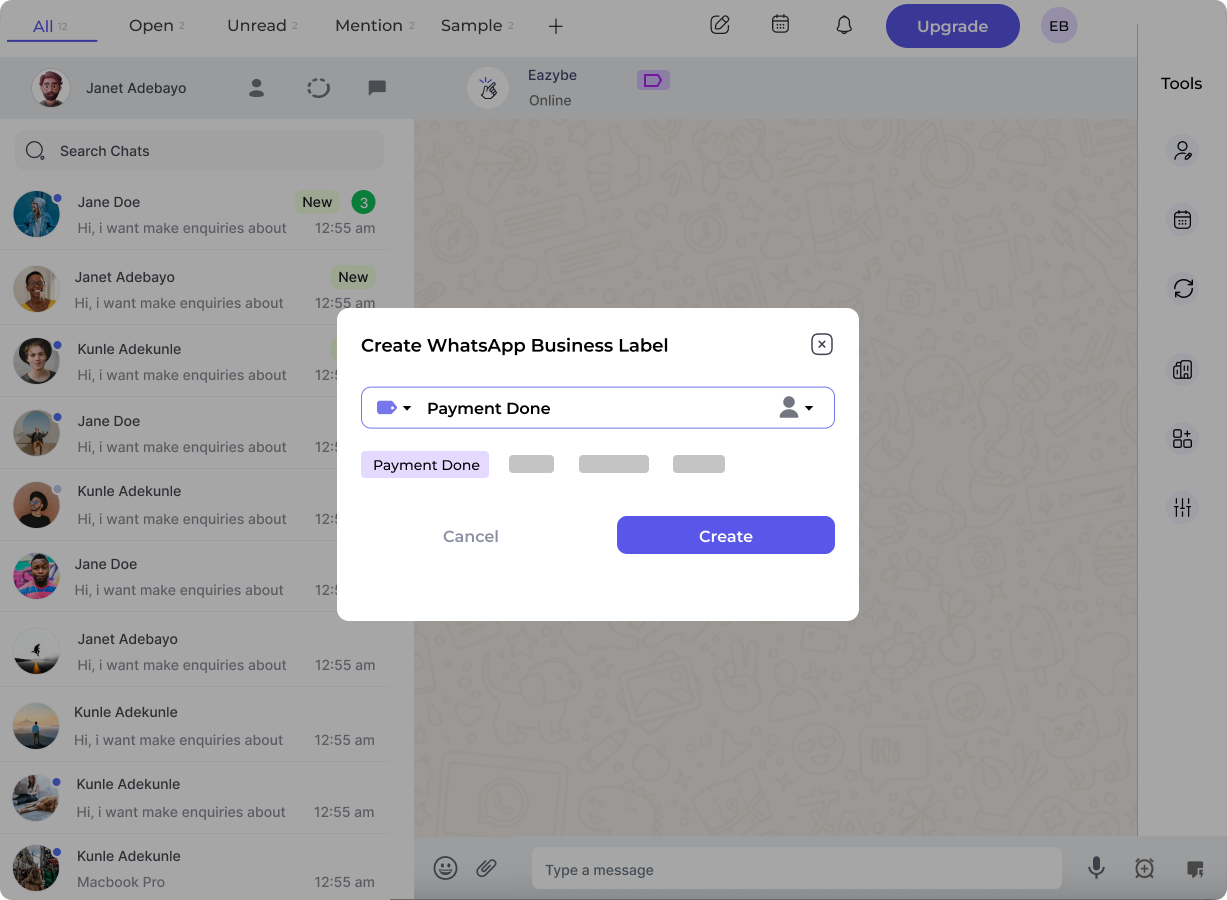 Open a chat, click the **Label Icon** in the Eazybe toolbar, and select the appropriate labels for that conversation.
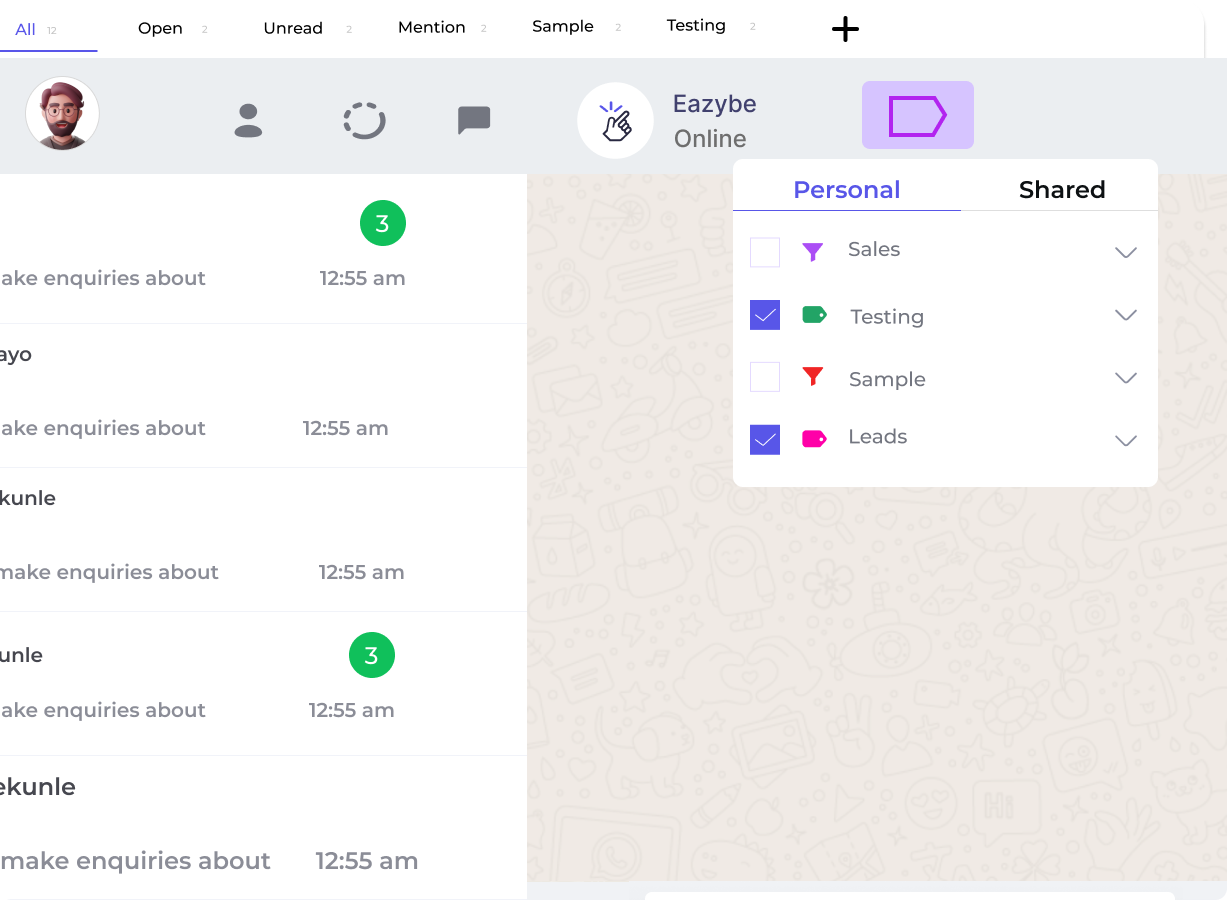 Use the **Label Filter** to quickly find conversations by specific categories, status, or priority.
Modify labels via the **edit icon** or remove them via the **delete icon** in the Labels section.
## Label Organization Tips
Create labels like "New Lead", "In Progress", "Completed" to track conversation status.
Use labels like "High Priority", "Medium", "Low" to prioritize your responses.
Organize by "Sales", "Support", "Billing" to route conversations to the right team.
Track where leads come from with labels like "Website", "Referral", "Ad Campaign".
Color-code your labels to quickly identify conversation types at a glance in your chat list.
## Need Help?
If you have any questions or need further assistance, feel free to reach out to us at [hey@eazybe.com](mailto:hey@eazybe.com). We're happy to help!
Use the **Label Filter** to quickly find conversations by specific categories, status, or priority.
Modify labels via the **edit icon** or remove them via the **delete icon** in the Labels section.
## Label Organization Tips
Create labels like "New Lead", "In Progress", "Completed" to track conversation status.
Use labels like "High Priority", "Medium", "Low" to prioritize your responses.
Organize by "Sales", "Support", "Billing" to route conversations to the right team.
Track where leads come from with labels like "Website", "Referral", "Ad Campaign".
Color-code your labels to quickly identify conversation types at a glance in your chat list.
## Need Help?
If you have any questions or need further assistance, feel free to reach out to us at [hey@eazybe.com](mailto:hey@eazybe.com). We're happy to help!